Mac users often search for the best Mac cleaner because of slow performance, low storage warnings, or a sense that their system has accumulated clutter over time. While macOS includes built-in maintenance features, it does not actively remove leftover app files, large forgotten downloads, or duplicate data created through years of use. As a result, third-party Mac cleaner tools continue to attract attention, some genuinely helpful, others less so.
This guide focuses on separating reliable Mac cleaner apps from unnecessary or misleading ones. Instead of vague claims about “speed boosts,” the article evaluates specific, well-known Mac cleaner tools, explains what they actually do, and clarifies which use cases they are suited for. It also ties into related Mac workflows, such as optimizing app setups with bundles, reinstalling macOS safely when things go wrong, understanding new macOS features, or running Windows on a Mac when required. By the end, readers should have a clear understanding of which Mac cleaner tools are worth using, which can be skipped, and why I approach Mac cleaning as a targeted task rather than a routine habit.
Best Mac Cleaner Tools (Quick Comparison)
Tool | Primary Strength | Best Use Case |
CleanMyMac X | All-in-one cleanup and maintenance | General users |
DaisyDisk | Visual storage analysis | Disk space management |
CCleaner for Mac | Lightweight cleanup | Simple, fast cleaning |
OnyX | Advanced system maintenance | Power users |
MacCleaner Pro | Modular cleanup tools | Granular control |
What Is a Mac Cleaner
A Mac cleaner is a utility designed to help users identify and remove unnecessary files that macOS does not automatically clear. These typically include application caches, old log files, unused language resources, large forgotten downloads, and remnants left behind after uninstalling apps.
Importantly, a Mac cleaner does not replace macOS system maintenance, nor does it fundamentally “optimize” hardware. Its value lies in visibility and convenience, surfacing data that is safe to remove and centralizing cleanup tasks that would otherwise require manual searching through system folders.
Best Mac Cleaner Tools Reviewed
1. CleanMyMac X: Best Overall Mac Cleaner
Key Features
- Cleanup Type: Caches, logs, app leftovers, malware scan
- App Uninstaller: Yes
- Duplicate Finder: Yes
- Background Monitoring: Optional
- Pricing Model: Subscription or one-time license
CleanMyMac X is one of the most comprehensive Mac cleaner tools available. It combines storage cleanup, application uninstallation, duplicate file detection, and basic malware scanning into a single interface. What sets it apart is transparency; every cleanup category can be reviewed before files are removed.
While it includes optimization features such as login item management, these are optional and do not interfere with macOS system processes. Used conservatively, CleanMyMac X is effective for users who want one tool to handle multiple cleanup tasks without digging into system folders.
Why It Stands Out
- Clear previews and reversible cleanup actions
- Well-maintained, Apple-notarized app
- Broad feature set without forced automation
Best For: Users who want a single, guided Mac cleaner that handles storage, apps, and duplicates safely.
2. DaisyDisk: Best Mac Cleaner for Storage Management

Key Features
- Cleanup Type: Large files and disk usage visualization
- App Uninstaller: No
- Duplicate Finder: No
- Malware Scan: No
- Pricing Model: One-time purchase
DaisyDisk focuses exclusively on disk space analysis. Instead of “cleaning” automatically, it visually maps storage usage and helps users locate large, forgotten files quickly. This approach avoids accidental deletion and gives full control over what gets removed.
Because DaisyDisk does not automatically delete system files or caches, it is best viewed as a storage discovery tool rather than a traditional cleaner. It excels at identifying space hogs such as old video projects, virtual machine files, or archived installers.
Why It Stands Out
- Extremely clear visual representation of disk usage
- No background processes or system interference
- Encourages deliberate cleanup decisions
Best For: Users who need to reclaim disk space without touching system files.
3. CCleaner for Mac: Best Lightweight Mac Cleaner
Key Features
- Cleanup Type: Browser caches, system caches
- App Uninstaller: Limited
- Duplicate Finder: No
- Malware Scan: No
- Pricing Model: Free tier with paid upgrades
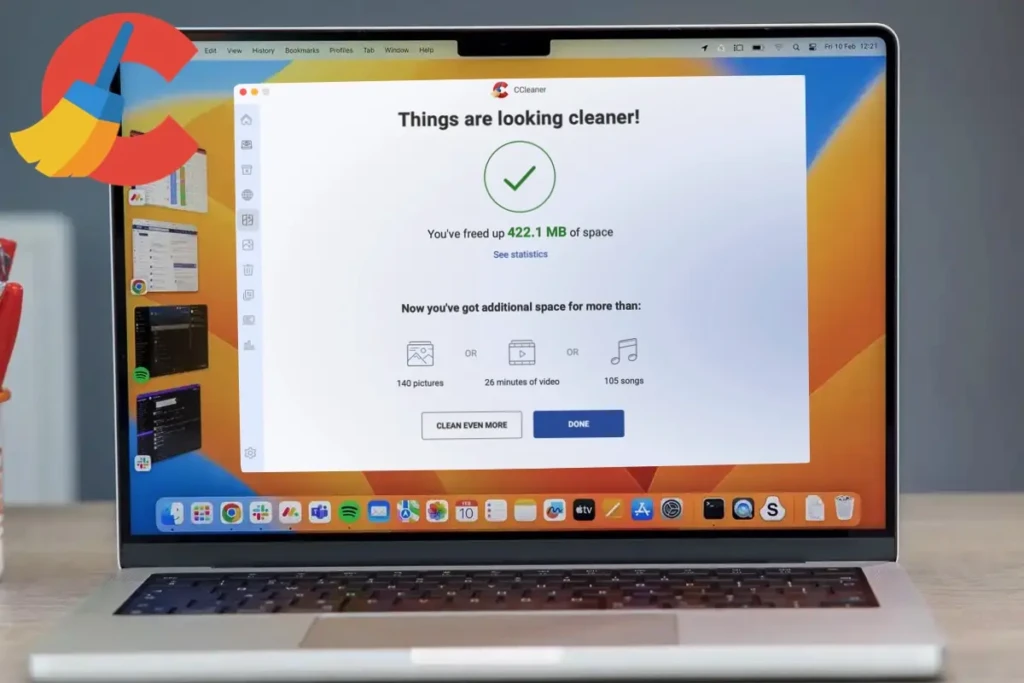
CCleaner for Mac offers basic cleanup functionality with minimal overhead. It targets browser data, temporary files, and simple system clutter, making it useful for quick, occasional cleaning.
However, its feature set is limited compared to more modern Mac cleaners, and advanced cleanup options require paid upgrades. It works best when used sparingly and with manual review enabled.
Why It Stands Out
- Fast scans and low system impact
- Familiar interface for long-time CCleaner users
- Free version available
Best For: Users who want quick, surface-level cleanup without advanced features.
4. OnyX: Best Free Advanced Mac Cleaner

Key Features
- Cleanup Type: System caches, maintenance scripts
- App Uninstaller: No
- Duplicate Finder: No
- Malware Scan: No
- Pricing Model: Free
OnyX is a powerful system utility rather than a traditional cleaner. It exposes many macOS maintenance options normally hidden from users, including cache rebuilding and system verification tasks.
Because OnyX can modify low-level system components, it is not recommended for casual users. When used carefully, it can resolve specific issues, but it requires understanding what each option does.
Why It Stands Out
- Completely free
- Deep access to macOS maintenance tasks
- Trusted by long-time Mac power users
Best For: Experienced users who want manual control over macOS maintenance.
5. MacCleaner Pro: Best Modular Mac Cleaner

Key Features
- Cleanup Type: Junk files, duplicates, app leftovers
- App Uninstaller: Yes
- Duplicate Finder: Yes
- Malware Scan: No
- Pricing Model: Paid suite
MacCleaner Pro uses a modular approach, allowing users to install only the tools they need. This design reduces background load while offering focused utilities for specific cleanup tasks.
While effective, it lacks the polish and transparency of top-tier competitors and is best suited for users who prefer selecting individual tools rather than an all-in-one solution.
Why It Stands Out
- Modular tool selection
- Good balance between control and automation
- Focused utilities rather than one monolithic app
Best For: Users who want granular cleanup tools without background services.
Mac Cleaner vs Manual Cleanup
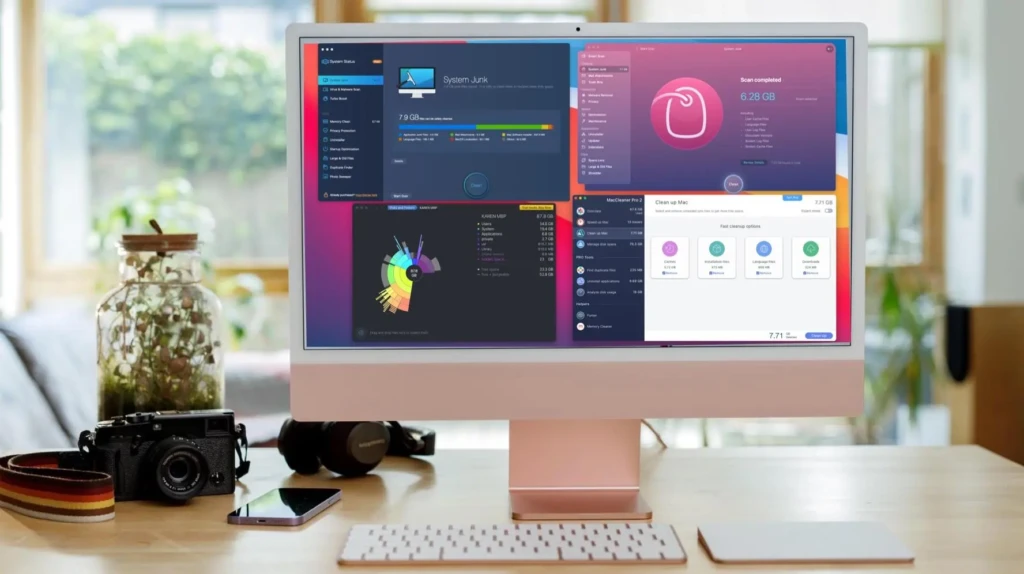
Manual cleanup using Finder and macOS storage tools remains the safest option for advanced users. However, Mac cleaner apps reduce time and effort by centralizing tasks that would otherwise require navigating Library folders.
For users managing additional workflows, such as running Windows for Mac, reinstalling macOS safely, or maintaining productivity setups, using a cleaner occasionally can complement broader system management strategies.
Do Macs Actually Need Cleaner Software
For many users, the answer is sometimes, not always. macOS manages memory, background processes, and system files well on its own. However, over time, real storage waste accumulates from:
- Trial apps that were deleted incompletely
- Multiple versions of installers and disk images
- Duplicate media files synced across folders
- Browser and app caches that grow unchecked
When storage drops too low, macOS performance can degrade. In those situations, a focused Mac cleaner can be useful. For users who rarely install software or already manage files carefully, cleaner apps may add little value.
Are Mac Cleaner Apps Safe?
They can be, if you choose carefully. Safety checklist:
- Always preview deletes. Never allow automatic deletions without review.
- Prefer Apple-notarized apps or those with strong independent reviews.
- Backup before major cleans. Use Time Machine or another backup to allow recovery.
- Avoid granting full disk access unless necessary. If a cleaner requests full disk access, confirm the exact reason.
- Check the privacy policy. Ensure the app does not collect or monetize your files.
If a tool requires intrusive permissions and provides no clear explanation, do not grant them.
What to Look for in the Best Mac Cleaner

When evaluating Mac cleaner tools, prioritize safety and clarity. Key criteria:
1. Transparency and Preview
The cleaner should show exactly what will be removed, with clear folder paths and file names. Any tool that performs sweeping deletions without a preview is a red flag.
2. Granular Control
Good cleaners let users choose categories (cache, logs, localizations, mail downloads) and exclude directories. One-click “deep clean” buttons are convenient but riskier.
3. Permission Model
A reputable cleaner requests only the permissions it needs and uses standard macOS APIs. Avoid apps that ask for full disk access without explaining why.
4. Safety Nets
Look for built-in backup or quarantine features (such as moving to the Trash or a temporary hold) so files can be restored if removed by mistake.
5. Focused Features, Not Overreach
The best cleaners do a few things well: duplicate detection, large-file identification, safe app uninstallation, and adware scans. Bundled “system boosters” and RAM defragmenters are typically unnecessary on modern macOS.
6. Vendor Reputation and Support
Prefer vendors with clear privacy policies, timely updates, and responsive support. Independent security reviews or Apple notarization are positive signals.
7. No Hidden Monetization
Avoid apps that aggressively push in-app purchases, require constant renewals for basic features, or bundle unrelated software.
Common Myths About Mac Cleaner Apps
Myth: Cleaners dramatically improve performance.
Reality: If the Mac is slow due to CPU-bound tasks or insufficient RAM, deleting caches will not fix the root cause. Cleaners mainly address storage and leftover files.
Myth: macOS does not need maintenance.
Reality: macOS automates many maintenance tasks, but user-level clutter (old installer files, duplicates, local backups) can still consume significant storage over time.
Myth: All cleaners are scams.
Reality: Some cleaners are low-quality or malicious, but reputable tools with clear behavior can be helpful when used cautiously.
Who Should Use a Mac Cleaner
- Users with limited free storage who need a safe way to identify and remove disk hogs.
- People who frequently install and remove apps and want to ensure no residual files remain.
- Users experiencing adware or browser hijackers that require targeted removal.
- Nontechnical users who want a guided, single UI for cleanup, provided they choose a trustworthy app.
Avoid cleaners if your machine is well-maintained, has ample free space, and shows no performance issues.
Conclusion
The best Mac cleaner is not the one that promises dramatic speed improvements, but the one that offers visibility, control, and safety. Tools like CleanMyMac X and DaisyDisk succeed because they help users make informed cleanup decisions rather than hiding actions behind automated buttons. Meanwhile, lightweight and free options serve specific roles but should be used with clear expectations.
Mac cleaner apps are best treated as problem-solving tools, not routine maintenance requirements. When storage pressure, leftover app files, or duplicate data become an issue, the right cleaner can save time and reduce frustration. Based on practical usage and long-term reliability, I see Mac cleaners as occasional utilities rather than permanent background solutions, and I recommend choosing one that aligns closely with how you actually use your Mac.
FAQs About the Best Mac Cleaner
They can if configured incorrectly. Always review the deletion list and keep backups.
They can help by freeing disk space, important for systems low on free storage, but they rarely fix CPU or memory bottlenecks.
Newer Macs with adequate storage and recent macOS versions often need less third-party maintenance; cleaners are optional.
Run checks as needed: quarterly for active users and only when storage issues occur for casual users.