
A crashing app is a different problem from an iPhone that’s generally slow. A sluggish iPhone affects everything across the board. A crashing app usually has a specific cause tied to that app, its cached data, or its compatibility with your current iOS version. The distinction matters because the fixes are different: optimising your whole phone won’t necessarily stop one stubborn app from closing every time you try to use it.
This guide focuses specifically on app crashes, such as sudden closes, freezes mid-use, and apps that won’t open past the loading screen. The fixes are ordered from quickest to most involved, so you can stop as soon as the problem resolves rather than working through the full list. Most people find the solution somewhere in the first four steps.
Why iPhone Apps Crash
App crashes on iPhone almost always fall into one of four categories, and identifying which applies to you points directly to the right fix.
Corrupted app data or cache is the most common cause. Apps store temporary files, such as cached images, session data, and login tokens, that accumulate over time. When those files become corrupted or conflict with an app update, the app crashes on launch or mid-session. The fix is to offload or reinstall the app to clear the corrupted data entirely.
App and iOS version mismatch is the second most common cause, and it spikes after major iOS updates. An app built and tested against iOS 17 may behave unpredictably on iOS 18 until the developer releases a compatibility update. Similarly, running an outdated app on a current iOS version creates the same incompatibility from the other direction.
Insufficient storage causes crashes when an app can’t write temporary data because the iPhone’s storage is full. Apps need a buffer of free space to cache content, save state, and process media. Below roughly 1–2GB of free space, crashes become significantly more frequent.
App-side bugs are the fourth category and are crashes caused by code issues in the app itself, unrelated to your specific device. These typically affect many users simultaneously and are resolved by the developer in the next app update. Checking the App Store reviews for recent crash reports is the fastest way to determine whether this is the cause.
How to Fix Your iPhone
Fix 1: Force Close and Reopen the App
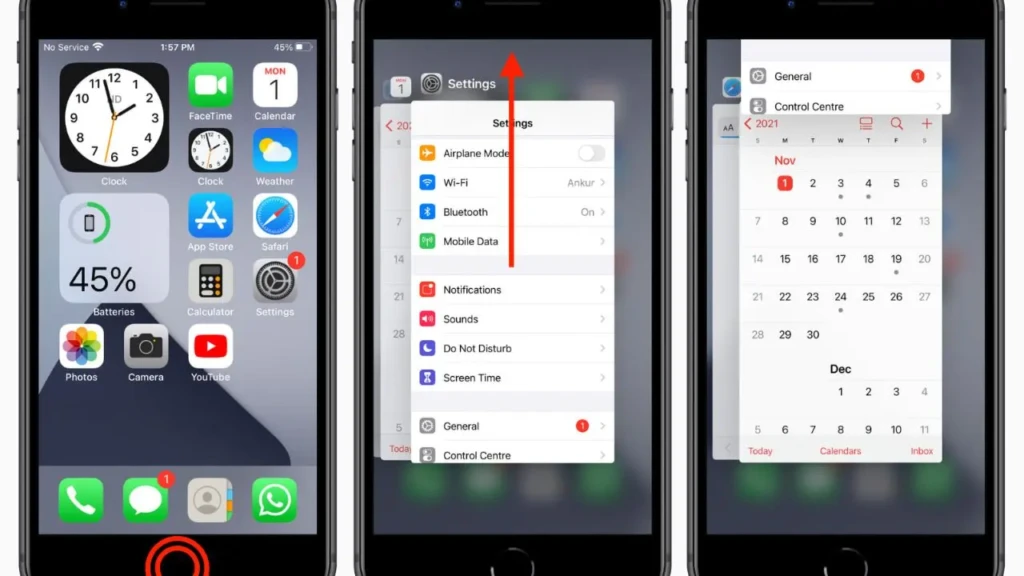
Start here. Force-closing an app clears its active memory state, which resolves crashes caused by a corrupted session without requiring any changes to settings or data.
- On iPhone with Face ID: Swipe up from the bottom of the screen and pause briefly to open the App Switcher. Swipe up on the crashing app’s card to close it. Wait five seconds, then tap the app icon to reopen.
- On iPhone with a Home button: Double-press the Home button to open the App Switcher. Swipe up on the crashing app’s card. Wait five seconds, then reopen.
If the app opens and works normally, you’re done. If it crashes again immediately, move on. Force-closing hasn’t fixed the underlying issue, and repeating it won’t change the outcome.
Fix 2: Restart Your iPhone
A full restart is more thorough than force-closing an app because it clears all of RAM, resets network connections, and gives iOS a fresh start. If multiple apps are crashing or an app crashes immediately on relaunch, try this before updating or reinstalling anything.
- Face ID iPhones: Press and hold the Side button and either Volume button until the power slider appears. Drag to power off, wait 10 seconds, then press the Side button to restart.
- Home button iPhones: Press and hold the Side or Top button until the slider appears. Power off, wait 10 seconds, restart.
Fix 3: Update the App
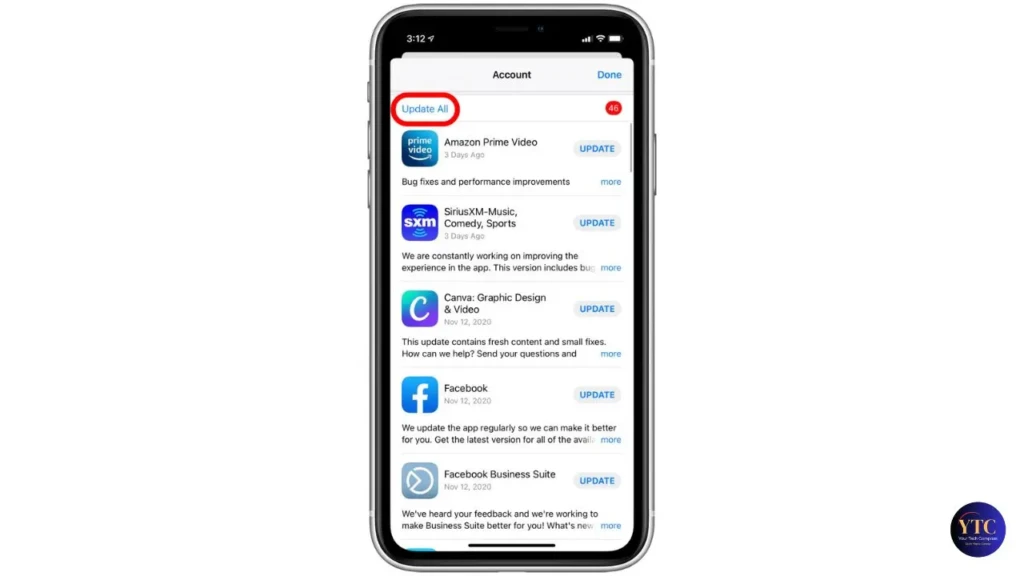
If the crash occurs after a recent iOS update or if you haven’t updated the app in a while, an outdated app version is likely the culprit. Developers regularly release updates to fix bugs, address iOS compatibility issues, and patch reported crashes.
Open the App Store, tap your profile picture in the top-right corner, and scroll down to see pending updates. Tap Update next to the crashing app, or Update All to update everything at once. After the update installs, reopen the app and test it.
If an update is available and fixes a known crash, this is typically the fastest resolution.
Fix 4: Update iOS
Apple’s iOS updates frequently include fixes for system-level bugs that cause apps to crash. If several apps are crashing after a recent iOS update, rather than just one, it’s often a system bug Apple has already patched in a subsequent point release.
Go to Settings → General → Software Update. If an update is available, download and install it over Wi-Fi with your iPhone plugged in. After the update and restart, test the crashing app to confirm it works, then proceed with further fixes.
Fix 5: Free Up Storage Space
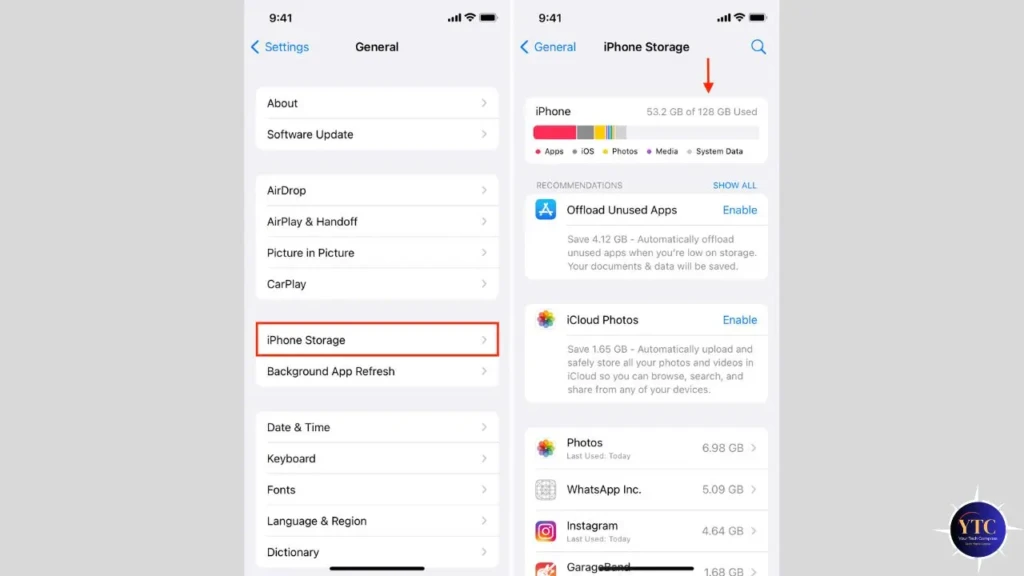
When your iPhone’s available storage drops below 1–2GB, apps begin crashing because they can’t write the temporary files they need to function. Check your current storage at Settings → General → iPhone Storage; you’ll see a colour-coded breakdown by category and a list of apps sorted by size.
The fastest ways to recover storage are deleting large videos you’ve already backed up, enabling iCloud Photos to store originals in the cloud while keeping smaller compressed copies on your device, and using the Offload Unused Apps recommendation at the top of the iPhone Storage screen to remove apps you rarely open while preserving their data.
For a full walkthrough of storage management and its impact on overall iPhone performance, our How to Speed Up Your iPhone guide covers this in more depth.
Fix 6: Offload and Reinstall the App
This is the most effective fix for crashes caused by corrupted app data or cache. Offloading removes the app itself while preserving all its documents and data on your iPhone. Reinstalling from the App Store then gives you a clean version of the app without the corrupted files that were causing the crash.
Go to Settings → General → iPhone Storage, scroll to the crashing app, and tap it. Tap the Offload App and confirm. Once offloaded, tap Reinstall App to pull a fresh copy from the App Store and restore your saved data. Open the app and test it.
If offloading doesn’t resolve the crash, a full delete may be needed. Tap Delete App instead of Offload App; this removes both the app and its data entirely. Reinstall from the App Store. You’ll need to log back in, and any app-specific data not backed up to iCloud will be lost, so only use this if offloading hasn’t worked.
Fix 7: Check Network and Low Power Mode
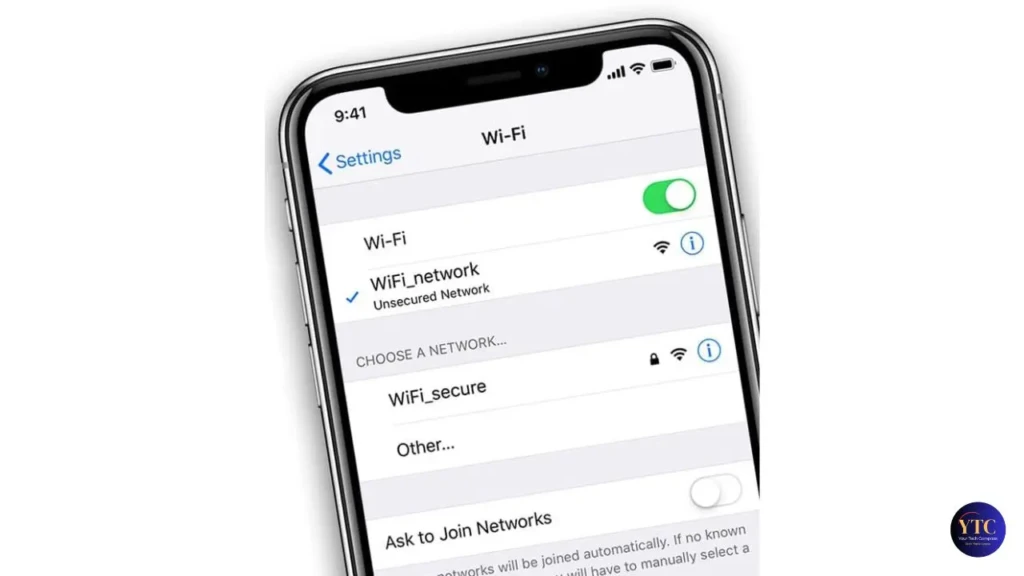
Some apps crash when they can’t load content or sync data; this looks like an app problem, but it’s actually a connectivity issue. Apps that require a live connection to function (streaming services, news apps, social media) will often crash or freeze if the network is poor, rather than displaying an error message.
Toggle Wi-Fi off and back on in Settings → Wi-Fi, or switch between Wi-Fi and cellular to see if the crash is network-dependent. If the app works on one connection but not the other, the issue is with that specific network, not the app.
Low Power Mode is a separate cause worth checking. When Low Power Mode is active, iOS restricts background app refresh and certain background processing tasks; some apps that depend on these features will behave unpredictably or crash when they are cut off. Check Settings → Battery and disable Low Power Mode if it’s active, then retest the crashing app.
Fix 8: Reset All Settings
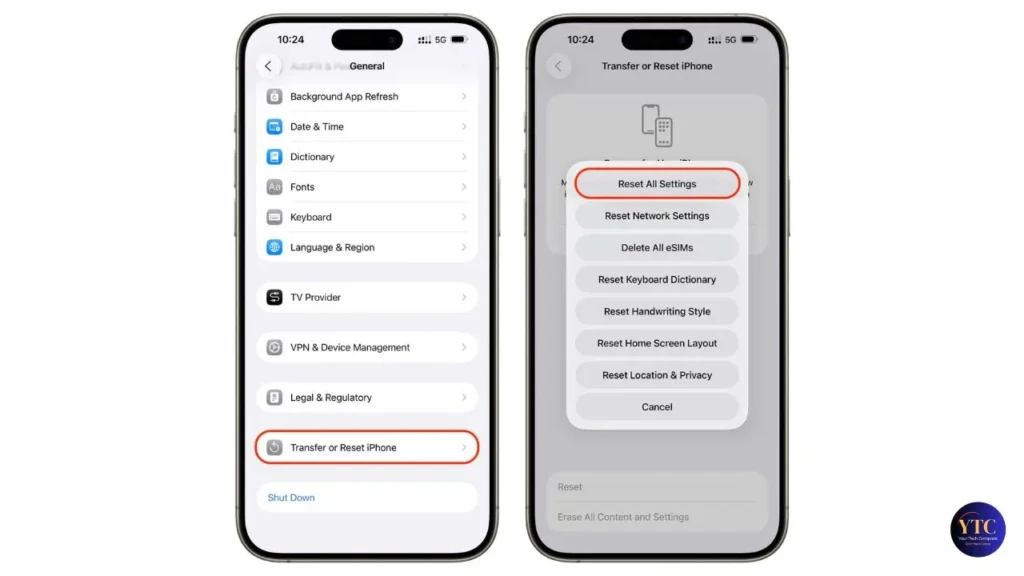
If multiple apps are crashing and none of the fixes above have resolved it, resetting all settings clears system configuration conflicts that can accumulate over time, particularly after major iOS updates or after restoring from an older backup. This resets Wi-Fi passwords, Bluetooth pairings, notification preferences, privacy settings, and display settings to their defaults without deleting any apps, photos, or personal data.
Go to Settings → General → Transfer or Reset iPhone → Reset → Reset All Settings and confirm with your passcode. Your iPhone will restart, and you’ll need to reconnect to Wi-Fi and re-pair Bluetooth devices, but everything else remains intact. Test the crashing apps after the reset.
Fix 9: Contact the App Developer
If a single specific app continues crashing after you’ve offloaded, reinstalled, updated iOS, and reset settings, the crash may be a bug in the app itself that no device-side fix will resolve. Check the App Store reviews for the crashing app, filtering by most recent; if other users are reporting the same crash, it confirms the issue is on the developer’s side and that a fix update is likely on the way.
To report the crash directly, open the App Store, navigate to the app’s page, scroll to the Ratings & Reviews section, and tap App Support to reach the developer’s contact page or support forum. Include your iPhone model, iOS version, and a brief description of when the crash occurs; this helps the developer reproduce and fix the issue.
Fix 10: Factory Reset (Last Resort)
If apps are crashing persistently across the board, multiple unrelated apps failing on a fully updated iPhone with adequate storage, a factory reset removes the possibility of a deep iOS software issue as the cause. Back up your iPhone first by going to Settings → your name → iCloud → iCloud Backup → Back Up Now, or to a Mac or PC via Finder or iTunes.
Then go to Settings → General → Transfer or Reset iPhone → Erase All Content and Settings and confirm. Set up your iPhone fresh and restore from your backup when prompted. If crashes stop on a clean install before restoring the backup, the issue was a corrupted backup file; set up a new one and reinstall apps manually rather than restoring from it.
If crashes continue even on a clean install, the issue is hardware rather than software. Contact Apple Support at that point.
Preventing App Crashes Long-Term
Keep at least 2GB of storage free at all times; set a monthly reminder to check Settings → General → iPhone Storage and clear what you no longer need. Update apps promptly rather than deferring updates, since compatibility fixes for the current iOS version are typically included in each release. Restart your iPhone weekly to clear memory buildup before it causes problems. And avoid installing iOS beta versions on a primary device; beta releases introduce instability that gets resolved before the public release, but can cause real crashes in the meantime.
One setting worth adjusting if you’re on an older iPhone: Settings → General → Background App Refresh. Disabling this for apps that don’t genuinely need it reduces background memory pressure, which can contribute to foreground crashes.
FAQs
If an app crashes immediately after a clean reinstall, the crash is almost certainly a bug in the app itself rather than a device issue. Check the App Store reviews for recent reports of the same crash. If others are experiencing it, the developer is likely aware and working on a fix.
Some apps are configured to restrict high-data operations on cellular networks and switch to a lower-bandwidth mode, which can cause instability. Check the app’s in-app settings for a “cellular data” or “data saving” option. Also, check Settings → Cellular and scroll to the crashing app. If cellular data is toggled off for that app, the app will fail to load content and may crash rather than display an error.
It usually means the crash is tied to something device-specific: a different iOS version, different available storage, different network conditions, or corrupted app data specific to that device’s installation. Start with offloading and reinstalling on the iPhone, and make sure the iOS version matches the iPad’s if the iPad is running a newer version.
Final Thoughts
App crashes on iPhone have a narrow set of causes and a clear fix hierarchy. Force-closing and restart solve the majority of session-based crashes immediately. Offloading and reinstalling fixes corrupted data issues that persist through restarts. Updating the app or iOS resolves compatibility crashes that came in after a recent update. Everything beyond that (reset settings, factory reset, developer contact) covers the minority of cases where the common fixes don’t land.
If your iPhone is generally slow, our How to Speed Up Your iPhone guide covers the broader performance picture, including battery health throttling, which sometimes underlies what looks like an app stability issue. Also, if your Android apps are crashing, check out our guide to Fixing Apps Crashing on Android.
At YourTechCompass, every guide is written to give you accurate, practical information; no sponsored fluff, no vague advice. Explore more and find the answers you’re actually looking for.