Picking a note-taking app sounds simple until you actually try to do it. You open a few options, spend an hour setting things up, and still feel like you’ve landed on the wrong one. The problem isn’t that these apps are bad; it’s that they’re designed for very different ways of thinking, and most reviews just list features without telling you which type of person each app is actually built for.
I’ve used all of the apps in this guide for extended periods across real work, writing, and study workflows, not just a quick demo. What I found is that the best note-taking app isn’t the one with the longest feature list; it’s the one that gets out of your way and lets you capture ideas without friction. In this guide, I’ll give you an honest breakdown of each app, who it’s genuinely right for, where it falls short, and how to get started with it quickly.
Quick Comparison: Best Note-Taking Apps at a Glance
App | Best For | Platform | Storage | Collaboration | Price |
Notion | Structured workflows, teams | Mac, Windows, iOS, Android, Web | Cloud | Yes | Free / from $10/month |
Obsidian | Linked thinking, knowledge mapping | Mac, Windows, Linux, iOS, Android | Local files | No | Free / add-ons |
Apple Notes | Quick capture, Apple ecosystem users | Mac, iPhone, iPad | iCloud | Limited | Free |
Bear | Focused writing, journaling | Mac, iPhone, iPad only | Local + iCloud | No | Free / $2.99/month |
Google Keep | Fast notes, cross-platform | All platforms | Google Drive | Yes | Free |
Notion: Best for Structured, All-in-One Workflows
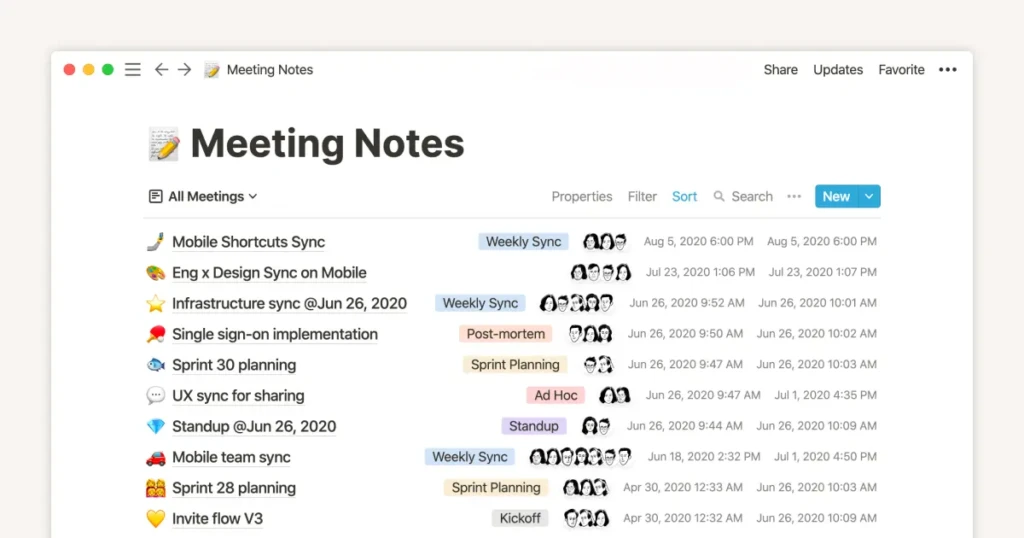
Notion is the most powerful note-taking app on this list, but “note-taking app” barely does it justice. It’s really an all-in-one workspace where notes, tasks, databases, wikis, and project boards all live together in one place. If you’ve ever wished you could replace four separate productivity apps with a single tool, Notion is designed to do exactly that.
Notion works on pages and blocks. Every note is a page, and inside that page, you can add any type of content block you want: plain text, a to-do list, a table, an embedded calendar, a kanban board, or a full database with filtering and sorting. This flexibility is Notion’s biggest strength and, initially, its most overwhelming feature. The learning curve is real, but it flattens quickly once you understand that everything is just a page with blocks inside it.
Where Notion particularly excels is in collaboration. Multiple people can edit the same page simultaneously, leave comments, assign tasks, and share pages with external viewers, making it the most capable option on this list for teams and group projects by a significant margin.
Where It Falls Short
Notion requires an internet connection for most of its functionality; offline access exists, but it is limited and can be unreliable. It’s also noticeably slower to open and navigate than local apps like Obsidian or Bear, which matters if you want to capture a quick thought on the spot. And for writers who just want to write, the database-heavy environment can feel like overkill.
Notion Is Right for You If…
You manage projects alongside your notes, you collaborate with others regularly, you want one app to replace multiple productivity tools, or you’re a student who needs to organise coursework, deadlines, and research in one place.
Quick Start
Download Notion, create your first page, and use a built-in template. The “Student” or “Personal Productivity” templates are excellent starting points. Don’t try to build your perfect system on day one; start with a simple page and add structure as you need it.
For a full head-to-head breakdown of how Notion compares to Obsidian specifically, our dedicated Notion vs Obsidian comparison covers both apps in significantly more depth, including which one is worth paying for.
Obsidian: Best for Deep Thinking and Knowledge Management
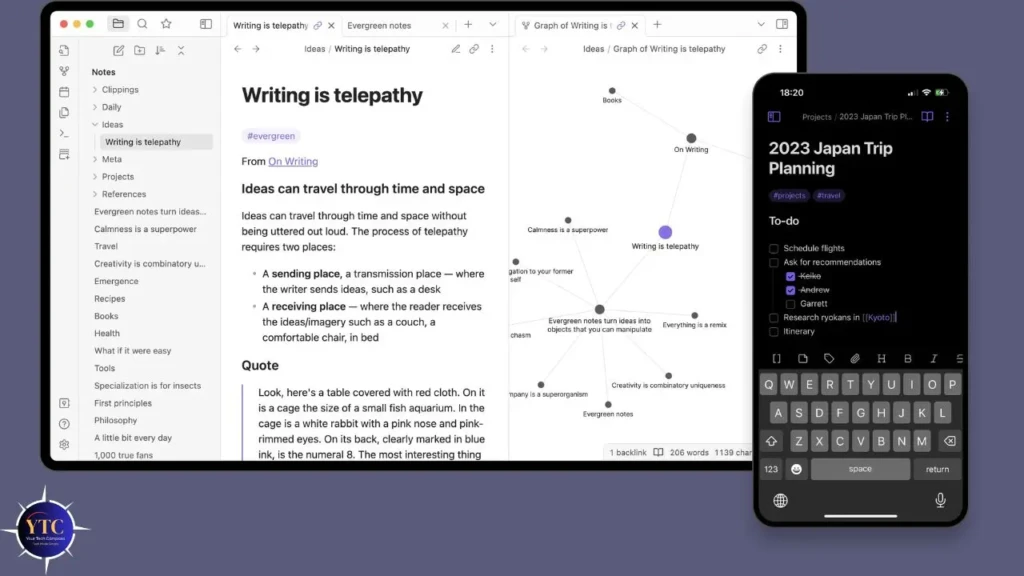
Obsidian is built on a simple but powerful idea: your notes should connect to each other the same way your thoughts do. Rather than organising notes into folders and subfolders, Obsidian lets you link any note to any other note using double brackets, and then visualises all those connections as an interactive graph. The result is a personal knowledge base that grows and becomes more useful the more you use it.
Everything in Obsidian is stored as plain Markdown text files on your own device, not in the cloud, not on someone else’s server, but locally on your computer. This makes Obsidian extraordinarily fast (it opens in under a second regardless of how many notes you have), completely private by default, and future-proof in a way cloud apps can never be. Your notes are just text files; you can open them in any text editor, back them up anywhere, and access them forever regardless of what happens to the company behind the app.
The graph view is genuinely impressive when you’ve built up a substantial library of linked notes. Clusters of related ideas emerge visually, connections you hadn’t consciously noticed become obvious, and you can explore your own thinking in a way that a linear folder structure never allows. For researchers, writers working on long-form projects, and anyone who builds knowledge over time, this feature alone makes Obsidian worth trying.
Where It Falls Short
Obsidian has no real-time collaboration; it’s fundamentally a single-user tool. The initial setup requires more effort than simpler apps; getting the most out of it involves learning Markdown and understanding the linking system. It’s also not the fastest option for quick, throwaway notes.
Obsidian Is Right for You If…
You’re a researcher, writer, or knowledge worker who builds ideas over time, you value data privacy and want full control over your files, you prefer working offline, or you love the idea of a personal knowledge base that reveals connections between your ideas.
Quick Start
Download Obsidian, create a new vault (which is just a folder on your computer), and write your first few notes. Start linking them with [[double brackets]] as soon as ideas connect. Open the graph view after you’ve written ten or more notes to see the connections emerge.
Apple Notes: Best for Simplicity and Apple Device Users
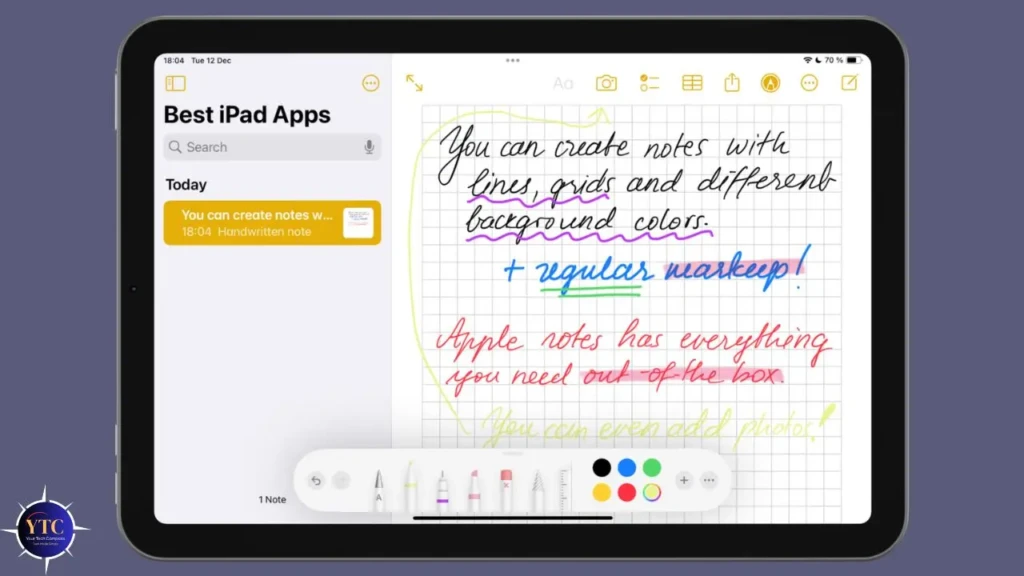
Apple Notes is the easiest app on this list to overlook, and the easiest to underestimate. It comes pre-installed on every Mac, iPhone, and iPad, it syncs instantly across all your Apple devices via iCloud, and it opens faster than any other app in this guide. For the overwhelming majority of everyday note-taking tasks, it does everything most people actually need.
Recent versions of Apple Notes have significantly closed the gap with more complex apps. You can now organise notes with tags and smart folders, use a Quick Note feature to capture a thought without fully opening the app, scan documents directly into a note, collaborate on shared notes, and use rich formatting, including checklists, tables, and headings. None of these features is as powerful as their equivalents in Notion or Obsidian, but they’re all available instantly, for free, on any Apple device you already own.
The real advantage of Apple Notes isn’t any single feature; it’s the total absence of friction. You don’t need an account, a subscription, or a setup process. You open the app, and you write. For students, professionals who primarily use Apple devices, or anyone who wants a reliable place to capture ideas without configuring anything, that frictionlessness is genuinely valuable.
Where It Falls Short
Apple Notes is essentially useless if you use Windows or Android; there’s no official cross-platform app, only a limited web interface through iCloud.com. Formatting options are basic compared to Bear or Notion, and there’s no Markdown support or linking between notes.
Apple Notes Is Right for You If…
You’re fully invested in the Apple ecosystem, you want instant note capture without any friction, you need something that works seamlessly across Mac, iPhone, and iPad, or you’re a beginner who just wants a reliable place to keep notes without learning a new tool.
Quick Start
Apple Notes is already on your Mac; open it, create a folder for your most active project, enable tags by right-clicking any note, and use Command + N to create a new note instantly from anywhere. For more on hidden features most users never discover, our Apple Notes tips and tricks guide goes deep on what the app can actually do.
Bear: Best for Writers Who Care About the Writing Experience
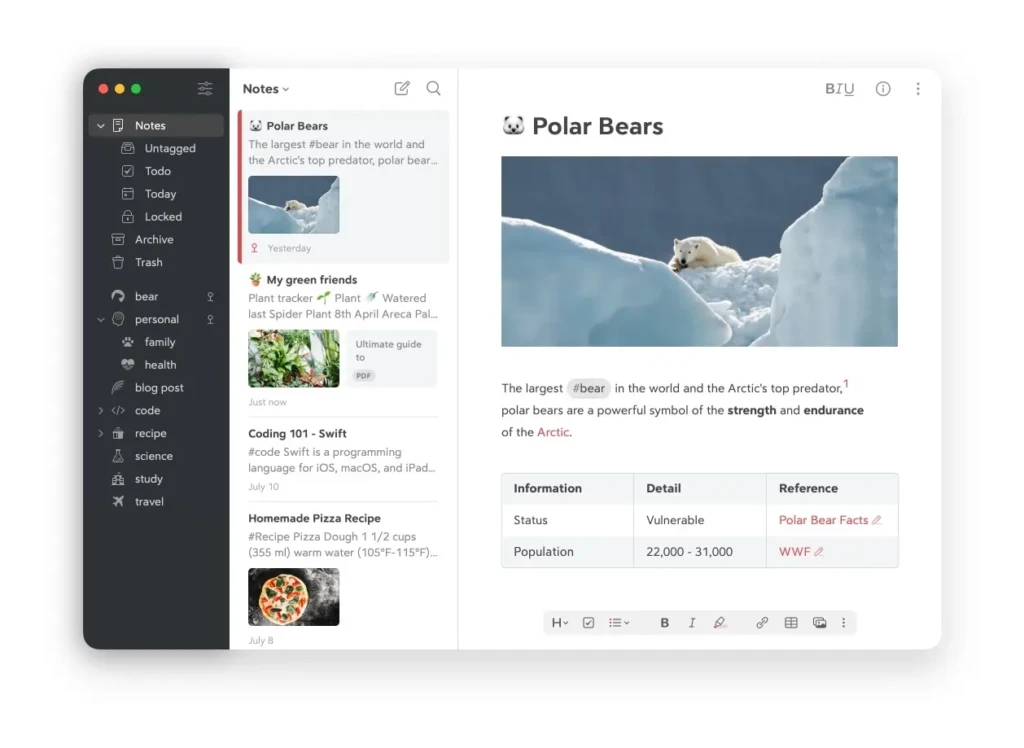
Bear occupies a unique position in the note-taking market: it’s not trying to be the most powerful or most feature-rich app. It’s trying to be the most pleasant app to write in. For writers, journalists, bloggers, and anyone who spends extended time composing text inside a note-taking app, Bear’s combination of elegant design, excellent Markdown support, and distraction-free interface makes it genuinely special.
The writing experience in Bear is noticeably better than any other app on this list. The typography is carefully considered, the themes are genuinely beautiful, and Markdown renders inline so your formatting looks good as you type rather than requiring a separate preview pane. Bear also handles long documents more gracefully than Notion, which can feel cluttered when you’re writing thousands of words on a single page.
Organisation in Bear uses a hashtag system rather than traditional folders. Type #projectname anywhere in a note and it instantly appears under that tag in the sidebar, notes can belong to multiple tags simultaneously, and creating a new category requires nothing more than typing a new hashtag.
Where It Falls Short
Bear is only available on Apple platforms: Mac, iPhone, and iPad. If you ever switch to Windows or Android, your library doesn’t carry over. Syncing across devices requires the paid Pro plan ($2.99/month), so the free version is limited to a single device. There’s also no collaboration feature; Bear is strictly a solo writing environment.
Bear Is Right for You If…
You’re a writer who values the quality of the writing experience itself, you work exclusively within the Apple ecosystem, you want clean Markdown support with beautiful formatting, or you’re a journalist, blogger, or content creator who spends hours composing text in your notes app.
Quick Start
Download Bear from the Mac App Store, create your first note, and try typing a hashtag like #ideas or #work to see the tagging system in action. Explore the theme options (Bear menu → Themes) to find your preferred writing environment; the differences between themes are significant enough to warrant a few minutes.
Google Keep: Best for Quick Capture on Any Device
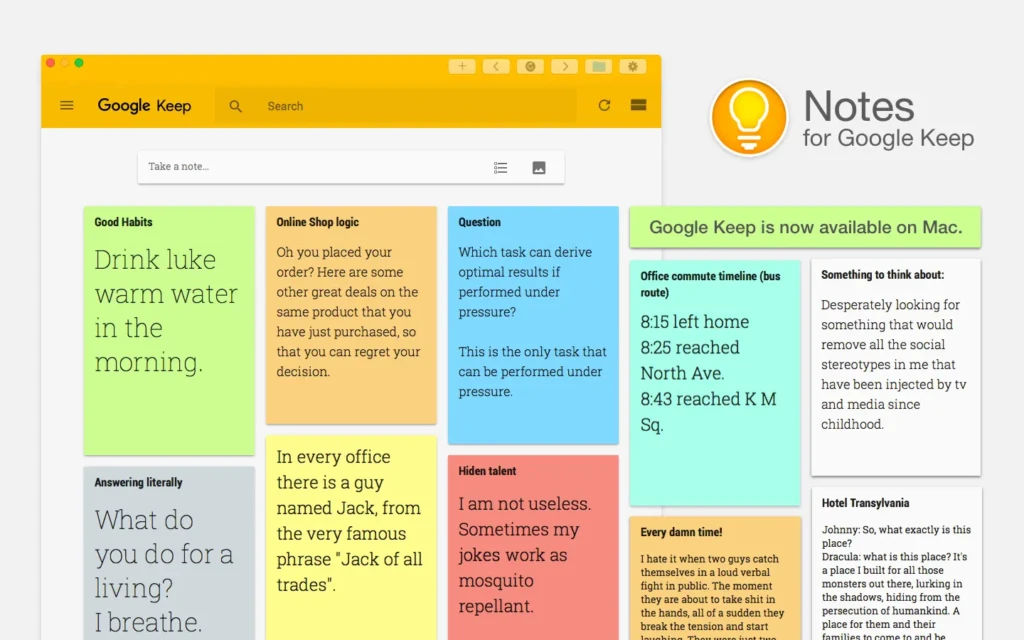
Google Keep deserves a mention even though it’s the simplest app in this guide, because for one specific use case, fast, frictionless note capture across every platform, nothing beats it.
Keep is available on Mac, Windows, iOS, Android, and directly in your browser. Notes sync instantly across all devices, open in under a second, and require nothing more than a Google account. The interface is a grid of coloured cards that’s immediately intuitive, and you can add checklists, voice notes, images, and reminders to any card with a single tap.
Keep is not a tool for serious writing or knowledge management; it’s a capture tool. If you use Notion or Obsidian as your primary system, Google Keep makes an excellent companion for capturing quick ideas that you later process and move into your main system.
For students who need something dead-simple across both Apple and Android devices, it’s also the most practical free option available. Our Apple Notes vs Google Keep comparison breaks down exactly how the two stack up for students and everyday use.
How to Choose the Right Note-Taking App for You
The fastest way to narrow down your choice is to answer three questions honestly.
First, how do you primarily use notes? If your notes are mostly quick captures, reminders, lists, things to remember, Apple Notes or Google Keep are genuinely sufficient and infinitely simpler than the alternatives. If your notes are the foundation of longer projects, research, or creative work, you need the depth of Notion, Obsidian, or Bear.
Second, do you work across multiple platforms? If you’re exclusively on Apple devices, every app on this list works well. If you split time between Mac and Windows, or use Android, Obsidian and Notion are your best options; Bear and Apple Notes will leave you stranded on non-Apple hardware.
Third, do you need to collaborate? If you share notes with teammates, classmates, or clients, Notion is the only serious choice on this list. If your notes are entirely personal, this doesn’t factor in at all.
One practical suggestion: don’t evaluate note-taking apps purely by reading about them. Pick the one that sounds most aligned with your answers above, use it as your only note-taking tool for two full weeks, and then decide. You’ll learn more about whether an app suits you in two weeks of real use than in two hours of researching alternatives.
FAQs
For most students, Notion offers the best combination of note organisation, task management, and collaboration for group projects, and the free personal plan is sufficient for students’ needs. If you’re on Apple devices and want something simpler, Apple Notes handles everyday academic note-taking well.
They serve different writing needs. Notion is better for collaborative writing, structured content, and projects that involve other people. Obsidian is better for solo, long-form writing, where you build knowledge over time and want your ideas to connect with one another. Our Notion vs Obsidian comparison covers both in full depth.
If you use multiple Apple devices and Bear is your primary writing tool, the $2.99/month Pro plan is reasonable for the sync functionality it unlocks. If you only use Bear on a single device or want to try it first, the free version works fine as a single-device writing app.
Evernote was once the dominant note-taking app, but has declined significantly over recent years. Multiple ownership changes, pricing increases, and feature removals have pushed most serious users toward the alternatives in this guide. Unless you have years of existing data in Evernote, there’s little reason to start with it when Notion and Obsidian both offer more capable experiences with more active development.
Final Thoughts
Every app in this guide is genuinely good; the differences are about fit, not quality. Notion rewards people who think in systems. Obsidian rewards people who think in connections. Apple Notes rewards people who just want to write without thinking about the tool at all. Bear rewards people who care deeply about the writing experience itself. And Google Keep rewards anyone who needs something everywhere, instantly, for free.
Start with the app that matches how you already think, not the one with the most impressive feature list. If it’s not working after two weeks of real use, switch without guilt. The best note-taking app is always the one you actually open when you have something worth remembering.
Found this helpful? Browse more in-depth tech guides, honest reviews, and step-by-step tutorials at YourTechCompass; your go-to resource for making smarter tech decisions.