A slow iPhone is one of the most frustrating tech problems precisely because it creeps up gradually. Apps that used to open instantly now take a few seconds to open. The keyboard lags slightly when you type. Safari pauses before loading pages. None of these individually feels like a crisis, but together they make using your phone feel like a chore, and most people assume it means their iPhone is just too old and needs replacing.
In most cases, that assumption is wrong. A slow iPhone is almost always fixable, and the fixes don’t require technical knowledge, paid software, or a trip to the Apple Store. I’ll walk you through every effective fix in this guide, starting with the quickest and easiest, and working toward the more involved solutions, so you can stop at whichever step solves the problem for you.
Why Your iPhone Slows Down Over Time
Before going through the fixes, it helps to understand what’s actually causing the slowdown. This is because different causes require different solutions, and knowing the likely culprit lets you skip straight to the relevant fix.
The most common cause is low storage space. When your iPhone’s storage drops below roughly 1–2GB of free space, iOS can’t create the temporary files it needs to run apps smoothly. Everything slows down as the system struggles to work within its constraints. The second most common cause is battery degradation.
Apple’s Performance Management feature deliberately reduces your iPhone’s processing speed when the battery health drops below a certain threshold. This prevents unexpected shutdowns but makes the phone feel noticeably slower. A third common cause is software debt: apps that haven’t been updated, running on a newer iOS version, or on an older version that has bugs Apple has since patched. Background processes from apps running silently also consume RAM and slow foreground performance.
Understanding which of these applies to you guides which fixes to prioritise. If your iPhone suddenly slowed down after an iOS update, start with Fix 3 and Fix 5. If it’s been getting gradually slower over months or years, Fix 2 and Fix 7 are likely the culprits.
How to Speed Up Your iPhone
Fix 1: Restart Your iPhone
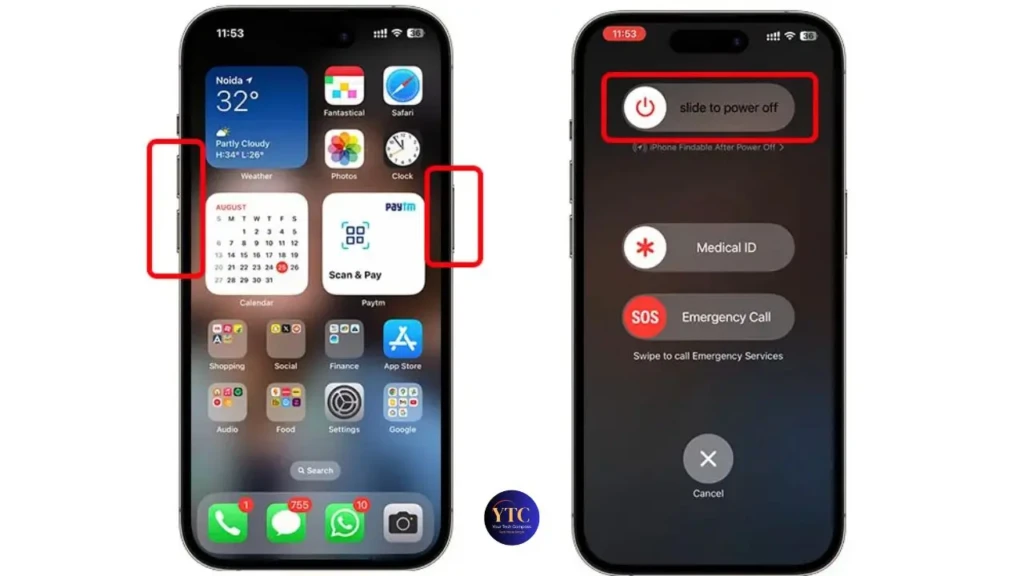
This is the most overlooked fix precisely because it sounds too simple to matter. It matters. Many iPhones are never fully restarted; users just lock the screen when they’re done, meaning the phone hasn’t had a fresh start in weeks or months. Over time, apps accumulate in RAM, background processes stack up, and minor software glitches compound. A full restart clears all of that and gives iOS a clean slate.
- For iPhones with Face ID (iPhone X and later): Press and hold the Side button and one of the Volume buttons simultaneously until the power slider appears. Drag the slider to turn off, wait 10 seconds, then press the Side button to turn it back on.
- For iPhones with a Home Button (iPhone SE, iPhone 8 and earlier): Press and hold the Side or Top button until the power slider appears. Drag to turn off, wait 10 seconds, then press the button to restart.
Do this before trying any of the other fixes; you may find it’s all you need. I recommend making this a weekly habit regardless.
Fix 2: Free Up Storage Space
Low storage is the single most common cause of iPhone slowdown, and the one most people don’t check until the problem is severe. iOS needs a buffer of free space to write temporary files, process photos, and run apps. When that buffer disappears, performance degrades noticeably.
To check your current storage situation, go to Settings → General → iPhone Storage. You’ll see a colour-coded bar showing how your storage is used, and a list of apps sorted by size below it. Apple also shows automatic recommendations at the top, such as “Offload Unused Apps,” “Review Large Attachments,” and similar options, which are worth following because they automatically identify the highest-impact storage recoveries.
The most effective places to reclaim storage quickly are your photo library (enable iCloud Photos at Settings → Photos → iCloud Photos to store originals in the cloud while keeping smaller compressed versions on your device), large video files you’ve already backed up elsewhere, and apps you haven’t opened in months. The “Offload Unused App” option in Settings → General → iPhone Storage → individual app removes the app but preserves its data, so reinstalling it later restores everything, useful for apps you want to keep but rarely use. Aim to keep at least 2–3GB of free storage at all times; for older iPhones with 64GB or 128GB of total storage, this requires more active management than on larger-capacity models.
Fix 3: Update iOS and Your Apps
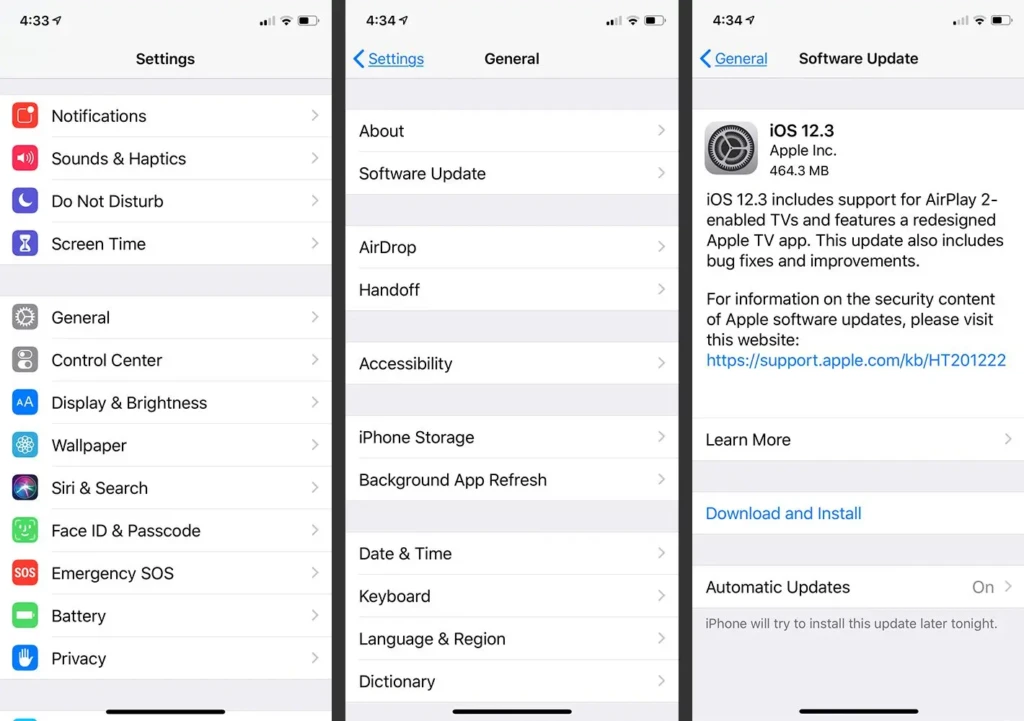
Apple releases iOS updates regularly, and many of them address performance bugs, improve memory management, and enhance CPU efficiency. Running an outdated iOS version means your iPhone is missing optimisations that might directly address the slowdown you’re experiencing. The same applies to apps: a major app running on an outdated version can behave poorly on newer iOS versions and consume far more system resources than its updated version would.
To update iOS, go to Settings → General → Software Update. If an update is available, tap Download, then tap Install. Connect to Wi-Fi and plug in to charge before starting the update. iOS updates require both a stable connection and sufficient battery.
After the update installs and your iPhone restarts, use it normally for 20–30 minutes before judging performance. iOS does background processing after updates (re-indexing Spotlight, optimising storage) that temporarily affects speed but resolves on its own.
To update your apps, open the App Store, tap your profile picture in the top-right corner, and scroll down to see available updates. Tap Update All to update everything at once. Set apps to update automatically via Settings → App Store → App Updates if you’d prefer not to manage this manually.
Fix 4: Turn Off Background App Refresh
Background App Refresh allows apps to check for new content, sync data, and update their state while you’re not actively using them. It’s why Instagram has new posts loaded before you open it, and why your news app shows current headlines the moment you tap it. It’s also one of the most significant hidden performance and battery drains on a slow iPhone, because every app with this enabled is competing for processor time and RAM in the background.
To manage it, go to Settings → General → Background App Refresh. You can turn it off entirely (the most aggressive option), set it to only refresh over Wi-Fi rather than cellular (a reasonable middle ground), or disable it selectively for specific apps. The apps that benefit most from Background App Refresh are messaging apps (Messages, WhatsApp), navigation apps, and email. Disabling it for social media, games, and news apps has virtually no impact on how those apps function when you open them, since they refresh immediately on launch.
Disabling Background App Refresh for all but a handful of essential apps is one of the most impactful single-setting changes you can make to improve iPhone performance, particularly on older devices with limited RAM.
Fix 5: Reduce Motion and Visual Effects
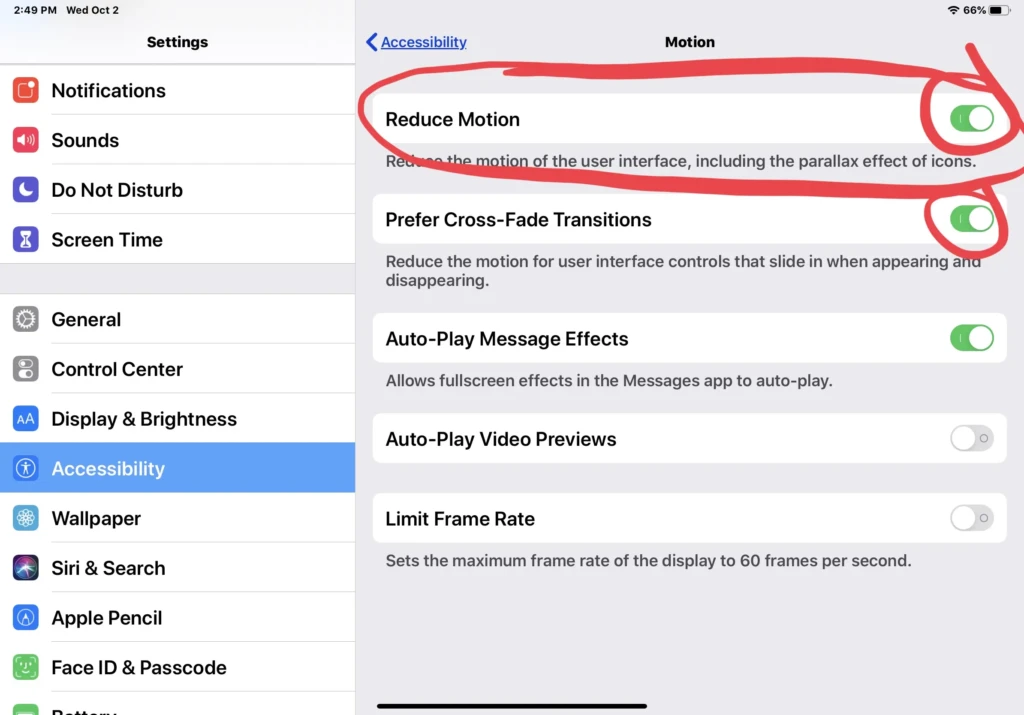
iOS uses animations throughout the interface: app launch and close animations, the parallax effect on the home screen, transitions between apps, and Notification Centre effects. These are designed to make the interface feel fluid and premium, and on a fast, fully charged iPhone, they do. On an older iPhone or one with a degraded battery, they consume GPU resources, making the device feel slower than it actually is.
Turning off these effects makes every interaction feel more immediate without meaningfully changing how you use the phone.
Go to Settings → Accessibility → Motion and enable Reduce Motion. This replaces the zoom animations with simpler cross-fade transitions and disables the parallax home screen effect. Then go to Settings → Accessibility → Display & Text Size and enable Reduce Transparency. This simplifies the blurred, semi-transparent effects on menus and the Control Centre, which require GPU processing to render in real time.
The visual difference is subtle; your iPhone looks almost identical, but the speed difference, particularly on an iPhone from 2020 or earlier, is immediately noticeable.
Fix 6: Clear Safari’s Cache
Safari stores cached website data, cookies, and browsing history to make frequently visited sites load faster on repeat visits. Over time, this cache grows large and can itself slow down Safari and, to a lesser extent, the whole phone. If Safari specifically feels slow, pages take longer to load, tabs reload when you switch between them, or the browser crashes occasionally, this fix often resolves it.
Go to Safari → Settings → Clear History and Website Data and confirm the action. This removes cached website data, cookies, and history, but doesn’t affect your bookmarks or saved passwords (which are stored in iCloud Keychain separately). Safari will feel slightly slower on its very first visit to familiar websites after clearing, as it rebuilds the cache, but will return to full speed quickly.
If you use Safari heavily across your Mac, iPhone, and iPad, our Safari keeps crashing on Mac guide covers the same cache-clearing process and additional fixes for Safari specifically on macOS.
Fix 7: Check and Manage Your Battery Health
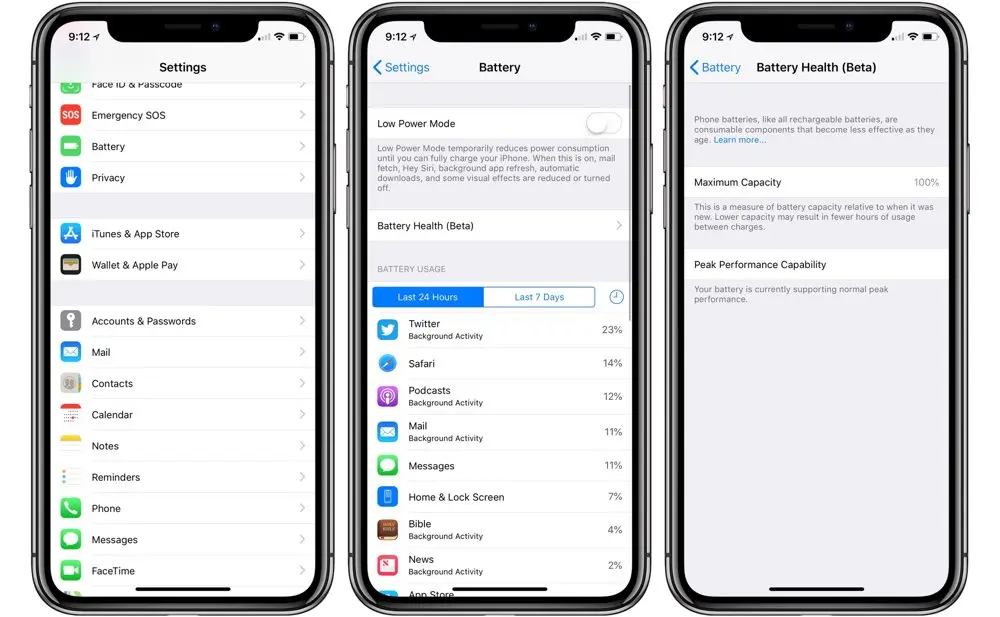
This is the most impactful fix for many older iPhones, and the one that surprises people most when they discover it. Apple’s iOS includes a feature called Performance Management that deliberately throttles your iPhone’s processor speed when the battery health degrades below a certain threshold.
The rationale is legitimate: a degraded battery can’t supply the peak current the processor demands at full speed, which could cause unexpected shutdowns. But from the user’s perspective, their iPhone runs noticeably slower, and many people never connect the slowdown to their battery.
To check your battery health, go to Settings → Battery → Battery Health & Charging. The Maximum Capacity percentage shows how much of the original battery capacity remains. A new iPhone starts at 100%. Apple considers anything above 80% to be within normal range. If you see a message saying “Performance management has been applied,” your processor is being throttled.
If your battery health is below 80%, which is common on iPhones 3–4 years old with regular use, replacing the battery is the single most cost-effective performance upgrade available. Apple’s battery replacement service costs $99 for most current models, and independent repair shops using genuine Apple parts charge similar or lower prices. The performance improvement after a battery replacement on a throttled iPhone is dramatic; it can make a 4-year-old phone feel like it was just unboxed.
Fix 8: Reset All Settings
If you’ve worked through the fixes above and your iPhone is still sluggish, resetting all settings is the next step. This is meaningfully different from a factory reset; it resets your preferences and system settings to their defaults (Wi-Fi passwords, Bluetooth pairings, wallpaper, notification preferences, privacy settings) without deleting any of your personal data, photos, apps, or messages.
The reason this helps is that certain combinations of settings, accumulated over years of iOS updates, app installations, and changes, can create conflicts or inefficiencies that subtly degrade performance. Resetting clears these without the trauma of starting from scratch.
To reset all settings, go to Settings → General → Transfer or Reset iPhone → Reset → Reset All Settings and enter your passcode to confirm. Your iPhone will restart and return to the default system settings. You’ll need to reconnect to Wi-Fi networks, re-pair Bluetooth devices, and restore any custom notification or privacy settings, which takes about 10–15 minutes, but everything else (apps, data, photos) will be exactly as you left it.
Fix 9: Factory Reset Your iPhone (Last Resort)
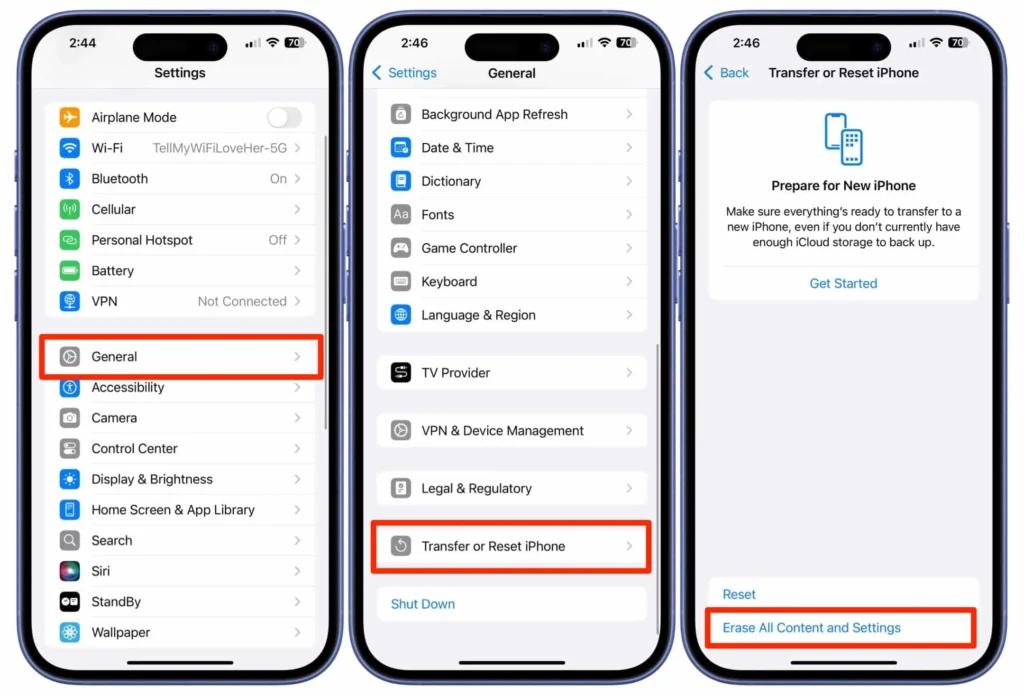
A full factory reset erases everything on your iPhone and installs a clean version of iOS. It’s the nuclear option; effective, but inconvenient. Reserve this for situations where everything else has failed, and your iPhone is still performing poorly, as it suggests a deep software issue rather than a settings or storage problem.
Before resetting, back up your iPhone to iCloud (Settings → your name → iCloud → iCloud Backup → Back Up Now) or to your Mac or PC via a cable and Finder or iTunes. This ensures you can restore all your apps, data, and settings after the reset.
To perform a factory reset, go to Settings → General → Transfer or Reset iPhone → Erase All Content and Settings, then confirm. After the reset, set up your iPhone as new and restore from your backup when prompted. If your iPhone runs fast after a clean install, but slows down after restoring the backup, the issue is software-related. If it’s still slow even on a clean install, the problem is hardware; at that point, a visit to Apple Support is warranted.
Fixes at a Glance: Speed Impact vs Effort
Fix | Speed Impact | Difficulty | How Often |
Restart iPhone | Medium | Very Easy | Weekly |
Free Up Storage | High | Easy | Monthly |
Update iOS and Apps | High | Easy | When available |
Disable Background App Refresh | Medium | Easy | Once |
Reduce Motion and Transparency | Medium | Easy | Once |
Clear Safari Cache | Medium (Safari-specific) | Easy | Every 1–2 months |
Battery Health Check/Replacement | Very High (if throttled) | Moderate | As needed |
Reset All Settings | High | Moderate | Every 6–12 months |
Factory Reset | Very High | Hard | Last resort only |
Habits That Keep Your iPhone Fast Long-Term

The fixes above address existing problems. These habits prevent them from developing in the first place.
Keep at least 2–3GB of storage free at all times, set a reminder to check Settings → General → iPhone Storage monthly and clear out what you no longer need. Update iOS promptly rather than deferring updates indefinitely; the performance and security improvements in point releases are real and consistent. Restart your iPhone once a week rather than leaving it in sleep mode continuously.
Don’t use third-party “cleaner” or “booster” apps; iOS manages its own memory efficiently, and these apps are at best useless and at worst actively harmful. And pay attention to your battery health annually; replacing a battery at 80% capacity is far cheaper than replacing an iPhone because the performance throttling has made it unusable.
FAQs
In rare cases, major iOS updates have introduced performance issues on older devices. Apple typically addresses these in subsequent point releases. In general, however, keeping iOS updated improves performance because Apple optimises each update for the hardware it supports. If you’re on an iPhone that still receives the latest iOS, updating is the right move.
For an iPhone that’s 3–5 years old and otherwise in good condition, a battery replacement is almost always worth it. The cost is typically $70–100 and can restore the performance of a throttled iPhone to near-new speeds. If your iPhone is showing the “Performance management has been applied” message, a battery replacement will have a more dramatic impact than any software fix.
Apple recommends keeping at least 1GB free, but in practice, 2–3GB is a more reliable buffer for consistent performance. If you’re regularly editing videos, downloading large apps, or using iCloud Photo Library syncing heavily, keeping 4–5GB free provides additional headroom.
Heat causes your iPhone’s processor to throttle itself automatically to prevent damage, so a phone that’s running hot will also run slowly. Common causes include charging while using the phone heavily, GPS navigation running simultaneously with other demanding apps, or a specific app consuming excessive CPU. If overheating is frequent and not clearly tied to a specific activity, it may indicate a software bug in a particular app or, in older devices, a failing battery.
Final Thoughts
A slow iPhone is almost never a sign that you need a new one. In the vast majority of cases, clearing storage, replacing a degraded battery, or adjusting a handful of settings is all it takes to restore the performance your phone had when it was new. Work through these fixes in order; most people find the solution somewhere between Fix 1 and Fix 7 without ever needing to get close to a factory reset.
The most impactful thing you can do right now is check your battery health at Settings → Battery → Battery Health & Charging. If it’s below 80% and showing a performance management message, that single fix will make a bigger difference than everything else combined. For similar step-by-step troubleshooting on your Mac, our Mac keeps crashing guide and Android apps crashing guide follow the same plain-English approach across different devices.
Found this helpful? Browse more in-depth tech guides, honest reviews, and step-by-step tutorials at YourTechCompass; your go-to resource for making smarter tech decisions.