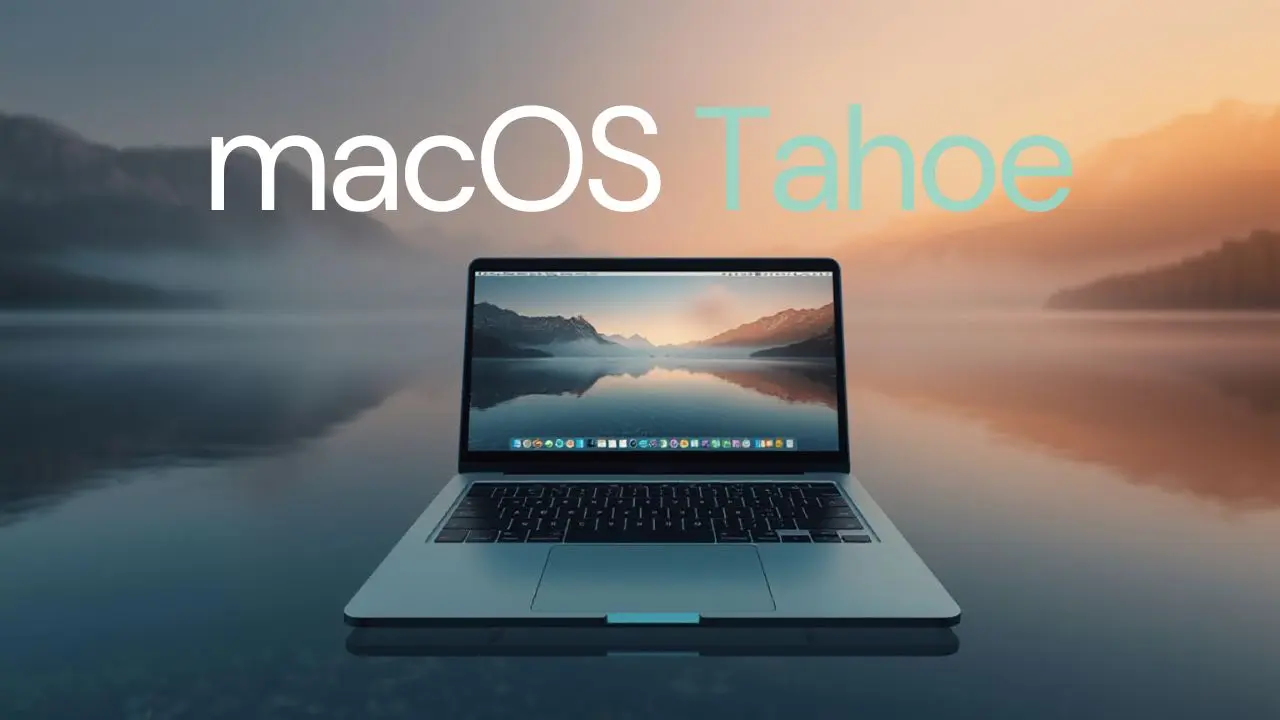
Apple’s macOS updates tend to follow a familiar pattern: refine what already works, improve performance behind the scenes, and quietly introduce features that become indispensable over time. macOS Tahoe continues in that direction, focusing on system stability, productivity improvements, and a more polished day-to-day experience for Mac users. Rather than reinventing macOS, Tahoe aims to make it feel smoother, more reliable, and better aligned with how people actually use their Macs.
In this guide, I’ll walk you through what macOS Tahoe is, its standout features, compatibility details, performance changes, and whether upgrading makes sense for your setup. I’ll also cover potential issues to watch out for and practical tips to prepare your Mac before and after the update so that you can make an informed decision.
What Is macOS Tahoe?
macOS Tahoe is Apple’s latest macOS release, designed to refine the Mac experience rather than radically change it. At its core, Tahoe focuses on improving system reliability, efficiency, and usability across supported Mac models. Instead of flashy overhauls, Apple has concentrated on making everyday tasks feel faster, more predictable, and less prone to hiccups.
In addition, macOS Tahoe continues Apple’s long-term goal of unifying the macOS ecosystem. Features introduced in recent versions are further refined, and system-level behavior feels more consistent across different Macs. As a result, Tahoe feels like a “quiet upgrade,” one that you appreciate more the longer you use it.
macOS Tahoe Key Features
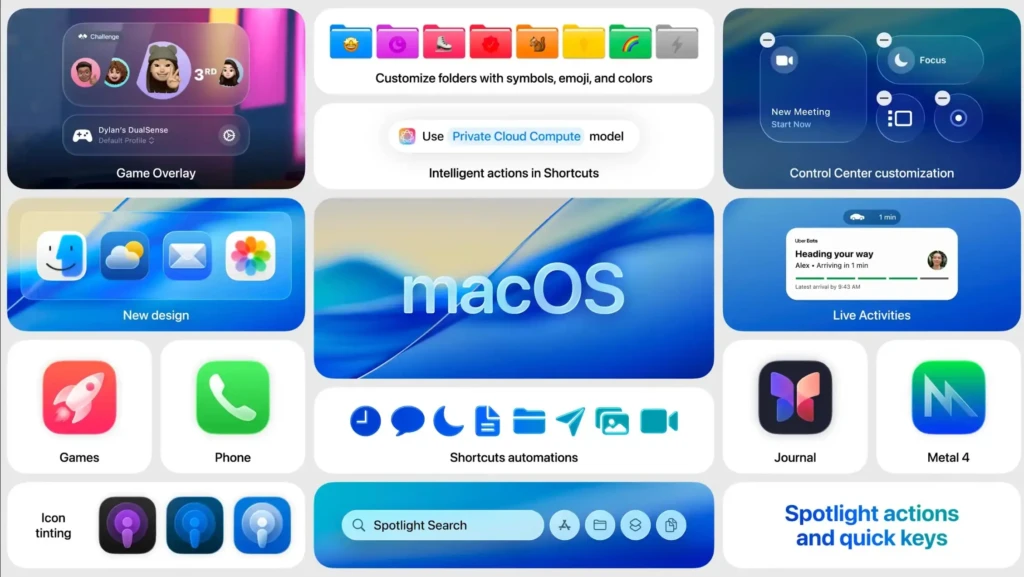
macOS Tahoe introduces several meaningful improvements that enhance everyday productivity and system usability.
Interface and Usability Enhancements
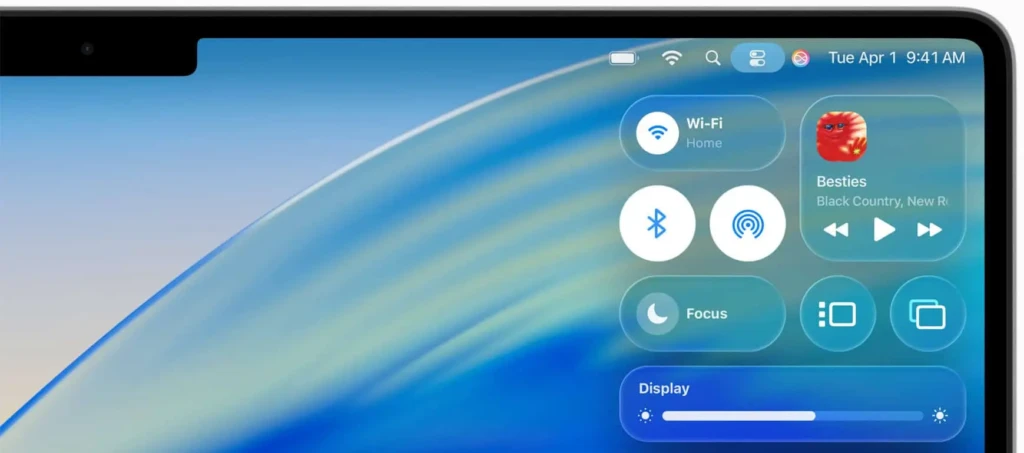
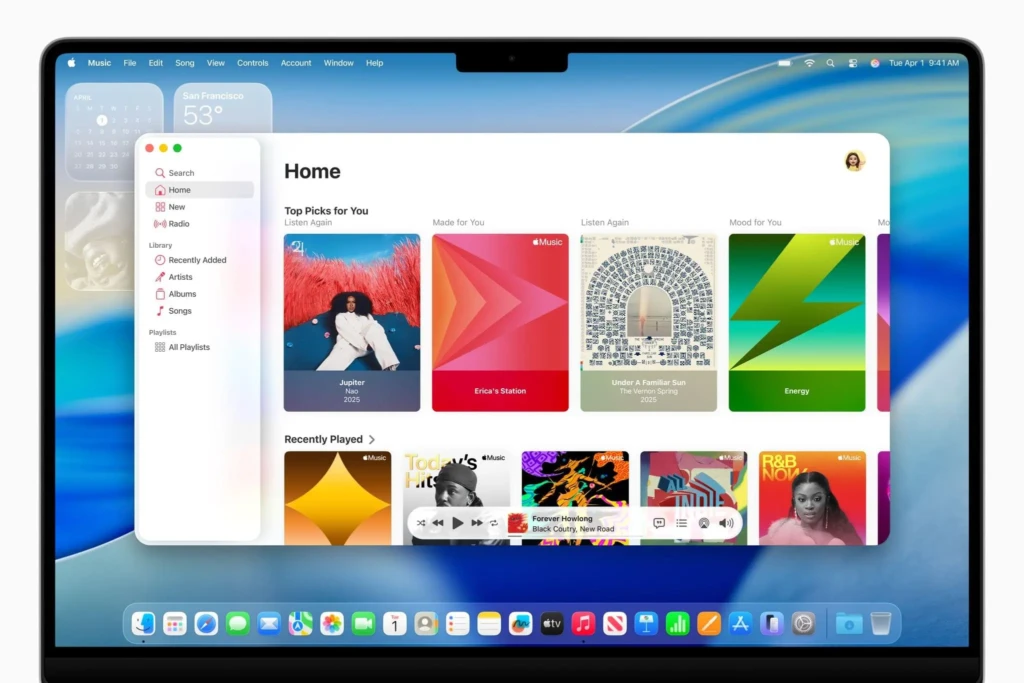
First, Tahoe refines the user interface with subtle visual tweaks that improve clarity and reduce distractions. Animations feel smoother, window transitions are more consistent, and system menus respond faster. These changes may seem small, but together they make macOS feel more polished.
System-Level Improvements
Beyond visuals, macOS Tahoe improves how background processes are handled. Apps launch more predictably, background tasks are better prioritized, and system resources are allocated more intelligently. This is especially noticeable on Macs that are often running multiple apps at once.
Built-In App Improvements
Apple has also refined several built-in apps, focusing on performance and stability rather than feature overload. Core apps like Finder, Mail, and Safari benefit from better responsiveness and fewer interruptions during daily use.
Accessibility and Productivity Updates
macOS Tahoe continues Apple’s commitment to accessibility, offering refinements that make navigation, text interaction, and system feedback more customizable. These updates also benefit power users who rely on efficiency and keyboard-driven workflows.
Performance and Stability Improvements
One of macOS Tahoe’s biggest strengths is its performance.
Speed and Responsiveness
System animations, app launches, and multitasking feel more responsive overall. Tahoe places greater emphasis on reducing unnecessary background activity, helping Macs maintain consistent performance throughout the day.
Battery Life and Efficiency
On portable Macs, battery efficiency is noticeably improved. By optimizing background services and better managing idle processes, macOS Tahoe helps extend battery life during regular use.
Memory and Background Process Management
Tahoe improves memory handling, especially when switching between multiple apps or user accounts. If you’ve experienced issues like apps freezing or the system slowing down during heavy multitasking, these improvements are particularly welcome.
However, as with any macOS update, not all issues disappear immediately. Some users upgrading from earlier versions may still encounter app-specific crashes. If Safari becomes unstable after upgrading, you may find this guide helpful: Safari Keeps Crashing on macOS Sequoia.
Compatibility and System Requirements
Before upgrading, check whether your Mac supports macOS Tahoe.
Supported Mac Models
macOS Tahoe supports a range of modern Mac models, particularly those with newer Intel processors and Apple silicon. Older Macs may not be eligible for the update, as Apple continues to streamline support for newer hardware.
Hardware Requirements
In addition to model compatibility, sufficient storage space and RAM are essential for a smooth upgrade. Macs that are already struggling with limited storage or memory may experience slower performance after updating.
What Happens to Unsupported Macs
If your Mac isn’t supported, it will remain on its current macOS version with continued security updates for a limited time. In these cases, upgrading hardware may be the only way to access Tahoe’s features.
Privacy and Security Updates

macOS Tahoe strengthens privacy and security across the system.
Enhanced System Protections
Apple has improved how macOS isolates apps and protects system-level processes. This reduces the risk of malicious software interfering with core components.
Improved App Permissions
Tahoe gives users more precise control over app permissions, making it easier to understand which apps access sensitive data, such as files, the camera, or the microphone.
Ongoing Security Updates
As with previous macOS versions, Tahoe includes regular security updates designed to address vulnerabilities as they’re discovered. Apple’s official macOS security documentation provides more insight into these protections.
macOS Tahoe vs Previous macOS Versions
To better understand what Tahoe offers, here’s a simple comparison with earlier macOS releases:
Area | macOS Tahoe | Previous macOS Versions |
Performance | More consistent, optimized background tasks | Occasional slowdowns under load |
Stability | Improved app and system reliability | More frequent app-specific crashes |
Battery Efficiency | Better idle and multitasking efficiency | Higher background power usage |
UI Polish | Subtle refinements and smoother animations | Functional but less refined |
User Control | Clearer permissions and system behavior | Less transparent in some areas |
Overall, macOS Tahoe focuses more on refinement than transformation, making it an attractive upgrade for users who value stability.
Known Issues and Limitations

Despite its improvements, macOS Tahoe isn’t completely free of issues.
- Some third-party apps may take time to support Tahoe fully.
- Users with multiple accounts may notice temporary glitches when switching users.
- Certain system-level bugs may appear shortly after upgrading.
If you encounter crashes when switching between user accounts, this guide may help: Mac Crashes When Switching Users on macOS Sequoia.
Should You Upgrade to macOS Tahoe?
Whether you should upgrade depends on your situation.
Upgrade If:
- You have a supported Mac with sufficient storage and memory
- You value system stability and performance improvements
- You rely on Apple’s built-in apps and ecosystem
Consider Waiting If:
- You depend on critical third-party apps that haven’t been updated
- Your Mac is older and already struggles with performance
- You need a completely stable environment for work
In many cases, waiting a short period allows developers to update apps and address early issues.
Tips Before and After Updating
Before Updating
- Back up your Mac using Time Machine
- Check app compatibility
- Free up storage space
After Updating
- Allow Spotlight and background indexing to finish
- Restart your Mac after the first full day of use
- Monitor app behavior and install updates promptly
For official preparation steps, Apple’s macOS update guide is a reliable reference.
Conclusion
macOS Tahoe is a thoughtful refinement of the Mac experience, prioritizing performance, stability, and usability over dramatic changes. It’s an update that quietly improves how your Mac feels during everyday tasks, especially if you multitask heavily or rely on consistent performance.
If your Mac is compatible and your essential apps are ready, Tahoe is a solid upgrade that enhances reliability without disrupting your workflow. I hope this guide helps you decide whether macOS Tahoe fits your needs, and I’m glad I could walk you through what to expect before making the jump.
FAQs
Yes, macOS updates are free for compatible Mac models.
Yes, but it requires erasing the disk and restoring from a backup.
Typically between 30 minutes and an hour, depending on your Mac and internet speed.
At Your Tech Compass, we publish detailed tech guides, reviews, and comparisons to help users choose the right devices and tools.