There’s nothing more frustrating than being in the middle of something important, watching a video, sending a message, or finishing a task, and having your app suddenly crash and close. If your Android apps keep crashing repeatedly, something specific is causing it, and in almost every case, you can fix it yourself without visiting a repair shop or buying a new phone.
I’ll walk you through every fix in this guide, starting with the simplest ones and working toward the more advanced solutions. Try each step in order, and you’ll almost certainly find the one that solves your problem before you reach the end.
Why Do Apps Keep Crashing on Android?
Before you start applying fixes, it’s essential to understand the common reasons behind app crashes. Knowing why it happens helps you find the right solution faster.
Here are the most common causes:
- Outdated Apps or Android Version: Incompatibility between newer system updates and older app versions can lead to frequent crashes.
- Insufficient Storage or Memory: When your phone runs out of space, apps struggle to load properly.
- Corrupted Cache or App Data: Over time, temporary files can become corrupted, leading to instability.
- Software Bugs or Conflicts: Sometimes, newly installed apps interfere with system processes.
- Poor Internet Connection: Apps relying on the internet (like YouTube, TikTok, or Instagram) can crash when the connection is weak.
The good news is that all of these are fixable. Let’s go through them one by one.
Fix 1: Restart Your Phone
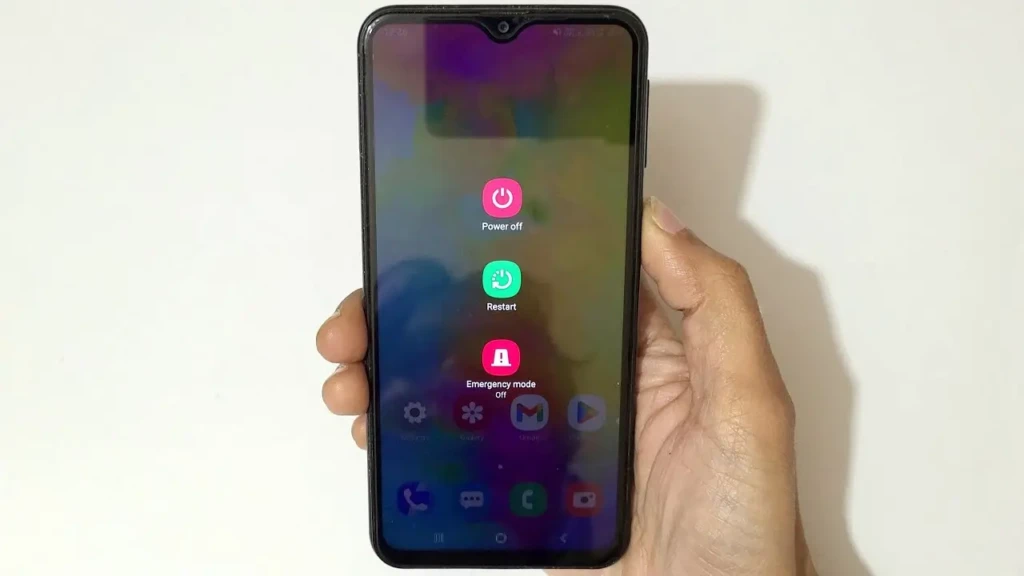
This is always the first thing you should try, and it works more often than people expect. Restarting your phone clears your RAM, stops background processes that may be causing conflicts, and gives your system a clean slate to work from.
To restart your Android phone, hold the Power button until the menu appears, then tap Restart or Reboot. Wait for the phone to fully start up, then open the app that was crashing and see if the problem is gone. If it is, you’re done; if not, move to the next fix.
Fix 2: Update the App
App developers release updates specifically to fix bugs and crashes. If you’re running an old version of an app, it may not be compatible with your current Android version, and that incompatibility often shows up as repeated crashes.
Here’s how to update a specific app:
- Open the Google Play Store.
- Tap your profile picture in the top right corner.
- Tap Manage apps & device.
- Tap Updates available.
- Find the crashing app and tap Update next to it.
If you want to update all your apps at once, tap Update All instead. After updating, reopen the app and check if the crashing has stopped.
Fix 3: Update Your Android System
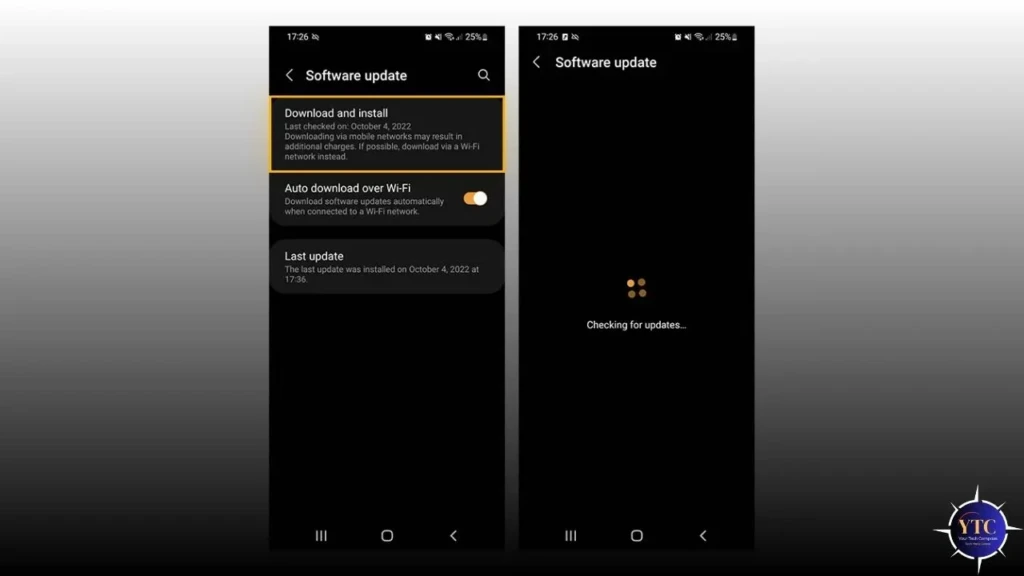
Just like apps need to be updated, Android itself needs to be updated. System updates fix bugs, improve performance, and ensure your phone’s software is compatible with the latest app versions.
To check for a system update:
- Open Settings.
- Scroll down and tap Software update (on Samsung) or System > System update (on other Android phones).
- Tap Check for updates.
- If an update is available, download and install it.
Your phone will restart during the update process; this is normal. Once it’s back on, test the app that was crashing.
Fix 4: Clear the App’s Cache
Every app stores temporary files called cache to help it load faster. Over time, these cached files can become corrupted, causing the app to behave erratically or crash entirely.
To clear an app’s cache:
- Open Settings.
- Tap Apps (or Application Manager on some phones).
- Find and tap the app that keeps crashing.
- Tap Storage.
- Tap Clear Cache.
Clearing the cache doesn’t delete your personal data inside the app; it only removes the temporary files. This is always a safe fix to try and often solves crashing issues immediately.
Fix 5: Clear the App’s Data
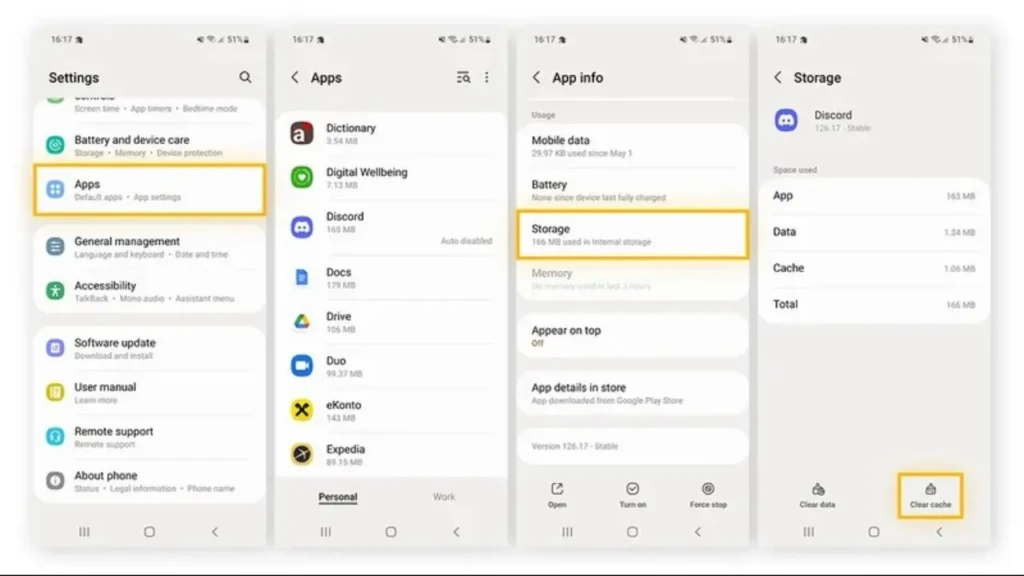
If clearing the cache didn’t work, the next step is clearing the app’s data entirely. This is a more thorough reset; it removes all stored information, including your login details, preferences, and saved settings, essentially returning the app to the state it was in when you first installed it.
To clear app data:
- Go to Settings > Apps.
- Tap the crashing app.
- Tap Storage.
- Tap Clear Data.
You’ll need to log back into the app after doing this. If the crashing stops, a corrupted data file was the culprit.
Fix 6: Free Up Storage Space
When your phone’s internal storage is nearly full, Android struggles to create the temporary files apps need to run properly. This causes slowdowns, freezes, and crashes, especially in apps that handle large files, such as video editors, cameras, and social media apps.
To check your storage:
- Open Settings.
- Tap Storage.
- Review how much space is used and how much is free.
If you have less than 10–15% of your total storage free, that’s likely contributing to your crashes. Delete old videos, photos, and apps you no longer use. Move files to Google Photos, Google Drive, or an SD card to quickly free up internal storage.
A good rule of thumb is to always keep at least 2–3GB free on your phone at all times. Your apps will run noticeably more smoothly once you do.
Fix 7: Force Stop the App
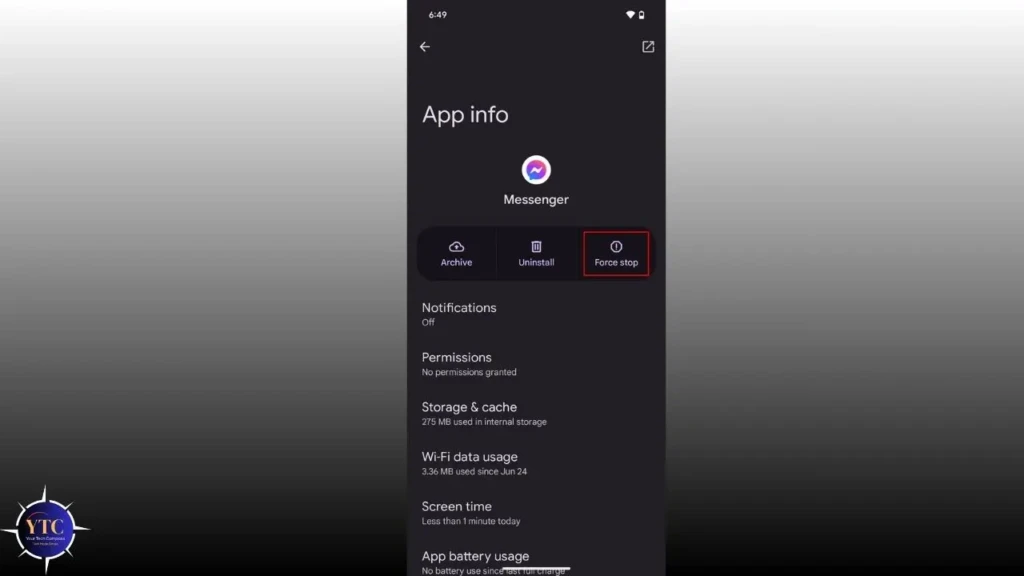
Sometimes an app gets stuck in a broken state and just needs to be completely shut down and restarted. Force stopping closes every process the app is running, not just the visible window.
To force stop an app:
- Go to Settings > Apps.
- Tap the crashing app.
- Tap Force Stop.
- Confirm when prompted.
- Wait 10 seconds and then reopen the app.
This is particularly useful for apps that crash immediately on opening or freeze without fully closing.
Fix 8: Reinstall the App
If none of the above fixes have worked, the app’s installation files may be corrupted. Uninstalling and reinstalling gives you a completely fresh copy of the app. No corrupted files, no outdated data.
To reinstall an app:
- Press and hold the app icon on your home screen.
- Tap Uninstall and confirm.
- Restart your phone.
- Open the Google Play Store, search for the app, and reinstall it.
Log back in after reinstalling and test whether the crashing has stopped. This fix resolves the problem in most cases where earlier steps haven’t helped.
Fix 9: Check Your Internet Connection

Some apps, particularly social media, streaming, and cloud-based apps like YouTube, WhatsApp, and Google Drive, crash specifically because of a poor or unstable internet connection. The app tries to load data, fails repeatedly, and eventually closes itself.
If your crashing only happens with certain apps and not others, test your connection by:
- Toggling Airplane Mode on for 10 seconds, then off again.
- Switching from Wi-Fi to mobile data (or vice versa) to see if the problem follows.
- Move closer to your Wi-Fi router if the signal is weak.
- Restarting your router if other devices are experiencing slow internet as well.
If the app stops crashing on a different network, your connection was the problem, not the app itself.
Fix 10: Boot Into Safe Mode
Safe Mode starts your Android phone with only the core system apps running; all third-party apps you’ve downloaded are temporarily disabled. If your crashing app works fine in Safe Mode, it means another app you’ve installed is causing a conflict.
To enter Safe Mode on most Android phones:
- Hold the Power button.
- Long-press the Power Off option on the screen.
- When prompted, tap OK to reboot into Safe Mode.
- You’ll see “Safe Mode” displayed in the corner of your screen.
Open the crashing app in Safe Mode and see if it runs normally. If it does, restart your phone to exit Safe Mode, then uninstall any apps you’ve recently installed; one of them is likely causing the conflict.
Fix 11: Clear Google Play Services Cache
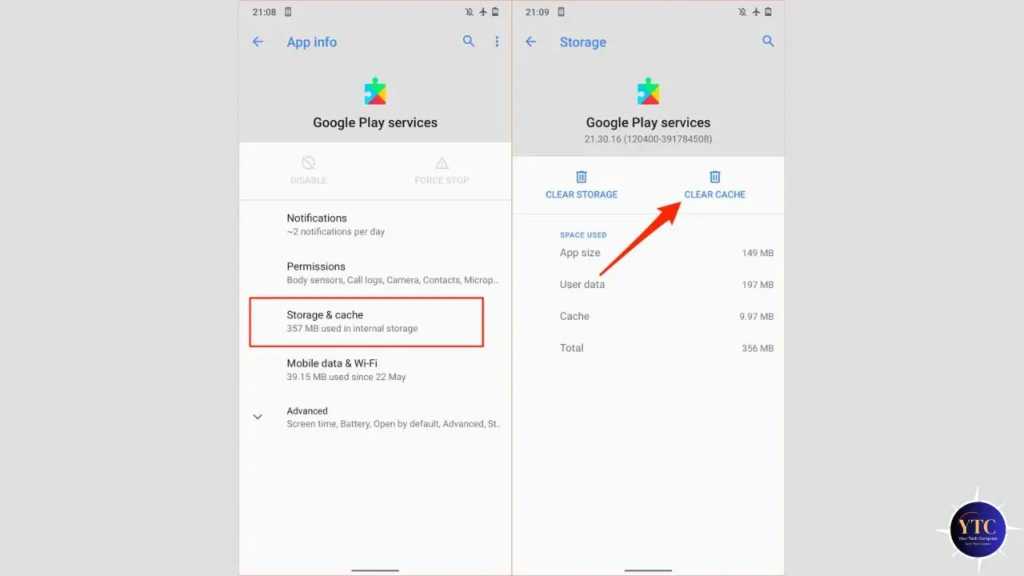
Google Play Services runs in the background and supports almost every app on your Android phone. When its cache becomes corrupted, it can cause widespread app crashes across multiple apps simultaneously.
To clear Google Play Services cache:
- Go to Settings > Apps.
- Tap the three-dot menu and select Show system apps.
- Find and tap Google Play Services.
- Tap Storage > Clear Cache.
Do not tap Clear Data on Google Play Services; only clear the cache. Restart your phone afterward and test your apps.
Fix 12: Reset App Preferences
Resetting app preferences restores all your app settings, default apps, permissions, and background data restrictions to their original state. This doesn’t delete any personal data or apps, but it can resolve crashes caused by incorrect permission settings that are preventing an app from accessing what it needs to run.
To reset app preferences:
- Go to Settings > Apps.
- Tap the three-dot menu in the top right.
- Tap Reset App Preferences.
- Confirm by tapping Reset.
After resetting, you may need to re-grant permissions to certain apps the first time you open them.
Fix 13: Factory Reset (Last Resort)
If every other fix has failed and multiple apps are crashing constantly, a factory reset is the final option. This wipes your phone completely and returns it to its state when you first bought it, removing all apps, data, and settings.
Before doing this, back up everything:
- Photos and videos → Google Photos.
- Contacts → Google Account sync.
- App data → Google Drive or individual app backups.
To factory reset:
- Go to Settings > General Management (Samsung) or Settings > System > Reset options (other Android).
- Tap Factory data reset or Erase all data.
- Read the warning carefully, then confirm.
Use this only as a last resort when nothing else has worked. In most cases, one of the earlier fixes will have already solved your problem long before you get to this point.
How to Stop Apps From Crashing in the Future
Now that your apps are working again, here’s how to keep them that way.
- Keep Everything Updated: Set your Google Play Store to update apps automatically by going to Play Store > Profile > Settings > Network preferences > Auto-update apps. Staying current prevents the compatibility issues that cause most crashes.
- Restart Your Phone Once a Week: This clears accumulated RAM, stops background processes, and prevents the buildup that can lead to instability. It takes 60 seconds and makes a genuine difference over time.
- Don’t Fill Your Storage to Capacity: Always keep at least 2–3GB of free internal storage. When you notice space getting tight, delete or move files before it becomes a problem rather than after apps start crashing.
- Only Install Apps from the Google Play Store: Apps from unknown sources haven’t been verified by Google and are far more likely to contain bugs, conflicts, or malware that destabilizes your phone. If you wouldn’t recognize the developer’s name, think twice before installing it.
- Clear the Cache Monthly: Once a month, review your most-used apps and clear their caches. It takes five minutes and prevents the slow buildup of corrupted files that cause crashes over time.
FAQs
If only one app is crashing while others work fine, the problem is almost certainly with that specific app, either a corrupted cache, a bug in a recent update, or a corrupted installation. Start with Fix 4 (clear cache), then Fix 5 (clear data), then Fix 8 (reinstall). One of those three will almost always solve a single-app crash.
When multiple apps crash simultaneously, the cause is usually a system-level issue, such as low storage, a problematic Android update, or corrupted Google Play Services. Try Fix 3 (update Android), Fix 6 (free up storage), and Fix 11 (clear Google Play Services cache) first.
No. Clearing app data only removes the app’s internal settings, login information, and stored preferences, not your photos, videos, or files stored elsewhere on your phone. However, you will need to log back into the app afterward.
Start with Fix 7 (force stop), then Fix 4 (clear cache), then Fix 8 (reinstall). An immediate crash on opening is almost always caused by a corrupted file that a reinstall will fix.
Yes, but only after backing up your data. A factory reset wipes everything on your phone, so make sure your photos, contacts, and important files are backed up to Google Photos, Google Drive, or another backup service before proceeding.
This suggests your Wi-Fi connection is the problem, not the app. Your router may be dropping packets, your signal may be weak, or there may be a DNS issue. Try restarting your router, moving closer to it, or checking with your internet provider to see if there’s a known issue.
Final Thoughts
App crashes are annoying, but they’re almost always fixable, and you don’t need to be a tech expert to solve them. Work through these fixes in order, starting from the simplest, and you’ll find the solution long before you need to consider anything drastic like a factory reset.
If you found this guide helpful, you might also want to check out our other Android and app troubleshooting guides in the Tech Guides section. We cover everything from common app problems to getting the most out of the tools already on your phone, all in plain, everyday English.
Found this helpful? Browse more in-depth tech guides, honest reviews, and step-by-step tutorials at YourTechCompass; your go-to resource for making smarter tech decisions.