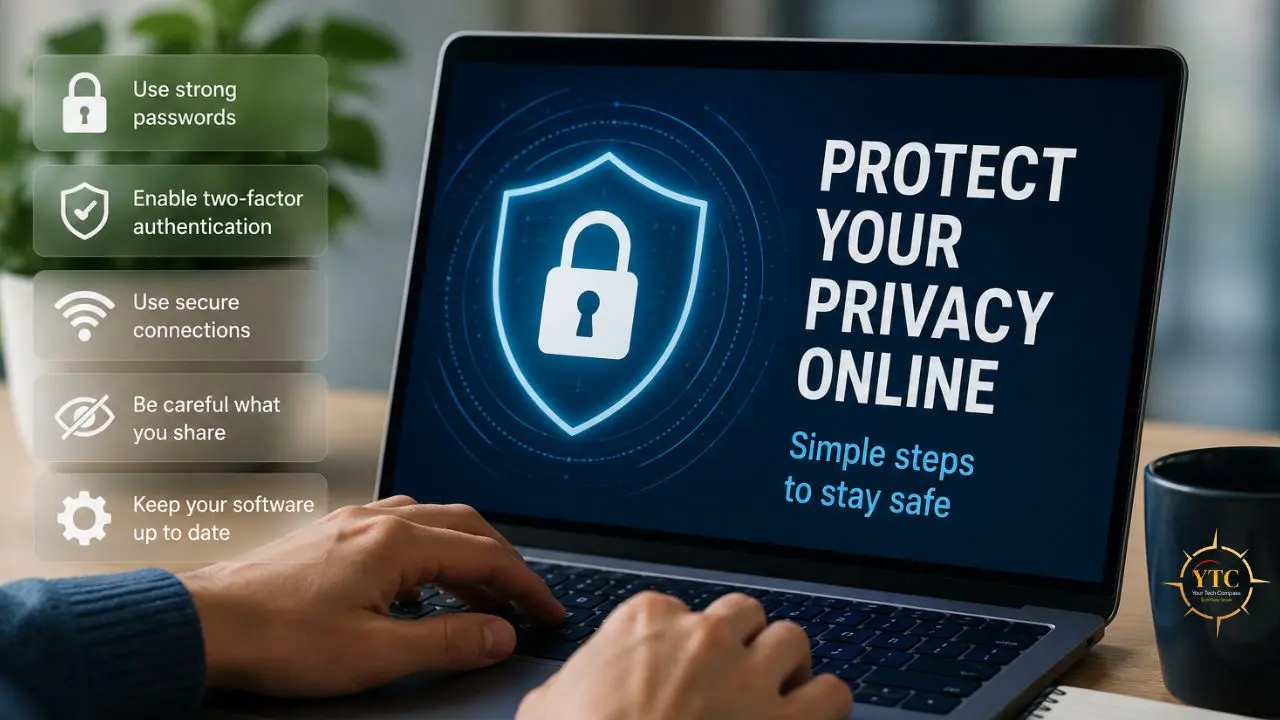
Every website you visit logs something about you. Every app you install asks for permissions that go beyond what it needs to function. And every social media platform you use continuously analyzes your behavior to serve you more precisely targeted content and advertising. Most of this happens invisibly; you never see a notification that says “your browsing history was sold to a data broker today,” but that’s effectively what happens to people who haven’t taken deliberate steps to limit it. Online privacy isn’t a paranoid concern. It’s a practical one, and in 2026, it’s more relevant than ever as data breaches, phishing attacks, and identity theft continue to rise across all categories.
The good news is that protecting your privacy online doesn’t require technical expertise or expensive tools. What it requires is understanding which actions have the most impact and applying them consistently. I’ve organized this guide into the highest-leverage steps, from password hygiene to VPN selection, browser settings, and mobile security, with specific, actionable instructions rather than vague advice. Work through these sections in order, implement the steps that apply to your situation, and you’ll have meaningfully better privacy than the vast majority of people meaningfully using the internet today.
Understand Your Digital Footprint and Why It Matters
A digital footprint is the cumulative trail of data you leave behind through online activity. It’s made up of two layers that most people don’t distinguish between: the active footprint (what you deliberately share: your social media posts, the forms you fill out, the profiles you create) and the passive footprint (what’s collected without your explicit awareness: browsing history, location data, device identifiers, metadata from photos, purchase patterns, and behavioral analytics).
The passive footprint is where most of the real privacy risk lives. When you visit a website, that site may load tracking pixels, analytics scripts, and third-party cookies from dozens of companies you’ve never heard of, each one collecting data about which pages you viewed, how long you stayed, where you came from, and what you clicked. That data gets aggregated across thousands of websites into behavioral profiles that data brokers sell to advertisers, insurers, employers, and anyone else willing to pay.
Understanding this matters because it changes which actions are actually high-impact. Deleting your old Instagram posts is a form of visible footprint management. Blocking third-party cookies and using a DNS resolver that doesn’t log queries are forms of passive footprint management, and they affect every website you visit, not just one platform.
What to Do Right Now
- Search your name on Google and DuckDuckGo to see what’s publicly visible about you.
- Review which accounts you no longer use. Dormant accounts with your personal data are security liabilities; delete them.
- Go to your Google account at myaccount.google.com → Data & Privacy → Manage your data and personalization. Turn off Web & App Activity, YouTube History, and Location History if you haven’t already.
- Request deletion from data broker sites. Data Broker Watch and JustDeleteMe list the opt-out pages for the major data aggregators.
Use Strong, Unique Passwords and a Password Manager
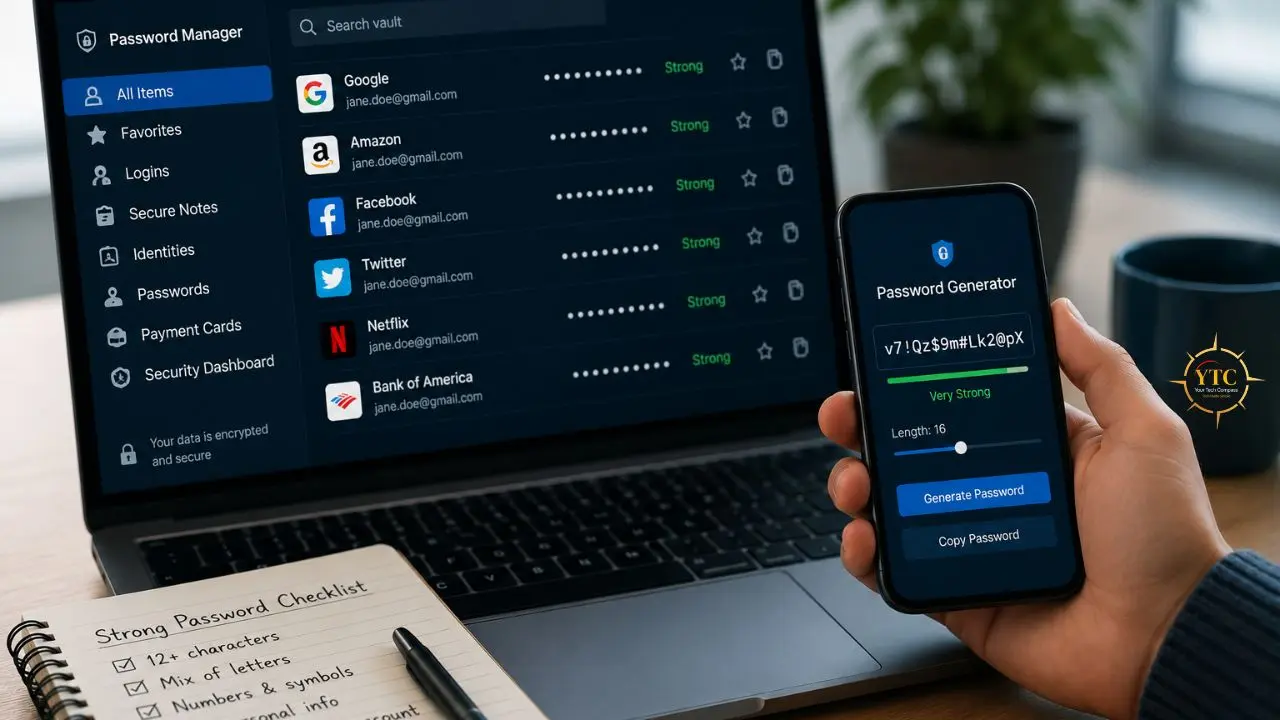
The single most effective thing most people can do to improve their online security is to stop reusing passwords. When a company you have an account with is breached, and breaches eventually happen to almost every major platform, the leaked email-and-password combination gets added to lists that hackers systematically test against every other major site. If you use the same password for your email, your bank, and your social media, a single breach exposes all three.
A strong password is at minimum 16 characters long, uses a mix of uppercase and lowercase letters, numbers, and symbols, and isn’t based on a dictionary word, a name, or any personally meaningful information that could be guessed from your social media presence. The practical challenge is that nobody can remember 50 unique 16-character passwords, which is exactly why password managers exist.
Password Managers Worth Using
Bitwarden
This is the most recommended free password manager for most people. It’s open-source (meaning the code is publicly auditable), free for unlimited passwords on unlimited devices, and has been independently audited by cybersecurity firm Cure53.
The premium tier at $10/year adds encrypted file storage and two-factor authentication reports. There’s no meaningful reason to use a less private option.
1Password
This is the premium choice for individuals and families who want the most polished experience, Team and Family sharing, and a unique Secret Key architecture where even 1Password cannot access your vault. At $3.99/month (individual) or $5.99/month (family of up to 5), it’s worth the cost if you want enterprise-grade security without the complexity of enterprise setup.
What to Do
- Download Bitwarden (free) or 1Password and create an account.
- Install the browser extension. This is what enables one-click autofill.
- Change the passwords for your five most important accounts first: email, banking, primary social media, phone carrier, and your password manager.
- Enable the password manager’s breach monitoring feature, which will alert you if any stored email/password combination appears in a known data breach.
Enable Two-Factor Authentication on Every Account That Offers It
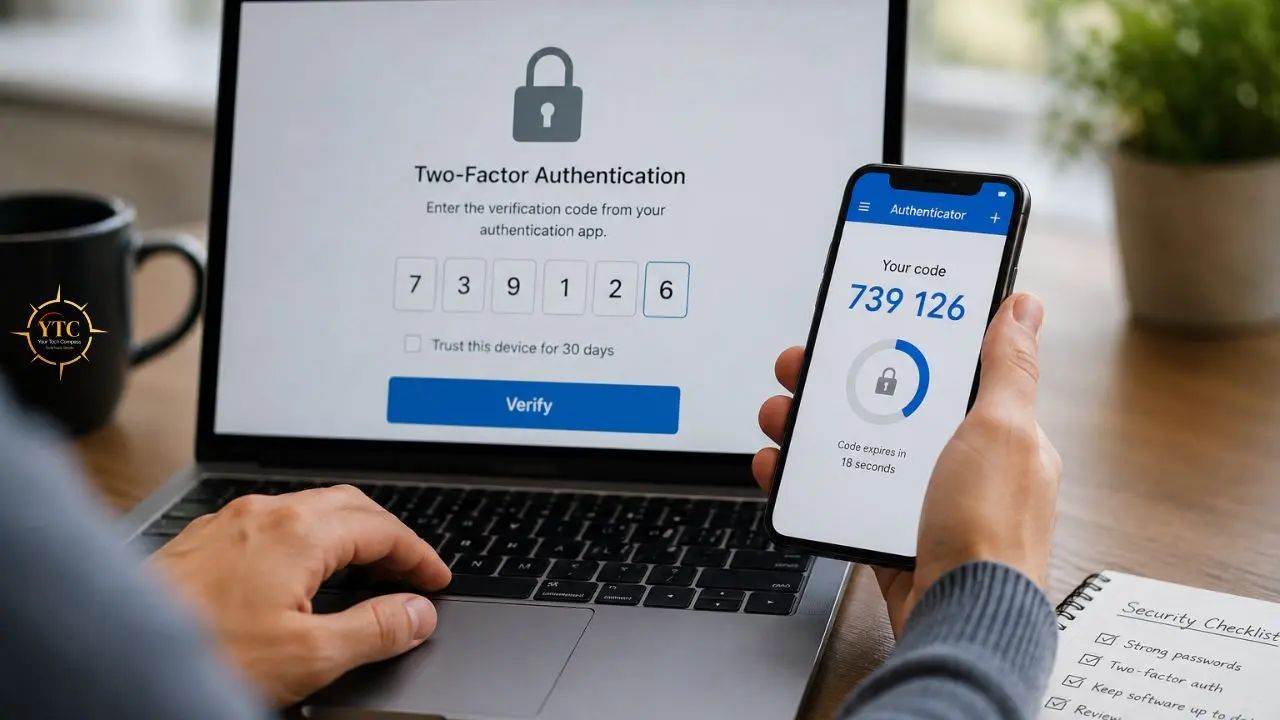
Two-factor authentication (2FA) adds a second verification step after your password, so even if your password is leaked, stolen, or guessed, a hacker still cannot access your account without the second factor. It is the single most effective account security measure available to ordinary users.
There are several types of 2FA, and they’re not equally secure:
- Authenticator App (TOTP): A time-based one-time code generated by an app like Google Authenticator, Authy, or Aegis. These codes expire every 30 seconds and are generated locally on your device, so there’s no SMS network involved, and they can’t be intercepted over mobile networks. This is the recommended 2FA method for any account that supports it.
- SMS/Text Message: A code sent to your phone number. Better than nothing, but meaningfully less secure than an authenticator app. SIM-swapping attacks, in which an attacker tricks your phone carrier into transferring your number to their SIM card, can bypass SMS 2FA entirely. Avoid SMS-based 2FA for high-value accounts, such as email and banking, if an authenticator app option is available.
- Hardware Security Key (FIDO2/WebAuthn): A physical USB or NFC key (YubiKey is the most widely used) that you insert or tap to authenticate. This is the most secure 2FA option available and is completely phishing-proof. The key can only authenticate with the exact domain it was registered on, making lookalike phishing sites ineffective even if you enter your password. Recommended for high-value targets: journalists, executives, and anyone who has experienced account compromise before.
What to Do
- Download an authenticator app (Aegis for Android; open source; Raivo for iOS).
- Go to the security settings of your email account first and enable 2FA with the authenticator app.
- Then enable it for your banking accounts, social media, and any other accounts that contain sensitive information.
- When recovery codes are offered during setup, download and store them in your password manager. These are your fallbacks if you lose access to the authenticator.
Browse Securely: Browsers, Extensions, and Public Wi-Fi
Your browser is where most of your passive footprint is generated, and your choice of browser, along with a few extensions, can dramatically reduce tracking without affecting your browsing experience.
Choose a Privacy-Respecting Browser
- Firefox is the best all-around private browser for most people, open-source, not owned by an advertising company, with enhanced tracking protection enabled by default and the widest extension ecosystem. Configure it with Strict mode in Settings → Privacy & Security → Enhanced Tracking Protection.
- Brave is Firefox’s closest alternative, built on the same Chromium engine as Chrome, but with comprehensive ad and tracking blocking built in at the browser level, no extension required. Shields (Brave’s built-in blocker) blocks cross-site trackers, fingerprinting attempts, and cookie-based tracking by default.
- Avoid Chrome for privacy-sensitive browsing. Chrome is owned by Google, whose business model is advertising. Chrome sends significantly more data back to Google’s servers than any other browser, and its architecture is designed around the advertising ecosystem that Google controls. If you need Chrome for specific web compatibility, keep it for that purpose and use Firefox or Brave for everything else.
Essential Browser Extensions
- uBlock Origin (Firefox and Chromium browsers): The most effective content and tracker blocker available. In Medium mode, it blocks third-party scripts by default. In the default Easy mode, it blocks most tracking and advertising with no configuration required. Free, open-source, and maintained by an independent developer with no financial relationship to the advertising industry.
- Privacy Badger (Electronic Frontier Foundation): Learns to block invisible trackers that uBlock Origin doesn’t catch, using behavioral analysis of each domain’s behavior rather than just a blocklist. Complement to uBlock Origin, not a replacement.
VPNs: Who Actually Needs One and Which to Choose
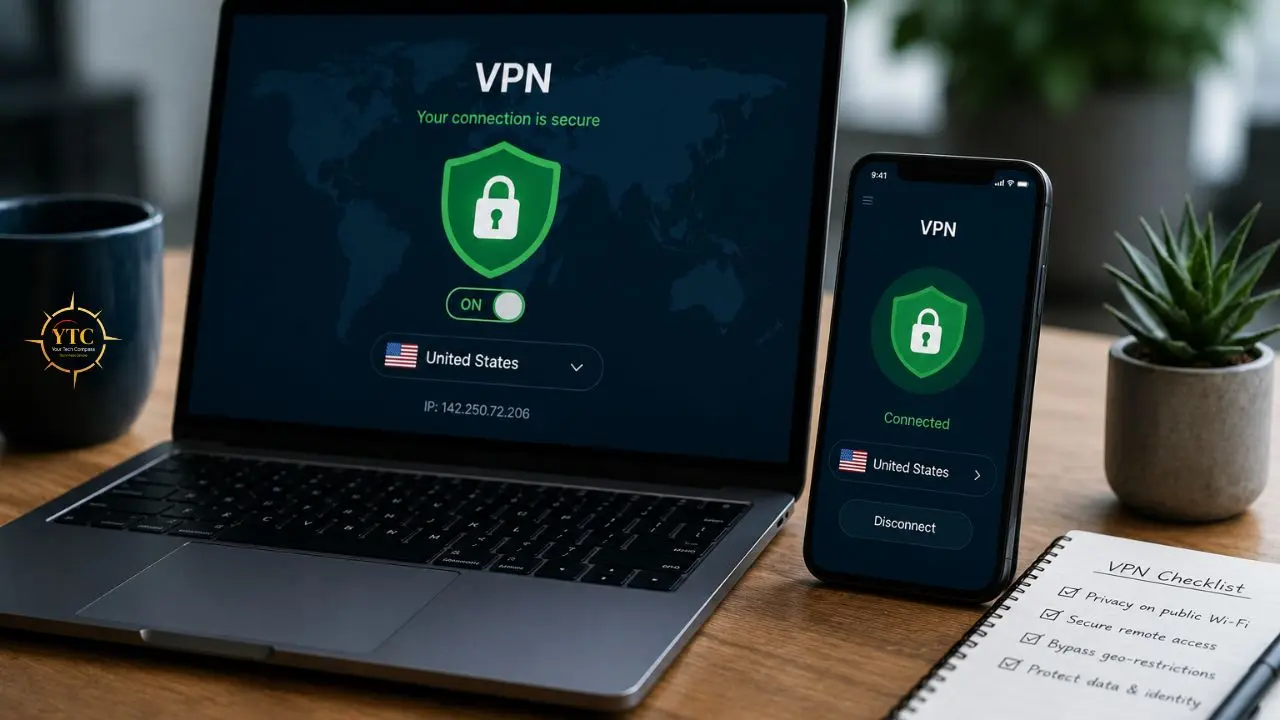
A VPN (Virtual Private Network) routes your internet traffic through an encrypted tunnel to a server run by the VPN provider, hiding your real IP address from the websites you visit and encrypting your traffic from your internet service provider. What a VPN doesn’t do: it doesn’t make you anonymous, it doesn’t protect you from malware, and it doesn’t prevent the VPN provider itself from seeing your traffic if they choose to log it.
You genuinely benefit from a VPN when:
- You use public Wi-Fi (in coffee shops, airports, and hotels).
- You want to prevent your internet service provider from logging your browsing history.
- You’re traveling internationally and want to bypass geographic content restrictions.
- You handle sensitive professional communications and want an additional layer of encryption.
The VPNs Worth Using in 2026 with Verified Reasoning
Proton VPN
This is the best choice for most people. The free tier lets you test it properly. Swiss jurisdiction, open-source apps, and four consecutive annual audits make it the strongest combination of verifiability and usability available.
Paid plans start at $2.99/month (annual billing). On the other hand, the free plan is genuinely functional for basic use: unlimited data, but limited server selection and slower speeds than paid tiers.
Mullvad
This is the choice for maximum anonymity. It offers cash and cryptocurrency payment, requires no email to create an account, and is the only provider with a no-logs policy proven against an actual police seizure.
On April 18, 2023, Swedish police raided Mullvad’s offices and found nothing useful because there was nothing to find. Costs €5/month with no long-term subscription option.
NordVPN
NordVPN completed its sixth consecutive no-logs audit in December 2025, conducted by Deloitte Lithuania under the ISAE 3000 international assurance standard, which is more rigorous than a standard penetration test. Six consecutive years of this is meaningful evidence of consistency. Best for users who want verified speed, streaming support, and 10 simultaneous device connections.
Avoid Free VPNs from Unknown Providers
Free VPN services have to fund operations somehow, and a disturbing number do it by logging and selling user traffic data, which is precisely the opposite of why you’d use a VPN. If cost is the constraint, Proton VPN’s free tier is the only recommended free option. Check out our detailed guide on the best free VPNs.
Public Wi-Fi
Public Wi-Fi networks are unencrypted and easily monitored by anyone on the same network. The basic rules: never access banking or financial accounts on public Wi-Fi without a VPN active; avoid logging into email on public networks if possible; and if you must access sensitive accounts on public Wi-Fi, enable your VPN first.
If you’re already using HTTPS-only sites (the padlock in your address bar), your data is encrypted in transit, but your ISP or network operator can still see which domains you’re visiting. A VPN prevents that.
Protect Your Data on Social Media
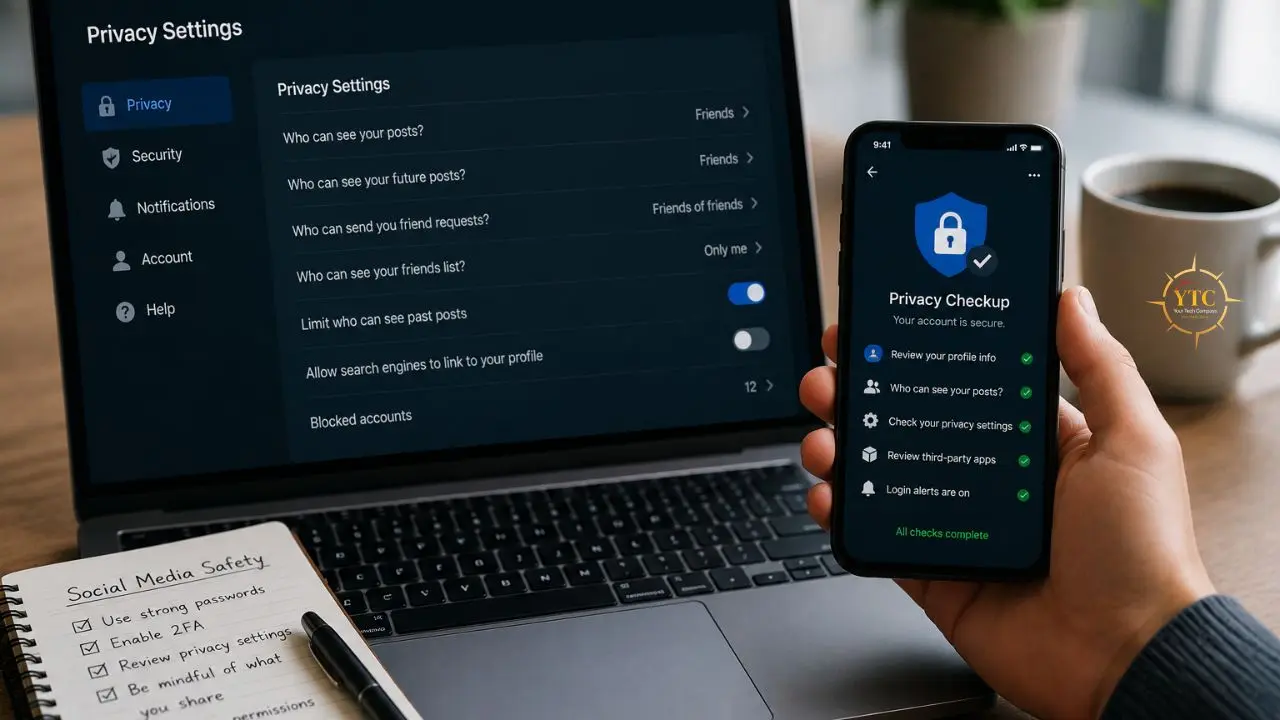
Social media platforms are designed to collect data about you: engagement patterns, interests, relationship graphs, location check-ins, and the private messages you exchange. Every piece of personal information on your profile is a potential input for advertiser targeting, social engineering attacks, or data broker aggregation.
The Specific Settings Worth Changing
Facebook/Meta
- Settings → Your Facebook Information → Off-Facebook Activity → Manage Future Activity → Disconnect Future Activity. This setting prevents Meta from tracking your activity across third-party websites and apps, even when you’re not on Facebook.
- Settings → Privacy → Limit Past Posts. Restrict old posts that may contain more personal information than you intended to share publicly.
- Settings → Location Services → turn off continuous location sharing.
- Settings → Privacy → Account Privacy → set to Private unless you have a professional reason to be public.
- Settings → Security → check “Emails from Instagram.” Phishing emails that impersonate Instagram are common; knowing what real Instagram emails look like helps you spot fakes.
- Settings → Privacy → How LinkedIn uses your data → Manage your data and activity → turn off data sharing for research and off-LinkedIn advertising.
- Settings → Visibility → Profile visibility on LinkedIn → set to No (to prevent your profile from appearing in Google search results if you prefer).
Across all Platforms
- Review which third-party apps have been granted access to your social media accounts (Facebook: Settings → Apps and Websites; Google: myaccount.google.com → Third-party apps). Revoke access for any app you no longer use.
- Never use “Log in with Facebook” or “Log in with Google” for accounts that contain sensitive personal or financial information. These connections create data sharing that’s difficult to fully audit.
Recognize and Avoid Phishing Attacks
Phishing is the primary method by which accounts get compromised, not sophisticated hacking, but rather deceptive emails, text messages, or links that trick you into voluntarily providing your credentials. The attacks have become significantly more convincing with AI-generated content: spelling and grammatical errors, which were historically the telltale signs of phishing, are increasingly rare in well-crafted attacks.
The Red Flags That Remain Reliable Indicators
1. Urgency and Pressure
Legitimate banks, government agencies, and technology companies do not send emails threatening to close your account within 24 hours unless you click immediately. Urgency is the manipulation mechanism; it’s designed to prevent you from thinking critically.
2. Sender Address Mismatch
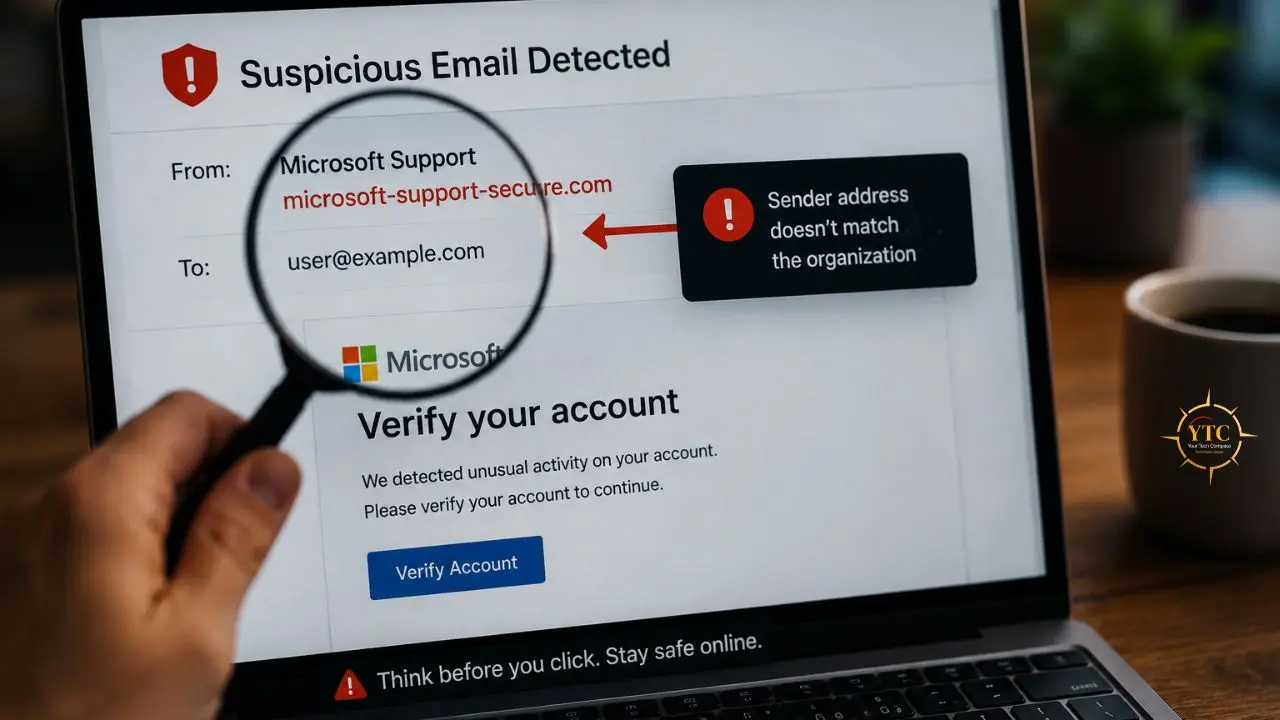
The display name can say “Apple Support” while the actual email address is apple-support@securityalert-1342.com. Always click on the sender’s name to reveal the actual address. A domain that doesn’t exactly match the company’s real domain is a phishing indicator.
3. Links That Don’t Match Their Display Text
Hover over any link before clicking. The URL that appears in the bottom left of your browser is the actual destination. A link that shows “paypal.com” but resolves to “paypal-security-login.net” is a phishing link.
4. Requests for Credentials, Payment Information, or Sensitive Data
Legitimate companies never ask for your password by email. Ever. No legitimate company sends an email asking you to “verify your account” by entering your password on an external form.
What to Do If You Receive a Suspicious Email
- Do not click any links.
- Go directly to the company’s official website by typing the URL yourself, rather than following any link in the email.
- Call the company’s published customer service number if you’re concerned that the communication might be legitimate.
- Report the phishing email using your email client’s “Report Spam/Phishing” function.
What to Do If You Clicked a Phishing Link
- Immediately change the password for the targeted account from a different device, if possible.
- Check whether the account offers 2FA and enable it now if it isn’t already active.
- Monitor the account for any changes you didn’t make (email forwarding rules, new connected apps, sent emails you don’t recognize).
Privacy-Focused Tools Worth Actually Using
For Search
DuckDuckGo doesn’t track searches, doesn’t build a profile on you, and doesn’t personalize results based on your history. The search quality is sufficient for the vast majority of queries. For searches where you need Google’s depth of indexing, use it in a private/incognito window without being logged into a Google account.
For Email
ProtonMail (free tier available) provides end-to-end encrypted email with servers in Switzerland. Emails between ProtonMail users are encrypted such that even Proton cannot read them.
For emails to regular addresses, the encryption applies in transit but not on the recipient’s end. A meaningful upgrade from Gmail for anyone concerned about email privacy.
For Messaging
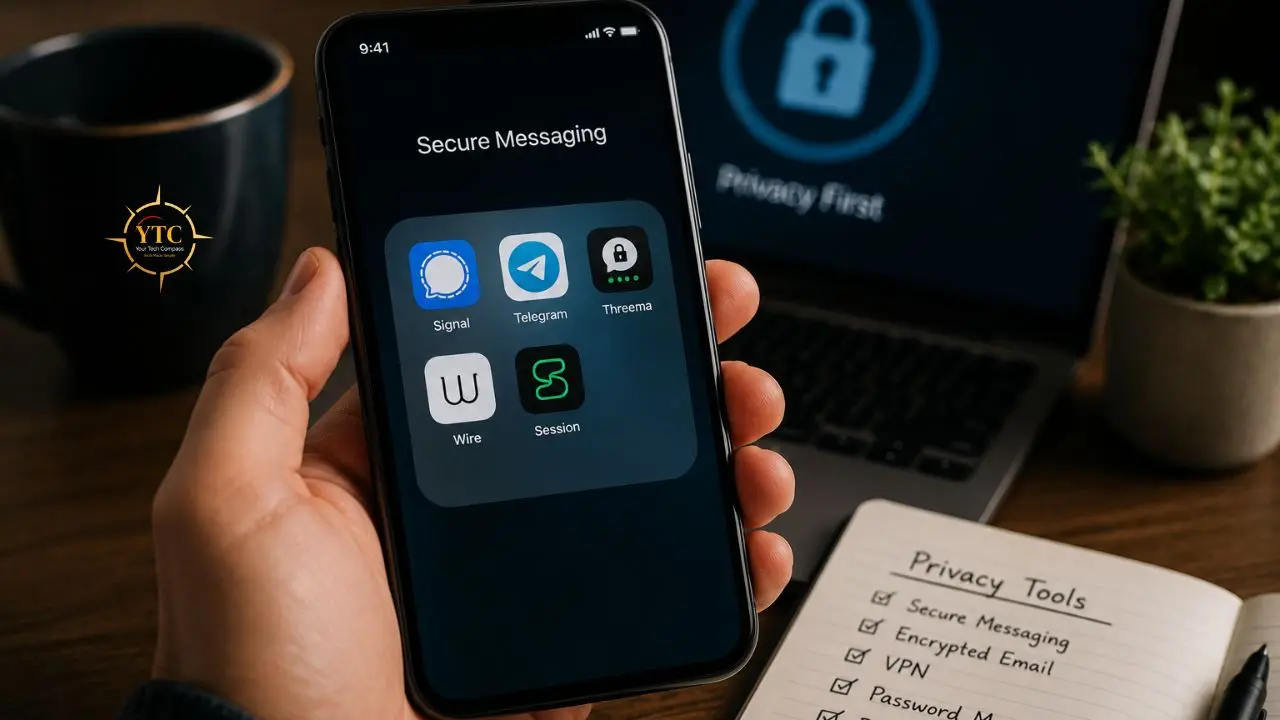
Signal is the gold standard for private messaging: end-to-end encrypted by default for all messages and calls, open-source, operated by a nonprofit, and recommended by security researchers globally. Move conversations you want to keep private to Signal.
WhatsApp uses the Signal protocol for message encryption, but it is owned by Meta and collects significant metadata. iMessage is encrypted, but Apple holds the keys for iCloud backups unless you enable Advanced Data Protection.
For DNS
Your device’s default DNS resolver (usually your ISP’s) logs every domain you visit. Switching to a privacy-respecting resolver like Cloudflare (1.1.1.1) or NextDNS (with logging disabled) prevents your ISP from building a complete history of every site you’ve visited.
On iPhone: Go to Settings → Wi-Fi → your network → Configure DNS. And on Android: Go to Settings → Network → Private DNS → enter dns.cloudflare.com or your NextDNS hostname.
Keep Your Software Updated: Every Update, Every Time
Software updates patch security vulnerabilities. When a vulnerability is discovered in an operating system or an app, the patch is released in the next update, and as soon as that update is public, the vulnerability becomes known to those who exploit it. The window between a security patch’s release and widespread exploitation by attackers is often measured in days.
This means running an outdated operating system or outdated apps is not a neutral choice; it’s actively leaving documented vulnerabilities open. Enable automatic updates on your iPhone (Settings → General → Software Update → Automatic Updates), Android (Settings → System → System Update), and Windows/macOS, and allow them to install without delay. The inconvenience of a reboot is trivial compared to the risk of operating a device with known, unpatched vulnerabilities.
Mobile Privacy: Securing Your Smartphone
Your smartphone is the most intimate device you own. It knows where you’ve been every hour of every day, who you’ve communicated with, what you’ve purchased, what you’ve searched for, and what apps you’ve used.
Mobile privacy is not a secondary concern. For most people, it’s the highest-priority privacy surface they have.
Audit App Permissions Rigorously
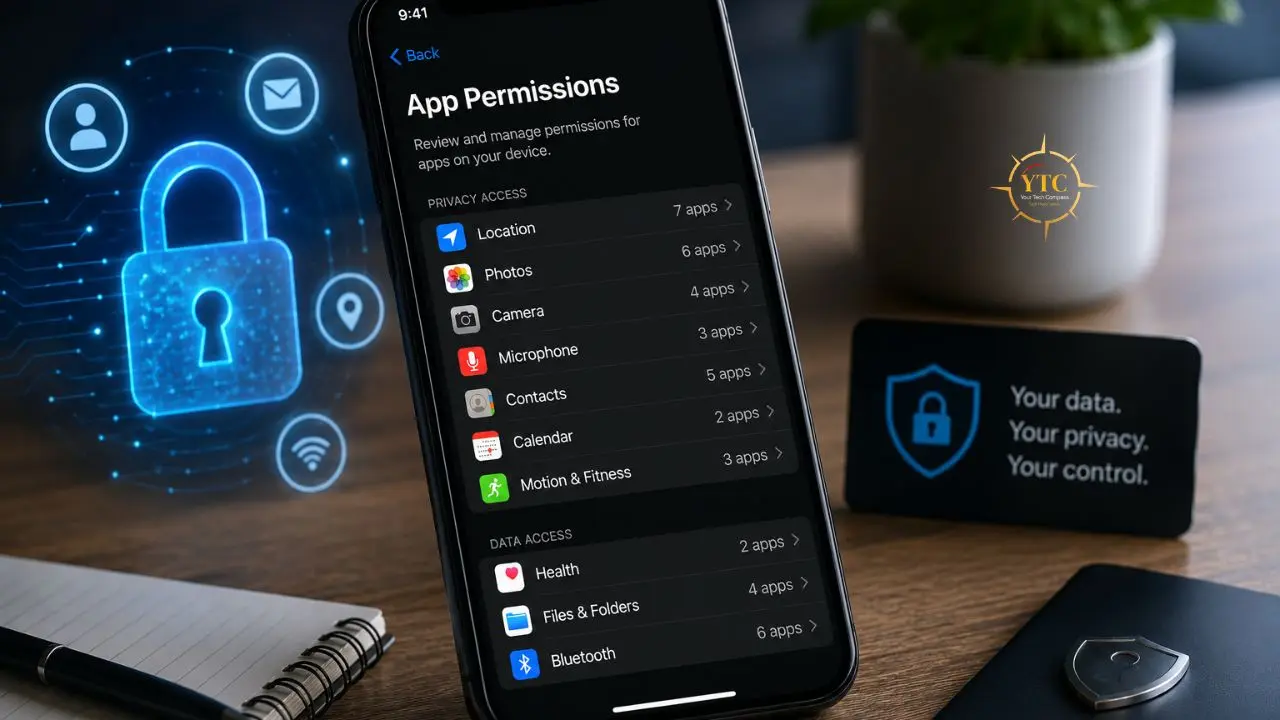
On iPhone: Settings → Privacy & Security → review each permission category (Location, Microphone, Camera, Contacts, Photos, Bluetooth). For each app listed, ask: Does this app genuinely need this permission to function? Instagram doesn’t need microphone access to show you photos.
Your flashlight app doesn’t need location access. Revoke every permission that isn’t necessary.
On Android: Settings → Privacy → Permission Manager → review each category. Same principle: revoke anything that isn’t genuinely required for the app’s core function.
Location Is the Most Important Permission to Manage
Most apps request location access more aggressively than necessary. Change any “Always” location setting to “While Using” unless the app is a navigation or location-sharing app that literally cannot function otherwise. “Always on” location access means the app is tracking your location continuously, while you sleep, while you’re at the doctor’s office, and at all times.
Disable Ad Tracking Identifiers
On iPhone (iOS 14+): Settings → Privacy & Security → Tracking → turn off “Allow Apps to Request to Track.” This tells every app that you don’t want to be tracked across other apps and websites. Additionally, go to Settings → Privacy & Security → Apple Advertising → turn off Personalized Ads.
On Android: Settings → Privacy → Ads → Delete advertising ID. This removes the persistent identifier that advertising networks use to track you across apps.
Lock Your Device with Biometrics and a Strong Passcode
A six-digit numeric PIN has 1,000,000 possible combinations; adequate but not exceptional. An alphanumeric passcode of 8 or more characters is meaningfully more secure.
Face ID and fingerprint unlock are convenient and acceptable, but understand that in some jurisdictions, law enforcement can compel biometric unlock, while a passcode provides stronger legal protection. This is an edge case for most users, but worth being aware of.
Use Encrypted Communication Apps for Sensitive Conversations
Signal for private messaging. ProtonMail is a privacy-respecting email service for sensitive emails.
Avoid SMS for anything you wouldn’t want a third party to read. SMS is unencrypted and can be intercepted.
To maintain your device’s overall performance and ensure cache data isn’t creating unnecessary tracking exposure, clearing the cache regularly helps. Here’s how to clear the cache on Android as part of your routine mobile privacy maintenance.
🔒 Privacy Tools and Practices: When to Use What
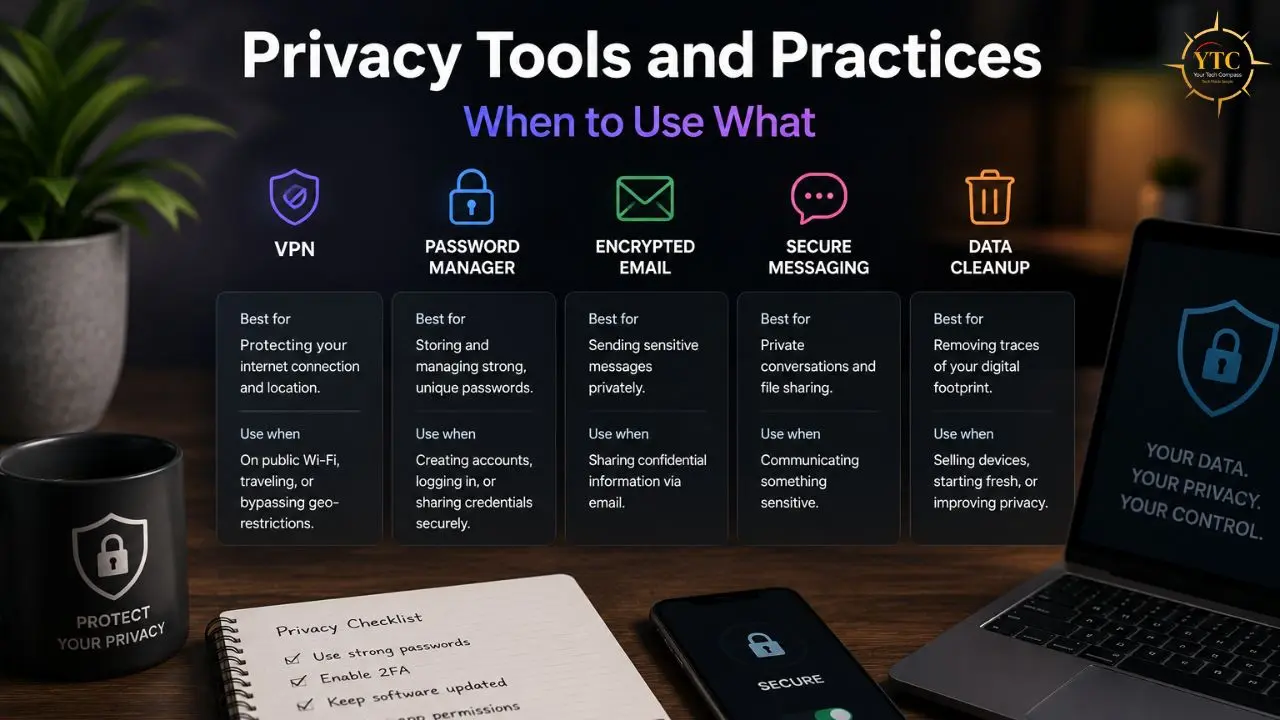
Tool / Practice | Best Used For | Why It Matters | Free Option? |
Password Manager (Bitwarden / 1Password) | All online accounts | Prevents reuse; generates strong, unique passwords; monitors for breaches | ✅ Bitwarden free |
Two-Factor Authentication (Authenticator App) | Email, banking, social media, any high-value account | Blocks account access even with leaked passwords | ✅ Aegis / Raivo free |
VPN (Proton VPN / Mullvad / NordVPN) | Public Wi-Fi, ISP tracking prevention, travel | Encrypts traffic; hides browsing from ISP and network | ✅ Proton VPN free tier |
Privacy Browser (Firefox / Brave) | All web browsing | Blocks cross-site tracking, fingerprinting, and ad scripts | ✅ Both free |
uBlock Origin | All browsers (add-on) | Blocks trackers and ads at the network request level | ✅ Free |
Privacy Search Engine (DuckDuckGo) | Everyday searches | No search history, no profiling, no personalization | ✅ Free |
Encrypted Messaging (Signal) | Private conversations | End-to-end encrypted; open-source; nonprofit operated | ✅ Free |
ProtonMail | Sensitive email correspondence | End-to-end encrypted; Swiss jurisdiction; no data selling | ✅ Free tier |
App Permission Audits | Smartphone (iOS and Android) | Removes unnecessary data access at the source | ✅ Built-in |
DNS Privacy (Cloudflare 1.1.1.1 / NextDNS) | All device browsing | Prevents ISP logging of every domain you visit | ✅ Cloudflare free |
Regular Software Updates | All devices and apps | Patches security vulnerabilities before attackers exploit them | ✅ Free |
Social Media Privacy Settings | Facebook, Instagram, LinkedIn | Limits data collection, ad targeting, and third-party access | ✅ Built-in |
FAQs
No, there’s a hierarchy of impact. The four actions that give you the most protection for the least effort are: using a password manager with unique passwords for every account, enabling authenticator-based 2FA on your email and banking accounts, switching to Firefox or Brave with uBlock Origin installed, and auditing your smartphone’s app permissions. Do those four things, and you’ve addressed the vast majority of real-world privacy risk that affects ordinary users.
It depends on your specific threat model. If you regularly use public Wi-Fi, if your ISP’s data-sharing practices concern you, or if you’re a journalist, researcher, or anyone whose browsing history could be professionally sensitive, yes, a paid VPN from a provider with an audited no-logs policy is worth it. If you primarily use your home connection, you’re already on a private network, and a VPN provides less marginal value. Proton VPN’s free tier is a no-cost way to start if you’re unsure.
Browser extensions run with significant privileges inside your browser; they can read the content of every page you visit. This makes the source and ownership of extensions an important privacy consideration in their own right. Only install extensions from developers with a verified track record: uBlock Origin (Raymond Hill, open-source, verifiable), Privacy Badger (Electronic Frontier Foundation), HTTPS Everywhere (EFF). Be extremely cautious about obscure extensions from unknown developers; they’ve been used to steal credentials and inject ads.
Go to haveibeenpwned.com and enter your email address. It checks your email against a database of confirmed breaches and tells you which specific breaches included your data and what information was exposed. If your email appears in a breach, change the password for that account immediately, as well as for any other account where you used the same password.
Partially. Incognito mode prevents your browser from saving your local browsing history, cookies, and form data. It does not hide your activity from your ISP, your employer (if you’re on a work network), or the websites you visit; they can still see your IP address and log your visits. Incognito is useful for preventing browsing history from being visible locally on a shared device. It’s not a privacy tool in any deeper sense.
Act immediately. Change the password for the targeted account from a different device if possible. Enable 2FA on that account if it isn’t already active. Check for unauthorized activity: emails you didn’t send, forwarding rules you didn’t create, connected apps you didn’t authorize, and login sessions from unfamiliar locations. If financial accounts were involved, contact your bank or card issuer directly to report a potential compromise and request a card replacement.
Conclusion
Online privacy in 2026 isn’t about being untraceable; it’s about being meaningfully harder to track than most people who haven’t thought about it. Every step in this guide moves you further from the default position, where your data is collected, profiled, and monetized by parties you’ve never interacted with and whose interests are orthogonal to yours.
Start with the highest-impact changes: a password manager that generates unique passwords for each account, authenticator-based 2FA on your most important accounts, and a browser that doesn’t report everything you do to an advertising company. Those three changes alone close most real-world privacy vulnerabilities affecting ordinary internet users. Then work through the rest (social media settings, VPN for public Wi-Fi, app permission audits on your phone) at a pace that fits your situation. Consistency over time matters more than perfection on day one. The habits you build this week protect you this year and every year after.
Every privacy guide, tool comparison, and practical tech how-to worth bookmarking lives at YourTechCompass.com, where we give you the information you need to stay in control of your digital life.