
Your laptop battery is like the heart of your device; it powers everything you do, from long work sessions to Netflix marathons. But just like any battery, it degrades over time. That’s why it’s crucial to check your laptop’s battery health regularly to ensure it’s performing efficiently and won’t suddenly die when you need it most.
In this guide, I’ll walk you through how to check your laptop’s battery health on Windows, macOS, and Chromebook devices. I’ll also explore trusted third-party apps that provide deeper insights and offer simple maintenance tips to help extend the battery’s life.
How to Check Battery Health on Windows Laptops
Windows laptops offer several built-in ways to monitor battery health. The most accurate method is through the Command Prompt battery report.
1. Generate a Battery Report Using Command Prompt
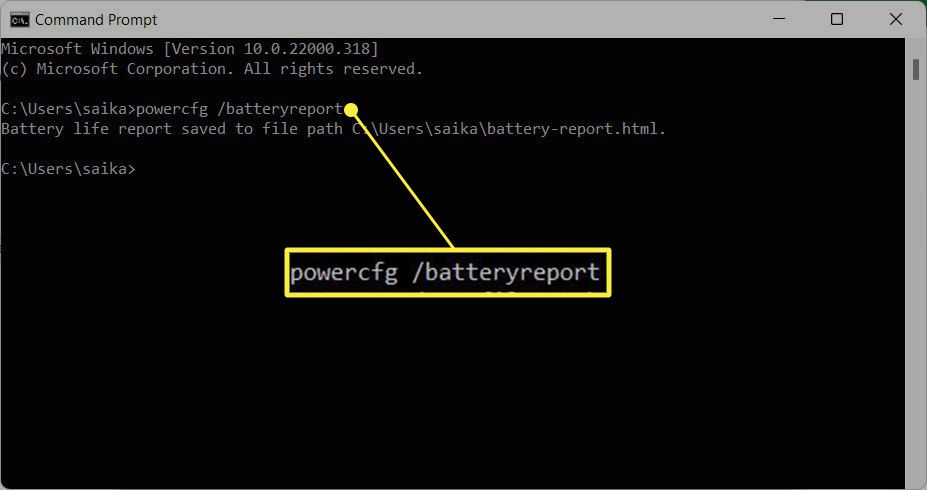
- Press Windows + S and type cmd.
- Right-click on the Command Prompt and select ‘Run as Administrator’.
Type the command:
powercfg /batteryreport
- Press Enter. Windows will generate a report and save it as an HTML file (typically located at C:\Users\[YourName]\battery-report.html).
Open that file in your browser, and you’ll see vital details such as design capacity, full charge capacity, and cycle count. A significant gap between the design and full charge capacity indicates that your battery has degraded over time.
2. Check Battery Health via Settings
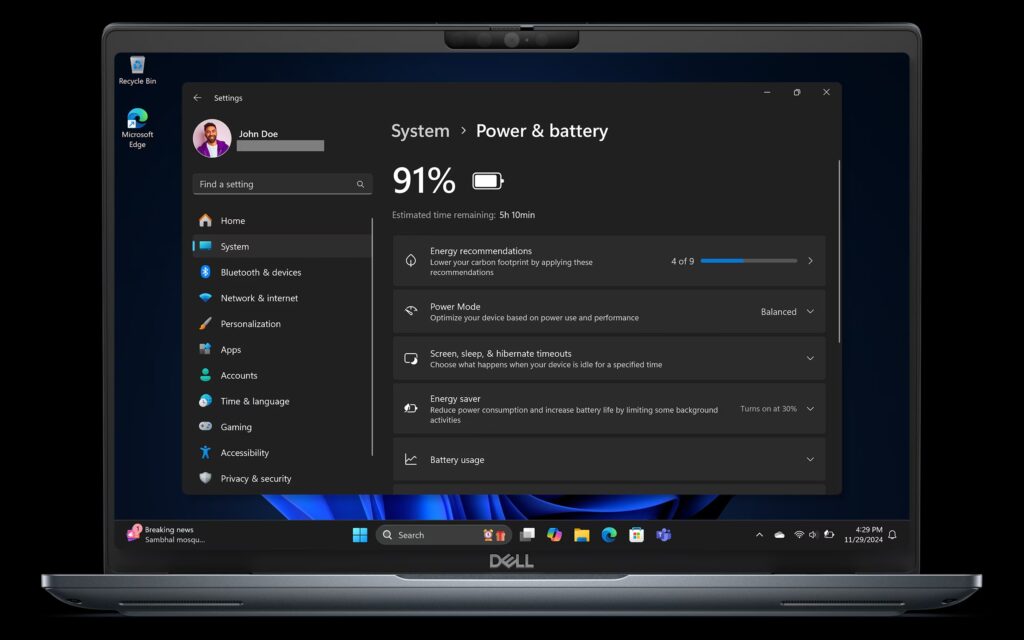
If you’re running Windows 11, you can also check basic battery information by going to:
Settings → System → Power & Battery.
Here, you’ll find insights into battery usage and screen-on time, which can help identify apps that drain your battery quickly.
Extra Tip: HP and Dell users can use HP Support Assistant or Dell Power Manager, which provide brand-specific diagnostics and recommendations.
How to Check Battery Health on macOS
MacBooks make it easy to monitor your battery health without needing third-party software.
1. Using System Settings
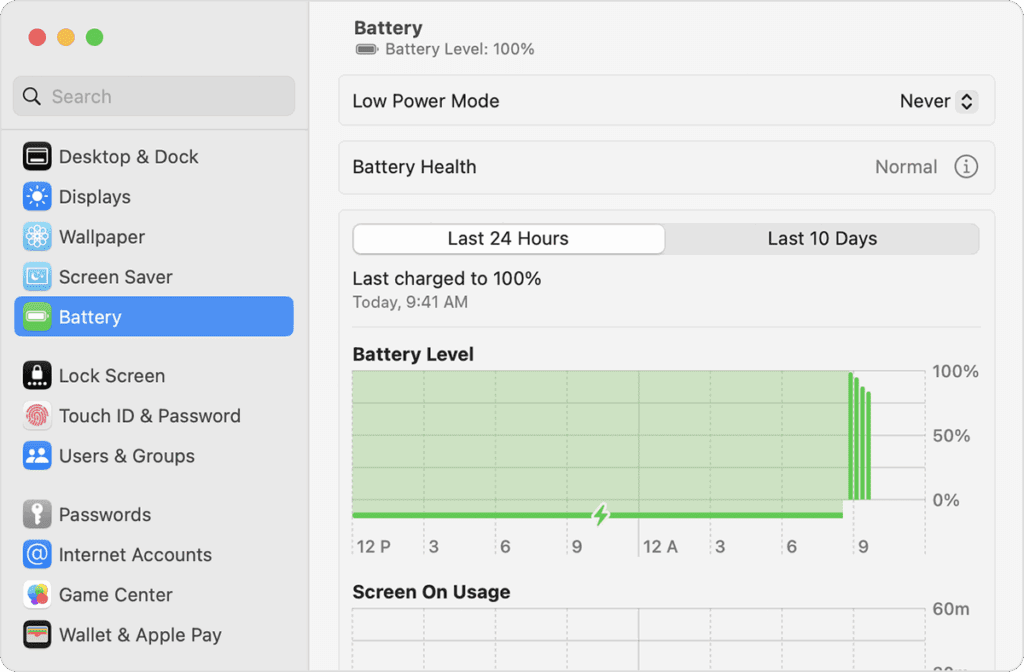
- Click the Apple Menu → System Settings → Battery.
- Select Battery Health.
- You’ll see a status like Normal, Service Recommended, or Replace Soon.
If your Mac displays the message “Service Recommended,” it’s time to consider having your battery serviced.
2. Using Terminal (Advanced)
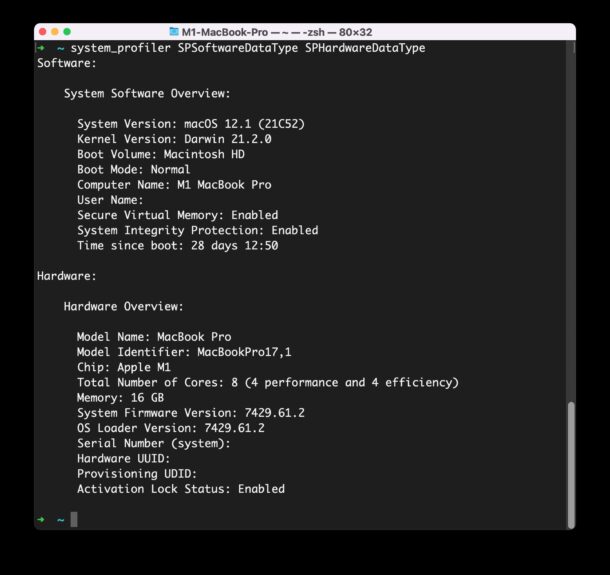
You can also get detailed data by opening Terminal and typing:
system_profiler SPPowerDataType
This command provides a detailed breakdown of your battery’s cycle count, condition, and maximum capacity.
If your Mac frequently shuts down or restarts unexpectedly, it could also be related to battery or system management issues. You can check out my related guide on Mac crashes when switching users on macOS Sequoia for additional troubleshooting insights.
How to Check Battery Health on Chromebooks
Chromebooks have a built-in diagnostic tool that makes checking battery health quick and simple.
Steps to Follow:
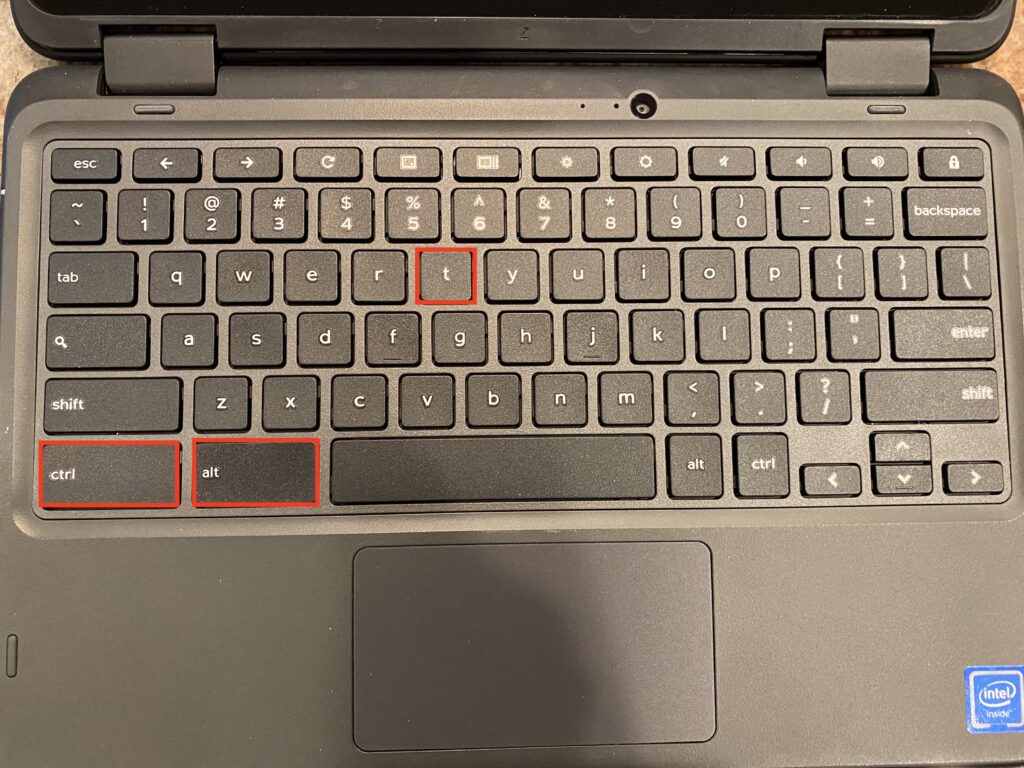
- Press Ctrl + Alt + T to open the Crosh (Command Shell).
Type: battery_test 1
- Press Enter.
You’ll see your battery’s current charge percentage, health, and discharge rate. Ideally, your battery health should be above 80% for optimal performance.
Best Tools to Check Laptop Battery Health
While built-in tools are reliable, third-party apps offer more in-depth insights. Below is a comparison of the most trusted ones.
Battery Health Tools Comparison Table
Tool | Platform | Ease of Use | Key Features | Price |
BatteryInfoView | Windows | Easy | Wear level, charge/discharge history | Free |
CoconutBattery | macOS | Very Easy | Health %, charge cycles, temperature | Free/Pro |
BatteryMon | Windows | Moderate | Live charge graph, alerts | Paid |
HP Support Assistant | Windows | Easy | OEM diagnostics, battery calibration | Free |
iStat Menus | macOS | Easy | Real-time battery and performance data | Paid |
CoconutBattery is ideal for Mac users, as it offers detailed charge cycle tracking and seamlessly integrates with iPhone battery data. For Windows, BatteryInfoView is a lightweight and accurate option, while BatteryMon offers visual tracking for advanced users.
For official downloads, visit:
How to Improve Laptop Battery Health

Checking battery health is only half the battle; maintaining it is just as important. Here’s how to keep your battery performing longer:
- Lower screen brightness and close unused apps.
- Avoid full discharges; try to keep your charge between 20% and 80%.
- Keep your laptop cool by avoiding use on soft surfaces to prevent overheating.
- Update your operating system and BIOS, as manufacturers often release updates that optimize battery performance.
- Use battery saver modes on both Windows and macOS.
If you’re a macOS user, you can also enable Optimized Battery Charging to reduce wear. For more macOS tips, explore my guide on using Apple Notes, which includes performance-saving tricks for productivity apps.
Common Battery Issues and Fixes
If your laptop’s battery percentage seems inaccurate or your laptop shuts off unexpectedly, you may need to recalibrate your battery.
Here’s how:
- Charge your battery to 100%.
- Let it discharge completely until the laptop shuts down.
- Charge it back to 100% without interruption.
This process helps your system’s power management software read the battery’s capacity more accurately.
When to Replace Your Laptop Battery
If your full charge capacity has dropped below 60%, or your battery is swelling or overheating, replacement is the safest choice. Always buy from authorized resellers or official manufacturers, such as Apple or your laptop brand’s support page.
For more battery-related guidance, check out my step-by-step article on how to screenshot on Mac; it covers additional macOS tips to help optimize your workflow and device efficiency.
Conclusion

Regularly checking your laptop’s battery health helps you catch performance issues early and extend its overall lifespan. Whether you use built-in tools or third-party apps, keeping track of wear levels and cycles can save you from inconvenient shutdowns and costly replacements.
Personally, I make it a habit to run a battery check every few months. It’s a small step that keeps my devices running smoothly and reliably.