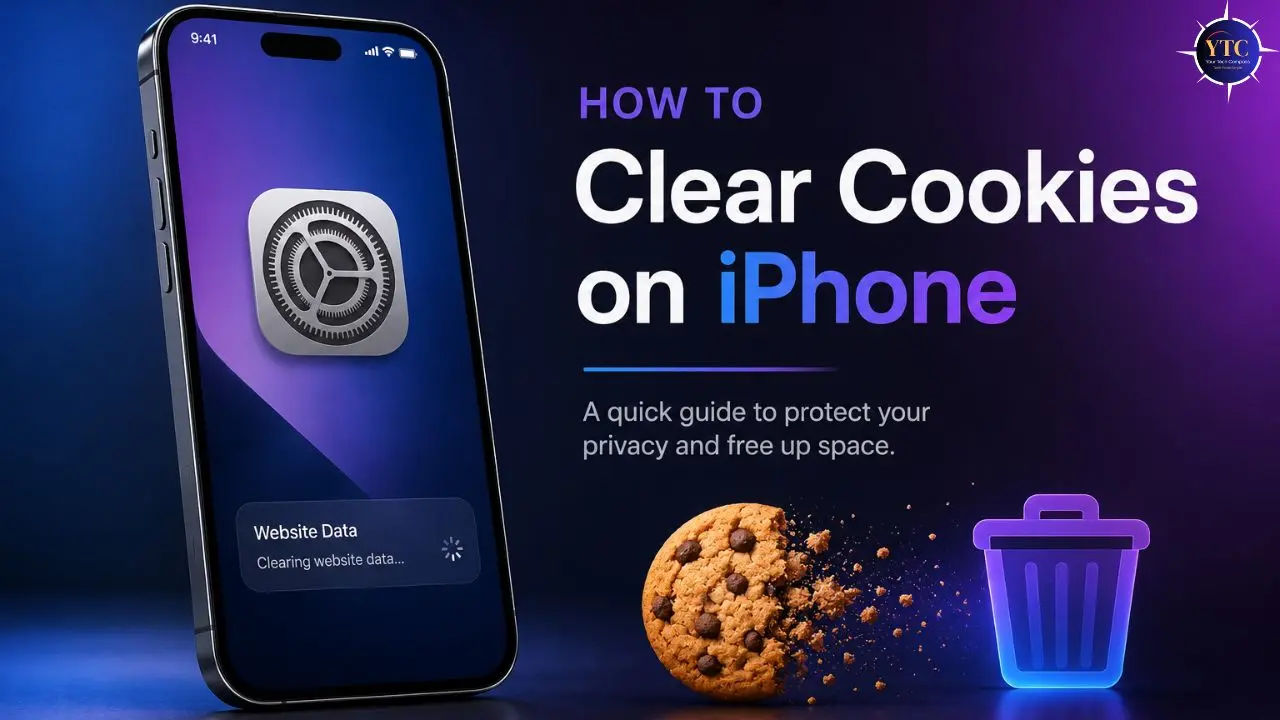
I cleared my iPhone’s cookies for the first time after noticing something that had annoyed me for weeks. A news site I’d visited once kept showing me ads for products I’d searched for on a completely different website. The connection felt obvious once I understood how tracking cookies work, but the fix was faster than I expected. Two taps in Safari settings and a few seconds of confirmation, and the tracking chain was broken. If you’ve been putting this off because it sounds complicated, I want to reassure you upfront: it isn’t. This guide will walk you through exactly how to clear cookies on your iPhone in every major browser, what actually happens when you do it, and the one setting that trips people up every time.
There’s more to this than most guides cover, and that’s what I’m fixing here. The Safari path changed with iOS 18. If you’re following an old guide, you’re already in the wrong menu. Chrome’s cookie process runs through a different screen than most tutorials describe. And there’s a crucial Screen Time setting that silently greys out the “Clear History and Website Data” button without telling you why, leaving people convinced their iPhone is broken. I’ll cover all of it. By the end of this guide, you’ll know how to clear cookies across every browser on your iPhone, how to remove cookies for a single site without wiping everything, and how to prevent unnecessary tracking without breaking the websites you use every day.
What Are Cookies and Why Does Clearing Them Matter?
Before I walk you through the steps, it’s worth spending sixty seconds on what cookies actually are because understanding the “why” makes the steps make more sense.
Cookies are small text files that websites store on your iPhone to remember things about you. Session cookies keep you logged in while you browse. Preference cookies remember your language setting, your dark mode preference, or what’s in your shopping cart. Tracking cookies are the ones worth paying attention to; they follow your activity across multiple sites, allowing advertisers and data brokers to build detailed profiles of your browsing behavior over time. Consequently, that ad for running shoes that followed you from a fitness blog to a news site to your email; that’s a tracking cookie doing exactly what it was designed to do.
Here’s what clearing cookies actually does to your iPhone and what it doesn’t:
What Changes
- You’ll be signed out of websites you were previously logged into.
- Tracking cookies are removed, and advertisers can no longer use them to follow your recent browsing.
- Shopping carts and site preferences reset.
- Corrupted or outdated site data gets wiped, which often fixes pages that weren’t loading correctly.
What Stays Completely Untouched
- Your saved passwords in iCloud Keychain.
- Your AutoFill data.
- Your bookmarks and Reading List.
- Your photos, apps, and personal data.
This last point is the one that causes the most hesitation, and it’s worth being direct about it. Clearing cookies does not delete your passwords.
You will not lose your iCloud Keychain data. You’ll need to sign back into websites manually, but your saved login credentials are still there. Furthermore, it’s worth noting that if you’ve been working through other iPhone speed and performance improvements, clearing cookies is one of the safest and most reversible steps in the process.
How to Clear Cookies on Safari (iPhone)
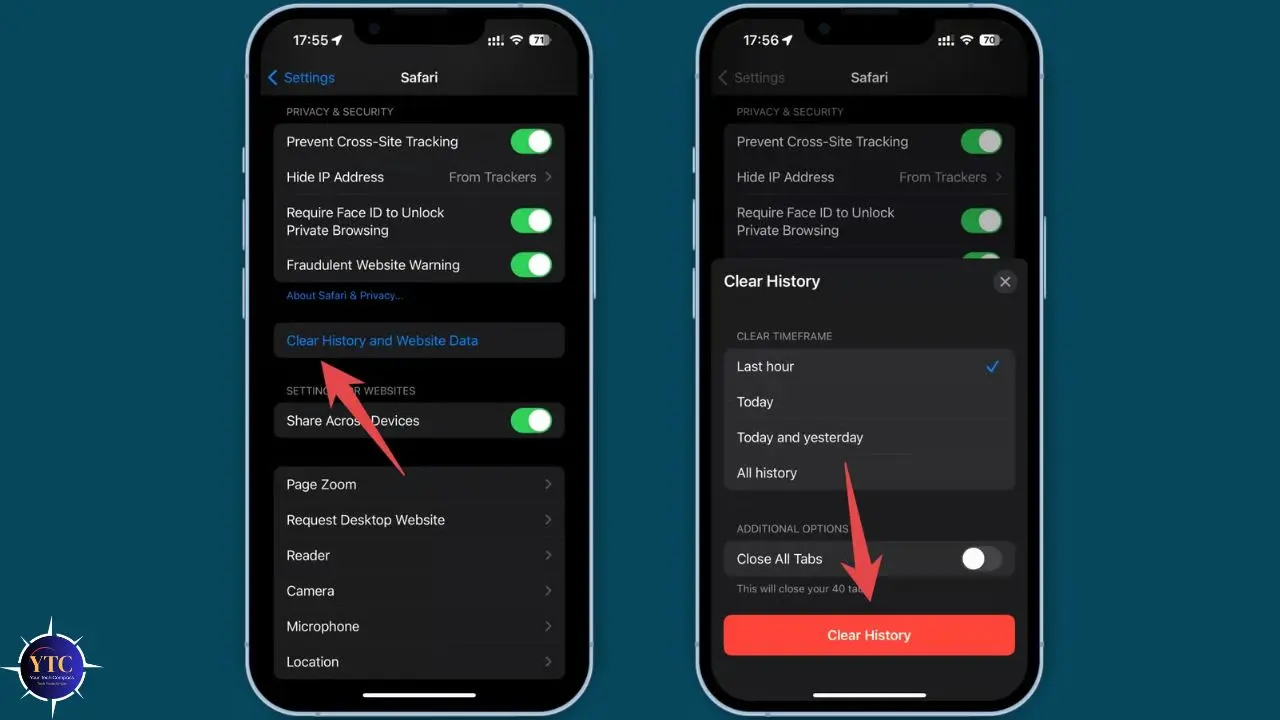
Safari is the iPhone’s default browser, and clearing its cookies is what most people are looking for. The steps below are confirmed for iOS 18 and iOS 18.3 on iPhone 15, iPhone 16, and iPhone SE models.
Clear All Cookies and Browsing Data (Full Reset)
Step 1: Open the Settings app on your iPhone.
Step 2: Scroll down and tap Apps.
Step 3: Scroll down within Apps and tap Safari.
Step 4: Scroll down within Safari settings and tap Clear History and Website Data.
Step 5: A menu appears asking you to choose a timeframe. Your options are Last Hour, Today, Today and Yesterday, and All History. For a full cookie clear, select All History.
Step 6: Tap Clear History to confirm.
That’s it. Safari has now removed your browsing history, all stored cookies, and cached website data. You’ll be signed out of all websites the next time you open them.
Important Note for iOS 18 Users: Apple moved the Safari settings path in iOS 18. On older iOS versions, you went directly to Settings → Safari. On iOS 18 and later, the path is Settings → Apps → Safari. If you go to Settings and don’t see Safari immediately in the main list, scroll down to Apps and look there. This change has confused a significant number of people following older guides.
Clear Cookies for One Specific Site Only
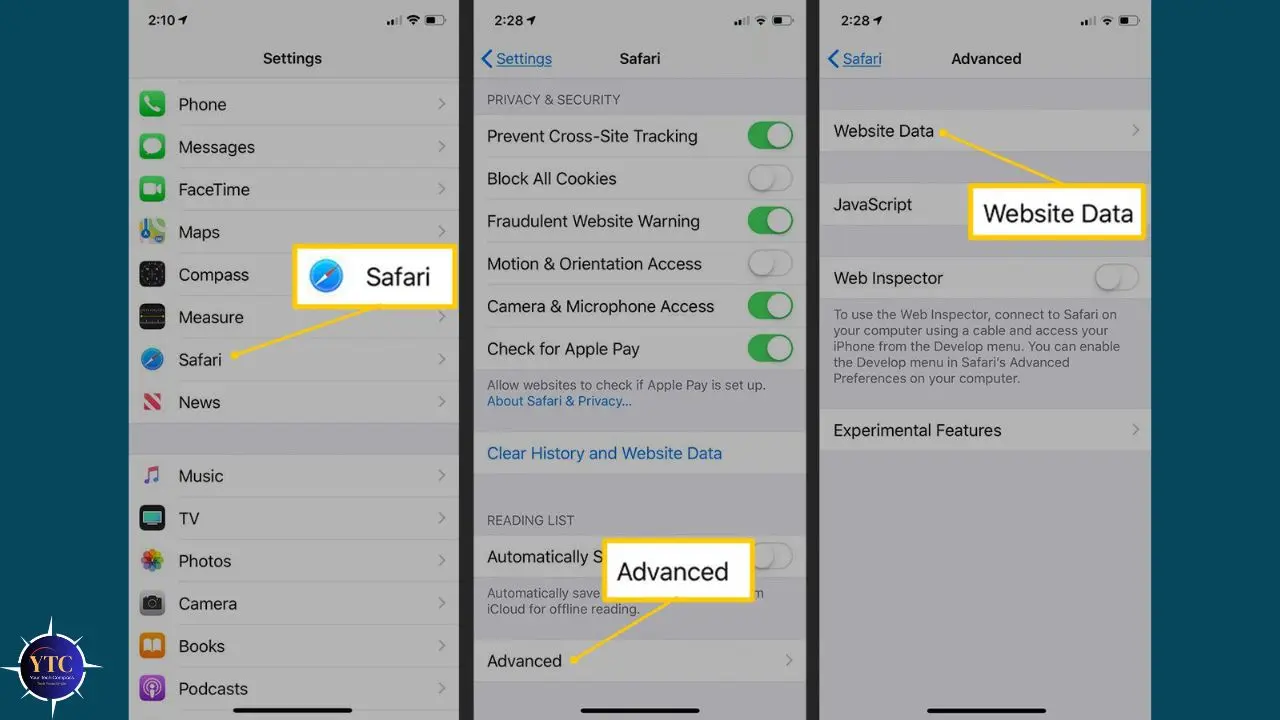
Sometimes you don’t want to nuke everything; you just have a problem with one particular website and want to reset only that site’s data. Safari makes this possible.
Step 1: Go to Settings → Apps → Safari.
Step 2: Scroll to the bottom and tap Advanced.
Step 3: Tap Website Data.
Step 4: A list of all sites that have stored data on your iPhone appears. You can scroll to find the specific site, or tap Edit in the top right and use the search bar to find it faster.
Step 5: Swipe left on the site’s entry, then tap Delete or tap the red minus icon if you’re in Edit mode.
Step 6: Tap Done when finished.
This approach is particularly useful if a single site is behaving oddly, for instance, refusing to log you in, showing a cached version that isn’t up to date, or displaying a layout bug, while everything else is working normally. Additionally, it means you don’t have to sign back into every other site you use regularly just to fix one problematic one.
The Screen Time Fix: If Your Button Is Greyed Out
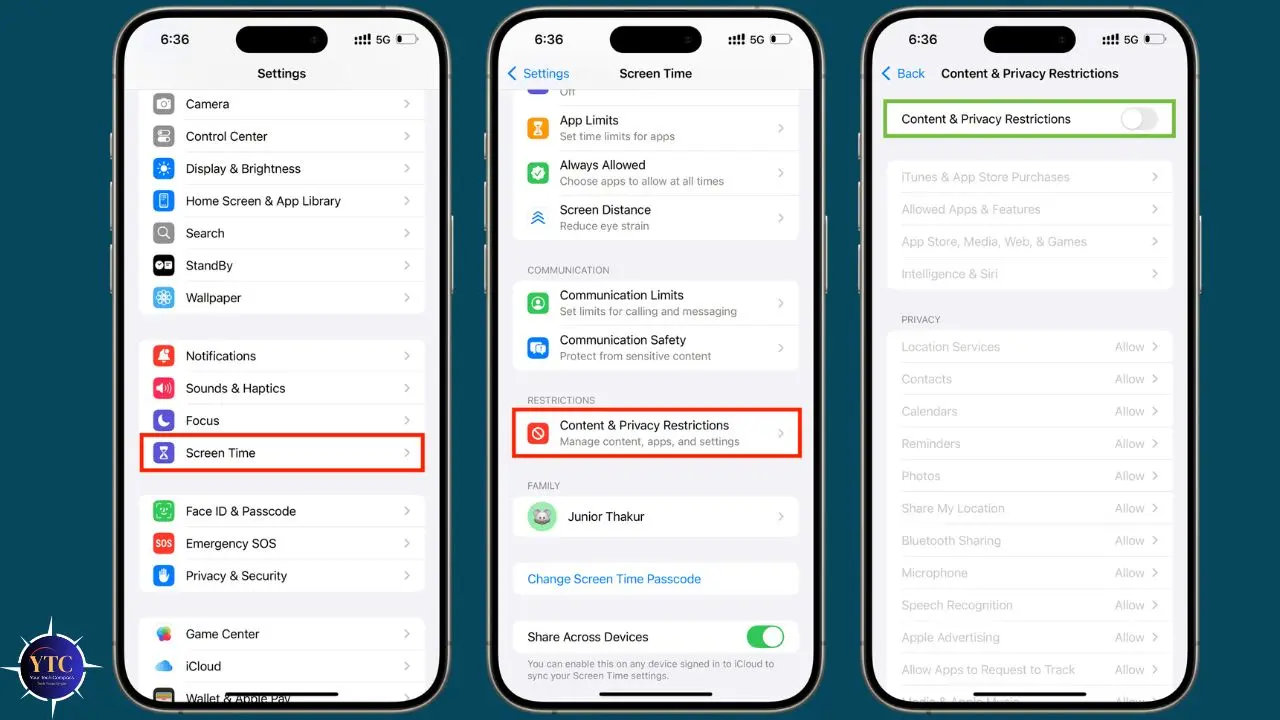
This is the problem that baffles people most. You follow the steps above, navigate to Clear History and Website Data in Safari settings, and the button appears greyed out and untappable. Nothing in Safari settings explains why.
The cause is Screen Time restrictions. When Screen Time is active and set to limit web content, it also prevents clearing browsing data, so children cannot wipe their browser history without parental knowledge. Here’s how to fix it:
Step 1: Go to Settings → Screen Time.
Step 2: Tap Content & Privacy Restrictions.
Step 3: Tap Content Restrictions.
Step 4: Tap Web Content.
Step 5: Change the setting from “Limit Adult Websites” or “Allowed Websites Only” to “Unrestricted Access”.
Return to Safari settings, and the Clear History and Website Data button will now be active. After clearing your cookies, you can return Screen Time settings to their previous configuration if needed.
How to Clear Cookies on Chrome (iPhone)
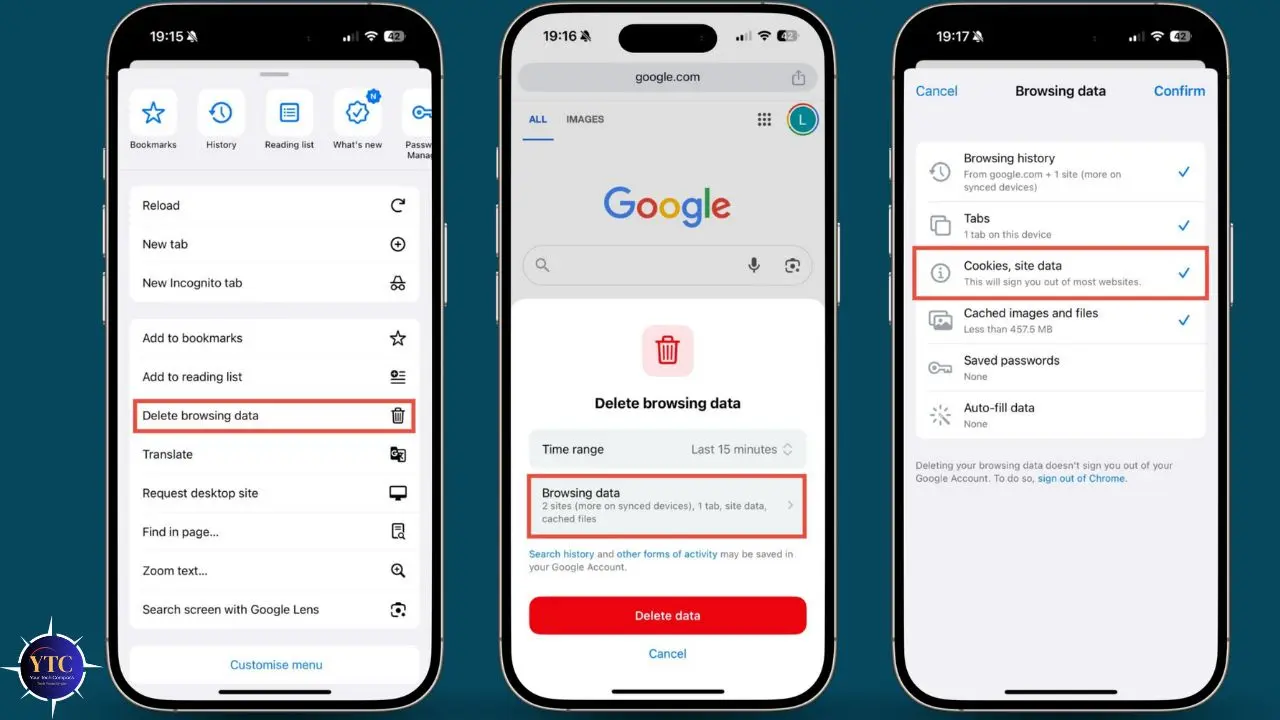
Chrome manages its own cookies independently of Safari; they are stored separately and must be cleared within the Chrome app. Furthermore, an important detail that many guides miss: clearing Chrome cookies on your iPhone does not affect Chrome on your other devices. If you’re signed in to Chrome on a laptop and clear cookies on your iPhone, your laptop’s cookies remain untouched.
Step 1: Open the Chrome app on your iPhone.
Step 2: Tap the three-dot menu (⋯) in the bottom-right corner of the screen.
Step 3: Tap History.
Step 4: Tap Delete Browsing Data at the bottom of the History screen.
Step 5: Make sure the Cookies, Site Data checkbox is selected. You can also check Cached Images and Files simultaneously for a more thorough cleanup.
Step 6: Tap the Time Range dropdown and select All Time to clear all cookies.
Step 7: Tap Delete Browsing Data to confirm.
Chrome will sign you out of most sites after this process, including Google services, though if you’re signed into Chrome with your Google account, your Google account session will persist separately from the cookies.
Clear Cookies for One Specific Site in Chrome
Chrome also lets you remove cookies for a single site without clearing everything. In the Chrome app, go to Settings → Privacy and Security → Cookies. From there, you can see which sites have stored data and delete individual sites by tapping on them and selecting Remove.
How to Clear Cookies on Firefox (iPhone)
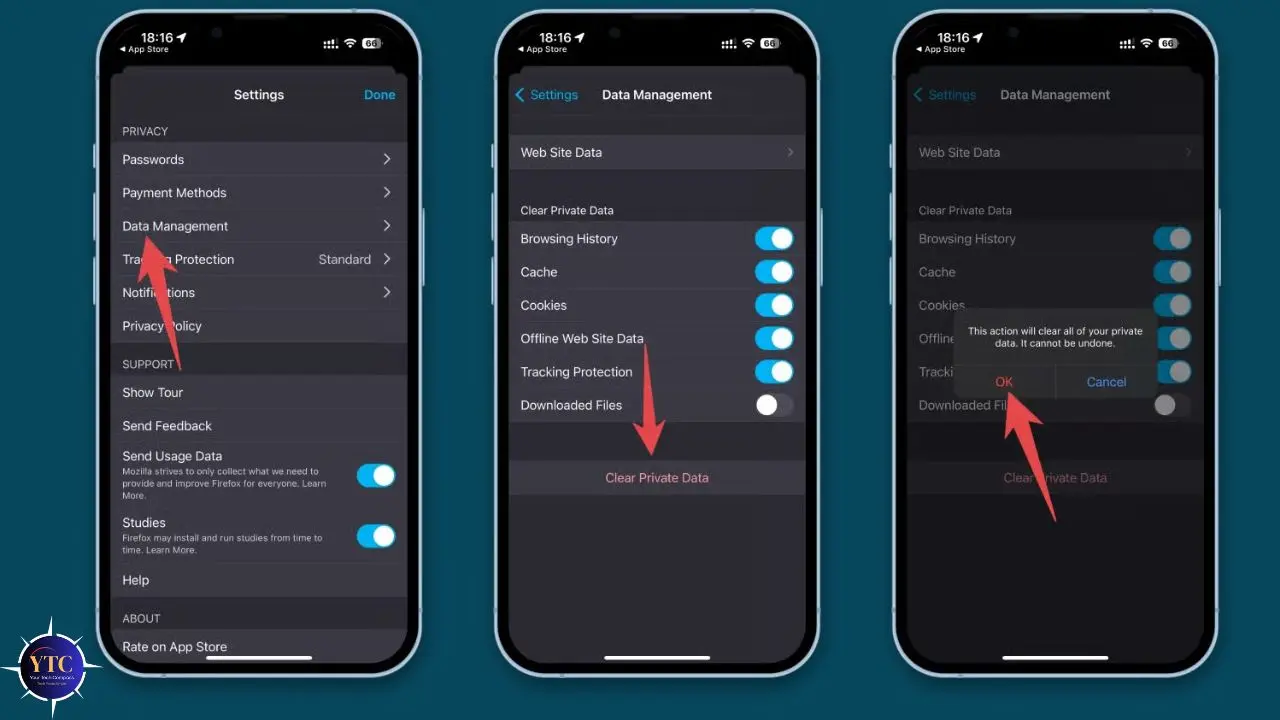
Firefox’s cookie-clearing process is slightly different from Safari’s and Chrome’s, and it offers an option to automatically clear cookies when you close the app, which neither Safari nor Chrome offers as simply.
Step 1: Open the Firefox app on your iPhone.
Step 2: Tap the hamburger menu (three horizontal lines) in the bottom-right corner.
Step 3: Tap Settings.
Step 4: Tap Data Management under the Privacy section.
Step 5: Make sure the toggle next to Cookies is switched on.
Step 6: Tap Clear Private Data.
Step 7: Confirm by tapping OK.
Optional – Automatic Clearing on App Close: In the same Data Management screen, toggle on Close Tabs and Cookies under the Clear on Shutdown section. This tells Firefox to automatically clear all cookies every time you close the app, a useful setting if you want ongoing privacy without remembering to clear them manually.
How to Clear Cookies on Microsoft Edge (iPhone)
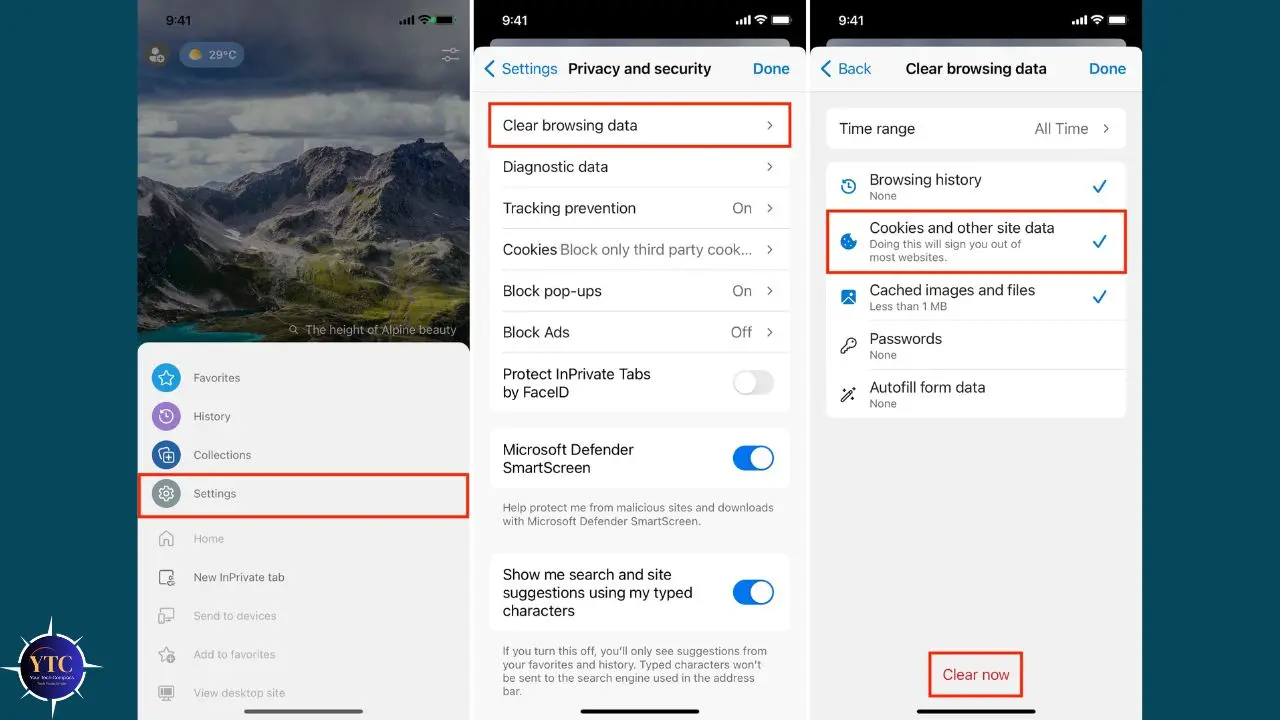
Step 1: Open the Edge app on your iPhone.
Step 2: Tap the three-dot menu at the bottom of the screen.
Step 3: Tap Settings.
Step 4: Tap Privacy and security.
Step 5: Tap Clear browsing data.
Step 6: Select Cookies and site data from the list, along with any other data types you want to remove.
Step 7: Tap Clear now to confirm.
How to Clear Cookies on Other Browsers (Opera, Brave, DuckDuckGo)
If you use another browser on your iPhone, the process follows the same general pattern: open Settings in the app, find a Privacy or Data Management section, and select the option to clear cookies or site data. The exact wording varies slightly between apps, but “cookies”, “site data”, and “clear browsing data” are the terms to look for in every case.
For DuckDuckGo specifically, the process is even simpler: the app has a dedicated fire button that instantly burns all browsing data, including cookies, with a single tap.
Automatic Cookie Management: Let Your iPhone Handle It
If you’d rather not clear cookies manually every few weeks, these settings reduce cookie accumulation passively, without requiring you to remember to do anything.
Intelligent Tracking Prevention (Safari)
Safari on iOS 18 includes Intelligent Tracking Prevention by default. This automatically blocks third-party cookies, the tracking kind that follow you across sites, while allowing first-party cookies from sites you actually visit to function normally.
You don’t need to enable it. It’s already on. Consequently, simply using Safari means you’re already getting a level of tracking protection that Chrome doesn’t provide by default.
To verify it’s active: Settings → Apps → Safari → Privacy & Security → Prevent Cross-Site Tracking should show as toggled on.
Private Browsing Mode
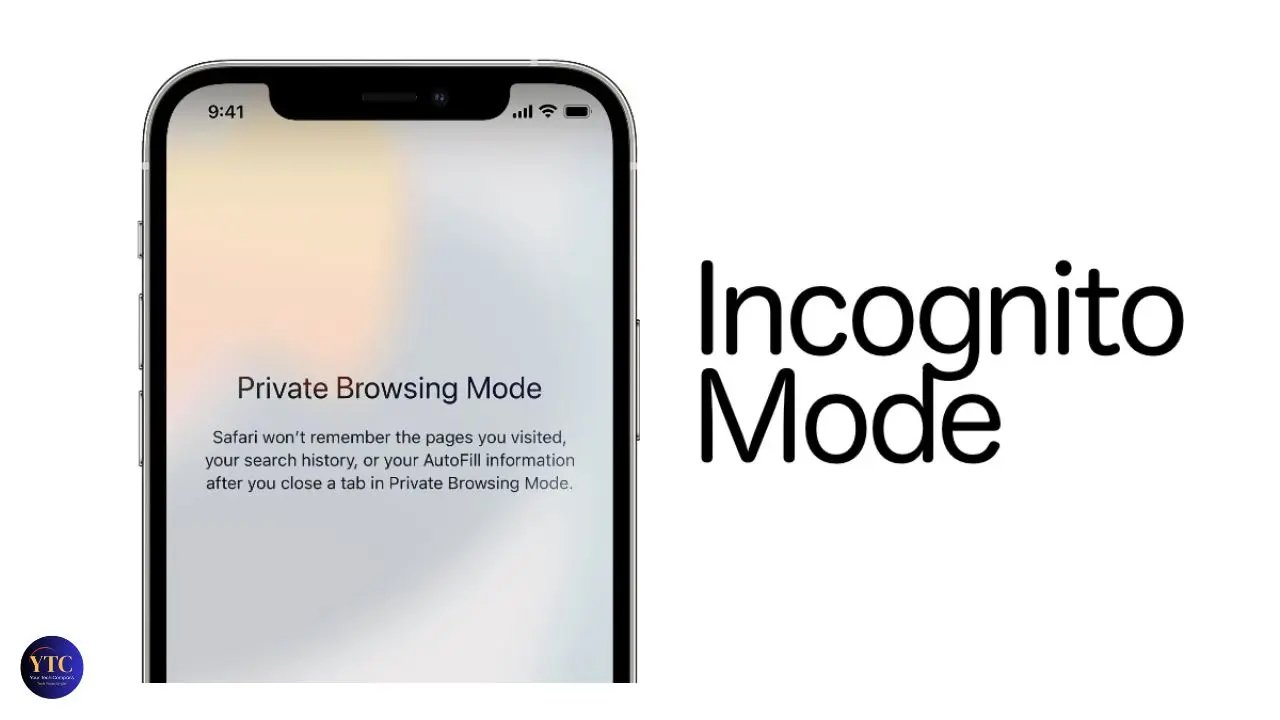
Every major browser on iPhone offers a private or incognito mode. In this mode, cookies are created during your session to allow websites to function, but they’re automatically deleted the moment you close the private tab. No manual clearing required. Additionally, in iOS 18, Apple added a Private Browsing Lock feature, which requires Face ID or Touch ID to open, preventing anyone who picks up your phone from accessing an open private session.
To open a Private tab in Safari: tap the Tabs button (two overlapping squares) at the bottom right → tap Private in the bottom left.
Block All Cookies (Use With Caution)
Safari also offers a Block All Cookies option under Settings → Apps → Safari → Privacy & Security. This is the nuclear option; it prevents every website from storing any cookies on your device.
The privacy benefit is significant, but the practical cost is real: many websites will stop working correctly, login sessions will be impossible to maintain, and some sites may refuse to load altogether. I’d recommend avoiding this setting for most users. Intelligent Tracking Prevention, along with occasional manual clearing, delivers most of the privacy benefits without disrupting your browsing experience.
Browser Cookie Clearing Methods at a Glance
Browser | Path to Clear Cookies | Selective Deletion | Auto-Clear on Close |
Safari (iOS 18+) | Settings → Apps → Safari → Clear History and Website Data | ✅ Via Website Data | ❌ (use Private mode) |
Chrome | App → ⋯ → History → Delete Browsing Data | ✅ Via Settings → Privacy → Cookies | ❌ |
Firefox | App → ☰ → Settings → Data Management → Clear Private Data | ❌ | ✅ (Data Management → Clear on Shutdown) |
Microsoft Edge | App → ⋯ → Settings → Privacy and Security → Clear browsing data | ❌ | ❌ |
DuckDuckGo | Fire button (one tap) | ❌ | Optional auto-fire |
Troubleshooting: When Clearing Cookies Doesn’t Go Smoothly

- Clear History and Website Data Is Greyed Out: This is almost always a Screen Time restriction. Follow the Screen Time fix described in the Safari section above.
- Website Still Not Loading After Clearing Cookies: Try force-closing the browser app (swipe up from the home bar and swipe the browser off the top of the screen), then reopen it. This clears any cached data still held in the app’s active memory. If the problem persists, the issue may be with the website itself rather than your cookies.
- Accidentally Signed Out of Everything: Your passwords are still saved in iCloud Keychain. Tap into each site’s login page, and your saved credentials will autofill as normal. Clearing cookies doesn’t touch your Keychain data.
- Chrome Still Seems Slow After Clearing: Clear Cached Images and Files and Cookies. Chrome’s cache is separate from its cookie store, and both can accumulate over time.
- Safari Crashes After Clearing Cookies: This is rare but can happen on older iPhones with limited RAM. A full restart of your iPhone: hold the side button and a volume button, slide to power off, wait 30 seconds, then restart. Usually resolves this. If you’ve been considering a more complete iPhone reset, the guide on resetting your iPhone to factory settings walks you through the process step by step.
- The process is the same whether you’re troubleshooting this alongside other issues. If you’re dealing with app crashes on your iPhone, clearing cookies is one of the first browser-related steps to try before taking any more drastic measures.
How Often Should You Clear Cookies on iPhone?
I clear my cookies approximately once a month as part of a general iPhone maintenance routine. For most people, monthly is the right frequency, as it removes accumulated tracking data without the inconvenience of having to sign back into everything every week.
Clear cookies immediately when:
- A specific website is displaying old content, failing to load correctly, or refusing to let you log in
- You’ve been browsing something sensitive and want to remove that activity from local storage
- You’re lending your iPhone to someone else and want to start fresh
- Your browser is loading pages noticeably more slowly than usual
You don’t need to clear cookies every day. Safari’s Intelligent Tracking Prevention and Private Browsing mode handle ongoing tracking reduction; the manual clear is for accumulated data and one-off fixes, not daily maintenance. Additionally, if your concern is broader, such as iPhone speed and responsiveness, clearing cookies works best as part of a fuller routine. Our guide to speeding up iPhone performance covers everything worth doing.
FAQs
No. Saved passwords are stored in iCloud Keychain, which is completely separate from browser cookies. Clearing Safari’s history and website data, or clearing cookies in Chrome or Firefox, has zero effect on your Keychain data. You’ll be signed out of websites, but your saved login credentials will autofill when you return to those sites.
This is caused by Screen Time restrictions. When Content Restrictions are set to “Limit Adult Websites” or “Allowed Websites Only,” Safari disables the ability to clear browsing data. To fix it: Settings → Screen Time → Content & Privacy Restrictions → Content Restrictions → Web Content → Unrestricted Access. The button will become active immediately.
No. Safari and Chrome store cookies independently. Clearing Safari’s data has no effect on Chrome’s stored cookies, and vice versa. If you use both browsers, you need to clear cookies separately in each one.
It can, particularly if you’ve accumulated a large amount of cookie and website data over months or years. Safari’s storage under Website Data can reach several gigabytes on devices that haven’t been cleared in a long time. Removing that data frees up storage and can reduce the time Safari spends processing old site data. For broader performance improvements, the iPhone speed and performance guide covers everything worth addressing in one place.
Yes, in Safari. Go to Settings → Apps → Safari → Advanced → Website Data, find the site in question, swipe left, and tap Delete. This removes cookies only for that specific site while leaving all others intact. Chrome also offers site-specific cookie deletion under Settings → Privacy and Security → Cookies in the Chrome app.
Private Browsing automatically deletes cookies when you close the private tab, but only for browsing in private mode. Your regular (non-private) Safari sessions still accumulate cookies that need to be cleared manually. Additionally, if you sometimes forget to open private mode before browsing something, regular manual clearing catches what private mode missed. Furthermore, if you use screen recording on an iPhone to capture browser sessions for tutorials or demos, private mode prevents those recorded sessions from appearing in your browsing history afterward.
Conclusion
Clearing cookies on your iPhone is one of those small maintenance tasks that has an outsized impact on your privacy and browsing experience. The process itself takes less than a minute in any browser; the complexity lies in knowing which menu path to follow for your specific iOS version, which is exactly what this guide addresses. Moreover, the one change most people miss is the iOS 18 Safari path: if you go to Settings and don’t see Safari immediately, scroll to Apps first. That single piece of information resolves the confusion for the majority of users who’ve tried this before and given up.
I pair my cookie clearing with a broader monthly iPhone tune-up, the same session where I check for iOS updates, review which apps are running in the background, and look at what’s eating storage. It takes about ten minutes total, and the difference in browser responsiveness is consistently noticeable afterward. If you’re dealing with a more persistent issue that clearing cookies alone doesn’t fix, such as a frozen app, a site that still won’t load, or a login loop that keeps recurring, it might be worth considering whether an iPhone factory reset is the right next step. But in most cases, a quick cookie clear is all you need.
Your iPhone works best when you take a few minutes to maintain it. For more practical guides that help you get the most out of Apple’s ecosystem, head to YourTechCompass.com, where we cover the tech stuff that actually matters in your daily life.