
There are times when your MacBook might feel cluttered, slow, or simply ready for a fresh start. Whether you’re preparing to sell it, hand it off to someone else, or just want to start over with a clean slate, a factory reset can help you achieve that. Resetting a MacBook erases all personal data, apps, and settings, leaving it as close to brand-new as possible.
In this guide, I’ll walk you through everything you need to know about factory resetting your MacBook, including how to prepare, the step-by-step reset process, and what to do afterward. You’ll also find troubleshooting tips and advice for situations where a full reset might not even be necessary.
Why and When to Factory Reset Your MacBook
Performing a factory reset is helpful in several scenarios:
- Preparing the MacBook for sale, trade‑in, or handover to another user.
- Troubleshooting persistent issues such as system crashes, sluggish performance, or repeated software conflicts.
- Clearing out clutter, old files, unused apps, or corrupted configurations, to restore a fresh environment.
- Removing personal data for privacy and security before giving the Mac to someone else.
Because a reset wipes all data and settings, backing up files and signing out of accounts is critical beforehand.
How to Prepare Your MacBook
Before you factory reset your MacBook, take these essential steps to ensure it goes smoothly. They include:
Backing Up Important Data
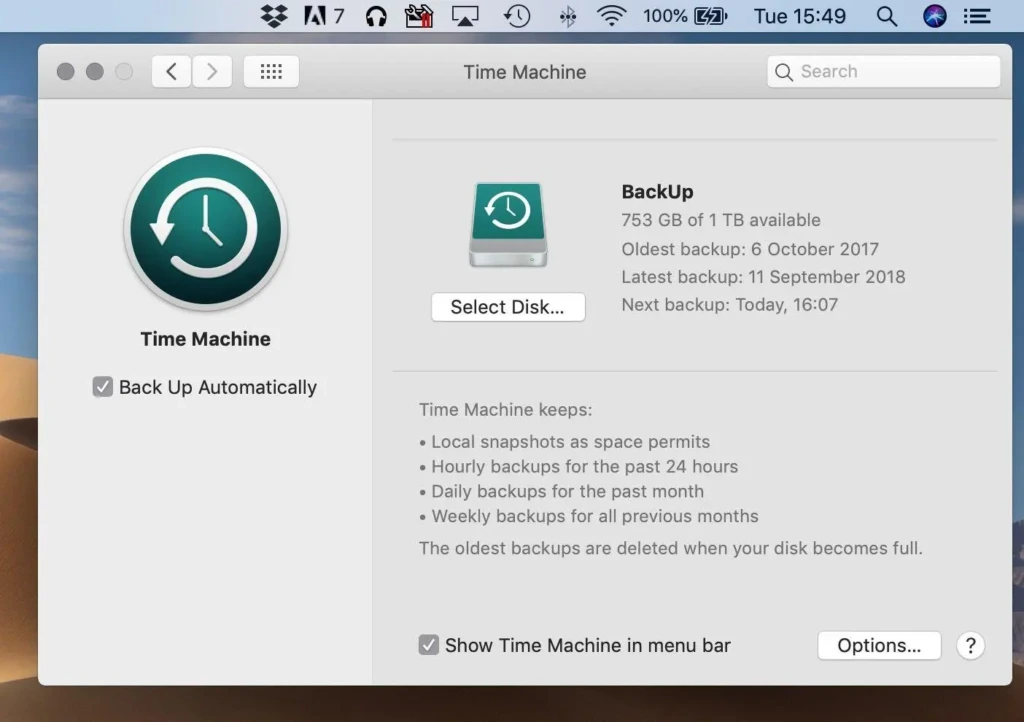
Use Apple’s built‑in backup solution (Time Machine) or manually copy essential files to an external drive or cloud storage. Once the reset begins, everything on the internal drive will be erased.
Signing Out of Apple Services and Deauthorizing Apps
If you use iCloud, iMessage, FaceTime, Apple Music (or iTunes on older macOS), ensure you sign out. This helps prevent activation locks and ensures that personal accounts don’t remain linked.
Checking macOS Version and Hardware (Apple Silicon vs Intel)
macOS versions and hardware architecture affect which reset method you use. Macs with Apple silicon or a T2 Chip have a streamlined feature (Erase All Content and Settings) available starting in macOS Monterey or later.
How to Factory Reset MacBook: The Steps
Here’s how to reset your MacBook, depending on model and macOS version:
Option A: Use “Erase All Content and Settings” (Apple Silicon or T2‑chip, macOS Monterey or later)
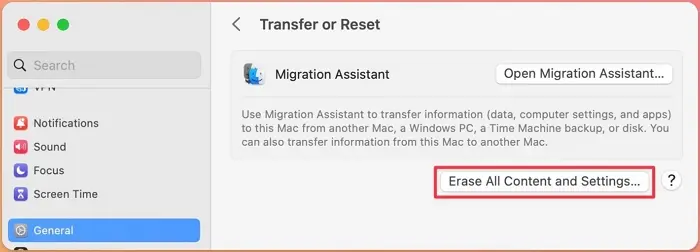
- Open System Settings → Go to General → Select Transfer or Reset.
- Click Erase All Content and Settings.
- Confirm as prompted (administrator password, Apple ID password).
- Your Mac will sign out of Apple services, erase data, and reboot to the setup screen, like a brand-new machine.
This is the fastest and most user‑friendly way when supported.
Option B: Use macOS Recovery Mode (All Macs, Apple Silicon or Intel)
Step | Action |
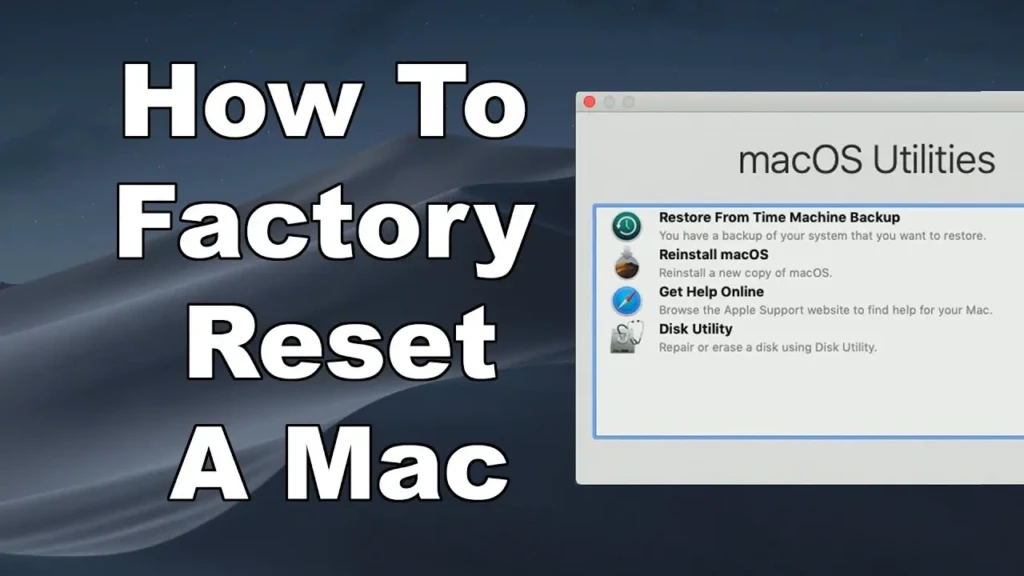
1. Enter Recovery Mode | For Apple silicon: Shut down → Press and hold the Power button until “Options” appears → Click Continue. For Intel Macs: Restart and hold Command + R until the Apple logo/globe appears. |
2. Open Disk Utility | From the Utilities menu, select Disk Utility → Click Continue. |
3. Erase Startup Disk | In Disk Utility sidebar, select “Macintosh HD” (and “Macintosh HD – Data” if present), click Erase. Use APFS format (recommended for SSDs). Confirm and wait. |
4. Reinstall macOS | Exit Disk Utility. In the Utilities window, choose Reinstall macOS, then follow the on‑screen instructions. Ensure a stable internet connection and power adapter (for laptops). |
Once installation finishes, the Mac will restart and present the setup assistant, ready as new.
Post‑Reset Setup and Recommendations

- Create a new user account and sign in with your Apple ID (if keeping the Mac).
- Restore data from backup if needed.
- Reinstall apps as required.
- If preparing the Mac for sale, do not proceed with the setup; simply shut down at the welcome screen.
Common Issues & Troubleshooting
- Recovery Mode Doesn’t Load: Ensure you use the correct key combination for your Mac type (Power button for Apple Silicon, Command + R for Intel).
- Drive Not Showing in Disk Utility: Use “Show All Devices” view, or boot into Internet Recovery.
- macOS Installation Fails or Stalls: Verify a stable internet and try again, or create a bootable installer if needed.
If you experience crashes or instability before resetting, check guides such as Safari Keeps Crashing on macOS Sequoia or issues described in Mac Crashes When Switching Users on macOS Sequoia. Sometimes, a full reset isn’t required.
When a Full Factory Reset Might Not Be Necessary
If the problem involves only specific apps, settings, or minor glitches, consider:
- Clearing caches or user settings
- Reinstalling just the offending application
- Using built‑in macOS tools rather than wiping the entire system
For example, productivity issues in note‑taking or document workflows might be resolved without a full reset; see our guidance in How to Use Apple Notes.
Final Thoughts
A factory reset is one of the most effective ways to give your MacBook a fresh start, whether you’re solving persistent issues, preparing it for someone else, or just clearing the clutter. By backing up your files, signing out of your accounts, and following the right reset process for your Mac’s hardware and macOS version, you can ensure a smooth and secure wipe.
After completing the reset, your MacBook will be ready for a fresh setup, whether for yourself or a new owner. Following these steps carefully helps protect your data and keep your device running optimally. I hope this guide makes the reset process simple and stress-free, and I’m confident it will help you get your MacBook in the best possible shape.