Modern laptops are thinner and more powerful than ever, but they often come with fewer ports. If you are constantly plugging in monitors, external drives, Ethernet cables, or peripherals, you have probably experienced the frustration of limited connectivity. A docking station solves that problem by turning a single laptop port into a complete workstation setup.
However, not every docking station delivers the same performance. Some support dual 4K monitors and high-wattage charging, while others are designed for basic expansion only. In this guide, you will learn how docking stations work, the differences between USB-C and Thunderbolt models, and which option best fits your laptop and workflow.
What Is A Docking Station?
A docking station is a hardware device that expands your laptop’s connectivity through a single port, usually USB-C or Thunderbolt. Instead of plugging multiple cables directly into your laptop, connect a single cable to the dock and let it handle the rest.
Unlike a simple USB hub, a docking station typically supports:
- Power delivery (charging your laptop)
- Multiple external monitors
- Ethernet connectivity
- High-speed data transfer
- Audio output
- Additional USB-A and USB-C ports
If you use laptops such as those covered in our ASUS laptop guide, Samsung laptop review, or best Lenovo laptops, you will likely benefit from a docking station to maximize productivity.
Types of Docking Stations
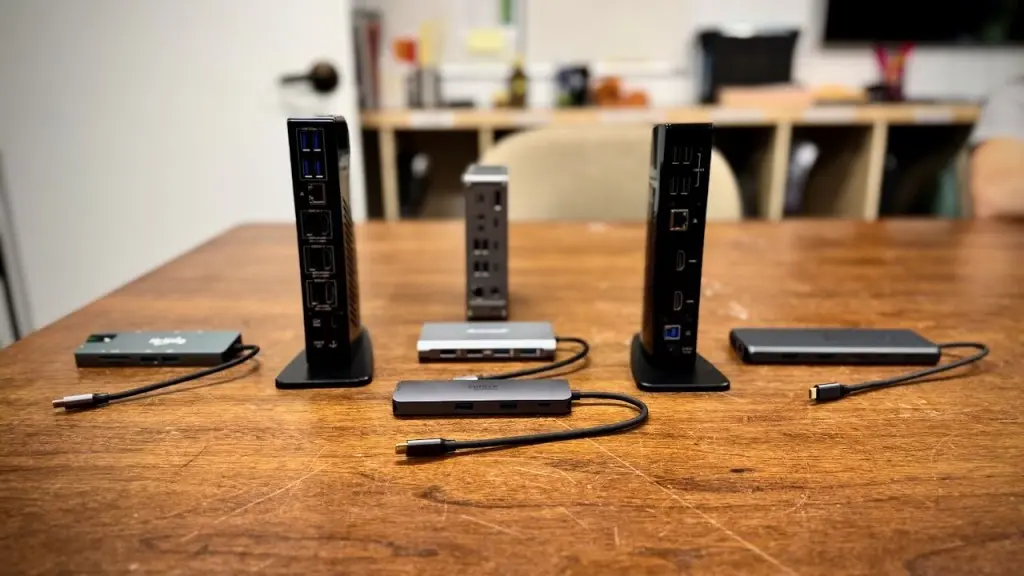
Understanding the type of docking station is critical before you buy.
USB-C Docking Station
A USB-C docking station connects through a USB-C port and typically supports:
- One or two monitors (depending on bandwidth)
- Power delivery (usually 60W–100W)
- Basic expansion (USB, HDMI, Ethernet)
However, USB-C docks depend heavily on whether your laptop supports DisplayPort Alt Mode over USB-C. Always verify this in your laptop’s specifications.
Thunderbolt Docking Station
Thunderbolt docking stations offer significantly higher bandwidth. According to Intel’s official Thunderbolt documentation, Thunderbolt 4 supports up to 40Gbps of bandwidth, enabling multiple high-resolution displays and fast data transfer.
If you want dual 4K monitors or heavy data throughput, a Thunderbolt docking station is the better option.
DisplayLink Docking Station
The DisplayLink docking stations use driver-based display technology to enable additional monitors, even if your laptop has limited native display output. DisplayLink technology is widely used for cross-platform compatibility.
These are useful for older laptops but require driver installation.
Proprietary Laptop Docking Stations
Some brands offer model-specific docks. For example, business laptops, such as those discussed in our HP ProBook review, may support proprietary docking connectors.
These docks often provide better stability but limited cross-device compatibility.
Docking Station vs USB Hub
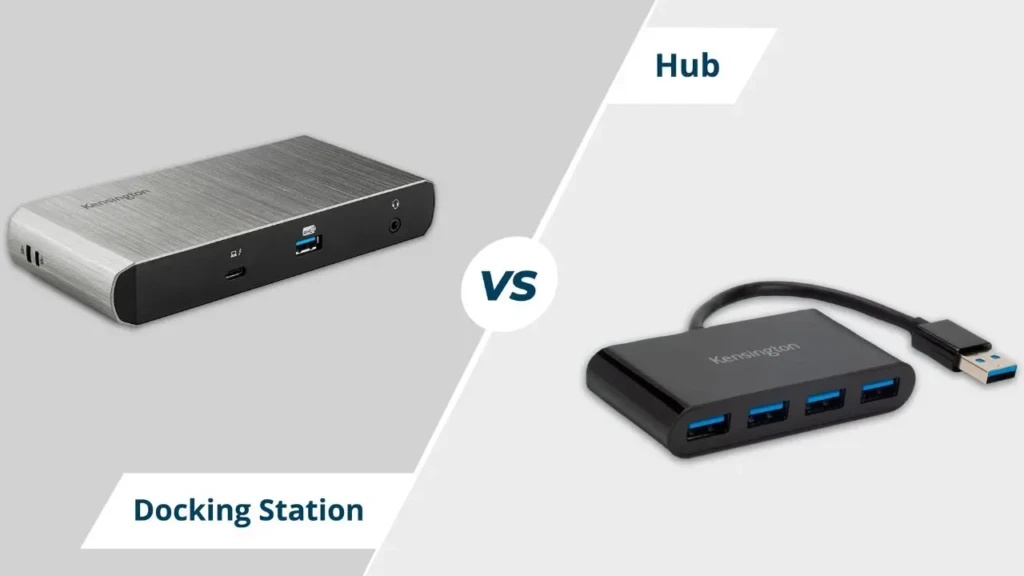
You might wonder whether you need a full docking station or just a USB hub.
Here is the difference:
Feature | ||
Laptop Charging | Yes (most models) | Usually No |
Multiple Monitor Support | Yes | Limited |
Ethernet Port | Yes | Sometimes |
Power Delivery | 60W – 100W | Rare |
Ideal For | Workstation setups | Basic expansion |
If you only need extra USB ports, a hub may be enough. However, if you want to run dual monitors and charge your laptop from a single cable, you need a docking station.
Key Features To Look for In A Docking Station
Before buying, check these critical factors.
Power Delivery Wattage
Your dock must match your laptop’s charging requirements. For example, many ultrabooks require 65W, while larger business laptops may need 90W or more.
Monitor Support
Check:
- Maximum resolution (1080p, 4K, 5K)
- Refresh rate (60Hz vs 120Hz)
- Number of supported displays
Thunderbolt docks typically support dual 4K monitors at 60Hz.
Port Selection
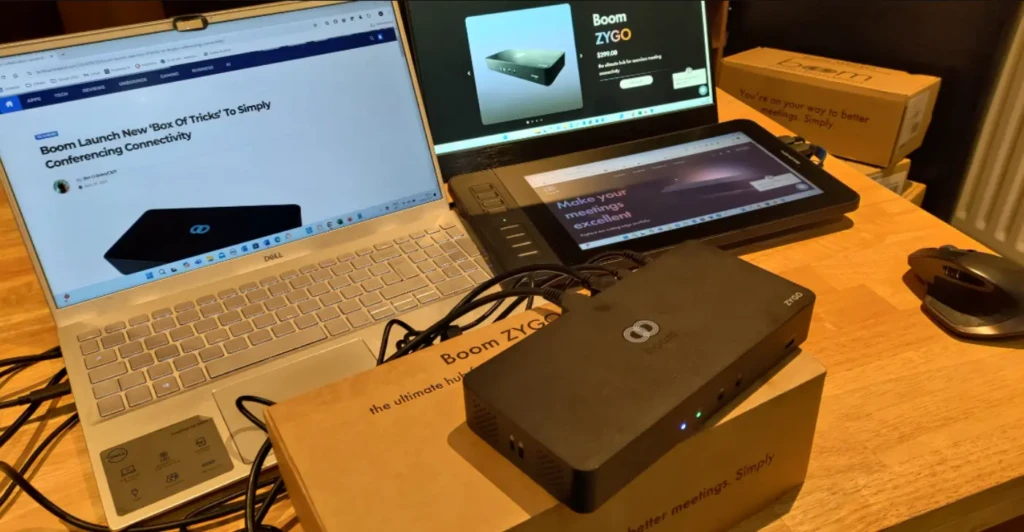
Look for:
- HDMI or DisplayPort
- USB-A and USB-C
- Ethernet
- SD card reader
- Audio jack
Your workflow determines what matters most.
Docking Station Comparison Table
Docking Station | Connection Type | Power Delivery | Display Support | Best Use Case | Price Tier |
Thunderbolt 4 | 98W | Dual 4K 60Hz | High-end multi-monitor workstations | Premium | |
Thunderbolt 4 | 100W | Dual 4K 60Hz | Professional dual-monitor setups | Upper – Mid | |
USB-C/DisplayLink | 60W | Dual 4K (DisplayLink) | Systems without native multi-display | Mid | |
USB-C / Optional TB | Up to 130W | Dual monitors | Corporate & business laptops | Mid | |
USB-C | 85W | 1–2 monitors (host-dependent) | Budget productivity setups | Budget |
How To Use This Table
- If you need the best performance for professional workflows, start with the CalDigit TS4 or the Plugable 16-in-1 Thunderbolt 4 Dock.
- If your laptop doesn’t natively support Thunderbolt or dual displays, Plugable Dual DisplayPort offers a smart workaround.
- For business-class stability and wide enterprise compatibility, Dell WD19S is a dependable choice.
- If your needs are basic (extra ports, one external monitor, and charging), Anker 565 delivers the essentials without overspending.
Best Docking Station Options Reviewed
Below are practical recommendations based on performance and compatibility.
1. CalDigit TS4: Best Premium Thunderbolt Docking Station
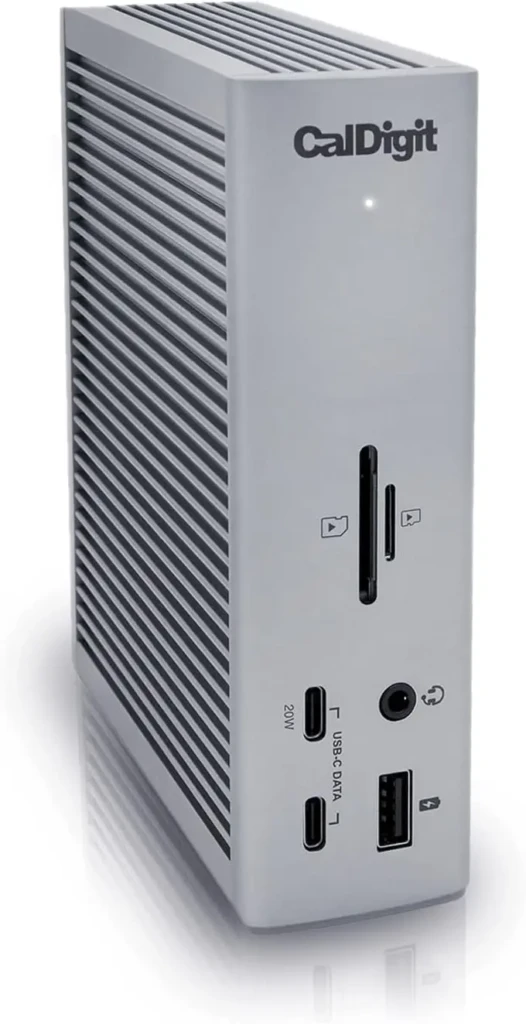
The CalDigit TS4 is a premium Thunderbolt docking station designed for demanding multi-monitor, high-bandwidth workflows. With 40 Gbps Thunderbolt connectivity and 98W power delivery, it is designed to replace a full desktop docking environment with a single cable.
Performance is optimized for professionals running dual 4K displays, high-speed external SSDs, Ethernet, and multiple peripherals simultaneously without bandwidth bottlenecks.
Key Specs
- Connection: Thunderbolt 4 (40Gbps)
- Power Delivery: 98W laptop charging
- Display Support: Dual 4K at 60Hz
- Ports: 18 total
- Ethernet: 2.5Gb
- Audio In/Out: Yes
Why It Stands Out
- High power delivery for larger laptops
- Excellent multi-monitor stability
- Extensive port selection
- Premium aluminum build quality
Best For: Power users, video editors, and professionals with dual 4K monitor setups.
2. Plugable 16-in-1 Thunderbolt 4 Dock: Best Balance of Performance and Price
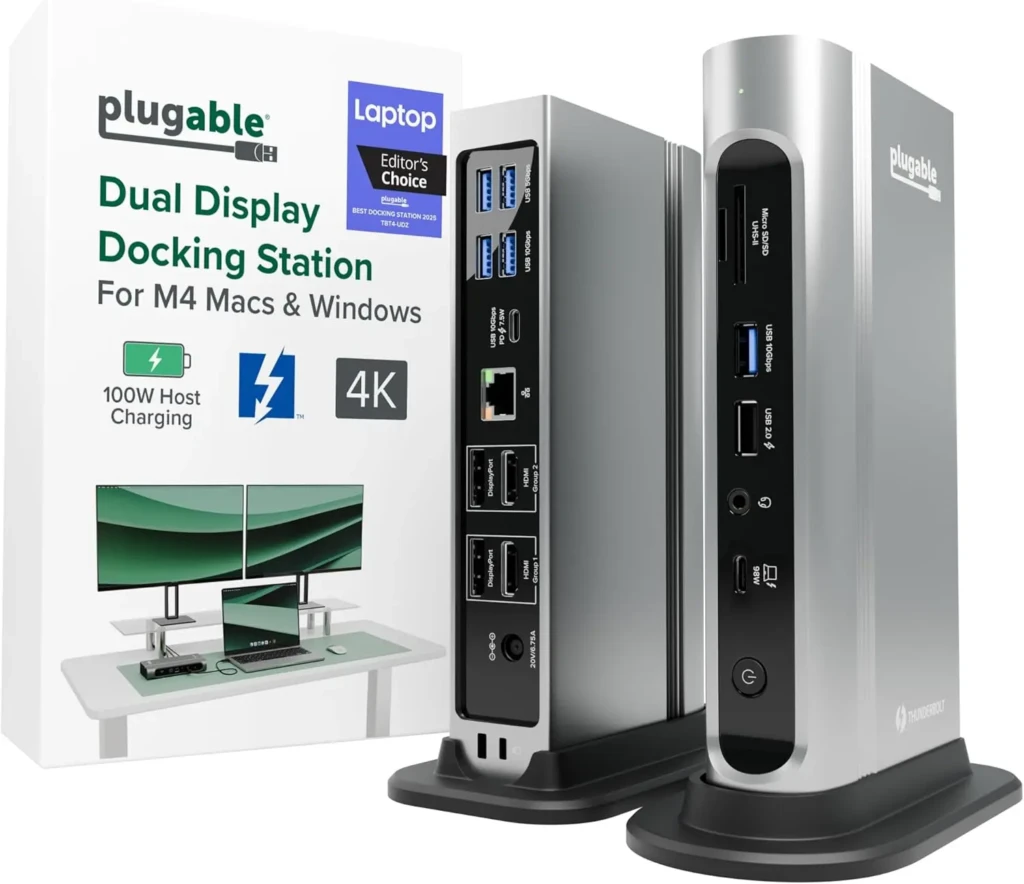
The Plugable (16-in-1) is a high-performance Thunderbolt 4 docking station designed for multi-monitor productivity and stable power delivery. It offers strong bandwidth performance and wide compatibility with modern Windows and macOS systems.
If you want Thunderbolt-level performance without entering ultra-premium pricing, this is a practical alternative.
Key Specs
- Connection: Thunderbolt 4 (40Gbps)
- Power Delivery: 100W laptop charging
- Display Support: Dual 4K 60Hz
- Ports: 16 total
- Ethernet: Gigabit
- Compatibility: Windows and macOS
Why It Stands Out
- Strong 96W charging capacity
- Dual 4K support via Thunderbolt
- Excellent compatibility
- Widely available and well-supported
Best For: Professionals who need dual 4K monitors and high-speed connectivity at a competitive price.
3. Plugable Dual DisplayPort: Best DisplayLink Docking Station
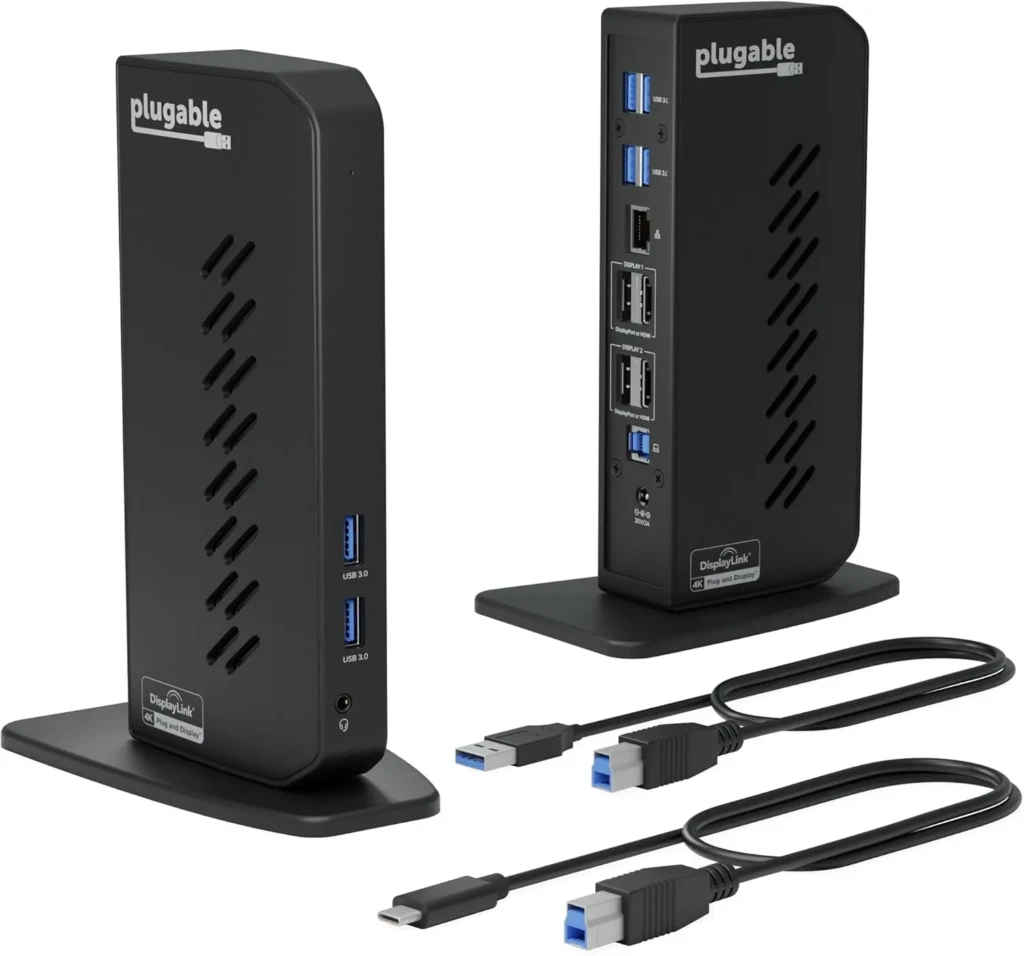
The Plugable Dual DisplayPort is positioned as a DisplayLink-based docking station designed for broader compatibility. Unlike Thunderbolt docks, which use hardware-based display technology, it uses software-based display technology, making it suitable for laptops that lack native multi-display support.
Performance is optimized for productivity workloads rather than high-refresh or graphics-intensive tasks.
Key Specs
- Connection: USB-C / USB-A (DisplayLink)
- Power Delivery: 60W
- Display Support: Dual 4K via DisplayLink
- Ports: HDMI, DisplayPort, USB-A
- Ethernet: Gigabit
Why It Stands Out
- Broad compatibility
- Supports multiple displays on limited laptops
- Reliable for office productivity
- Strong value in enterprise environments
Best For: Older laptops or systems without Thunderbolt support.
4. Dell WD19S Docking Station: Best for Business Laptops
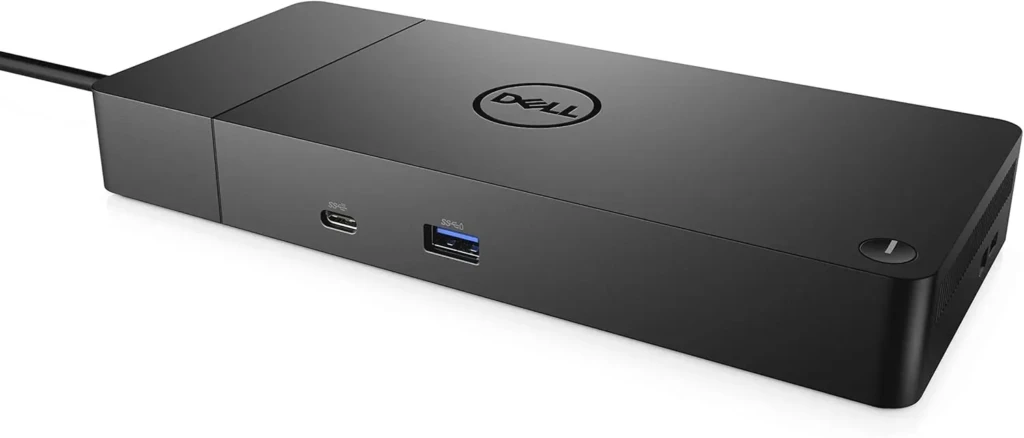
The Dell WD19S is positioned as a business-focused docking station engineered for corporate reliability. It is commonly deployed in enterprise environments where stability and long-term performance matter more than cutting-edge specs.
Performance is optimized for consistent office workloads, including video conferencing, spreadsheets, and dual-monitor productivity.
Key Specs
- Connection: USB-C (Thunderbolt variant available)
- Power Delivery: Up to 130W (model dependent)
- Display Support: Dual monitors
- Ports: USB-A, USB-C, HDMI, DisplayPort
- Ethernet: Gigabit
Why It Stands Out
- Enterprise-level stability
- Strong charging capacity
- Reliable for business-class laptops
- Long-term durability
Best For: Corporate offices and business laptop users.
5. Anker 565 USB-C Dock: Best Budget Docking Station
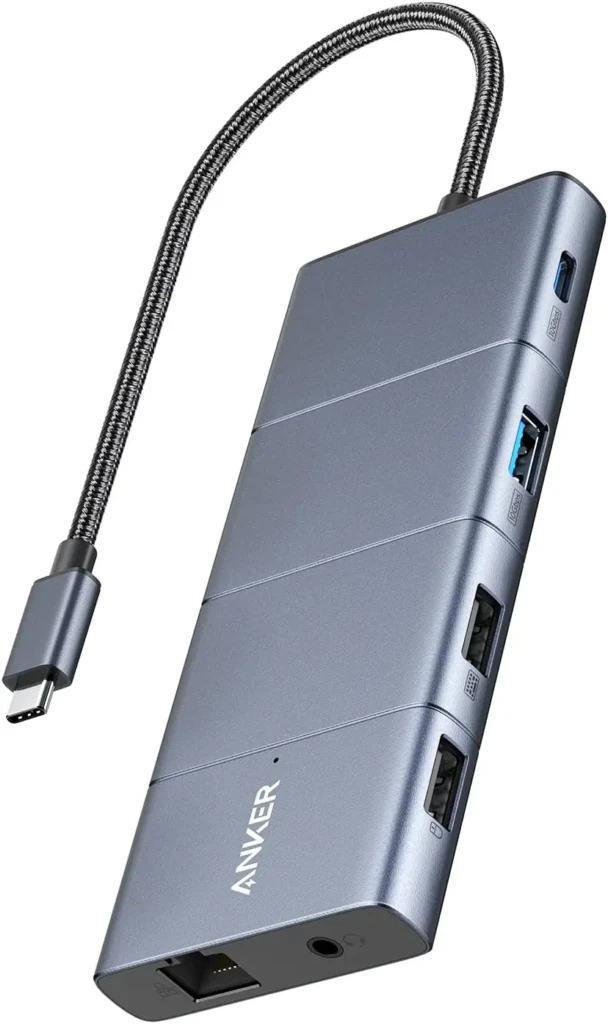
The Anker 565 is positioned as a budget-friendly USB-C docking station that provides essential expansion without Thunderbolt pricing. It supports charging, external displays, and multiple peripherals in a compact design.
Performance is optimized for general productivity rather than high-bandwidth workflows.
Key Specs
- Connection: USB-C
- Power Delivery: 85W
- Display Support: Dual monitors (host-dependent)
- Ports: HDMI, USB-A, USB-C, Ethernet
- Build: Compact design
Why It Stands Out
- Affordable pricing
- Reliable brand reputation
- Solid everyday performance
- Clean desk integration
Best For: Students and everyday productivity users.
Docking Station Compatibility Checklist
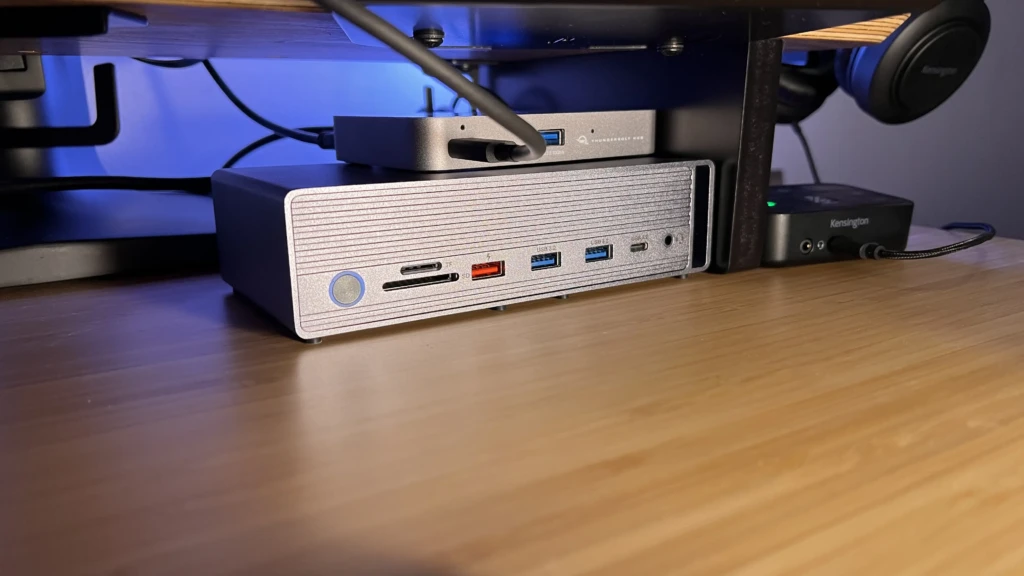
Before buying, confirm:
- Does your laptop support video output over USB-C?
- Does it support Thunderbolt?
- What wattage charger does your laptop require?
- How many monitors does your GPU support?
You can usually find this information in your laptop’s official documentation.
If you are exploring broader peripheral setups, visit our Accessories & Wearables section for related guides.
Common Docking Station Problems and Fixes
Even the best docking station can experience issues.
- Monitors Not Detected: Ensure your cable supports video output. Not all USB-C cables are equal.
- Laptop Not Charging: Check the power delivery wattage rating.
- Flickering Display: Update graphics drivers and dock firmware.
- Overheating: Place the dock in a well-ventilated area.
Most issues are compatibility-related rather than hardware failure.
Who Should Buy A Docking Station?
You should consider a docking station if:
- You work remotely with multiple monitors
- You use a business laptop daily
- You want a clean desk setup
- You frequently switch between desk and travel mode
If you only use your laptop casually and rarely connect external displays, a full docking station may not be necessary.
FAQs
Many USB-C docks are universal, but compatibility depends on your laptop’s port capabilities.
No, but bandwidth limitations can affect multi-monitor output when using USB-C instead of Thunderbolt.
Yes, but serious gaming performance depends on your laptop’s GPU, not the dock itself.
Conclusion
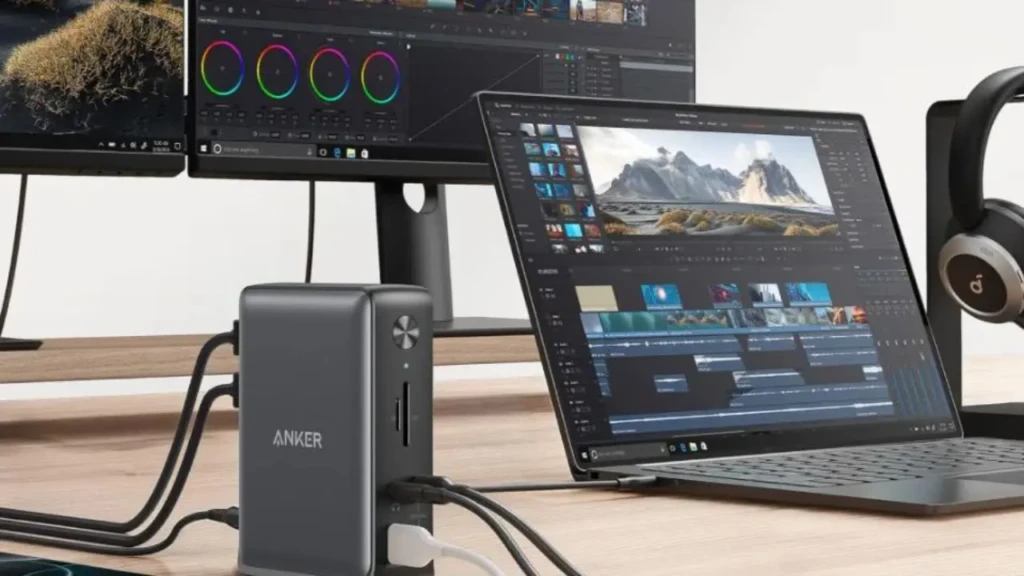
A docking station can significantly improve your productivity by turning your laptop into a full workstation with a single cable. However, choosing the wrong type can limit monitor support or charging performance. That is why understanding the differences among USB-C, Thunderbolt, and DisplayLink is critical before purchasing.
If you match the docking station to your laptop’s capabilities and your workflow needs, you will gain cleaner cable management, faster transitions between mobile and desk use, and a more efficient workspace. Take the time to verify compatibility, and you will avoid the most common frustrations.
At Your Tech Compass, we publish practical guides and honest tech reviews to help users make smarter decisions.