Most “best productivity apps” lists are written by people who downloaded seven apps for a weekend, took some screenshots, and called it a review. The problem is that productivity apps don’t reveal their true value or flaws until you’ve been using them for weeks under real pressure, real deadlines, real distractions, real days when motivation is low. You’re relying entirely on your system to keep you moving.
I’ve been using the apps in this guide as my actual daily toolkit for over a year. Some of them I’ve tried and replaced. The ones that stayed are here because they consistently save me time, reduce decision fatigue, or remove a specific friction point that was costing me more effort than I realised. I’ll tell you what each app actually does, how I personally use it, where it genuinely falls short, and who it’s right for, including the combination that works best when used together.
Quick Comparison: Best Productivity Apps at a Glance
App | Best For | Platforms | Price | Learning Curve |
Todoist | Task management | All major platforms | Free / $4/month | Low |
Notion | Projects, documentation, collaboration | All platforms + Web | Free / from $10/month | Moderate |
Toggl Track | Time tracking and reporting | All platforms | Free / from $9/month | Very Low |
Google Calendar | Scheduling and time-blocking | All platforms | Free | Very Low |
Forest | Focus and distraction blocking | iOS, Android, Chrome | Free / $1.99 one-time | Very Low |
Spark Mail | Email organisation and prioritisation | macOS, iOS, Android | Free / from $7.99/month | Low |
Apple Reminders | Quick task capture | Apple ecosystem only | Free | Very Low |
Best Productivity Apps Guide
1. Todoist: Best for Task Management
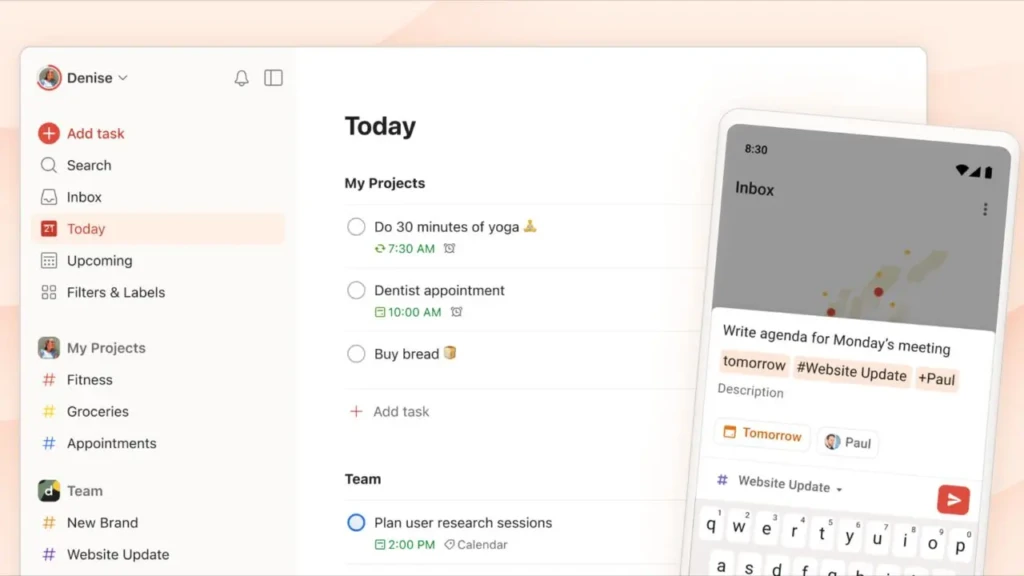
If you only add one dedicated task manager to your workflow, make it Todoist. It’s the most consistently reliable task app I’ve used, available on every platform, fast to open, and powerful enough for complex project management without becoming overwhelming to set up or maintain.
The feature that makes Todoist genuinely different from simpler apps is natural language input. You type “Submit invoice every Friday at 9 am,” and Todoist automatically creates a recurring task with the correct due date and time; no dropdowns, no date pickers, no extra steps.
For people who capture tasks quickly throughout the day, this single feature removes more friction than any other. Todoist also handles project organisation well, letting you nest tasks under projects, assign priority levels with a simple keyboard shortcut, and filter your task list in dozens of ways to see exactly what matters today.
Where It Falls Short
The free plan is functional but limited; you’re capped at five active projects, which becomes restrictive quickly if you manage multiple areas of work or life simultaneously. The paid plan unlocks reminders, filters, and higher project limits, but at $4/month, it’s one of the more affordable premium plans in this category. Todoist is also primarily a task management tool, not a note-taking or project documentation tool. If you need to keep detailed notes alongside your tasks, you’ll want to pair it with Notion or Apple Notes.
Todoist Is Right for You If…
You have a lot of tasks across different areas of your life, you want something that works identically on your phone, your Mac, and in your browser, or you’ve tried simpler tools and found them too limited. For a deeper look at how Todoist compares directly to another popular task manager, our Todoist vs Things 3 comparison breaks down exactly who each app is built for.
2. Notion: Best for Projects and Long-Form Organisation
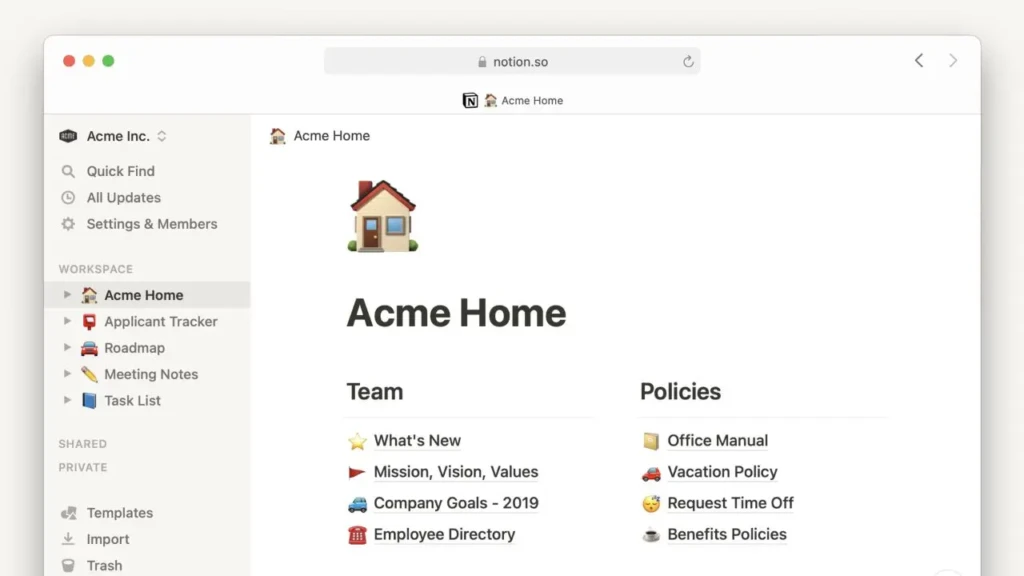
Notion occupies a different role in a productivity stack than Todoist. Where Todoist is about capturing and completing individual tasks, Notion is where the deeper work lives: project documentation, research notes, content planning, wikis, and anything that requires more context than a task title can carry.
The fundamental building block of Notion is the page, and every page can contain any combination of content types: plain text, checklists, tables, databases, calendars, kanban boards, embedded files, and more. This flexibility means Notion can genuinely replace multiple separate tools, a separate notes app, a separate project management board, and a separate content calendar, if you’re willing to invest the time to set it up. The collaboration features are excellent: multiple people can edit simultaneously, leave inline comments, assign tasks to teammates, and share pages with external viewers via a link.
Where It Falls Short
Notion’s offline mode is unreliable. Therefore, if you’re working somewhere without internet access, you may find yourself locked out of your own notes. It’s also noticeably slower to open than local apps like Obsidian or Apple Notes, which matters in moments when you need to capture a thought quickly before it slips your mind.
Additionally, the initial setup investment is real; Notion can feel like it demands you to architect your entire life before you can use it, which is a legitimate barrier for new users. For a full comparison of Notion against the other major knowledge management alternative, our Notion vs Obsidian breakdown covers both in depth.
Notion Is Right for You If…
You manage complex projects alongside your tasks, you work with a team and need shared documentation, or you want one central place where your notes, planning, and project work all live together rather than scattered across multiple apps.
3. Toggl Track: Best for Time Awareness
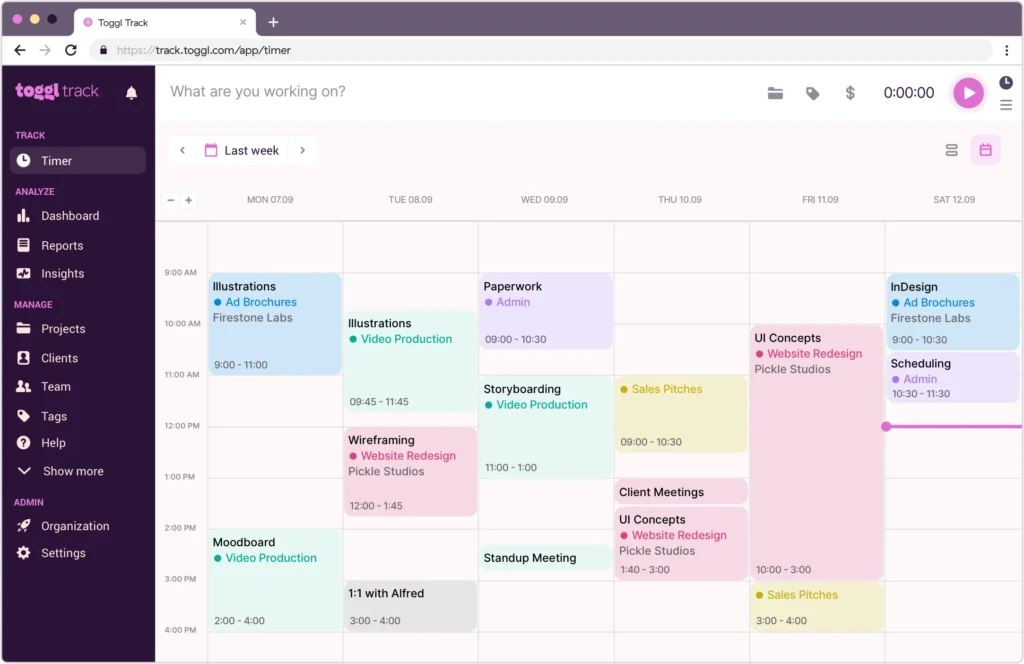
Most people severely underestimate how they actually spend their time. They think they spent two hours on a project and later discover it was forty minutes, or they spent three hours on something that felt like one. Toggl Track exists to fix this problem, and it does it with less friction than any time-tracking tool I’ve used.
The entire app comes down to a single interaction: press Start when you begin a task, press Stop when you finish. Every tracked session is logged under a project or tag, and over the course of a week, Toggl builds a clear picture of where your time is actually going.
The reporting dashboard shows daily and weekly breakdowns, identifies your most time-consuming activities, and lets you compare how time is distributed across different projects or clients. For anyone who bills clients by the hour, this reporting is essential. For everyone else, it’s quietly revealing that most people who start using Toggl discover at least one significant time drain they weren’t consciously aware of.
Where It Falls Short
Toggl Track is a pure time-tracking tool; it doesn’t manage tasks, remind you to start tracking, or integrate with your calendar in any proactive way. The discipline of actually pressing Start and Stop consistently takes about two weeks to become a habit, and most people who quit Toggl do so during that window. The free plan limits detailed reporting to the last 30 days, which is usually sufficient unless you need to track longer-term project trends.
Toggl Track Is Right for You If…
You’re a freelancer who bills clients, you work on multiple projects simultaneously and want clarity on where time goes, or you have a persistent feeling that your days are busy but unproductive. Toggl will show you exactly why.
4. Google Calendar: Best for Scheduling and Time-Blocking
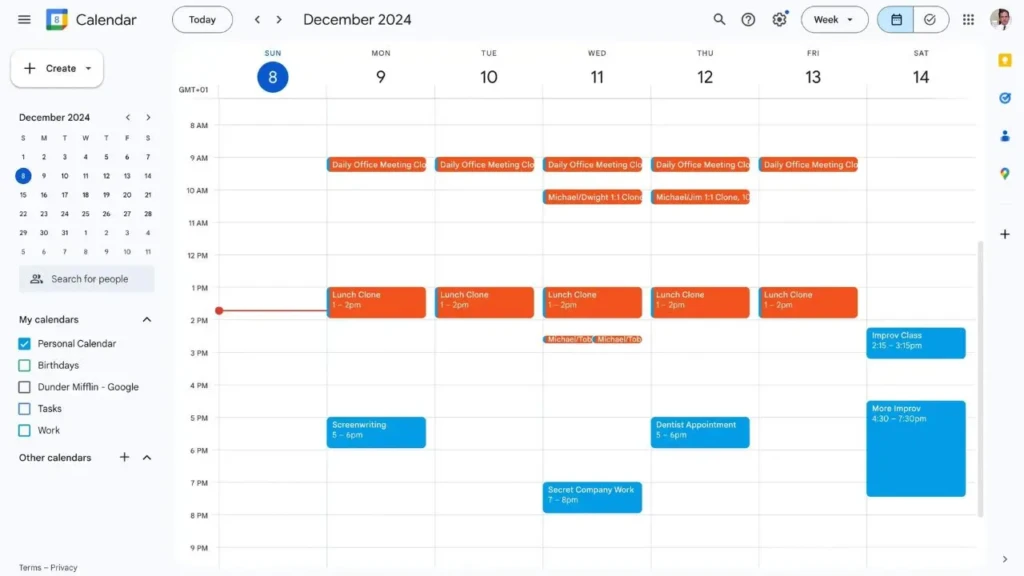
Google Calendar is the most unglamorous app on this list and also the one I’d find hardest to replace. It’s available everywhere, syncs instantly, integrates with virtually every other tool in this stack, and does its core job (keeping track of when things are happening) without requiring any configuration or learning.
The way I use Google Calendar goes beyond just scheduling meetings. I use it for time-blocking: assigning specific time slots to specific types of work, the same way you’d schedule a meeting with yourself. Deep work gets a two-hour block in the morning, admin tasks get a thirty-minute block before lunch, and nothing gets added to Todoist without also being assigned a time in the calendar when it’ll actually get done.
This combination (tasks in Todoist, time in Google Calendar) is the most reliable system I’ve found for ensuring that important work actually happens rather than perpetually drifting to tomorrow. The direct integration between Todoist and Google Calendar (available on Todoist’s paid plan) enables automatic, bidirectional sync.
Where It Falls Short
Google Calendar requires manual discipline to be used effectively. It won’t tell you when you’ve over-scheduled a day, it won’t suggest optimal times for tasks, and notifications can become overwhelming if you don’t manage them deliberately. It also doesn’t work as well as Apple Calendar for people deeply invested in the Apple ecosystem who use Siri for scheduling.
Google Calendar Is Right for You If…
This app is ideal for you if you’re already in the Google ecosystem with Gmail and Google Meet, you want a scheduling tool that integrates with nearly every productivity app available, or you want to start time-blocking your week; it’s the simplest tool available for that habit.
5. Forest: Best for Deep Focus Sessions
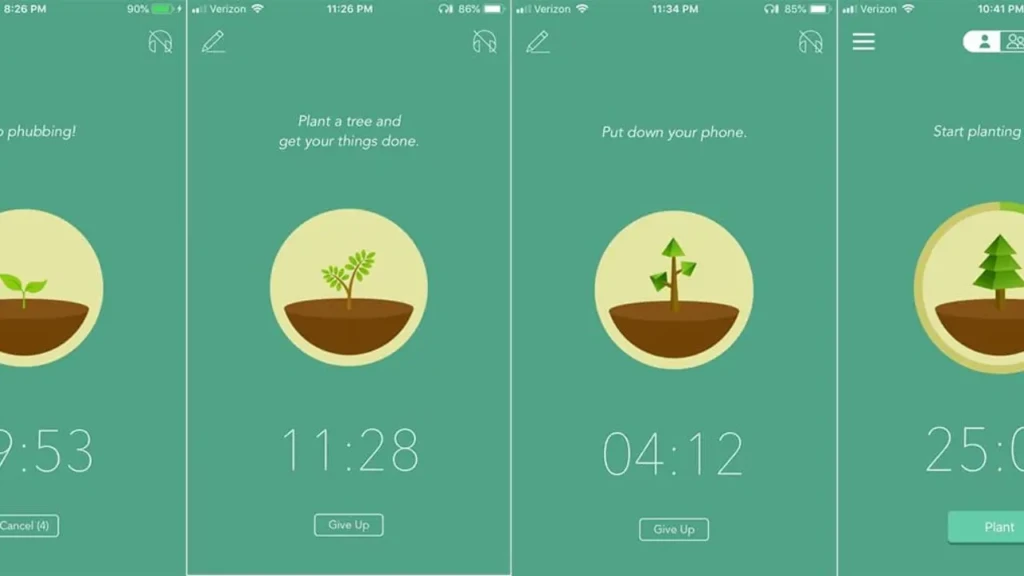
Forest is the simplest app in this guide, but it has the most disproportionate impact on my actual focus. The concept is deliberately minimal: you set a timer; a virtual tree begins to grow; and if you leave the app before the timer ends, the tree dies. That’s the entire mechanic.
What makes Forest effective isn’t sophisticated technology; it’s the combination of a gentle visual consequence and a clear commitment device. Once you’ve set a thirty-minute timer and watched your tree start growing, picking up your phone to check social media feels genuinely wasteful in a way that a simple “stay focused” notification never does.
Over time, your completed focus sessions build a visual forest that represents your consistency, and the app donates to real tree-planting organisations when you earn enough virtual coins. For people who struggle with phone distraction during work, Forest removes the friction of willpower in a way that feels sustainable rather than punishing.
Where It Falls Short
Forest is purely a focus timer. It has no task management, no analytics beyond total focus time, and no way to integrate with the rest of your productivity stack. It’s also most effective for knowledge workers who can control their phone use; if your job requires you to be available on your phone, the mechanic loses its teeth. The iOS app is a one-time $1.99 purchase; the Android version is free with ads.
Forest Is Right for You If…
This app is perfect for you if your biggest productivity challenge is phone distraction during focused work, you respond well to visual motivation and gentle gamification, or you want the simplest possible focus timer without any setup overhead.
6. Spark Mail: Best for Email Management
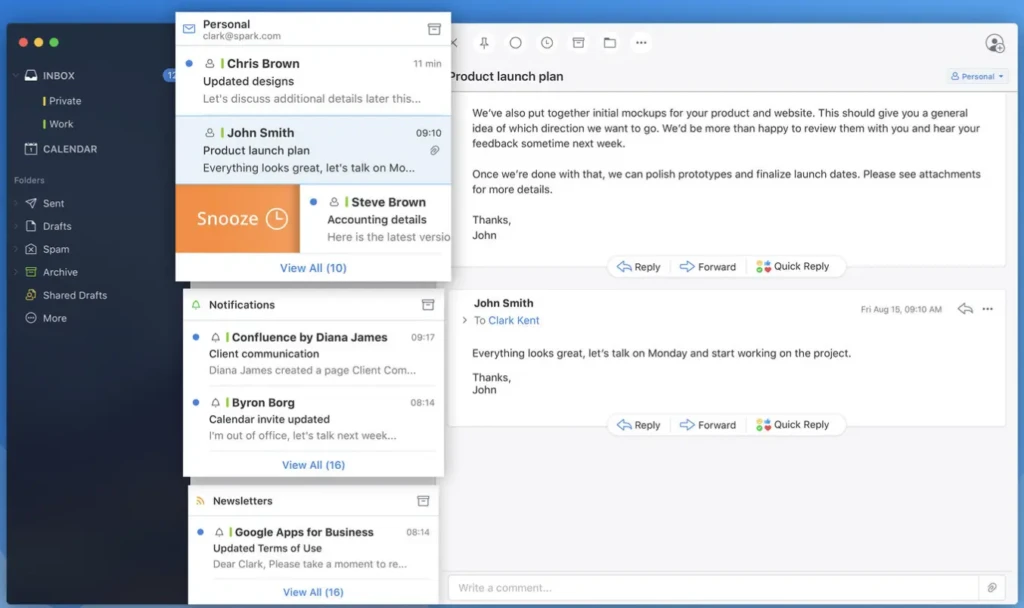
Email is the productivity app most people never think to optimise, yet it’s often the single largest source of reactive, unplanned work in a given day. Spark addresses this by automatically sorting your inbox, separating personal emails, newsletters, and notifications into distinct categories so you see what actually matters first, without manual filtering rules.
The feature I rely on most is Spark’s snooze function. Any email I receive that requires action but not immediately gets snoozed to a specific time, for instance, tomorrow morning, next Monday, or the afternoon before a deadline.
It disappears from my inbox and reappears exactly when I need to act on it, keeping my inbox genuinely clear without forcing me to archive things I’ll forget. The team collaboration features are also worth mentioning: you can comment on emails with teammates, delegate emails with a single tap, and create shared email drafts, which Outlook and Gmail don’t offer natively.
Where It Falls Short
Spark is primarily optimised for macOS and iOS. The Android app exists but lacks several features available on Apple platforms.
In addition, some users are uncomfortable with Spark’s servers temporarily processing email content to enable smart sorting, which is a legitimate privacy concern worth knowing about before signing up. The free plan covers most individual use cases; the premium plan adds AI writing assistance and advanced team features.
Spark Mail Is Right for You If…
This is a great app for you if your inbox currently controls your day, rather than you controlling your inbox, or you use Apple devices and want email that integrates cleanly with the rest of the ecosystem, or you work with a small team and need lightweight email collaboration without adopting a full shared inbox tool.
7. Apple Reminders: Best for Quick Capture
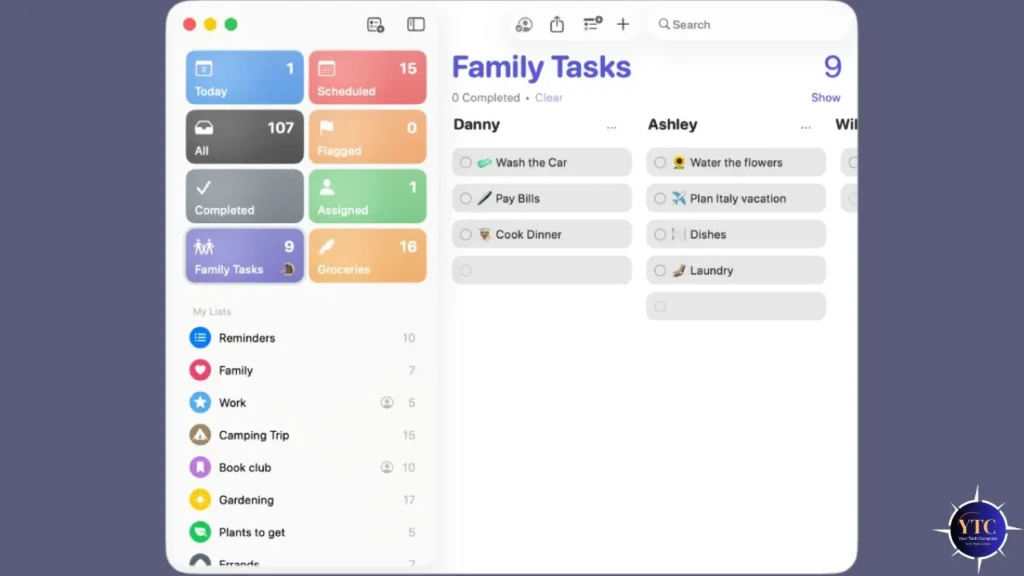
Apple Reminders is not a powerful app. It doesn’t have advanced filtering, recurring task templates, or integration with non-Apple tools. What it has is one thing that none of the other apps in this guide can match: it’s always already open on your Mac, iPhone, and iPad, and Siri can add a task to it in two seconds with your voice while you’re doing something else.
I use Apple Reminders exclusively as a capture tool, not for managing work tasks (that’s Todoist) or organising projects (that’s Notion), but for the random things that occur to me while I’m away from my desk and need somewhere to land immediately before they disappear. “Email the accountant about the invoice,” “buy more coffee,” “check whether the renewal date for that subscription is this month,” all of these go into Apple Reminders instantly via Siri, and then get either completed or migrated to Todoist during a daily review. The location-based reminder feature is also genuinely useful: you can set a reminder to trigger when you arrive somewhere, so “pick up dry cleaning” fires exactly when you’re near the dry cleaner rather than at an arbitrary time when you might be nowhere near it.
Apple Reminders Is Right for You If…
Get this app if you’re in the Apple ecosystem and want a frictionless capture tool that works with Siri hands-free, or if you need a lightweight personal reminder system without the overhead of a full task manager.
My Daily Workflow: How These Apps Work Together
Each of these apps solves a specific problem, but the real productivity gain comes from how they connect into a single system. Here’s exactly how I use them together on a typical working day.
In the morning, I spend about ten minutes in Todoist reviewing what’s due today and what I planned to work on. I then open Google Calendar and assign actual time blocks to those tasks, specific slots with start and end times, treated with the same weight as any external meeting. This is the most important habit in the stack; without it, tasks sit in Todoist indefinitely while the day fills up with reactive work.
During focused work blocks, I start a Toggl timer and open Forest simultaneously. Toggl ensures I’m capturing accurate time against the project; Forest ensures I’m not reaching for my phone during that window. When a thought or side task comes to mind during a focus session, it goes straight into Apple Reminders via Siri, capturing it without interrupting the current session.
Notion handles everything that needs more context than a task title: the project brief I’m working from, my notes from the last client call, the content plan for the month. When a Todoist task requires background reading or reference material, there’s a linked Notion page. Email gets handled twice per day, for instance, morning and late afternoon, using Spark to triage, snooze, and respond, rather than staying open all day as a constant interruption source.
The system isn’t complicated, but it took time to become habitual. The two-week mark is where most people either commit or abandon a new productivity setup. Stick with it past that point, and it starts to feel natural.
How to Build a Productivity System That Doesn’t Collapse
Most productivity systems fail not because the apps are bad but because the system tries to do too much. The more apps you add, the more maintenance the system requires, and the more likely you are to abandon the whole thing after a difficult week.
Start with one app from this list, specifically the one that addresses your single biggest current pain point. If you’re losing track of tasks, start with Todoist. On the other hand, if you’re wasting time without knowing where it goes, start with Toggl.
If phone distraction is your main problem, start with Forest. Use that one app consistently for two weeks before adding anything else. Adding a second app to a system you haven’t yet solidified creates two partially used tools instead of one well-embedded habit.
The goal of a productivity system is not to have an impressive setup; it’s to spend less mental energy on logistics, so you have more energy for the actual work. If your system is creating overhead rather than removing it, that’s a signal to simplify, not add more. Our best note-taking apps guide covers the note and knowledge management layer of a productivity stack in similar depth if you’re looking to round out your setup.
FAQs
No, and using all seven simultaneously without establishing habits around any of them is a reliable way to feel busy without being productive. Start with one or two that address your most immediate friction points. The daily workflow section above describes how they complement each other, but every combination within that stack is also useful on its own.
They serve different purposes. Todoist is purpose-built for tasks, such as capturing, organising, and completing individual items quickly. Notion, on the other hand, is better for project context and documentation. Most people who use both use Todoist for day-to-day task capture and Notion as a reference layer. Using Notion as your primary task manager is possible, but it often leads to over-engineering or to tasks getting buried in databases rather than surfacing clearly at the right time.
The core time-tracking features in Toggl Track are completely free, with no time limit. The free plan includes unlimited time tracking, basic reporting for up to five users, and integration with common tools. The paid plan ($9/month) unlocks more detailed reporting, billable-rate tracking, and project profitability analysis, which are useful for freelancers and agencies but unnecessary for personal use.
Todoist plus Google Calendar. Todoist captures everything you need to do; Google Calendar ensures you actually allocate time to do it. That combination alone is more effective than a seven-app setup used inconsistently. Add Toggl once you’re curious about where your time goes, and Forest if phone distraction is a persistent problem.
Final Thoughts
Productivity apps are tools, not solutions. No app will make you more disciplined, more motivated, or better at prioritising; those things come from habits and decisions that no software can make for you. What these apps can do is remove friction from the habits you’re already trying to build, reduce the cognitive load of remembering and tracking, and give you a clearer picture of how you’re actually spending your time.
The most important thing isn’t which apps you choose, it’s that you use whichever ones you choose consistently enough for them to become automatic. Two apps used well are better than seven apps used occasionally every single time. If you run into any technical hiccups with these tools on your Mac, such as apps freezing, browsers crashing, or performance issues, our Safari crashing fix guide and Mac performance troubleshooting guide cover the most common issues with step-by-step solutions.
For more tech guides and honest reviews, visit YourTechCompass.