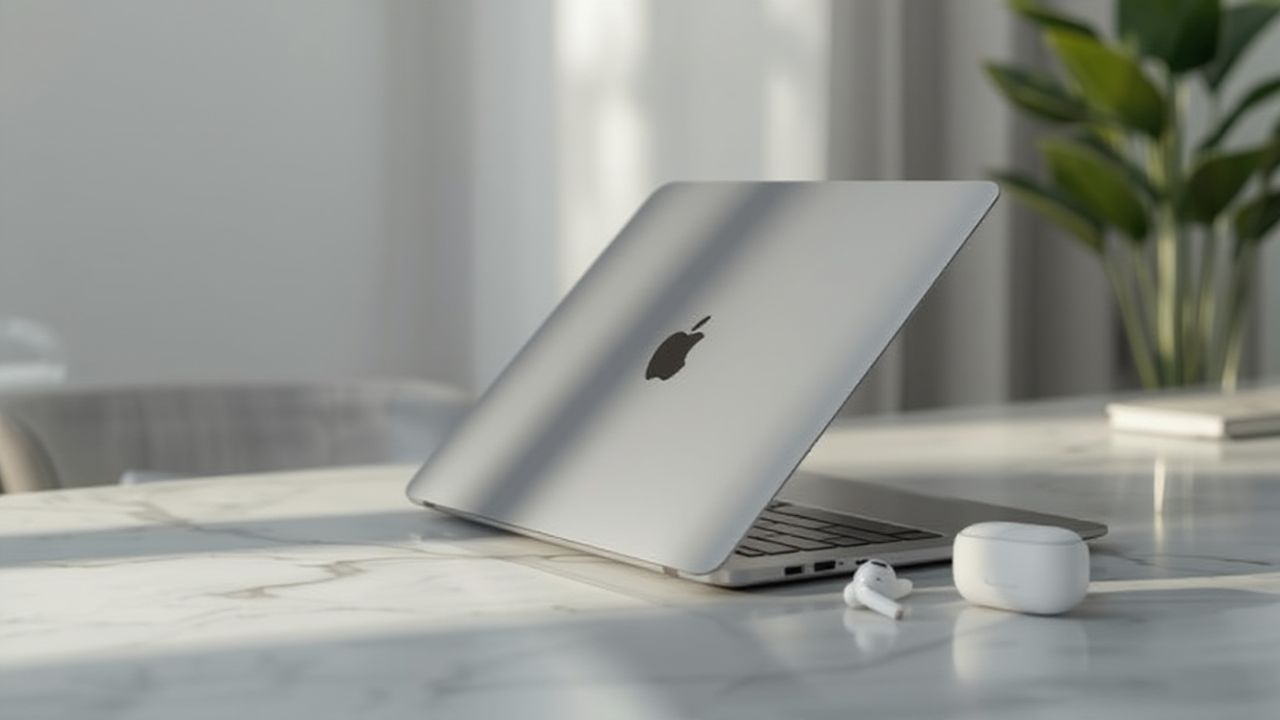
Connecting your AirPods to your MacBook can significantly enhance your audio experience, whether you’re working, streaming, or simply relaxing with music. Although the process may seem straightforward, many users still encounter minor issues when pairing their devices for the first time.
From ensuring compatibility to troubleshooting connectivity issues, this guide covers everything you need to know to enjoy seamless wireless audio on your Mac. By the end of this article, you’ll have your AirPods connected and ready to go. I’ve personally walked through each step to make it foolproof.
Check Compatibility Before Connecting
Before attempting to connect your AirPods, ensure your MacBook supports them. Here’s what you need to know:
- MacBook Models: AirPods work with any MacBook that supports Bluetooth 4.0 or later. This includes most MacBook Air and MacBook Pro models released in the last decade.
- Software Requirements: Your MacBook should be running macOS Sierra (10.12.4) or later. For the best experience with features like automatic switching, ensure you’re running macOS Catalina or later.
For detailed specifications and compatibility information, please refer to Apple’s official guide here.
Prepare Your AirPods and MacBook
Preparation is key to a smooth connection. Follow these steps:
- Charge Your AirPods: Ensure both the AirPods and the case have sufficient battery.
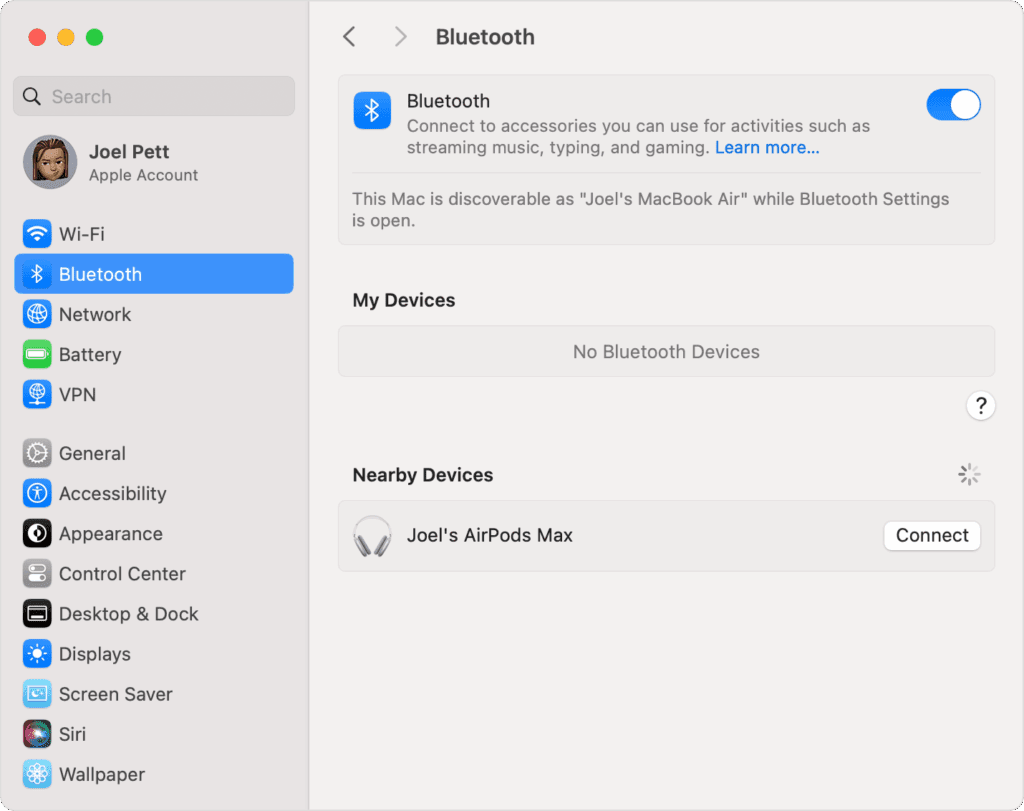
- Turn on Bluetooth on Your MacBook: Navigate to System Preferences > Bluetooth and ensure it’s turned on.
- Keep Devices Nearby: Place your AirPods near your MacBook while pairing.
How to Connect AirPods to MacBook (Step-by-Step)
Here’s the most reliable method to connect your AirPods:
- Open your AirPods case and keep the AirPods inside.
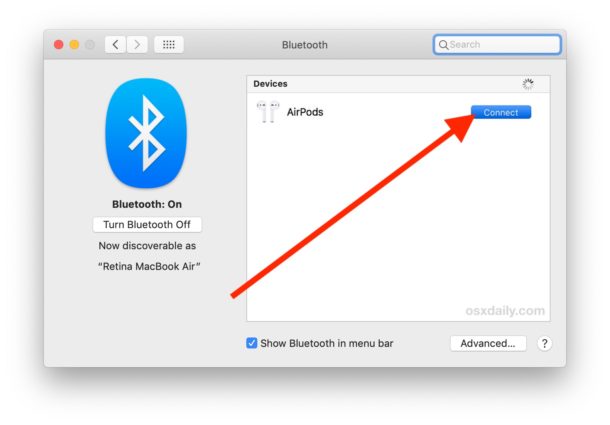
- On your MacBook, click the Apple Menu > System Settings > Bluetooth.
- Look for your AirPods under Devices Available.
- Click Connect next to your AirPods.
- Once connected, you’ll see a notification confirming the connection.
Tip: If you’re using AirPods Pro or AirPods Max, the connection process is the same, but you’ll gain access to additional features like Active Noise Cancellation once paired.
For a quick overview of other top Apple headphones, you can check out our Best Apple Headphones guide.
Switching Between MacBook and Other Devices
One of the perks of AirPods is their ability to switch seamlessly between devices:
- Automatic Switching: If your iPhone is nearby, AirPods can automatically switch to your MacBook when you start using it.
- Manual Switching: Use the Bluetooth menu in the Mac menu bar or Control Center > Sound to manually select your AirPods.
This flexibility is ideal if you frequently alternate between calls on your iPhone and music or meetings on your Mac.
Troubleshooting Connection Issues
Sometimes AirPods may fail to connect or experience audio problems. Here’s how to troubleshoot common issues:
Issue | Solution |
AirPods not showing up on MacBook | Ensure Bluetooth is on and AirPods are in pairing mode. Try closing and reopening the case. |
Connection drops | Turn off Bluetooth on other nearby devices that might interfere. |
Audio distorted or delayed | Reset your AirPods by holding the button on the back of the case for 15 seconds and reconnect. |
If problems persist, refer to Apple’s troubleshooting guide here.
Extra Tips for the Best Experience
- Check Battery Status on MacBook: Click the Bluetooth icon in the menu bar to see your AirPods’ battery level.
- Use AirPods for Calls and Meetings: Ensure your MacBook’s sound input and output are set to your AirPods in System Preferences > Sound.
- Adjust Audio Settings: Customize features like spatial audio and EQ settings in System Settings > Sound > Output for optimal experience.
For alternative wireless earbuds under a tight budget, check out our Best Wireless Earbuds Under $100 roundup, which also pairs well with MacBooks.
Conclusion
Connecting AirPods to your MacBook is quick and effortless once you know the steps. From checking compatibility to troubleshooting and fine-tuning your settings, following this guide ensures a seamless wireless audio experience.
Whether you’re attending Zoom calls, binge-watching shows, or simply enjoying music, your MacBook and AirPods can work together flawlessly. I’ve used these steps myself, and they’ve consistently made my MacBook audio setup smooth and reliable.