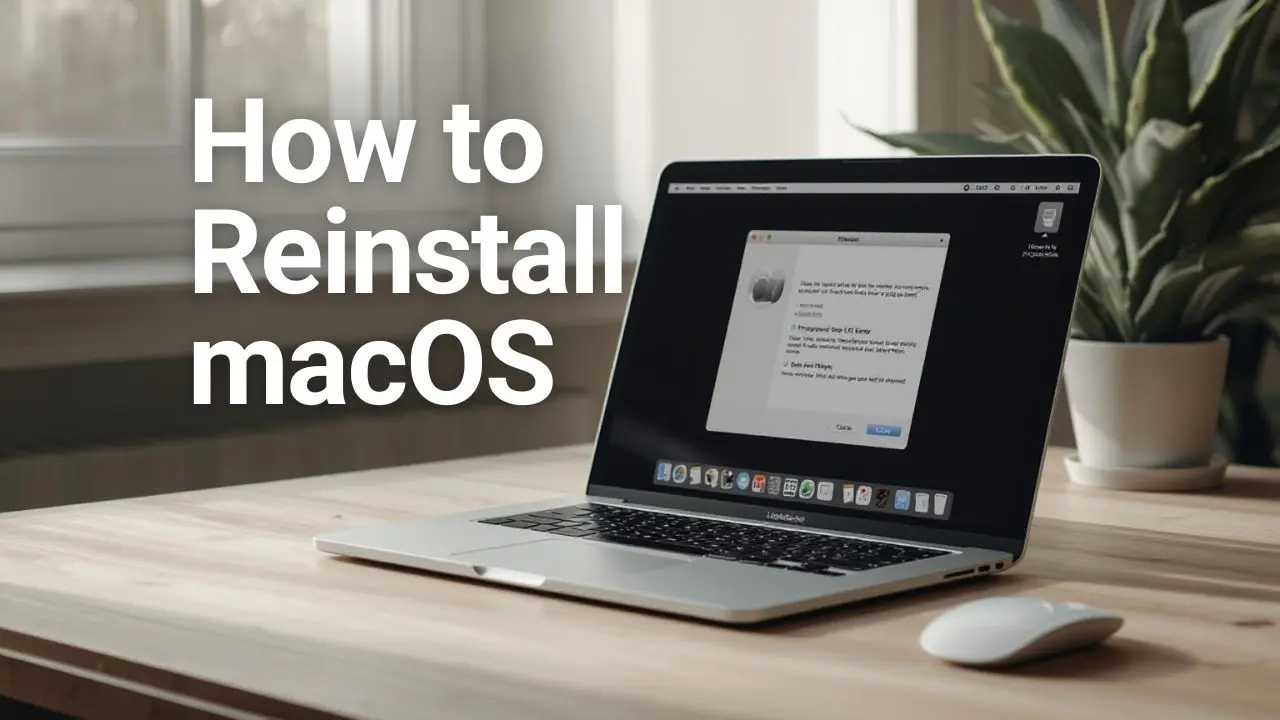
Reinstalling macOS can feel intimidating, especially if you’re worried about losing files, breaking something important, or ending up stuck in Recovery Mode. However, the truth is that Apple has made the macOS reinstall process surprisingly safe and approachable, whether you’re fixing system errors, cleaning up long-term performance issues, or preparing a Mac for resale. When done correctly, reinstalling macOS can restore stability, improve performance, and resolve stubborn problems that updates alone can’t fix.
In this guide, I’ll walk you through exactly how to reinstall macOS, explain the available methods, and help you choose the safest option for your situation. I’ll also share practical tips to avoid common mistakes and get your Mac running smoothly again.
Things to Do Before Reinstalling macOS
Before you reinstall macOS, preparation is critical. Here are the steps to follow before reinstalling macOS; skipping these steps can lead to data loss or unnecessary complications.
Back Up Your Mac First
Always back up your data before making system-level changes. Time Machine is the easiest option, but cloud backups or external drives work as well. Even if you plan to reinstall macOS without erasing your data, a backup is your safety net.
Check Power and Internet Requirements
Make sure your Mac is plugged into power and connected to a stable internet connection. Reinstalling macOS downloads system files directly from Apple’s servers; therefore, interruptions can cause failures.
Sign Out of Apple ID (When Needed)
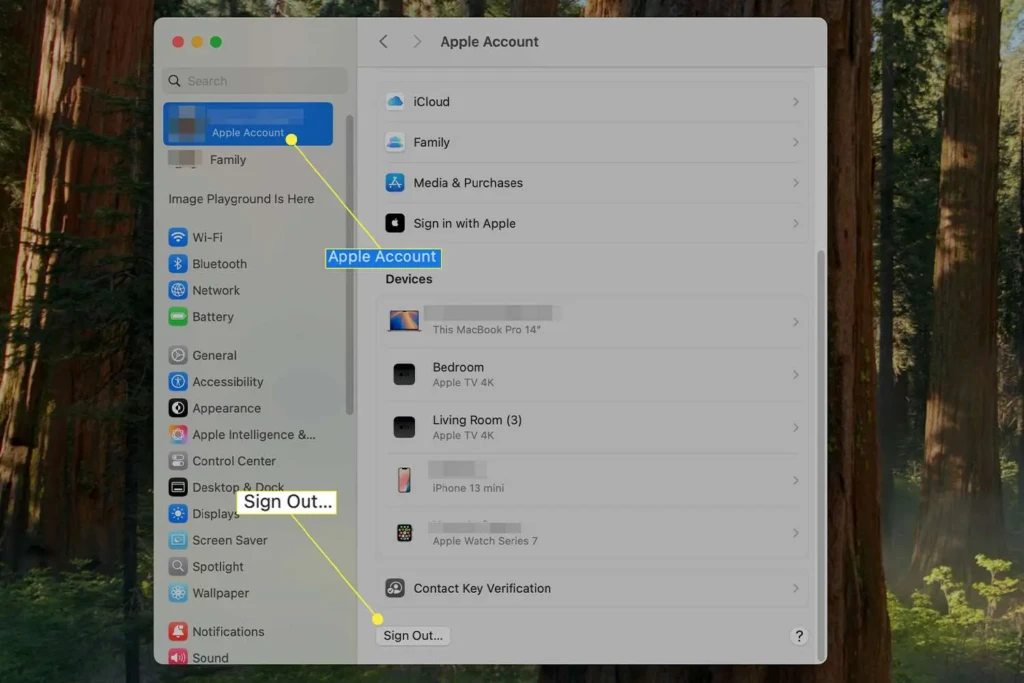
If you’re planning a clean reinstall or preparing the Mac for a new owner, sign out of iCloud, iMessage, and Find My. This avoids activation lock issues later.
Know Your macOS Version
Your Mac will usually reinstall the most recently installed compatible version. If you’re curious about newer versions and whether upgrading afterward is worth it, these guides can help:
How to Reinstall macOS Without Losing Data
If your Mac is slow, unstable, or crashing, but your files are fine, this is usually the best place to start.
What This Method Does
Reinstalling macOS without erasing your disk replaces system files while keeping your apps, documents, and settings intact. It’s ideal for fixing corrupted system components or persistent bugs.
Steps
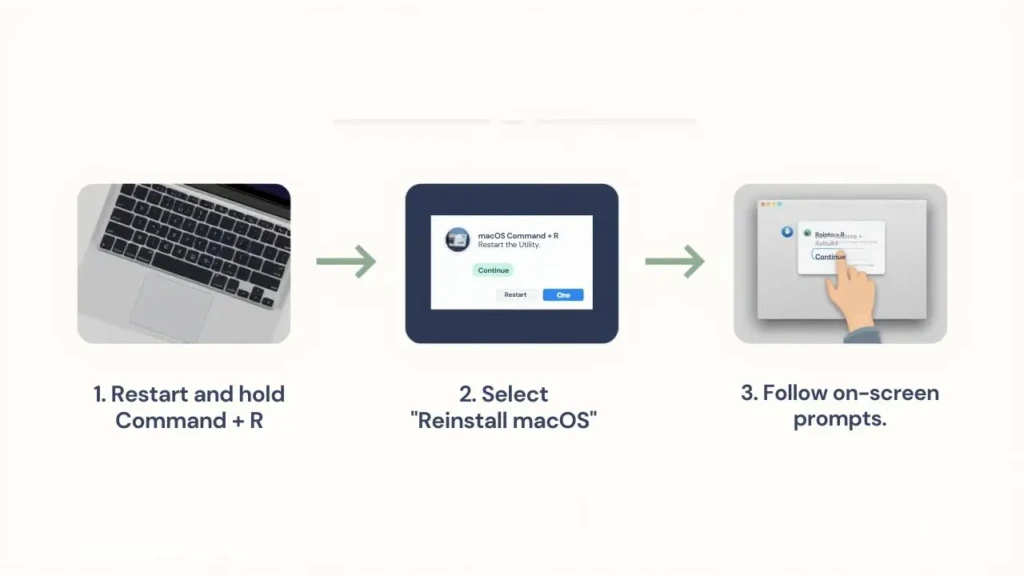
- Restart your Mac and enter macOS Recovery
- Apple silicon: Hold the power button until “Options” appears
- Intel Mac: Restart and hold Command + R
- Select Reinstall macOS
- Choose your startup disk
- Follow the on-screen instructions
This approach often resolves issues like repeated app crashes or unexplained system slowdowns. For example, if Safari keeps misbehaving even after updates, reinstalling macOS can help, alongside targeted fixes like those in Safari Keeps Crashing on macOS Sequoia.
How to Do a Clean Reinstall of macOS
Sometimes, a clean slate is the best solution.
When a Clean Reinstall Makes Sense
- Your Mac has persistent system errors.
- You’re selling or giving away your Mac.
- Malware or corrupted files are suspected.
- Performance issues remain after a standard reinstall.
Steps for a Clean Install
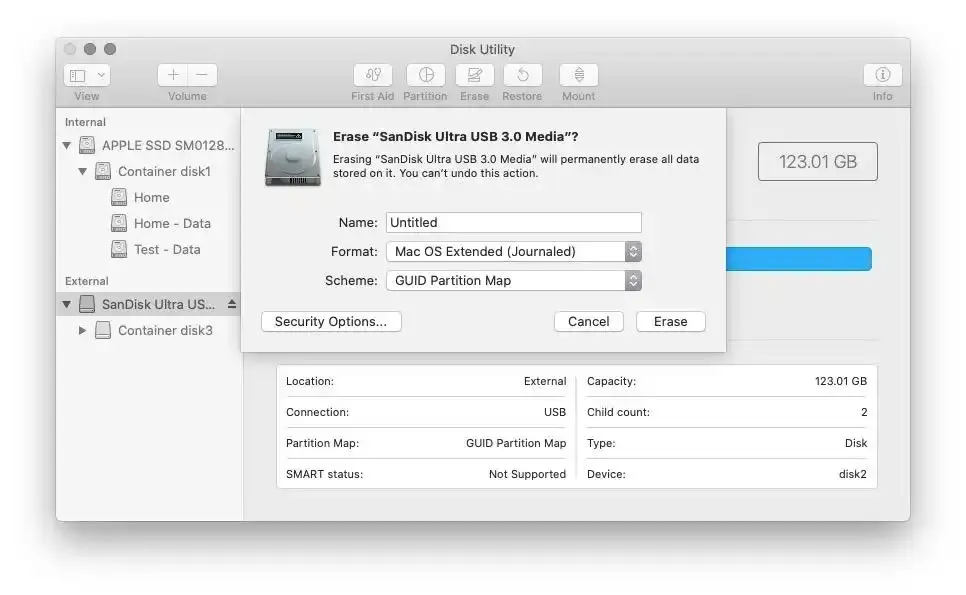
- Back up all critical data.
- Enter macOS Recovery.
- Open Disk Utility.
- Erase the startup disk.
- Quit Disk Utility and select Reinstall macOS.
After installation, you can restore your files from a backup or set up the Mac as new for maximum performance.
How to Reinstall macOS Using a Bootable USB Installer
A bootable installer is helpful when Recovery Mode fails or when internet access is unreliable.
When to Use This Method
- Recovery won’t load
- You need to install macOS on multiple Macs
- You want more control over the version installed
Basic Process
- Download macOS from the App Store
- Create a bootable USB using Terminal
- Restart your Mac and boot from the USB
- Install macOS
This method is more advanced but extremely reliable when other options fail.
Comparison: macOS Reinstall Methods
Method | Keeps Data | Difficulty | Best For |
Reinstall via Recovery | Yes | Easy | System issues without data loss |
Clean Install (Erase Disk) | No | Moderate | Deep issues, selling Mac |
Bootable USB Installer | Optional | Advanced | Recovery failures, offline installs |
Common Problems and How to Fix Them
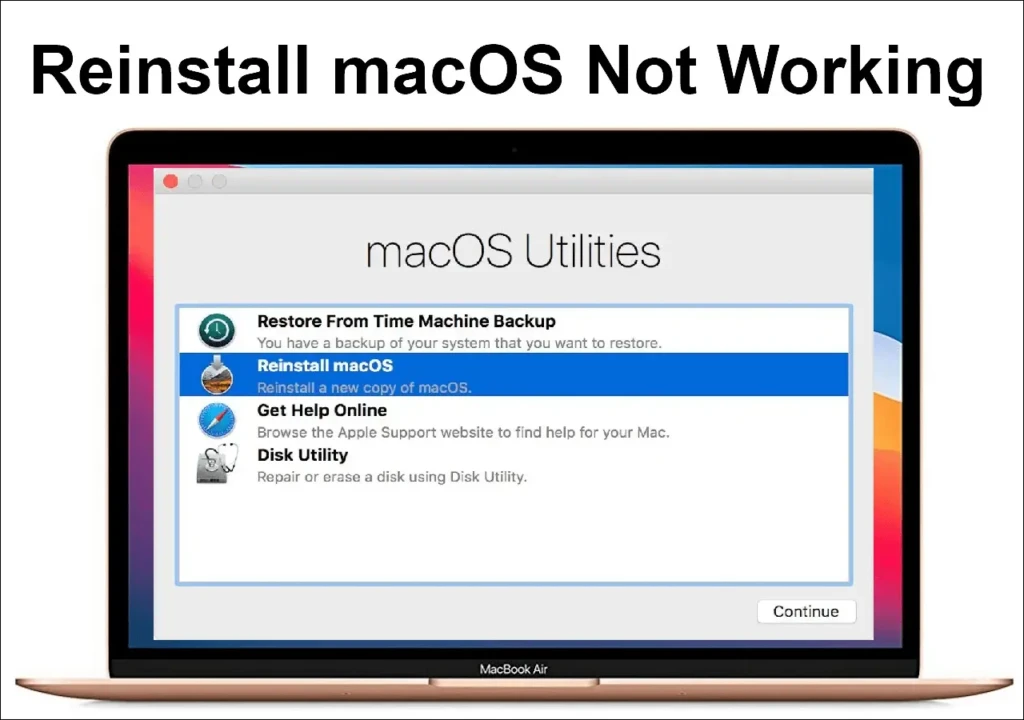
Even with preparation, issues can happen. Recognizing potential problems can help you feel prepared and confident in troubleshooting, so you’re not caught off guard if something doesn’t go as planned.
macOS Won’t Reinstall
- Check the internet connection
- Restart and try Internet Recovery
- Use a bootable installer
Startup Disk Not Showing
- Open Disk Utility and verify the disk
- Run First Aid
- Reformat if necessary
Installation Gets Stuck
- Wait at least 30–60 minutes
- Restart and retry Recovery
- Ensure sufficient disk space
Reinstalling macOS on Older or Unsupported Macs
Older Macs may reinstall only the latest compatible version. While unofficial tools exist, they come with risks, reduced stability, security concerns, and broken features. For most users, staying within Apple-supported versions is safer.
After Reinstalling macOS: What to Do Next
Once macOS is reinstalled, a few steps help ensure long-term stability:
- Run Software Update
- Restore files carefully (avoid restoring old system junk)
- Reinstall apps manually if possible
- Review startup items
- Enable security features like FileVault
Conclusion
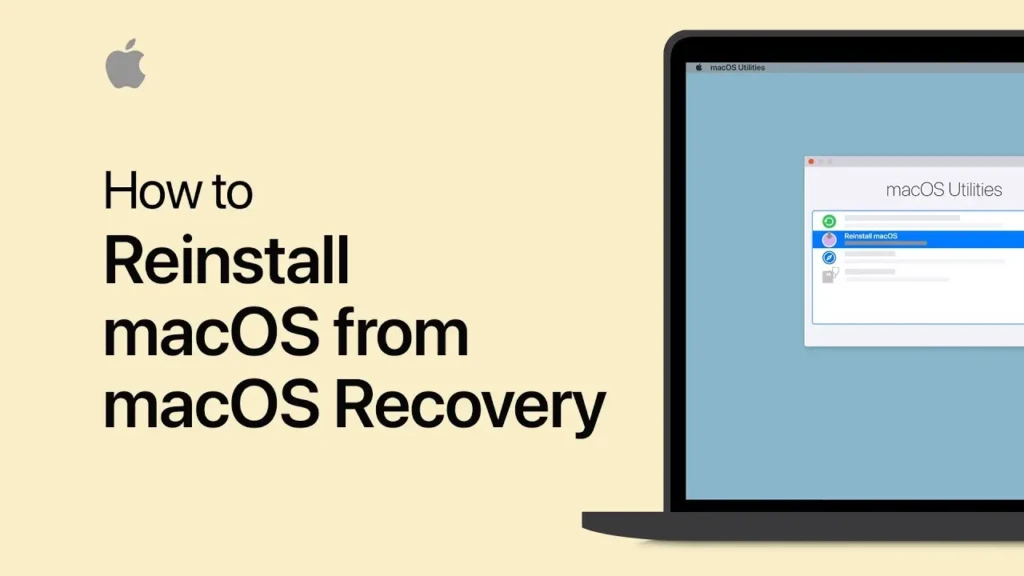
Reinstalling macOS doesn’t have to be stressful or risky. Whether you’re fixing crashes, restoring performance, or starting fresh, Apple provides several safe and reliable ways to reinstall the operating system. The key is choosing the correct method, backing up properly, and taking your time during setup.
If your Mac has been acting up or you’re simply ready for a clean start, reinstalling macOS can make a noticeable difference. I hope this guide gave you clarity and confidence to move forward and get your Mac running the way it should again.
FAQs
Not if you choose “Reinstall macOS” without erasing the disk. A clean install will delete data.
Anywhere from 30 minutes to over an hour, depending on internet speed and Mac performance.
Usually yes, especially for newer Macs and online installs.