Here’s something that trips up more iPhone users than Apple’s documentation ever lets on. You open your phone looking for an app you know you downloaded, maybe a banking app, a health tracker, or something you set up months ago, and it’s just not there. Not on the Home Screen. Not obviously anywhere. Your first instinct is that it got deleted. But in most cases, it wasn’t deleted at all. It’s still on your phone; you just need to know which of the four very different scenarios caused it to disappear, because each one requires a completely different fix.
This guide walks you through all four scenarios from start to finish. Whether you deliberately hid an app using iOS 18’s native Hide feature and now want it back, accidentally removed it from your Home Screen without deleting it, had it vanish because of Screen Time restrictions, or hid a purchase in your App Store history, you’ll find the exact steps you need here. I’ll also flag the details that most guides miss, including a hidden setting that restores entire missing Home Screen pages at once and the specific Apple apps that can never be hidden, no matter what you try.
Why Apps “Disappear” on iPhone: Understanding the Four Scenarios
Before you follow any steps, you need to understand which scenario actually applies to your situation. That’s the difference between a two-tap fix and spending fifteen minutes in the wrong menu. There are four distinct reasons an app may seem to have vanished from your iPhone, and the fix for each is different.
Scenario 1: You Deliberately Hid It Using iOS 18’s Hide & Lock Feature
Starting with iOS 18 in September 2024, Apple introduced a native way to hide apps. When you hide an app this way, it vanishes from your Home Screen, disappears from Spotlight search, no longer appears in Siri suggestions, and stops sending notifications.
The app moves into a locked Hidden folder inside your App Library, protected by Face ID, Touch ID, or your passcode. This is the most complete form of app hiding iOS has ever offered, and if this is what happened, you’ll find it in the Hidden folder.
Scenario 2: The App Was Removed From the Home Screen But Not Deleted
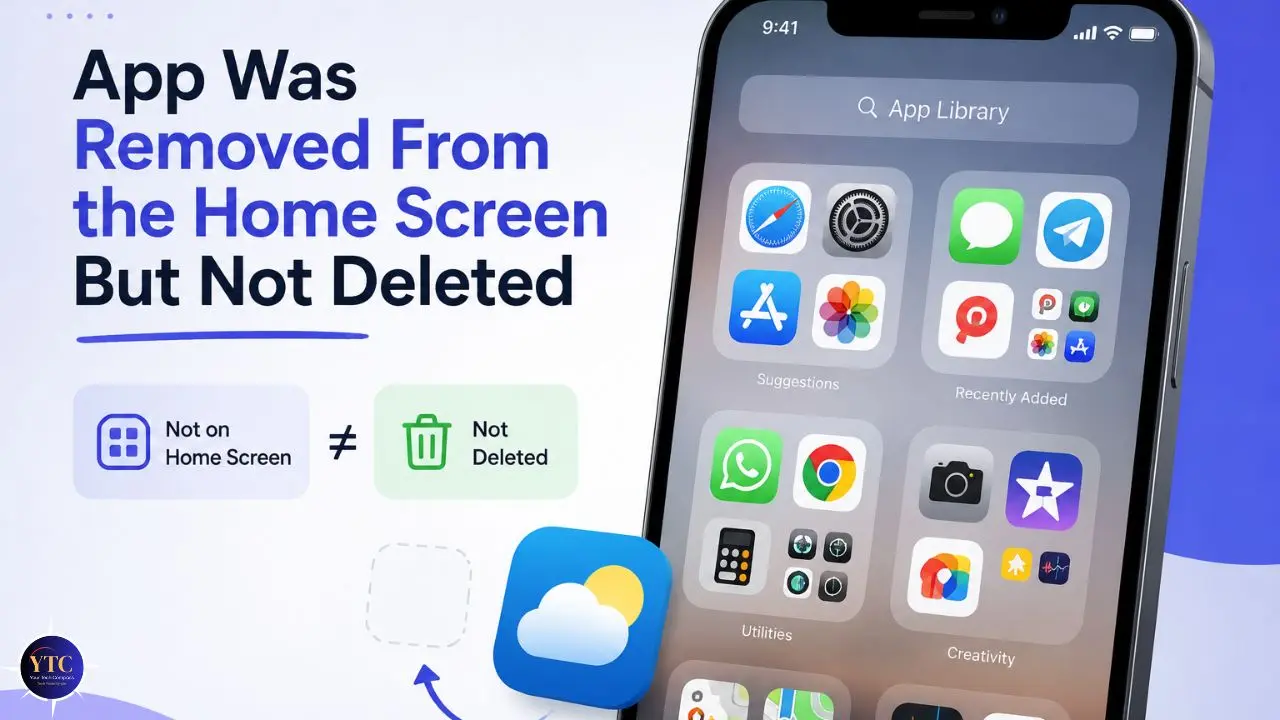
This is the most commonly misidentified scenario. When you long-press an app and choose “Remove from Home Screen” instead of “Delete App,” the app stays fully installed; it just stops appearing on any Home Screen page.
The app moves entirely to your App Library, which you can access by swiping left past all your Home Screen pages. Additionally, iOS can automatically send newly downloaded apps directly to the App Library, depending on your settings.
Scenario 3: Screen Time or Parental Restrictions are Hiding the App
This scenario makes an app disappear more completely than any other. When an app is restricted by Screen Time, whether through Content & Privacy Restrictions, App Limits, or a Family Sharing setup, it doesn’t just leave your Home Screen.
It vanishes from your App Library, Spotlight search, and everywhere else on the device. Furthermore, if a Screen Time passcode was set by someone else, you may not be able to fix this yourself without their involvement.
Scenario 4: The App Store Purchase Was Hidden
This scenario applies when an app was deleted and its purchase history was hidden as well. Hiding a purchase removes the app from your visible “Purchased” history in the App Store, making it difficult to find and reinstall. This doesn’t affect an app that’s currently installed, but it makes reinstalling a previously deleted app confusing.
Knowing which of these four situations you’re in saves you significant time. Here’s the fastest way to figure it out:
What You’re Experiencing | Most Likely Cause | Jump To |
App not on Home Screen but visible in App Library | Removed from Home Screen | Method 2 |
App missing from everywhere (Home Screen, Spotlight, App Library) | iOS 18 Hidden folder OR Screen Time restriction | Method 1 or Method 3 |
Hidden folder doesn’t appear in App Library | Not on iOS 18 OR no apps currently hidden | Check iOS version / Method 3 |
Several apps disappeared at once after an iOS update | Home Screen page was hidden | Method 2C |
App not visible in App Store Purchased history | App Store purchase was hidden | Method 4 |
An app shows in the Hidden folder but is still searchable | The app is locked but not fully hidden | Method 1 to fully unhide |
One important clarification up front: preinstalled Apple apps, including Camera, Calculator, Clock, Contacts, Find My, Maps, Shortcuts, and Settings, cannot be hidden using iOS 18’s Hide feature. Only third-party apps and Apple apps you’ve separately downloaded from the App Store can be hidden this way. Additionally, apps set as your default browser or marketplace in the EU cannot be hidden either.
How to Unhide Apps on iPhone
Method 1: Unhide Apps Using the iOS 18 Hidden Folder
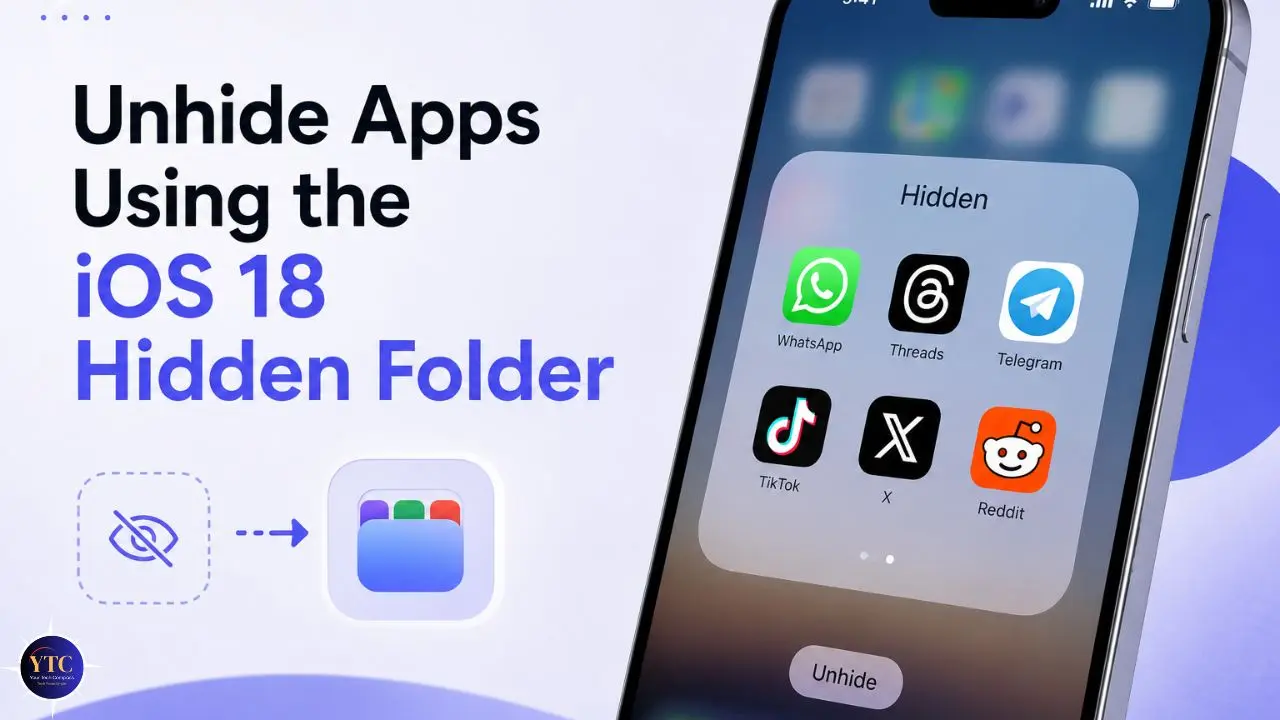
This is the method you need if you deliberately hid an app using iOS 18’s built-in Hide feature or suspect someone else hid an app on your device. It’s only available on iOS 18 and later. If you’re on iOS 17 or earlier, skip to Method 2 or 3.
Before the iOS 18 update in September 2024, the iPhone had no native way to truly hide an app protected by biometrics. Apps removed from the Home Screen were still visible in App Library and Spotlight.
The Hidden folder changed that entirely, giving the app total invisibility until you authenticate to reveal it. Consequently, if an app was hidden using this feature, no amount of searching in Spotlight or browsing the App Library will surface it until the Hidden folder is unlocked.
How to Access the Hidden Folder and Unhide an App
Step 1: On your Home Screen, swipe left repeatedly past all your Home Screen pages until you reach the App Library. The App Library is a categorized view that shows all your installed apps, organized into smart folders like “Social,” “Entertainment,” and “Productivity.”
Step 2: Scroll down to the very bottom of the App Library. The Hidden folder sits at the bottom of this list, below all other categories. If you don’t see it, either no apps are currently hidden on your device, or you’re running iOS 17 or earlier.
Step 3: Tap the Hidden folder. Your iPhone will immediately prompt you to authenticate using Face ID, Touch ID, or your passcode. No one without your biometric credentials or passcode can open this folder, including someone borrowing your phone.
Step 4: Once authenticated, you’ll see all your currently hidden apps inside the folder. Long-press the app you want to unhide.
Step 5: A menu appears with two distinct options, and the difference between them matters:
- “Don’t Require Face ID” (or Touch ID/Passcode): This is the full unhide. It removes the biometric lock AND moves the app out of the Hidden folder. The app returns to your App Library, where you can then add it back to your Home Screen. This is what most people want.
- “Add to Home Screen”: This places the app on your Home Screen while keeping Face ID locked. You’ll still need to authenticate every time you open it. Choose this if you want the app visible but protected.
Step 6: After selecting “Don’t Require Face ID,” the app moves to the top section of your App Library. To get it back on your Home Screen, find it in App Library, long-press the icon, and tap “Add to Home Screen.”
Alternative Path: View All Hidden Apps in Settings
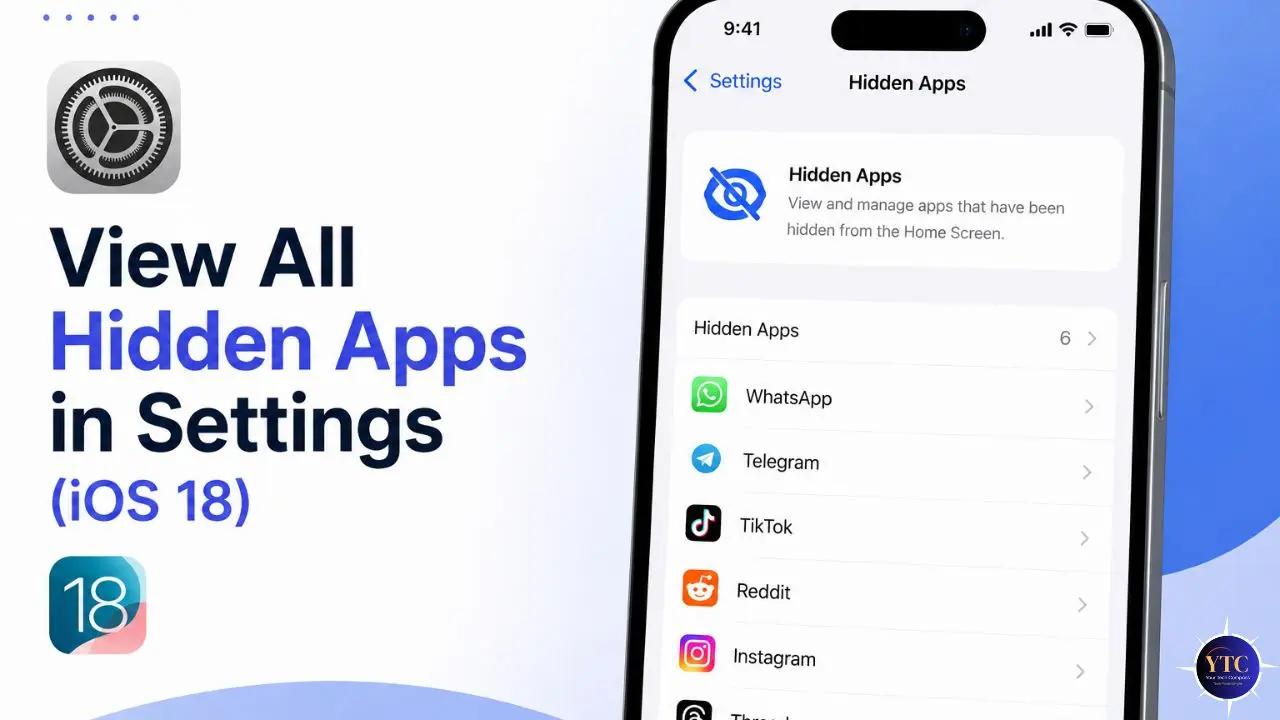
Apple also added a dedicated settings path in iOS 18 for managing hidden apps. Go to Settings → Apps → Hidden Apps. This shows you a complete list of all currently hidden apps on your device, making it easier to manage multiple hidden apps at once without having to navigate through the App Library.
Troubleshooting the Hidden Folder
- The Hidden Folder Isn’t Appearing: This confirms either that no apps are currently hidden on your device or that your iPhone is running iOS 17 or earlier. Check your iOS version at Settings → General → About.
- Face ID Authentication Keeps Failing: Try using your passcode instead. Your passcode works as a fallback for every biometric prompt on iPhone and is always reliable, even when Face ID has an issue. If you’re running the latest iOS update and want to understand all the privacy features available to you, the iOS 26 guide on YourTechCompass covers every new feature worth knowing about.
- App Returned to App Library but Not Home Screen: This is expected behavior. Unhiding an app does not automatically return it to your Home Screen; it returns to your App Library. Long-press the app in the App Library, then tap “Add to Home Screen” to restore its icon.
Method 2: Find Apps Removed from Home Screen (Still in App Library)
This is the most common reason apps seem to “disappear,” and the good news is it’s also the easiest fix. The app is still installed, still working, and still on your phone. It just isn’t on any Home Screen page. Consequently, before you assume an app was hidden or deleted, check the App Library first.
This happens in three common situations. First, you (or someone else) long-pressed the app and selected “Remove from Home Screen” instead of “Delete App.”
Second, a new download went straight to the App Library due to your Home Screen settings. Third, an iOS update reorganized your layout and moved some apps to other pages.
Method 2A: Search via Spotlight (Fastest Option)
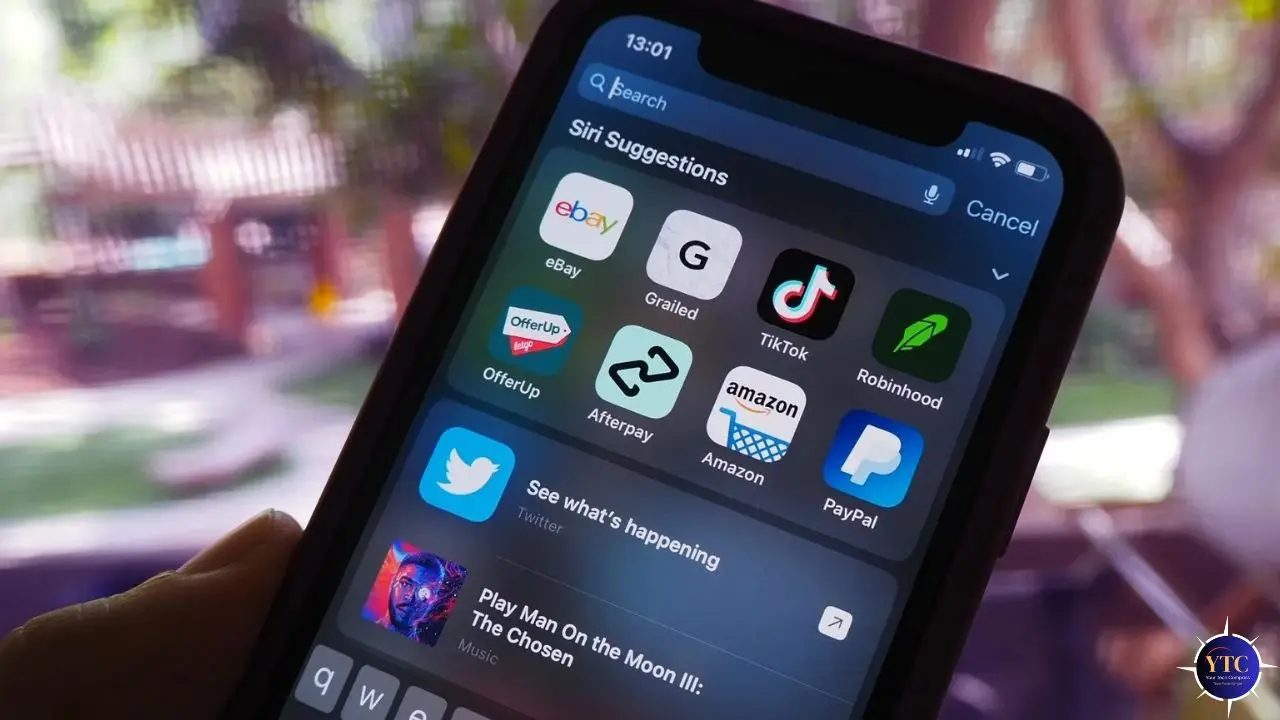
Spotlight is the fastest way to find any app on your iPhone, no matter where it’s currently located.
Step 1: On your Home Screen, swipe down from the middle of the screen to open Spotlight search. (Don’t swipe from the very top edge; that opens the Notification Center.)
Step 2: Type the app name. If the app is installed and not hidden with iOS 18’s Hide feature, it will appear in the results immediately.
Step 3: To open the app, tap it directly in the results. To restore it to your Home Screen, long-press the app result, then tap “Add to Home Screen.”
Note: If an app was hidden using iOS 18’s Hide feature (Method 1 scenario), it will not appear in Spotlight even if it’s still installed. That’s by design; the Hide feature intentionally removes the app from search results.
Method 2B: Browse the App Library Directly
Step 1: From your Home Screen, swipe left past all pages until you reach the App Library.
Step 2: Tap the search bar at the top of the App Library and type the app name.
Step 3: Long-press the app icon when it appears.
Step 4: Tap “Add to Home Screen.” The app icon appears on your Home Screen immediately.
Method 2C: Restore Hidden Home Screen Pages
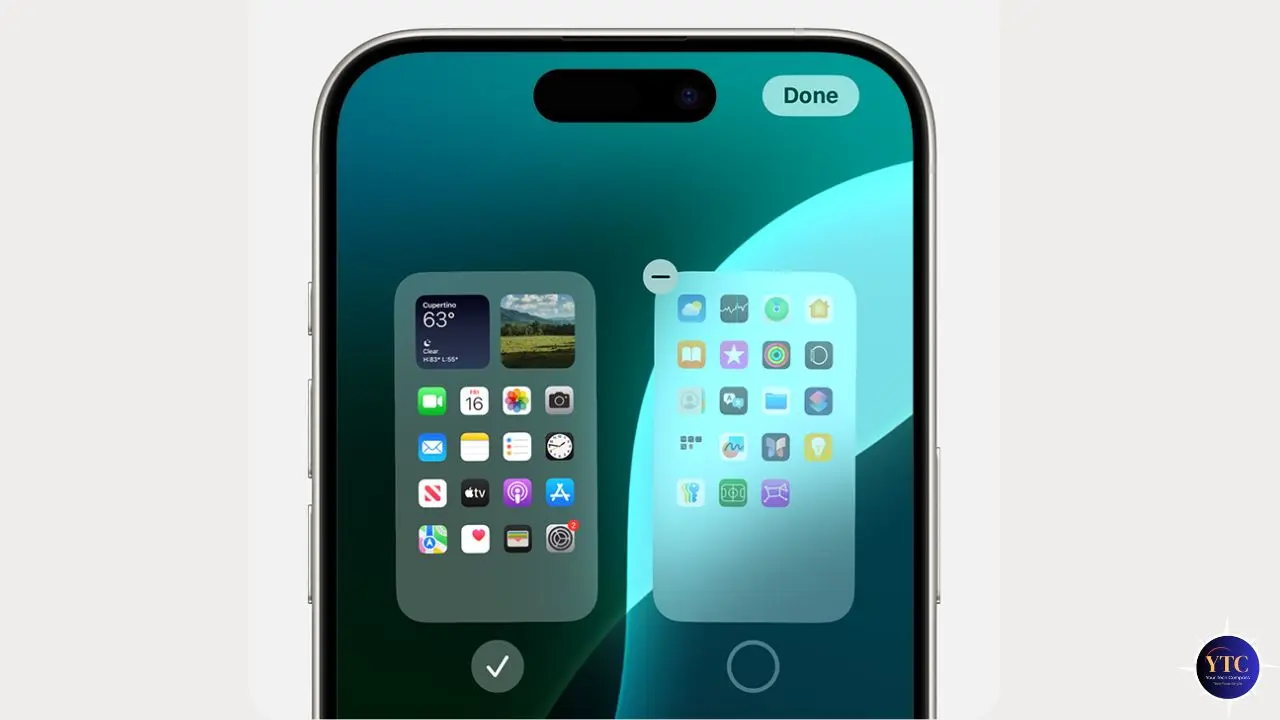
This is the fix most guides miss entirely, and it explains why multiple apps seem to disappear simultaneously. iOS allows you to hide entire Home Screen pages, not just individual apps. If a page is hidden, every app on that page disappears from your Home Screen at once.
Step 1: Long-press any empty space on your Home Screen until the icons start jiggling.
Step 2: Tap the row of small dots at the bottom of the screen (the page indicator). A page management view appears, showing thumbnails of all your Home Screen pages.
Step 3: Each page has a checkbox beneath it. Pages with filled checkboxes are visible. Pages with empty checkboxes are hidden.
Step 4: Tap any empty checkbox to reveal that page. Tap Done.
The previously hidden page and all the apps on it reappear immediately on your Home Screen.
Prevent This from Happening Again
If apps keep opening directly in the App Library instead of on your Home Screen, fix this with a single setting change. Go to Settings → Home Screen & App Library → Newly Downloaded Apps and select “Add to Home Screen.” This ensures that every new download lands on your Home Screen rather than being automatically filed away in the App Library.
Method 3: Unhide Apps Hidden by Screen Time Restrictions
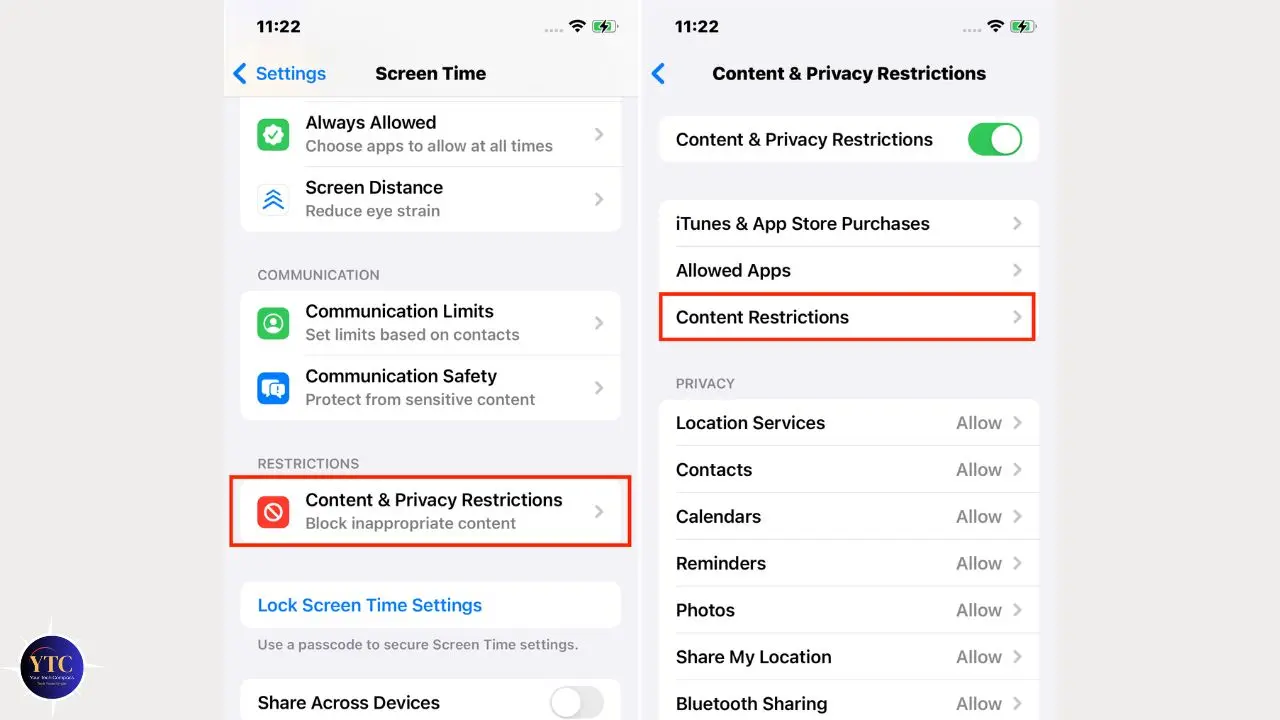
Screen Time restrictions create the most complete form of app invisibility on iPhone. When an app is restricted this way, it doesn’t appear anywhere, not on your Home Screen, not in App Library, not in Spotlight, not anywhere. Additionally, this scenario is common on family-shared devices, children’s iPhones, and employer-managed phones via MDM profiles.
Step-by-Step: Check and Adjust Content & Privacy Restrictions
Step 1: Open Settings and tap Screen Time.
Step 2: Tap “Content & Privacy Restrictions.”
Step 3: If the toggle at the top is turned on, tap “Allowed Apps.”
Step 4: You’ll see a list of app categories, such as Safari, Camera, Siri, and more. Any category toggled off is currently restricted. Toggle the relevant category back on.
Step 5: Back out to the main Screen Time menu and check “App Limits” as well. If an app has hit its daily time limit, it greys out and effectively disappears from normal use. Tap the limit and select “Delete Limit” to remove it, or adjust the allowed daily time.
The app reappears immediately on your device once its restriction is removed; no restart needed.
What to Do if There’s a Screen Time Passcode You Don’t Know
If Screen Time has a separate passcode you didn’t set, which is common when a parent set up restrictions on a child’s phone, you’ll need to recover it through your Apple ID.
Step 1: Go to Settings → Screen Time.
Step 2: Scroll down and tap “Change Screen Time Passcode.”
Step 3: Tap “Forgot Passcode?”
Step 4: Authenticate with your Apple ID and reset the Screen Time passcode.
If the device is managed by an employer through a Mobile Device Management (MDM) profile, Screen Time-level fixes won’t work. MDM restrictions operate at a deeper level than personal settings. Contact your IT department; they control what apps are accessible on managed devices and are the only ones who can change those permissions.
Method 4: Unhide App Store Purchases
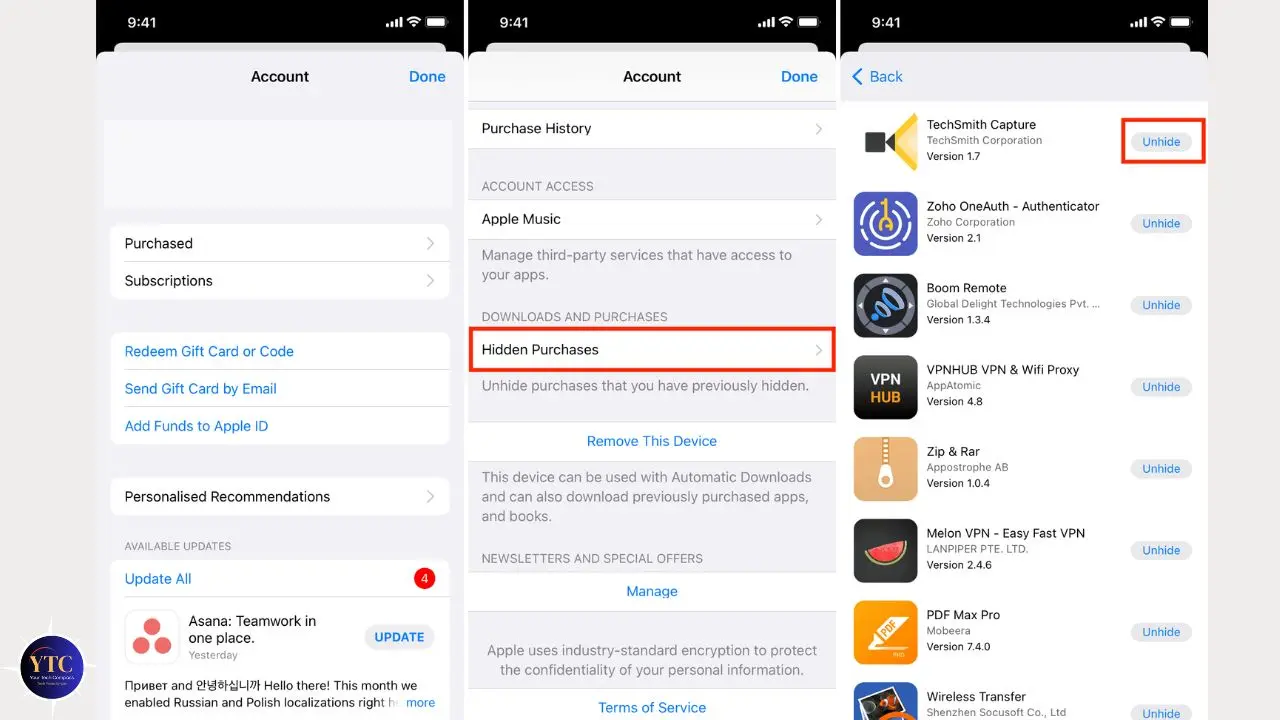
This method applies to a specific scenario: you deleted an app and also hid its purchase from your App Store history, making it difficult to find and reinstall. Hiding a purchase doesn’t affect an app that’s already installed, but it removes the app from the visible “Purchased” list in the App Store, which can make reinstallation confusing.
How to Unhide a Purchase and Reinstall the App
Step 1: Open the App Store on your iPhone.
Step 2: Tap your profile picture in the top-right corner.
Step 3: Tap your Apple ID name at the very top of the pop-up menu, not the “Purchased” option below it. This opens your full Account Settings page. You’ll likely be prompted to authenticate with Face ID or your Apple ID password.
Step 4: Scroll down and tap “Hidden Purchases.”
Step 5: Browse the list or use search to find the app you want to restore. Tap “Unhide” next to its name.
Step 6: The app’s App Store page opens. Tap the cloud icon or “Get” to redownload it to your iPhone.
Critical Distinction Most People Miss: Unhiding a purchase does NOT automatically reinstall the app. It only restores the app’s visibility in your purchase history. You must take a separate step to tap to install it. Furthermore, if the app requires a new subscription or has updated its pricing since your original purchase, you may need to review those terms before reinstalling.
Quick Reference: Which Method Do You Need?
Here’s the complete decision guide at a glance. Save this section or screenshot it if you come back to this article later.
Symptom | Most Likely Cause | Method to Use |
App not on Home Screen; visible in App Library or Spotlight | Removed from Home Screen | Method 2 |
Multiple apps missing at once after an update or reorganization | Hidden Home Screen page | Method 2C |
App missing from Home Screen, App Library, AND Spotlight | iOS 18 Hidden folder OR Screen Time | Try Method 1 first, then Method 3 |
Hidden folder in App Library appears but is empty | No apps currently hidden | Check Screen Time (Method 3) |
Hidden folder doesn’t appear in App Library at all | Running iOS 17 or earlier | Method 2 or Method 3 |
App not appearing in App Store Purchased history | App Store purchase was hidden | Method 4 |
App found but requires Face ID to open | App is locked (not hidden) | Long-press → Don’t Require Face ID |
App completely absent on a child’s or work iPhone | Screen Time or MDM restriction | Method 3 / Contact IT |
How to Prevent Apps from Disappearing in the Future
Once you’ve recovered your app, these settings prevent the same thing from happening again.
Control Where New Downloads Land
Go to Settings → Home Screen & App Library → Newly Downloaded Apps and choose “Add to Home Screen.” This stops new apps from silently appearing only in the App Library. Additionally, it means you’ll always see newly installed apps immediately, without having to hunt through categorized folders.
Check Screen Time periodically
If your Screen Time settings include app-specific limits, review them every few weeks to make sure limits you set for focus periods haven’t become permanent restrictions you forgot about. Go to Settings → Screen Time → App Limits to see active limits.
Understand the Difference Between Lock and Hide
Locking an app with Face ID keeps it visible on your Home Screen and in Spotlight; it just requires authentication to open. Hiding an app removes it from view entirely. Use Lock when you want security with quick access.
In addition, use Hide when you want total privacy. But remember, a hidden app stops all notifications. Therefore, if you rely on alerts from an app, such as a banking or messaging app, hiding it silences those, too.
Use the Settings Hidden Apps List for Oversight
Go to Settings → Apps → Hidden Apps periodically to see a full list of any apps currently hidden on your device. This is particularly useful if you’ve shared your phone with someone or set up hiding features a while ago and lost track of which apps you hid.
For anyone who shares their iPhone with family members or wants to understand more iPhone privacy features, our guides on how to share location on iPhone and Find My on iPhone cover the tools that help you stay in control of what information your phone shares. And for a broader look at all the practical iPhone guides that help you get more out of iOS, our Tech Guides section has you covered. Lastly, if you want to explore other recent Apple features, our iPhone text-scheduling guide covers another frequently searched-for iOS capability worth knowing.
FAQs
There are two reasons the Hidden folder won’t appear. First, you may not have any apps currently hidden using iOS 18’s Hide feature; the folder only shows up when at least one app has been hidden this way. Second, the Hidden folder was introduced with iOS 18 in September 2024. If your iPhone is running iOS 17 or earlier, the folder doesn’t exist. Check your iOS version at Settings → General → About and update if needed via Settings → General → Software Update.
No. Unhiding an app does not affect your data in any way. The app remains fully installed with all its data, settings, and account information intact throughout the hiding and unhiding process. The only thing that changes is the app’s visibility on your device. Furthermore, notifications, app permissions, and login states all remain exactly as they were before the app was hidden.
Yes. Every Face ID prompt on iPhone has a passcode fallback. If you can’t use Face ID (because your face isn’t being recognized, you’re wearing a mask, or Face ID simply isn’t cooperating), tap “Use Passcode” on the authentication prompt and enter your iPhone’s six-digit (or custom) passcode instead. This works reliably in every scenario where Face ID would otherwise be used to unlock the Hidden folder.
iOS updates occasionally reorganize Home Screen layouts, and in some cases, entire Home Screen pages are hidden during the process. If multiple apps disappeared at once after an update, the most likely cause is a hidden page rather than individual apps being missing. Fix this by long-pressing your Home Screen → tapping the page dots → and enabling any unchecked pages. Additionally, iOS updates can change the default location for new downloads. Check Settings → Home Screen & App Library → Newly Downloaded Apps after any major iOS update.
Not without your Face ID, Touch ID, or passcode. The Hidden folder is biometrically protected; someone browsing your phone casually won’t know it exists, and even if they navigate to the App Library and scroll to the bottom, they’ll see the Hidden folder but won’t be able to open it without authentication. According to Apple’s official documentation, the locked and hidden status of an app doesn’t sync with iCloud, meaning it only applies to the specific device where it was set.
Only third-party apps and Apple apps separately downloaded from the App Store can be hidden using iOS 18’s Hide feature. Pre-installed Apple apps that ship with your iPhone, including Camera, Calculator, Clock, Contacts, Find My, Maps, Shortcuts, and Settings, cannot be hidden using this method. Additionally, any app you’ve set as your default browser or app marketplace (EU users only) cannot be hidden.
Conclusion
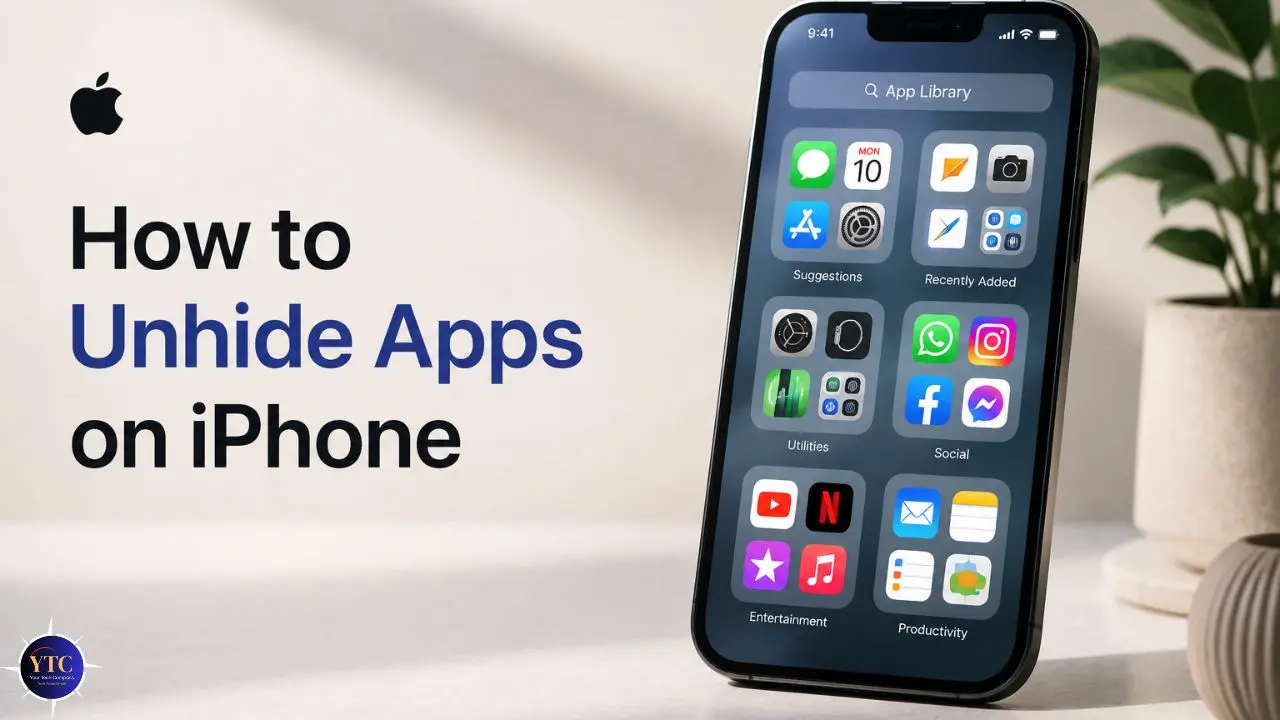
An app that seems to have disappeared from your iPhone almost always still exists somewhere on your device. The fix depends entirely on which of the four scenarios caused it to vanish. For most people, the answer is one of two things: either the app was removed from the Home Screen and is in the App Library, waiting to be added back, or it was hidden in iOS 18’s Hidden folder and requires Face ID authentication to retrieve. Both fixes take under a minute once you know where to look. The Screen Time and App Store Purchase scenarios are less common, but equally straightforward once you’re in the right menu.
The broader takeaway is that iOS’s privacy and organizational features have become genuinely powerful, and with that power comes the occasional situation where something you intentionally set up later creates confusion. Understanding the difference between hiding, locking, and removing from the Home Screen puts you in control of your device rather than at the mercy of it. Furthermore, the preventative settings covered in this guide, controlling where new apps land, reviewing Screen Time limits periodically, and keeping an eye on the Hidden Apps list in Settings, mean you’re unlikely to face this particular frustration again. Your apps are on your phone. You just need to know which door to open.
There’s a lot more to learn about making your iPhone work exactly the way you want it to. Visit YourTechCompass.com for practical iPhone guides, honest app reviews, and tech tips that help you stay in control of your devices.