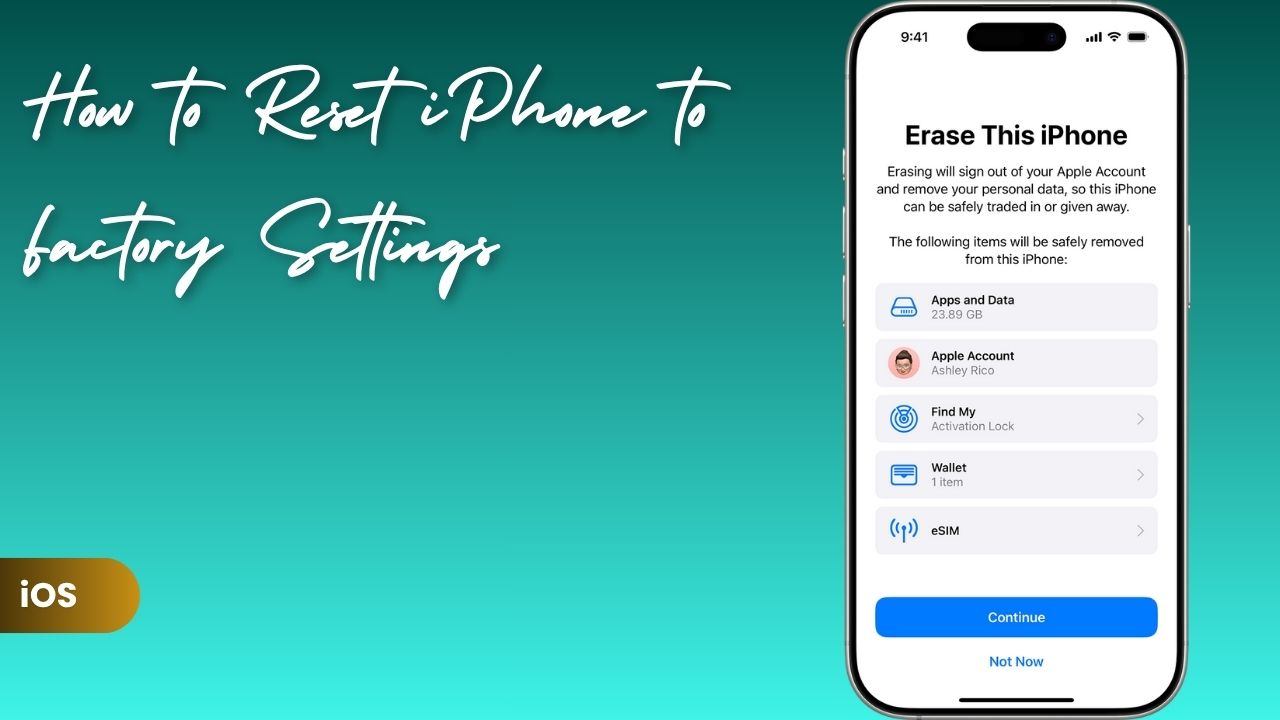
A factory reset erases everything on your iPhone (apps, photos, messages, settings, accounts) and reinstalls a clean version of iOS. It’s the most thorough fix available for persistent software problems, and it’s essential before selling or giving away your device. Done correctly, with a backup in place beforehand, it’s completely safe and reversible. Done without a backup, it’s permanent.
This guide covers everything in the right order: when a factory reset is actually the right move, how to back up properly before you start, and then the three different reset methods depending on your situation, including how to reset without a passcode if you’ve been locked out.
When Should You Factory Reset Your iPhone?
There are several good reasons to reset your iPhone to factory settings:
- Performance Issues: If your iPhone has become sluggish or apps keep freezing, a reset can clear out corrupted system data and restore speed. You can also try some less drastic steps in our guide on how to speed up iPhone performance.
- Frequent app crashes: If you’ve already followed fixes like those in our article on how to fix app crashes on iPhone, and the issues persist, a factory reset might be the next logical step.
- Before Selling or Giving Away Your iPhone: Erase your data to keep your personal information private.
- After a Major iOS Update: If your iPhone feels unstable or apps start misbehaving, resetting can help resolve leftover system conflicts.
Just remember, a factory reset wipes everything. That’s why backing up your iPhone is essential.
How to Back Up Your iPhone Before Resetting
Before you perform a factory reset, make sure you have a full backup. This allows you to restore your contacts, photos, apps, and settings once the process is done. You can back up your iPhone in two main ways: via iCloud or using iTunes/Finder on a computer.
Option 1: Back Up Using iCloud
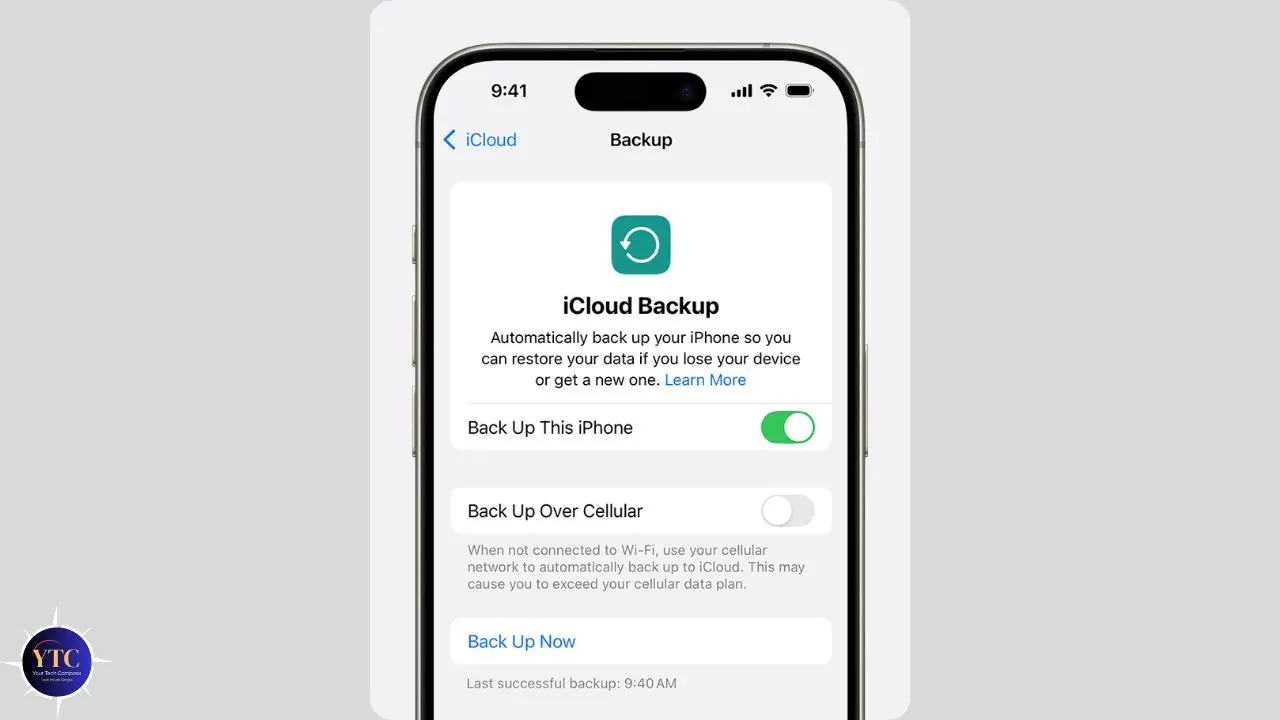
- Connect your iPhone to a stable Wi-Fi network.
- Go to Settings → [Your Name] → iCloud → iCloud Backup.
- Tap Back Up Now and wait for the process to complete.
- Verify that the backup finished by checking the latest backup date and time.
Option 2: Back Up Using iTunes or Finder
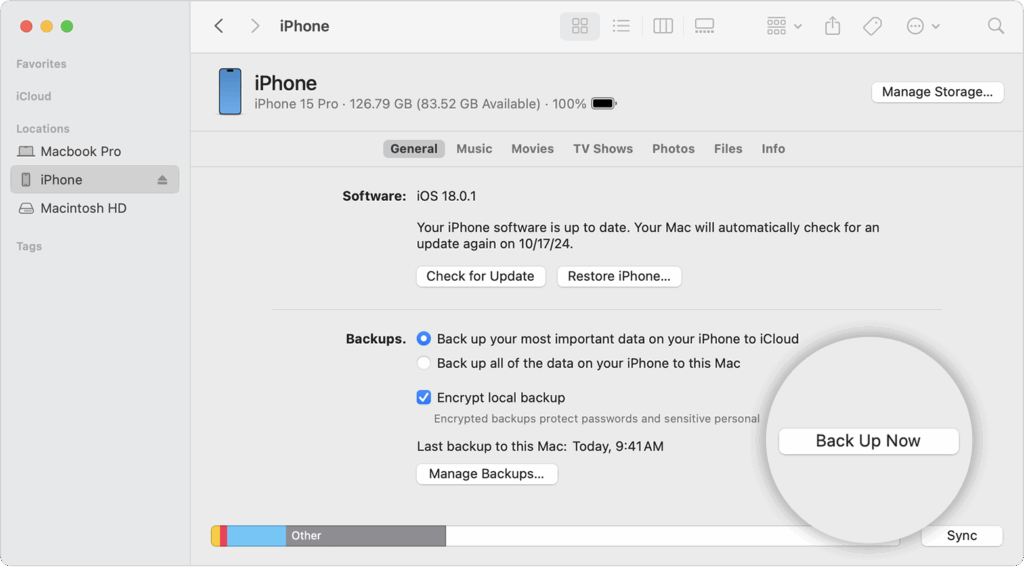
- Connect your iPhone to your Mac or Windows PC.
- Open Finder (on macOS Catalina or later) or iTunes (on Windows or macOS Mojave and earlier).
- Select your iPhone from the sidebar.
- Choose Back Up Now under the “General” or “Summary” tab.
- Wait for the backup to complete before proceeding.
If your iPhone keeps freezing or certain apps won’t open during this process, it could be related to deeper software conflicts. You can learn more in our troubleshooting guide for apps that keep crashing on Android; many of the same root causes apply to iPhones as well.
How to Factory Reset Your iPhone from Settings
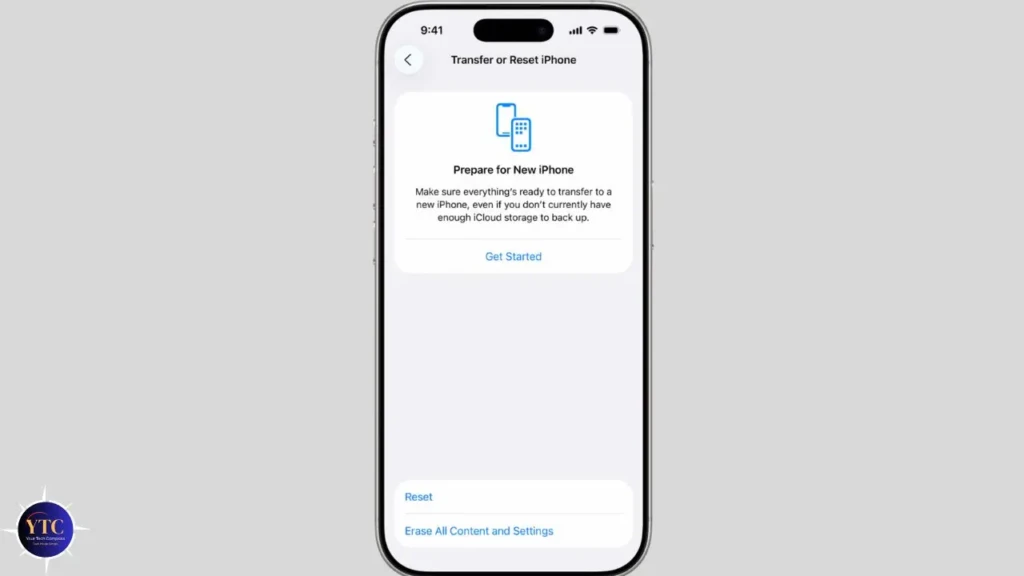
This is the easiest and most common way to reset your iPhone. Make sure you’ve backed up your data first.
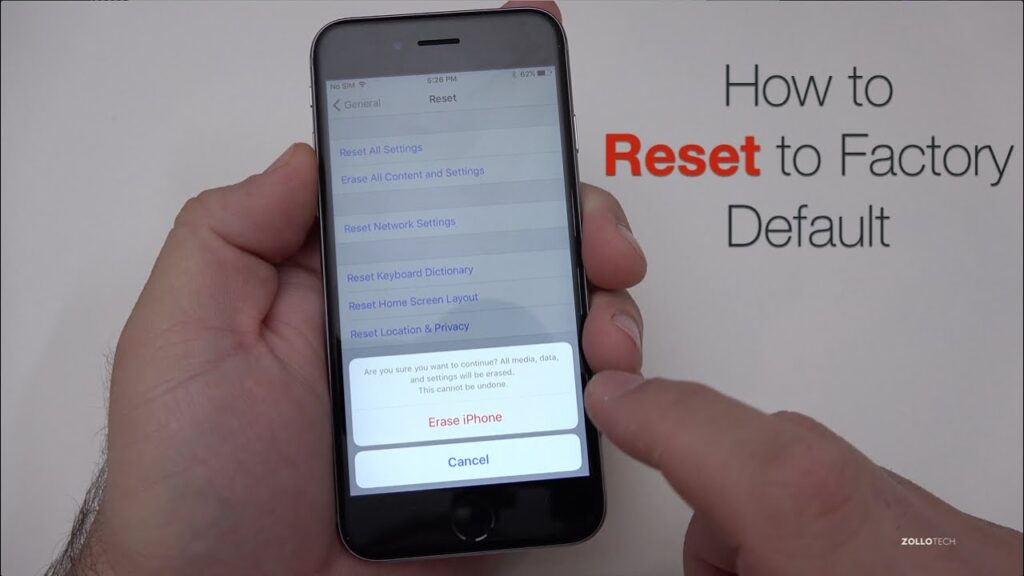
- Open Settings on your iPhone.
- Tap General → Transfer or Reset iPhone.
- Select Erase All Content and Settings.
- Enter your passcode when prompted.
- Confirm that you want to erase your device.
Once the process begins, your iPhone will automatically restart. When it powers back on, you’ll see the “Hello” setup screen, just like when you first bought it. From here, you can restore your backup or set up your iPhone as new.
If your phone’s performance doesn’t improve after a reset, it could be a deeper system issue, similar to what happens when a Mac crashes while switching users on macOS Sequoia. In that case, professional repair or a clean reinstall of iOS might be required.
How to Factory Reset iPhone Using iTunes or Finder
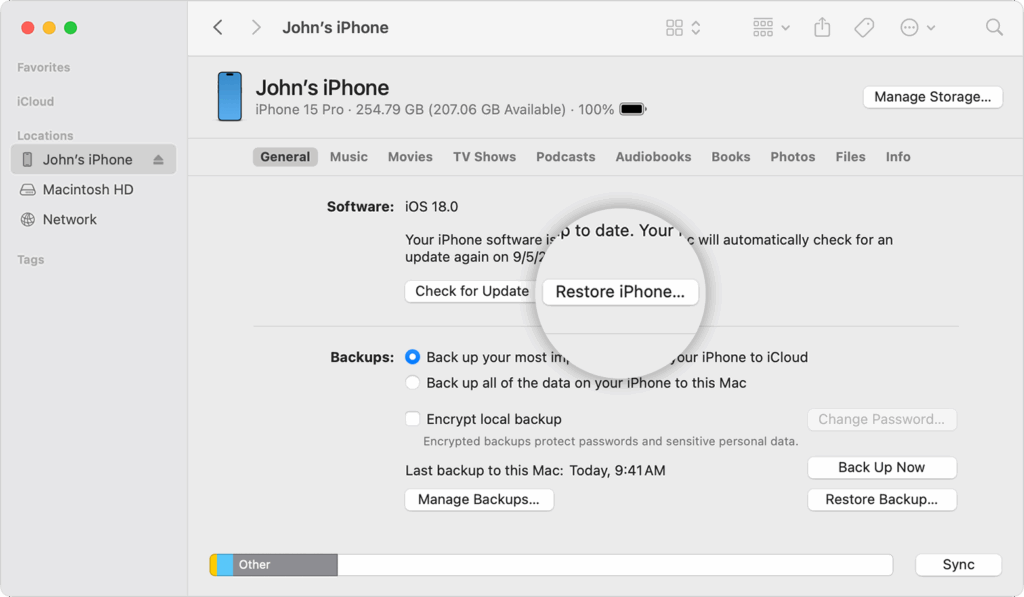
If your iPhone isn’t responding or you can’t access Settings, use this method instead:
- Connect your iPhone to a computer using a USB cable.
- Open Finder (Mac) or iTunes (Windows).
- Select your device when it appears in the sidebar.
- Under the “General” or “Summary” tab, click Restore iPhone.
- Follow the on-screen prompts to complete the process.
Your computer will erase your iPhone and install the latest version of iOS. Once it’s done, you’ll have the option to restore from a backup or set up the phone as new.
Comparison: Resetting via Settings vs iTunes/Finder
Here’s a quick comparison table to help you decide which method best fits your situation.
Method | Best For | Requires Computer | Difficulty | Notes |
From Settings | Most users. iPhone is responsive | ❌ No | ⭐ Easy | Fastest method for a functional iPhone |
Using iTunes/Finder | Unresponsive or locked iPhones | ✅ Yes | ⭐⭐ Moderate | Installs the latest iOS version |
Recovery Mode (next section) | Forgotten passcode or disabled device | ✅ Yes | ⭐⭐⭐ Intermediate | Full system restore required |
How to Factory Reset an iPhone Without a Passcode
If you forgot your passcode or your iPhone is disabled, you’ll need to use recovery mode. This method erases all data but restores the phone to factory condition.
- Connect your iPhone to a computer and open Finder or iTunes.
- Put your iPhone into recovery mode:
- iPhone 8 or later: Press and quickly release Volume Up, then Volume Down, then press and hold Side until the recovery mode screen appears.
- iPhone 7/7 Plus: Press and hold Volume Down and Side together.
- iPhone 6s or earlier: Hold Home and Top (or Side) together.
- iPhone 8 or later: Press and quickly release Volume Up, then Volume Down, then press and hold Side until the recovery mode screen appears.
- When prompted on your computer, select Restore.
- Wait for the process to complete, then restart your iPhone.
If the reset doesn’t complete or your device freezes during recovery mode, check your computer’s OS version and update iTunes or Finder. Similar issues sometimes cause Safari to freeze or crash on Macs, as we explained in Why Safari keeps crashing on macOS Sequoia.
Troubleshooting Factory Reset Errors
If your iPhone gets stuck during the reset or won’t power back on, try these steps:
- Force restart your iPhone by pressing and holding the appropriate button combination for your model.
- Ensure your battery is charged and your lightning cable is working.
- If the issue persists, connect to iTunes/Finder and try recovery mode again.
For persistent errors that resemble system crashes, they might mirror some of the issues discussed in how to fix app crashes on iPhone, often caused by buggy apps or storage conflicts.
Conclusion
Factory resetting your iPhone is one of the most effective ways to fix recurring performance issues, crashes, and software bugs. Just remember to back up your data before starting, and choose the reset method that best fits your situation.
If your iPhone continues to experience problems even after a reset, check out some of our related troubleshooting guides, such as how to fix app crashes on iPhone or how to speed up iPhone performance.
I’ve personally used these reset methods on multiple devices, and they’ve always left the iPhone running like new, smooth, stable, and ready for a fresh start.