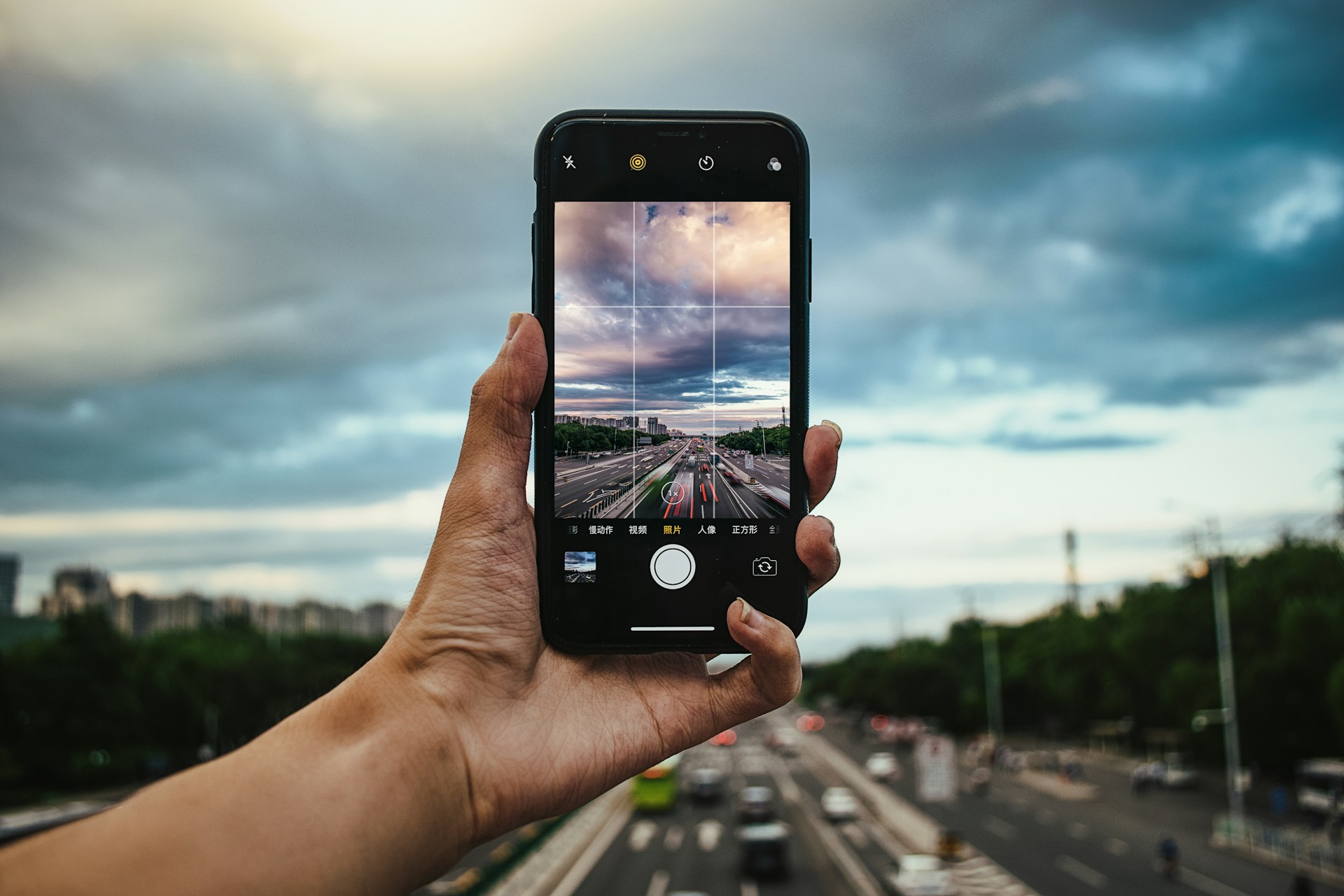
A few years ago, “mobile photo editing” meant applying a filter and calling it done. That’s no longer the case. The best mobile photo editing apps today give you genuine control over exposure, colour grading, selective adjustments, and AI-powered enhancements, all from a screen you already carry everywhere. In many workflows, the desktop has become optional rather than essential.
The problem is that the category has exploded. There are dozens of apps competing for your attention, and most comparison articles just list features without telling you which app is right for your specific situation. I’ve used all seven apps in this guide extensively across real-world content-creation workflows (social media posts, e-commerce product shots, portrait editing, and video content). Here’s an honest breakdown of what each one actually does well, where it falls short, and who it’s genuinely built for.
Quick Comparison: Best Mobile Photo Editing Apps at a Glance
App | Best For | RAW Support | Platforms | Price |
Lightroom Mobile | Professional editing, RAW processing | Yes | iOS, Android | Free / $9.99/month |
Snapseed | Precise free editing, non-destructive workflow | Limited | iOS, Android | Free |
VSCO | Film-style presets, consistent feed aesthetic | No | iOS, Android | Free / $29.99/year |
Canva | Social graphics, templates, brand content | No | iOS, Android, Web | Free / $14.99/month |
CapCut | Motion content, reels, animated posts | No | iOS, Android | Free/in-app purchases |
Pixlr | Quick creative edits, collages, overlays | No | iOS, Android, Web | Free / from $1.99/month |
Remini | AI sharpening, old photo restoration, face enhancement | No | iOS, Android | Free / $9.99/month |
Best Mobile Photo Editing Apps Reviewed
1. Lightroom Mobile: Best for Serious Photographers
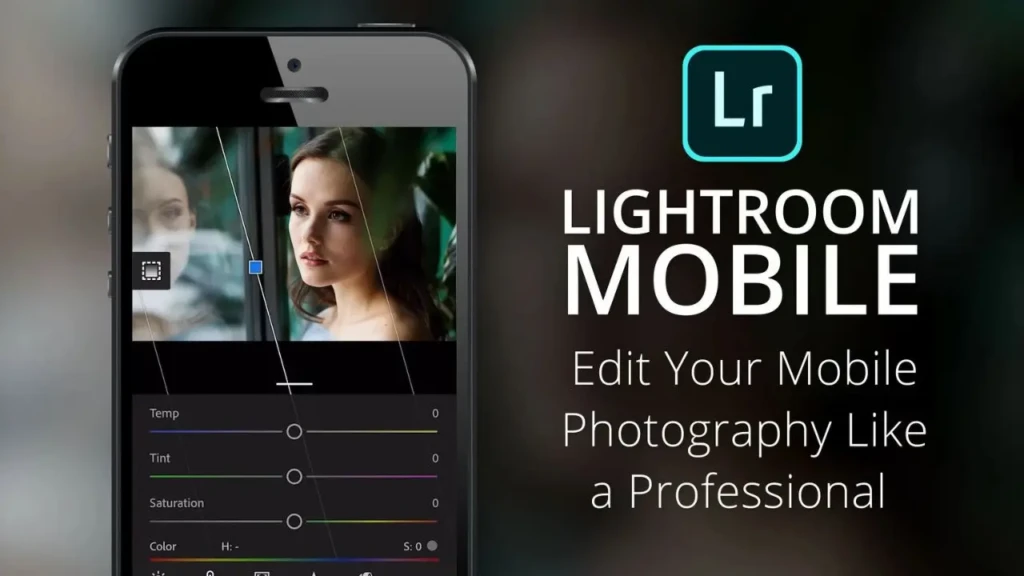
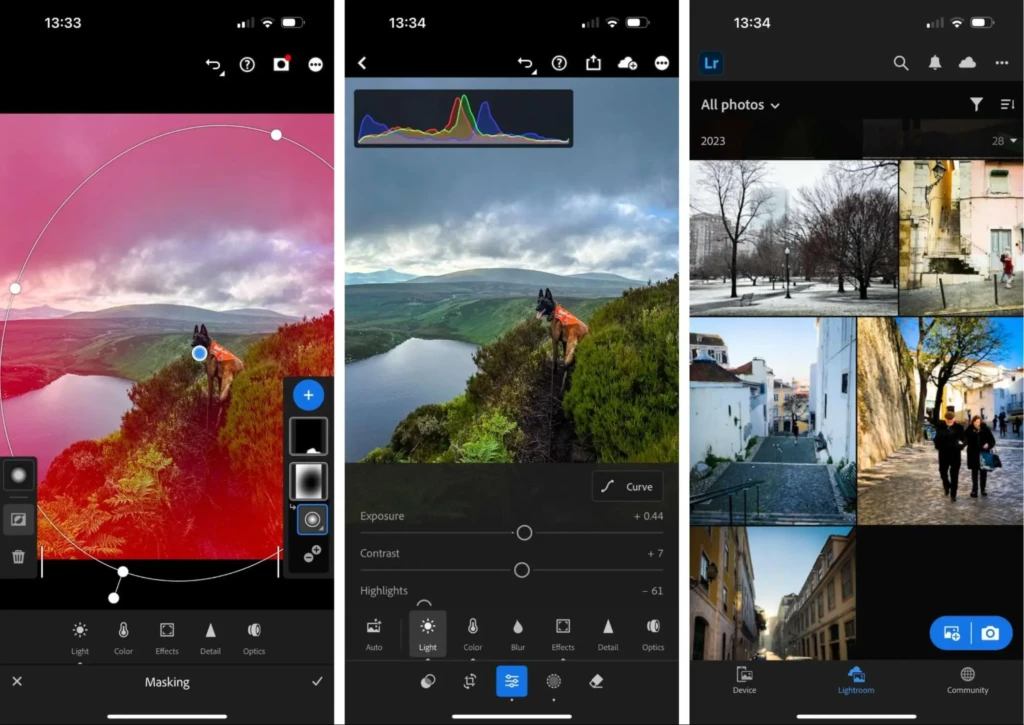
Lightroom Mobile is the benchmark against which every other mobile photo editing app is measured, and for good reason. It brings the full Lightroom editing experience to your phone, including RAW file support, precise curve adjustments, HSL colour controls, selective masking, and cloud sync across all your devices. If you’re serious about the quality of your photos, this is the app that gives you the most control.
The workflow in Lightroom Mobile will feel familiar to anyone who has used the desktop version. You start with a base exposure correction, work through highlight and shadow recovery, fine-tune colours with the HSL panel, and apply selective adjustments to specific parts of the image using masks or the radial filter. The AI-powered masking, which automatically detects a subject, sky, or background and isolates it for separate adjustments, is genuinely impressive and saves significant time on complex edits that would have previously required desktop software.
Where Lightroom Mobile pulls further ahead of everything else is RAW processing. If your phone shoots RAW files (most modern flagship cameras do), Lightroom preserves all the original sensor data and gives you far more latitude to recover blown highlights or lift shadow detail than any JPEG-based editor can offer. Cloud sync means edits started on your phone continue seamlessly in desktop Lightroom, making it the only app in this guide that slots directly into a professional photography workflow.
Where It Falls Short
The full feature set requires an Adobe Creative Cloud subscription at $9.99/month. The free version is functional, but limited. You lose access to premium presets, advanced masking, and the healing brush. The interface is also denser than the others here, which can feel overwhelming if you just want to make a photo look good quickly without learning colour theory.
Lightroom Mobile Is Right for You If…
You shoot RAW, you want the same editing precision on your phone as on a desktop, you’re a photographer who needs cloud sync between devices, or you’re serious enough about your photos that the subscription cost is justified by the output quality.
2. Snapseed: Best Free Option for Precise Editing
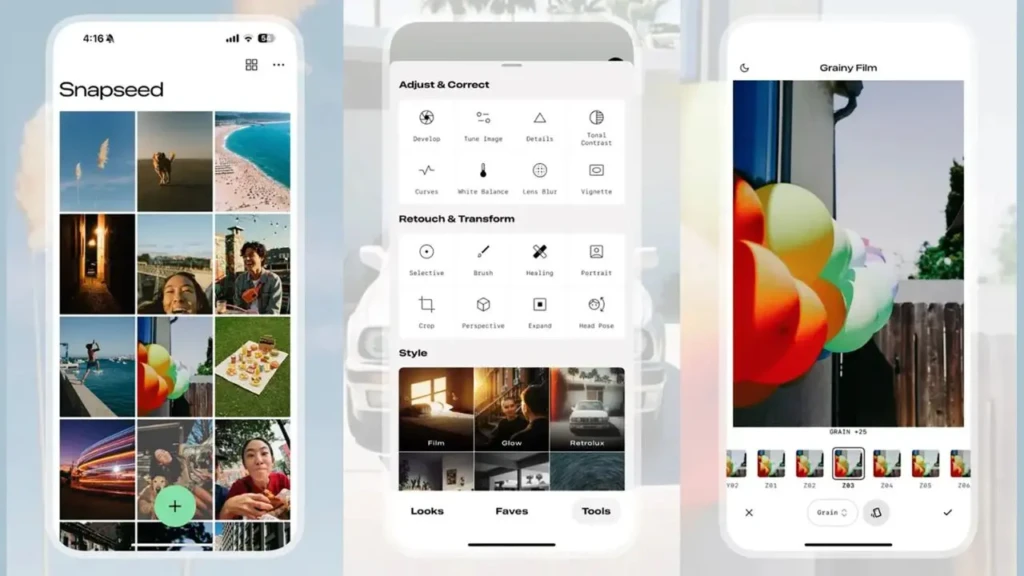
Snapseed is the most underrated app in mobile photography, and it has been for years. It’s completely free, available on iOS and Android, developed and maintained by Google, and packed with professional-grade tools that most paid apps don’t offer. For anyone who wants genuine editing control without spending a penny, there is no better option.
What makes Snapseed genuinely special is its non-destructive, layer-based editing system, a feature usually reserved for desktop software. Every adjustment you make is saved as a separate layer in a stack, and you can go back to any step at any point, modify it, delete it, or change its intensity, without affecting the other adjustments. This means you can experiment freely without risking permanently ruining an edit, which most mobile apps don’t offer. The selective tool is another standout: it lets you tap any specific area of an image and adjust only that area’s brightness, contrast, or saturation, without masks, without complex selection tools, just a tap and a swipe.
The healing brush (for removing unwanted objects or blemishes), perspective correction tool, and double exposure feature round out a tool set that would cost money in nearly any other app.
Where It Falls Short
Snapseed has no cloud sync or backup of your edited photos on your device. There’s no preset library beyond the built-in “Looks,” so building a consistent editing style takes more manual effort than in VSCO or Lightroom. The interface is also somewhat unique and takes a session or two to become intuitive, particularly the swipe-based adjustment controls.
Snapseed Is Right for You If…
You want the most editing control available without paying for it, you edit photos occasionally rather than as part of a daily content workflow, or you need specific tools like healing, perspective correction, or non-destructive layering that other free apps don’t offer.
3. VSCO: Best for Consistent Aesthetic and Film Looks
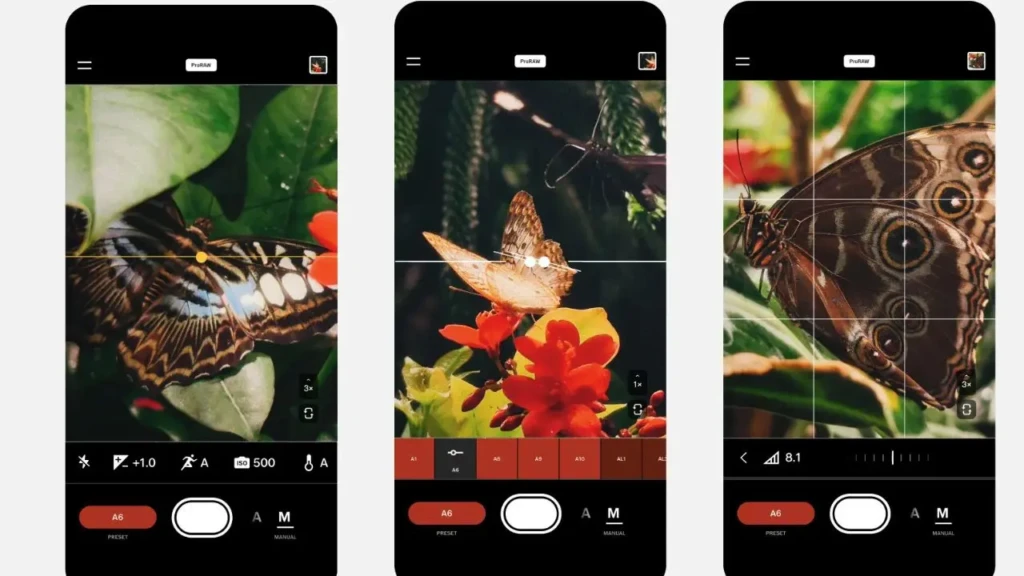
VSCO occupies a specific niche that it owns almost entirely: film-emulation presets designed for people who want their photos to have a consistent, cohesive look across their entire feed. The preset library is genuinely excellent; the film simulations have a warmth, grain, and colour character that feels authentic rather than digitally processed, which is why VSCO presets became synonymous with a certain style of photography several years ago and never really lost that association.
The editing workflow in VSCO is deliberately streamlined. You apply a preset, fine-tune the exposure, contrast, and colour temperature using the basic sliders, and export. That simplicity is intentional; VSCO is not trying to be Lightroom, and the app is better for it. The tools available cover everything a casual photographer needs, without the complexity that can make precision tools intimidating for non-professionals.
The social feed inside VSCO, where users share styled images and curate collections, is genuinely useful for aesthetic inspiration, particularly for people building a specific visual brand across Instagram or similar platforms.
Where It Falls Short
Most of VSCO’s best presets are locked behind the membership subscription ($29.99/year). The free tier includes a handful of presets and basic editing tools, which is enough to try the app but not enough to build a signature style with it.
VSCO also doesn’t support RAW files, and its editing tools are intentionally less precise than Lightroom or Snapseed. If you want selective adjustments or curve control, you’ll need a different app.
VSCO Is Right for You If…
You want a consistent, cohesive visual aesthetic across your photos without spending hours on each edit; you value film-style looks over clinical sharpness; or you post regularly on Instagram and want a preset-driven workflow that delivers reliable results quickly.
4. Canva: Best for Social Media Graphics and Content Creators

Canva sits at an interesting intersection of photo editing and graphic design, and it’s the only app in this guide that does both simultaneously. Rather than editing a photo and then switching to another app to add text, branding, or overlays, Canva lets you do everything in one place, which, for content creators and social media managers, is a significant practical advantage.
The template library is enormous and covers virtually every social media format: Instagram posts, Stories, Reels covers, YouTube thumbnails, LinkedIn graphics, Pinterest pins, and more. You start with a template (or a blank canvas at the correct dimensions), drop in your photo, apply basic adjustments, add text or brand elements, and export at the correct resolution, without ever switching apps or manually resizing. The AI background removal tool, which works with a single tap, is particularly useful for product photography and promotional graphics.
What Canva isn’t is a precision photo editor. The photo adjustment tools are functional; you can adjust brightness, contrast, and saturation and add filters, but the depth of control is nowhere near that of Lightroom or even Snapseed.
If your workflow is primarily about creating polished social media visuals where graphic design matters as much as photo quality, Canva is the fastest and most comprehensive tool available. However, if you need to do serious photo editing first and then add design elements, the better approach is to edit in Lightroom or Snapseed first and then import into Canva for the graphic design layer.
Where It Falls Short
Canva’s free tier is genuinely useful, but many of the best templates, brand kit features, background remover (now behind a paywall), and premium elements require Canva Pro at $14.99/month. For individual creators, that cost adds up alongside other app subscriptions.
Canva Is Right for You If…
You create regular social media content that combines photos with text and design elements, you manage social accounts for a brand or business, or you want a single app that handles both photo adjustments and graphic design without switching tools.
5. CapCut: Best for Video-Forward Content and Reels
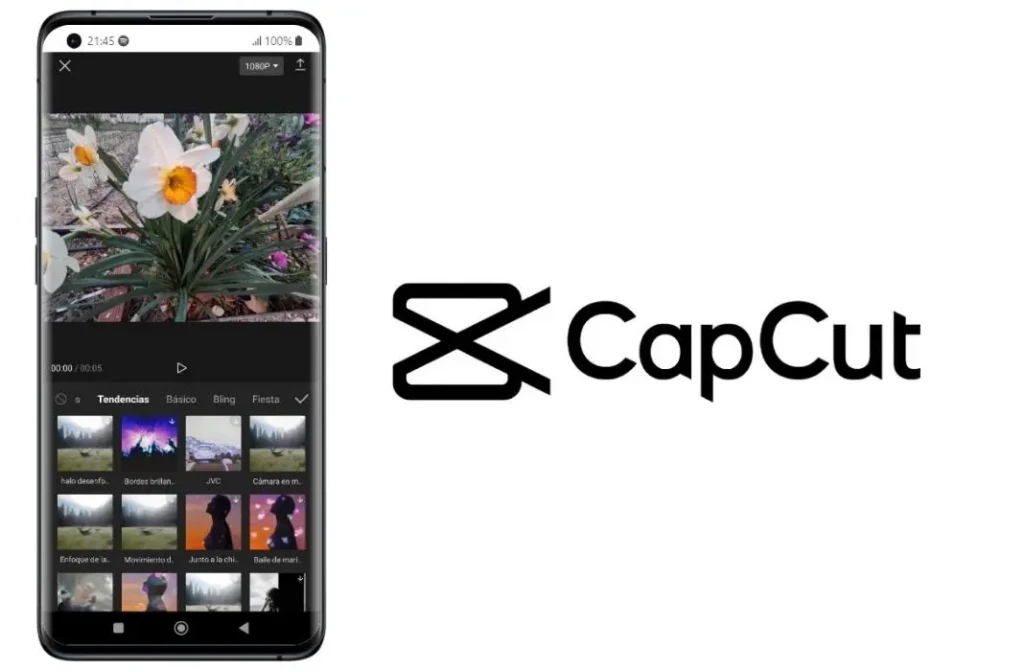
CapCut started as a video editing app and remains the best in its category for short-form content, making it a natural fit for photo editing in Reels, TikToks, and other content that mixes photos and video. If your content workflow involves editing photos specifically for use as frames, covers, or animated elements in video content, CapCut’s photo tools are optimised for that use case.
The photo editing features in CapCut include colour grading, AI-powered filters, background removal, image blending, and the ability to animate static photos with motion effects, such as pan, zoom, or fade, making them perform better in a video feed. The AI tools have improved significantly; background replacement in particular now handles hair and complex edges well enough for most social media use cases without manual masking.
For a deeper look at how CapCut compares to InShot for mobile video and content editing, our CapCut vs InShot comparison covers both apps comprehensively, including which one handles photo content better and which handles video content better.
Where It Falls Short
CapCut’s photo editing tools complement its video capabilities, not a standalone replacement for dedicated photo editors. If you primarily edit still photos for photography or e-commerce purposes, Lightroom or Snapseed will give you significantly more control. CapCut is also owned by ByteDance, the same company that owns TikTok, which some users consider a privacy concern worth knowing before committing to it as a primary editing tool.
CapCut Is Right for You If…
You create short-form video content regularly and need photo editing that integrates with a video workflow, you want AI-powered tools for background removal and motion effects, or your content strategy is primarily Reels and TikTok, where animated photos and video clips live side by side.
6. Pixlr: Best for Fast Creative Edits
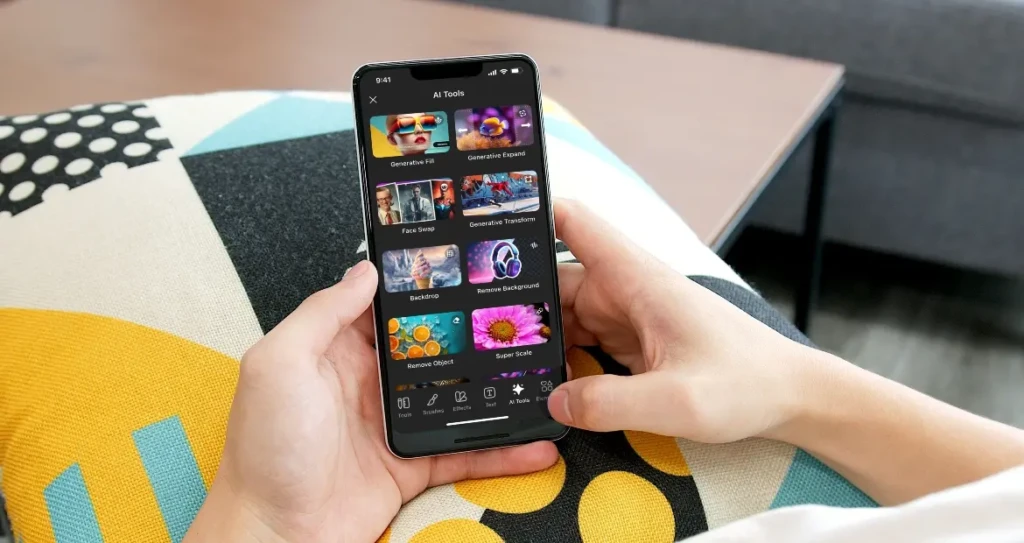
Pixlr is the quickest app in this roundup, from opening to export, making it ideal for situations where you need a good-looking photo fast rather than a meticulously crafted one. The auto-fix feature corrects exposure, white balance, and contrast with a single tap, producing a solid starting point for most images. From there, overlays, double exposure, light leaks, and creative filter options let you add character and style in minutes.
The interface is clean and fast. Pixlr loads quickly, responds without lag, and exports without the processing delays that heavier apps like Lightroom sometimes introduce.
For casual creators who want their photos to look good without investing significant time in editing, that speed is a genuine practical advantage. The collage builder is also well-executed, handling multiple photo layouts in a drag-and-drop interface that’s more intuitive than most competing tools.
Where It Falls Short
Pixlr’s free version includes ads and occasionally adds watermarks, which is frustrating enough that most regular users will eventually switch to a paid plan. The manual control depth is also limited compared to Lightroom or Snapseed. If you need to make precise adjustments to specific areas of a photo, Pixlr’s toolset will feel restrictive.
Pixlr Is Right for You If…
You need photos edited quickly rather than perfectly, you want creative overlays and collage tools alongside basic editing, or you’re a casual social media user who wants images that look good without a steep learning curve.
7. Remini: Best for AI Enhancement and Photo Restoration
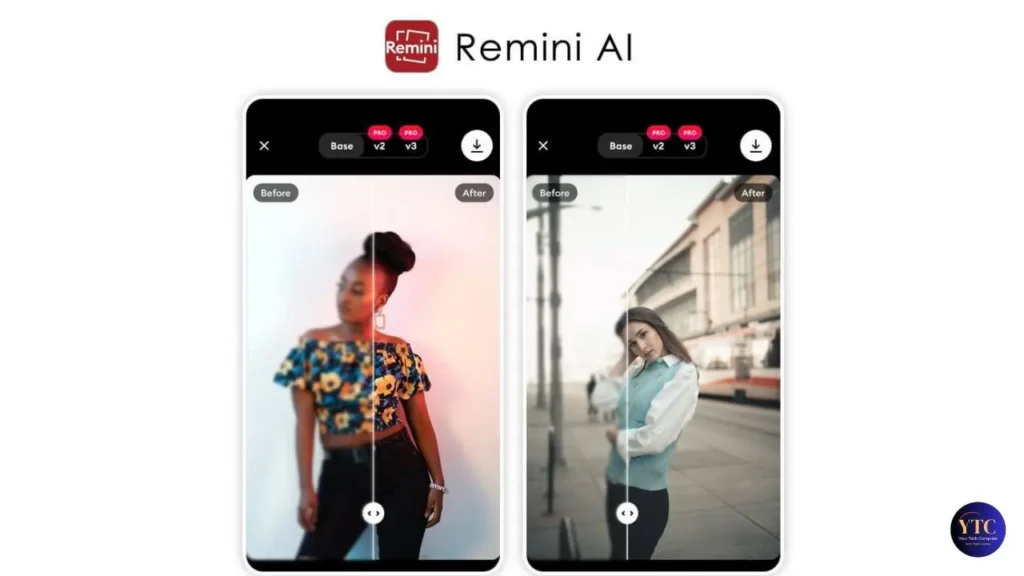
Remini does something none of the other apps in this guide attempt: it uses AI models specifically trained on facial details and image sharpness to restore, enhance, and clarify blurry, low-resolution, or damaged photos. The results on genuinely poor-quality images, such as old scanned family photos, low-light shots from older phones, and blurry portraits, are frequently remarkable.
The workflow is simple to the point of being nearly automatic. You import the photo, tap Enhance, and Remini’s AI analyzes and reconstructs details in the image, sharpening faces, recovering texture, and upscaling resolution in ways that basic sharpening tools can’t replicate.
For restoring old family photographs or improving professional headshots taken in poor conditions, no other mobile app comes close. The face enhancement tool is particularly strong, handling skin texture and eye detail in ways that look natural rather than plastic.
Where It Falls Short
Remini’s AI can occasionally over-process images, enhancing details that weren’t there in the first place in a way that looks artificial on close inspection, particularly on faces in severely degraded images. The free tier limits the number of daily enhancements and adds a watermark, and the premium subscription ($9.99/month) is expensive relative to what is essentially a single-purpose tool. Remini is also not a general-purpose editor; it has no colour grading, creative filters, or design tools.
Remini Is Right for You If…
You want to restore old family photos, improve blurry or low-resolution images, sharpen portraits that didn’t quite land in focus, or enhance profile photos for professional use. It’s a specialist tool that does one thing exceptionally well.
Which App Is Right for Your Workflow?
The most common mistake when choosing a photo-editing app is treating it as an either-or decision. Most serious content creators use two or three apps in combination, each handling a different part of the workflow.
- For photographers and content creators who shoot RAW, the right stack is Lightroom Mobile as your primary editor, with Snapseed as a secondary tool for specific adjustments like healing or perspective correction, since Lightroom’s mobile version handles them less elegantly.
- For Instagram and social media creators focused on aesthetic consistency, VSCO for preset-driven editing combined with Canva for adding text and design elements to posts covers the entire workflow without switching between more than two apps.
- For short-form video creators on TikTok and Reels, CapCut handles both photo and video editing in one place, reducing the need for a separate photo editor entirely in most cases. Our CapCut vs InShot comparison is useful if you’re deciding between the two most popular options in that space.
- For anyone who just wants their photos to look noticeably better quickly and for free, Snapseed is the answer. It’s the most powerful free editor available and requires no subscription to access any of its tools.
- For restoring old or degraded photos, Remini is in a category of its own. No other mobile app handles this use case as effectively.
FAQs
Yes. Snapseed is genuinely excellent and completely free, with no locked features, no watermarks, and no subscription required. It includes professional-grade tools like non-destructive layered editing, a healing brush, selective adjustments, and perspective correction. For most casual and intermediate editing needs, it’s as capable as paid alternatives.
For most professional use cases, yes, particularly with Lightroom Mobile and RAW support. Magazine-quality portrait retouching and complex compositing still benefit from a desktop, but product photography, social media content, portrait editing, and travel photography can all be handled entirely on a modern smartphone with the right apps.
For feed consistency and aesthetics, VSCO is the most widely used choice among Instagram creators. However, for higher-quality individual edits, Lightroom Mobile gives you more control. And for posts that combine photos, text, and graphics, Canva is the fastest all-in-one solution.
CapCut is owned by ByteDance, the Chinese technology company that also owns TikTok. The app collects usage data in ways that concern some privacy-conscious users. If you’re comfortable using TikTok, you’ll likely be comfortable using CapCut; if data privacy is a priority for you, Snapseed (Google) or Lightroom (Adobe) are the more straightforward alternatives.
Remini is specifically designed for this use case and produces better results on degraded or low-resolution photos than any general-purpose editor. For photos that are simply poorly exposed or colour-corrected rather than degraded by age or blur, Lightroom Mobile or Snapseed will give you more control.
Final Thoughts
Mobile photo editing has reached a point where the question isn’t whether your phone can produce professional results; it’s which app matches how you work. Lightroom Mobile gives you the most control. Snapseed gives you the most for free. VSCO gives you the most consistent aesthetic.
Canva gives you the fastest path from photo to publishable social content. CapCut gives you the smoothest video and photo workflow. Remini gives you something none of the others can: the ability to rescue photos you’d otherwise have given up on.
Start with the app that fits your most common editing scenario, use it long enough to develop a workflow with it, and only add a second app when you hit a specific limitation the first one can’t solve. Two apps used well will consistently outperform five apps used occasionally.
Ready to explore more? Visit YourTechCompass for hands-on reviews, buying guides, and how-to articles that cut through the noise and give you exactly what you need.