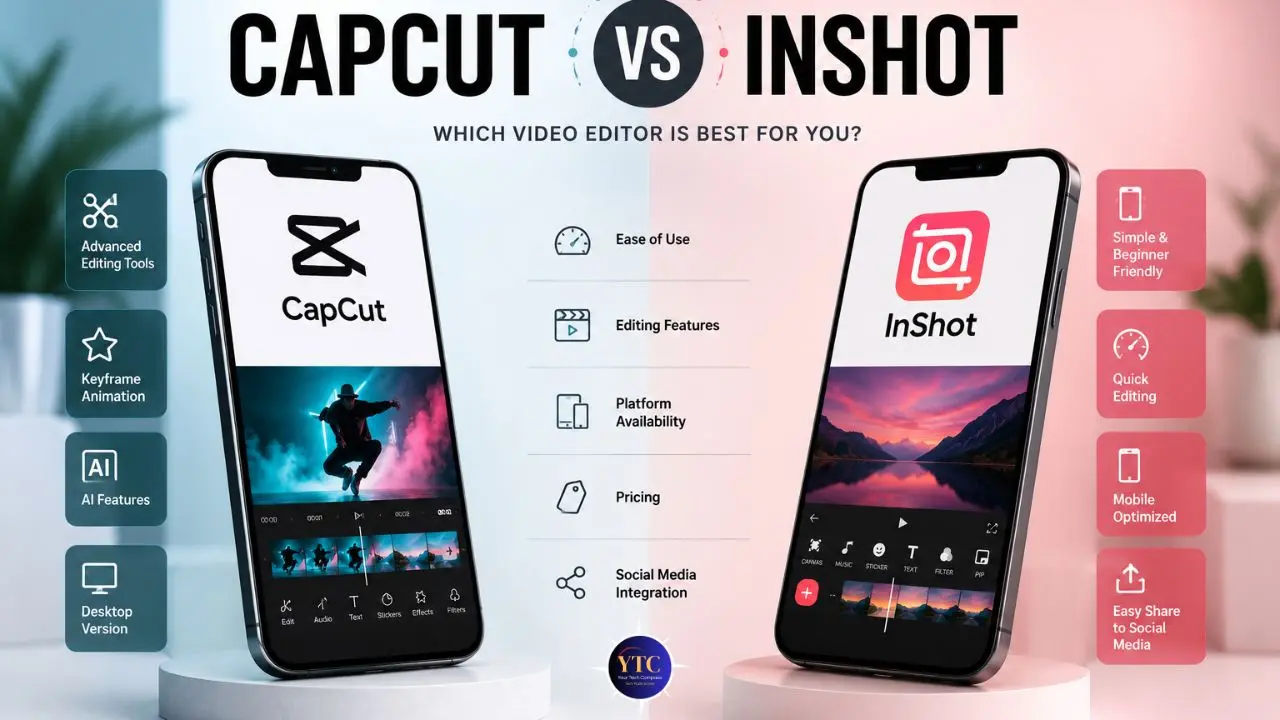
Here’s the situation most mobile creators find themselves in at some point. You’ve got a video on your phone that needs to go up today, but you’re staring at two apps and genuinely unsure which one to open. CapCut, made by ByteDance, promises a full creative studio in your pocket with AI tools that do half the work for you. InShot, the quieter competitor from InShot Inc., promises to edit and post your video before you’ve finished your coffee. I’ve spent real time inside both apps, testing them across different project types, quick social cuts, multi-layered Reels edits, and everything in between, and I’ll give you the honest breakdown that most comparison articles skip.
This guide is for you, whether you’re a complete beginner who wants something that just works, a regular content creator who posts multiple times a week and needs efficiency, or someone who’s been using one of these apps for a while and is wondering whether the other one is worth switching to. I’ll walk you through the user interface, features, AI tools, performance, pricing, including the numbers most articles get wrong, and I’ll give you a direct recommendation at the end based on who you actually are. No vague conclusions. No “it depends” without specifics. Let’s get into it.
A note before we begin: every YTC score is earned, never negotiated. If you want to understand exactly how we evaluate apps & tools and how we handle affiliate relationships, our Review Methodology lays it all out.
Quick Overview: What You’re Actually Comparing
Before diving into the details, here’s a snapshot of what you’re working with.
Feature | CapCut | InShot |
Developer | ByteDance (TikTok’s parent company) | InShot Inc. |
Available On | iOS, Android, Windows, Mac, Web | iOS, Android only |
Free Version | Yes (very generous, no watermark) | Yes, but it adds a watermark |
AI Tools | Extensive (industry-leading) | Basic (auto captions, background removal) |
Watermark (free) | ❌ None | ✅ Yes (requires Pro to remove) |
Desktop Version | ✅ Yes | ❌ No |
App Store Rating | 4.5 iOS / 3.9 Android | 4.9 iOS / 4.7 Android |
Pro Plan (Annual) | ~$62.99/year | ~$19.99/year |
Best For | Complex editing, AI tools, TikTok content | Quick edits, beginners, and older devices |
One thing you should know upfront: CapCut is built by ByteDance, the same company that owns TikTok. That context matters depending on where you live, who you work for, and how you feel about your video data being processed on servers owned by a Chinese company. InShot has no such association. Keep that in mind as you read.
User Interface: Which One Is Easier to Use?
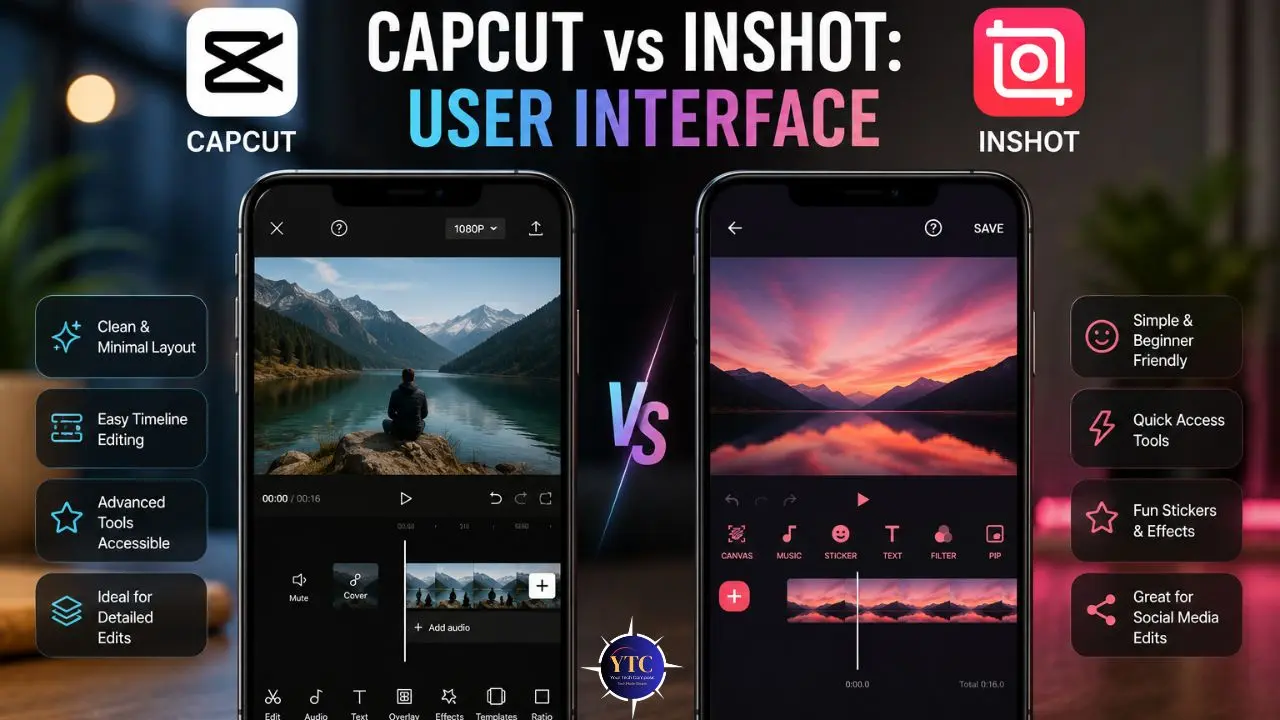
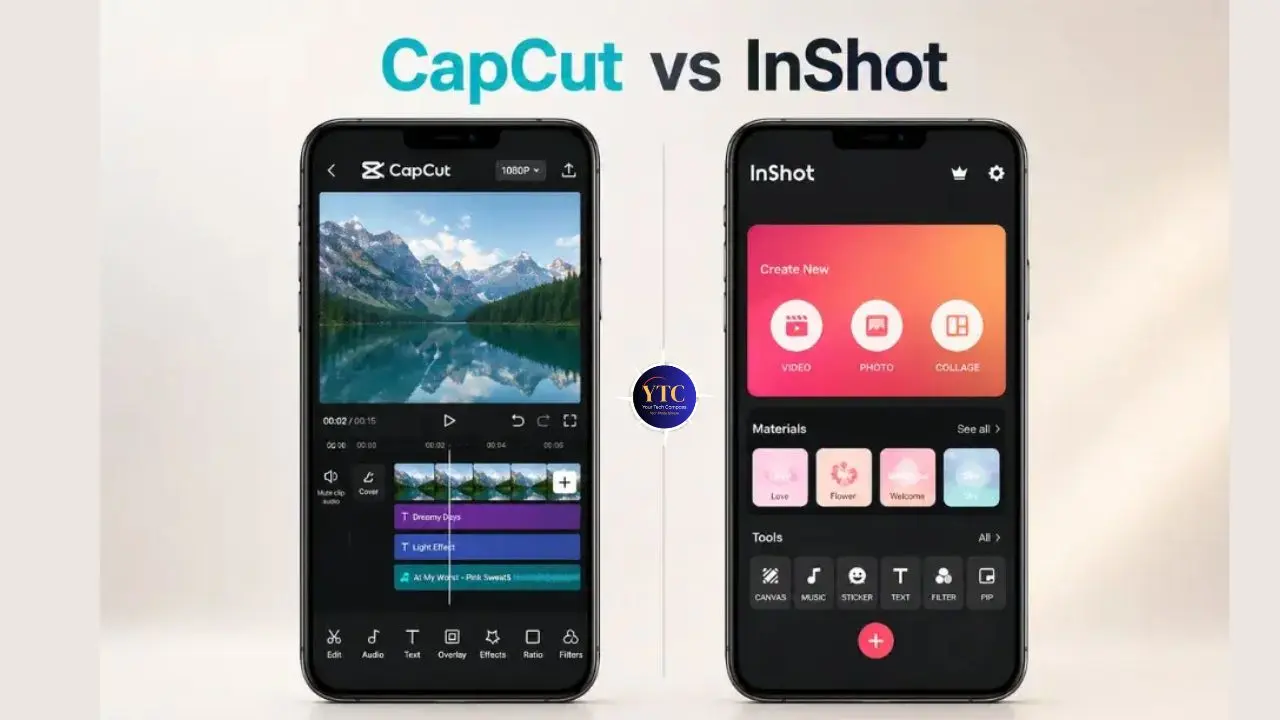
Opening CapCut for the first time is an experience in deliberate overwhelm. The home screen shows you templates, trending effects, AI tools, multiple creation modes, and a discovery feed, all competing for your attention before you’ve even imported a video. That’s not a criticism, exactly.
CapCut is designed to pull you toward its features rather than wait for you to find them. Once you understand the layout, the workflow becomes genuinely powerful. However, that understanding takes time; most users report needing two to five sessions before they feel comfortable navigating it independently.
InShot works in the opposite direction. You tap one button to import your video, and a clean horizontal toolbar appears at the bottom with everything you need. Trim. Music. Text. Effects. Filter. Speed. Each tool does exactly what its label says, and nothing requires a tutorial to figure out. Furthermore, you can complete your first real edit (trim the clip, add a track, drop in a caption) within five minutes of opening the app for the first time. That’s not an exaggeration.
The practical consequence of this difference is real. If you’re teaching a parent, a client, or a non-technical team member to edit video on their phone, InShot’s learning curve is genuinely low. CapCut is not. Consequently, for beginners, InShot’s interface is the more appropriate starting point, not because CapCut is hard, but because InShot removes every excuse to delay starting to edit.
Feature-by-Feature Breakdown
Both apps cover the core editing toolkit: trimming, splitting, transitions, music, text, filters, and speed control. The separation happens when you go deeper.
Feature | CapCut | InShot |
Multi-layer Editing | ✅ Full | ✅ Basic |
Keyframe Animation | ✅ Full | ❌ No |
Green Screen (Chroma Key) | ✅ Yes | ❌ No |
AI Background Removal | ✅ Advanced | ✅ Basic |
Auto Captions | ✅ 85% accuracy | ✅ 75% accuracy |
Speed Curves | ✅ Full control | ⚠️ Basic only |
Audio Equalizer / Noise Removal | ✅ Yes | ❌ No |
Text Animation | ✅ Advanced | ✅ Basic |
Desktop Version | ✅ Yes | ❌ No |
Built-in Stock Music | ✅ Extensive | ✅ Good |
TikTok Template Integration | ✅ Native | ❌ No |
Masking | ✅ Yes | ❌ No |
CapCut’s green screen feature is the single biggest capability gap between these two apps. If you want to replace a background, composite two video layers, or create effects that look like they required a production team, that’s a CapCut-only capability between these two options.
Keyframe animation, which lets you control exactly how an element moves, scales, and fades over time, is similarly exclusive to CapCut. Masking (isolating a specific area of your frame) is another CapCut feature that InShot simply doesn’t offer.
That said, InShot’s multi-layer editing for overlays, speed controls, and text tools is more than adequate for the vast majority of social media content. The feature InShot handles particularly well is the aspect ratio system: switching your footage between 9:16 (TikTok/Reels), 1:1 (Instagram grid), and 16:9 (YouTube) is frictionless and accurate. Additionally, InShot’s color correction tools, while not as granular as CapCut’s, are fast and produce clean, consistent results for basic grading work.
AI Tools: The Category Where CapCut Wins by the Largest Margin
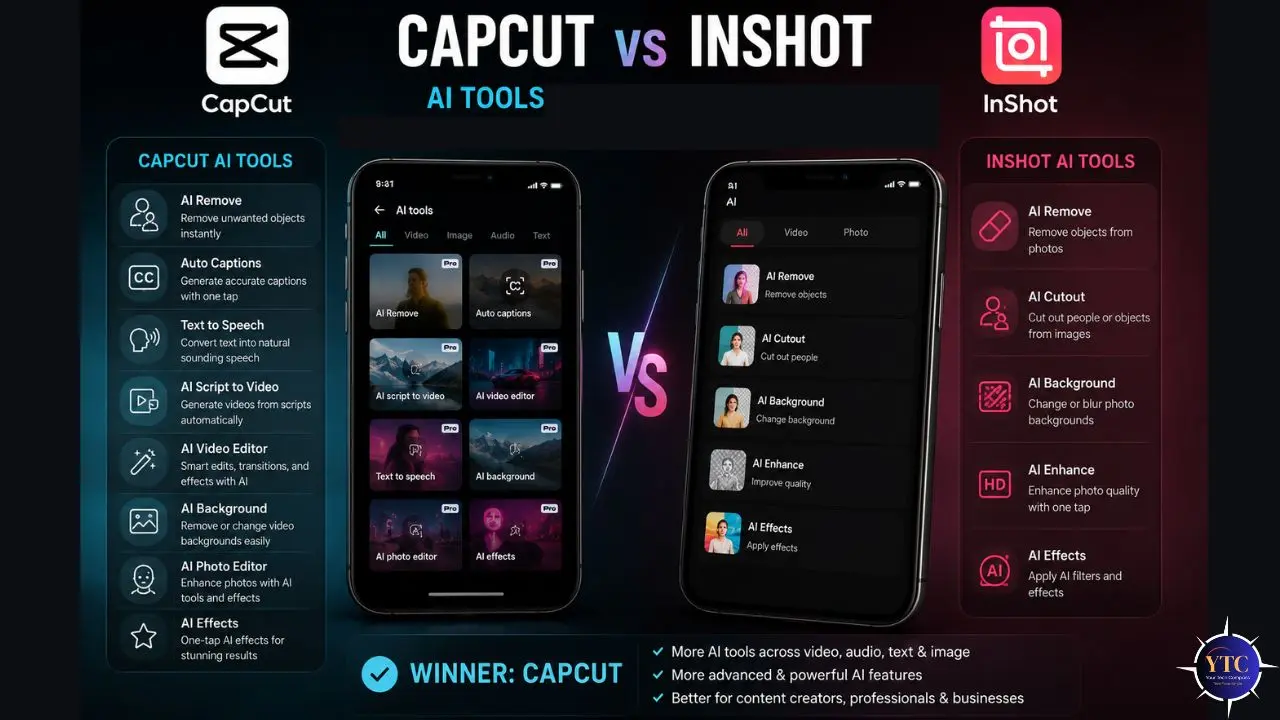
This is the most significant capability difference between the two apps in 2026, and the gap has widened rather than narrowed.
CapCut’s AI suite includes auto caption generation that transcribes speech and adds styled subtitles with approximately 85% accuracy across multiple languages, AI background removal that handles complex scenes and moving subjects with professional precision, AI Relight for adjusting the lighting direction in your footage after you’ve recorded it, voice changers, beat detection that automatically cuts your clips to music rhythm, Script-to-Video which generates video from written text, smart crop for repositioning for different aspect ratios automatically, and AI-powered noise reduction that isolates your voice from background sounds. These tools collectively save significant editing time, particularly auto-captions and beat detection, which typically remove the two most tedious manual tasks in social content editing.
InShot does have some AI features, and it’s worth correcting a common misconception: it’s not AI-free. InShot now offers auto-captions (with approximately 75% accuracy), basic background removal for simple scenes, and smart auto-enhance filters. These are functional for basic use.
However, InShot’s AI toolset is significantly narrower and less sophisticated than CapCut’s. The existing features are useful, but the depth isn’t comparable.
The Honest Note on CapCut’s AI: Because these features process your footage through ByteDance’s cloud servers, there are legitimate privacy implications. Your video content is being saved to your device when you use CapCut’s AI tools. This may not concern you regarding personal content. However, for professional footage, client work, or anything commercially sensitive, it’s worth knowing before you tap the AI button.
Export Quality, Watermarks, and What You Actually Get for Free
Both apps support exporting at up to 4K resolution and 60 frames per second, though CapCut is more consistent in delivering this across a wider range of devices. Additionally, CapCut tends to produce slightly sharper text overlays and cleaner edges on effect composites at equivalent resolution settings. The difference is subtle in most footage but visible in close-up shots and detailed motion graphics.
The watermark situation is the most practically important difference for anyone creating professional or branded content. CapCut’s free version exports completely clean: no watermark, no badge, no indication that the app was used.
You can post CapCut-edited content to a client’s social account or a professional brand channel without paying. InShot’s free version adds a watermark to every export. If you want a watermark-free InShot video, you have to pay for the Pro plan, period. Consequently, for creators who need clean output without spending money, CapCut’s free tier wins this comparison decisively.
Pricing: The Numbers Most Articles Get Wrong
Let me give you the actual current pricing, because several widely shared comparisons have incorrect figures.
CapCut Pricing
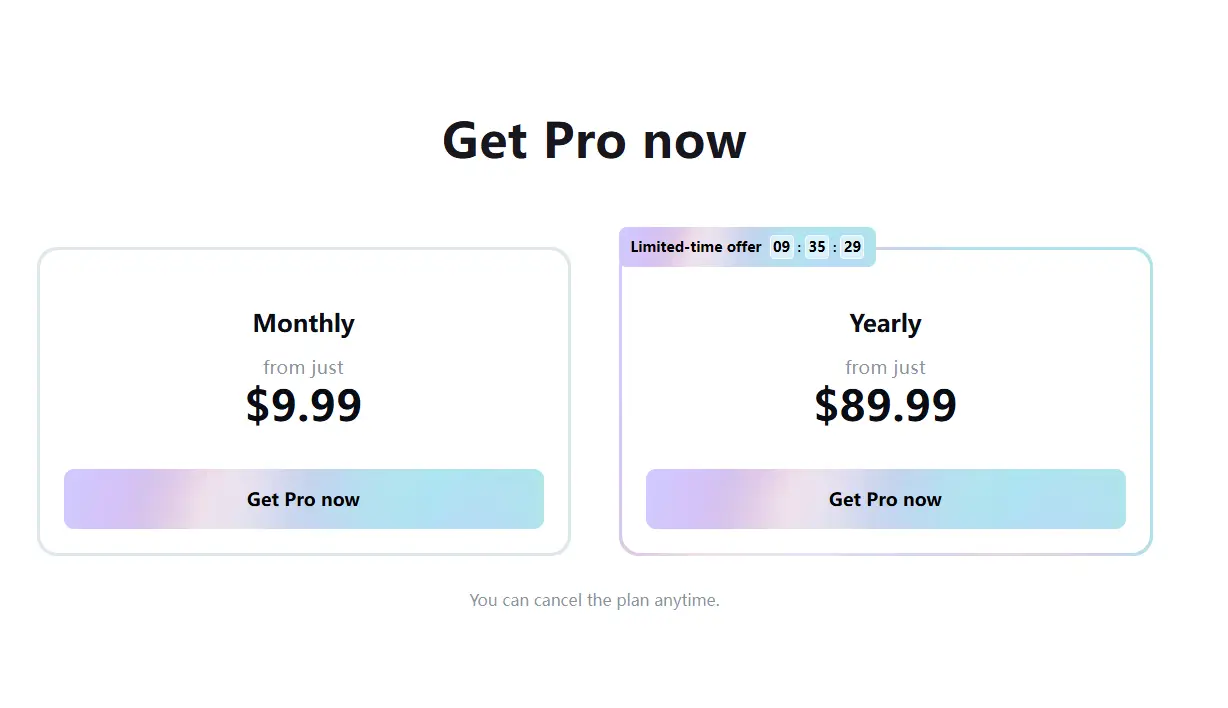
CapCut’s free version is genuinely one of the most generous free tiers among mobile creative apps. You get access to most editing tools, a substantial portion of AI features, effects, transitions, filters, and watermark-free exports, all for free. The CapCut Pro plan costs approximately $9.99 per month or $89.99 per year (billed annually). Pro unlocks additional cloud storage, exclusive premium templates, the full AI feature suite, and some advanced effects.
For most casual to intermediate creators, the free plan is sufficient. However, the $89.99 annual price is a real commitment, and it’s worth knowing that figure before you see an upgrade prompt inside the app.
InShot Pricing
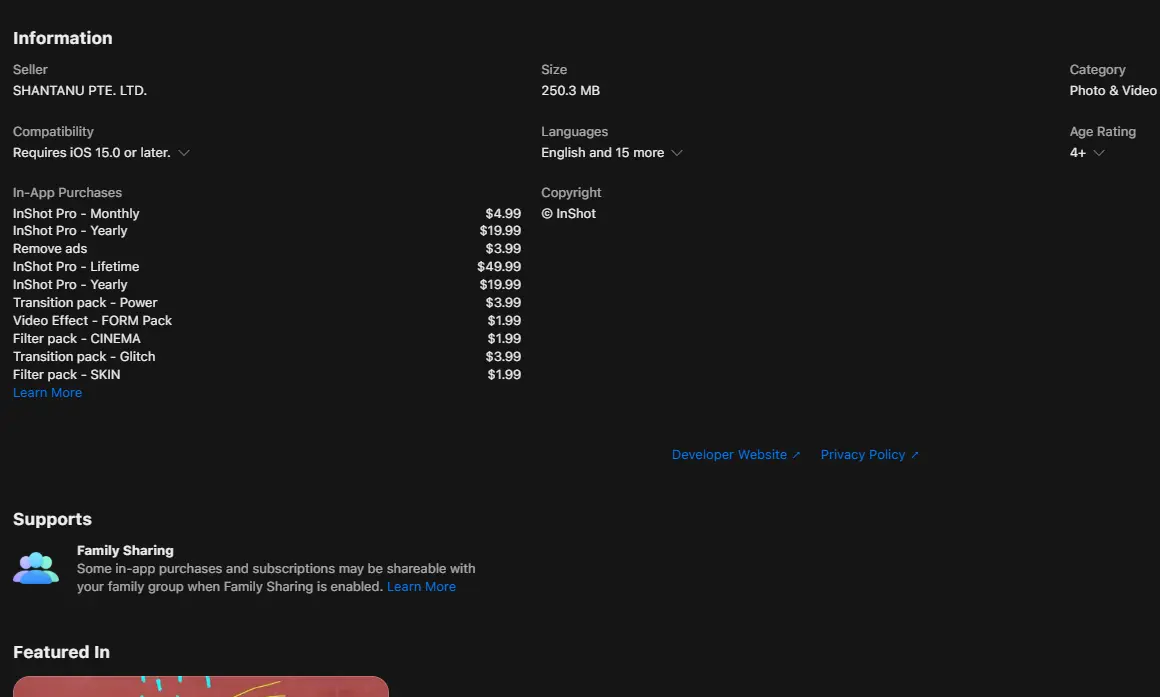
InShot’s free version offers solid manual editing tools but adds a watermark to every export. The Pro plan costs approximately $4.99 per month, $19.99 per year, or $49.99 as a one-time lifetime purchase. In addition, the lifetime option is worth flagging; it’s unusual in the mobile app market and represents genuine long-term value if you’re sure you’ll keep using InShot.
The Pro plan removes the watermark, unlocks exclusive filters, transitions, and additional sticker packs. Additionally, InShot offers a cheaper “Remove Ads” option at $3.99 that removes ads without the full Pro upgrade, a useful middle option that CapCut doesn’t offer.
Pricing Comparison at a Glance
Plan | CapCut | InShot |
Free | Watermark-free; generous features | Watermark on exports; basic tools |
Monthly | ~$9.99/month | ~$4.99/month |
Annual | ~$89.99/year | ~$19.99/year |
Lifetime | ❌ Not available | ~$49.99 one-time |
Remove Ads Only | ❌ Not available | ✅ $3.99 option |
The value comparison here is straightforward. CapCut is approximately 3x more expensive than InShot at the annual tier. If you need AI tools and the full CapCut feature set, that investment may pay off quickly, particularly for creators who post multiple times a week. However, if you primarily want watermark-free, simple editing, InShot’s $19.99 annual plan is the more economical choice.
Performance: Device Compatibility Is More Important Than Feature Lists
This section is one that most CapCut vs InShot comparisons underserve, and it’s the one that will most directly affect your daily editing experience.
CapCut’s AI tools and multi-layer editing demand processing power. On current flagship devices (iPhone 15 and 16 series, Samsung Galaxy S24 and S25), it runs smoothly and handles complex projects without meaningful lag. However, on mid-range Android devices (2021–2023, 4–6GB RAM), heavy AI processing and effects preview can feel sluggish. Furthermore, CapCut’s 3.9 rating on Google Play, compared to its 4.5 rating on the App Store, reflects genuine user frustration on Android, where bugs, heavy resource usage, and aggressive upgrade prompts are consistently cited in recent reviews. The gap between CapCut’s iOS and Android experience is real and worth acknowledging.
InShot is meaningfully lighter. It runs smoothly on older and mid-range devices, rarely crashes during export, even on phones with limited RAM, and its 4.9 iOS and 4.7 Android ratings reflect consistent, reliable performance across device tiers. Consequently, if you’re not using a flagship phone from the last two years, InShot will deliver a noticeably more frustration-free editing experience in everyday use. The best editing app for you is the one that actually runs reliably on your specific phone, not just the one with the longest feature list on paper.
CapCut vs InShot: Pros and Cons
CapCut
The Pros:
- Extremely generous free version; no watermark, strong feature access.
- Industry-leading AI tools, including Script-to-Video, AI Relight, and advanced auto captions.
- Available on desktop (Windows, Mac) and web; full cross-device sync.
- Green screen, keyframe animation, masking, and advanced audio editing.
- Native TikTok template integration and trending effect library.
- Beat detection auto-syncs your cuts to the music’s rhythm.
The Cons:
- Steeper learning curve, expects time investment to get the most from it.
- More demanding on device resources; noticeable performance issues on older Android phones.
- ByteDance’s ownership raises legitimate data privacy concerns regarding AI features.
- 3.9 Android App Store rating suggests ongoing performance and UX issues on non-flagship devices.
- The annual Pro plan at ~$62.99 is significantly more expensive than InShot.
- No lifetime purchase option.
InShot
The Pros:
- Extremely beginner-friendly; first real edit achievable within minutes.
- Best-in-class App Store ratings (4.9 iOS, 4.7 Android) reflect genuine stability.
- Runs reliably on older and mid-range devices without performance trade-offs.
- Clean, uncluttered interface that removes barriers to starting.
- Affordable Pro plan with a lifetime purchase option (~$34.99).
- No Chinese tech company association (cleaner data trust profile).
The Cons:
- The free version adds a watermark to all exports.
- AI tools are limited compared to CapCut; no advanced automation.
- No desktop version.
- No green screen, keyframe animation, or masking.
- Less suitable for complex, layered editing projects.
- Fewer templates and trend-driven content tools than CapCut.
Which App Should You Choose? The Honest Recommendation
Here’s my direct recommendation based on the type of creator you actually are:
Choose CapCut if:
- You create content regularly for TikTok, Instagram Reels, or YouTube Shorts and want AI tools to accelerate your workflow.
- You need green screen, keyframe animation, or masking for more complex visual work.
- You edit on both phone and desktop and want to sync projects across devices.
- You’re on a budget and don’t want to pay for a subscription. CapCut’s free tier is the best no-cost option between the two.
- You’re comfortable investing time in learning a more powerful tool and understanding ByteDance’s privacy context.
Choose InShot if:
- You’re new to video editing and want to build the editing habit without a learning curve.
- You edit on an older or mid-range smartphone and need reliable, crash-free performance.
- Your editing needs are trimming, cutting, adding music, adjusting color, and posting; nothing requiring complex compositing.
- You’re concerned about data privacy and prefer an app with no ties to Chinese state-affiliated tech companies.
- You want a lifetime purchase option rather than a recurring subscription.
My Recommendation
If you’ve never edited a video before, start with InShot. Build the habit of editing consistently, learn how to trim and sync audio, and develop an instinct for pacing. Once you’re comfortable with those fundamentals, typically after a few weeks of regular use, try CapCut.
The power it offers will mean far more once you understand what you’re actually controlling. Furthermore, many creators use both simultaneously without conflict: InShot for quick daily content that just needs trimming and a track, CapCut for more produced, effects-heavy pieces that justify the deeper workflow investment.
FAQs
Yes. CapCut’s free version is genuinely generous. You get access to most editing tools, a strong portion of the AI feature suite, and watermark-free exports without paying anything. The Pro plan (~$62.99/year) unlocks additional cloud storage, exclusive premium templates, and the full AI toolset. Most casual to intermediate creators can use CapCut effectively without ever needing to upgrade.
Yes. InShot’s free version adds a watermark to every export. Removing it requires the InShot Pro subscription, which costs approximately $3.99/month, $19.99/year, or a one-time lifetime purchase of ~$34.99. If you’re creating content for a professional channel or brand, factor this into your tool decision from day one.
CapCut, and by a meaningful margin. It’s built by ByteDance, the same company that owns TikTok, and it integrates natively with TikTok’s format, trending templates, and effect library. That said, the ByteDance connection is also why some creators in certain countries or corporate environments avoid it. InShot produces perfectly good TikTok content; it just lacks the platform-native template integration that makes CapCut particularly efficient for that specific use case.
Absolutely, and I’d recommend it for creators who are past the beginner stage. There’s no rule requiring you to commit to a single editor. Using InShot for fast daily content and CapCut for more produced creative projects is a genuinely efficient workflow that many experienced creators already use. The apps don’t conflict; they don’t share files in ways that create problems, and each handles its natural use case better than the other.
Conclusion
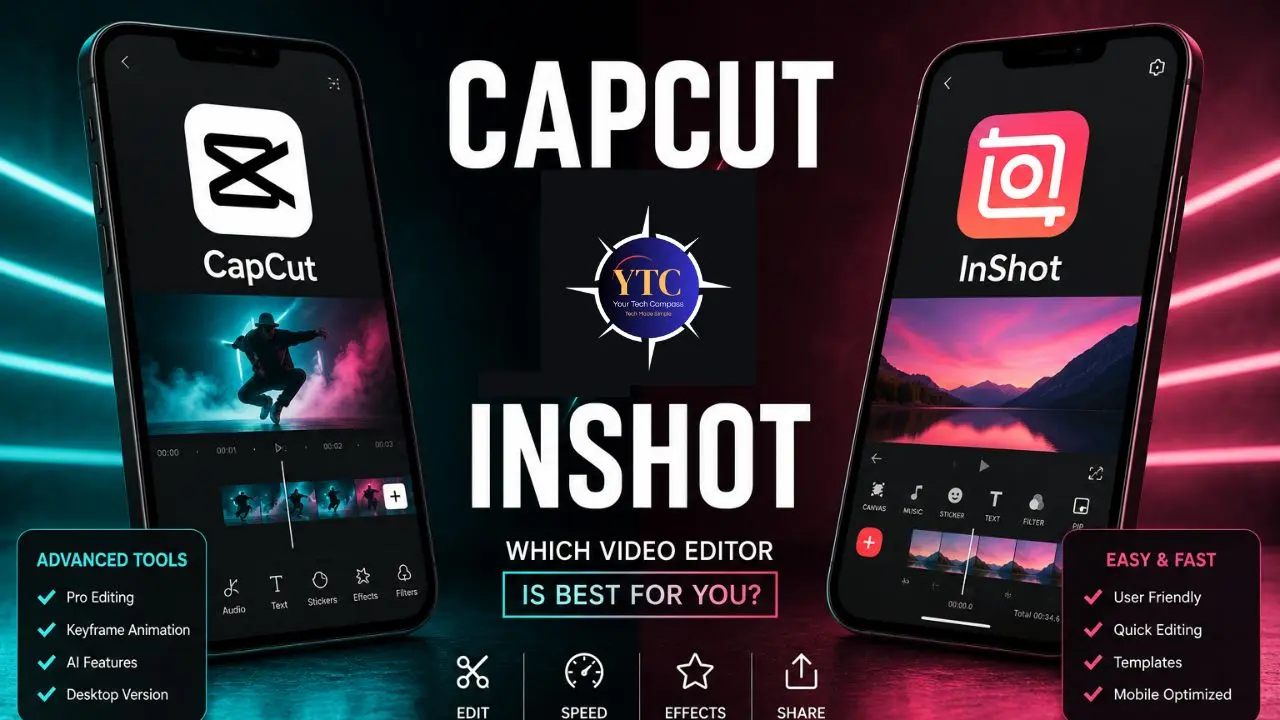
Choosing between CapCut and InShot really comes down to where you are in your editing journey and what you’re trying to accomplish with the time you have. CapCut is the more powerful tool: better AI, more features, cross-device sync, no watermark on free exports, and a template library that’s specifically built around what’s trending on the platforms you’re posting to. Furthermore, the free tier is an exceptional value that most creators will never need to pay for. If you’re creating content seriously and want tools that scale with your ambition, CapCut is worth the time investment.
InShot is the more accessible tool: better app ratings, lower price, greater reliability on older hardware, and an interface that gets out of the way, letting you edit without overhead. Its App Store ratings of 4.9 on iOS and 4.7 on Android, compared to CapCut’s 4.5 and 3.9, reflect real-world stability, resulting in fewer interruptions to your editing workflow. Consequently, for creators who value consistency and simplicity over depth and automation, or for anyone starting out who wants to build an editing habit first, InShot is the right place to start. The best video editing app isn’t the one with the most features. It’s the one you’ll actually open every time you need to edit something.
Whether you’re choosing your first editing app or rethinking the one you’ve been using for a year, there’s always a better setup waiting for you. Visit YourTechCompass.com for hands-on app comparisons, honest tool reviews, and practical guides that help you work smarter with the tech you already have.