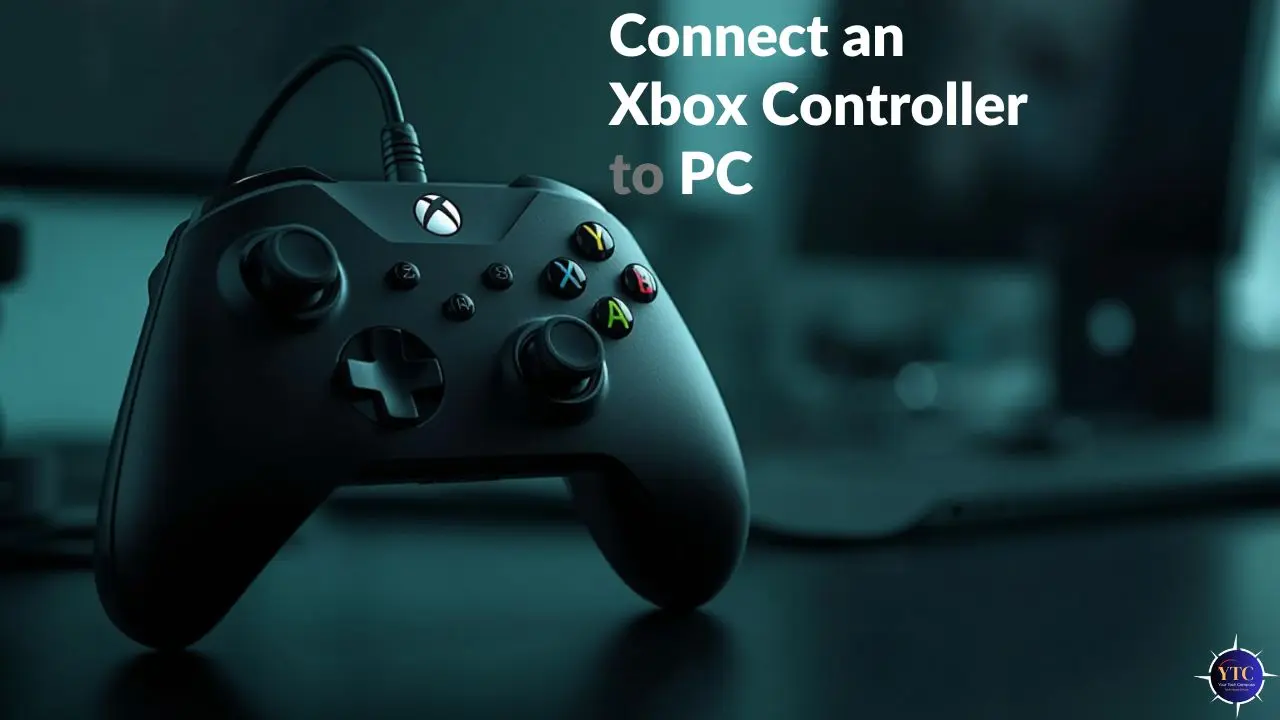
Connecting your Xbox controller to your PC unlocks a smoother, more immersive gaming experience than keyboard and mouse alone, especially for action, racing, and platform titles. Yet despite the popularity of Xbox controllers on Windows, many users struggle to pair their device the first time. Whether you’re using a wired USB connection, Bluetooth, or Microsoft’s wireless adapter, each method has its own steps and requirements. In this guide, you’ll find clear instructions and troubleshooting for how to connect an Xbox controller to PC so you can get into gameplay quickly and with confidence.
Throughout this article, I cover every connection method in depth, explain common issues and solutions, and help you choose the approach that best fits your setup. I encourage you to follow each section and apply the method that fits your hardware and gaming style; you’ll be playing in no time.
What You Need Before Connecting an Xbox Controller to PC
Before attempting any connection method, verify that your hardware is compatible and that you have the appropriate accessories:
- Supported Controller Models: Most modern Xbox controllers (Xbox One S, Xbox Series X|S, and newer Elite models) support both USB and Bluetooth. Older models may require a wireless adapter.
- PC Requirements: A Windows PC with USB ports or Bluetooth support. Bluetooth is generally included on newer laptops; desktops may need a Bluetooth adapter.
- Cables and Adapters: A USB-A to USB-C or Micro-USB cable for wired connections, or the Xbox Wireless Adapter for Windows for robust wireless pairing where Bluetooth is unavailable.
Knowing your controller type and PC capabilities saves time and frustration when you begin the connection process.
How to Connect an Xbox Controller to PC Using a USB Cable
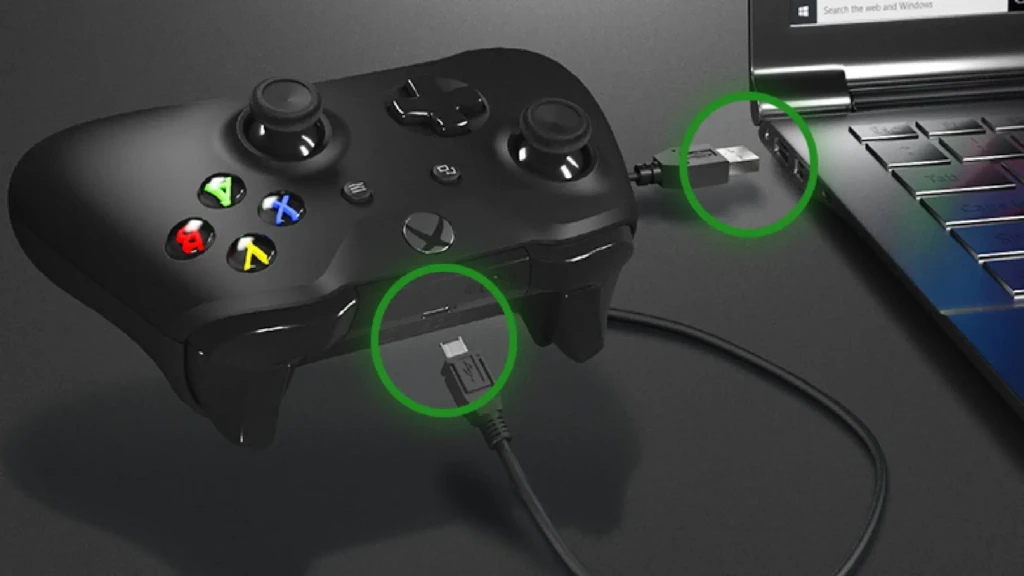
A wired connection is the simplest and most reliable way to connect your Xbox controller to your PC. It requires only a compatible USB cable and no additional settings.
- Plug the Cable In: Connect a USB-C or Micro-USB cable from your controller to an available USB port on your PC.
- Automatic Setup: Windows should recognize the controller automatically and install any required drivers.
- Verify Connection: Once connected, press the Xbox button to ensure the controller powers on and is recognized by the system.
A wired connection is ideal for zero latency and immediate compatibility, making it best for competitive gaming or systems without Bluetooth support. Additionally, this same cable can often serve to charge your controller on consoles and PCs alike.
How to Connect an Xbox Controller to PC via Bluetooth
If your controller and system both support Bluetooth, you can pair wirelessly without additional hardware.
Step-by-Step Bluetooth Pairing
- Enable Bluetooth on Your PC: Open Settings → Bluetooth & devices and turn Bluetooth on.
- Put the Controller in Pairing Mode: Press and hold the Pair button on your Xbox controller until the Xbox button starts flashing.
- Select the Controller: On your PC, select the controller from the list of available Bluetooth devices.
- Confirm Connection: Once paired, the Xbox button stays lit, indicating a successful connection.
Bluetooth gives you wireless freedom without needing an adapter, but performance can vary based on signal strength and interference. Make sure to minimize obstructions between your controller and PC for the best results.
How to Connect an Xbox Controller to PC Using a Wireless Adapter
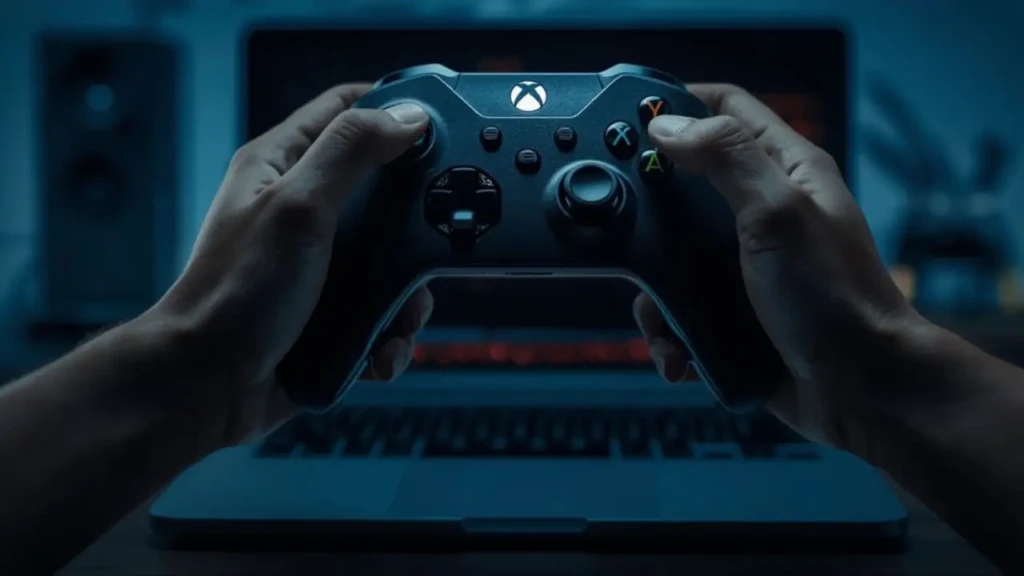
For the most stable wireless experience, especially on desktops without Bluetooth or in high-interference environments, Microsoft’s Xbox Wireless Adapter for Windows provides dedicated connectivity.
- Insert Adapter: Plug the adapter into a USB port.
- Press the Adapter Button: Initiate pairing mode on the wireless adapter.
- Pair the Controller: Hold down the controller’s Pair button until the Xbox button flashes and then stays lit.
This method offers lower latency and a broader range than standard Bluetooth, making it ideal for living room PC setups or larger play spaces.
Wired vs Wireless: Which Connection Method Is Best?
The right connection depends on your priorities. Use the table below to compare the major methods:
Connection Type | Setup Difficulty | Input Lag | Battery Usage | Best Use Case |
USB Wired | Very Easy | Lowest | None | Competitive gaming / Troubleshooting |
Bluetooth | Easy | Medium | Battery Powered | Casula wireless play |
Wireless Adapter | Moderate | Low | Battery Powered | Stable, long-range wireless |
In general:
- USB Wired is best for performance and compatibility.
- Bluetooth is best for convenience when available.
- A Wireless Adapter is best for a robust wireless experience without Bluetooth.
How to Check If Your Xbox Controller Is Working on PC
Once connected, confirm the controller is functioning:
- Open Settings → Devices and verify the controller is listed.
- Press buttons and joysticks to see if the system registers input.
- Launch a game or utility, such as the Windows 11 Game Controllers panel, to test full functionality.
If inputs aren’t detected, additional troubleshooting may be necessary.
Fixing Common Xbox Controller Connection Issues

Even with the correct steps, connections sometimes fail. Here’s how to address common problems:
- Controller Not Showing Up: Reboot your PC, try a different USB port, or re-enter Bluetooth/adapter pairing mode.
- Disconnecting Frequently: Interference from other wireless devices can disrupt Bluetooth; consider moving closer or using the wireless adapter.
- Input Lag: Ensure wireless signals are clear, or switch to a wired connection for the lowest latency.
For persistent system performance issues, optimizing Windows itself can help; techniques such as disabling unnecessary background services or speeding up boot time can indirectly improve device responsiveness. See our article on how to Fix Slow Startup on Windows 11 for guidance on performance tuning.
Update Xbox Controller and Windows Drivers
Keeping both your controller firmware and Windows drivers up to date ensures the best compatibility and performance:
- Use the Xbox Accessories app (available from the Microsoft Store) to update controller firmware.
- Check Windows Update in Settings to install any available system or driver updates.
Updating drivers can resolve connection quirks and unlock new features for supported controllers.
Using an Xbox Controller with Steam and Other Game Launchers
Modern game launchers like Steam natively support Xbox controllers and often auto-configure controller button mappings for titles that support them. Within Steam settings, you can adjust controller support preferences and test inputs.
Other PC launchers may require enabling controller support in their settings menus or using overlay tools. Always verify compatibility if a game doesn’t respond as expected.
Who This Guide Is Best For
This guide is helpful if you’re:
- New to PC gaming and want a reliable controller setup
- Transitioning from console to PC
- Using a laptop or desktop without built-in Bluetooth
- Enjoying genres that benefit from controller input
Proper setup ensures your controller feels natural and responsive, no matter how you play.
Conclusion
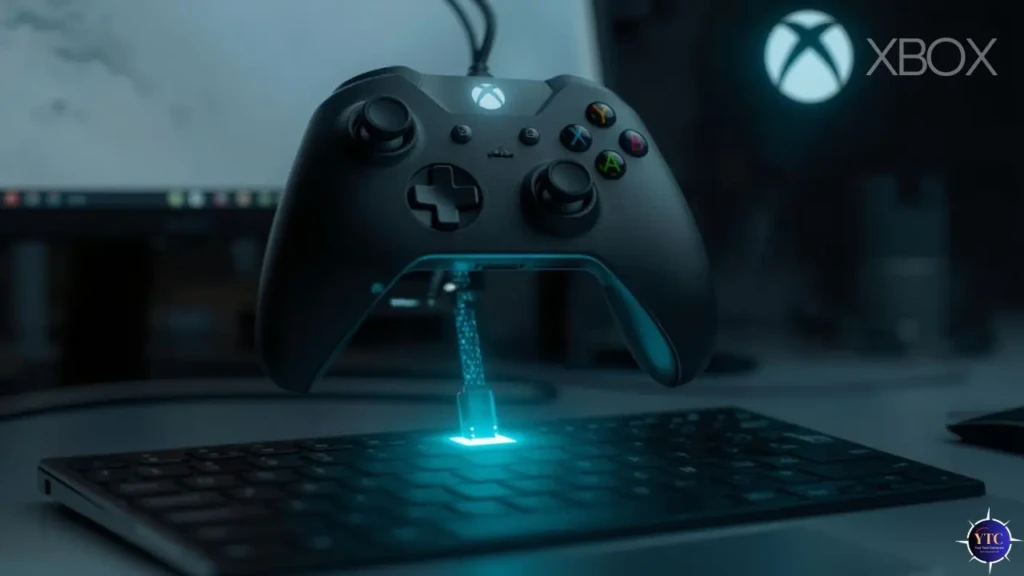
Whether you choose a USB wired connection, Bluetooth pairing, or wireless adapter, understanding how to connect an Xbox controller to PC ensures reliable performance and enjoyable gameplay. Each method has unique advantages: wired connections deliver minimal latency, Bluetooth offers easy wireless play without extra hardware, and the Xbox Wireless Adapter provides robust, low-latency connectivity for advanced setups.
Ultimately, the best method is the one that fits your hardware and play style. I encourage you to follow the steps in this guide and test each connection type to find what works best for you, and once you’ve brought your controller online, explore more ways to optimize your PC gaming setup, from system performance to game-specific configurations.
Related Questions (FAQs)
Yes. Use a USB cable or the Xbox Wireless Adapter instead of Bluetooth.
Common reasons include outdated firmware, disabled Bluetooth, or incorrect pairing procedures. Double-check each step and try a different method if needed.
Most modern PC games support controllers, but always check the game’s control options to confirm.
For the lowest latency and simplest setup, wired is typically better; wireless offers freedom of movement at the cost of battery use and potential interference.
At Your Tech Compass, we publish detailed tech guides, reviews, and comparisons to help users choose the right devices and tools.