Your iPhone getting warm during normal use is expected: a processor working, a battery charging, a screen glowing at full brightness. That’s physics, and it’s fine. What’s not fine is when your iPhone gets uncomfortably hot to hold, when the display dims without warning, when the camera refuses to work, or when a full-screen message appears telling you the device needs to cool down before you can use it. That’s your phone telling you something is wrong, and if you ignore it long enough, the damage compounds: battery health degrades faster, components wear out sooner, and performance throttles permanently rather than temporarily.
I’ve worked through iPhone overheating issues across multiple models and iOS versions, and what I consistently find is that most people experiencing this problem are dealing with one of a small number of fixable causes. This guide covers all of them: what’s actually happening inside your iPhone when it runs hot, exactly how to cool it down right now, the software settings that reduce thermal load in the long term, and the specific signs that tell you when you need Apple’s help rather than your own troubleshooting. Work through it in order, and you’ll have your iPhone running at the right temperature before you reach the FAQ.
What Apple Considers Normal and What It Doesn’t
Before diagnosing a problem, you need to know where the line is. Apple publishes the operating temperature range for iPhone directly: use iOS devices where the ambient temperature is between 0°C and 35°C (32°F to 95°F). Storage temperature extends from -20°C to 45°C (-4°F to 113°F), but the operating range is narrower than most people realize.
Within that 0°–35°C range, your iPhone will feel warm during normal use. Charging, running a demanding app, watching a video at high brightness, or setting up a new iPhone after a restore all temporarily increase CPU and GPU load, and some warmth is the expected byproduct of that work. That’s warm, not overheating. The distinction matters because the fixes are different.
True overheating occurs when the device’s internal temperature sensors detect that the safe threshold has been exceeded. When that happens, iOS responds in a specific sequence: first, CPU performance throttles (your iPhone gets noticeably slow), then certain features like the flash and camera disable themselves, and finally, if the temperature continues rising, a full-screen thermometer warning appears telling you the iPhone needs to cool down before it can be used. When you see that screen, the phone has essentially shut itself down for its own protection. That’s the line between “running warm” and “overheating.”
Common Causes of iPhone Overheating
Understanding the cause is the fastest path to the right fix. These are the most documented and verified causes across iPhone models.
1. Intensive App Usage
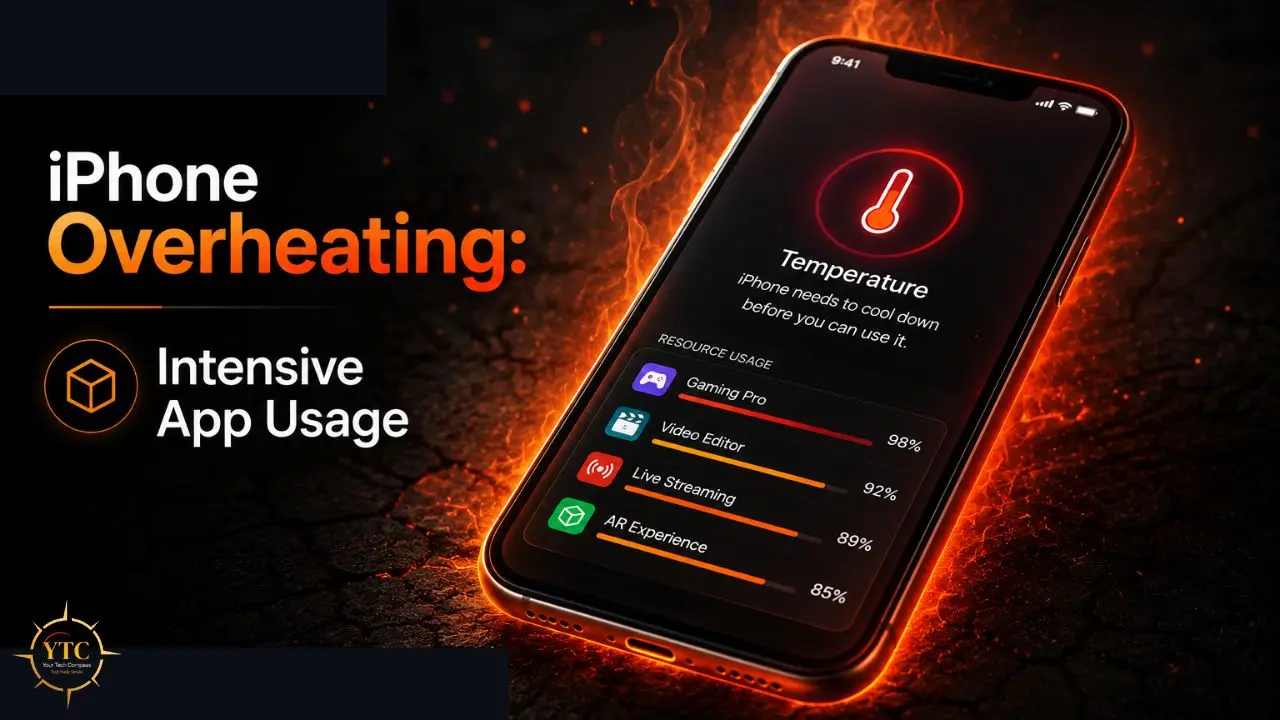
When you run a demanding game, edit video, use augmented reality, or run navigation with live traffic data while streaming music, your iPhone’s CPU and GPU are working at near-maximum capacity simultaneously. Processors generate heat as a direct byproduct of computation. This isn’t a defect; it’s physics. The issue arises when a sustained high load raises the internal temperature beyond the safe operating range, a process that occurs more quickly if the ambient temperature is already elevated.
2. Charging While Using: The Double Load Problem
This is one of the most common and least understood causes. Charging and heavy processing create what’s accurately called a double load: power flows into the battery while the processor simultaneously draws power for demanding tasks. Both processes generate heat simultaneously in the same device, with nowhere for that heat to escape.
Charging while playing a GPU-intensive game or running turn-by-turn navigation is a reliable way to push any iPhone toward a thermal warning. The fix is simple: charge with the screen off, or at a minimum, stop demanding tasks while charging in warm conditions.
3. Weak Cellular Signal and 5G
This is a cause most troubleshooting guides miss entirely, but it’s documented in Apple’s own community forums and verified by users across iOS versions. When your iPhone struggles to maintain a cellular connection, particularly on 5G, it boosts radio power to compensate.
Boosting radio power increases energy consumption, which generates heat. Users on iOS 26 have specifically reported overheating when using 5G rather than Wi-Fi. Therefore, if your phone runs hot during calls or when using data in areas with a marginal signal, this is likely a contributing factor.
4. High Ambient Temperature
Apple’s 35°C operating ceiling means leaving your iPhone on a dashboard in direct summer sunlight, taking it to the beach in peak heat, or leaving it in a parked car can push ambient temperature past the safe range before you’ve opened a single app. The phone doesn’t need to work hard to overheat in a 40°C car interior. Ambient temperature and device workload compound each other; a GPU-intensive game that’s fine in an air-conditioned room can trigger thermal shutdown outdoors in summer heat.
5. iOS Updates and Software Bugs
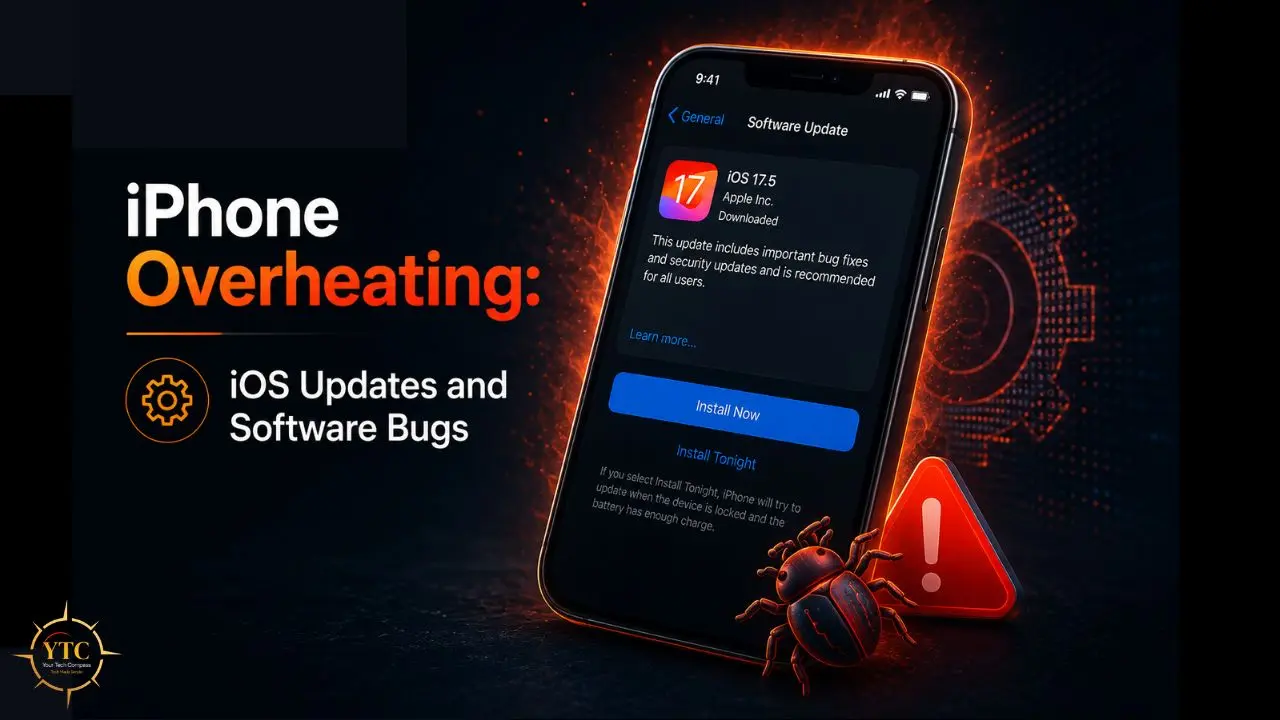
Every major iOS update introduces a background reindexing process. Spotlight rebuilds its search index for your entire library of photos, contacts, and files immediately after the update installs. This process runs in the background at high CPU load, often for 1–2 hours after the update completes, and generates noticeable heat.
This is normal and temporary. However, iOS updates sometimes also introduce bugs that cause excessive background CPU usage that doesn’t resolve on its own. iOS 18 in particular generated widespread reports of persistent overheating after installation, with relief coming only after subsequent point updates.
6. Background App Refresh and Location Services
Apps running in the background, refreshing content, syncing data, checking location, or processing notifications place a continuous low-to-medium load on your processor. Individually, each process is small.
Collectively, across dozens of apps with background permissions on a phone, the cumulative load adds up over the course of the day. Location services are particularly thermal because GPS processing is CPU-intensive, and many apps request location access far more frequently than they actually need it.
7. Battery Age and Health
An aging battery is less chemically efficient than a new one. As battery capacity degrades, the battery must work harder to deliver the same power, which generates more heat per charge cycle. If your battery health (Settings → Battery → Battery Health & Charging) is below 80%, it’s worth considering that battery degradation may be a contributing factor to the heat you’re experiencing, rather than just a downstream effect.
8. Non-Certified or Damaged Charging Accessories
Apple-certified (MFi) chargers and cables are tested to charge at rates the iPhone’s battery management system can handle safely. Uncertified chargers can deliver voltage or amperage outside the expected range, creating excess heat at the charging point. A damaged cable, particularly one with worn insulation at the connector, creates resistance at the connection point that converts directly into heat.
Signs Your iPhone Is Actually Overheating
Not every warm iPhone is an overheating iPhone. Here’s how to distinguish normal warmth from a genuine thermal problem, listed in order of severity.
The Phone Feels Hot, Not Just Warm
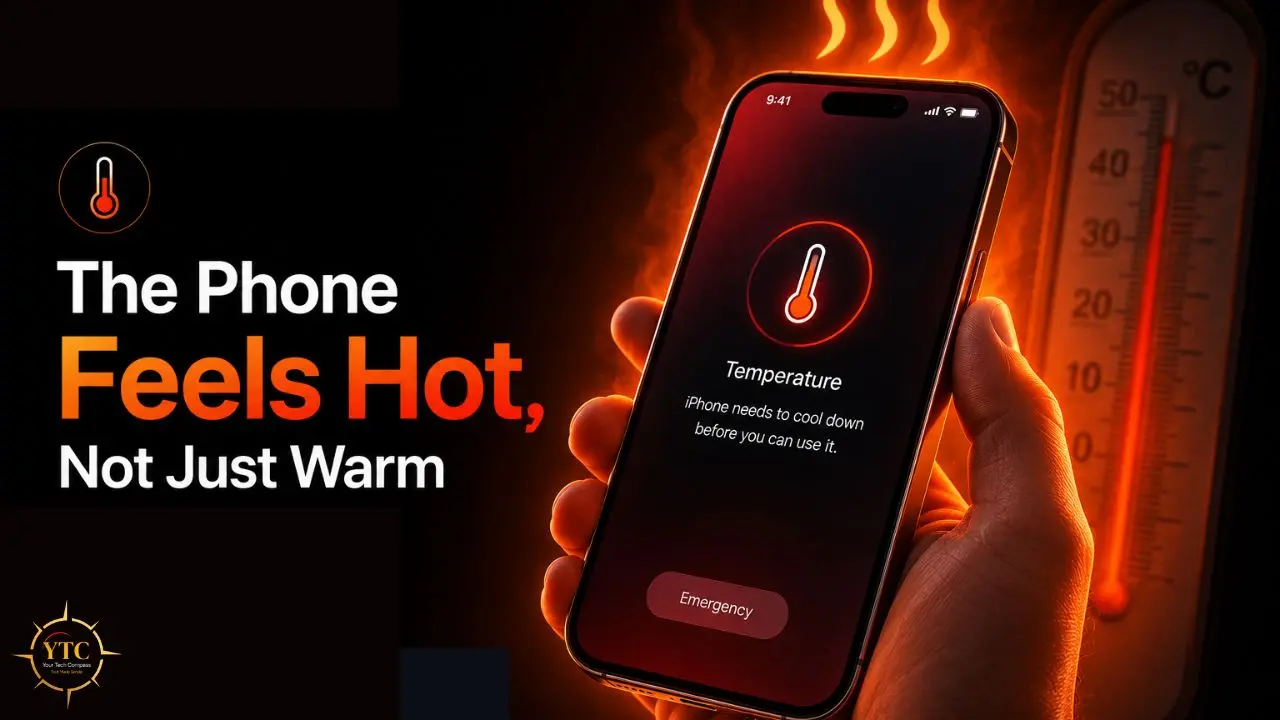
Warm is noticeable but ignorable. Hot means you’re holding it away from your palm or setting it down. That’s the first signal to take action.
Performance Has Suddenly Dropped
Your iPhone has gotten noticeably slow; apps are laggy, scrolling stutters, and the keyboard has input lag. This is Apple’s thermal throttling working as designed: the processor deliberately reduces its own clock speed to generate less heat. You’re not imagining the slowdown; iOS is intentionally slowing things down to protect the hardware.
Specific Features Have Disabled Themselves
Apple’s thermal management disables the camera flash first, followed by the camera itself. If you open the Camera app and see a temperature warning telling you the camera is unavailable, your phone is in active thermal protection mode.
Rapid Battery Drain
A phone running hot burns through the battery significantly faster than normal. If your battery percentage is dropping noticeably faster than usual and the device is warm, the two are connected.
The Full-Screen Temperature Warning Appears
This is the most serious signal: a red thermometer icon on a black screen, with a message saying the iPhone needs to cool down before you can use it. At this point, the device has essentially shut itself off. Everything except emergency calls is disabled until the temperature drops.
Battery Swelling
A bulging battery is a physical emergency, not just a performance issue. If the screen appears to be lifting away from the chassis or the back of the phone is visibly convex, stop using it immediately, do not charge it, and go to an Apple Store or Apple Authorized Service Provider the same day. A swollen lithium battery is a fire hazard.
How to Cool Down Your iPhone Right Now
If your iPhone is hot right now, work through these steps in order. Most phones return to normal operating temperature within 10–15 minutes of the first three steps.
Step 1: Stop What You’re Doing and Remove the Case

iPhone cases, particularly thick rubber or leather cases, trap heat against the chassis. Removing the case gives the aluminum or glass a direct path to dissipate heat into the surrounding air. This single step often produces the fastest temperature drop.
Step 2: Disconnect the charger
Charging is one of the two main heat sources (the other being processing load). Disconnecting it immediately removes half the thermal input.
Step 3: Move to a Cool, Shaded Location
Take the phone to an air-conditioned room, or at least out of direct sunlight. Do not put it in a freezer or under cold running water. Rapid temperature changes cause condensation inside the device, leading to permanent water damage. Room-temperature air is all you need. Give it 10–15 minutes in a cool environment without a case.
Step 4: Put It In Airplane Mode or Power It Off
Airplane Mode disables cellular radio, Bluetooth, and Wi-Fi simultaneously; all three consume power and generate heat from background processing. If you don’t need the phone to stay on while it cools, power it off entirely. A powered-off iPhone cools significantly faster than one running in Airplane Mode because no CPU processing occurs.
Step 5: Reduce Screen Brightness to Minimum
The display is one of the largest power consumers in any smartphone. Reducing brightness to its lowest usable setting immediately lowers the battery’s power draw, thereby reducing heat generation. Swipe down from the top-right corner to open Control Center and drag the brightness slider down.
Step 6: Turn On Low Power Mode
To do this, go to Settings → Battery → Low Power Mode. Turning on low power mode simultaneously reduces background activity, visual effects, screen refresh rates, and processor performance.
It’s designed specifically for situations where you need your phone to generate less heat and use less power. You can also enable it from Control Center without opening Settings.
Software Fixes That Reduce Overheating Long-Term
These settings adjustments address the ongoing causes rather than the immediate symptoms. Apply these after your phone has cooled down.
Update iOS Immediately
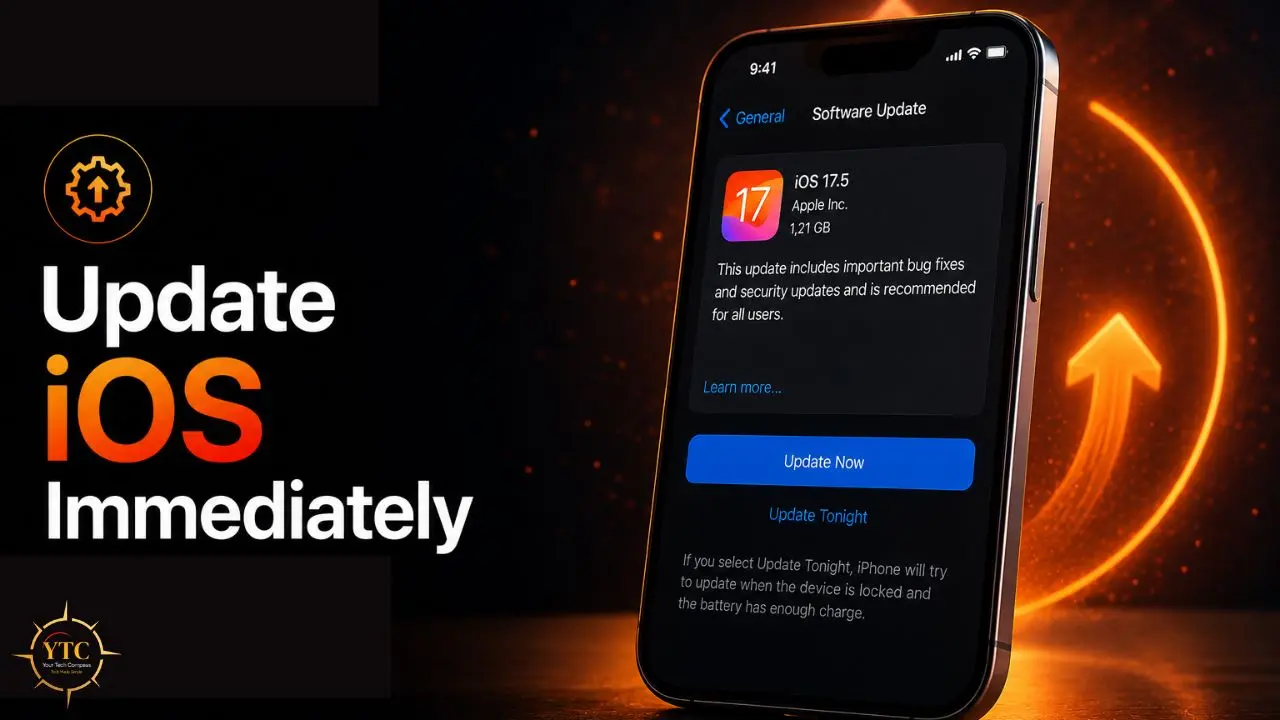
This is the fix most people delay, and it’s often the most effective. iOS updates regularly include thermal management improvements, bug fixes for excessive background CPU usage, and hardware-specific optimizations. The overheating reports after iOS 18’s initial release, for example, were substantially resolved for most users with subsequent point updates. Go to Settings → General → Software Update and install any available updates.
Disable Background App Refresh for High-Load Apps
To disable background app refresh, go to Settings → General → Background App Refresh. You have three options: Off (disabled for everything), Wi-Fi Only (refreshes only when on Wi-Fi), or Wi-Fi & Cellular Data (the default; refreshes on both, continuously).
For most apps, you don’t need real-time background refreshing. Turn it off for social media apps, news apps, and streaming services that don’t need to be updated the moment you’re not looking at them. Both your battery and your phone’s temperature will benefit.
Review Location Services
To review your location services, go to Settings → Privacy & Security → Location Services. Go through each app and change its location settings from “Always” to “While Using” or “Never” unless the app genuinely requires continuous location access.
Navigation, ride-sharing, and weather apps need location. Your note-taking app and social media probably don’t need it always on. Every app that tracks your location in the background is continuously running.
Check Battery Health
Go to Settings → Battery → Battery Health & Charging. If your maximum capacity is below 80%, your battery is aging to the point where replacement is worth considering. Apple replaces batteries for a fixed service charge that is significantly less than the cost of a new phone, and a degraded battery is both a heat source and a performance limiter.
Restart Your iPhone Regularly
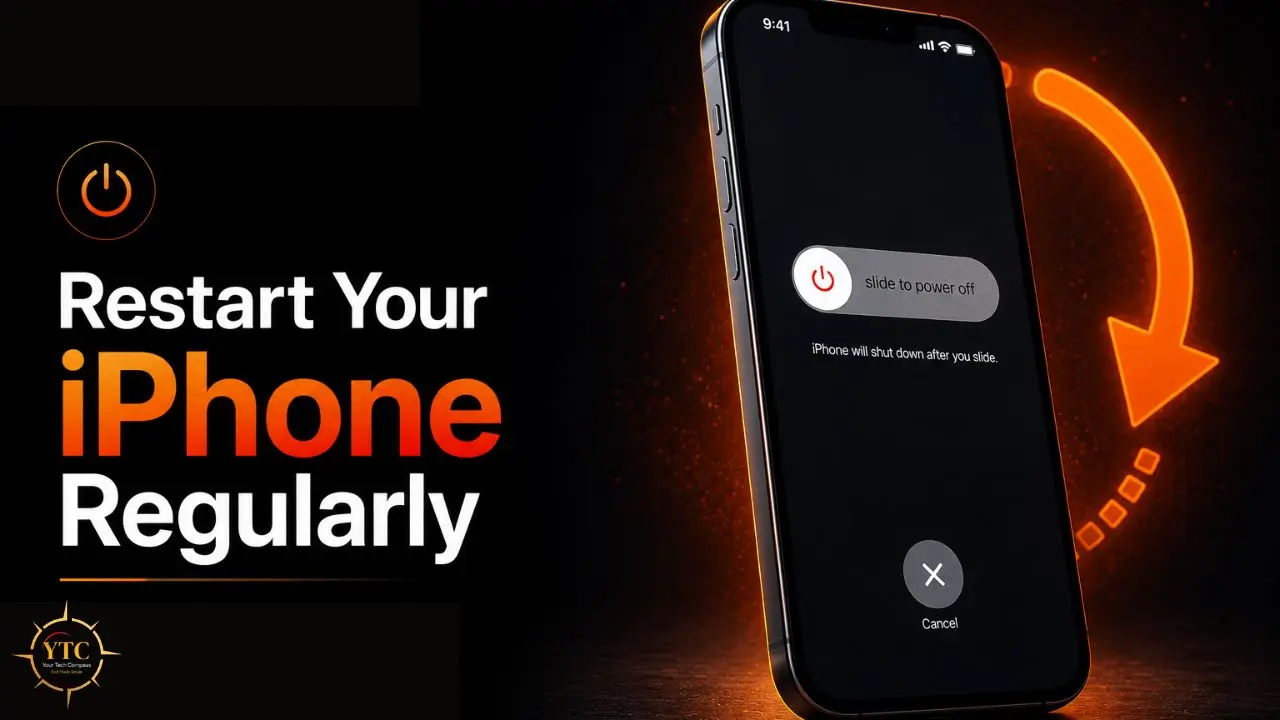
A weekly restart clears memory leaks; processes that should have closed but didn’t accumulate in RAM and keep the CPU working at elevated load for no useful reason. A full restart terminates everything cleanly and starts fresh.
It’s not a glamorous fix, but it’s a consistent one. Hold the side button and either volume button simultaneously, drag the power slider, and restart once a week as standard maintenance.
Reset All Settings (If Nothing Else Works)
If your iPhone continues to overheat after all the above steps and you’ve confirmed the battery health is adequate, a settings corruption may be driving excessive background CPU usage. Go to Settings → General → Transfer or Reset iPhone → Reset → Reset All Settings.
This resets your preferences (Wi-Fi passwords, display settings and notification preferences) to their defaults without deleting your data. It doesn’t erase your photos, apps, or content; it only erases the system settings that govern how the phone operates. Note your Wi-Fi passwords before doing this.
What You Should Never Do When Your iPhone Is Hot
These are common mistakes that feel intuitive but cause damage.
Never Put Your iPhone in the Freezer
This is the most common bad advice on the internet for an overheating phone. The rapid temperature drop causes condensation to form on every internal component inside the device. Water inside a smartphone causes permanent damage that your warranty doesn’t cover.
Never Put It Under Cold Running Water
Same physics as the freezer: rapid temperature change, condensation, and water ingress. Water-resistant ratings (IP67, IP68) protect against immersion under controlled conditions, not against the thermal shock of cold water on a hot device.
Never Use a Third-Party Cooling Fan Accessory On a Very Hot Phone
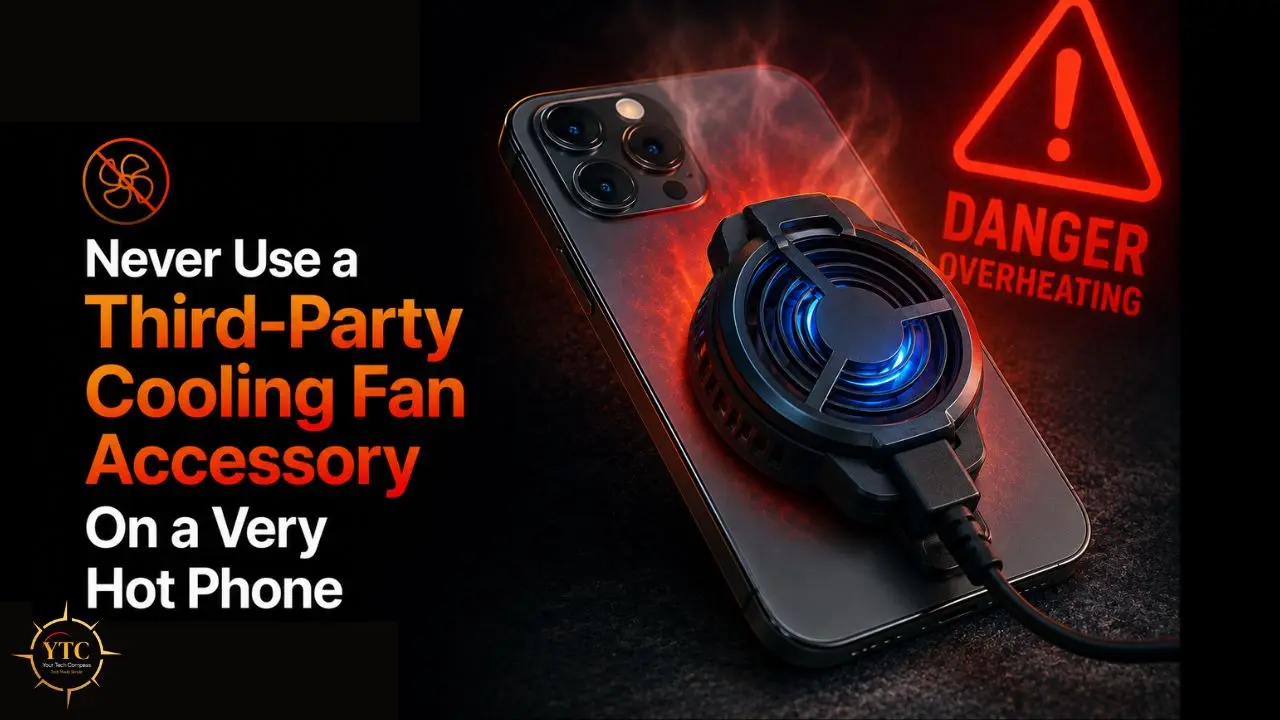
Blowing cold air directly onto a device that’s genuinely overheating creates the same risk of condensation. Ambient room temperature is the correct cooling environment.
Never Ignore Battery Swelling
A visibly swollen battery is a safety emergency. Swollen lithium-ion batteries can rupture, which can cause a chemical fire. Do not charge a swollen battery, do not put it in a bag or pocket, and do not leave it unattended. Go directly to an Apple Store.
Scenario Reference: Heat Risk by Activity
🌡️ iPhone Heat Risk by Usage Scenario
Scenario | CPU/Power Load | Heat Risk | Best Action |
Intensive Gaming or AR | Very High | 🔴 High | Shorter sessions; remove case; cool environment |
Charging + Heavy Use Simultaneously | High | 🔴 High | Charge with the screen off; no demanding apps while charging |
Turn-by-Turn Navigation + Music | High | 🟠 Medium-High | Keep in shade; remove case; consider Low Power Mode |
5G Usage In a Weak Signal Area | Medium-High | 🟠 Medium-High | Switch to Wi-Fi or LTE if available; check coverage |
Background Sync + Location Services | Medium | 🟡 Medium | Disable background refresh for non-essential apps |
Immediately after the iOS Update | Medium (temporary) | 🟡 Medium | Normal; allow 1–2 hours for background reindexing |
Normal Light Use (Calls, Messages) | Low | 🟢 Low | No action needed |
Direct Sunlight / Hot Car Interior | Variable | 🔴 High | Move to shade immediately; power off if above 35°C |
When to Go to Apple for Professional Help

Most iPhone overheating issues are resolved through the steps above. These are the specific signals that indicate the problem is hardware and that you need Apple’s diagnostic tools rather than your own.
- Your iPhone persistently overheats despite all fixes: You’ve updated iOS, disabled background refresh, checked location services, and restarted the phone regularly, yet it still runs hot under light use. This suggests a hardware fault rather than a software or behavior issue.
- Battery swelling is visible: Go immediately. Do not delay this visit.
- The temperature warning appears during normal, light use; thermal warnings during gaming or direct sun exposure are expected. A temperature warning while reading email or sending a text message is not; it suggests a hardware malfunction.
- Abnormal shutdowns, erratic battery drain, or inability to charge, along with overheating, suggest a battery or charging hardware failure.
- Battery health shows below 80% capacity: At this point, Apple’s battery replacement service is the most cost-effective intervention; it’s fixed-price, typically done in under an hour at an Apple Store or Authorized Service Provider, and it frequently resolves overheating issues caused by aging battery chemistry.
You can start the process at Apple Support, where you can book a Genius Bar appointment, arrange mail-in repair, or access live chat support. Having your device serial number and battery health percentage ready before you contact them saves time.
Long-Term iPhone Care Habits That Prevent Overheating
These are the maintenance habits that prevent the problem from returning after you’ve resolved it.
Clear the Cache and Stored Data Periodically
Accumulated app data and browser cache create more background processing activity over time. Here’s how to clear cookies on an iPhone as part of regular maintenance.
Keep iOS Updated
Apple’s thermal optimizations come through software updates. Delaying updates means running on firmware that may contain documented bugs affecting CPU efficiency.
Don’t Charge Overnight While Running Demanding Apps
If you use your phone as a bedside alarm and plug it in overnight, avoid leaving resource-intensive apps running or having notifications trigger screen wake-ups all night. The combination of continuous charging and background activity over 7–8 hours results in a sustained thermal load.
Monitor Battery Health Every 2–3 Months
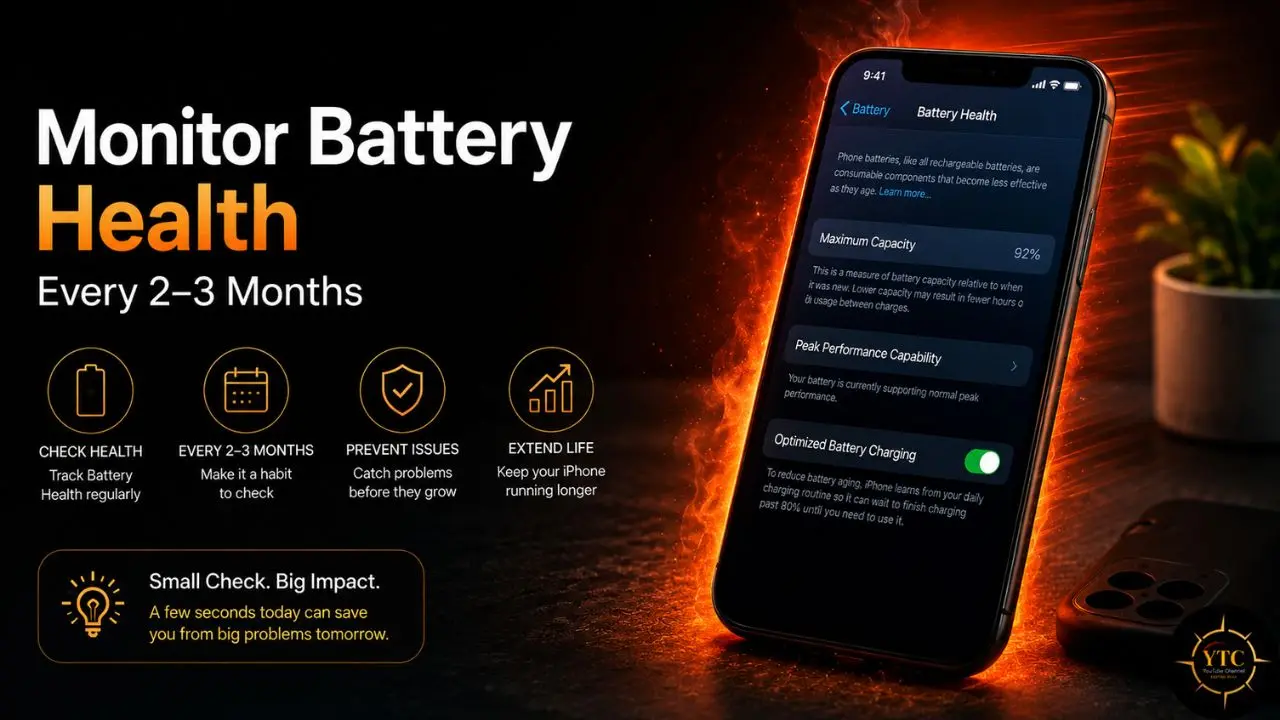
To do this, go to Settings → Battery → Battery Health & Charging. If maximum capacity is declining faster than expected, more than 5–10% per year under normal use, that’s a signal worth investigating before it becomes a heat problem.
Use Trusted Apps from Reputable Developers
Rogue background activity from poorly coded third-party apps is a documented cause of persistent CPU overload. If you notice overheating starting after installing a specific app, remove it and monitor whether the problem resolves.
Keep Your Phone’s Software Healthy
If you’re experiencing app crashes, sluggish performance, and overheating, those three symptoms often share a common root cause. Read through our guide on fixing app crashes on iPhone for the next troubleshooting layer, and check our guide on speeding up iPhone performance if general sluggishness is compounding the issue. For persistent software problems that nothing else resolves, a factory reset can eliminate deep-rooted software corruption that causes both overheating and performance degradation.
FAQs
Yes, to a degree. Some heat is expected during charging because electrical energy is converted into stored chemical energy, a process that generates heat. What’s not normal is significant heat during charging, particularly if the phone feels hot to the touch, runs unusually slowly, or displays a temperature warning. Using a non-certified charger, charging in a hot environment, or running demanding apps while charging all push warmth into problematic territory.
Two reasons. First, the post-update Spotlight reindex process runs at high CPU load for 1–2 hours after installation; this is normal and temporary. Second, iOS updates occasionally introduce software bugs that cause persistent excessive background CPU usage. If overheating started after an update and hasn’t resolved within 24–48 hours after reindexing completes, check for a subsequent point update (Apple typically addresses these quickly). In the meantime, enable Low Power Mode and limit the use of demanding apps.
This is counterintuitive, but mostly no. iOS manages suspended background apps efficiently; they remain in memory but do not actively consume CPU. The biggest thermal contributors are apps with background refresh permissions that are actively running (not suspended), location services that are continuously tracking, and foreground tasks performing intensive work. Closing background apps aggressively may actually increase thermal load slightly, because iOS has to reload apps from scratch (a CPU-intensive process) rather than resuming them from RAM.
Yes. Prolonged or repeated exposure to high temperatures degrades battery chemistry faster than normal use. Apple’s battery health measurement (Settings → Battery → Battery Health & Charging) reflects the cumulative loss of capacity. Consistently using your iPhone at elevated temperatures accelerates its degradation. A battery that should last 500 full-charge cycles before significant capacity loss will reach that threshold sooner if it spends significant time operating outside safe temperature ranges.
The clearest signal is behavior change, not just temperature. Normal warmth doesn’t change how your phone performs. Overheating results in throttled performance (noticeable slowdown), disabled features (camera, flash), accelerated battery drain, or, in severe cases, a full-screen temperature warning. If your phone is warm but performing normally, it’s running warm, not overheating. If performance has changed, that’s the threshold.
Apple specifies 0°C to 35°C (32°F to 95°F) as the safe operating temperature range for the iPhone. Above 35°C, iOS initiates thermal management behaviors (throttling, feature disabling) to protect hardware. A car interior in direct summer sunlight can reach 50–60°C within minutes, which is well beyond this range. Direct sunlight on a dark-colored iPhone case can raise its surface temperature faster than ambient air temperature would suggest.
Conclusion
iPhone overheating is a problem with a clear hierarchy of causes and a proven set of fixes, and working through that hierarchy systematically resolves the issue for the vast majority of people who experience it. Start with the immediate cooling steps: remove the case, disconnect the charger, move to a cool location, and enable Airplane Mode or Low Power Mode. Then address the underlying causes: update iOS, review background app refresh and location services settings, check battery health, and restart regularly. Most iPhones that run hot do so for reasons that don’t require a repair appointment.
The cases that do require professional help are specific and recognizable: persistent overheating after all software and behavior fixes, battery health below 80%, visible battery swelling, or thermal warnings under light use. When you see those signals, Apple Support is the right next step, not because the fixes above failed, but because they point to hardware issues that software can’t address. I’ve seen iPhones run perfectly well for years with the right maintenance habits, and I’ve seen the same model develop persistent overheating from battery degradation and nothing else. The hardware is the same; the maintenance made the difference.
Every iPhone guide, fix, and practical tech how-to worth bookmarking lives at YourTechCompass.com, where we give you the information you need to get more out of the technology you already own.