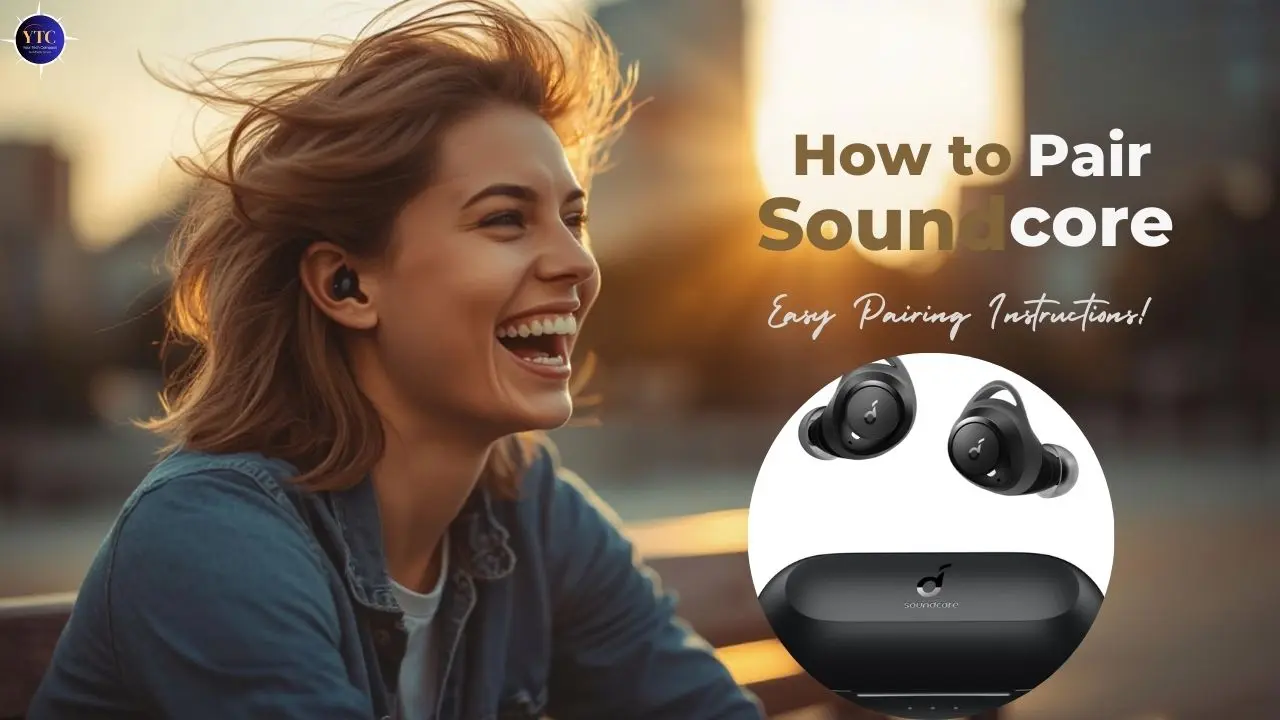
Pairing your Soundcore earbuds should be a quick and painless step toward better wireless audio, but for many people, the first connection can feel confusing or inconsistent. Whether you’ve just unboxed a new pair or are reconnecting after switching devices, understanding the pairing process clearly can save time and frustration. This guide walks through simple, device-specific steps to ensure your earbuds connect properly and stay connected. It also covers common troubleshooting tips in case something doesn’t go as expected.
As we go through this process, you’ll not only learn how to pair Soundcore earbuds with phones, tablets, and computers, but you’ll also gain insight into why connections sometimes fail and how to fix them quickly.
Before You Pair Soundcore Earbuds
Before you try to pair your Soundcore earbuds, it’s worth taking a few preparatory steps that often make the pairing process smoother.
1. Charge the Earbuds and Case
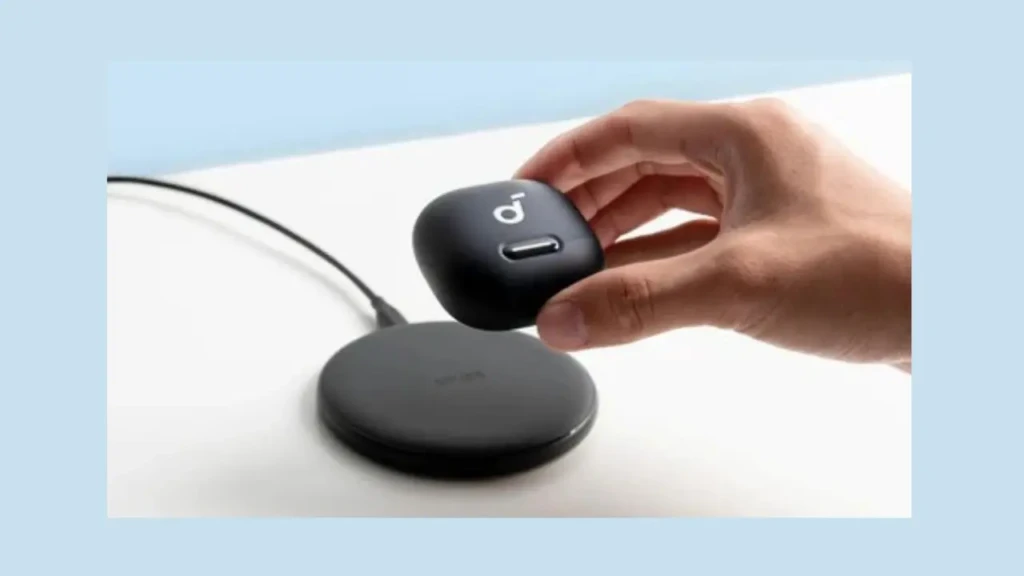
First, make sure both the earbuds and the charging case have sufficient power. Low battery levels can sometimes prevent Bluetooth pairing or lead to intermittent connections.
2. Check Device Bluetooth Compatibility
Ensure that the device you want to pair (phone, tablet, or computer) has Bluetooth enabled. Most modern devices support standard Bluetooth protocols required for earbuds, but if you’re using older hardware, double-check that Bluetooth is active and functional.
3. Remove Conflicting Connections
If your earbuds were previously paired with another device, they might automatically try to reconnect to that device instead of the one you intend to use. Before pairing, it’s often helpful to forget or disconnect the earbuds from any old devices in those devices’ Bluetooth settings.
How to Pair Soundcore Earbuds for the First Time
Step-by-Step Pairing Process
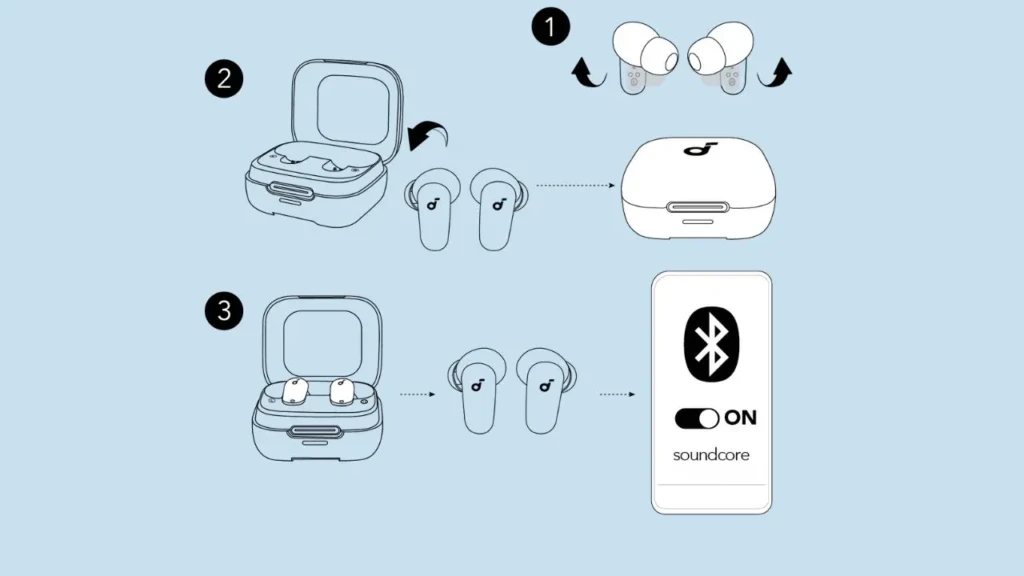
- Open the Case: With the earbuds inside, open the charging case.
- Enter Pairing Mode: Typically, the earbuds enter pairing mode automatically when you open the case for the first time. Otherwise, press and hold the multifunction button on each earbud until the LED indicator flashes.
- Activate Bluetooth on Your Device: On your phone, tablet, or computer, open the Bluetooth settings and ensure Bluetooth is turned on.
- Select Your Earbuds: Look for your specific Soundcore earbuds model name in the list of available devices and tap to connect.
- Confirm Connection: A confirmation sound or indicator light usually signals a successful pairing.
Visual and Audio Indicators
Most Soundcore earbuds flash an LED or provide an audible tone once they’re in pairing mode or successfully connected. If you don’t see your earbuds appear in the Bluetooth list, try resetting them or repeating the pairing steps.
How to Pair Soundcore Earbuds with Android
Pairing with an Android phone or tablet is generally straightforward.
- Open Settings.
- Tap Bluetooth and turn it on.
- When your Soundcore earbuds enter pairing mode, they should appear under “Available devices.”
- Select the earbuds to complete the pairing.
Common Android Issues
- Earbuds Don’t Appear: Sometimes Android’s Bluetooth scanning stops early. If this happens, turn Bluetooth off and on again, then try rescanning.
- Device Reconnects Incorrectly: Unpair the earbuds from old device entries in your list before trying again.
How to Pair Soundcore Earbuds with iPhone or iPad
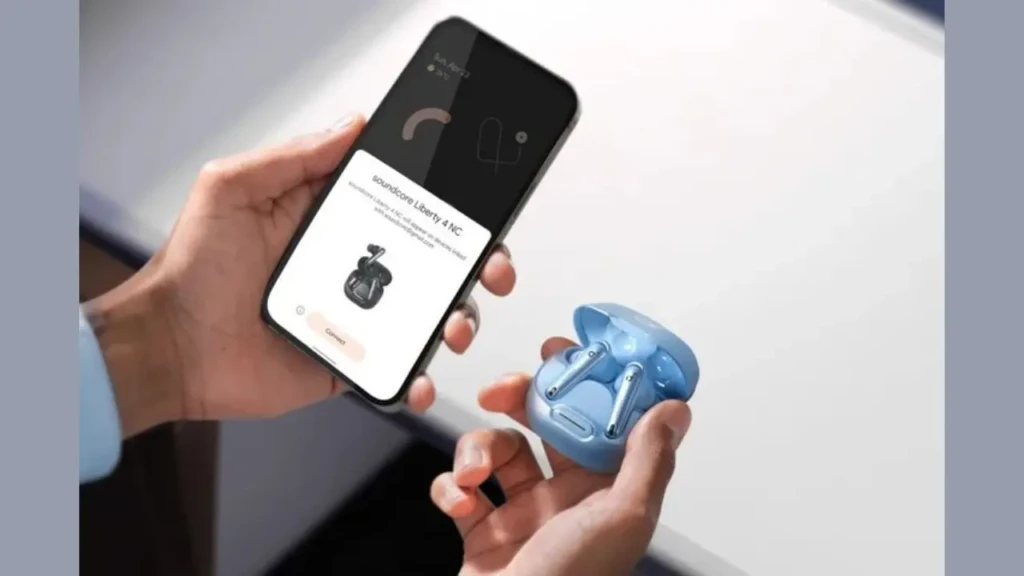
Pairing with iOS devices follows much the same process:
- Go to Settings > Bluetooth.
- Ensure Bluetooth is enabled.
- With the earbuds in pairing mode, look for the model name under available devices.
- Tap to connect.
iOS Pairing Notes
The pairing interface is generally intuitive, but occasionally you may need to tap a confirmation prompt before the earbuds connect. If you experience issues, toggling Bluetooth off and on often resets the scanning process.
How to Pair Soundcore Earbuds with Windows PC
- Open Settings on your Windows PC.
- Select Devices and then Bluetooth & other devices.
- Click Add Bluetooth or other device.
- Select Bluetooth, then wait for your Soundcore earbuds to appear.
- Select them to complete the pairing.
Windows Troubleshooting
If earbuds fail to appear, try turning Bluetooth off and back on, restarting your PC, or removing any previously connected Bluetooth accessories that may be competing for connections.
How to Pair Soundcore Earbuds with Mac
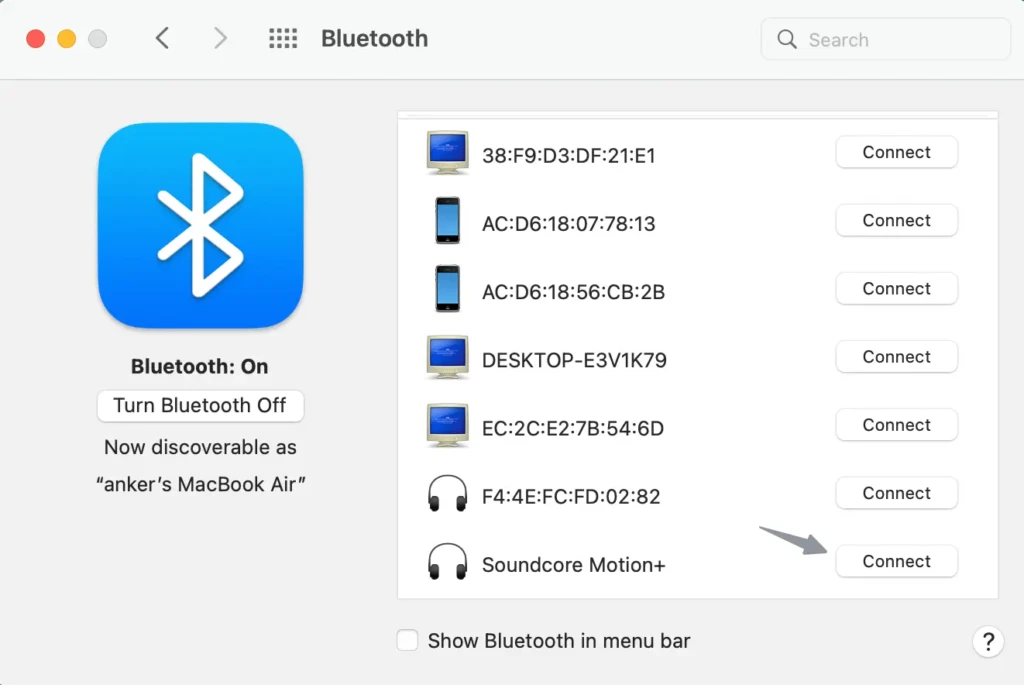
- Click the Bluetooth icon in the menu bar or open System Settings > Bluetooth.
- Make sure Bluetooth is enabled.
- While in pairing mode, your earbuds should appear in the list of devices.
- Click Connect next to the model name.
macOS Notes
On a Mac, the pairing process is typically stable, but if a device doesn’t show up, ensure the earbuds are in pairing mode and try closing and reopening the case to restart discovery.
What to Do If Soundcore Earbuds Won’t Pair
Even with correct steps, pairing can occasionally go wrong. Here are reliable fixes:
Reset the Earbuds
Most Soundcore models can be reset by placing them in the case and holding the multifunction button for several seconds until a reset LED pattern appears. Check your specific model’s manual for instructions.
Clear Bluetooth Cache
On Android devices, clearing the Bluetooth cache via system settings can resolve persistent pairing issues.
Update Earbuds Firmware
Some Soundcore models can receive firmware updates via the Soundcore app, improving connectivity and fixing bugs.
Pairing Soundcore Earbuds to Multiple Devices
Some Soundcore earbuds support multipoint Bluetooth, which allows them to connect to two devices simultaneously (e.g., a phone and a laptop). When supported, you can switch audio sources without re-pairing.
However, not all models offer multipoint support, and performance may vary. Check your specific model’s feature list to confirm.
Common Pairing Problems and Quick Fixes
Issue | Possible Cause | Quick Solution |
Earbuds not appearing on the device | Not in pairing mode | Reset the earbuds and repeat the steps |
One earbud connects, but the other doesn’t | Firmware or firmware mismatch | Update firmware via app |
Connected but no audio | Bluetooth profile issue | Disconnect and reconnect the device |
Reconnecting to the wrong device | Previous pairing saved | Forget old devices in Bluetooth settings |
This table highlights recurring problems and practical fixes that can help you move past common Bluetooth frustrations efficiently.
Soundcore Earbuds Compared to Other Wireless Options
Whether you’re pairing Soundcore earbuds for the first time or comparing them with alternatives, it helps to understand how they fit into the broader wireless earbud landscape.
For example, models featured in the Skullcandy Wireless Earbuds Guide often emphasize trend-forward design and bass-heavy sound. In contrast, premium options, like those covered in Sony wireless earbuds reviews, offer advanced ANC and proprietary audio enhancements. Meanwhile, our Soundcore earbuds review collection highlights how Soundcore balances sound quality, battery life, and connectivity features across various use cases.
Final Thoughts
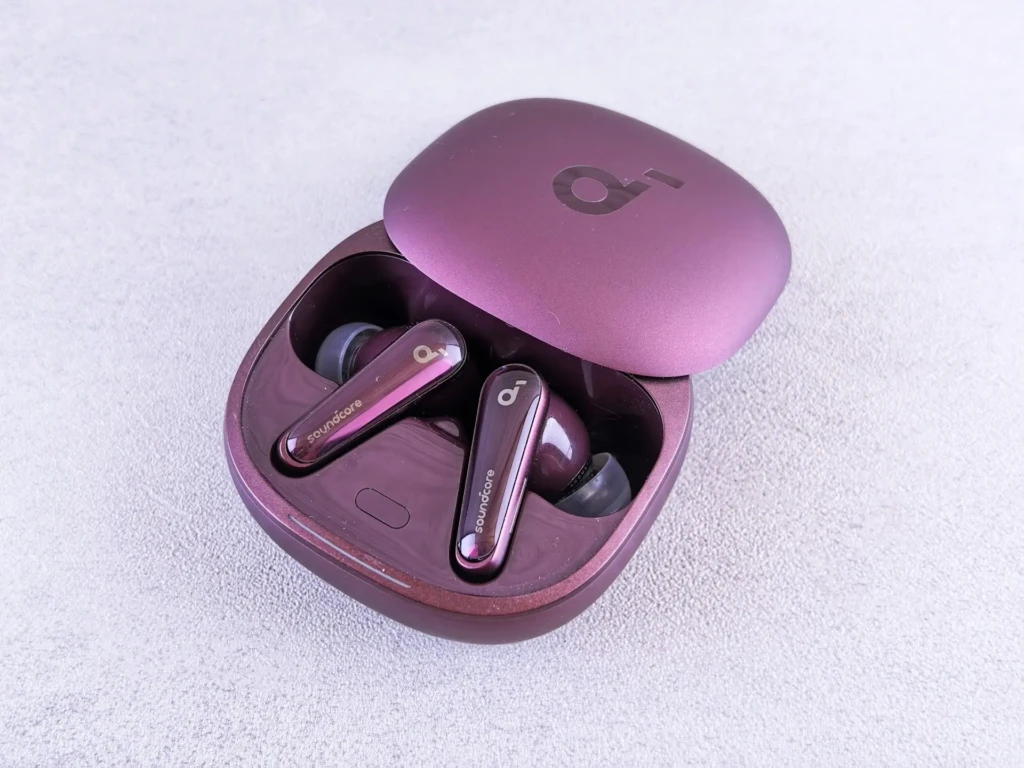
Pairing Soundcore earbuds is usually straightforward once you understand how pairing mode works and how different devices handle Bluetooth connections. In most cases, taking a few seconds to prepare, charge the earbuds, clear old connections, and follow the correct steps for your device eliminates the majority of pairing issues before they start.
What matters most is knowing how to troubleshoot when something goes wrong. Resetting the earbuds, managing saved Bluetooth devices, and understanding model-specific limitations such as multipoint support can make the difference between a smooth experience and repeated frustration. With these steps in mind, pairing becomes a one-time setup rather than an ongoing problem, allowing the focus to shift back to what actually matters: enjoying reliable wireless audio across all your devices.
At Your Tech Compass, we publish detailed tech guides, reviews, and comparisons to help users choose the right devices and tools.