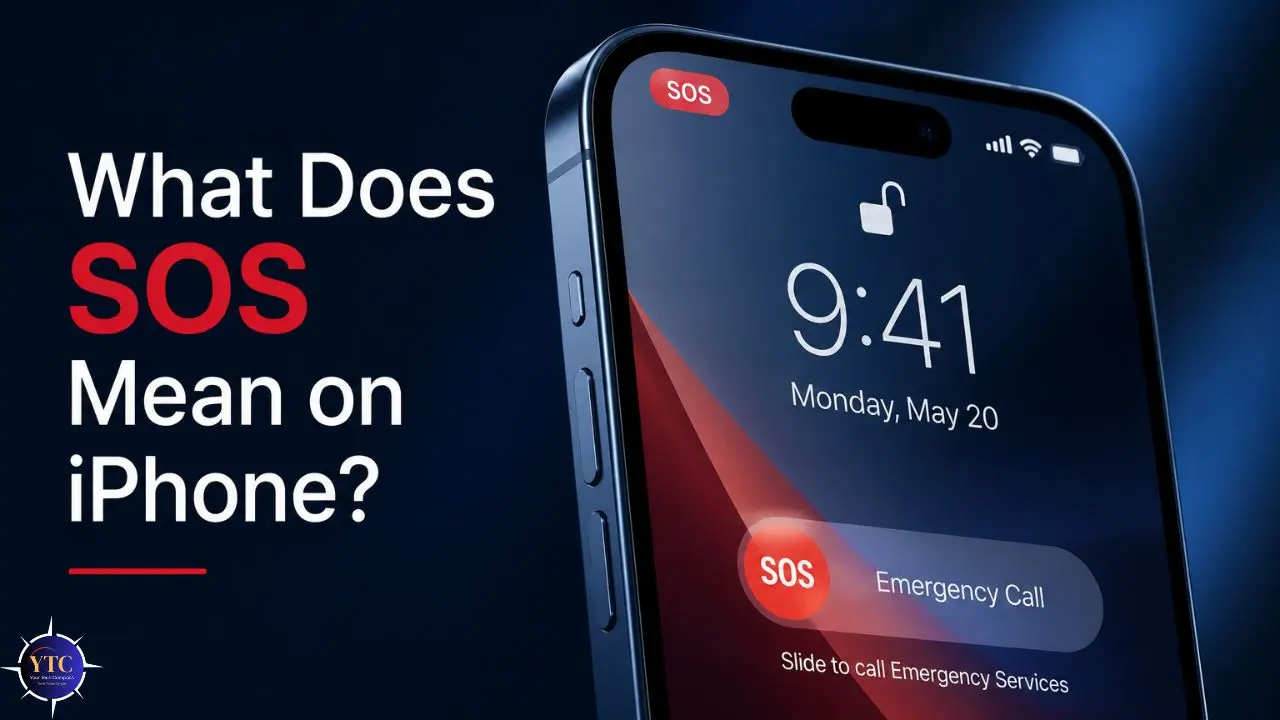
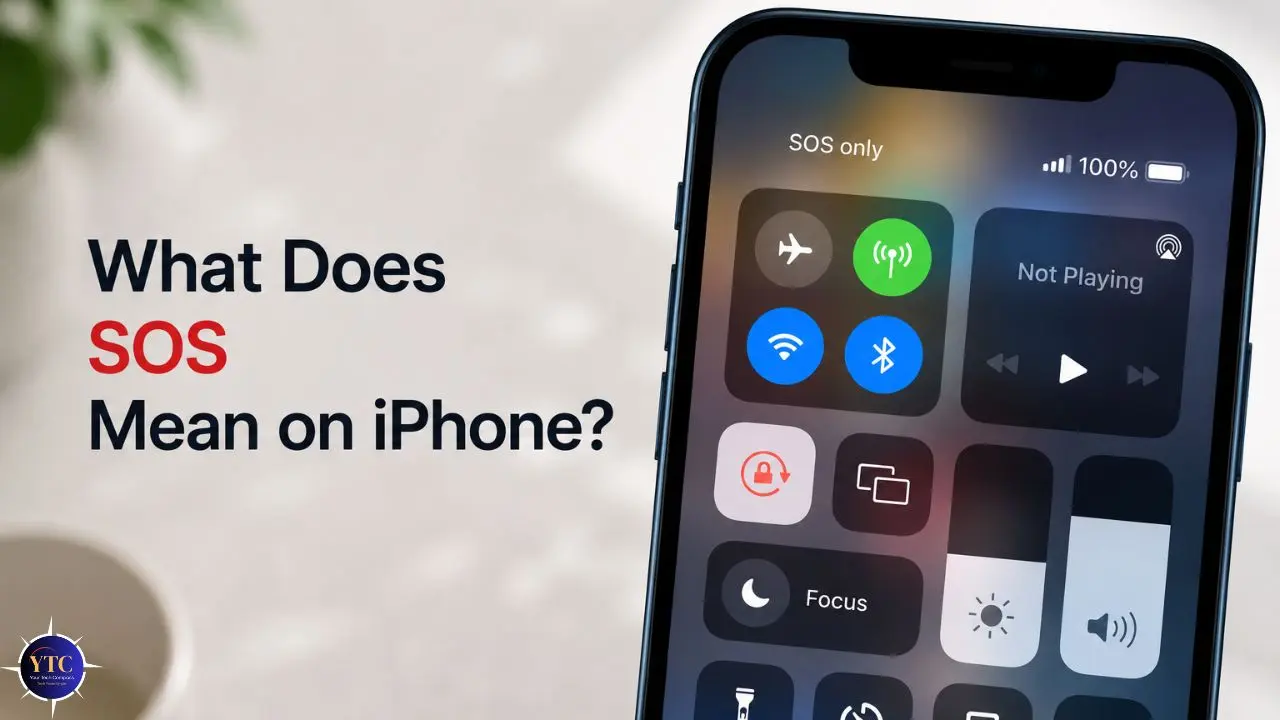
You pick up your iPhone, glance at the status bar where your signal strength usually sits, and instead of bars, you see a single word: SOS. Or maybe it says “SOS Only.” Either way, it’s jarring, particularly if you’ve never seen it before and you’re not sure whether it means your phone is broken, your account has been suspended, or something else entirely. The good news is that SOS on your iPhone almost never means something is seriously wrong. It’s a safety feature that tells you your phone has lost its connection to your carrier’s cellular network but can still reach emergency services. Your phone is working exactly as designed.
That said, SOS mode isn’t something you want to stay in; it means no regular calls, no standard texts, and no mobile data until the connection is restored. This guide covers everything you need to know: what SOS actually means, the difference between SOS and SOS Only, the most common causes, what you can and can’t do while it’s showing, and a complete step-by-step list of fixes, ordered from fastest to most involved. You’ll also find out how Emergency SOS via Satellite, the hardware feature built into iPhone 14 and later models, is completely different from the SOS status indicator, a distinction that causes more confusion than almost anything else on this topic.
What SOS Actually Means on iPhone
When you see SOS or “SOS Only” on your iPhone, it means your phone has lost its connection to your carrier’s cellular network. You can no longer make regular calls, send standard text messages, or use mobile data, but you can still call emergency services like 911, 999, or 112, because your iPhone will borrow any available nearby network to connect you.
Apple uses “SOS” rather than the older “No Service” label for an important reason. “No Service” tells you nothing helpful. “SOS” tells you something specific: your phone has dropped off your carrier’s network and latched onto another available network that will handle emergency calls only. Apple uses “SOS” instead of “No Service” to indicate that your iPhone can still connect to another network for emergency calls, providing more useful information than a standard “No Service” message, especially when emergency access is critical.
SOS vs SOS Only: What’s the Difference?
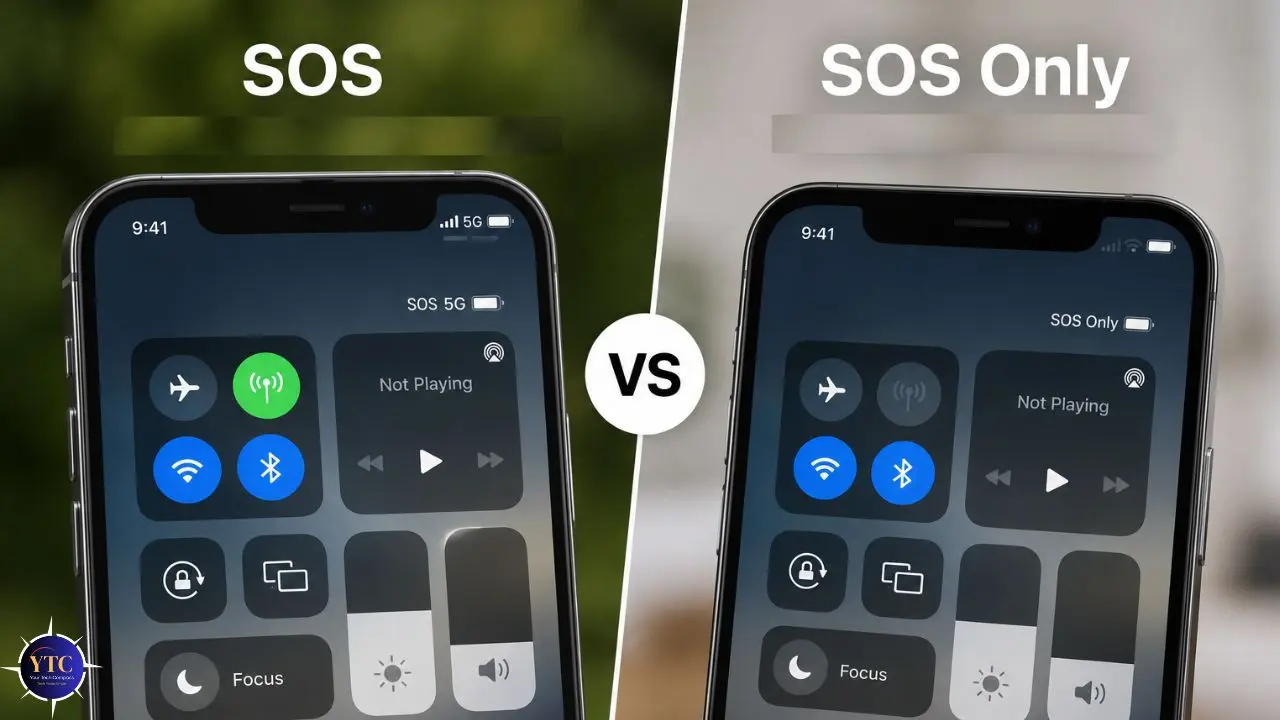
The truth is, they mean exactly the same thing. Apple simply changed the label between iOS versions. Starting with iOS 16, Apple replaced “SOS Only” with simply “SOS.”
So if you have an older iPhone running iOS 15, you’ll see “SOS Only.” On anything newer, you’ll see “SOS.” Both are the same situation, limited to emergency calls only.
SOS Status vs Emergency SOS: Two Completely Different Things
This is the distinction that trips people up most. There are two separate “SOS” options on your iPhone, and they are not related.
SOS in your status bar (the topic of this article) is a network connectivity indicator. It tells you your carrier connection is down. You didn’t activate it. You can’t “turn it off” directly. It goes away when your carrier connection is restored.
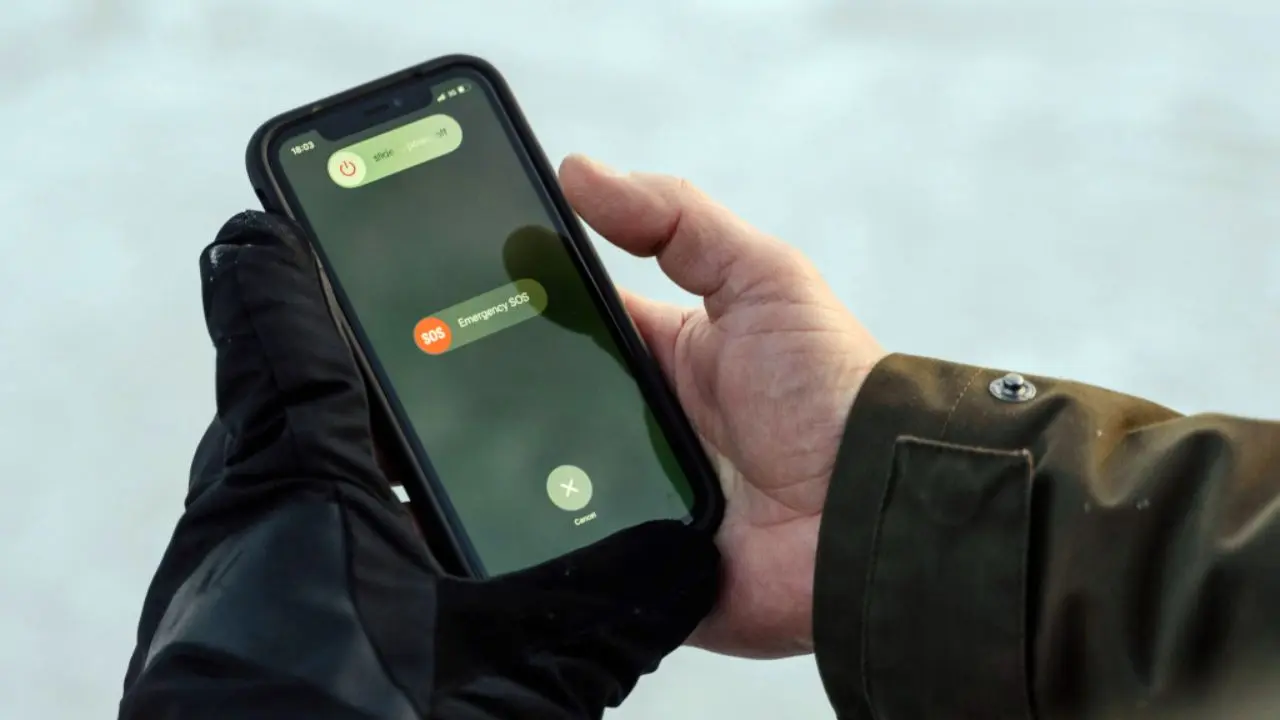
Emergency SOS is a completely separate feature. With Emergency SOS, you can quickly alert your emergency contacts for help. It’s a function you activate by pressing and holding specific buttons. The SOS in the status bar, on the other hand, indicates network connection issues.
On iPhone 14 and later, there’s also Emergency SOS via Satellite, a feature that allows you to contact emergency dispatchers using your iPhone as a satellite phone, available in Australia, Canada, the United States, the United Kingdom, Japan, and some parts of Europe. This is hardware built into the device and is entirely separate from the status bar indicator.
What You Can and Can’t Do While SOS Is Showing
Before you start troubleshooting, it’s worth knowing exactly what SOS mode limits are.
What Still Works
- Emergency calls (911, 999, 112, or your local number) are always available.
- Wi-Fi calling (if your carrier supports it and you’re connected to Wi-Fi).
- Wi-Fi browsing, apps, and internet (work normally over Wi-Fi).
- iMessage and FaceTime Audio over Wi-Fi (if the recipient also uses Apple devices).
- Emergency SOS via Satellite (on iPhone 14 and later, in supported regions).
What Stops Working
- Regular outgoing and incoming phone calls.
- Standard SMS and MMS messages.
- Mobile data / cellular internet.
- Carrier-dependent services.
The Practical Takeaway: If you’re connected to Wi-Fi, SOS mode is far less disruptive than it may seem at first. Most of your daily digital life continues normally through your Wi-Fi connection. The things that genuinely break are those that require a cellular carrier signal.
Why Does My iPhone Say SOS? The Six Most Common Causes
Understanding the cause matters because different causes have different fixes. Here are the most common reasons your iPhone enters SOS mode.
1. Poor or No Cellular Coverage

In most cases, a poor network connection is to blame for why your iPhone shows SOS in the top-right corner. This happens most commonly in remote areas, underground locations such as tunnels and subways, and in buildings with thick walls that block signals. Dead spots exist even in well-covered cities, and driving through one is the most common reason SOS appears temporarily.
If SOS appears and disappears as you move around, this is almost certainly the cause, and there’s no fix other than moving to an area with better signal.
2. SIM Card Problems
A damaged, incorrectly inserted, or missing SIM card can prevent your iPhone from connecting to the network. This includes eSIM configuration issues on newer iPhone models. If your SIM card has physically shifted inside the tray, which can happen after a drop, your iPhone will lose its carrier connection and enter SOS mode.
3. Carrier Outage
More recently, the carrier AT&T experienced an outage, leaving several users with SOS enabled on their iPhones. In such cases, the only way to fix this is to wait until the issue behind the outage is resolved from the carrier’s end. Check your carrier’s website or social media for service status if SOS appears suddenly in an area where you normally have coverage.
4. Incorrect Cellular Settings
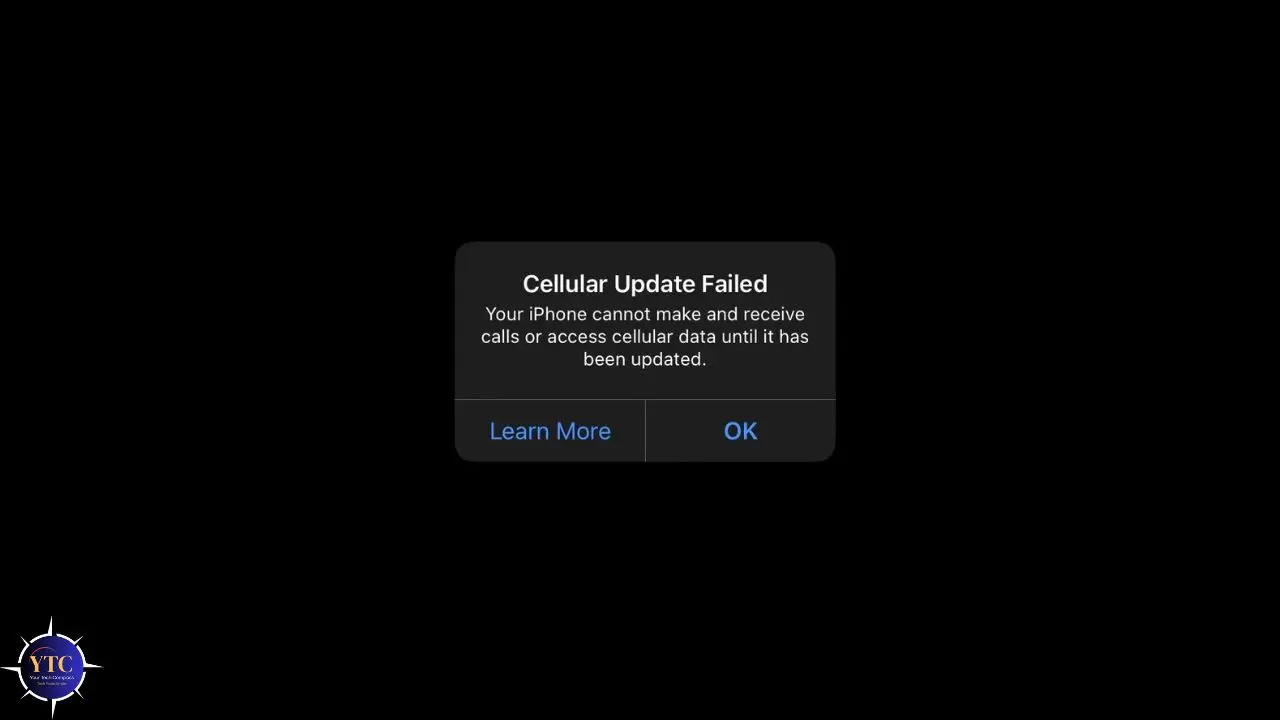
SOS can only appear when your phone’s cellular settings are misconfigured. When the Network Selection toggle is inactive, you will need to manually select the network your phone connects to, which can cause issues such as your iPhone showing SOS in the top-right corner. This is particularly common after switching carriers, traveling internationally, or after certain iOS updates.
5. Software Bug or Outdated iOS
A software glitch, especially common right after major iOS updates, can temporarily cause the SOS status to appear even when you’re in a strong coverage area. A simple restart usually clears this. Outdated carrier settings can also contribute; carrier settings updates are separate from iOS updates and are often overlooked.
6. Account or Billing Issues
If your carrier has suspended your account due to an unpaid bill, a security flag, or an account issue, your line may be deactivated, which can push your iPhone into SOS mode. This is easy to overlook as a cause because it’s not related to anything physically wrong with your phone; it’s an account-level problem that requires a call to your carrier to resolve.
How to Fix SOS on iPhone: Every Method, in Order
Work through these fixes from top to bottom. Most people resolve the problem within the first three steps.
Fix 1: Move to a Different Location
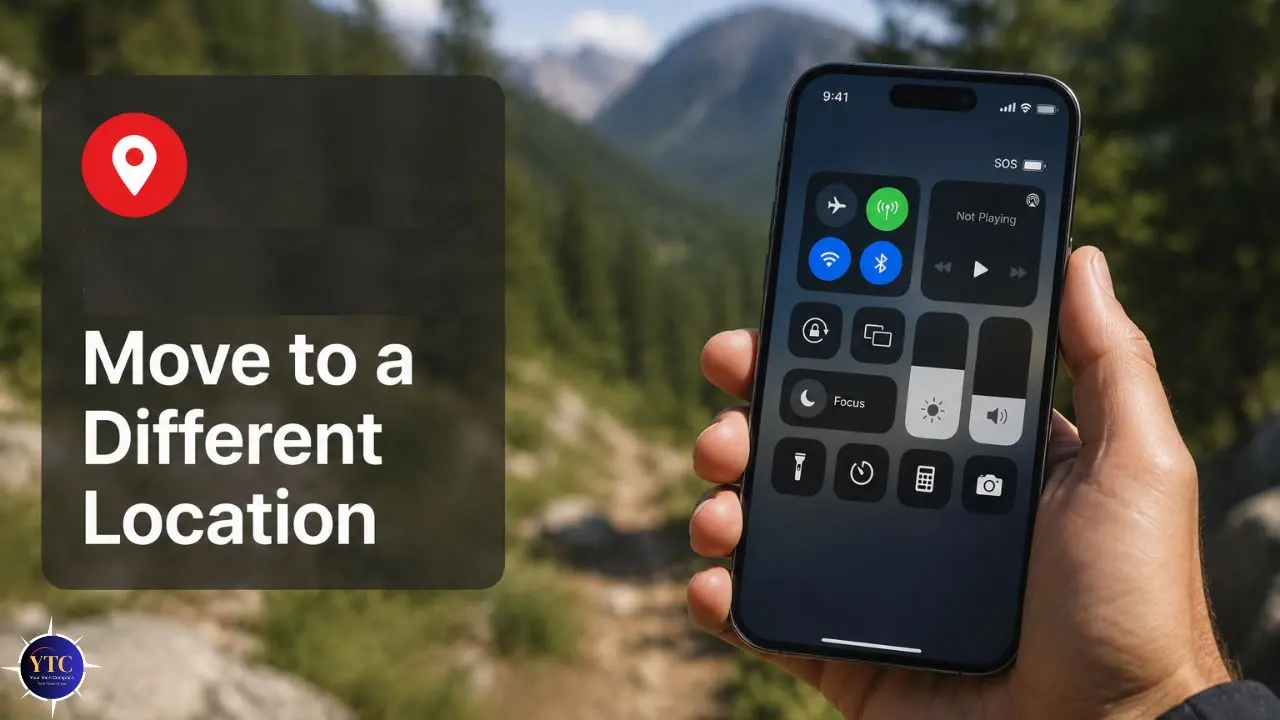
This is the fastest test and the right starting point. If you’re in a basement, underground, inside a building with thick concrete walls, or in a rural area, move outside or toward a more populated area.
And if you’re indoors, try stepping outside to see if the signal improves. However, if SOS disappears when you move, the cause is signal coverage, and no further troubleshooting is needed.
Fix 2: Toggle Airplane Mode On and Off
This forces your iPhone to drop all wireless connections and re-establish them from scratch, often clearing a stuck network connection.
Step 1: Swipe down from the top-right corner of your screen to open Control Center.
Step 2: Tap the airplane icon to turn on Airplane Mode. All connectivity stops.
Step 3: Wait 30 seconds.
Step 4: Tap the airplane icon again to turn Airplane Mode off.
Step 5: Wait 20–30 seconds while your iPhone searches for and connects to the nearest available tower.
Check your status bar. In many cases, this single step restores the full signal.
Fix 3: Restart Your iPhone
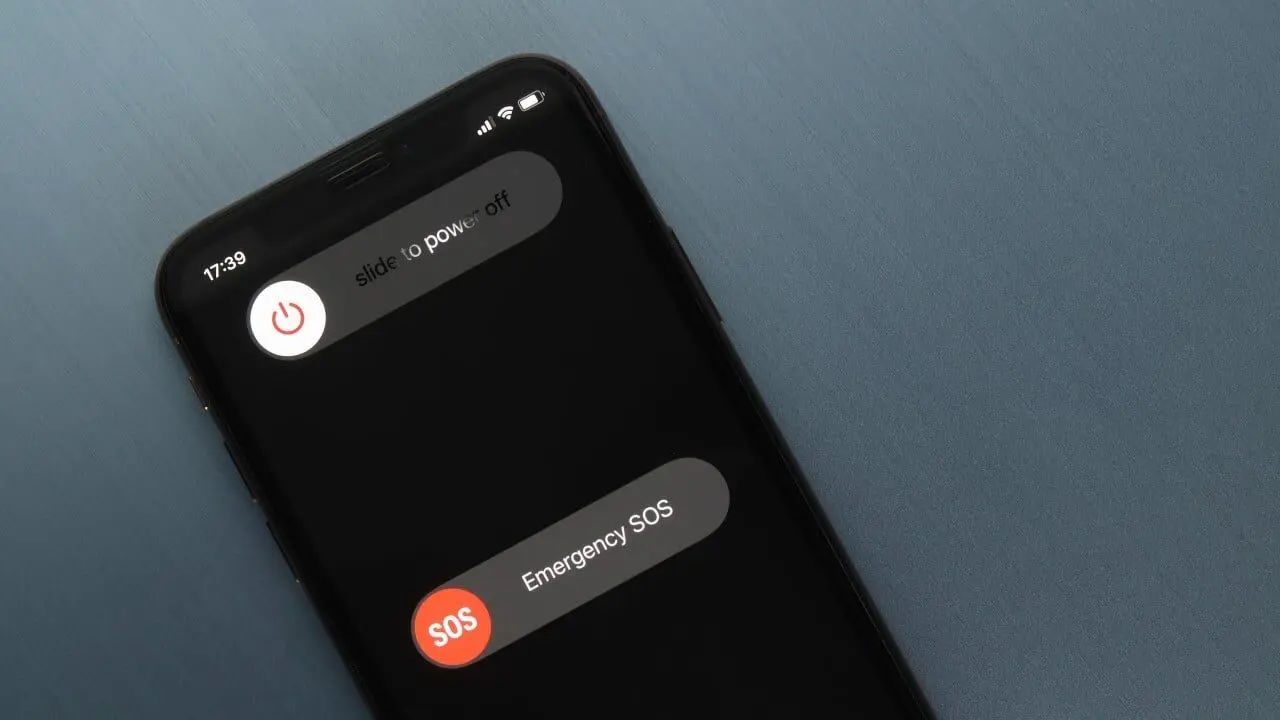
A software glitch is especially common right after major iOS updates, and a simple restart usually clears it. A standard restart refreshes your iPhone’s network connections without affecting any of your data. If you need guidance on the exact steps for your iPhone model, our iPhone restarting guide covers every model, including force-restart methods for frozen devices.
For a standard restart on iPhone X and later: press and hold the Side button and either volume button → slide to power off → wait 30 seconds → press the Side button to restart.
Fix 4: Check and Update Carrier Settings
Carrier settings are small updates pushed by your carrier that configure how your iPhone connects to their network. They’re separate from iOS updates and easy to miss.
Step 1: Open Settings → General → About.
Step 2: Wait about 10 seconds. If a carrier settings update is available, a pop-up automatically appears asking whether you want to install it.
Step 3: Tap “Update” if the prompt appears.
If no prompt appears, your carrier settings are already up to date.
Fix 5: Set Network Selection to Automatic
When the Network Selection toggle is set to Automatic, your phone automatically connects to the best available cellular network, ensuring optimal connectivity. Manual network selection, which can be accidentally enabled, forces your iPhone to use a specific network that may not be available in your current location.
Step 1: Open Settings → Cellular (or Mobile Data on some devices).
Step 2: Tap Network Selection.
Step 3: Make sure Automatic is toggled on.
If it’s set to a manually selected network, switch it to Automatic and allow your iPhone a moment to reconnect.
Fix 6: Check Your SIM Card
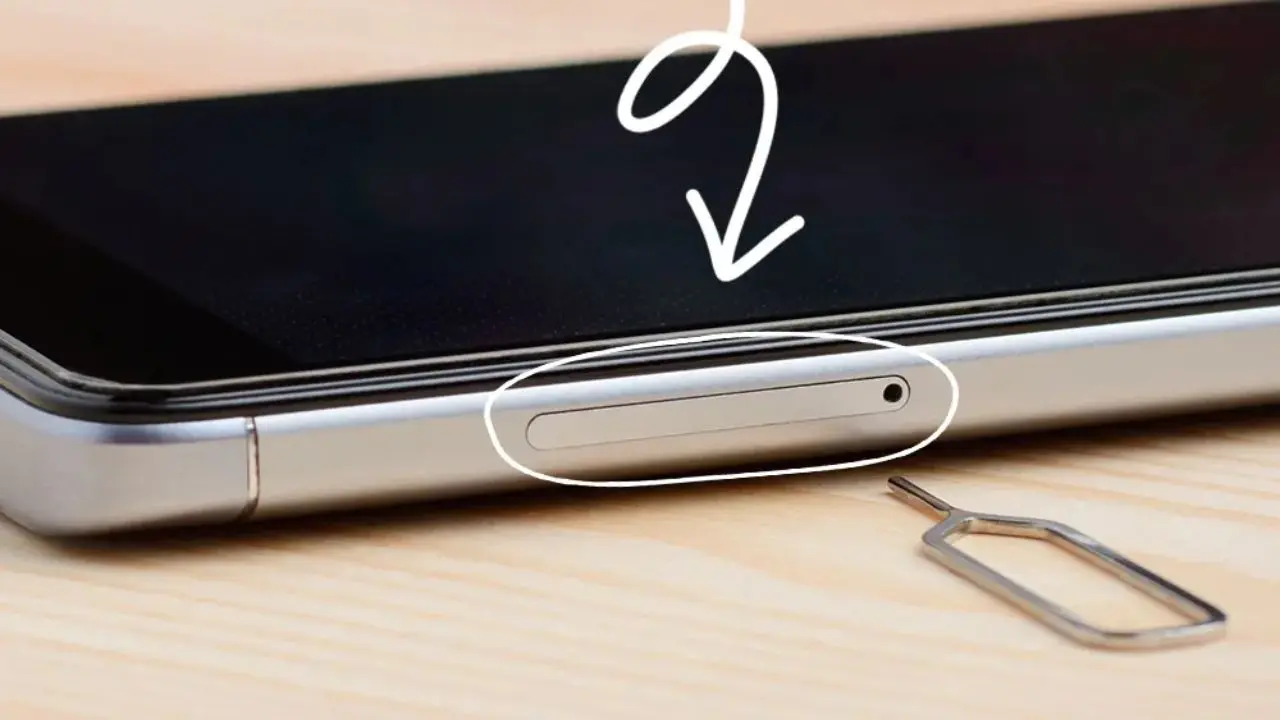
For iPhone models with a physical SIM card (not eSIM-only models):
Step 1: Power off your iPhone completely.
Step 2: Use the SIM ejector tool (or a straightened paper clip) to open the SIM tray, located on the right side of your iPhone.
Step 3: Remove the SIM card, examine it for visible damage or debris, and reseat it firmly.
Step 4: Close the tray and power the iPhone back on.
If you have an eSIM, check whether your eSIM plan is active and correctly configured in Settings → Cellular. Find your plan and verify it shows as active.
Fix 7: Update iOS
Running an outdated iOS version can cause persistent network issues. Go to Settings → General → Software Update and install any available update. Keeping your iPhone up to date also ensures you have the latest carrier settings and network protocol support.
Fix 8: Reset Network Settings
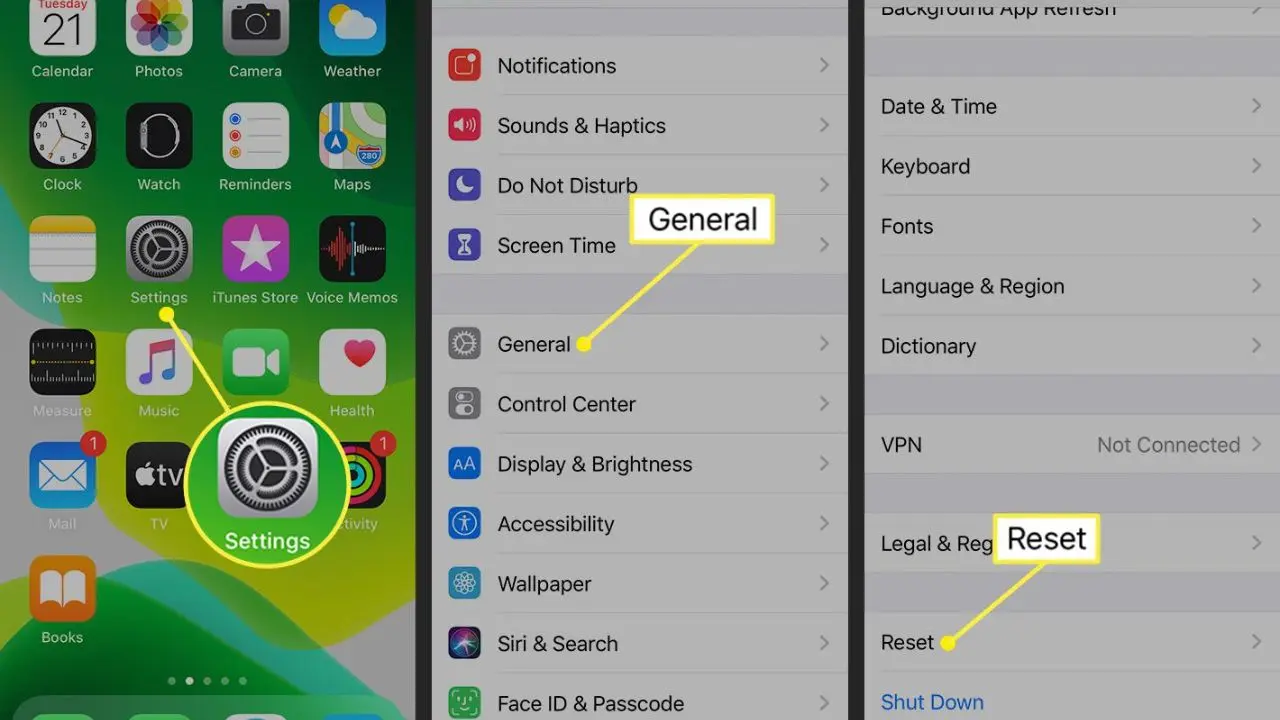
This is a more significant step; it clears all saved Wi-Fi passwords, VPN configurations, and cellular network settings, resetting them to factory defaults. It does not delete your photos, apps, or personal data.
Step 1: Open Settings → General → Transfer or Reset iPhone → Reset.
Step 2: Tap Reset Network Settings.
Step 3: Enter your passcode if prompted.
Step 4: Confirm the reset. Your iPhone restarts.
After restarting, reconnect to your Wi-Fi network and check whether the SOS status has cleared.
Fix 9: Contact Your Carrier
If you’ve worked through every step above and SOS persists in an area where you normally have coverage, the problem is almost certainly on your carrier’s end, either an outage, an account issue, or a problem with your specific SIM that needs to be replaced.
Whether you use Verizon, AT&T, T-Mobile, or another provider, there may be a glitch or outage on their end or a service problem they can resolve for you. When you call, ask them to check whether there’s an active outage in your area, whether your account is in good standing, and whether your SIM needs to be replaced.
Fix 10: Contact Apple Support
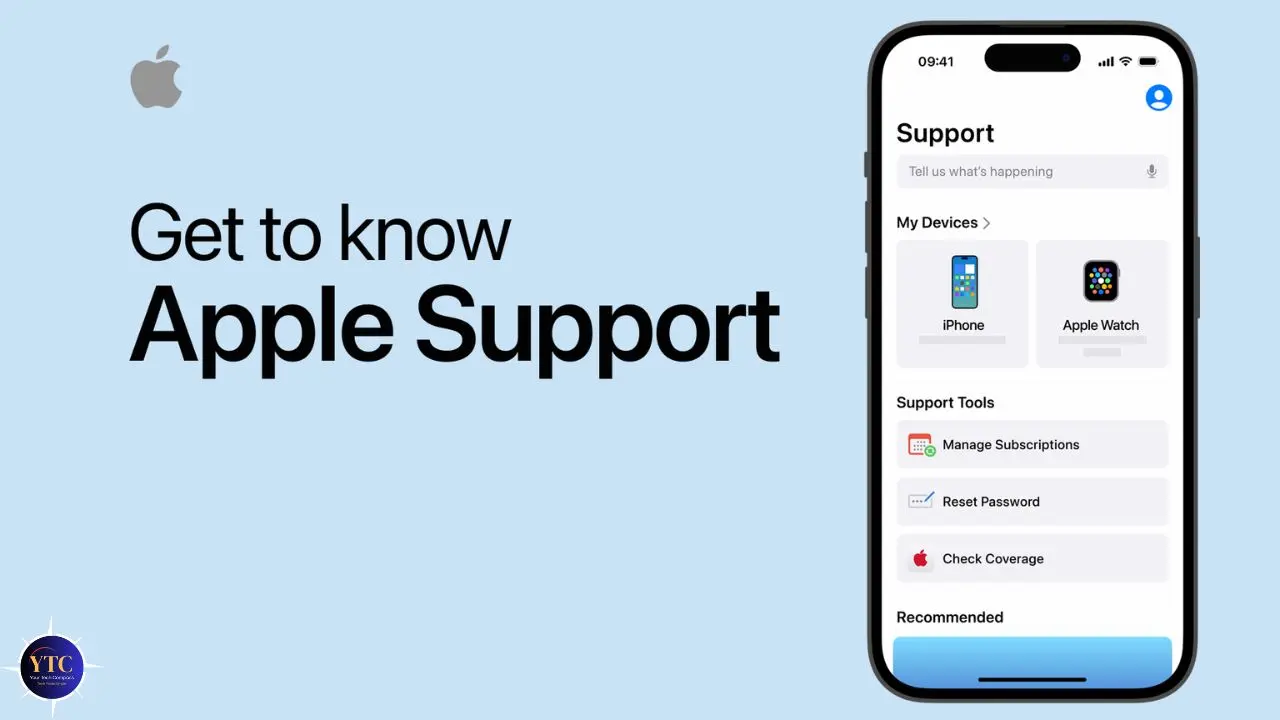
If your carrier confirms the problem is on your device rather than on their network, contact Apple Support or visit your nearest Apple Store. The issue may be a hardware problem with the cellular antenna or SIM card reader, particularly if your iPhone has been dropped or exposed to moisture.
SOS on iPhone While Traveling Internationally
Traveling is one of the most common triggers for SOS mode, and one of the most fixable. If you’re abroad and Data Roaming is turned off, or your carrier doesn’t have roaming agreements in that country, your iPhone may show SOS because it can’t authenticate on local networks.
Check roaming settings:
Go to Settings → Cellular → Cellular Data Options → Data Roaming and toggle it on. Note that enabling roaming may incur additional charges from your carrier. Check your plan before enabling it.
Consider a local or international SIM: If you travel frequently, purchasing a local SIM card or an international eSIM is more cost-effective than paying roaming charges and more reliable than depending on your home carrier’s international coverage.
Enable Wi-Fi Calling before you travel: Wi-Fi Calling lets your iPhone make and receive calls over Wi-Fi when cellular isn’t available. Enable it in Settings → Cellular → Wi-Fi Calling before you depart. It works across international borders, with most cases incurring no additional carrier charges.
Emergency SOS via Satellite: What It Is and When to Use It
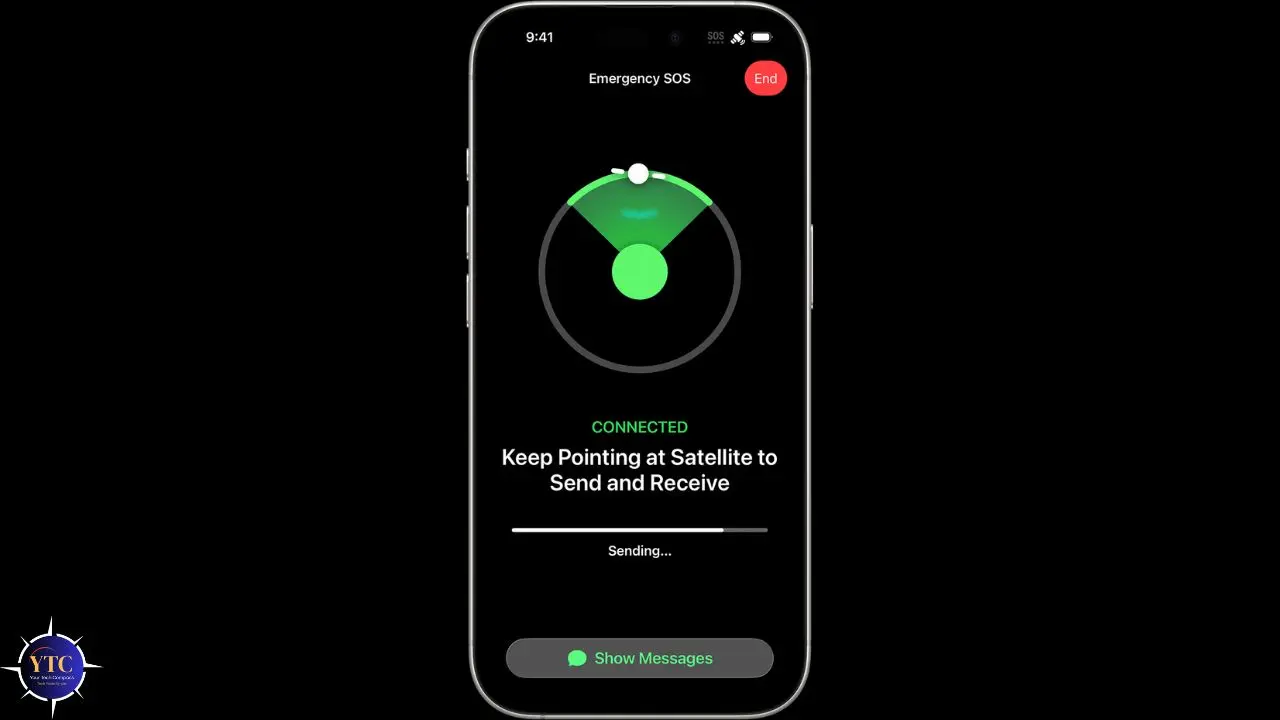
If you have an iPhone 14, iPhone 15, or iPhone 16 and find yourself in an emergency with no cellular coverage, Emergency SOS via Satellite may be available to you, and it’s worth understanding how to access it before you need it.
With iOS 18, you can also use a satellite to send SMS or iMessages when your cellular connectivity is lost. This extends the usefulness of the satellite connection beyond emergency situations to everyday messaging when you’re off the grid.
To set it up and test it, go to Settings → Emergency SOS and tap “Try Demo” at the bottom of the page. The demo walks you through the satellite connection process without placing an actual emergency call, strongly recommended so you’re familiar with how it works before an actual emergency.
The satellite connection process requires you to hold your iPhone in a specific orientation and works best in open-sky conditions. Response times are slower than a standard cellular call, typically taking 1 to 3 minutes to connect, but it functions without any cellular or Wi-Fi signal.
How to Use Emergency SOS on iPhone (The Button Feature)
As a reminder, this is separate from the SOS status indicator, but since many people search for both at once, here’s a brief overview of how the Emergency SOS button feature works.
On iPhone 8 and later: Press and hold the Side button and either volume button simultaneously until the Emergency SOS slider appears. Slide to call emergency services. Alternatively, rapidly pressing the Side button five times activates it automatically on devices with that setting enabled.
Your iPhone will call emergency services and, if you’ve set up Emergency Contacts in the Health app, automatically send your location to those contacts after the call ends.
You can configure this feature’s settings in Settings → Emergency SOS, including whether a rapid button press triggers an automatic call and whether location sharing with emergency contacts is enabled.
Quick Reference: SOS Fixes at a Glance

Fix | Time Required | Data Loss Risk | Best For |
Move to a Better Coverage Area | Immediate | None | Rural/remote SOS |
Toggle Airplane Mode | 1 minute | None | Stuck network connection |
Restart iPhone | 2 minutes | None | Software glitch |
Update Carrier Settings | 2 minutes | None | Post-carrier change / travel |
Set Network Selection to Automatic | 1 minute | None | Manual network selection issue |
Reseat the SIM Card | 3 minutes | None | Physical SIM problem |
Update iOS | 10–30 minutes | None | Outdated software |
Reset Network Settings | 5 minutes | Wi-Fi passwords, VPN configs | Persistent unexplained SOS |
Contact Carrier | Varies | None | Outage or account issue |
Contact Apple Support | Varies | None | Hardware problem |
FAQs
No. SOS mode itself is not dangerous. It’s a safety feature that ensures you can always reach emergency services even without your carrier’s network. The mode protects you rather than putting you at risk. That said, being without regular cellular service in an area without Wi-Fi is something worth resolving as quickly as possible for practical reasons.
You cannot send standard SMS texts or use mobile data while in SOS mode. However, if you’re connected to Wi-Fi, you can still use iMessage, WhatsApp, and other internet-based messaging apps as usual. Wi-Fi browsing (Safari, Chrome, and all apps) works normally over Wi-Fi even while your iPhone shows an SOS in the status bar.
Start with the fastest fixes: move to an area with better coverage, toggle Airplane Mode off and on, and restart your iPhone. If that didn’t help, adjust your iPhone’s network settings to exit SOS mode: go to Settings → Cellular → Network Selection and make sure Automatic is toggled on. If SOS persists after all troubleshooting steps, contact your carrier.
Not necessarily. SIM card issues are among several possible causes. If your iPhone frequently goes into SOS even in areas where you shouldn’t have connectivity issues, it could be due to a faulty SIM card. Contact your network provider to confirm. However, SOS may also appear due to poor coverage, carrier outages, software glitches, or incorrect settings, so start with simpler fixes before assuming the SIM is at fault.
Conclusion
SOS on your iPhone is one of those status indicators that look alarming but usually have a simple, quick fix. In the vast majority of cases, your iPhone is in SOS mode because you’ve moved into an area with limited coverage, a temporary software glitch has disrupted the network connection, or a setting has changed, preventing your iPhone from automatically connecting to the right network. Moving to an area with better coverage, toggling Airplane Mode, or restarting your device can resolve the problem in minutes. More involved fixes, such as resetting network settings, reseating the SIM, or contacting your carrier, are for less common cases where something more specific has gone wrong.
The key thing to hold onto is this: SOS mode is designed to protect you, not to signal that your phone is broken. Your emergency access is always maintained regardless of carrier connectivity, and if you have an iPhone 14 or later, satellite connectivity adds another layer of safety for moments when you’re genuinely off the grid. Understanding what each version of “SOS” means on your device and knowing the difference between the status bar indicator and the Emergency SOS button feature puts you in a confident position the next time that three-letter word appears at the top of your screen.
There’s a lot more to know about getting the most out of your iPhone, from privacy features to daily shortcuts that save time. Visit YourTechCompass.com for practical iPhone guides, honest reviews, and tech tips written for real people.