When Apple released iOS 16, it delivered one of the most visually and functionally significant iPhone updates in recent memory. For the very first time, Apple handed iPhone users real, meaningful control over their Lock Screen, the one thing you look at dozens of times a day. But beyond that headline feature, iOS 16 quietly overhauled almost every built-in app and system function that matters to everyday iPhone users. Mail got a much-needed Undo Send button. Messages let you edit and unsend texts. Spotlight became smarter. Safety Check gave users a powerful emergency security tool. And Passkeys began laying the groundwork for a passwordless world. All of this came as a completely free update, making it one of the most accessible and impactful iOS releases Apple has ever shipped.
Whether you are an everyday iPhone user trying to determine what is truly new and worth your time, or someone still deciding whether to update, this guide walks you through everything clearly and honestly. I’ll cover what iOS 16 is, what features it brings, which iPhones are compatible, how to install it, how it performs on older devices, what problems to watch out for, and whether you should install it. And if you want to see how Apple has pushed things even further since iOS 16, be sure to check out our detailed iPhone 16 Review and our brand-new iOS 26 Beta Features Guide to see exactly where Apple is headed next.
What Is iOS 16?
iOS 16 is the sixteenth major release of Apple’s iOS mobile operating system for iPhone. It was announced at Apple’s Worldwide Developers Conference (WWDC) on June 6, 2022, and officially released to all users on September 12, 2022.
It’s the direct successor to iOS 15 and the first iOS version since the original iPhone OS to be exclusive to iPhones; iPads received their own separate update, iPadOS 16. iOS 16 was also the first iOS version to drop support for the iPod touch, as Apple had discontinued the product earlier in the year.
Apple’s central theme for iOS 16 was personalization, communication, and intelligence. The update was designed around three key ideas: giving you more control over how your iPhone looks and feels, helping you communicate more thoughtfully and securely, and making Apple’s built-in apps smarter and more capable.
It was widely praised by critics as a genuine overhaul of the iPhone experience, driven primarily by the customizable Lock Screen and improved app features. However, early versions received some criticism for bugs and battery drain, which Apple steadily addressed through subsequent point releases. As a free software update, iOS 16 set a new benchmark for what Apple users could expect from their existing hardware.
Key Features of iOS 16
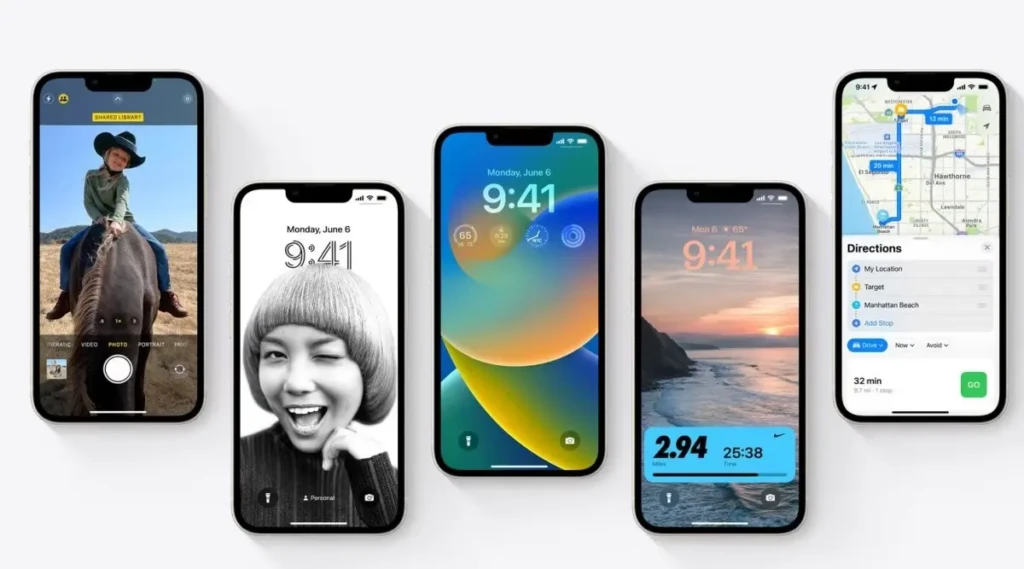
Before we break down the most important ones in detail, here is a complete, at-a-glance reference table showing every major feature, what it does, and which iPhone models support it.
Feature | What It Does | Available On |
Lock Screen Customization | Widgets, fonts, colors, multiple screens, linked to Focus | iPhone 8 and later |
Focus Filters | Filters distracting content in apps linked to a Focus mode | iPhone 8 and later |
Messages Edit & Unsend | Edit messages up to 15 min; unsend within 2 min | iPhone 8 and later |
Mail Undo Send | Recall a sent email within 10 seconds of sending | iPhone 8 and later |
Mail Schedule Send | Compose now, choose when to deliver | iPhone 8 and later |
Live Text in Video | Interact with text inside paused video frames | iPhone XS and later |
Visual Look Up / Lift Subject | Lift photo subjects, create stickers, remove backgrounds | iPhone XS and later |
iCloud Shared Photo Library | Shared photo library for up to 6 people | iPhone 8 and later |
Safety Check | Emergency reset of sharing and permissions | iPhone 8 and later |
Passkeys | Biometric sign-ins replacing passwords | iPhone 8 and later |
Lockdown Mode | Extreme security mode for high-risk users | iPhone 8 and later |
Crash Detection | Detects car crashes and calls emergency services | iPhone 14 series only |
Always-On Display | Screen stays on at low brightness, showing time/widgets | iPhone 14 Pro/Pro Max only |
Dynamic Island | Floating pill UI around the TrueDepth camera | iPhone 14 Pro/Pro Max only |
Live Activities | Real-time info widgets on the Lock Screen | iPhone 14 and later |
The Redesigned Lock Screen: The Biggest Visual Change in Years
Without a doubt, the most talked-about feature in iOS 16 is the completely redesigned Lock Screen. For the first time in iPhone history, you can customize your Lock Screen in meaningful ways.
You can change the time display’s font and color from eight preset styles, add widgets that show real-time information such as weather, battery life, upcoming calendar events, fitness rings, and more, and set up entirely different Lock Screens for different parts of your day. You can even link each Lock Screen directly to a specific Focus mode, so your work Lock Screen activates automatically during work hours, and your personal Lock Screen switches on when you get home.
To customize your Lock Screen, simply press and hold the Lock Screen until the customization options appear. It feels very similar to the Apple Watch face editor, and the experience is genuinely intuitive.
Focus Filters: Smarter Do Not Disturb
Building on the Focus modes introduced in iOS 15, iOS 16 takes things a step further with Focus Filters. When Focus mode is active, Focus Filters automatically filter out distracting content in apps. For example, during a Work Focus, your Mail app can automatically hide personal email accounts and show only work accounts.
Your Messages app can be set to display only conversations from your colleagues. Safari can show only work-related Tab Groups. This is a genuinely powerful productivity tool that helps you stay on task without manually hiding or switching accounts.
Combined with the Lock Screen linking feature, Focus in iOS 16 creates a cohesive and context-aware iPhone experience that is far more sophisticated than anything available before.
Messages: Edit, Unsend, and Recover
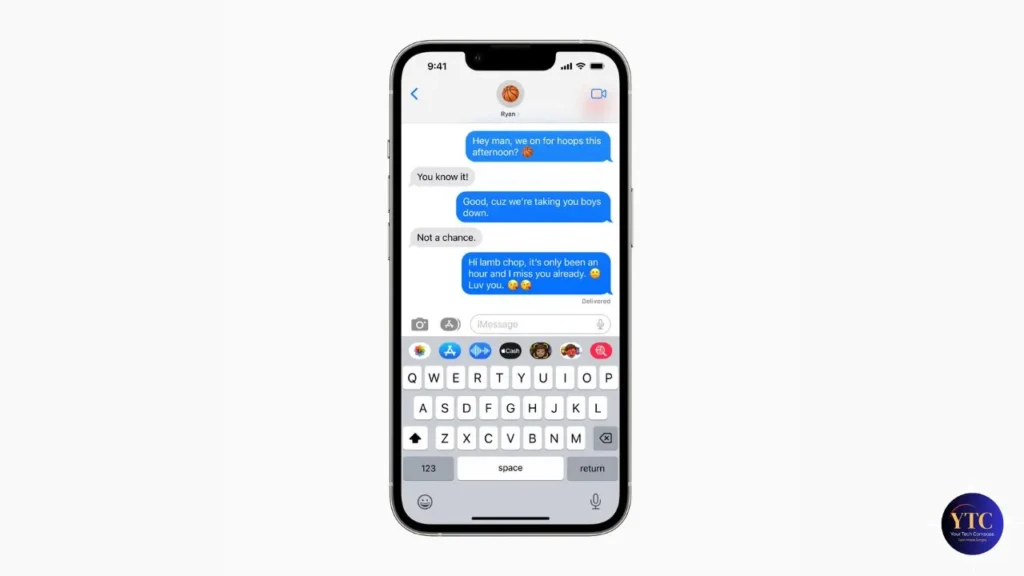
iOS 16 delivers three highly requested updates to iMessage that iPhone users have long wanted. First, you can now edit a sent iMessage up to five times within 15 minutes of sending, and recipients will see a clearly marked edit history so they know the message was changed.
Second, you can unsend an iMessage within 2 minutes of sending it, removing it from both your screen and the recipient’s. Third, if you accidentally delete a message, iOS 16 lets you recover deleted messages for up to 30 days.
Note that these features only work when both the sender and the recipient are on iOS 16 or later. If the other person is still on an older version of iOS, they will still see the original message.
Mail: Undo Send and Smarter Inbox
Apple’s Mail app received its most meaningful update in years with iOS 16. The headline addition is Undo Send. After tapping Send, you have up to 10 seconds to tap the Undo Send option that appears at the bottom of your inbox to recall the email before it leaves your outbox. Additionally, you can now Schedule Send to compose an email and choose when it is delivered.
This is incredibly useful for maintaining professional communication across different time zones. The update also introduces automatic Follow-up reminders that surface sent emails without a reply, so you never let an important message slip through the cracks. Mail’s search was also overhauled; it now auto-corrects misspellings and returns results with much greater accuracy.
Live Text in Video and Visual Look Up
iOS 15 introduced Live Text, which lets users interact with text in photos. iOS 16 expands this significantly. You can now pause any video and interact with text inside the paused frame, copy it, translate it, search the web for it, or look up a phone number.
Visual Look Up also got a major upgrade: you can now lift the subject of any photo directly from its background with a long press, creating a transparent cut-out that you can drag and drop into any compatible app or use as a custom sticker in Messages. This works remarkably well on photos of people, animals, food, and objects.
Safety Check: A Powerful Security Tool
One of the most important features in iOS 16 is also one of the least talked about. Safety Check is a dedicated tool in Settings > Privacy & Security that helps people in unsafe or controlling relationships quickly review and reset all sharing and access permissions on their iPhone.
With one tap in Emergency Reset mode, Safety Check can immediately stop sharing your location with everyone, revoke access to your iPhone from other people’s devices, reset all privacy permissions for every app, and sign you out of iCloud on other devices. It gives you full control back instantly, which can be genuinely life-changing in difficult situations.
Passkeys: Replacing Passwords
iOS 16 marks a turning point in digital security with the introduction of Passkeys, Apple’s implementation of the FIDO Alliance’s passkey standard, which aims to replace traditional passwords entirely. Instead of storing a password on a server, a passkey uses public-key cryptography to store your credentials directly on your device and is authenticated via Face ID or Touch ID.
Passkeys cannot be phished, guessed, or stolen in a server breach. They sync securely across all your Apple devices via iCloud Keychain and are already supported by a growing number of major websites and apps. This is the beginning of a fundamental shift in how we sign in to everything online.
Compatible iPhones and System Requirements
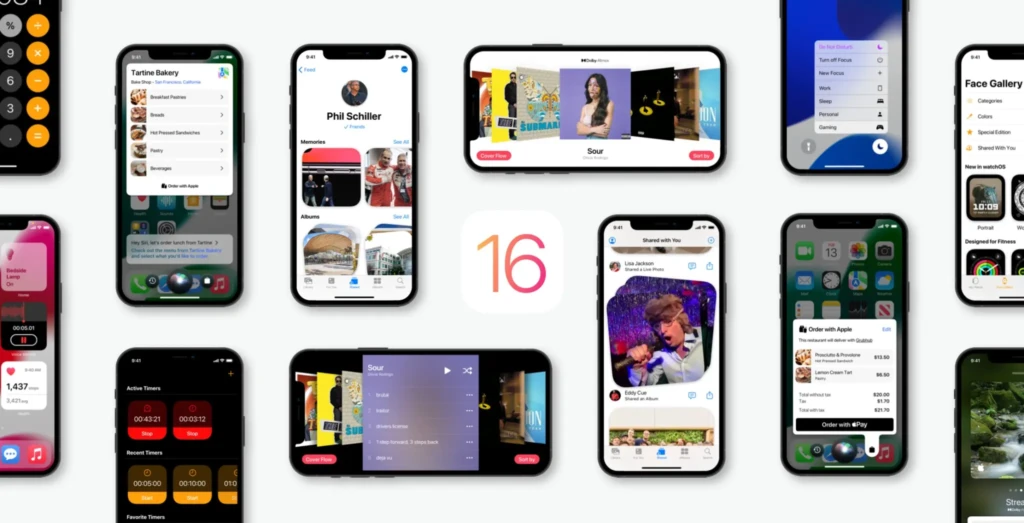
Before you do anything else, confirm that your iPhone can actually run iOS 16. This is quick and straightforward to check, and it is important to know because iOS 16 dropped support for several older iPhones that could previously run iOS 15.
The key minimum requirement is the Apple A11 Bionic chip, which first appeared in the iPhone 8, iPhone 8 Plus, and iPhone X. That means the iPhone 7, iPhone 7 Plus, iPhone 6s, iPhone 6s Plus, and the original iPhone SE are officially no longer supported.
Here is the full compatibility and feature support breakdown:
iPhone Model | Chip | Feature Support Level |
iPhone 8 / 8 Plus | A11 Bionic | Basic iOS 16 features only, no Live Text in Video, no Visual Look Up |
iPhone X | A11 Bionic | Basic iOS 16 features, limited feature support |
iPhone XS / XS Max / XR | A12 Bionic | Full iOS 16 support, including Live Text in Video and Visual Look Up |
iPhone 11 / 11 Pro / 11 Pro Max | A13 Bionic | Full support + Live Captions in FaceTime |
iPhone 12 / 12 mini | A14 Bionic | Full support across all main iOS 16 features |
iPhone 12 Pro / 12 Pro Max | A14 Bionic | Full support + Door Detection (accessibility) |
iPhone 13 / 13 mini | A15 Bionic | Full iOS 16 feature support |
iPhone 13 Pro / 13 Pro Max | A15 Bionic | Full support, including all Pro camera features |
iPhone SE (2nd gen, 2020) | A13 Bionic | Full iOS 16 support, no Face ID features |
iPhone SE (3rd gen, 2022) | A15 Bionic | Full iOS 16 support, no Face ID features |
iPhone 14 / 14 Plus | A15 Bionic | Full support + Live Activities + Crash Detection |
iPhone 14 Pro / 14 Pro Max | A16 Bionic | All features: Always-On Display, Dynamic Island, Crash Detection |
Not Supported: iPhone 7, 7 Plus, 6s, 6s Plus, SE (1st gen), iPod touch | — | Must remain on iOS 15 |
How to Download and Install iOS 16
Installing iOS 16 is straightforward, but taking a few minutes to prepare properly will help avoid potential issues. Here is exactly what you need to do, step by step, to ensure a smooth, hassle-free installation.
Step 1: Back Up Your iPhone First (No Exceptions)
Before you do anything else, back up your iPhone. You can do this via iCloud by going to Settings > [your name] > iCloud > iCloud Backup > Back Up Now, or by connecting your iPhone to your Mac or PC and using Finder (on Mac) or iTunes (on PC).
Do not skip this step. While iOS updates generally go smoothly, maintaining a current backup ensures you can restore your iPhone to its previous state if anything unexpected happens.
Step 2: Charge Your iPhone
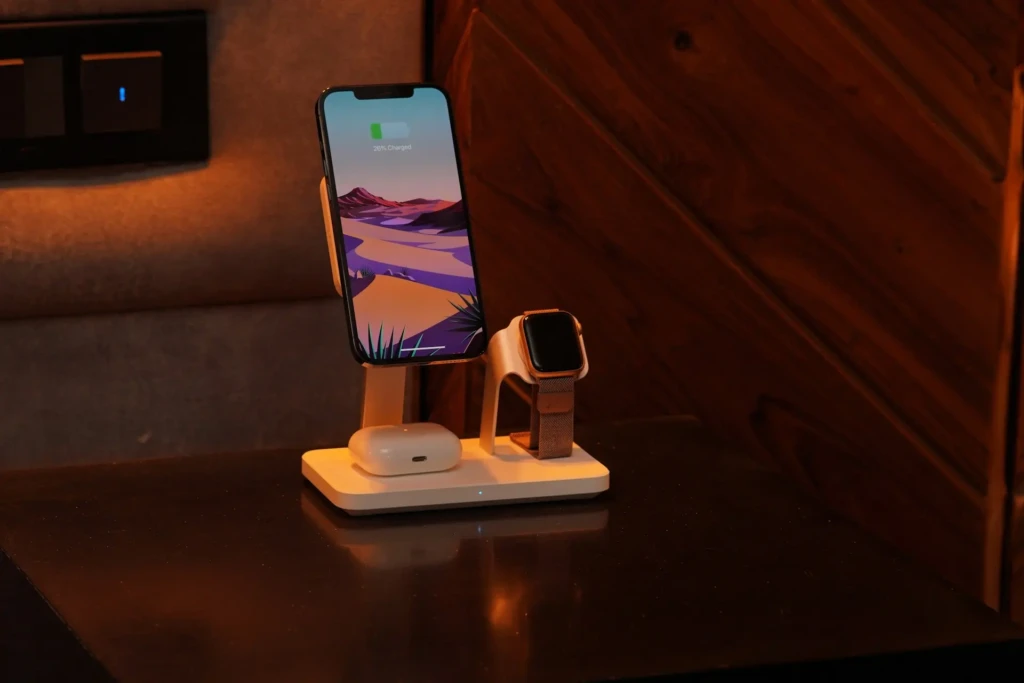
Make sure your iPhone has at least 50% battery before starting the update, or better yet, keep it plugged in throughout the entire process. Major iOS updates can take 20–45 minutes to download and install, and an unexpected shutdown mid-installation can cause serious issues.
Step 3: Connect to Wi-Fi
iOS updates are large, typically between 3GB and 6GB, depending on your current version. Make sure you are connected to a stable, reliable Wi-Fi network before starting the download. Updating over cellular data is not recommended for updates of this size.
Step 4: Go to Settings and Update
Open the Settings app on your iPhone, tap General, then tap Software Update. If iOS 16 is available on your device, it will appear in the list. Tap Download and Install and follow the on-screen prompts. Your iPhone will download the update, verify it, and then prompt you to install.
Once you tap Install, your iPhone will restart, and the installation process will begin. Leave your iPhone alone during this time; it will reboot once or twice, and when it comes back on, the setup will walk you through any new features.
Step 5: Post-Installation Setup
After installation is complete, iOS 16 will walk you through a few setup screens that introduce the new Lock Screen customization and other features. Take a few minutes to review them; it is a great way to start exploring what is new. Once you are in, head to Settings and check the App Store for any app updates, as some apps may need updates for full iOS 16 compatibility.
iOS 16 Performance: Is It Faster?
This is one of the most important questions you can ask before updating, and the answer is honest: performance depends heavily on which iPhone you have. Here is the full picture.
Performance on Newer iPhones (iPhone 11 and Later)
If you are running an iPhone 11, 12, 13, or 14, iOS 16 performs excellently. App launches are fast, scrolling is smooth, multitasking is responsive, and the new Lock Screen features run without any noticeable impact on day-to-day fluidity.
Battery life on these models is generally comparable to iOS 15, with most users reporting similar or slightly improved stamina once the initial post-update indexing period settles. The newer the iPhone, the more features you unlock, and the better the overall experience.
Performance on Older Supported iPhones (iPhone 8, X, XS, XR)
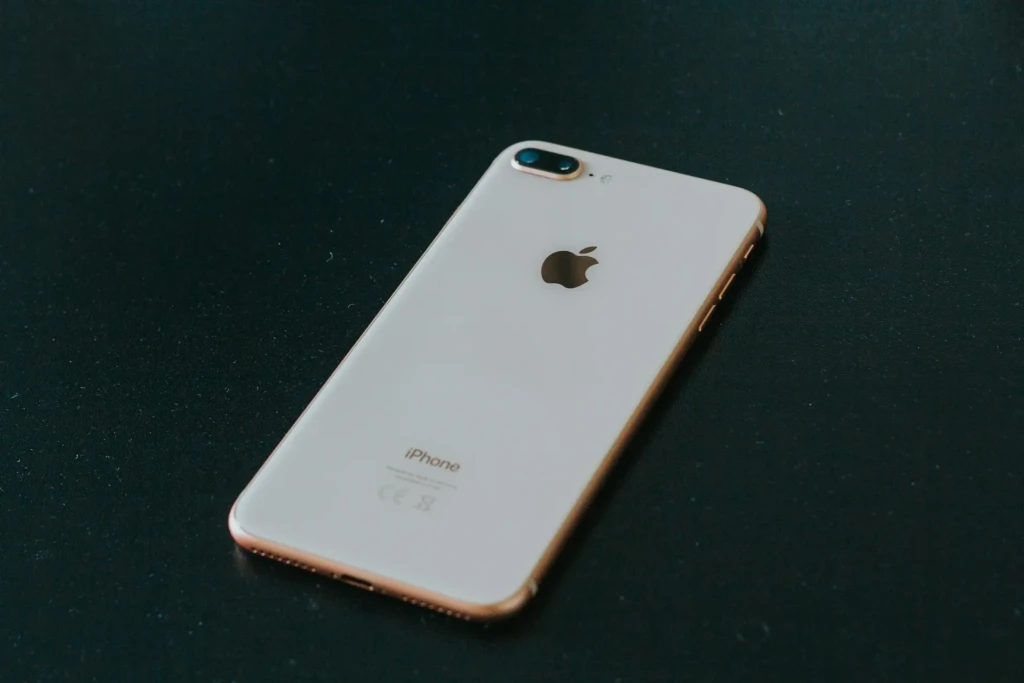
The situation is more nuanced in older supported models. The iPhone 8, 8 Plus, and iPhone X have the minimum A11 Bionic chip required for iOS 16 but have limited RAM (2–3GB), which can make them feel slower when running iOS 16’s more demanding features.
It is also worth noting that the Lock Screen customization features are fully available on older phones, but some of the more visually intensive wallpaper effects may not render as richly. If you are on an iPhone XS, XR, or iPhone 11, you are in the sweet spot, with full support for iOS 16 features and enough processing power to run them comfortably.
Common iOS 16 Problems and How to Fix Them
No major iOS update is entirely free of issues, and iOS 16 was no exception in its early days. Fortunately, Apple rolled out several point updates quickly to address most of the significant bugs. Here are the most common problems users encounter and exactly how to resolve them.
1. Battery Draining Faster Than Usual
This was the most widely reported issue following the launch of iOS 16. The three main culprits were: the Photos app running on-device machine learning to detect and categorize duplicate photos, Spotlight re-indexing all content on your device, and apps running in the background to update for iOS 16 compatibility.
Here is how to address it:
- Give it 48 hours; most post-update drains resolve on their own as background tasks complete.
- Go to Settings > Battery to see exactly which apps are consuming the most power
- Go to Settings > General > Background App Refresh and turn it off for non-essential apps.
- Go to Settings > Siri & Search and turn off “Content from Apple” and “Suggestions from Apple” to reduce Spotlight’s background activity.
- Restart your iPhone; a simple reboot can clear temporary glitches consuming power.
- Check Settings > Battery > Battery Health. If your battery’s maximum capacity is below 80%, consider replacing it.
2. iPhone Feels Slow After Updating
Similar to battery drain, sluggishness immediately after a major update is usually caused by background indexing and processing. The best course of action is to leave your iPhone plugged in overnight and connected to Wi-Fi, so background tasks can complete while it’s charging without affecting your daily use. If your iPhone still feels slow after 48 hours, try a full restart, then check the Activity Monitor equivalent in Settings > Privacy & Security to see if any specific process is running out of control.
3. Wi-Fi or Cellular Connectivity Issues
Some users reported intermittent Wi-Fi drops or a weaker cellular signal after updating to iOS 16. The fastest fix is to go to Settings > General > Transfer or Reset iPhone > Reset > Reset Network Settings. This resets all saved Wi-Fi passwords and network configurations, so you will need to re-enter your Wi-Fi password. For most users, this resolves the connectivity issue entirely.
4. Apps Crashing or Not Working
Occasionally, a third-party app that has not yet been updated for iOS 16 may crash or behave unexpectedly. The fix is always to first check the App Store for an available update for that specific app. If no update is available, try deleting and reinstalling the app. If an app is critical to your work and has not yet been updated for iOS 16 compatibility, you may want to hold off on updating until its developer releases a patch.
5. iMessage Edit and Unsend Not Working
This is a common source of confusion. The edit and unsend features in Messages only work when both you and the recipient are on iOS 16 or later. If the person you are messaging is still on iOS 15 or an older version, you will not be able to edit or unsend messages in your conversation. Additionally, if you have already upgraded to a newer iOS version, ensure Messages is set to use iMessage rather than SMS for those conversations.
6. Lock Screen Widgets Not Updating
If your Lock Screen widgets are not showing live, updated data, the fix is usually to go to Settings > Privacy & Security > Location Services and ensure that the apps powering those widgets (such as Weather) have location access set to “While Using” or “Always.” For non-location-based widgets, try removing the widget from your Lock Screen and re-adding it fresh.
Should You Update to iOS 16?
Let’s get straight to the practical question: should you update? The table below lays it out clearly.
Update to iOS 16 if you… | Hold off if you… |
Have a compatible iPhone (8 or later) | Have an unsupported iPhone (7 or older) |
Want a fully customizable Lock Screen | Haven’t backed up your iPhone yet |
Use Messages, Mail, or FaceTime daily | Rely on an app that isn’t yet iOS 16 compatible |
Care about stronger security (Passkeys) | Are mid-way through a critical project or deadline |
Want smarter Spotlight and Live Text | Have an iPhone 8/X with limited RAM |
Enjoy personalizing your iPhone experience | Are happy with iOS 15 and not in a hurry |
In general, if you have a compatible iPhone, especially an iPhone XS or newer, updating to iOS 16 is worthwhile. The new Lock Screen alone is a genuinely satisfying improvement to daily use, and the additions of Messages, Mail, Safety Check, and Passkeys are practical, meaningful upgrades you will use regularly.
If you are on an iPhone 8 or iPhone X and are happy with iOS 15, there is less urgency, but the security improvements and support for Passkeys still make a compelling case. Also, if you are excited about the future of Apple’s software, check out our deep dive on iOS 26 Beta Features to see how much further Apple has pushed the iPhone experience since iOS 16.
Conclusion
iOS 16 represents a genuine step forward for the iPhone, not just in terms of features but also in how Apple thinks about the relationship between you and your device. For the first time, your iPhone truly looks and feels like yours. The customizable Lock Screen, Focus Filters, Messages edits and unsends, Mail’s Undo Send, smarter Spotlight, the iCloud Shared Photo Library, Safety Check, and the introduction of Passkeys all combine to create an iPhone experience that is more personal, more secure, and more thoughtful than any previous iOS release. And because it is a free update, the value proposition is as clear as it gets.
Whether you are updating a brand-new iPhone 14 or an older iPhone XS, iOS 16 offers meaningful improvements. Just remember to back up your device first, give it 48 hours to settle after installing, and explore all the new features at your own pace; you will keep discovering useful additions for weeks. To see how Apple continued to build on iOS 16’s foundation, we highly recommend our iPhone 17 Review and Guide and our deep dive into iOS 26 Beta Features. You can also find the official iOS 16 feature list directly on Apple’s iOS 16 support page. Your iPhone is better with iOS 16, and now you know exactly what to expect.