Imagen AI is a term you’ll see used in two different, but related, ways: (1) as Imagen, Google’s high-fidelity text-to-image model that generates photorealistic images from prompts, and (2) as Imagen AI, a commercial photo-editing product that automates culling and corrections for photographers. Both use advanced machine learning to speed creative work, but they solve different problems and fit different workflows. Understanding which one you mean matters because the capabilities, privacy implications, and practical value differ substantially.
From testing image generation models and reviewing AI editing tools, I’ve seen how powerful these systems can be, and where they still fall short. In this article, I’ll explain both meanings of “Imagen AI,” show how each works step by step, compare them with alternatives, and give practical guidance so you can pick the right tool for your projects. Along the way, you’ll find links to deeper guides on related AI workflows like AIOps explained, automation and productivity tools (see our best AI productivity apps), and examples of other AI-assisted creative tooling like Murf AI.
What “Imagen AI” Can Mean (Two Distinct Products)
First, a quick practical definition so you don’t mix them up:
- Imagen (Google / DeepMind): A research and product family of text-to-image diffusion models that generate high-fidelity images from natural-language prompts. Imagen focuses on photorealism, language understanding, and controllable outputs.
- Imagen AI (photo editing product): A workflow tool for photographers that automatically culls, edits, and applies a consistent style across hundreds or thousands of photos, designed to save time in post-production.
Both are “Imagen” in marketing terms, but one creates images from text while the other edits existing photos. This article treats both, compares them where useful, and helps you decide which one solves your problem.
How Google’s Imagen (Text-to-Image) Works: Step by Step
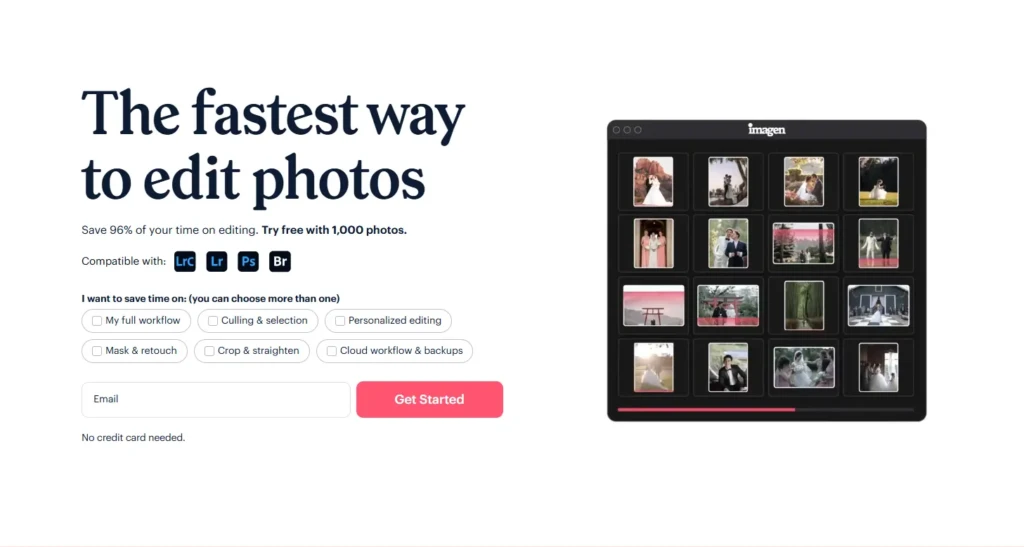
If your goal is to generate new images from prompts, here’s how the Google Imagen pipeline functions at a high level:
- Prompt Encoding: A powerful language model converts your text prompt into a dense representation that captures semantics, what you actually mean, not just the literal words.
- Diffusion Generation: Cascaded diffusion models synthesize an initial low-resolution image and progressively refine it to high fidelity, guided by the text encoding. This multi-stage upsampling helps yield photorealistic results.
- Style and Fidelity Controls: Newer variants add controls for aspect ratio, stylistic constraints, or speed/quality tradeoffs. Google also integrates safety checks and SynthID watermarks when images are generated via its APIs.
- Post-processing & Outputs: The model produces one or more images; downstream tools may allow further editing, inpainting, or prompt-based refinements.
In practice, you prompt; Imagen interprets; the diffusion pipeline paints an image; and you iterate, adjusting the prompt, sampling temperature, or adding image references. The result is often markedly more realistic than that of older text-to-image models, especially for complex scenes and lighting conditions.
How Imagen (Photo Editor) Works: Step by Step
If you’re a photographer looking to speed post-production, Imagen AI (the editor) uses a different pipeline:
- Upload and Culling: You upload a batch. The system analyzes thumbnails and flags the best shots using composition, sharpness, and face detection.
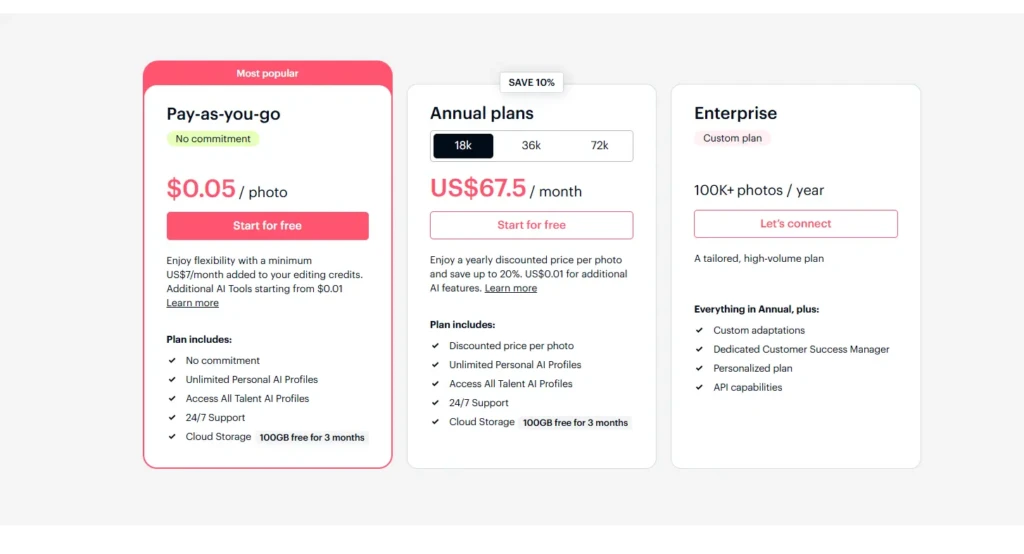
- Style Learning: The tool can learn from a reference edit (or your settings) to create a consistent look, tone, color grading, and skin adjustments, so your edits match a signature style.
- Automated Corrections: It applies exposure, white balance, noise reduction, and local adjustments automatically, then creates suggested variants.
- Review and Tweak: Review flagged images, approve edits, and manually adjust as needed. The tool continues to learn from corrections and preferences.
Bottom line: for high-volume shoots (weddings, events, product catalogs), Imagen AI dramatically reduces human hours spent culling and making routine edits, then leaves creative finishing to you.
Key Features Compared (Generation vs Editing)
Use this table to match features to your needs:
Capability | Google Imagen (text-to-image) | Imagen AI (photo editor) |
Primary Function | Generate images from text prompts (creative generation). | Automate culling and editing of real photos (post-production). |
Best For | Concept art, mockups, design exploration, marketing visuals. | Wedding/event photographers, e-commerce catalogs, high-volume editing. |
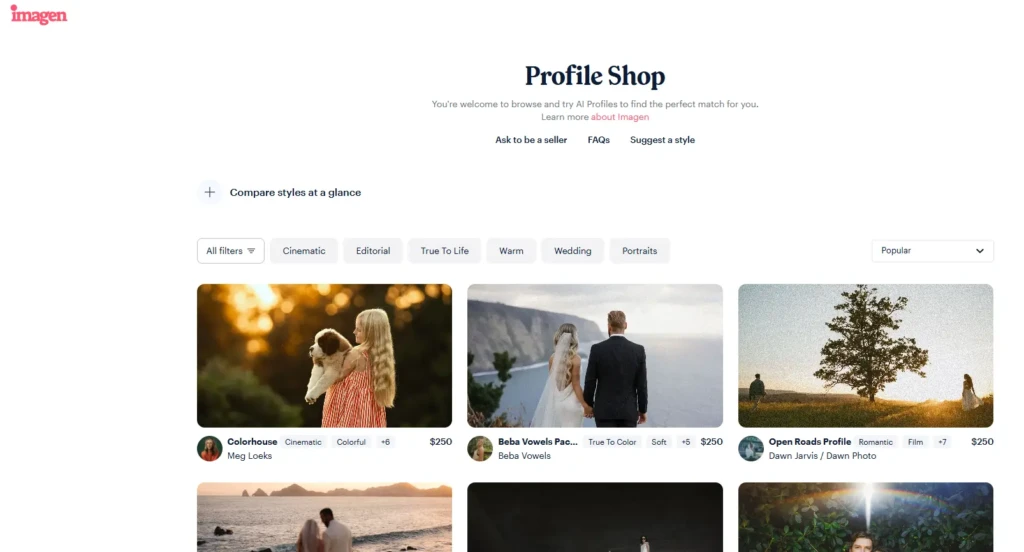
Control & Repeatability | Prompt engineering, sampling, and style tokens. | Style profiles, learned presets, batch processing. |
Output | New synthetic images (may include a SynthID watermark when the API is used). | Edited versions of your original photos, ready for export to Lightroom/clients. |
Ethical/Privacy Concerns | Misinformation risk, copyright and deepfake concerns; mitigation via watermarks & policies. | Data privacy for client photos; consent and storage policies matter. |
Integration | APIs via Gemini/Vertex AI for productization. | Lightroom plugins, export workflows, cloud web UI. |
Common Use Cases: Choose Based on What You Need
- Idea Generation & Design Mockups: Use Google Imagen to iterate visual concepts rapidly.
- Marketing Assets & Hero Images: Generate multiple concepts, then refine them in Photoshop or another image editor.
- High-volume Photography Workflows: Use Imagen AI editor to cull and batch thousands of photos quickly.
- E-commerce Product Images: Automate color correction and background consistency with editing tools.
If you’re unsure which path to choose, ask yourself: do you need new images from text, or do you need to process many real photos? The tools serve different stages of creative work.
Strengths, Limitations, and Safety Considerations
Both flavors of “Imagen AI” are powerful, but they impose different limitations and entail different responsibilities.
Strengths
- Scale and Speed: AI can create or edit images much faster than manual work.
- Consistency: Style profiles and model conditioning produce repeatable results.
- Integration Opportunities: APIs (for generation) and plugins (for editing) slot into existing pipelines.
Limitations
- Creative Nuance: Generative models can struggle with complex human expressions and deeply contextual artistic choices.
- Errors and Artifacts: Text can still render poorly (e.g., fine typography), though newer Imagen releases have improved this.
- Ethics and Provenance: AI-generated images raise questions about authorship and misuse; Google and others are adding detection/watermarking features, but verification is imperfect.
- Data privacy for Editors: Uploading client photos to cloud editing services requires clear consent and secure handling.
Practical advice: treat AI outputs as drafts or time-savers, not final creative authority, especially where legal or ethical stakes are high.
How Imagen Fits Into Larger AI Workflows
If you’re already using AI in other parts of your work, say, automation in IT (read our AI Ops guide) or AI tools for productivity (see best AI productivity apps), Imagen models and editors slot into similar patterns: reduce repetitive work, increase throughput, and require governance. Likewise, pairing generative outputs with editing tools or human review yields better final results than relying on a single system. For voiceovers and narration in video workflows, complementary tools like Murf AI can take generated visuals and produce finished multimedia assets.
Practical Tips: How To Use Each Tool Effectively
For Google Imagen (generation):
- Be explicit in prompts: describe composition, lighting, and mood.
- Iterate: small prompt tweaks dramatically change outcomes.
- Use generated images as concepts, not final assets, if you need guaranteed accuracy or legal safety.
For Imagen AI (photo editing):
- Create a good reference edit for the style learner.
- Validate edits on a subset before processing the entire batch.
- Keep the originals offline or in a controlled storage area to protect client privacy.
Comparison: Imagen vs Alternatives (At a Glance)
Need | Google Imagen | Imagen AI Editor | Alternatives |
Fast concept visuals | Excellent (photorealism) | N/A | Midjourney, DALL-E, Stable Diffusion |
High-volume photo polishing | N/A | Excellent (batch editing & culling) | Lightroom + plugins, Photomechanic, other AI editors |
Enterprise integration | APIs via Vertex/Gemini | Lightroom/Cloud workflows; team features | Custom ML pipelines, third-party integrations |
Conclusion
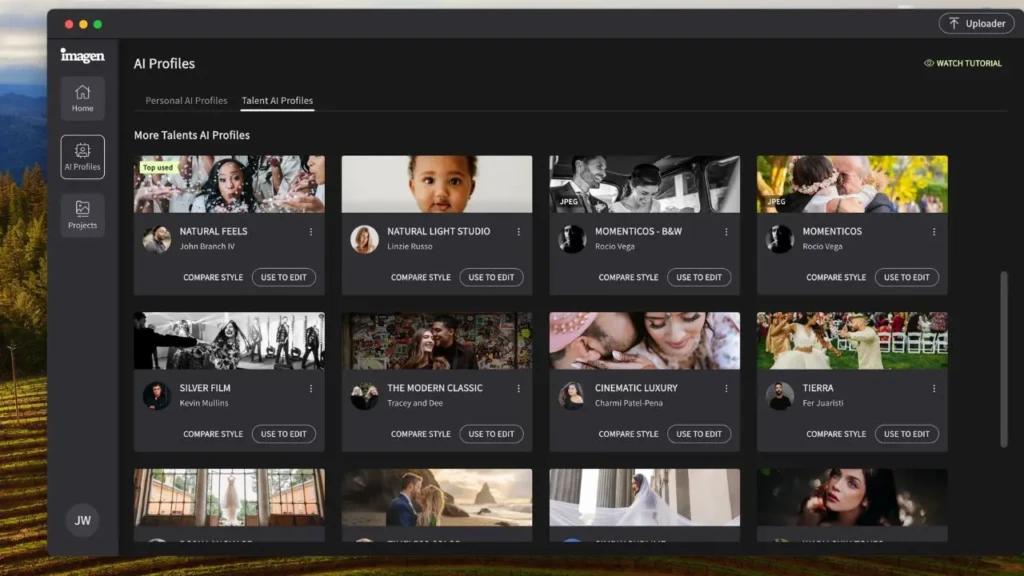
Imagen AI is not a single product but a set of capabilities that range from cutting-edge image generation to practical photo-editing automation. If your work requires generating new visuals from prompts, Google’s Imagen models deliver among the highest levels of photorealism available. If your work involves processing real photos at scale, Imagen AI editors save significant time on culling and correction. In both cases, these tools accelerate workflows, but they do not replace thoughtful human oversight.
The smartest approach is pragmatic: use generative Imagen for ideation and mockups, and use photo editors for finishing and client work. Pair the tools with clear governance (consent, provenance, and licensing), invest time in prompt engineering or style learning, and always reserve final creative judgment for a human. That combination preserves quality while unlocking the productivity gains AI promises.
FAQs
Google’s Imagen models are accessible via specific Google APIs and product surfaces; access levels vary by product and may have quotas or paid tiers. The photo-editing Imagen typically offers free trials plus paid subscriptions; check each provider for exact plans.
Usage rights depend on the service and terms. For Google’s Imagen via API, review Google’s licensing and SynthID/watermark policies. For commercial editing of your photos, the editor’s subscription terms define commercial use. Always read terms before publishing.
For real-world shoots, the photo editor is the clear choice; it speeds culling and consistent edits. Use generative Imagen only for concept art or when creating visuals from scratch.