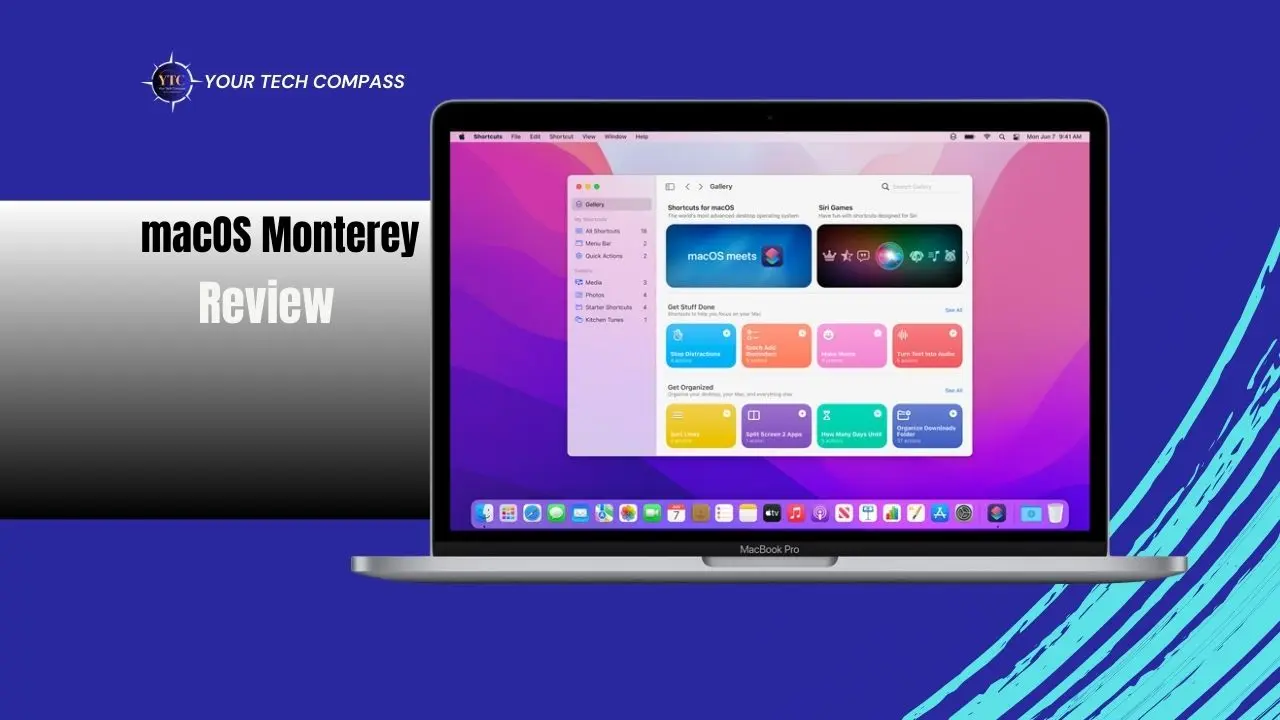
macOS Monterey may not be the newest entry in Apple’s lineup, but it remains a meaningful release for many Mac users. Packed with productivity tools, interface refinements, and performance improvements, Monterey struck a balance between enhancing the user experience and maintaining stability across a wide range of Macs. Whether you’ve been using it for a while or are considering it for your machine, understanding what Monterey offers (and how it compares to newer releases) can help you make smarter decisions about your Mac setup.
In this article, we’ll walk through everything from Monterey’s key features and performance characteristics to compatibility, known issues, and whether it’s still worth running today. I’ll help you feel confident about whether macOS Monterey fits your needs and how to get the most out of it.
What Is macOS Monterey?
macOS Monterey is a version of Apple’s desktop operating system designed to deliver both functional upgrades and smoother performance compared with earlier releases. Its focus wasn’t on flashy redesigns, but on refining Apple’s ecosystem with features that enhance productivity, connectivity, and everyday usability. Think of it as the update that brought Macs closer to how people actually work and communicate across devices.
Apple positioned Monterey to build on the shift toward tighter integration with iOS and iPadOS, bringing features like universal control and FaceTime enhancements to the forefront. While newer macOS versions have since arrived, Monterey remains in active use because it supported a broad range of Macs and brought practical benefits without alienating long-time users.
Key Features of macOS Monterey
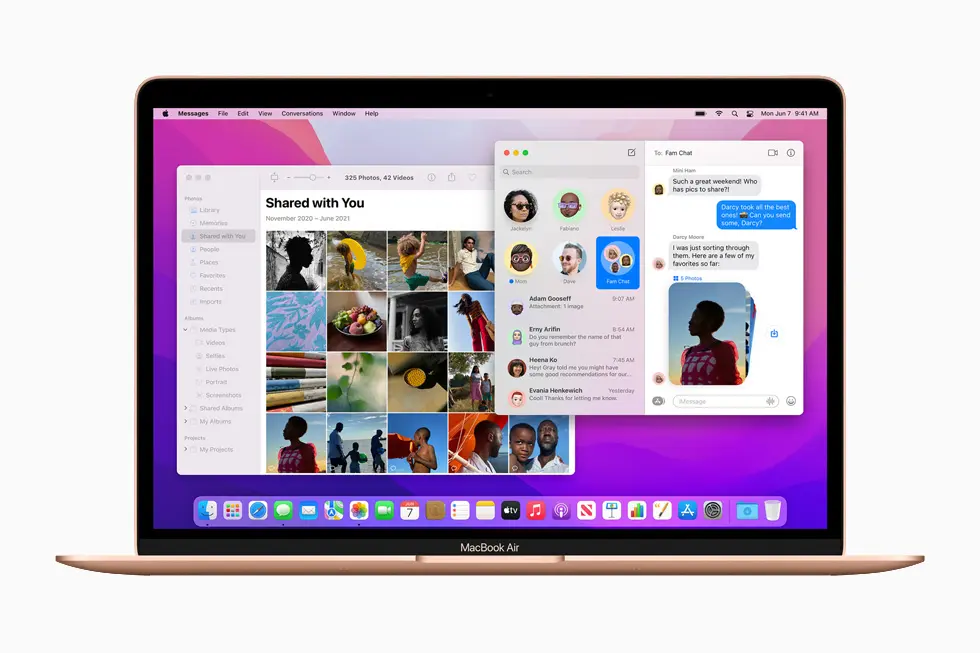
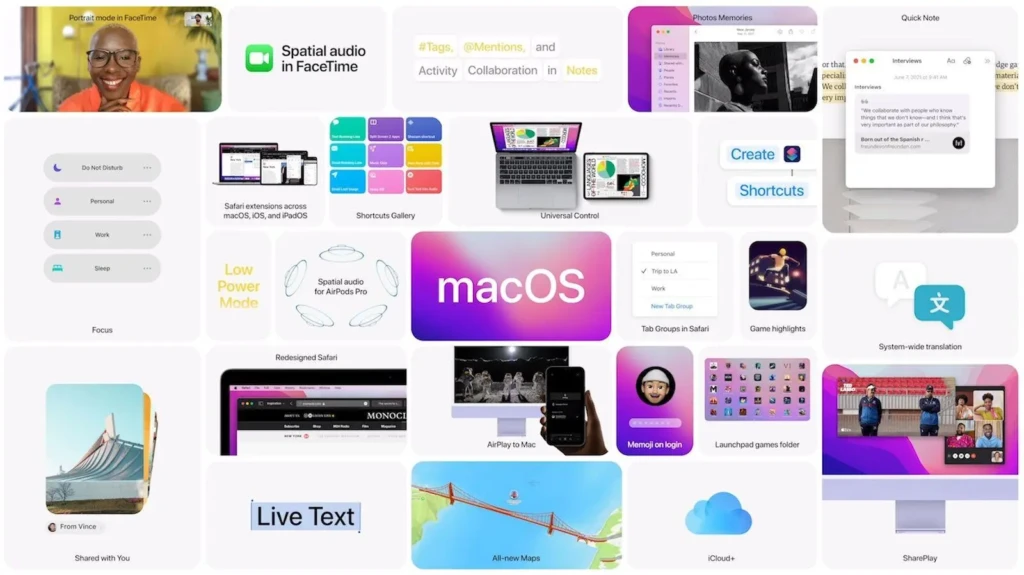
macOS Monterey introduced several features that genuinely impact daily Mac use. Let’s explore the highlights:
Interface Refinements and Usability
First, Monterey didn’t overhaul macOS’s visual design, but it did enhance the interface in subtle, helpful ways. Window behavior became more predictable, context menus felt more responsive, and animations were smoother on supported hardware. These changes may seem minor on the surface, but they contribute to a more cohesive and frictionless user experience.
Focus Mode
Focus Mode lets you tailor notifications to match what you’re doing, whether working, resting, or running errands. For example, you can silence social notifications while allowing essential messages from family or work apps. This is especially useful if you frequently toggle Do Not Disturb.
Universal Control
Universal Control is one of Monterey’s standout productivity features. If you use multiple Macs or a Mac and an iPad, you can move your cursor fluidly between them and even drag files from one device to another. It’s a seamless way to work across screens without switching keyboards or trackpads.
FaceTime Enhancements
FaceTime received upgrades that aimed to make calls feel more natural. Spatial audio gives voices a sense of direction, Portrait Mode blurs your background, and SharePlay lets you watch or listen to content with others during a call. While some users have migrated to newer versions of macOS, these improvements made Monterey feel more modern and social.
Safari Updates
Safari got a fresh look and new tab features in Monterey. Tab Groups help you organize related tabs, and the interface refinements make browsing feel more efficient. However, not all changes were universally loved; some users preferred the previous layout, and Apple has since made further iterations.
For those experiencing issues with Safari in macOS, our guide on Safari Keeps Crashing on macOS Sequoia can help troubleshoot related behavior.
Performance and Stability
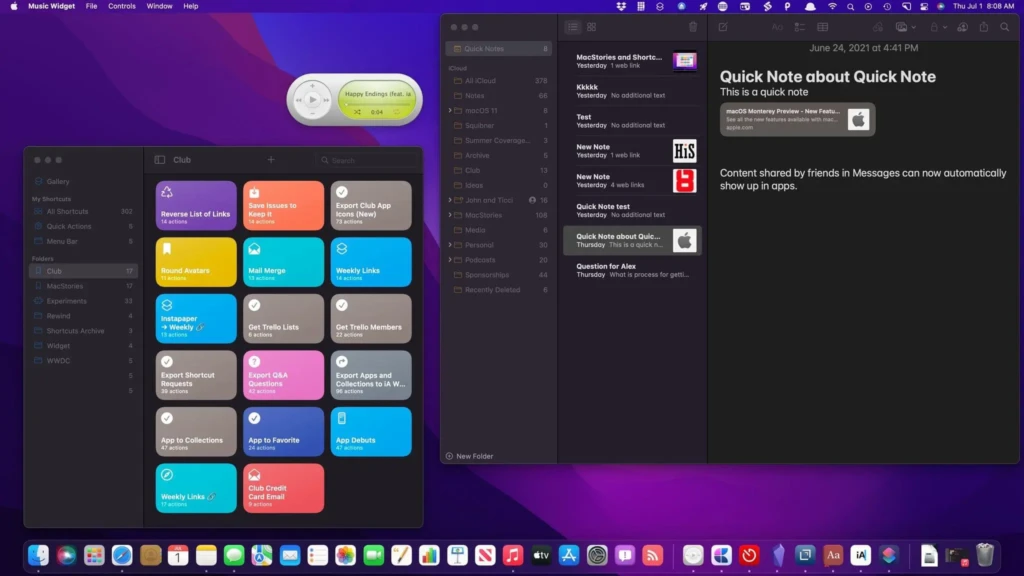
One of Monterey’s strengths lies in its ability to balance performance with real-world stability.
Day-to-Day Responsiveness
Most users find macOS Monterey responsive, even on older supported Macs. Apps launch swiftly, and switching between tasks feels fluid thanks to optimized memory handling.
That said, how Monterey feels can depend on your hardware. Macs with Apple silicon generally run more efficiently compared with older Intel models.
Multitasking and Memory Use
Monterey handles background apps and processes more smartly than some earlier versions. This helps when juggling multiple projects or using memory-intensive apps. Of course, if you encounter occasional freezes or app instability, it’s worth exploring troubleshooting resources such as Mac Crashes When Switching Users on macOS Sequoia, which can offer insights into what’s going wrong behind the scenes.
Battery and Efficiency
On MacBooks, Monterey tends to offer good battery life thanks to improved background task prioritization. It’s not always dramatically better than earlier versions, but it’s consistently solid, especially if you keep apps and the system up to date.
Compatibility and System Requirements
Before upgrading or deciding to stay on Monterey, it’s essential to understand which Macs it supports.
Supported Macs
Monterey supports a wide range of Macs, particularly those capable of running the latest release at the time. This includes Apple silicon Macs (M1 and compatible variants) and a broad range of Intel-based Macs, making it accessible to many users.
Hardware Needs
In addition to model support, you’ll need adequate storage and memory to ensure macOS Monterey runs smoothly. Macs with limited free space may struggle, especially when managing background tasks or indexing.
Unsupported Macs
If your Mac isn’t compatible with Monterey, it will remain on its current macOS version and continue to receive security updates for a limited period. In these cases, staying on your current macOS or considering a hardware upgrade may be your best option.
Privacy and Security Improvements
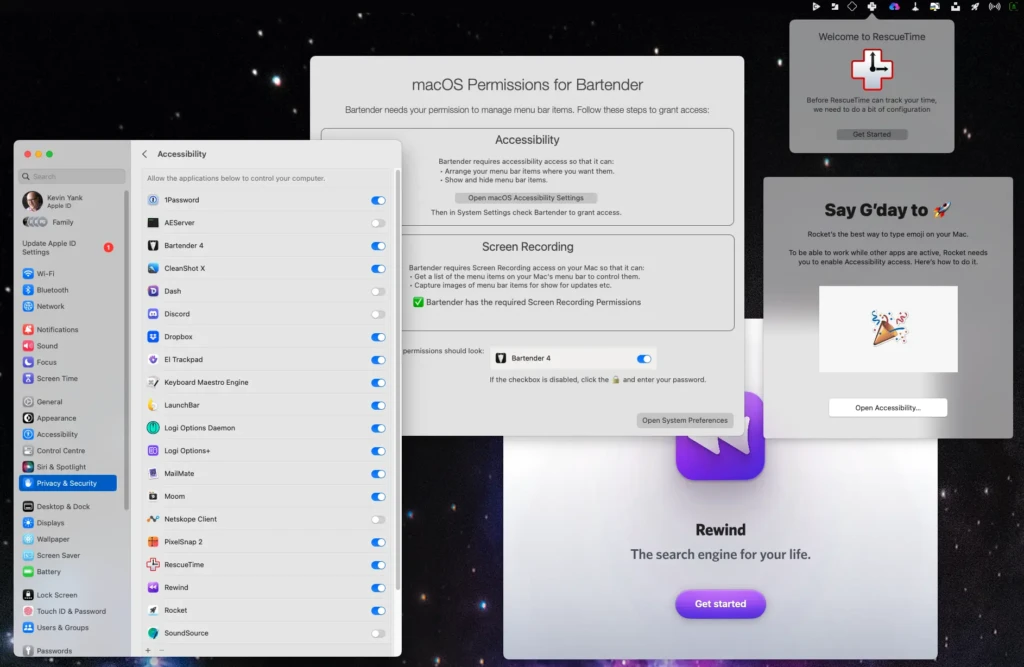
macOS Monterey brought several key privacy and security enhancements that help protect your data and system integrity.
App Permissions
Monterey gives you clearer control over app permissions, allowing you to know exactly what access each app has, for example, camera, microphone, or file access. This helps reduce unwanted or unexpected data sharing.
System Protections
Apple introduced strengthened protections that make it harder for malicious software to alter core system functionality. This includes better sandboxing practices and tighter controls over background tasks.
Security Updates
Even after newer macOS versions are rolled out, Monterey continues to receive security patch updates for supported devices. This helps ensure your Mac stays protected against newly discovered vulnerabilities.
For detailed information on Apple’s platform security standards, see Apple’s official security documentation.
macOS Monterey vs Newer macOS Versions
To help clarify how Monterey stacks up, here’s a quick comparison with more recent macOS releases like macOS Tahoe:
Feature / Area | macOS Monterey | Newer macOS Versions (e.g., Tahoe) |
Interface Polish | Solid refinements | Incremental UI improvements |
Performance Management | Efficient handling | Often more optimized |
Battery Efficiency | Good | Typically better on Apple silicon |
Productivity Features | Focus, Universal Control | Similar + newer additions |
App Compatibility | Wide | Broad with further updates |
Security Enhancements | Strong | Builds on Monterey’s foundation |
While Monterey introduced excellent features for productivity and usability, newer versions (such as macOS Tahoe, explored in our macOS Tahoe Features Guide) have continued the refinement trend with additional performance and privacy improvements.
Known Issues and Limitations
No macOS release is perfect, and Monterey has its share of quirks:
- Some third-party apps may not fully support certain Monterey features, especially older software.
- Occasional glitches may persist depending on how particular apps interact with the OS.
- Users switching between multiple accounts may sometimes encounter hiccups. If that sounds familiar, check out our troubleshooting guide on macOS crashes when switching users on macOS Sequoia.
These issues don’t affect everyone, but they’re worth understanding before deciding to upgrade or stick with an older version.
Should You Still Use macOS Monterey?
Whether Monterey is right for you depends on your needs and setup:
Consider Staying in macOS Monterey If:
- Your Mac handles Monterey smoothly, and you don’t need features from newer releases.
- Certain apps critical to your workflow work best under Monterey.
- Stability and predictability are more important than having the latest additions.
Consider Upgrading If:
- You want features only found in later macOS versions.
- Security or performance updates in newer releases are compelling.
- Your current workflow would benefit from updated continuity features or efficiency improvements.
Generally, Monterey still makes sense for many users who prioritize stability and broad software compatibility.
Tips for Using macOS Monterey Today
To get the most out of macOS Monterey, try these practical tips:
- Back up regularly using Time Machine so you can roll back if needed.
- Keep apps updated to ensure compatibility and smoother performance.
- Check storage usage; having plenty of free space helps with responsiveness.
- Restart occasionally to clear lingering processes and maintain stability.
Conclusion
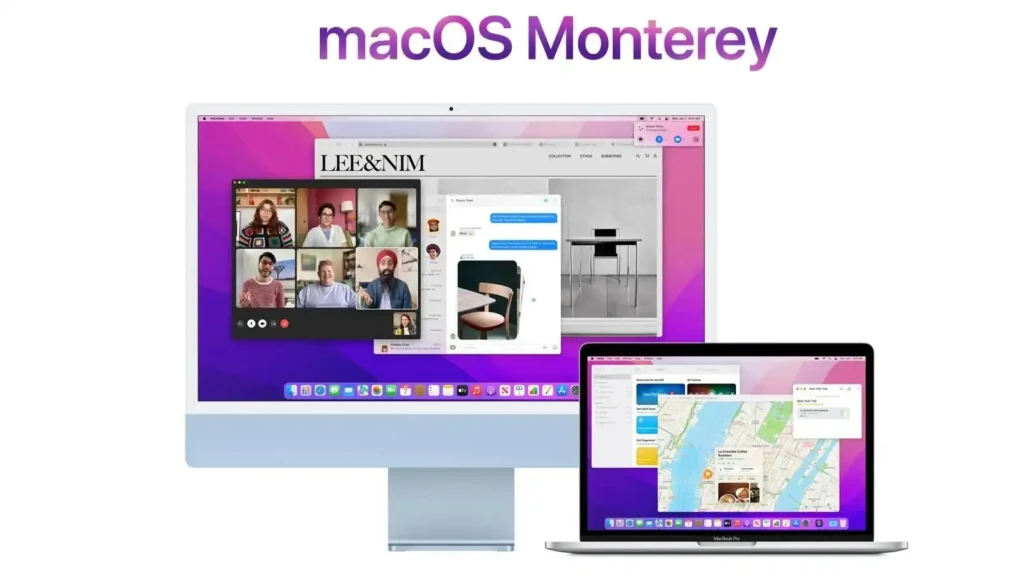
macOS Monterey remains a solid choice for many Mac users thanks to its blend of productivity features, performance stability, and broad device support. While newer releases have built on Monterey’s foundation with further refinements and optimizations, Monterey itself remains a reliable and capable macOS version, especially for users who value consistency and efficiency over the latest bells and whistles.
If your Mac runs Monterey well and your essential apps are compatible, sticking with it can be a smart choice. On the other hand, if you want the latest performance enhancements or upcoming security features, exploring newer macOS versions may be worth your time.
I hope this guide gives you the clarity you need to decide what’s right for your Mac, and I’m glad I could walk you through it step by step.
FAQs
Yes, Apple’s macOS updates are free for supported Macs.
Yes, but you’ll need a backup from an earlier macOS and may have to erase your disk to revert.
Installation time varies with hardware and internet speed, but usually ranges from 30 minutes to 1 hour.