Windows users encounter Microsoft Defender every day because it’s built into the operating system and enabled by default. For many people, it’s “that antivirus on Windows” that runs silently in the background and pops up warnings when a malware file is detected. However, Microsoft Defender has evolved far beyond basic antivirus protection: it now includes cloud-based threat intelligence, broader endpoint defences, and integrations with enterprise security services. Understanding what it does and what it doesn’t is important whether you’re a casual user, a professional managing systems, or an administrator concerned about broader cybersecurity.
This article explains what Microsoft Defender is, how it works, the types of threats it protects against, key features, limitations, and whether it’s sufficient for most users’ needs. By the end, you’ll have a grounded view of Defender’s capabilities, realistic expectations of its protection scope, and where other tools might complement it, and I’ll share the practical insights I’ve gathered from real deployments.
What Is Microsoft Defender
Microsoft Defender is the built-in security suite for Microsoft Windows devices that includes threat protection, antivirus scanning, real-time monitoring, and integration with broader Microsoft security services. It is automatically enabled on Windows machines unless another antivirus product overrides it, and it continually updates threat definitions and protective capabilities through the cloud. At its core, Defender provides malware detection, blocking, and response, and it forms part of Microsoft’s broader security ecosystem that can extend into enterprise endpoint protection and coordinated defence frameworks.
How Microsoft Defender Works
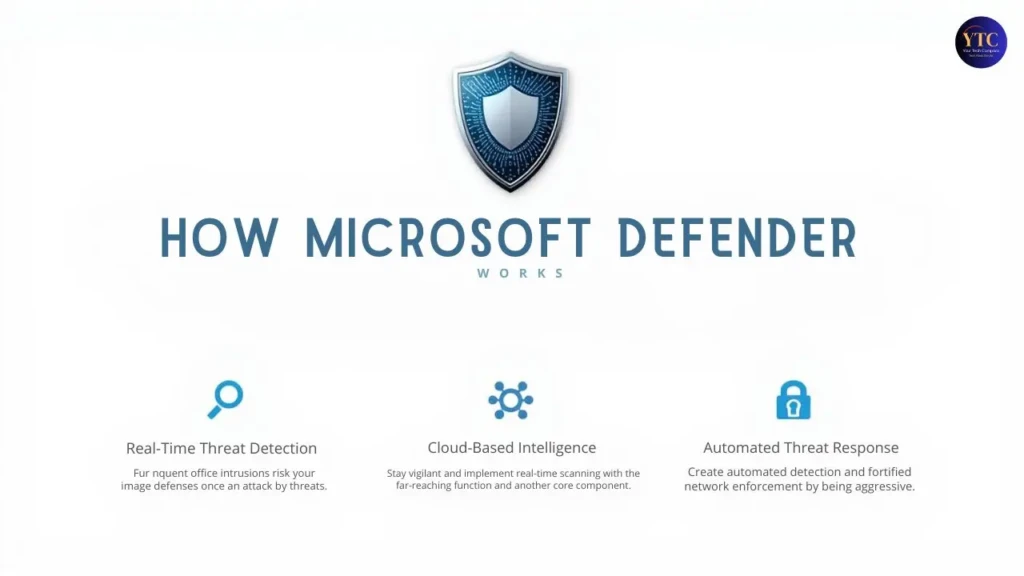
Microsoft Defender combines multiple defensive technologies:
- Real-time Scanning: Native detection that monitors files and processes as they run to stop threats before they can execute.
- Cloud-delivered Protection: Continuous updates from Microsoft’s cloud threat intelligence network to recognize emerging risks.
- Behavioral Analysis: Heuristic checks and machine-learning-based insights to identify suspicious activities even without known signatures.
- Threat Intelligence Integration: Correlation with global insights to refine detection and reduce false negatives.
These elements work together to form a layered protective approach that helps detect and block a wide range of malicious software and exploit behaviour.
What Microsoft Defender Protects Against
Microsoft Defender offers protection across several threat categories:
- Viruses and Malware: Detection and removal of known and emerging malicious software.
- Ransomware: Prevention of unauthorised modification of important files through controlled folder access and behaviour monitoring.
- Phishing and Web Threats: Blocking known malicious websites and links to prevent credential theft and drive-by downloads.
- Potentially Unwanted Applications (PUAs): Identification and optional removal of adware, trackers, or bundled undesirable software.
These protections help address the majority of common threat vectors encountered by individual users and many organisations.
Key Features of Microsoft Defender
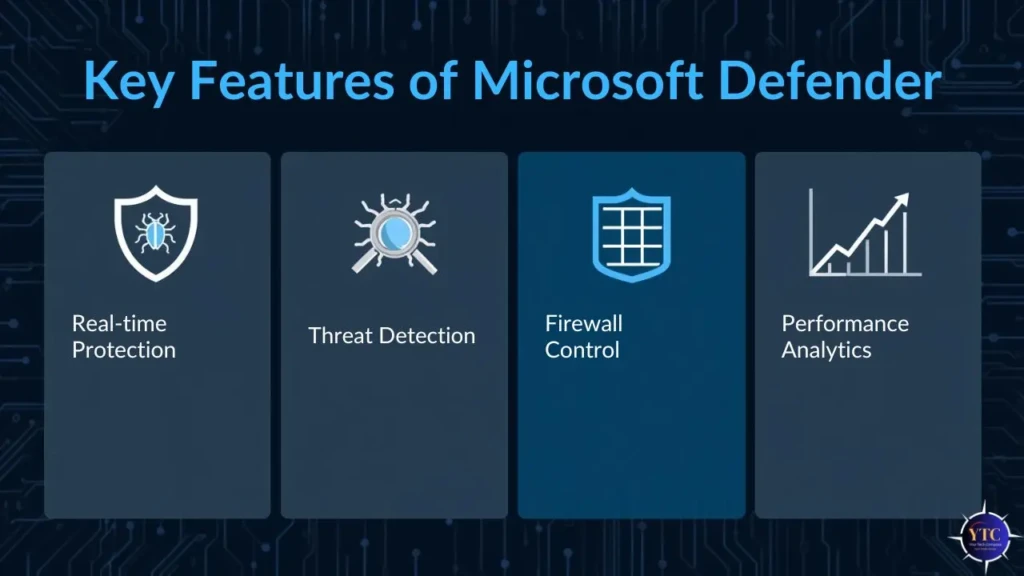
While Defender’s antivirus capability is its most visible component, the full suite offers other useful features:
- Real-Time Protection: Continuous background scanning with cloud-assisted updates.
- Firewall and Network Protection: Integration with Windows Firewall to regulate network traffic and access.
- Ransomware Controls: Tools such as Controlled Folder Access to protect user data.
- SmartScreen: Browser-level filtering of malicious sites and downloads.
- Integration with System Health: Security reports and status indicators in the Windows security dashboard.
These integrated features help simplify baseline security management for typical users without additional software.
Microsoft Defender vs Third-Party Antivirus Software
For many users, one of the most common questions is whether Defender is sufficient or whether a separate antivirus product is needed. The comparison below highlights general strengths and trade-offs between the built-in Defender protection and external security suites:
Comparison Aspect | Microsoft Defender | Third-Party Antivirus |
Malware Detection | Good core protection for most threats | Often, higher detection rates in independent tests |
System Performance Impact | Low (built-in) | Variable; some heavier |
Cost | Free with Windows | Paid subscriptions |
Additional Features | Integrated basics | Added tools (VPN, password manager) |
Centralised Management | Enterprise versions available | Depends on the vendor |
In general, Defender delivers solid baseline protection, but many third-party solutions bundle extra tools (such as VPNs, advanced firewalls, or device privacy features) that Defender does not provide out of the box.
Is Microsoft Defender Enough for Most Users
For everyday home users and typical small-office setups, Defender usually provides sufficient baseline protection against common malware, ransomware, and phishing threats. Independent assessments and user experience indicate that Defender is effective at detecting and neutralizing threats without requiring additional purchases.
However, situations where additional protection might be valuable include:
- Users frequently downloading unknown software or visiting high-risk websites.
- Environments where broader privacy features (e.g., VPN) or advanced tools are desirable.
- Users seeking features that integrate deeply with other platforms. In such cases, a third-party suite can complement Defender’s baseline protection without necessarily replacing it.
Microsoft Defender for Business and Enterprise
At the enterprise level, Microsoft Defender for Endpoint extends Defender’s capabilities into a full endpoint protection and response platform. It provides advanced threat detection, automated investigation, and coordinated response workflows across devices and integrates with broader security infrastructure such as Microsoft Sentinel and Defender XDR.
It supports multiple operating systems, including Windows, macOS, and Linux, making it suitable for mixed environments. The platform also includes vulnerability management and can centralise threat intelligence and incident workflows for organisational security teams. Organisations often pair Defender with specialised cybersecurity services to strengthen monitoring, incident response, and overall threat management.
Limitations of Microsoft Defender
Despite its strengths, Microsoft Defender does have areas where it may fall short for some users:
- Limited Extra Features: It lacks certain bundled services found in premium antivirus suites (such as identity protection, VPN, or advanced parental controls).
- Advanced Threats: While Defender blocks most common threats, top-tier commercial security products may score slightly higher in independent detection tests against sophisticated malware.
- Customisation: Options for fine-tuning may be more limited than with specialised security software.
These limitations do not diminish Defender’s value for basic protection but are worth considering for high-risk users or specialised environments.
Security Best Practices to Pair with Microsoft Defender
No single security tool can guarantee complete protection. For best results with Microsoft Defender, users should adopt additional practices:
- Keep Software Updated: Regularly install Windows updates to address vulnerabilities.
- Safe Browsing Habits: Be cautious with downloads and unknown sites.
- Multi-factor authentication: Use MFA for accounts wherever possible.
- Regular backups: Maintain backups to recover from ransomware or data corruption.
These behaviours, in combination with Defender’s built-in safeguards, improve overall device and data resilience.
Conclusion
Microsoft Defender has grown from a basic built-in antivirus into a capable security platform that provides effective protection for everyday users and integrates into advanced enterprise security ecosystems when paired with services like Microsoft Defender for Endpoint and Defender XDR. Its cloud-assisted updates, real-time detection, and low system impact make it a solid baseline security tool for most Windows systems.
This article places Defender into context with related workflows, such as maintaining operating systems across platforms (e.g., running Windows for Mac), connecting identities and systems in enterprise environments like Active Directory groups, or troubleshooting performance issues where malware may play a role (as in guides like Fix Slow Startup Windows 11). However, Defender’s scope should be understood realistically: while it handles common malware and phishing threats well, users with high-risk workflows or advanced needs may benefit from supplemental security tools.
Security is a layered discipline, and Microsoft Defender often serves as the first line of defence in a broader strategy that includes behavioural safeguards, backups, and complementary defensive tools. Based on practical experience with security deployments across a variety of environments, I see Microsoft Defender as a strong foundational protector that meets most core needs while leaving room for enhancement where necessary.
FAQs About Microsoft Defender
Yes. Microsoft Defender comes built into Windows and does not require additional payment.
Because it’s integrated into Windows, it typically has minimal performance impact compared to some third-party options.
For basic protection, yes; but premium features provided by third-party suites may still be useful for specific needs.
It can coexist with complementary tools, though care should be taken to avoid conflicts with other real-time scanners.
At Your Tech Compass, we publish detailed tech guides, reviews, and comparisons to help users choose the right devices and tools.