
System failures happen. Phones freeze during updates, devices get stuck on the logo, and recovery modes can feel inscrutable when time is short and data matters. ReiBoot is one of several utilities that promise to simplify iOS and Android recovery by offering guided repair modes that sit between Apple’s (or Google’s) native tools and a full service visit.
I’ve used ReiBoot and comparable repair utilities during troubleshooting sessions where quick recovery mattered, on personal devices and devices brought to me for repair. In this article, you’ll get a practical view of what ReiBoot actually does, the situations where it helps, the risks to watch for, and how it compares to built-in recovery options and other third-party tools. The aim is to give clear, actionable guidance so you can decide whether ReiBoot is the right tool for your problem.
What ReiBoot Actually Is
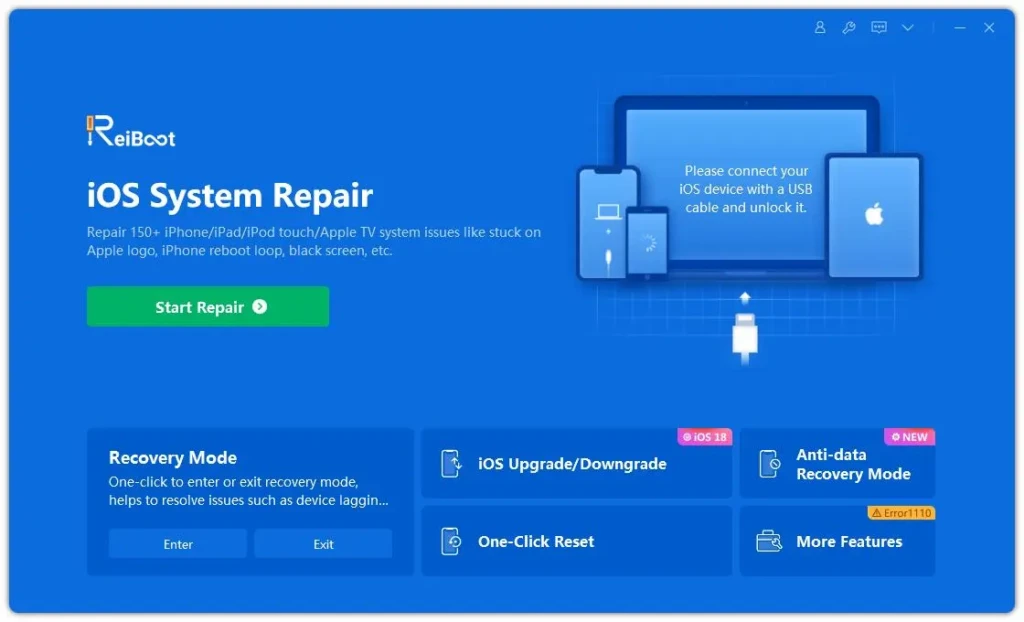
ReiBoot is a desktop utility (Windows and macOS) designed to fix common iOS and Android system issues without resorting to immediate factory resets or service center visits. It provides user-friendly menus for entering and exiting recovery or DFU modes, and offers different repair levels: a “standard” repair that attempts to fix system issues while preserving user data, and a deeper repair that can restore system integrity if the simpler approach fails.
The product is positioned at the intersection of convenience and control: it wraps complex command sequences and device states into a point-and-click interface that less technical users can navigate. In practice, that’s valuable when you’re dealing with a frozen device and need a predictable set of steps rather than guessing.
Common Problems ReiBoot Is Used For
ReiBoot is commonly applied to these real-world failure modes:
- Devices stuck on the manufacturer logo during boot (boot loop).
- Phones frozen during updates or installs.
- Devices that won’t enter or exit recovery/DFU modes cleanly.
- Update failures reported by iTunes/Finder during restores.
These are software-level failures, situations where the phone powers on but the operating system cannot start or update correctly. ReiBoot targets those exact cases, replacing manual sequences with guided fixes.
How ReiBoot Works: Conceptually (Not a Step-by-Step)
ReiBoot operates by interacting with a device over USB, issuing standard recovery commands, and applying firmware images or repair scripts as required. Conceptually:
- Standard Repair attempts non-destructive fixes: it reinstalls core system components while keeping user data intact when possible.
- Deep Repair performs a fuller firmware reinstall and is more likely to remove user data unless you have a backup.
- Recovery/DFU mode helpers automate entering low-level states that Apple’s tools normally require you to trigger with specific button sequences.
Put simply, ReiBoot automates and sequences operations that are otherwise manual and error-prone, reducing the margin for human mistakes, especially helpful when the person doing the repair is not deeply technical.
When ReiBoot Is a Practical Solution

ReiBoot is a solid choice when:
- You face a software hang or boot issue and want to avoid an immediate factory reset.
- You prefer an interactive GUI over command-line tools like libimobiledevice or manual DFU sequences.
- You need a quick recovery and have limited time to troubleshoot manually.
- You have a recent backup or are prepared to accept deeper repairs if necessary.
In short, ReiBoot can save time and reduce stress when the problem is clearly software-level, and you want a guided, lower-risk path before escalating to hardware service.
Quick Checklist: How to Prepare Your Device Before Using Any Repair Tool
Before running ReiBoot or any similar system repair tool, take a few minutes to prepare properly. These steps significantly reduce the risk of data loss or failed repairs.
1. Confirm the Problem Is Software-Related
- The device powers on but won’t boot, update, or exit recovery mode.
- There is no visible hardware damage (water exposure, bent frame, or cracked logic board symptoms).
If hardware damage is suspected, skip repair tools and seek professional service.
2. Back Up Your Data (If Possible)
- Create a local backup using Finder or iTunes.
- Ensure iCloud backup is enabled and recent.
- If a full backup isn’t possible, sync critical data (contacts, photos, files) separately.
Repair tools are not a replacement for backups.
3. Charge the Device

- Ensure the device has at least 50–60% battery, or keep it plugged in.
Unexpected shutdowns during repair can cause deeper system issues.
4. Use a Reliable Cable and Port
- Prefer the original or certified USB cable.
- Avoid USB hubs; connect directly to the computer.
Unstable connections are a common cause of failed repairs.
5. Update Your Computer First
- Install the latest OS updates (Windows or macOS).
- Update iTunes/Finder components if applicable.
Outdated system drivers can prevent proper device recognition.
6. Disable Conflicting Software Temporarily
- Pause antivirus or firewall tools if they block USB access.
- Close other device management software.
This prevents communication interruptions during repair.
7. Write Down Critical Account Information
- Apple ID or Google account credentials.
- Screen lock PIN or password.
You may need these after the repair to re-activate the device.
8. Understand the Repair Mode You’re Using
- Standard Repair: Attempts to preserve data.
- Deep Repair: Higher success rate, higher data-loss risk.
Never proceed without knowing which mode you’re selecting.
Final Tip
If the device contains irreplaceable data and no backup exists, stop and reassess before running deep repair tools. At that point, professional data recovery may be the safer path.
How to Use ReiBoot: Step-by-Step Guide
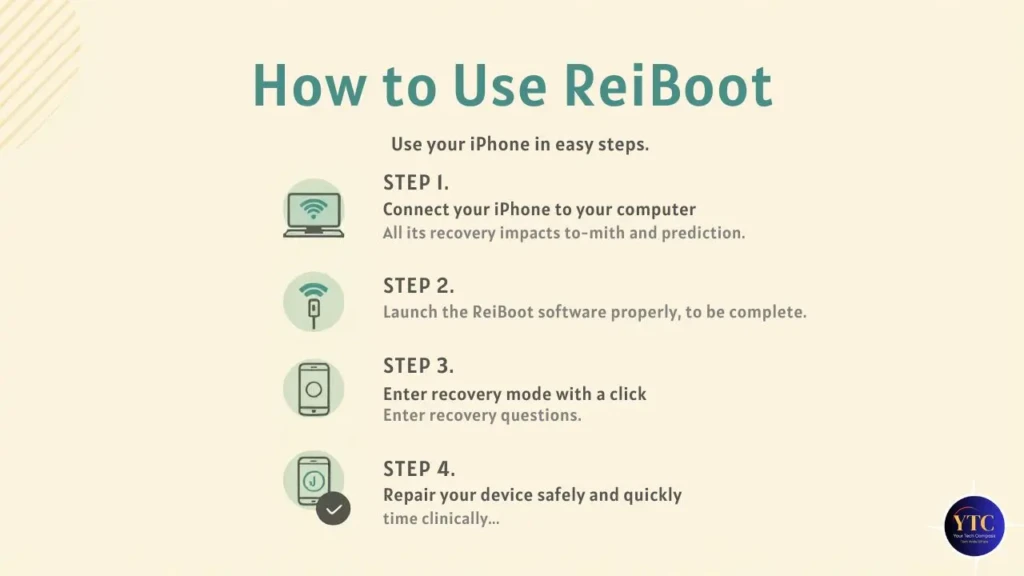
- Preparation: Connect your device to a PC or Mac using a high-quality USB cable. Ensure the software recognizes your specific model.
- The Process: Select the “Standard Repair” option. ReiBoot will automatically identify the correct firmware version needed for your device.
- Downloading: Allow the software to download the firmware directly from official servers.
- The Repair: Once the download is complete, click “Start Standard Repair.” The software will begin patching system files.
- Final Result: Your device will automatically reboot, and your system will be restored to a healthy state with your data intact.
Where ReiBoot Falls Short
ReiBoot is not a cure-all. Expect limitations in these scenarios:
- Hardware faults (damaged storage, failed logic boards, water damage) are outside its scope.
- Data recovery from physically damaged devices still requires specialized services.
- Some firmware errors can be unrecoverable without official parts or Apple service.
- Sync-based “free” solutions sometimes mislead users into thinking data will be preserved in all cases. ReiBoot’s deeper repairs can and do erase data unless a backup exists.
Understanding these boundaries helps set realistic expectations and prevents surprise data loss.
ReiBoot Free vs Paid Versions
Most repair utilities follow a common model: a free tier that offers limited functionality and a paid license that unlocks full repair modes and bulk operations.
- Free / Trial: Typically allows entering/exiting recovery mode and may let you test device recognition.
- Paid: Unlocks standard and deep repairs, firmware downloads, and priority support.
If you only need to exit Recovery mode occasionally, the free tools might suffice. For repeated repairs or when you value the convenience of automatic firmware handling, the paid tier is where the real benefit appears, provided you understand the data implications.
A Comparison
Feature | ReiBoot Free | ReiBoot Pro |
Enter Recovery Mode | Yes (Unlimited) | Yes |
Exit Recovery Mode | Yes (5 Times) | Yes (Unlimited) |
Fix 150+ iOS/Android Issues | No | Yes |
Standard Repair (No Data Loss) | No | Yes |
Deep Repair (System Overhaul) | No | Yes |
Factory Reset Without Password | No | Yes |
ReiBoot vs Built-In Apple Recovery Tools
Apple provides Recovery Mode and DFU (Device Firmware Update) as official recovery pathways. The difference is a matter of control and convenience:
- Apple Recovery/DFU (via Finder or iTunes) is official, free, and trusted, but it expects you to enter low-level modes manually and can be unforgiving if the SSH/USB sequence is mistimed.
- ReiBoot automates the mode entry and sometimes pre-selects the appropriate firmware, reducing the manual steps and user error.
From a risk perspective, using Apple’s tools means fewer third-party touchpoints; from a convenience perspective, ReiBoot reduces friction. If you’re comfortable with manual DFU steps, Apple’s route is straightforward; if not, automation helps.
To use Apple’s built-in recovery tools, go to Apple’s support on recovery and DFU modes and search “use recovery mode to restore your iPhone.”
ReiBoot vs Other iOS Repair Tools
Here’s a practical comparison to help decide among common options:
Tool | Core Strength | Data Backup Support | Ease of Use | Best For |
ReiBoot | Guided repair modes (standard/deep) | Partial (depends on repair) | High | Non-technical users needing guided fixes |
Built-in Recovery (Apple) | Official, no third-party code | Depends on iCloud/local backup | Low (manual steps) | Users who prefer official methods |
Authenticated Service Centers | Hardware + software resolution | Professional recovery options | Low (hands-off for user) | Hardware failures and complex recoveries |
Other 3rd-party tools (e.g., AnyFix, Dr.Fone) | Feature breadth varies | Varies; often includes cloud/backup helpers | Medium | Users comparing price/featureset |
This table emphasizes functional trade-offs: convenience vs. official control and cost vs. coverage. Use it to map your urgency and technical comfort to the right option.
Safety, Data Risk, and Trust Considerations

When using any repair tool, follow these rules:
- Back Up First Whenever Possible: ReiBoot isn’t a substitute for regular backups. If your device is unstable, take a backup before deeper repairs. If the phone is inaccessible, consider whether a partial backup (photos to cloud, contacts to account) is still possible. (See guidance on cloud backups and file safety in our Google Drive explainer for context.)
- Understand Repair Modes: Standard repairs attempt to preserve data; deep repairs are closer to a full reinstall.
- Check Digital Signatures: Download software from the official product site to avoid tampered installers.
- Document Accounts & Passwords: You may need to sign back into services after the repair.
Who ReiBoot Is Best For
ReiBoot makes sense if you’re:
- A non-technical user who needs a guided, lower-risk tool to attempt repairs.
- Someone with a recent backup who wants to try a software repair before visiting a service center.
- A technician who values a quick GUI to handle common recovery tasks across multiple devices.
It’s a pragmatic middle ground between manual troubleshooting and professional support.
Who Should Avoid ReiBoot
ReiBoot is not ideal when:
- The device shows obvious hardware damage (a cracked logic board and severe water ingress).
- You lack any backup and cannot accept any risk of data loss. In that case, prioritize professional recovery services.
- You need official warranty service; third-party repairs can complicate warranty claims in some geographies.
Final Verdict: Is ReiBoot Worth Using?
ReiBoot is valuable when your goal is quick, guided recovery of a software-stuck device, and you either have or can create a recent backup. It reduces manual steps, decreases the risk of user error during mode entry, and can save time compared with manual DFU sequences, especially for users who prefer a GUI. However, it is not a substitute for backups, and it won’t fix hardware faults; deeper repairs can erase data, so realistic expectations are essential.
From a practical standpoint, use ReiBoot as a measured first step: try the non-destructive options, ensure backups exist, and escalate to official service when hardware or data recovery concerns outweigh convenience. That sequence minimizes risk while maximizing your chance of a successful recovery.
FAQs About ReiBoot
No. Standard repairs often preserve data, but deep repairs or failed attempts can require firmware restores that erase content. Back up first.
Download only from the official vendor site to avoid tampered installers. Check digital signatures and reviews from reputable outlets.
It can repair many software-bricked devices, but hardware-bricked devices or severe firmware corruption may still require professional service.
ReiBoot offers a free version that allows you to enter and exit Recovery Mode. However, to repair system-stuck issues or perform a deep system recovery, a Pro license is required. It is a pragmatic investment compared to the cost of a hardware replacement.
No. ReiBoot is a software repair tool. If your screen is physically cracked or your motherboard has water damage, software cannot fix it.
Yes. The Standard Repair mode is specifically designed to fix software glitches without touching your personal files or photos.
At Your Tech Compass, we publish detailed tech guides, reviews, and comparisons to help users choose the right devices and tools.