I want to start with what’s actually changed, because if you last looked closely at Google Drive a year or two ago, you’d barely recognize the product underneath the familiar blue triangle icon today. Drive used to be a straightforward cloud storage service: upload a file, sync it across devices, and share a link. That core function still works exactly the way it always has. What’s different is everything built on top of it: Gemini is now woven directly into how you search your files, summarize a document you haven’t opened in months, or ask a question about a spreadsheet without manually scanning every row. And in May 2026, Google restructured its entire storage and AI subscription lineup around this shift, meaning the pricing and plan names you might remember from even a year ago no longer describe what you’d actually be signing up for today.
This guide explains Google Drive as it actually works right now, not the version from a few product cycles ago. I’ll walk through the storage and syncing fundamentals, the features that make Drive more than a file repository, the current 2026 pricing structure under Google’s reorganized “Google AI” plan names, and the practical habits that keep a growing Drive account organized rather than chaotic. Whether you’re backing up family photos, sharing files for a small business, or deciding whether Drive’s AI features are worth paying for, this is the complete, current picture.
A note before we begin: every YTC score is earned, never negotiated. If you want to understand exactly how we evaluate apps & tools and how we handle affiliate relationships, our Review Methodology lays it all out.
What Is Google Drive?
At its core, Google Drive is a cloud storage service that lets you upload, store, sync, and share files online. Instead of keeping files exclusively on your computer or phone, Drive stores your data on Google’s servers so you can access it from any device with an internet connection and signed in to the same Google account. Drive integrates tightly with Gmail, Docs, Sheets, and Slides, making it the central hub for both personal file management and collaborative work.
The fundamental advantage over traditional local storage is straightforward: a document saved only on your laptop exists in exactly one place and is vulnerable if that device fails or is lost. A file saved to Drive is stored on Google’s infrastructure and is accessible from any browser or device as soon as you sign in. That reliability, combined with the collaboration and AI layers covered below, is why Drive remains one of the most widely used cloud platforms worldwide.
How Google Drive Works
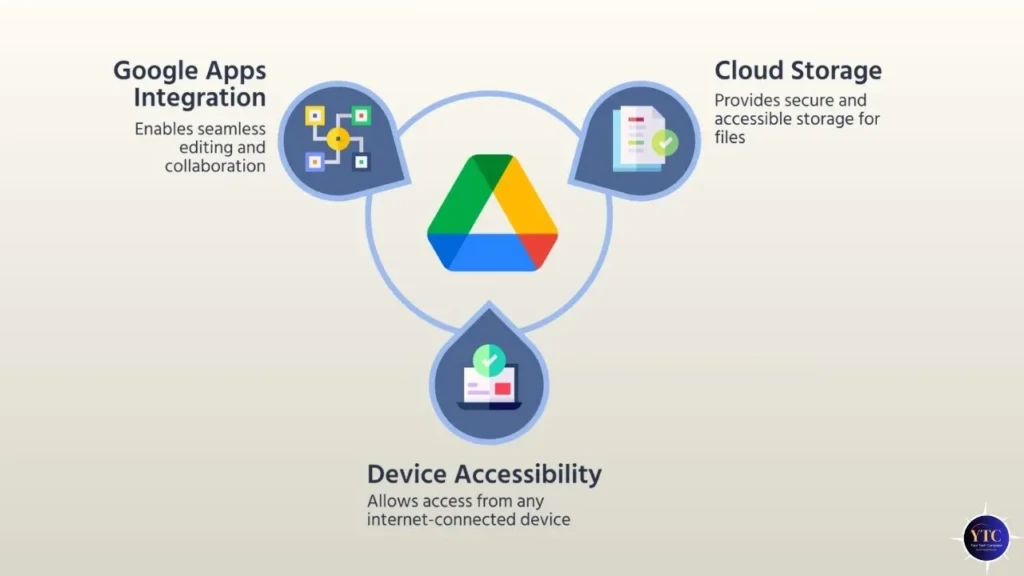
Google Drive operates on a few core principles that are worth understanding clearly, because they explain why the product behaves the way it does.
- Storage: Files you upload (photos, videos, documents, presentations) are stored securely on Google’s cloud servers rather than locally on any single device.
- Syncing: Whether you’re using the Drive mobile app, the Drive for Desktop application, or the web interface, files and any changes you make sync across every connected device. If you edit a document on your phone during your commute, the change appears on your laptop almost instantly once you’re both connected to the internet; no manual transfer is required, unlike with traditional local file systems.
- Access: You can reach your files through the Drive website, the mobile app, or a synchronized folder that behaves like part of your computer’s native file system. Offline access is also available for files you specifically mark for it, letting you keep working even without a connection.
- AI-assisted Retrieval: This is the genuinely new layer. Gemini is now built directly into Drive’s search and file interaction experience, meaning you’re not just searching by filename or keyword anymore, but can ask Drive to summarize a document’s contents, pull a specific data point from a spreadsheet, or surface files related to a topic even when you don’t remember their exact names.
Key Google Drive Features
Google Drive offers considerably more than simple storage. Here’s what actually makes it a productivity platform rather than just a file repository.
File Storage and Organization
You can create folders, subfolders, and custom naming schemes to keep files organized and easy to find. Tags and color-coding provide frequent users with additional ways to categorize content beyond a simple folder hierarchy.
File Sharing and Permissions
Drive makes sharing genuinely simple. You can share a link and control exactly what the recipient can do with it: view only, comment, or fully edit. You can also set time-limited access windows or require recipients to sign in before opening shared content, both of which help control exposure to sensitive files.
Collaboration Tools
Drive integrates seamlessly with Docs, Sheets, and Slides, letting multiple people work on the same file simultaneously in real time, seeing each other’s cursors, comments, and edits as they happen. This shared editing experience is one of Drive’s clearest advantages over more storage-only competitors, and it’s why so many teams default to it for collaborative work.
Gemini AI Integration: What’s Genuinely New
This is the section that didn’t exist in older descriptions of Drive, and it’s the most significant functional change to the product in the past two years. Gemini is now embedded directly in Drive, accessible through Gmail, Docs, Sheets, and Slides integrations, as well as through Drive’s own interface. In practical terms, this means you can ask Gemini to summarize a long report without opening it fully, request a quick synthesis of what’s changed across several versions of a document, or ask a natural-language question about data in a spreadsheet and get a direct answer instead of manually building a formula.
At Google I/O 2026, this AI layer expanded considerably further. Gemini Spark, a new AI agent platform, lets agents run tasks in the background even when your laptop is closed, extending Drive’s usefulness from a passive storage location to an active workspace where AI can independently complete tasks on your files.
Daily Brief, another I/O 2026 addition, gives you a personalized summary of your day that can draw on relevant Drive content alongside your calendar and email. These features are rolling out first to higher subscription tiers before reaching the full user base, which is relevant when you’re comparing the plans in the pricing section below.
Search and File Recovery
Drive’s search is powered by Google’s own search infrastructure, letting you search by file name, content type, keywords, and even text embedded inside images through OCR. Layered on top of that traditional search is the Gemini-powered semantic search described above, meaning you can now search by concept or intent (“the budget file from last quarter’s planning meeting”) rather than needing to recall an exact filename. Version history, separately, lets you revert any document to a previous state if needed, which has quietly saved more accidental overwrites than most users realize.
Integration With Google Workspace
If you use Gmail, Google Meet, Calendar, or Contacts, Drive ties directly into all of them. Attachments from Gmail can be saved directly to Drive with one click, and shared files open directly in the relevant Workspace app, eliminating the need for a separate download-and-reopen step.
Google Drive Storage Plans Explained: The 2026 Restructure
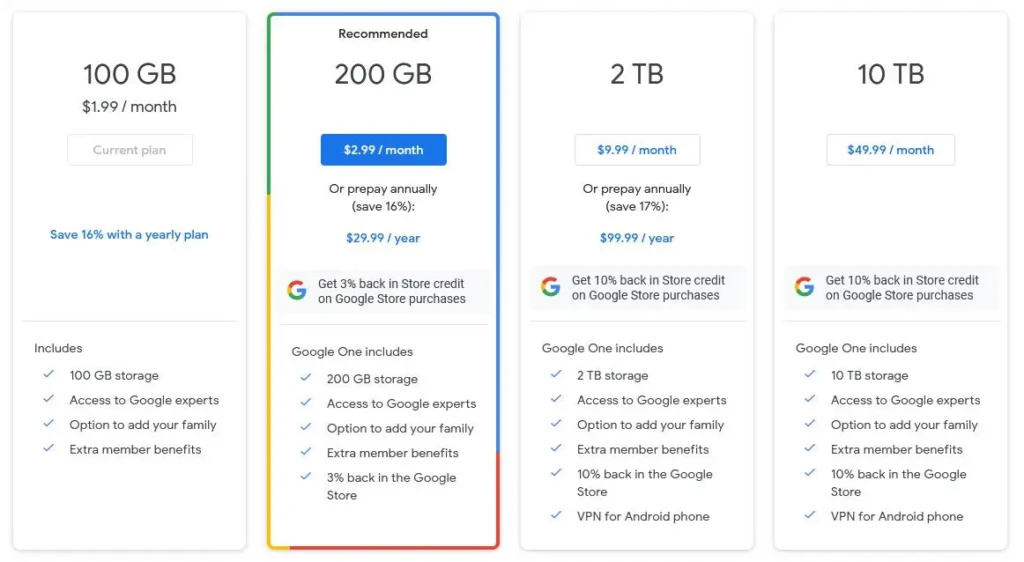
This is where the most has changed since older Google Drive guides were written, and it’s worth understanding the new structure clearly before you pick a plan.
Since 2026, Google has consolidated its storage and AI offerings into a restructured lineup, replacing the former separate names “Google One,” “Google AI Premium,” and “Gemini Advanced” with a more unified approach built around Google AI plan tiers. The core idea is a single subscription that bundles Drive storage, Gemini AI access, VPN, and creative features, rather than requiring you to manage multiple separate subscriptions.
Free Tier
Every Google account includes 15 GB of storage, shared across Drive, Gmail, and Photos. This remains unchanged and is genuinely workable for light personal use, though it fills quickly if you’re storing substantial photo or video libraries.
Google AI Plus (entry paid tier)
Adds 100 GB of storage with a basic AI tier, positioned for users who want to move beyond the free quota without committing to the full AI feature set.
Google AI Pro (the significant 2026 change)
This tier now includes 5 TB of storage (up from the previous 2 TB) for $19.99/month in the US. Alongside the storage increase, AI Pro includes access to Gemini 3 Pro, a 1-million-token context window, Deep Research sessions, expanded usage limits for image generation and editing, agentic capabilities, including AI-powered calling, and Deep Search. This is genuinely one of the strongest value propositions in the consumer cloud storage market right now. 5 TB at this price point undercuts most pure-storage competitors, even before factoring in the bundled AI capabilities.
Google AI Ultra (the new top tier)
Google reduced the monthly price of its top-tier Ultra subscription from $250 to $200 while retaining the same feature set and introduced a more affordable Ultra option alongside it. Ultra unlocks 30 TB of storage, the most capable available Gemini models, including Gemini 3.1 Pro and Deep Think, expanded Veo video generation access, and the highest available usage limits across every Gemini-powered feature. This tier is aimed squarely at developers, advanced creators, and power users with genuinely heavy AI and storage demands.
Enterprise and Business Plans
For organizations, Google Workspace tiers bundle Drive storage with administrative controls and team-wide collaboration features. Business Standard, for example, unlocks the full Gemini AI suite across Docs, Sheets, Slides, Drive, Meet, and Chat alongside 2 TB of pooled organization-wide storage, a meaningful upgrade from the Business Starter tier, where Gemini access is limited to Gmail only, and storage is capped at 30 GB pooled across the whole team, which most growing companies outgrow within 12 to 18 months.
It’s important to remember that your personal Drive storage is shared with Gmail and Google Photos. Therefore, if you send large attachments regularly or store extensive photo and video libraries, that combined usage can fill your quota faster than Drive usage alone would suggest.
Google Drive for Personal Use
For everyday users, Drive is well-suited for storing personal files, such as photos, videos, PDFs, and documents, with many people setting up automatic phone backups so their photos and videos are safely preserved without any manual upload. Drive is also particularly useful for sharing content with family and friends, whether that’s a shared vacation photo album or a household budget spreadsheet, with permission settings giving you full control over whether someone can edit or only view what you’ve shared.
Google Drive for Work and Productivity
In a work setting, Drive becomes a genuine hub for collaboration. Teams share folders, co-edit documents in real time, and leave contextual comments that streamline how a project actually moves forward, rather than requiring separate status meetings to track who changed what. Paired with Google Calendar and Gmail, Drive also helps teams coordinate schedules and share key files directly in the context where they’re needed, rather than as disconnected attachments.
This collaborative function complements how task management tools support team productivity more broadly; our Todoist vs Things 3 comparison covers how dedicated task managers handle workflows and reminders, while Drive serves as the central repository for project assets. The two categories of tools are complementary rather than competing, and most productive teams end up running both side by side.
Google Drive on Mobile vs Desktop
Drive adapts to whichever device you’re using, and each interface has genuine strengths worth knowing.
- Mobile App: Lets you access files quickly, upload images and documents on the go, and scan physical documents directly using your phone’s camera, turning Drive into a functional mobile scanner with zero additional hardware.
- Desktop App (Drive for Desktop): Syncs designated folders on your computer directly with Drive, making cloud storage feel like a native part of your local file system rather than a separate destination you have to consciously navigate to.
- Web Interface: Remains the most comprehensive environment for managing, searching, and sharing files, and it’s also where the newest Gemini-powered features tend to appear first before rolling out to mobile and desktop apps.
The mobile app wins for convenience and quick capture; the desktop app wins for seamless integration with files you’re already working on locally.
Google Drive Security and Privacy
Security and privacy concerns are a reasonable starting point for evaluating any cloud service, and Drive’s foundation in this area is genuinely solid. Google Drive uses encryption both in transit and at rest, meaning your files are protected as they move to and from Google’s servers and while they are stored. Google’s infrastructure also includes active monitoring of unusual account activity, alongside standard account protections such as two-factor authentication.
The Gemini integration introduces a privacy consideration worth understanding directly rather than glossing over: when you use Gemini to summarize, search, or ask questions about your Drive content, that interaction involves processing your file content through Google’s AI systems. Google’s stated policy is that Workspace and Drive content used to power Gemini features is not used to train its general AI models without explicit permission, but reviewing your specific plan’s current data handling terms is worth doing if you’re storing genuinely sensitive material and want to understand exactly how AI-assisted features interact with it.
Beyond the platform-level protections, the human factor remains the most common real-world vulnerability: it’s still essential to understand and actively manage your own sharing permissions to avoid unintended access. Periodically reviewing who has access to your files, particularly anything shared with “anyone with the link,” is the single highest-value privacy habit any Drive user can build.
Common Google Drive Mistakes to Avoid
Even experienced users fall into a handful of recurring pitfalls. Here’s what to watch for.
Poor Folder Organization
Cluttered, inconsistent folder structures make files genuinely hard to locate later, even with Drive’s strong search. Adopt a clear, consistent naming convention and folder hierarchy from the start rather than trying to retrofit organization onto an already messy account.
Overlooking File Permissions
Accidentally granting edit access where view-only would have sufficed can lead to unintended changes to important documents. Always double-check sharing settings before sending a link, particularly for anything you wouldn’t want casually modified.
Ignoring Storage Limits
Since Drive storage is shared with Gmail and Photos, large attachments or extensive photo backups can eat into your quota faster than expected. Periodically reviewing and cleaning unnecessary large files, or upgrading to one of the AI Pro or AI Ultra tiers if your needs have genuinely grown, prevents the frustrating moment of discovering you’re out of space mid-upload.
Google Drive vs Other Cloud Storage Services
Feature | Google Drive | Dropbox | OneDrive |
Free Storage | 15 GB | 2 TB | 5 GB |
Entry Paid Tier (storage) | 100 GB (AI Plus) | 2 TB | 100 GB |
Mid Paid Tier (storage) | 5 TB (AI Pro, $19.99/mo) | 3 TB | 1 TB (Microsoft 365) |
Built-in AI Assistant | ✅ Gemini (deeply integrated) | ⚠️ Limited | ✅ Copilot (Microsoft 365 tiers) |
Collaboration | Excellent (Docs/Sheets/Slides) | Good | Good (Office 365 integration) |
Platform Support | Web, Mobile, Desktop | Web, Mobile, Desktop | Web, Mobile, Desktop |
Best For | Google ecosystem users; AI-assisted workflows | Simple, reliable file sync | Microsoft ecosystem users |
Google Drive’s biggest current advantage isn’t just storage volume; it’s the breadth of Gemini integration throughout the experience, alongside the genuinely strong value of the AI Pro tier’s 5 TB allocation. Alternatives remain preferable if you’re heavily invested in Microsoft Office workflows or want a deliberately minimal sync tool without an AI layer.
Tips to Use Google Drive More Efficiently
A handful of small habits compound into a meaningfully better experience over time.
- Use descriptive file names so both traditional search and Gemini’s semantic search work as effectively as possible. Vague names like “Document1” defeat even the best search system.
- Create dedicated folders for each project or client to compartmentalize work and keep related files easy to locate together.
- Enable offline access to files you need without a reliable internet connection, especially if you travel or work in low-connectivity environments.
- Archive old files regularly to reduce clutter and stay comfortably within your storage limits rather than discovering you’re at capacity during an urgent upload.
- Try Gemini’s file summarization and search features deliberately, even if you haven’t used them before. For anyone managing a large or growing Drive account, the time saved finding and synthesizing information genuinely compounds over weeks and months of regular use.
FAQs
Yes. Every Google account includes 15 GB of free storage, shared across Drive, Gmail, and Photos. Beyond that, paid tiers start with Google AI Plus at 100 GB and go up to Google AI Pro at 5 TB for $19.99/month, a significant storage increase from the previous 2 TB allocation that defined this tier until 2026.
Google AI Pro is the renamed, restructured successor to what was previously marketed separately as Google One, Google AI Premium, and Gemini Advanced. Since 2026, Google has consolidated these into a unified plan, with Google AI Pro now bundling 5 TB of Drive storage, Gemini 3 Pro access, Deep Research, and expanded AI feature limits into a single subscription, rather than requiring separate sign-ups.
Yes. Drive lets you mark specific files for offline access on both mobile and desktop, so you can continue working on them without an active internet connection. Changes sync automatically once your connection is restored.
Google will prompt you to either upgrade your plan or free up space by deleting large or unneeded files. New uploads and, in some cases, new file creation across Workspace apps can be blocked until you’re back under your storage limit, so it’s worth addressing this proactively rather than discovering the block mid-task.
Yes, with good account practices. Drive uses encryption both in transit and at rest, and Google’s infrastructure includes active monitoring, alongside standard protections such as two-factor authentication. The main practical risk isn’t Google’s infrastructure; it’s user-managed sharing permissions, so periodically reviewing who has access to your files is the highest-value security habit you can build as a Drive user.
According to Google’s stated policy, Workspace and Drive content used to power Gemini features for you is not used to train Google’s general AI models without your explicit permission. That said, if you’re storing particularly sensitive material and want full clarity on current data-handling practices, reviewing the terms of your specific plan directly in Google’s official documentation is worth the few minutes it takes, since AI data policies continue to evolve.
Final Thoughts
Google Drive isn’t just another cloud storage service; it’s become a genuine working hub for how we store, share, and increasingly think through files in a world where remote work and AI-assisted productivity are no longer optional add-ons but the default expectation. Its deep integration with the broader Google ecosystem, flexible and granular sharing controls, and now a genuinely capable AI layer through Gemini make it one of the most versatile tools available for both personal and professional file management. The 2026 restructuring around Google AI Pro and AI Ultra, with the jump to 5 TB of storage at the Pro tier, represents one of the strongest value shifts in the consumer cloud storage space in recent memory.
Whether you’re organizing family photos, managing shared project files at work, or weighing whether the AI Pro upgrade is worth it for your specific storage and AI usage patterns, understanding how Drive actually works today, not how it worked a product cycle or two ago, can save you real time and prevent the frustration of discovering features or limits you didn’t know existed. With a little deliberate organization and genuine use of the AI features now built into the platform, Drive can meaningfully change how you manage your digital life day-to-day.
There’s always more to explore in how the tools you already use continue to evolve. Head to YourTechCompass.com for more honest, current guides and comparisons that help you get the most out of your everyday tech.