Clearing cache on your Android device is one of the most effective ways to free up storage, resolve app issues, and improve overall performance. Whether you’re dealing with sluggish apps or simply want to maintain your phone’s health, this guide will walk you through everything, from clearing individual app caches to using system tools and third-party cleaners.
At the end of this article, you’ll be equipped to keep your Android device running smoothly.
Why Clear Cache on Android?
Before diving into the steps, let’s explore why clearing the cache matters:
- Free Up Storage Space: Cached files can accumulate over time, taking up unnecessary space. Clearing them helps reclaim storage.
- Improve Device Performance: If your phone or apps are slow, corrupted, or experiencing excessive cache, it may be the culprit.
- Fix App Glitches or Crashes: When apps misbehave, clearing cache is often a quick fix. If the problem persists, see how to fix apps that keep crashing on Android.
- Remove Outdated Data: Cache stores temporary files that may become obsolete after updates or changes; removing them allows fresh data to be downloaded.
How to Clear Cache on Individual Apps
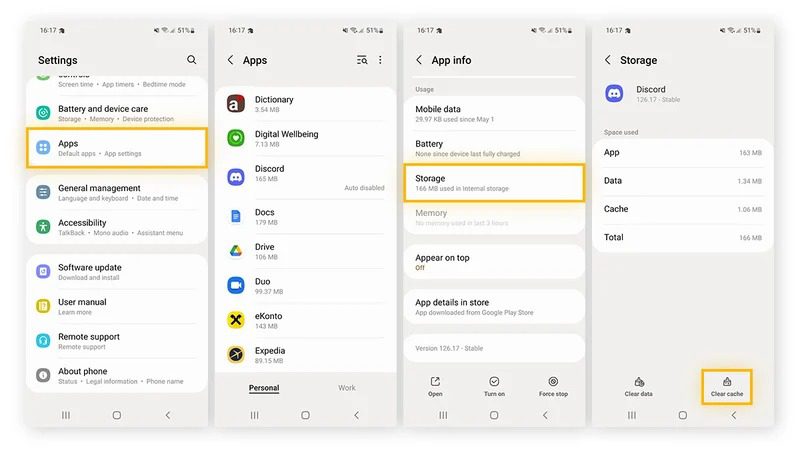
Here’s how you can clear cache for specific apps across most recent Android versions (Android 12/13/14):
- Open Settings.
- Tap “Apps” or “Applications” (depending on your manufacturer).
- Find and tap the app you want to clear (e.g., Instagram, Gmail).
- Tap Storage & cache (some devices: Storage only).
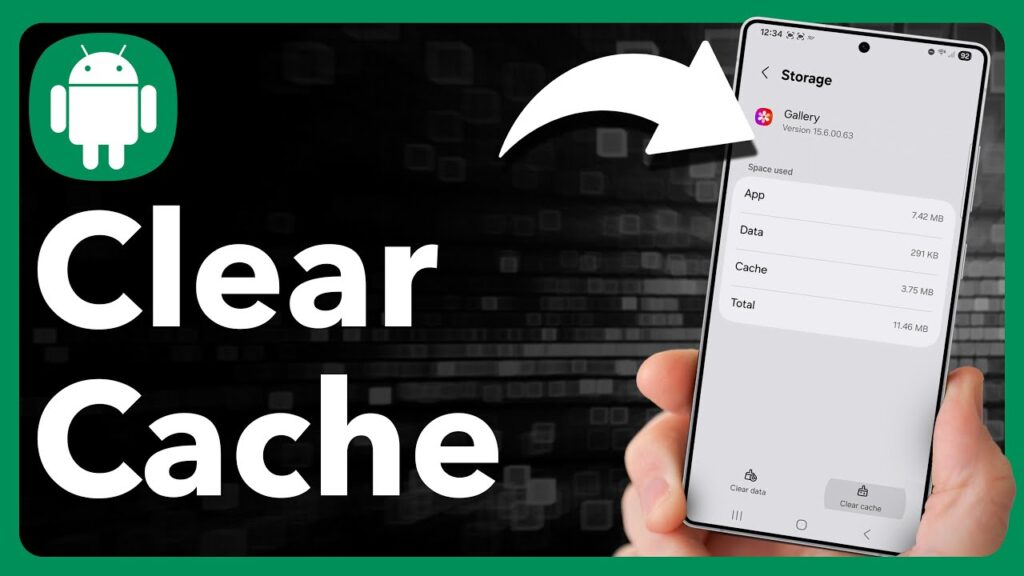
- Tap Clear cache.
Tip: Don’t tap “Clear data” unless you’re okay losing app settings, login info, etc. - After clearing, reopen the app and notice improved performance or responsiveness.
Doing this regularly for heavy‑use apps can prevent sluggish behavior without affecting your personal data.
How to Clear System Cache (Older Android Versions)
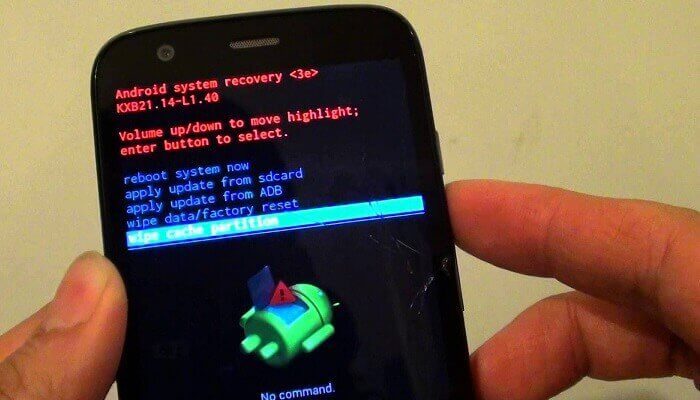
Note: On modern Android versions, the “system cache partition wipe” option is often removed. But if your device supports it, here’s how:
- Power off your device.
- Press and hold Volume Up + Power button (varies by make/model) to enter Recovery Mode.
- Use the volume keys to select “Wipe cache partition” and confirm.
- Reboot the system.
Important: This method is primarily useful for older Android devices. If you’re on Android 10 or later, this may not apply.
Using Built‑In Storage & Device Maintenance Tools
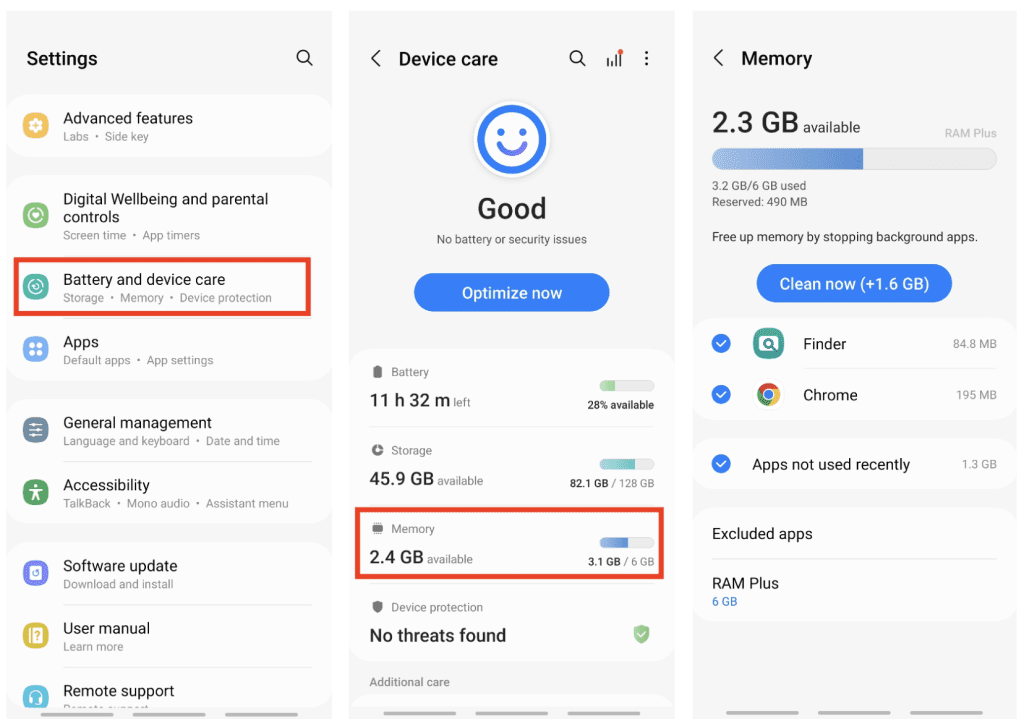
Many Android manufacturers include system tools to help clear cache and free up space more broadly:
- On Samsung (Galaxy) devices: Settings > Battery and device care > Storage > Cached data or Optimize now.
- On many Android phones: Settings > Storage > Cached data, then confirm deletion.
These tools are ideal for beginners who want to reclaim space with minimal effort.
Using Third‑Party Apps to Clear Cache
If you prefer automation or more features, third‑party apps like Files by Google or other trusted cleaners can help. However:
- Only use apps from trusted sources (Google Play Store)
- Avoid apps with excessive ads or vague permissions
- Always read reviews and privacy info
Here’s a quick comparison table of built‑in vs third‑party methods:
Method | Best For | Trade-Offs |
Built‑in settings | Precise control over apps | Manual, app‑by‑app process |
Device‑maintenance tool | One‑tap optimization | Less granular control |
Third‑party cache cleaner | Automated cleanup for many apps | Needs trust, may include ads/permissions |
Tips to Prevent Cache Buildup
- Clear the cache of unused apps periodically to free up storage space.
- Use built‑in storage/optimization tools monthly.
- Avoid installing many apps you rarely use.
- Keep your Android system & apps updated (updates often handle cache issues).
Troubleshooting Common Issues
- App still crashes after clearing cache? Try clearing data (this will reset the app) or uninstall and reinstall.
- Device still slow? Use the storage tool to free up other space, or consider a factory reset as a last resort.
- After clearing the cache, you may be signed out of some apps. This’s normal; cache clearance may cause a logout.
- Can’t find the “Clear cache” option? The manufacturer may hide it, look for “Storage & cache” or “Clear storage”.
- Still seeing large cache usage by many apps: Consider resetting the device or consulting support.
Conclusion
Clearing cache on Android is a simple yet effective way to both maintain your device and keep apps running smoothly. Whether you’re freeing up space, fixing app glitches, or just giving your phone a refresh, the steps above cover everything you need, from individual apps to full device cleanup.
I clear cache regularly on my Android phone to maintain speed and performance, and I recommend you do the same.