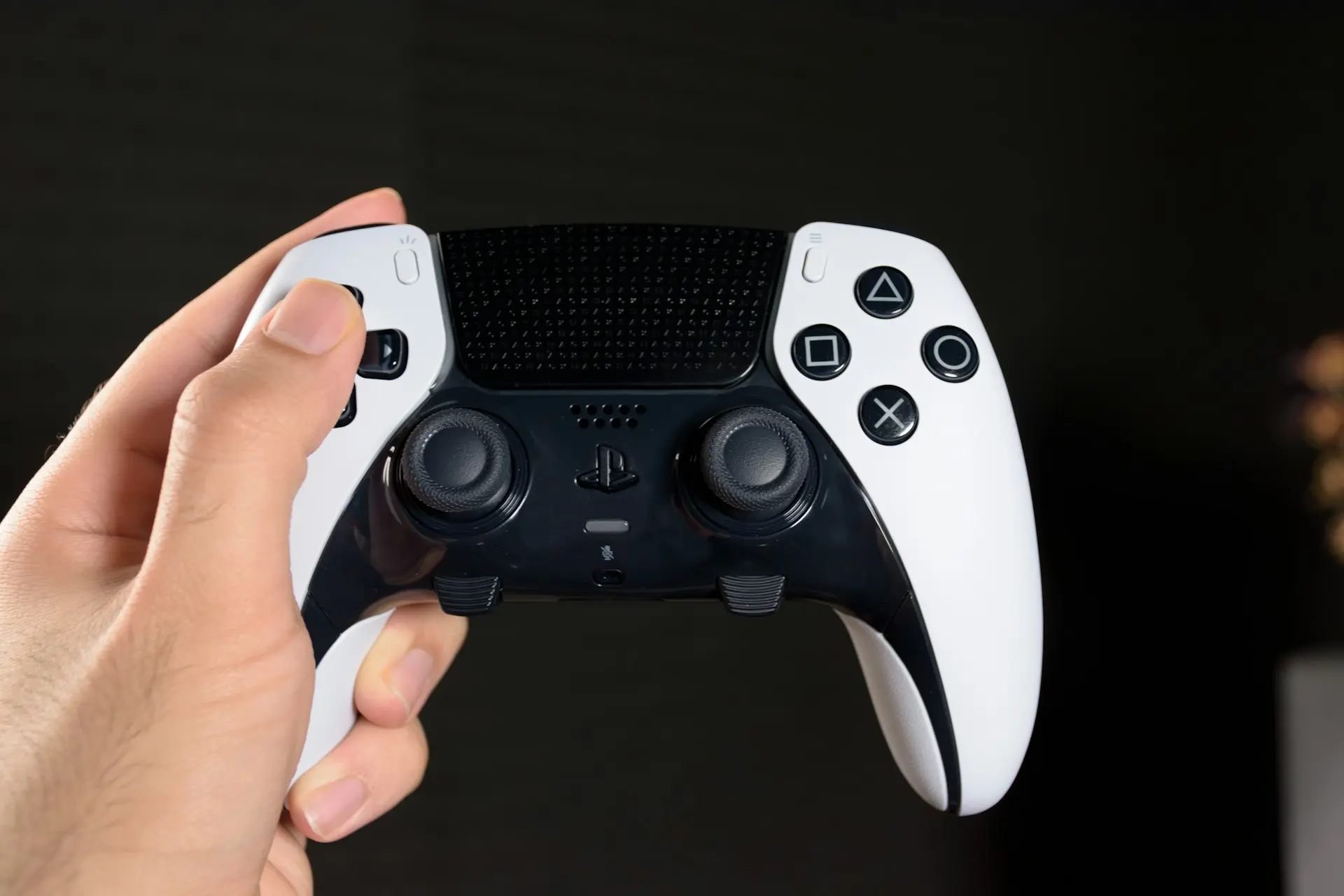
Using a PS5 controller on a PC has become increasingly common, especially among players who prefer analog controls for action games, racing titles, and platformers. The DualSense controller offers excellent ergonomics, responsive inputs, and advanced features that can enhance gameplay when set up correctly. However, connecting it to a PC is not always intuitive, particularly if you’re switching from console gaming or dealing with different connection methods for the first time.
The good news is that connecting a PS5 controller to a PC is straightforward once you understand the available options and requirements. Whether you want the simplicity of a wired connection or the freedom of wireless play, this guide walks through every method step by step, explains what to expect, and helps you troubleshoot common problems along the way. I’ll show you exactly how to connect your PS5 controller to a PC in the most reliable way for your setup so you can start playing without frustration.
What You Need Before Connecting a PS5 Controller to PC
Before diving into the setup process, make sure you have the basics covered. A PS5 controller can connect to most modern Windows PCs, but the method you use depends on your available hardware.
You’ll need:
- A PS5 DualSense controller
- A Windows PC
- Either a USB-C cable or Bluetooth support on your PC
Most laptops include built-in Bluetooth, while some desktop PCs may require a USB Bluetooth adapter. If Bluetooth isn’t available or reliable, a wired USB connection is always an option and often the most stable.
How to Connect a PS5 Controller to PC Using a USB Cable
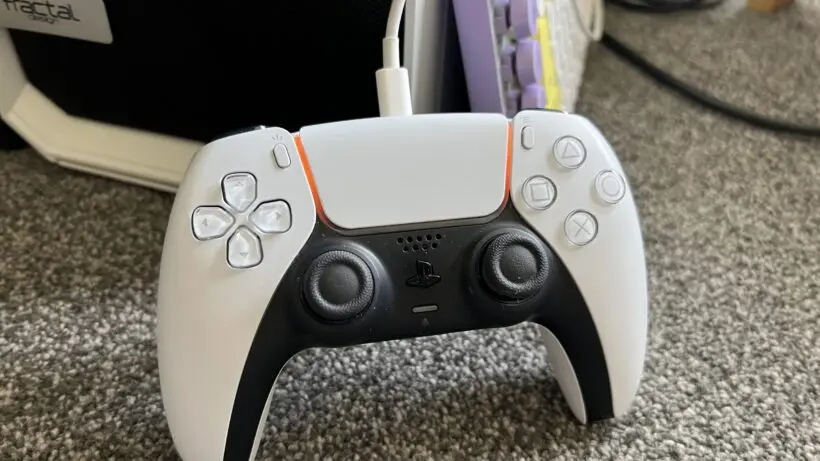
A wired connection is the easiest and most dependable way to connect a PS5 controller to a PC. Windows automatically recognizes the controller, making this method ideal for first-time setup or troubleshooting.
Step-by-Step USB Connection
- Plug a USB-C cable into the PS5 controller
- Connect the other end to a USB port on your PC
- Wait a few seconds while Windows installs the necessary drivers
- Press the PS button to confirm the controller is powered on
Once connected, the controller is ready to use in supported games and applications. There’s no pairing process or battery drain, making this method perfect for long gaming sessions or competitive play.
How to Connect a PS5 Controller to PC via Bluetooth
If you prefer a wireless setup, Bluetooth allows you to connect the PS5 controller without cables. This method offers more freedom but requires proper pairing.
Step-by-Step Bluetooth Pairing
- Open Windows Settings and turn Bluetooth on
- Press and hold the PS button + Create button on the controller
- Wait for the light bar to flash, indicating pairing mode
- Select the controller from the Bluetooth device list on your PC
After pairing, the controller should remain connected automatically when turned on. Bluetooth works well for casual gaming, but performance can vary depending on signal quality and interference.
Wired vs Bluetooth: Which Connection Is Better?
Choosing between wired and wireless depends on how you play and what you prioritize. The table below highlights the key differences.
Connection Type | Setup Ease | Input Lag | Battery Use | Best For |
USB Cable | Very Easy | Lowest | None | Competitive gaming, stability |
Bluetooth | Moderate | Slight | Yes | Wireless convenience |
If you experience lag or disconnections with Bluetooth, switching to USB often resolves the issue immediately.
How to Check If the PS5 Controller Is Working on PC
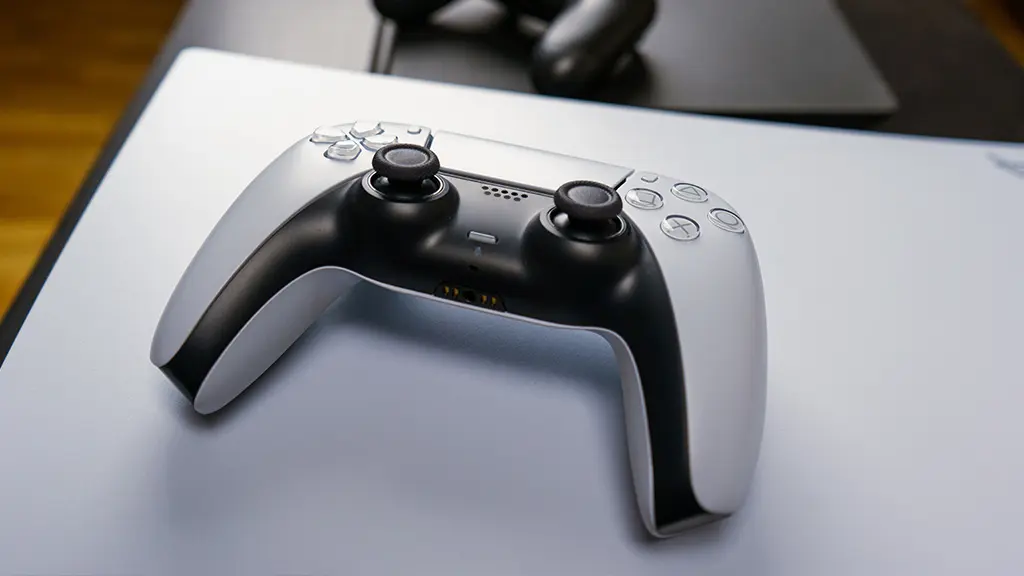
After connecting the controller, confirm that Windows properly detects its inputs.
You can:
- Open Windows device settings and confirm the controller appears
- Test buttons and sticks inside a game
- Use in-game controller settings to verify mappings
If the controller connects but doesn’t respond in games, it’s usually a software compatibility issue rather than a hardware fault.
Using a PS5 Controller on PC with Steam
Steam provides built-in support for PS5 controllers, making it the easiest platform for using a DualSense on PC.
Inside Steam:
- Open Settings
- Navigate to Controller
- Enable PlayStation Controller Support
Once enabled, Steam automatically maps the controller for supported games and allows custom button layouts. Many PC players use Steam even for non-Steam games because of this feature.
Using a PS5 Controller on PC Without Steam
Outside of Steam, controller support varies by game. Some titles support DualSense natively, while others expect Xbox-style input.
In those cases, third-party tools may be required to translate inputs. These tools make the PS5 controller appear as a standard PC controller, improving compatibility. Use them cautiously and only from reputable sources.
Fixing Common PS5 Controller Connection Issues
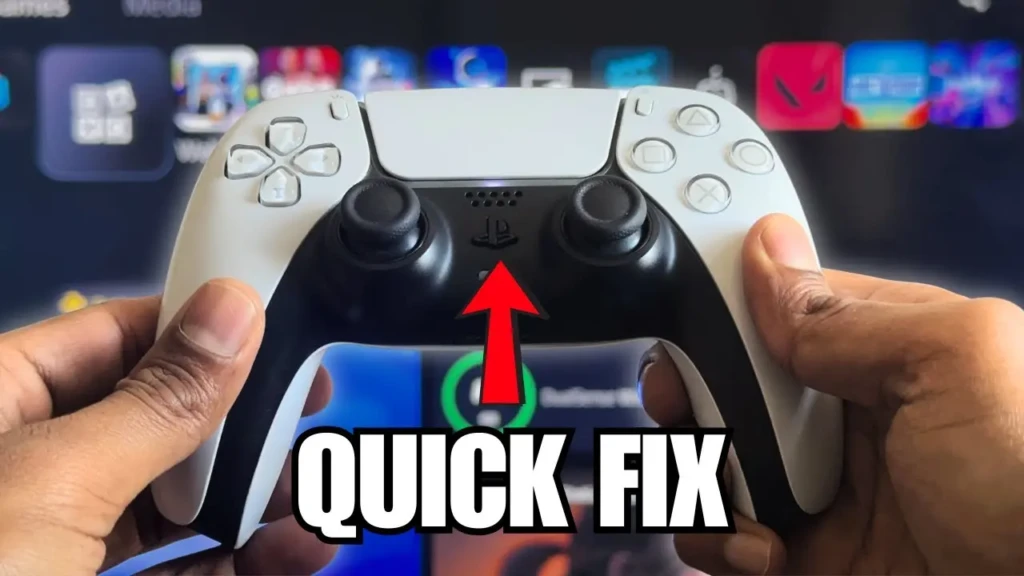
If the controller doesn’t work as expected, these are the most common fixes:
Controller Not Detected
- Reconnect the USB cable
- Re-enter Bluetooth pairing mode
- Restart Windows
Controller Works in Windows but Not Games
- Enable controller support in the game launcher
- Check in-game controller settings
Lag or Disconnects
- Reduce Bluetooth interference
- Move closer to the PC
- Switch to a wired connection
General system performance can also affect responsiveness. If your PC struggles during startup or feels sluggish overall, optimizing Windows can help improve controller stability. A good place to start is our guide to fixing slow startup in Windows 11.
PS5 vs Xbox Controller on PC
If you’re choosing between controllers, it helps to understand how they compare on PC.
Feature | PS5 Controller | Xbox Controller |
Native Windows Support | Moderate | Excellent |
Steam Compatibility | Very Good | Excellent |
Setup Complexity | Medium | Low |
Best For | Steam games, PlayStation fans | Universal PC gaming |
For a detailed walkthrough on Xbox setup, our guide on how to connect Xbox controller to PC offers a helpful comparison.
Update PS5 Controller Firmware and Windows Drivers
Keeping your software up to date improves compatibility and stability.
- Update Windows through Windows Update
- Update the DualSense controller firmware using official tools
Firmware updates can fix connection bugs and improve responsiveness, especially over Bluetooth.
Who This Guide Is Best For
This guide is ideal if you:
- Play PC games with a controller
- Are switching from PlayStation to PC
- Want wireless or couch gaming
- Prefer analog controls over keyboard and mouse
Conclusion
Connecting a PS5 controller to a PC is easier than it first appears once you understand the available methods. A wired USB connection offers the most reliable performance, while Bluetooth provides wireless flexibility for casual play. With the right settings enabled and a bit of testing, the DualSense controller can work smoothly across many PC games and platforms.
By following the steps in this guide, checking compatibility, and applying basic troubleshooting when needed, you can avoid common pitfalls and enjoy consistent controller performance. I encourage you to test both wired and wireless options, fine-tune your setup to your play style, and settle on the method that delivers the best experience for your PC gaming sessions.
FAQs
Yes, Bluetooth allows wireless pairing without cables.
Some games lack native DualSense support and require launcher settings or compatibility tools.
Wired offers lower latency and stability; Bluetooth offers convenience.
Basic features work universally; advanced features depend on game support.