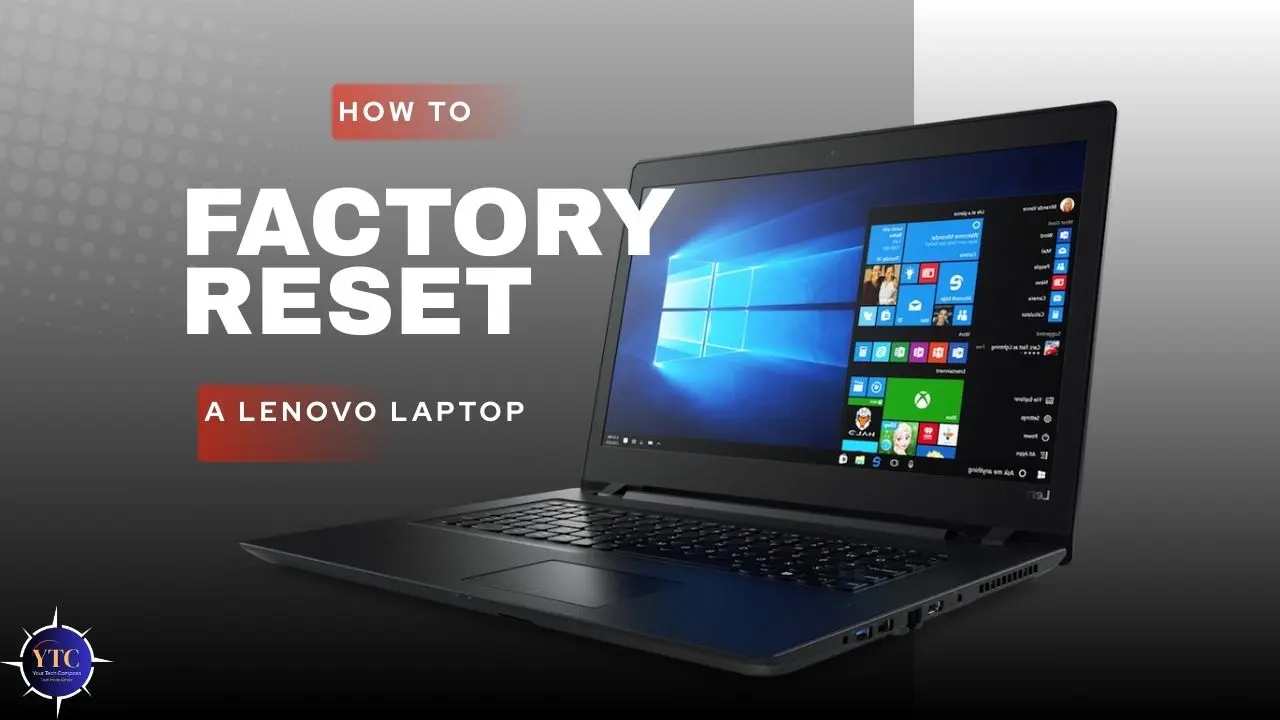
There are several valid reasons to factory reset a Lenovo laptop: you’re selling or donating the device, dealing with persistent software issues, removing malware, or simply starting fresh after months of slowdowns. The process is straightforward when Windows is working, but the right method changes depending on whether you can log in, whether Windows boots at all, or whether you need to wipe everything completely. Choosing the wrong method wastes time and can leave you stuck.
This guide covers every factory reset method available on Lenovo laptops, from the standard Windows Settings reset to the Lenovo-specific Novo button, the Windows Recovery Environment, and a full clean reinstall via USB. You’ll also find a dedicated section for passwordless resets and for laptops that won’t turn on. If you’re also dealing with general Windows performance issues, our guide on fixing slow startup in Windows 11 addresses system slowdowns that a reset might be overkill for.
Before You Factory Reset: What You Need to Do First
Skipping this step is how people lose data they can’t get back. Before you reset anything, work through this checklist:
- Back Up Your Files: Copy everything important to an external hard drive, USB drive, or cloud storage (OneDrive, Google Drive). A factory reset wipes your user profile and personal files when you choose “Remove everything.”
- Deactivate Licensed Software: Microsoft Office, Adobe Creative Cloud, and similar apps tie licenses to device activations. Sign out or deactivate from within each app before resetting, or you may lose an activation seat.
- Save Your Wi-Fi Passwords: These are wiped during the reset. Note them down or screenshot the list from Settings → Network & Internet → Wi-Fi → Manage Known Networks.
- Record Your Product Keys and Software Licenses: Use a tool like Belarc Advisor to export installed software keys before the reset.
- Plug Into Power: A factory reset takes 1 to 3 hours. Running on battery risks an interrupted reset, which can corrupt Windows.
- Know Your Microsoft Account Credentials: You’ll need your Microsoft account email address and password to sign back in to Windows after the reset.
Which Reset Method Should You Use?
Situation | Best Method |
Windows works, you’re logged in | Method 1: Windows Settings |
Lenovo IdeaPad, Yoga, or Legion with the Novo button | Method 2: Lenovo OneKey Recovery |
Locked out; forgot password | Method 3: Login Screen Reset |
Windows won’t boot | Method 4: Windows Recovery Environment |
Want a completely clean slate, no bloatware | Method 5: Clean USB Reinstall |
Method 1: Factory Reset via Windows Settings (Easiest)
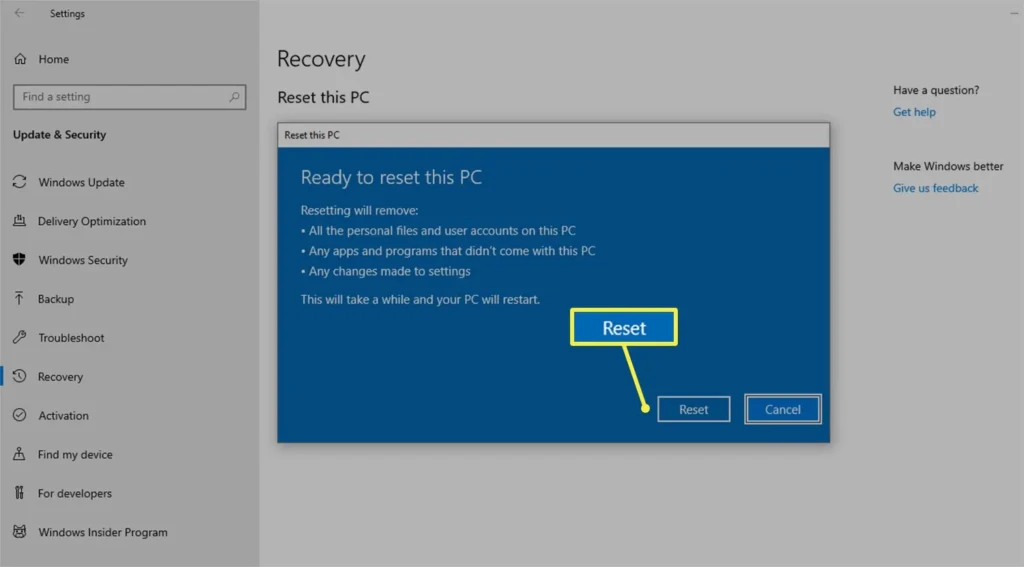
This is the right method if Windows loads normally and you can log in. It works on Windows 10 and Windows 11.
On Windows 11
- Open Start → Settings → System → Recovery.
- Under “Recovery options,” click Reset PC.
- Choose your reset option:
- Keep My Files: Removes apps and settings but keeps your personal files. Good for fixing software issues without losing documents.
- Remove Everything: Wipes everything. Use this when selling, donating, or starting a full clean.
- Choose your reinstall method:
- Cloud Download: Downloads a fresh copy of Windows from Microsoft (~4 GB). Best if your current Windows files are not corrupted.
- Local Reinstall: Reinstalls Windows using files already on your device. Faster, but won’t fix deep system file corruption.
- Review the summary and click Reset.
On Windows 10
Go to Settings → Update & Security → Recovery → Reset this PC → Get Started, then follow the same options above.
Your screen will restart several times during the process. Expect the full reset to take 1 to 3 hours, depending on your storage drive and the option selected. After completion, Windows will boot into the initial setup screen as if the laptop is new.
Method 2: Lenovo OneKey Recovery (Novo Button)
Lenovo’s OneKey Recovery is a Lenovo-specific system built into most IdeaPad, Yoga, and Legion models. It uses a hidden recovery partition to restore the laptop to its original factory state, including pre-installed Lenovo drivers and utilities.
Note: OneKey Recovery is not available on ThinkPad models. ThinkPad users should use Method 1, 3, or 4.
The entry point is the Novo button, a small pinhole button (sometimes labeled with a curved arrow icon) located near the power button or on the left side of the laptop. You’ll need a straightened paperclip or a SIM ejector pin to press it.
Steps:
- Shut down your Lenovo laptop completely.
- Press and hold the Novo button with a pin for 3 to 5 seconds; the laptop will power on automatically.
- In the Novo Button Menu, use the arrow keys to select System Recovery and press Enter.
- In the OneKey Recovery screen, choose:
- Restore from Initial Backup: Full factory reset to the original out-of-box state (recommended for selling or a complete wipe)
- Restore from User’s Backup: Restores to a backup you previously created with OneKey Recovery
- Click Next → Start → Yes to confirm.
- Keep the laptop plugged in and wait; the process typically takes 30 to 60 minutes.
OneKey Recovery only restores the system (C:) partition. It does not affect files stored on a separate D: or data partition. However, if your files are on C: (the default location for Downloads, Documents, and Desktop), they will be erased.
For more context on how Lenovo’s built-in tools work across different model families, our Lenovo brand guide breaks down what varies between ThinkPad, IdeaPad, Yoga, and Legion lineups.
Method 3: Factory Reset from the Login Screen (No Password Needed)
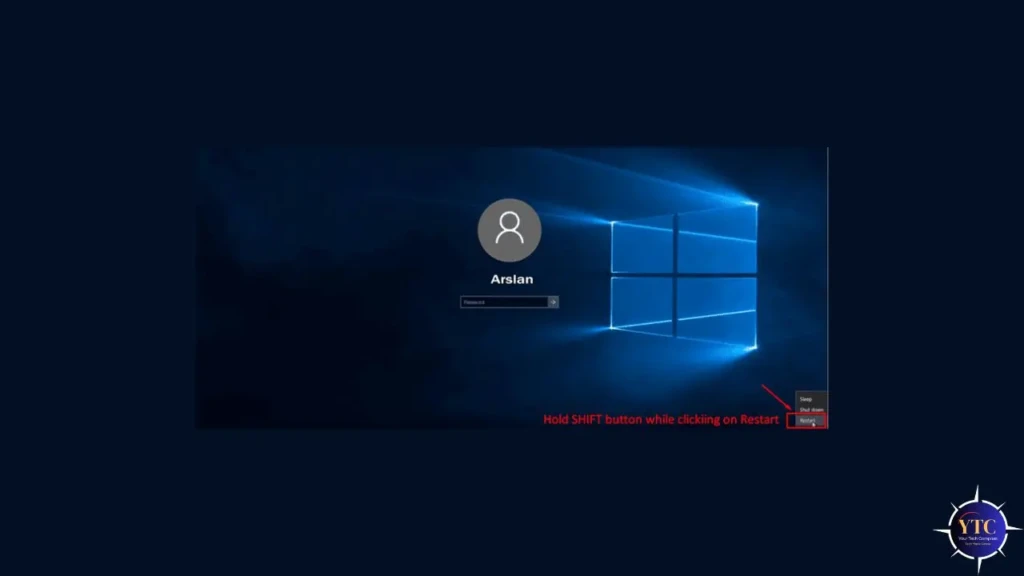
If you’re locked out of Windows and can’t log in, you can still access the reset option directly from the login screen — no password required.
Steps:
- From the Windows login screen, click the Power icon (bottom-right corner).
- Press and hold the Shift key, then click Restart. Keep holding Shift until the screen changes.
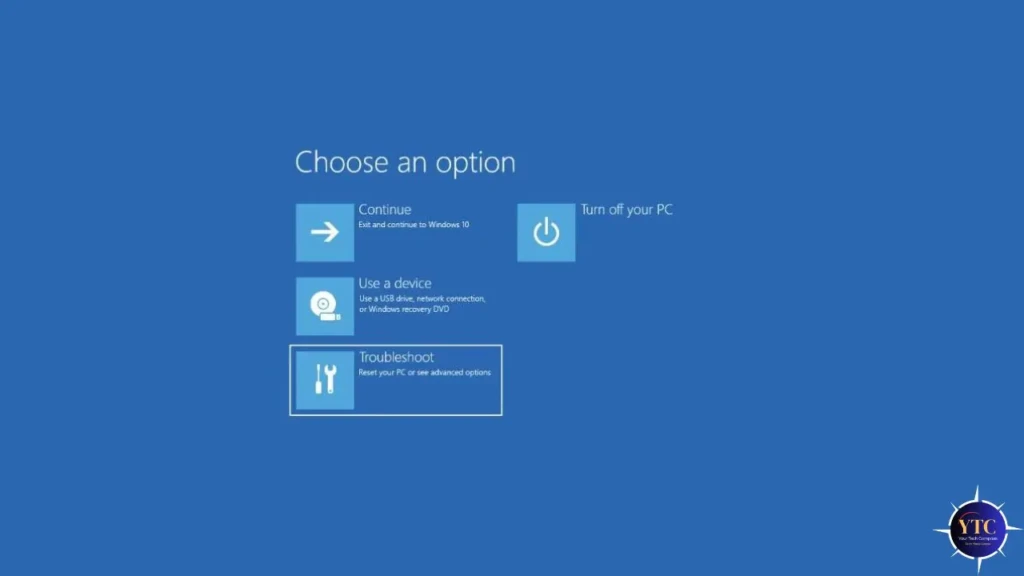
- Windows will boot into the blue Choose an Option screen.
- Navigate to Troubleshoot → Reset this PC.
- Choose Keep my files or Remove everything.
- Follow the on-screen prompts to complete the reset.
This method is particularly useful when you’ve forgotten your Windows password and can’t access Settings. Alternatively, the Novo button (Method 2) also works without a password on compatible Lenovo models.
Method 4: Factory Reset via Windows Recovery Environment (WinRE)
If Windows won’t load at all and you’re seeing a black screen, boot loop, or repeated crash, you can force access to the Windows Recovery Environment (WinRE) and reset from there.
How to force WinRE access:
- Press the power button to turn on your laptop.
- As soon as you see the Lenovo logo or Windows loading screen, press and hold the power button to force it off.
- Repeat this three times. On the third interrupted boot, Windows automatically enters Automatic Repair mode.
- On the Automatic Repair screen, click Advanced Options.
- Navigate to Troubleshoot → Reset this PC.
- Choose your reset option and follow the prompts.
Alternatively, on some Lenovo models, you can press F11 repeatedly during startup to access the recovery menu directly. If WinRE is inaccessible or corrupted, move to Method 5.
Method 5: Clean Windows Reinstall via USB (Most Thorough)
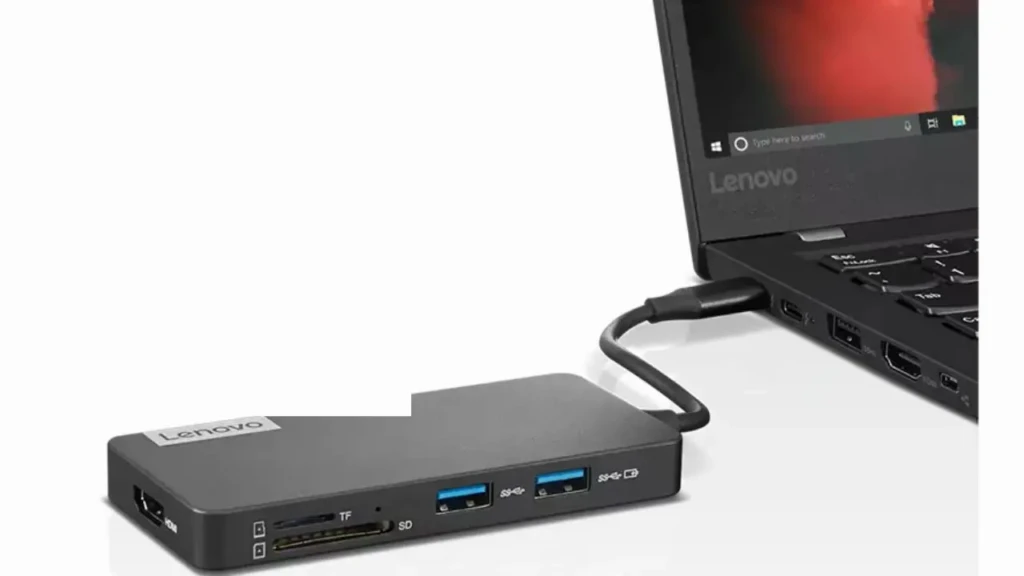
This method wipes everything, including the Lenovo recovery partition, all pre-installed software, and all user data, and installs a fresh, clean copy of Windows. Use this when you want to eliminate all manufacturer bloatware, when the recovery partition is corrupted, or when nothing else has worked.
What You Need: A USB drive with at least 8GB of free space and access to a second working computer.
Steps:
On the second computer:
- Go to Microsoft’s official Windows download page and download the Media Creation Tool.
- Run the tool, accept the license terms, and select Create installation media (USB flash drive, DVD, or ISO file) to create installation media for another PC.
- Select your language, Windows edition, and architecture (64-bit for all modern Lenovo laptops).
- Choose a USB flash drive, select your drive, and let the tool download and write Windows to the USB. This takes 15 to 30 minutes.
On your Lenovo laptop:
- Insert the USB drive and power on the laptop.
- Press F12 (or Fn + F12) immediately at the Lenovo boot screen to open the Boot Menu.
- Select your USB drive from the boot device list.
- On the Windows Setup screen, click Next → Install Now.
- When asked about installation type, select Custom: Install Windows only (advanced).
- Select your existing Windows partition and click Next. Windows will format it and install cleanly.
After installation, Windows will be completely fresh. You’ll need to reinstall all drivers; use Lenovo Vantage or the Lenovo Support drivers page to download the correct drivers for your model.
How to Factory Reset a Lenovo Laptop Without a Password
If you’re locked out, you have four options that work. Check them out below in order of simplicity:
- Login Screen Reset (Method 3): Shift + Restart from the login screen. No password, no tools, works on any Lenovo running Windows 10 or 11.
- Novo Button (Method 2): Works on IdeaPad, Yoga, and Legion models. Bypasses Windows entirely and resets through the hardware recovery partition.
- Force WinRE (Method 4): Three consecutive boot interruptions trigger Automatic Repair mode, which provides access to reset without credentials.
- USB Reinstall (Method 5): The guaranteed last resort. Bypasses everything and installs Windows fresh from external media.
How to Factory Reset a Lenovo Laptop That Won’t Turn On
If the laptop is completely unresponsive, work through these steps in the provided order:
- Check Power: Confirm the charger is connected and that the wall outlet is working. Try a different outlet and cable if available.
- Hard Reset: Hold the power button for 10 to 15 seconds to force a complete power drain. On models with a removable battery, remove it, hold the power button for 10 seconds with no power connected, then reconnect and try again. Some Lenovo models have a pinhole reset button on the underside. Press it with a paper clip for 10 seconds.
- Try the Novo Button: Even on a laptop that won’t boot normally, pressing the Novo button may bring up the recovery menu if the hardware is functional.
- Boot from USB: If the laptop powers on but Windows won’t load, create a Windows USB drive on another computer (Method 5) and boot from it by pressing F12.
- Contact Lenovo Support: If the laptop won’t power on at all despite the steps above, the issue is likely hardware-related (e.g., a failed battery, motherboard, or power circuit) rather than software. Contact Lenovo Support at support.lenovo.com or take it to an authorized service center.
After the Factory Reset: What to Do Next
Once the reset completes and Windows reaches the initial setup screen, work through this post-reset checklist:
- Complete Windows Setup: Select your region, language, keyboard layout, and sign in with your Microsoft account.
- Run Windows Update Immediately: Go to Settings → Windows Update → Check for updates and install everything before doing anything else.
- Reinstall Lenovo Vantage: Search for it in the Microsoft Store; it’s the fastest way to identify and install all missing drivers in one place.
- Install Remaining Drivers: Open Device Manager and check for any devices with yellow warning icons; update those drivers via Lenovo Vantage or Lenovo’s support site.
- Restore Your Backed-up Files: Copy files from your external drive or re-sync from OneDrive.
- Reinstall and Reactivate Apps: Reinstall software and reactivate licenses; Microsoft Office will reactivate automatically when you sign in to your Microsoft account.
For Lenovo Legion users specifically, reinstalling the Legion Space app and Lenovo Vantage Gaming after a reset is important to restore performance profiles and MUX Switch access. You may also want to take a few screenshots to document your setup; our guide on taking screenshots on a Lenovo laptop covers all methods. And once your system is running, our “How to Screenshot on Windows” guide is a useful reference to keep bookmarked.
FAQs
No. A factory reset reinstalls Windows; it doesn’t delete it. Both the Windows Settings reset and the Novo button recovery restore Windows to a working state. Only the USB clean install replaces Windows with a fresh downloaded copy, resulting in a functional Windows installation.
Typically, 1 to 3 hours, depending on the method and your hardware. “Remove everything” with cloud download takes the longest. A local reinstall via the Settings method is usually the fastest, taking 45 to 90 minutes. Ensure the laptop stays plugged into power throughout.
Yes, in most cases. A full reset that removes everything overwrites the system drive and eliminates virtually all malware. For the most thorough result, choose “Remove everything” in the reset options. For rootkits or firmware-level infections, the USB clean reinstall (Method 5) is the most reliable option.
Yes. Both “Keep my files” and “Remove everything” options preserve Windows itself. The difference is whether your personal files are kept. Windows is always reinstalled during the reset process.
The Novo button is a small pinhole button on most Lenovo IdeaPad, Yoga, and Legion models that provides direct access to the OneKey Recovery system without booting into Windows. It’s typically located near the power button or on the left side of the laptop, and it’s pressed with a paper clip or a SIM ejector pin. ThinkPad models do not include a Novo button.
Final Thoughts
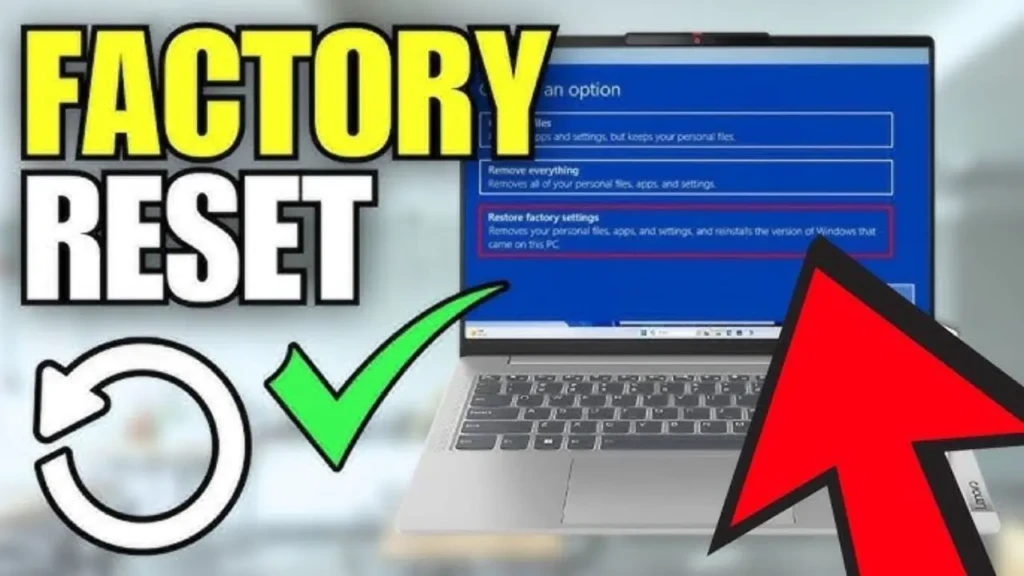
For most users, Method 1 (resetting Windows Settings) is all you need. It’s fast, built-in, and handles the vast majority of reset scenarios cleanly. If you’re locked out, use Method 3 (the login screen: Shift + Restart). If Windows won’t boot, force WinRE by interrupting startup three times (Method 4). On the other hand, if you want a completely clean machine with no Lenovo bloatware, go straight to Method 5 (USB reinstall).
Remember to back up your files before using any of these methods. That’s the only step that can’t be undone. Everything else is recoverable.
Found this helpful? Browse more in-depth tech guides, honest reviews, and step-by-step tutorials at YourTechCompass; your go-to resource for making smarter tech decisions.