Apple has delivered many meaningful iOS updates over the years, but iOS 18 stands out for one specific reason: it is the first time Apple has given iPhone users genuine, deep control over how their devices look and behave. Announced at WWDC on June 10, 2024, and released on September 16, 2024, iOS 18 is the direct successor to iOS 17 and the last iOS version before Apple’s sweeping Liquid Glass redesign in iOS 26. At its core, iOS 18 is built around personalization. You can now place app icons anywhere on your Home Screen, theme them with custom colors or dark mode tints, completely overhaul your Control Center, lock and hide apps behind Face ID, and even replace the default Lock Screen shortcuts. On top of all that, iOS 18 marks the beginning of Apple Intelligence, Apple’s on-device AI platform.
Whether you are deciding whether to update, determining which features you get on your specific iPhone, or troubleshooting an issue after installation, this guide will walk you through everything. For context on how iOS 18 compares to Apple’s earlier and later software, check out our iOS 16 guide and our iOS 26 overview. Together, they show how dramatically Apple’s iPhone software has evolved in a few short years.
What Is iOS 18?
iOS 18 is the eighteenth major release of Apple’s iOS operating system, available as a free update for all compatible iPhones. It was announced at Apple’s WWDC on June 10, 2024, and officially released on September 16, 2024.
It succeeded iOS 17 and was announced alongside iPadOS 18, macOS Sequoia, watchOS 11, and visionOS 2. Notably, iOS 18 is also the last iOS version to feature Apple’s flat design aesthetic; its successor, iOS 26, introduced the all-new Liquid Glass design language. iOS 18 is also the last version to support the iPhone XS, XS Max, and XR.
Apple built iOS 18 around three key ideas: deep personalization, smarter communication, and on-device AI. Reception was mixed to positive, praised for its customization options and RCS support, but criticized in early versions for bugs and the gradual rollout of Apple Intelligence features.
Apple steadily addressed both concerns through a series of point updates, with iOS 18.1 delivering the first Apple Intelligence tools and iOS 18.2 expanding them further. If you want to understand where Apple’s AI journey goes next, our iOS 26 Beta Features Guide covers every AI advancement coming in Apple’s newest platform.
Key Features of iOS 18
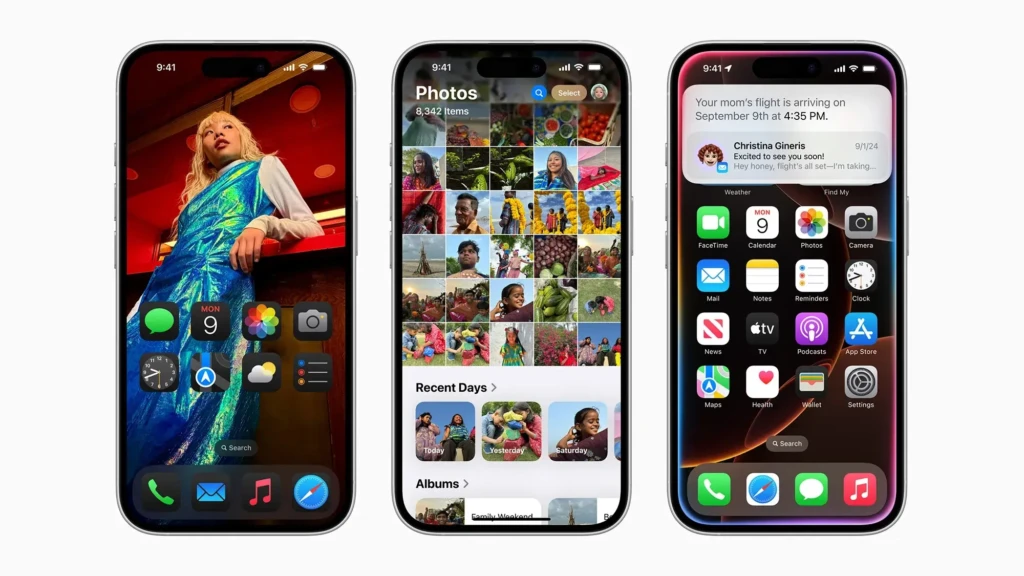
iOS 18 is one of the most feature-rich iPhone updates in years. Here is a full, at-a-glance reference table, followed by detailed breakdowns of the features that matter most to you.
Feature | What It Does | Available On |
Home Screen Customization | Freely place icons/widgets anywhere; dark or tinted icon themes | All supported iPhones |
Control Center Overhaul | Multiple pages, resizable controls, third-party app controls | All supported iPhones |
Lock Screen Shortcuts | Replace flashlight/camera with any app shortcut | All supported iPhones |
Locked and Hidden Apps | Lock apps behind Face ID/Touch ID; hide them from Home Screen | All supported iPhones |
RCS Messaging | Richer texts with Android users (read receipts, better media quality) | All supported iPhones |
Messages via Satellite | Send iMessages without Wi-Fi or cellular signal | All supported iPhones |
Redesigned Photos App | Single unified view, smart Collections, natural language search | All supported iPhones |
Game Mode | Reduces background activity for smoother frame rates during gaming | All supported iPhones |
Passwords App | Dedicated password manager replacing the Settings Passwords section | All supported iPhones |
Math Notes in Calculator | Solve equations and plot graphs in the Calculator app | All supported iPhones |
Call Recording & Transcription | Record calls with consent; auto-transcribe to Notes | All supported iPhones |
iPhone Mirroring | Fully control your iPhone from a Mac running macOS Sequoia | All supported iPhones |
Tap to Cash | Exchange Apple Cash by holding two iPhones together | All supported iPhones |
Apple Intelligence | On-device AI: Writing Tools, Genmoji, Image Playground, smarter Siri | iPhone 15 Pro / all iPhone 16 models |
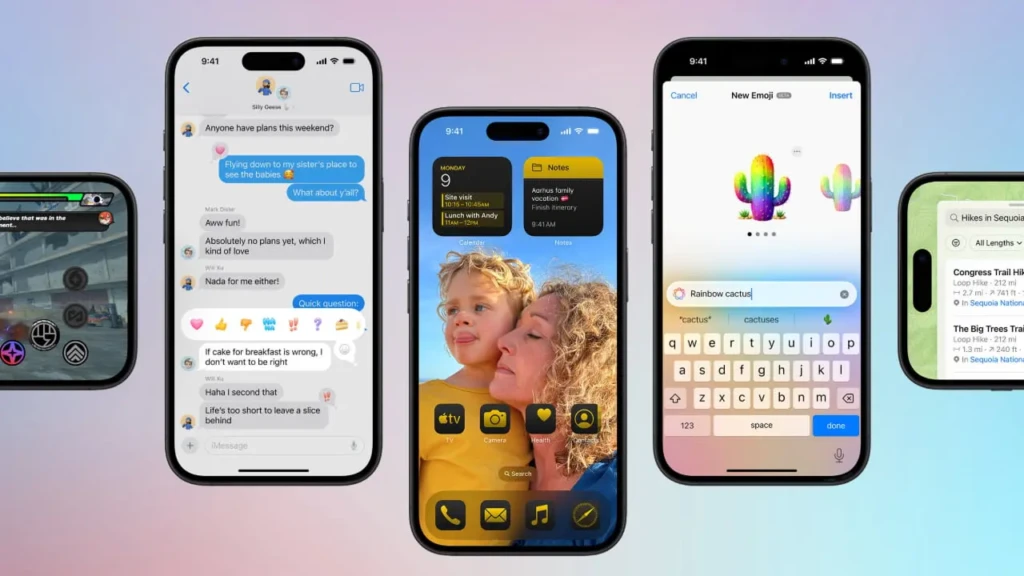
Home Screen and Icon Customization
For the first time ever, iOS 18 lets you place app icons and widgets anywhere on your Home Screen, not just stacked from the top-left corner. You can leave deliberate empty spaces, move your most-used apps right above the dock, or frame them perfectly around your wallpaper.
Beyond layout, you can now apply a dark or tinted theme to every icon, including those from third-party apps, and choose any color or let iOS automatically match your wallpaper’s palette. You can also make all icons and widgets larger and remove their text labels for a cleaner look. If you have been envying Android’s flexibility, iOS 18 finally delivers a comparable level of control.
Redesigned Control Center
The Control Center received its most significant overhaul in years. You can now have multiple pages of controls, swiping between them as you would on the Home Screen. Every control is resizable; you can make frequently used toggles larger for easier tapping.
Third-party apps can now add their own controls to the Controls Gallery, meaning you can put your favorite apps, like Spotify or your smart home controls, directly into the Control Center. Additionally, the Lock Screen shortcuts, previously locked to flashlight and camera, can now be replaced with any app or shortcut you choose.
Locked and Hidden Apps
iOS 18 introduces one of the most-requested privacy features in iPhone history: the ability to lock any app behind Face ID, Touch ID, or a passcode. Long-press any app and select Require Face ID to lock it. Take it a step further, and you can hide the app entirely, removing it from your Home Screen and burying it in a locked folder in the App Library.
The app’s content will not appear in search results, notifications, or Siri suggestions while hidden. This is genuinely useful for banking and health apps, as well as for anything personal you would prefer to keep private.
RCS Messaging and Messages via Satellite
After years of resistance, Apple finally embraced RCS (Rich Communication Services) in iOS 18. This means texts with Android users now support read receipts, typing indicators, higher-quality photo and video sharing, and better group messaging, all without needing a third-party app. Messages via Satellite is equally significant: you can now send iMessages even without cellular or Wi-Fi coverage, using Apple’s satellite connectivity infrastructure, a feature that previously was limited to emergency use only.
Redesigned Photos App and Game Mode
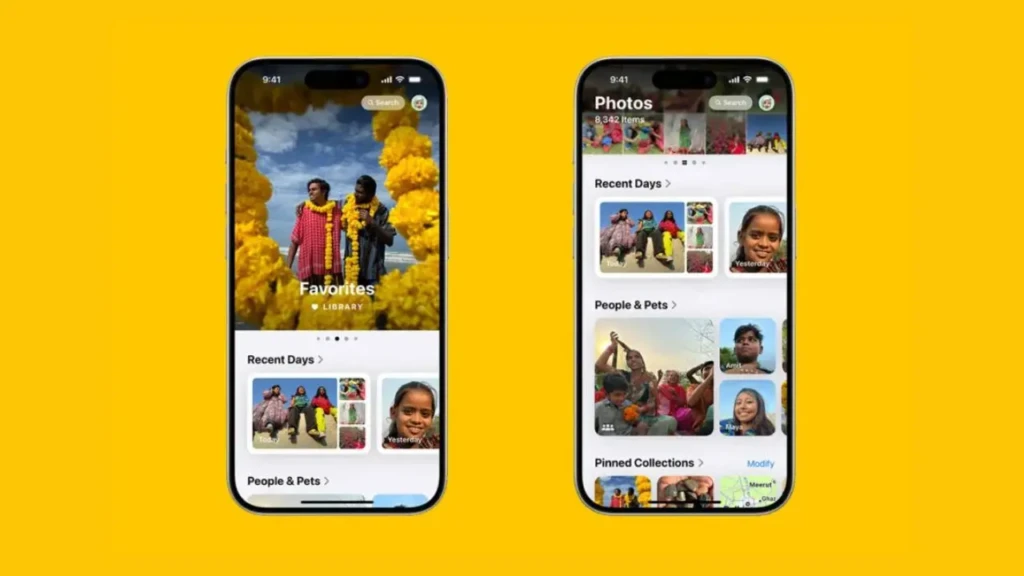
The Photos app received what Apple called its biggest-ever redesign. The familiar bottom tabs are gone, replaced by a single unified view that organizes your library into smart Collections, Recent Days, People and Pets, Trips, and more, all customizable and pinnable.
Natural language search lets you type descriptions such as “birthday dinner with Sarah” and instantly find matching photos. Meanwhile, Game Mode minimizes background activity while you are gaming, sustaining higher frame rates and dramatically improving responsiveness with wireless controllers and AirPods. For mobile gamers, this is a genuinely meaningful addition.
Apple Intelligence: On-Device AI
iOS 18 marks the beginning of Apple Intelligence, Apple’s on-device AI platform, introduced in iOS 18.1. It includes Writing Tools for rewriting, proofreading, and summarizing text across all apps; Genmoji for generating custom emoji from text descriptions; Image Playground for creating AI-generated images; a smarter Siri with deeper app integration and a ChatGPT handoff for complex requests; and a redesigned Notification Summary that surfaces priority alerts.
Apple Intelligence is available only on the iPhone 15 Pro, 15 Pro Max, and all iPhone 16 models, as it requires the A17 Pro or A18 chip for on-device processing.
Compatible iPhones and System Requirements
iOS 18 requires an Apple A12 Bionic chip or newer, making the iPhone XS the oldest supported model. That means the iPhone X, iPhone 8, iPhone 8 Plus, and original iPhone SE are not compatible with iOS 16 and will remain on iOS 16.
Here is the complete breakdown:
iPhone Model | Chip | iOS 18 Support Level |
iPhone XS / XS Max / XR | A12 Bionic | Core iOS 18 features (limited, no Apple Intelligence) |
iPhone 11 / 11 Pro / 11 Pro Max | A13 Bionic | Core iOS 18 features (no Apple Intelligence) |
iPhone SE (2nd gen) | A13 Bionic | Core iOS 18 (no Face ID features) |
iPhone 12 / 12 mini / 12 Pro / 12 Pro Max | A14 Bionic | Full iOS 18 (no Apple Intelligence) |
iPhone 13 / 13 mini / 13 Pro / 13 Pro Max | A15 Bionic | Full iOS 18 (no Apple Intelligence) |
iPhone SE (3rd gen) | A15 Bionic | Full iOS 18 (no Face ID or Apple Intelligence) |
iPhone 14 / 14 Plus | A15 Bionic | Full iOS 18 (no Apple Intelligence) |
iPhone 14 Pro / 14 Pro Max | A16 Bionic | Full iOS 18 (no Apple Intelligence) |
iPhone 15 / 15 Plus | A16 Bionic | Full iOS 18 (no Apple Intelligence) |
iPhone 15 Pro / 15 Pro Max | A17 Pro | Full iOS 18 + Full Apple Intelligence |
iPhone 16 / 16 Plus / 16 Pro / 16 Pro Max | A18 / A18 Pro | Full iOS 18 + Full Apple Intelligence + Camera Control |
NOT SUPPORTED: iPhone X, 8, 8 Plus, SE 1st gen | A11 or older | Remains on iOS 16 (no iOS 18 access) |
Beyond chip compatibility, make sure your iPhone has at least 5GB of free storage before updating and that your battery health is above 80% for the best experience. If your iPhone is not on the supported list and you are considering an upgrade, our iOS 26 guide covers what the latest supported iPhones can do with Apple’s latest software.
How to Download and Install iOS 18
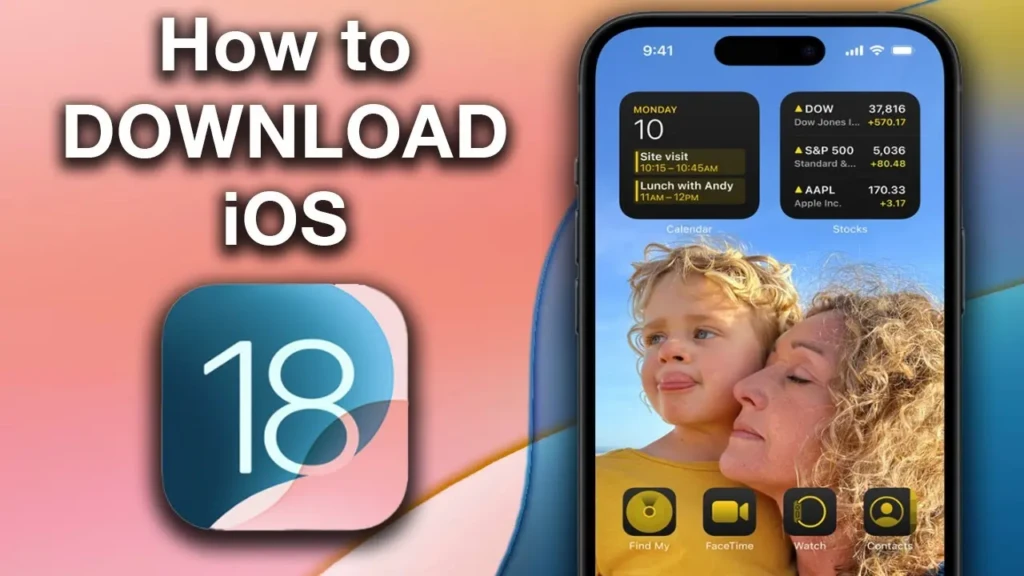
Installing iOS 18 is straightforward. Follow these steps to make sure everything goes smoothly.
- Back up your iPhone first. Go to Settings > [Your Name] > iCloud > iCloud Backup > Back Up Now, or connect to a Mac and use Finder.
- Charge your iPhone to at least 50% or keep it plugged in throughout the update.
- Connect to a stable Wi-Fi network; the download typically requires 3–6GB.
- Go to Settings > General > Software Update, select iOS 18, and tap Download and Install.
- Once downloaded, tap Install Now. Your iPhone will restart; leave it undisturbed. The full process takes around 20–45 minutes.
- After installation, check the App Store for app updates and spend a few minutes exploring the new Home Screen customization options.
iOS 18 Performance: Is It Faster?
On iPhone 15 Pro and all iPhone 16 models, iOS 18 performs exceptionally well. Everything is fast and fluid, Apple Intelligence responses are near-instant, and battery life is comparable to iOS 17 after the post-update settling period.
On iPhone 12 through iPhone 14, performance is solid across all core features; you get the full iOS 18 experience without Apple Intelligence. On iPhone XS, XR, and iPhone 11, iOS 18 runs well for everyday tasks, but expect the Home Screen animations and Photos app to feel slightly heavier on the first day or two while background indexing completes.
Battery life typically dips during the first 24–48 hours after a major iOS update, as Spotlight re-indexes your content and the Photos app processes the new library format. This is completely normal and temporary.
If the drain persists for more than 48 hours, check Settings > Battery to identify the culprit app. You can also verify battery-related guidance directly on Apple’s official iOS 18 support page.
Common iOS 18 Problems and How to Fix Them
While iOS 18 is a strong update, the initial release had several reported issues. Here are the most common problems and exactly how to fix them.
1. Battery Draining Faster Than Normal
Wait 48 hours; most post-update drains resolve on their own. If it persists, go to Settings > Battery to identify power-hungry apps, then disable Background App Refresh for non-essential apps under Settings > General > Background App Refresh.
Also, check battery health under Settings > Battery > Battery Health. If it is below 80%, consider a replacement.
2. Photos App Feels Slow or Crashes
The redesigned Photos app runs a background reorganization process after an update. Leave your iPhone plugged in overnight on Wi-Fi; this allows the process to complete without impacting daily use. If the app continues to crash, delete it and reinstall it from the App Store.
3. Wi-Fi or Cellular Not Connecting Properly
Go to Settings > General > Transfer or Reset iPhone > Reset > Reset Network Settings. This clears saved Wi-Fi passwords and resets network configurations. For most users, this resolves connectivity problems immediately.
4. Apple Intelligence Not Showing Up
First, confirm that your iPhone is an iPhone 15 Pro, 15 Pro Max, or an iPhone 16 model; only these models support Apple Intelligence. Next, ensure you are on iOS 18.1 or later, as Apple Intelligence was not included in the initial iOS 18.0 release. Check Settings > Apple Intelligence & Siri and confirm it is enabled and that your device language is set to English (US).
5. Apps Crashing After Update
Open the App Store and update all apps with pending updates. This is because most developers push compatibility patches shortly after major iOS releases.
In addition, if a specific app continues to crash after an update, delete and reinstall it. If the problem persists, check the developer’s website for any known iOS 18 compatibility issues.
Should You Update to iOS 18?
Here is a clean, simple breakdown to help you make your decision right now.
Update to iOS 18 if you… | Wait if you… |
Have a compatible iPhone (XS or later) | Haven’t backed up your iPhone yet |
Want full Home Screen and icon customization | Rely on an app not yet updated for iOS 18 |
Text Android users and want better quality | Are mid-project or on a critical deadline |
Want Game Mode for smoother mobile gaming | Have an iPhone XS/XR with limited storage or RAM |
Care about stronger privacy and app locking | Prefer waiting for a stable point update (18.1+) |
Want Apple Intelligence (iPhone 15 Pro/16) | Are happy with iOS 17 and not in a hurry |
The bottom line is this: if you have an iPhone XS or newer and you want the most customizable, feature-rich iPhone experience Apple has ever shipped before iOS 26, update to iOS 18. The Home Screen freedom, Control Center overhaul, locked and hidden apps, RCS support, and Game Mode alone make it worth it for the vast majority of users.
If you have an iPhone 15 Pro or iPhone 16, Apple Intelligence makes the case even stronger.
Conclusion
iOS 18 is the most personalized iPhone experience Apple has ever built, and for most users, it is a genuinely rewarding update. Whether you are excited about placing icons exactly where you want them, texting Android friends with proper read receipts through RCS, locking sensitive apps behind Face ID, gaming with lower latency thanks to Game Mode, or exploring Apple Intelligence for the first time, iOS 18 delivers meaningful improvements across the board. Since it is free, there is little reason to hold back if your iPhone supports it.
As always, back up your iPhone before updating, give the system 48 hours to fully settle, and explore the new features at your own pace. You will continue to find useful additions for weeks to come. If you want to see how Apple has continued to evolve iOS beyond version 18, our iOS 26 guide and iOS 26 Beta Features breakdown show exactly what Apple has built since. For the complete official release notes, visit Apple’s iOS 18 support page. Your iPhone is ready; go ahead and update with confidence.
At Your Tech Compass, we publish practical guides and honest tech reviews to help users make smarter decisions.