Losing an iPhone is more than an inconvenience; it creates immediate concerns around personal data, financial security, and day-to-day communication. Apple’s Find My ecosystem is designed to address exactly these scenarios, but many users are unsure which method to use depending on whether the device is nearby, offline, out of battery power, or potentially stolen. This guide explains every realistic recovery path in a structured, practical way, so the correct action is always clear.
I’ve structured this walkthrough around real recovery scenarios and Apple’s official tools to show how to quickly and safely find my phone on iPhone. Each step focuses on practical decisions, what to do first, when to escalate to Lost Mode, and how to protect data if recovery is uncertain, so no time is wasted guessing under pressure.
What Is “Find My” on iPhone and How Does It Work?
Find My is Apple’s integrated tracking and recovery system for iPhones, iPads, Macs, Apple Watches, and AirTags. It combines multiple technologies to locate devices:
- GPS for precise outdoor location
- Wi-Fi and cellular triangulation for urban and indoor environments
- Bluetooth signals relayed anonymously by nearby Apple devices via the Find My network
- iCloud synchronization for remote access and control
When Find My is enabled, the iPhone periodically sends encrypted location data to Apple’s servers. Only the Apple ID owner can view this data, and all relayed signals are end-to-end encrypted, meaning even Apple cannot see the actual location.
Featured Snippet Takeaway:
Find My uses GPS, Wi-Fi, cellular, and nearby Apple devices to locate an iPhone and allows remote actions like playing a sound, locking the device, or erasing it.
How to Find My Phone on iPhone Using Another Apple Device
If another Apple device is available, this is the fastest and most accurate method.
Step-by-Step Process
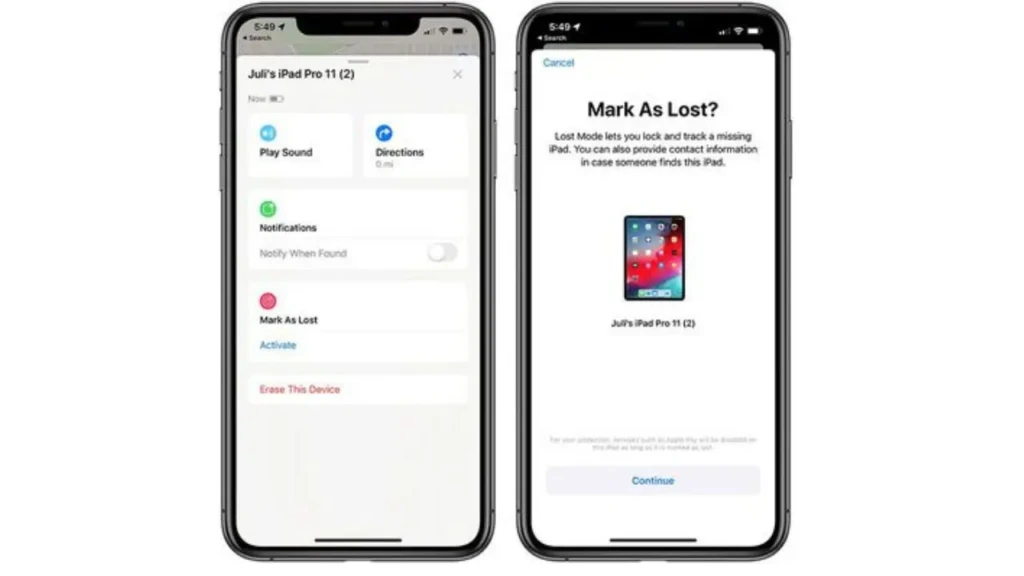
- Open and sign in to Find My app on the other iPhone or iPad with your Apple ID.
- Tap Devices at the bottom of the screen.
- Select the missing iPhone from the list.
- Review the location status:
- Live location (device online)
- Last known location (device offline)
- Use one of the available actions:
- Play Sound if the device is nearby
- Directions to navigate to the location
- Lost Mode if recovery is uncertain
This method is ideal when the phone is misplaced at home, in an office, or at a known public location.
People Also Ask: Can I use someone else’s iPhone to find my iPhone?
Yes. You can sign in to the Find My app with your Apple ID, or use Family Sharing if it’s already set up.
How to Find My Phone on iPhone Using iCloud (Browser)
When no Apple device is available, iCloud provides full Find My functionality through a browser.
Step-by-Step Process
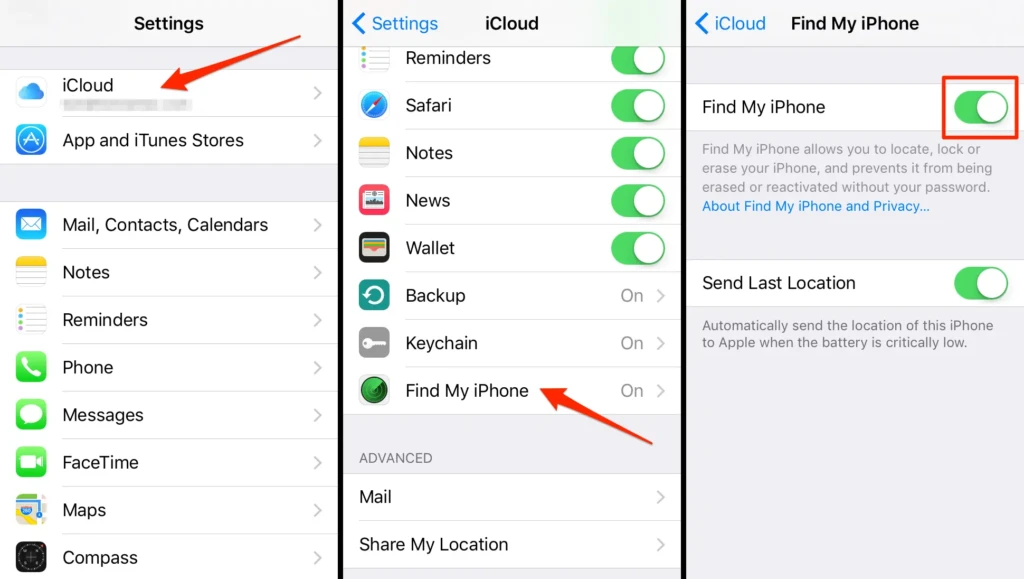
- Go to iCloud.com/find.
- Sign in using the Apple ID linked to the missing iPhone.
- Select the device from the dropdown menu.
- View its location or last known location.
- Choose an action:
- Play Sound
- Mark as Lost
- Erase iPhone
This approach is particularly useful when traveling, borrowing a computer, or coordinating recovery remotely.
Featured Snippet Takeaway:
You can find an iPhone by signing in to iCloud.com, selecting the device, and using Find My features like location tracking, Lost Mode, or Erase.
How to Find My iPhone If the Phone Is Turned Off
When an iPhone is turned off, Find My cannot display a live location. However, it still provides useful information.
What Still Works
- Last known location before shutdown
- Notify When Found alerts
- Lost Mode activation
On supported devices with Find My enabled, nearby Apple devices may still detect the phone via low-power Bluetooth for a limited time.
People Also Ask: Can Find My iPhone track a phone that is turned off?
No live tracking is possible, but the last known location and network-based detection may still help after the phone reconnects.
How to Find My Phone on iPhone If the Battery Is Dead
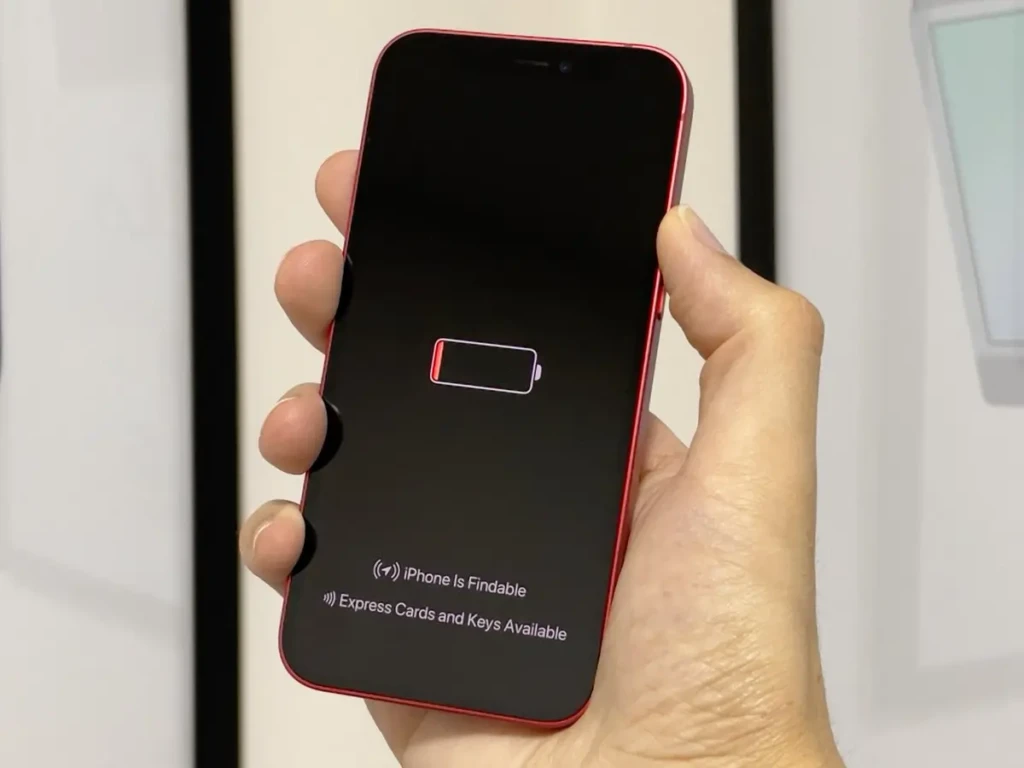
A dead battery behaves similarly to a powered-off device, but preparation makes a difference.
Key Setting That Matters
- Send Last Location: Automatically sends the phone’s location to Apple when the battery reaches a critical level.
If enabled, this feature provides a reliable final location marker, often enough to significantly narrow recovery efforts.
Featured Snippet Takeaway:
If an iPhone battery is dead, Find My shows the last known location, especially if Send Last Location was enabled.
How to Use Lost Mode to Protect Your iPhone
Lost Mode is one of the most important security features in the Find My system.
What Lost Mode Does
- Locks the device with a passcode
- Displays a custom message and contact number
- Suspends Apple Pay and stored cards
- Tracks location updates when available
When to Enable It
- When the device is not immediately recoverable
- When theft is suspected
- When the phone is lost in a public place
Lost Mode can be disabled instantly if the device is recovered.
People Also Ask: Does Lost Mode delete data?
No. Lost Mode locks and protects the device, but does not erase data.
What to Do If You Believe Your iPhone Was Stolen
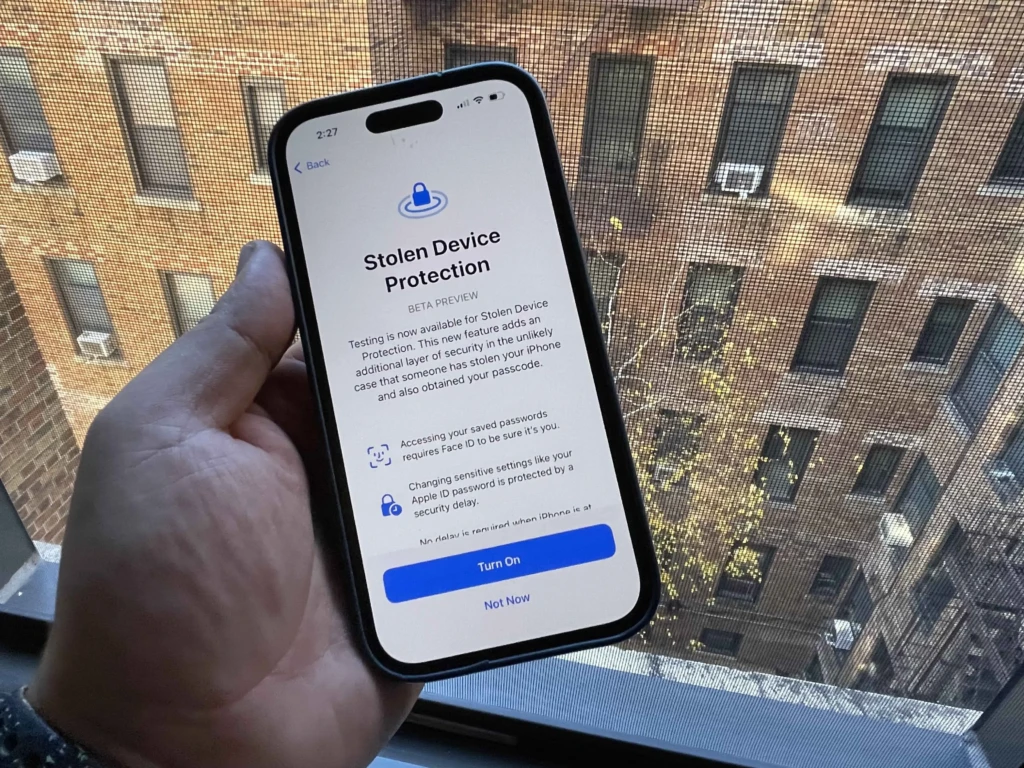
If theft is likely, recovery efforts should prioritize safety and data protection.
Recommended Actions
- Enable Lost Mode immediately.
- Do not attempt physical recovery alone.
- Contact local law enforcement with:
- Serial number
- Last known location
- Consider Erase iPhone only if recovery becomes impossible.
- Do not remove the device from iCloud.
Removing the device disables Activation Lock, allowing someone else to use the phone.
How to Find My Phone on iPhone Without iCloud Access
Without iCloud access, Find My cannot function.
What You Can Do
- Begin Apple ID account recovery
- Contact your mobile carrier to suspend service
- Provide proof of ownership if authorities recover the device
Avoid third-party “unlock” or “tracking” services, as these are commonly fraudulent.
Common Reasons Find My iPhone Is Not Working (and Fixes)
1. Find My is disabled
Enable it in Settings → Apple ID → Find My
2. Location Services are off
Check Settings → Privacy & Security → Location Services
3. Incorrect Apple ID
Ensure the device is signed into the correct iCloud account
4. No network connectivity
Wait for reconnection and enable Notify When Found
5. Battery is dead
Rely on the last known location and Lost Mode
How to Enable Find My on iPhone (Before You Lose It)
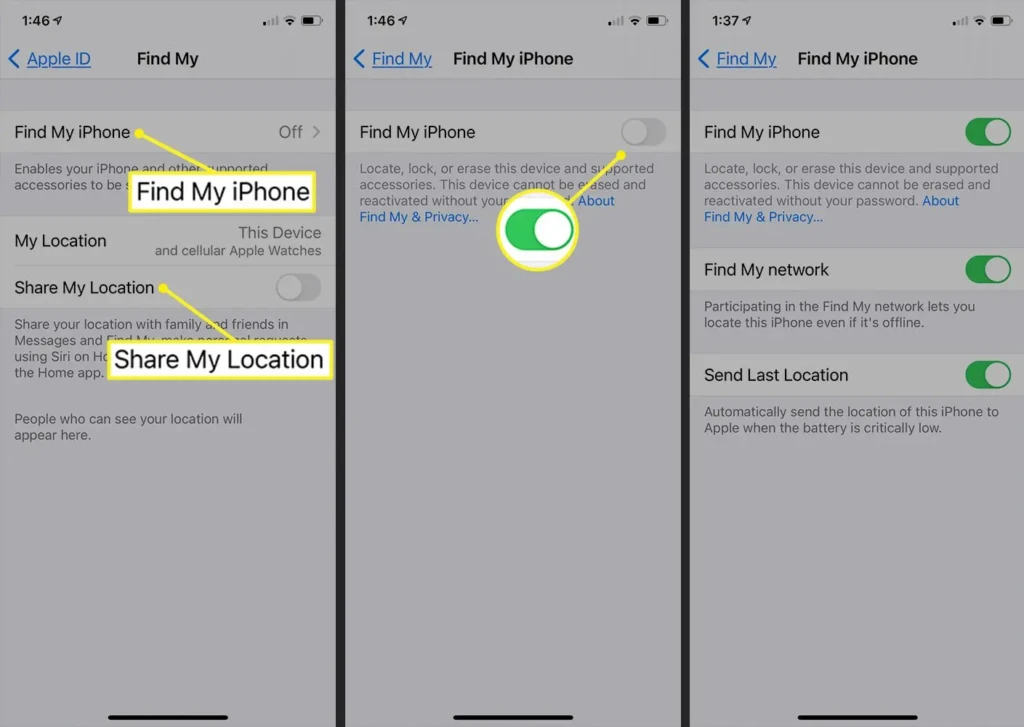
Preparation dramatically increases recovery success.
Essential Settings
- Enable Find My iPhone
- Enable Find My network
- Enable Send Last Location
- Turn on two-factor authentication
For additional setup guidance, see our guide on sharing and managing iPhone location settings.
Comparison Table: Find My Scenarios and Outcomes
Situation | Live Location | Best Action | Recovery Likelihood |
Phone Nearby | Yes | Play Sound | Very high |
Phone Online, Far Away | Yes | Directions | High |
Phone Offline | No | Notify When Found | Moderate |
Battery Dead | No | Last known location | Moderate |
Phone Stolen | Uncertain | Lost Mode + police | Variable |
Security and Privacy Considerations
Find My uses anonymous, rotating identifiers and encrypted communication. However, lost-device scams are common. Be cautious of messages claiming to have found your phone and requesting Apple ID credentials. Always access Find My through official Apple channels.
Check out this independent reporting on lost-iPhone phishing scams.
Conclusion
Finding a lost iPhone is usually achievable when the correct steps are taken in the right order. Whether the device is nearby, offline, or stolen, Find My provides practical tools to locate, lock, and protect it. The key is understanding what each feature can and cannot do under different conditions.
I strongly recommend enabling all Find My protections in advance and familiarizing yourself with these steps now rather than after a device goes missing. Preparation significantly increases recovery odds and minimizes stress when it matters most.
You can check other iPhone guides on YourTechCompass.com, such as how to restart an iPhone and how to record a phone call.
FAQs
Not in real time. Find My relies on periodic connections to send location updates. If the device is offline, use Notify When Found to receive an alert when it reconnects.
Yes. Use the Find My app on a trusted family member’s device or sign into iCloud on a browser to locate the device. Always sign out when finished.
Yes. The Find My network and iCloud are global, available where Apple services are, though accuracy depends on local connectivity and device support.
Accuracy varies by GPS signal, Wi-Fi density and whether the device is indoors. Expect meter-level accuracy outdoors and variable accuracy indoors.