A slow startup on Windows 11 can quietly ruin your workflow before the day even begins. Instead of getting straight to work, you’re left watching loading icons, background apps firing up, and system processes dragging on longer than they should. While Windows 11 introduces visual polish and new features, those improvements can sometimes come at the cost of boot speed, especially on older laptops or systems that haven’t been optimized. The good news is that a slow startup is rarely caused by a single issue. In most cases, it’s the result of multiple small problems stacking up: too many startup apps, outdated drivers, inefficient storage, or system settings that were never adjusted.
This guide breaks down the major causes and walks you through practical fixes you can apply immediately, starting with the simplest changes and progressing to advanced solutions if needed. I’ll help you diagnose what’s slowing your system down and show you how to fix it step by step so your PC feels responsive again from the moment you power it on. I encourage you to follow along and apply each fix that fits your setup.
Why Windows 11 Startup Can Be Slow
Before fixing the problem, it helps to understand why Windows 11 sometimes takes longer to boot. During startup, Windows loads drivers, system services, background processes, and user-installed applications simultaneously. If too many items compete for system resources, boot time increases noticeably.
Common causes include:
- Too many programs launching automatically
- Outdated or incompatible drivers
- Corrupted system files
- Low available disk space
- Slower hard drives instead of solid-state storage
This issue is especially noticeable on productivity laptops that accumulate software over time. Business machines from HP or Lenovo ThinkPad models often ship with useful tools, but some of those apps don’t need to run when Windows starts.
How to Check What’s Slowing Down Startup
The first step is identifying which apps and processes are actually hurting your boot time.
- Press Ctrl + Shift + Esc to open Task Manager
- Go to the Startup tab
- Review the Startup Impact column
Apps marked with High impact are prime candidates for disabling. This quick check helps you focus on changes that deliver immediate results, rather than guessing.
Disable Unnecessary Startup Programs
Disabling startup apps is one of the fastest ways to fix a slow Windows 11 startup.
From Task Manager:
- Select a non-essential app
- Click Disable
You should keep security software and essential drivers enabled, but apps like launchers, chat tools, and auto-updaters can usually wait until after startup. Disabling them doesn’t uninstall anything; it simply prevents Windows from loading them automatically.
This single step often dramatically reduces boot time, especially on systems that have been in use for a long time.
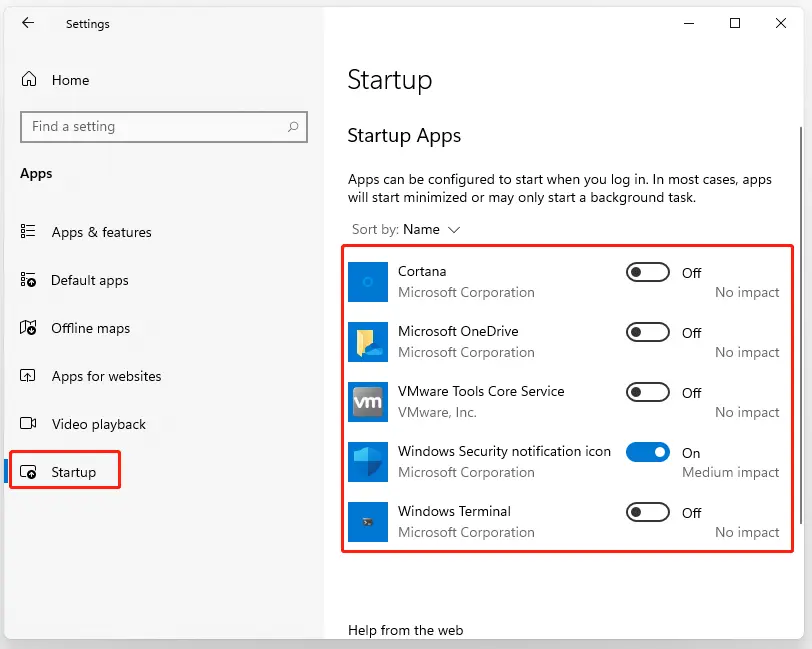
Turn Off Startup Apps Using Windows Settings
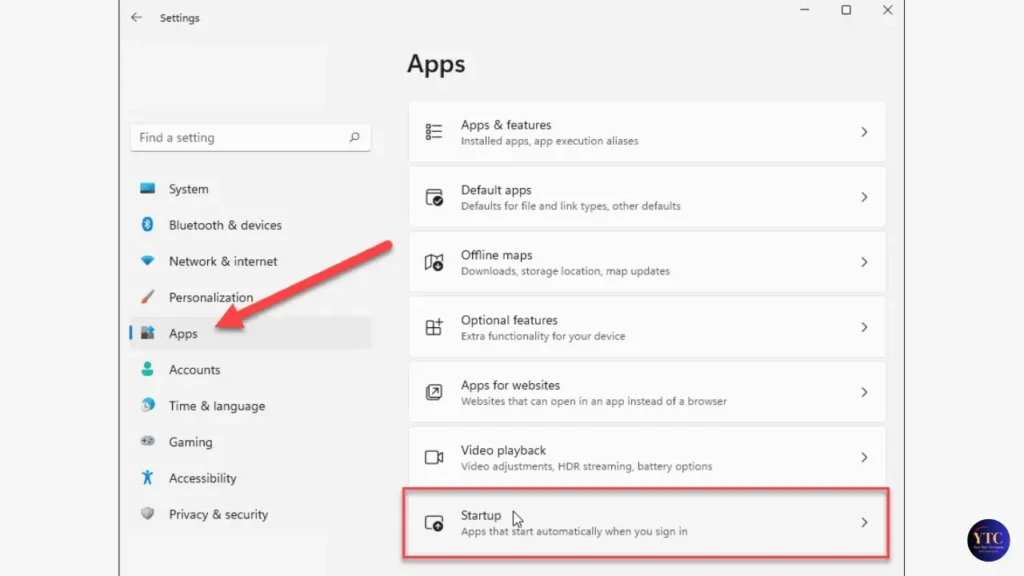
Windows 11 also offers a second, more user-friendly way to manage startup apps.
- Open Settings
- Go to Apps → Startup
- Toggle off apps you don’t need at boot
Using both Task Manager and Settings ensures nothing slips through the cracks. Some apps appear in one list but not the other.
Enable Fast Startup to Reduce Boot Time
Fast Startup is a built-in Windows feature that saves part of the system state during shutdown, so your PC can boot faster next time.
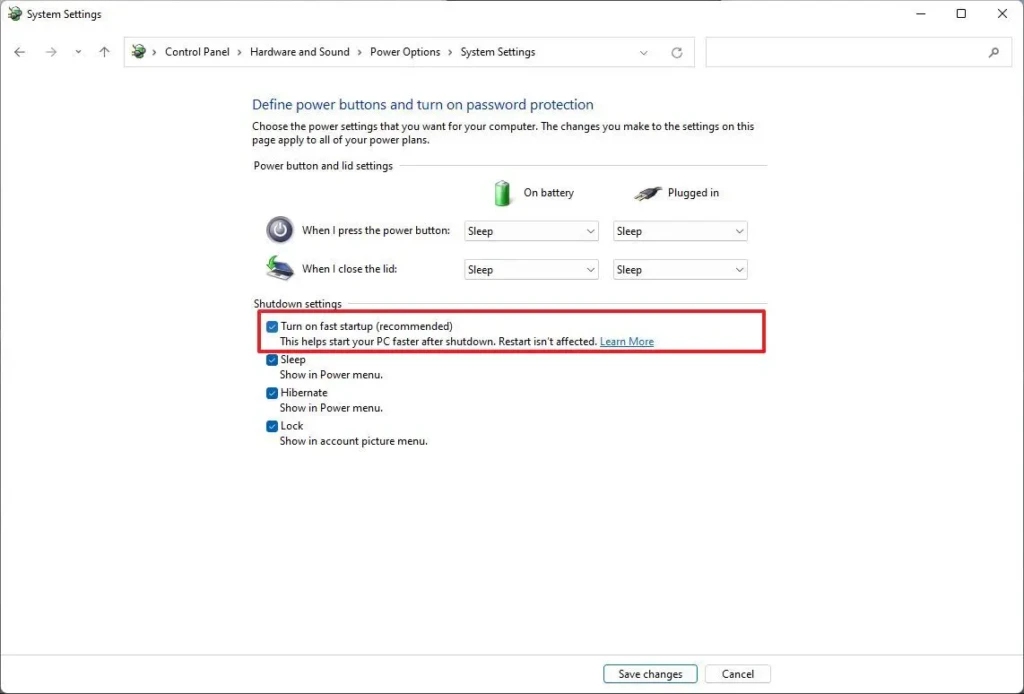
To enable it:
- Open Control Panel
- Navigate to Power Options → Choose what the power buttons do
- Select Change settings that are currently unavailable
- Enable Turn on fast startup
Fast Startup works well for most users, but if you dual-boot or experience odd shutdown behavior, you may want to test performance with it disabled.
Update Windows and Device Drivers
Outdated software is a hidden contributor to slow startup. Windows updates often include performance fixes, while driver updates improve how hardware initializes during boot.
- Open Settings → Windows Update
- Install all available updates
Next, check Device Manager and update drivers for:
- Storage controllers
- Graphics adapters
- Chipset components
This step is especially important for laptops from manufacturers like HP and Lenovo, which rely heavily on optimized drivers for power management and startup performance.
Scan for Malware and Reduce Background Services
Malware and unnecessary background services can quietly slow startup by consuming resources before you ever reach the desktop.
Use built-in Windows Security to run a full system scan. If your PC feels sluggish even after disabling startup apps, this step is critical.
You can also perform a clean boot to identify problematic services:
- Disable non-Microsoft services temporarily
- Restart and observe boot speed
If performance improves, re-enable services gradually to isolate the culprit.
Free Up Disk Space and Optimize Storage
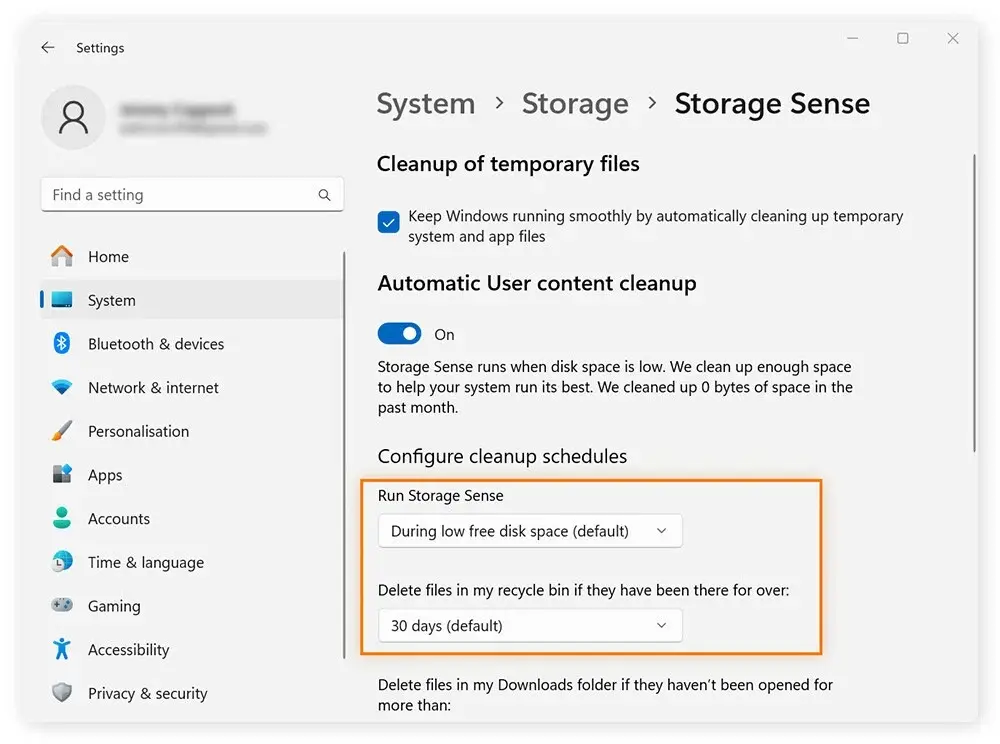
Low disk space slows down Windows because the system needs room for temporary files, caching, and background operations.
To clean things up:
- Enable Storage Sense
- Remove temporary files
- Uninstall unused apps
If your system uses a traditional hard drive, disk fragmentation can further slow boot times. Running the built-in optimization tool helps reorganize data for faster access.
HDD vs SSD: Why Storage Type Matters
Storage has a significant impact on startup speed. Check out the table below to see why it matters.
Storage Type | Startup Speed | Overall Impact |
HDD | Slow | Noticeable delays |
SSD | Fast | Dramatically faster boot |
If your PC still uses an HDD, upgrading to an SSD is often the single most effective way to fix slow startup on Windows 11. The difference is immediately noticeable, even on older hardware.
Advanced Fixes for Persistent Slow Startup
If basic optimizations aren’t enough, deeper system checks may be necessary.
Repair System Files
Run these tools from Command Prompt:
- System File Checker (SFC)
- DISM image repair
These utilities fix corrupted system files that can interfere with startup routines.
Use a Clean Boot
A clean boot helps identify third-party conflicts by starting Windows with minimal services. This is particularly useful if the startup slows down after installing new software.
As a last resort, resetting Windows while keeping your files can resolve deeply rooted performance issues.
Who This Guide Is Best For
- Windows 11 beginners
- Older or slower laptops
- Users affected after recent updates
- Anyone tired of waiting at startup
If you’re using a business-focused device, it’s also worth understanding how manufacturer-specific software affects performance. Guides like HP Brand Explained, Lenovo Brand Explained, and the Lenovo ThinkPad Guide offer helpful context when optimizing branded systems.
Conclusion
Fixing slow startup on Windows 11 doesn’t require guesswork or drastic measures. By disabling unnecessary startup apps, enabling Fast Startup, keeping Windows and drivers up to date, and optimizing your storage, you can significantly reduce boot time. For systems still running on hard drives, moving to an SSD delivers the most dramatic improvement.
Every PC is different, and results depend on hardware, installed software, and usage patterns. That’s why the best approach is to apply these fixes gradually and observe the impact after each step. I encourage you to work through the solutions in this guide and fine-tune your system, so Windows 11 feels fast and responsive every time you power it on.
Related Questions (FAQs)
Background services, startup apps, and hardware limitations are the most common reasons.
On SSD-based systems, under 30 seconds is common. HDD systems take longer.
More RAM improves multitasking, but storage upgrades have a bigger impact on boot speed.
Yes, for most users, though it may cause issues in specific setups.