Your iPhone is frozen, sluggish, or behaving strangely after an update. The fix is almost always the same: restart it. A restart clears temporary system processes, refreshes network connections, and resolves minor software glitches that accumulate during normal use. It takes less than 30 seconds and doesn’t lose any of your data.
The catch is that the button combination varies by model, and if your screen is completely frozen, even the standard method won’t work. This guide covers every restart method for every iPhone model, from the current iPhone 16 to the iPhone 6s, including how to restart without using any buttons.
When to Restart Your iPhone
A restart is the right first step for most minor iPhone problems. Reach for it when you notice any of the following:
Your iPhone feels slower than usual or has started lagging during normal tasks. Apps are crashing repeatedly or refusing to open. The touchscreen is responding inconsistently, registering taps in the wrong place or not registering them at all. Wi-Fi, Bluetooth, or cellular connectivity has unexpectedly dropped. You’re seeing the SOS indicator in your status bar; our guide to what SOS means on iPhone explains why this happens and what to do. Your iPhone feels warm, and you suspect it’s overheating.
Restarting won’t fix everything. Hardware faults, storage issues, and iOS bugs that require updates require different solutions. But for most day-to-day glitches, a restart resolves the problem in under a minute.
Standard Restart: Face ID Models (iPhone X and Newer)
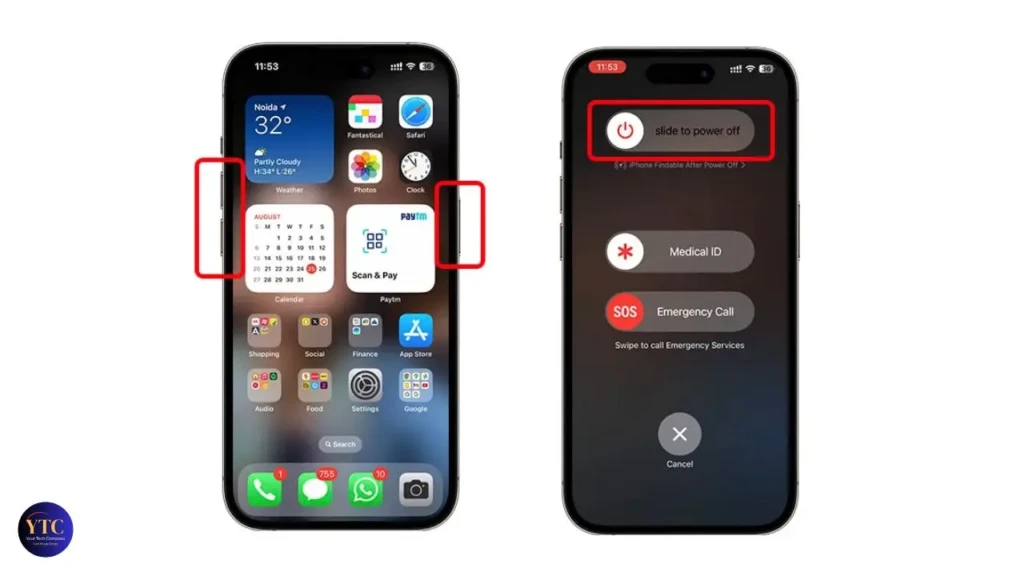
This covers iPhone X, XS, XR, 11, 12, 13, 14, 15, and 16, as well as any iPhone without a Home button.
- Press and hold Volume Up and Side button simultaneously.
- Keep holding until the power-off slider appears on screen.
- Drag the slider to shut down.
- Wait 10 seconds for the screen to go fully dark.
- Press and hold the Side button until the Apple logo appears.
Your iPhone will boot back up in around 30 seconds.
Standard Restart: Home Button Models (iPhone SE, iPhone 8, and Older)
This covers the iPhone SE (1st and 2nd gen), iPhone 8, 7, 6s, and 6.
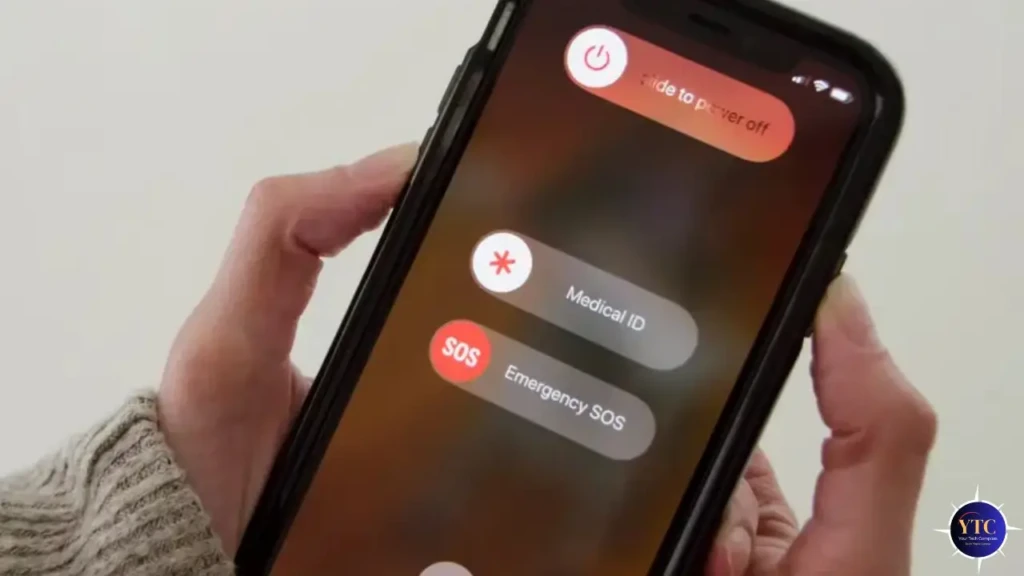
- Press and hold the Side button (on the right edge) until the power-off slider appears.
- Drag the slider to shut down.
- Wait 10 seconds.
- Press and hold the Side button again until the Apple logo appears.
On the iPhone SE 1st gen and iPhone 5s or older, the power button is on the top edge rather than the side; the process is otherwise identical.
Force Restart: iPhone 8 and Newer (Including iPhone 16)
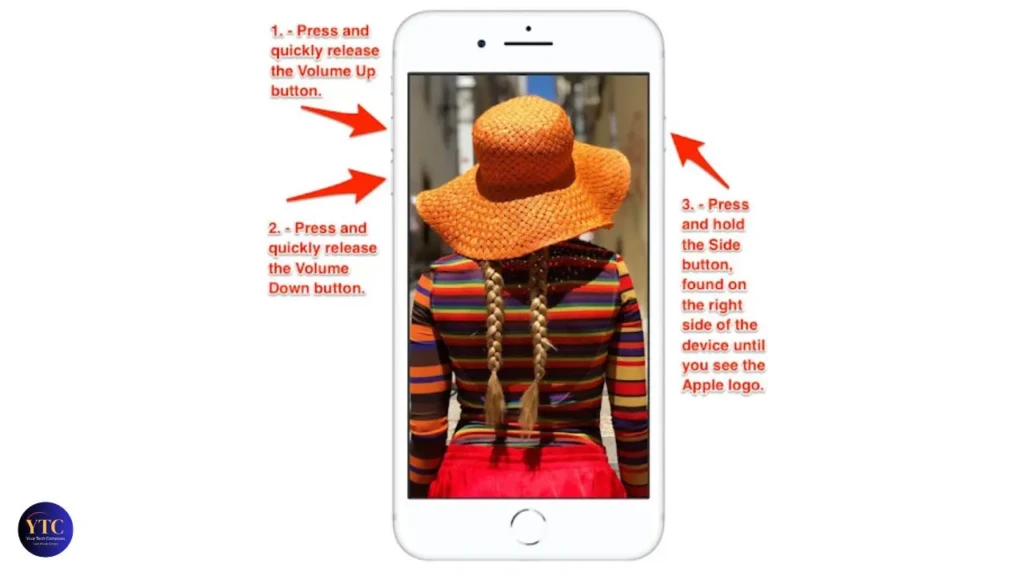
A force restart is a hard reboot. Use it when the screen is unresponsive or frozen and a standard restart isn’t possible. It does not erase any data.
- Quickly press and release Volume Up.
- Quickly press and release Volume Down.
- Press and hold the Side button.
- Keep holding (don’t release when the power-off slider appears).
- Release when the Apple logo appears.
The key mistake most people make is releasing the Side button too early when they see the slider. Keep holding past it until the logo appears.
Force Restart: iPhone 7 and iPhone 7 Plus
Apple changed the button combination for the iPhone 7 because the Home button is no longer mechanical.
- Press and hold the Volume Down and Side buttons simultaneously.
- Keep holding both until the Apple logo appears.
- Release.
Force Restart: iPhone 6s and Older
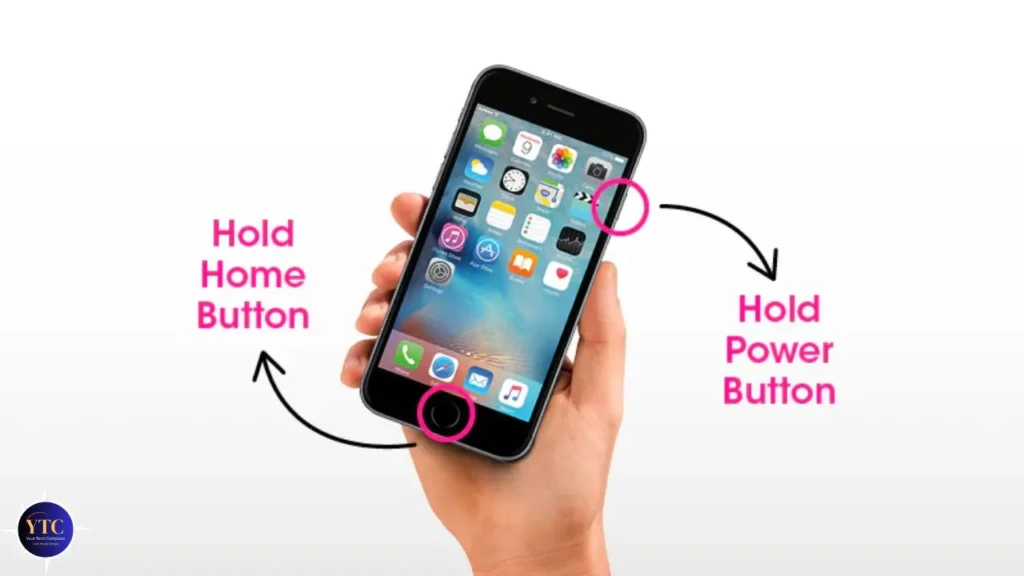
This covers the iPhone 6s, 6, SE (1st gen), 5s, and earlier models.
- Press and hold the Home and Power buttons simultaneously.
- Keep holding both until the Apple logo appears.
- Release.
How to Restart When the Screen Is Frozen
If the screen is completely unresponsive (no touch, no slider, nothing), go straight to the force restart method for your model above. Force restart bypasses the software entirely and doesn’t require any on-screen interaction.
Before you force restart, try these steps if the screen has only partially frozen:
Plug the iPhone into a charger and wait two minutes. A critically low battery can cause the screen to become unresponsive even when the phone appears to be on. Remove any case that might be pressing on buttons. Let the device cool down for a few minutes if it feels warm; heat can cause temporary display issues.
If the iPhone is stuck on the Apple logo after an update, that’s a different problem. A force restart may help, but if it repeatedly returns to the Apple logo, the device may need to be restored via recovery mode on a computer.
How to Restart Without Using Buttons
If your Side or Volume buttons are damaged or unresponsive, you can restart your iPhone entirely through software.
Method 1: Through Settings
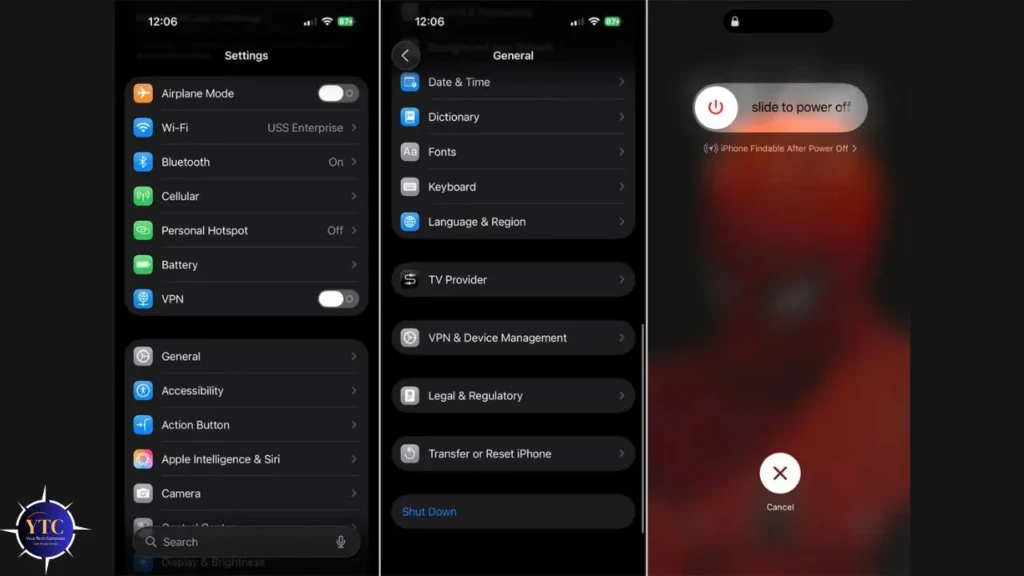
- Open Settings.
- Tap General.
- Scroll to the bottom and tap Shut Down.
- Drag the slider to power off.
- Once the screen is dark, press and hold the Side button to turn it back on. If the Side button is broken, use a charger; plugging in will power the device back on.
Method 2: Through AssistiveTouch
AssistiveTouch adds a floating on-screen button that replicates hardware controls.
- Go to Settings > Accessibility > Touch.
- Enable AssistiveTouch.
- Tap the floating AssistiveTouch button.
- Tap Device > More > Restart.
- Confirm when prompted.
Once enabled, AssistiveTouch stays available even if your buttons stop working entirely, so it’s worth setting up as a precaution if your buttons are unreliable.
Restart vs Force Restart vs Shutdown vs Reset
These terms are often confused. Here’s what each one actually does:
Action | What It Does | When to Use It |
Restart | Powers off and back on normally | Minor glitches, slow performance, connectivity issues |
Force Restart | Hard reboots (it bypasses software) | Frozen screen, unresponsive device, stuck on Apple logo |
Shutdown | Powers off completely (no reboot) | Saving battery, long-term storage, and travel |
Reset (Factory Reset) | Erases all data and settings | Selling the phone, major software faults, starting fresh |
A restart and a force restart are safe to use at any time. A factory reset permanently erases your iPhone; always back up first. If you need to do a full reset, our guide to safely factory-resetting an iPhone walks you through the process.
Troubleshooting: If Your iPhone Still Won’t Restart
If you’ve tried every method above and your iPhone still won’t respond, work through these steps in order.
1. Charge It First
A battery that has dropped to 0% can prevent the device from responding to button presses or displaying anything on screen, even though it appears to be on. Plug it in using a known-working cable and charger, and leave it for 15 minutes before trying again.
2. Try a Different Cable and Charger
A faulty cable or a low-output charger (such as a 5W USB adapter) can supply insufficient power to boot a completely drained device. Use an Apple-certified cable and a charger rated at 20W or higher.
3. Connect to a Computer
Open Finder (Mac) or iTunes (Windows), connect your iPhone, and check whether the computer recognises it. If it does, you may be able to initiate a restart or recovery from there. If the computer doesn’t recognise it at all, the issue may be hardware-level.
4. Check Your Buttons
If the Side or Volume buttons are physically stuck or damaged, a force restart won’t work using the standard button combinations. Use the AssistiveTouch method above instead.
5. Contact Apple Support
If none of the above works, your iPhone likely has a hardware fault; either the battery, the display, or an internal component. Book an appointment at an Apple Store or contact Apple Support directly.
FAQs
No. A standard restart and a force restart both leave your data, apps, settings, and photos completely untouched. The only action that deletes data is a factory reset, which is a completely separate process
Once a week is a reasonable habit. A regular restart clears temporary files, refreshes background processes, and prevents the gradual slowdown that builds up over days of continuous use. You don’t need to do it daily, but most users notice a difference if they’ve gone weeks without one.
If your iPhone needs to be restarted multiple times a week to stay functional, that is treating the symptom rather than the cause. Common underlying issues include low available storage, a problematic app running in the background, or an iOS bug. Check your storage under Settings > General > iPhone Storage. If apps are crashing repeatedly, our iPhone app crashes guide covers targeted fixes. If performance is the ongoing issue, clearing RAM on your iPhone can help between restarts.
A standard restart shuts down iOS normally; apps close, processes save their state, and the system powers down gracefully. A force restart abruptly cuts power, without giving the software time to shut down cleanly. Force restart is safe to use, but it should be reserved for situations where the screen is unresponsive and a normal restart isn’t possible.
Yes. Use Settings > General > Shut Down, or enable AssistiveTouch and use the on-screen restart option. Both methods work without any physical buttons.
Final Thoughts
Restarting an iPhone is simple once you know which method applies to your model. For most problems, including sluggish performance, app misbehaviour, and connectivity dropouts, a standard restart is all you need. For a frozen or completely unresponsive device, a force restart gets the job done without touching any data.
If restarting frequently doesn’t keep your iPhone running smoothly, the problem is likely deeper than a reboot can fix. A factory reset is the next step when persistent software faults persist, and our iPhone factory reset guide walks through every step, including backing up first.
For more tech guides and honest reviews, visit YourTechCompass.