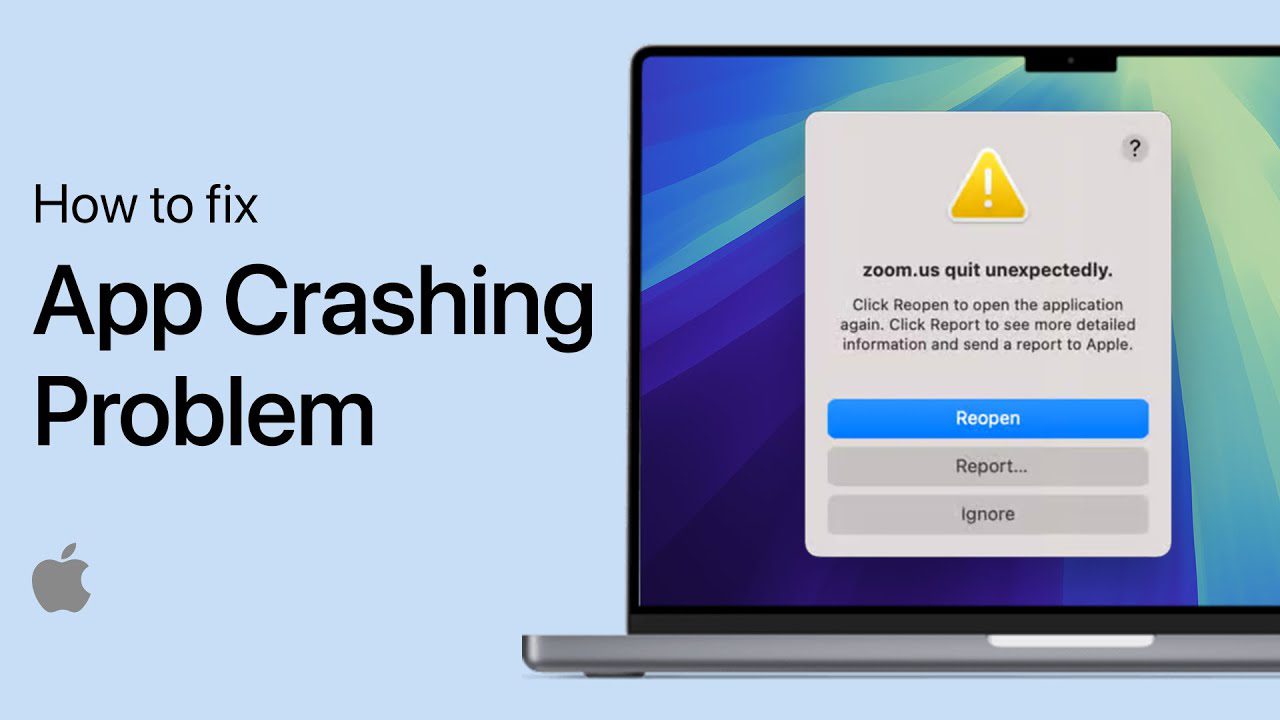
If your Mac keeps crashing, freezing, or restarting unexpectedly, there’s a specific cause, and in most cases, you can fix it yourself without visiting an Apple Store or paying for a repair. Whether your Mac crashes when switching users, freezes during regular use, or restarts randomly, the troubleshooting process follows the same logical steps.
I’ll walk you through every fix in this guide, starting with the simplest and working toward the more advanced solutions. Try each one in order, and you’ll almost certainly find the cause before you reach the end.
Why Does My Mac Keep Crashing?
Mac crashes fall into a few common categories, and identifying which one you’re dealing with helps you find the right fix faster.
Software-related crashes are the most common; they occur due to outdated macOS versions, buggy third-party apps, corrupted system files, or conflicting login items that run automatically in the background. Hardware-related crashes are less common but more serious; they can be caused by failing RAM, overheating processors, or damaged hard drives. User account crashes happen specifically when switching between accounts or when a single user profile becomes corrupted.
Most Mac crashes, including the frustrating user-switching crash in macOS Sequoia, are software-related and can be fixed with the steps below.
How to Fix Your Mac
Fix 1: Restart Your Mac Properly
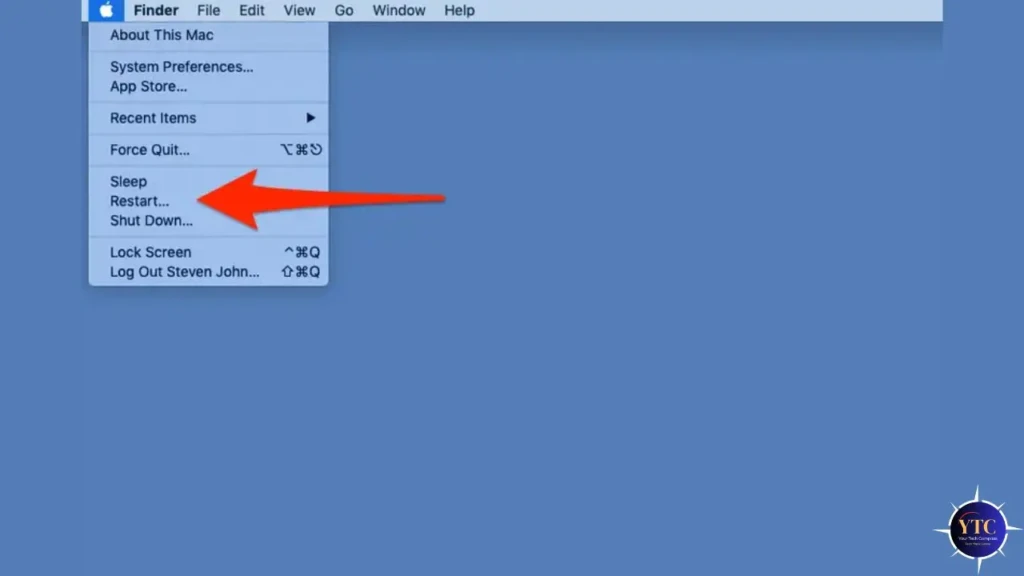
Before anything else, restart your Mac the right way, not just by closing the lid. A proper restart clears your RAM, stops all background processes, and gives macOS a clean slate to work from.
Click the Apple menu in the top left corner and select Restart. Wait for your Mac to fully shut down and restart, then test whether the crashing continues. You’d be surprised how many persistent Mac issues a simple restart resolves, especially if your Mac has been running for several days without one.
Fix 2: Disconnect External Devices
External devices, such as USB drives, docking stations, external monitors, and even some USB hubs, can cause system instability when their drivers conflict with macOS. This is especially true after a macOS update, when older peripheral drivers haven’t been updated to match.
Unplug everything connected to your Mac except the power cable, then restart and test whether the crashing continues. If your Mac runs stably without the peripherals, reconnect them one at a time to identify which device is causing the problem. Once you find the culprit, check the manufacturer’s website for an updated driver or firmware.
Fix 3: Update macOS and All Apps
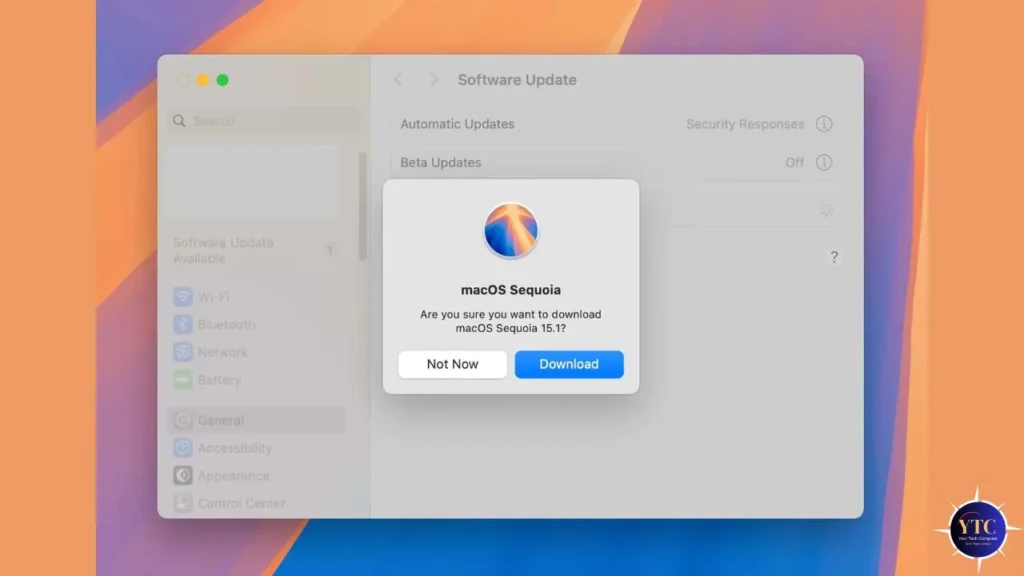
Apple regularly releases macOS updates that patch stability bugs, and skipping even one update can leave known crash-causing bugs unresolved on your system. This is the most common reason Macs crash after a major macOS upgrade, such as Sequoia.
To update macOS, click the Apple menu → System Settings → General → Software Update and install any available update. To update your apps, open the App Store and click Updates in the sidebar.
Pay particular attention to apps that run in the background, such as VPNs, antivirus tools, and menu bar utilities, as they are frequent crash triggers after system updates. After updating everything, restart your Mac and test.
Fix 4: Boot Into Safe Mode
Safe Mode starts your Mac using only the essential system components; all third-party apps, login items, and non-essential extensions are temporarily disabled. If your Mac stops crashing in Safe Mode, a third-party app or login item is the cause.
On Apple Silicon Macs (M1, M2, M3, M4):
- Shut down your Mac completely.
- Press and hold the Power button until startup options appear.
- Select your startup disk, then hold Shift and click Continue in Safe Mode.
On Intel Macs:
- Restart your Mac.
- Immediately hold the Shift key until the login screen appears.
- Log in (you’ll see “Safe Mode” in the menu bar).
Use your Mac normally in Safe Mode and see if the crashing stops. If it does, restart normally and move to Fix 5 to identify which app is causing the problem.
Fix 5: Remove Problematic Login Items
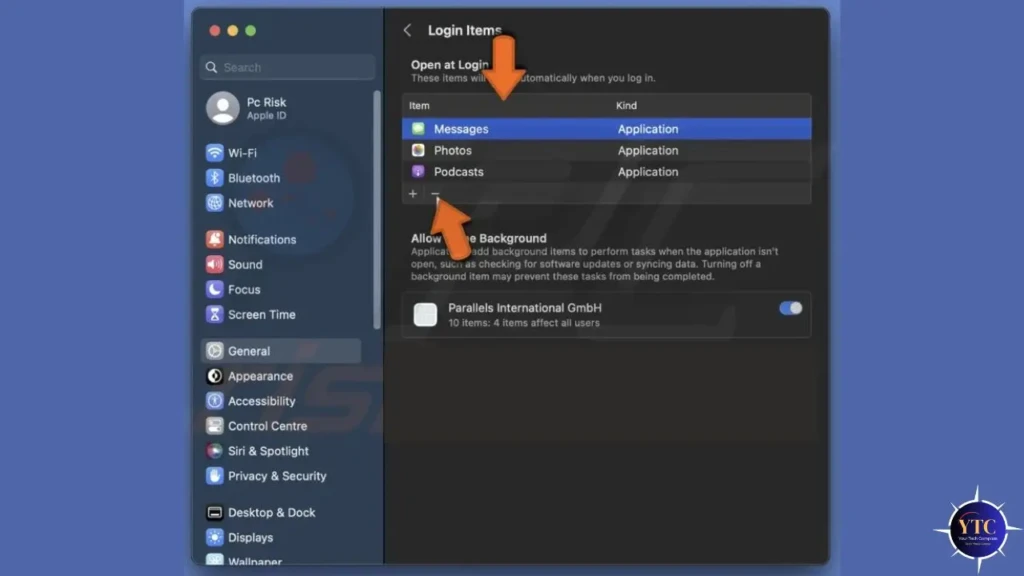
Login items are apps that start automatically when your Mac boots or when you log in. Too many of them, or a single badly behaved one, can cause crashes, freezes, and slowdowns, especially during user switching.
To manage your login items, go to System Settings → General → Login Items. You’ll see two lists: “Open at Login” and “Allow in Background.” Go through both lists carefully and remove anything you don’t recognize or don’t actively need running in the background. Restart your Mac after making changes and test whether the crashing has stopped.
Fix 6: Clear System Caches
macOS stores temporary files called caches to help apps and the system load faster. Over time, these cached files can become corrupted, causing crashes, slow performance, and unexpected behavior.
The safest way to clear system caches on a Mac is to boot into Safe Mode (Fix 4), which automatically clears many system caches. For a more thorough cache cleanup, you can use a reputable free tool like OnyX (available at titanium-software.fr), which lets you safely clear the system, user, and font caches without touching important system files. Avoid random “Mac cleaner” apps from unknown developers; many of them do more harm than good.
Fix 7: Reset NVRAM (Intel Macs Only)
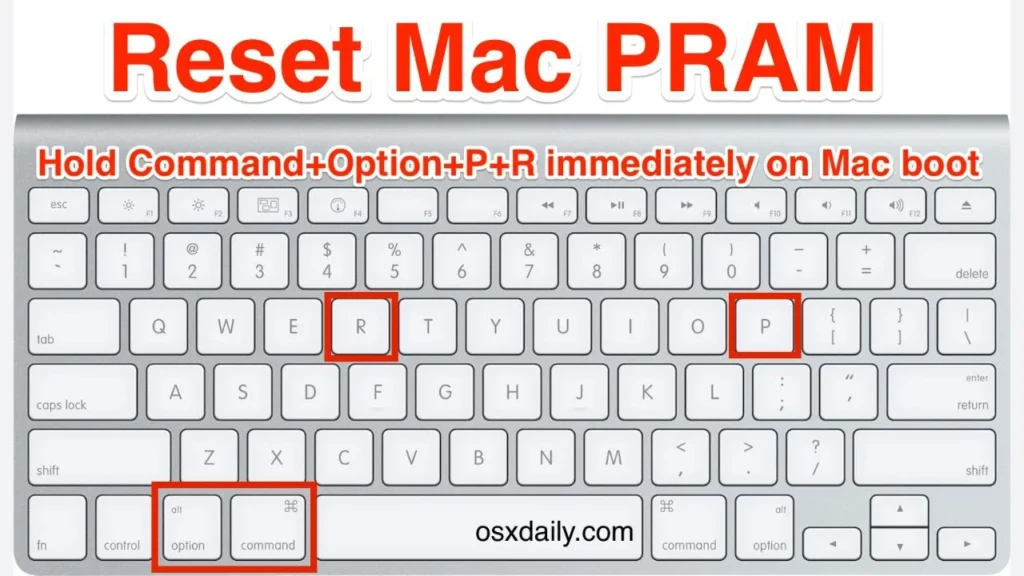
NVRAM is a small section of memory that your Mac uses to store settings such as display resolution, startup disk selection, and time zone. When NVRAM becomes corrupted, it can cause unexpected crashes and boot problems.
To reset NVRAM on an Intel Mac, shut down your Mac completely, then turn it on and immediately press and hold Option + Command + P + R. Keep holding for about 20 seconds; your Mac may restart once during this time, then release the keys and let it boot normally. If you have an Apple Silicon Mac (M1 or later), there is no manual NVRAM reset; restarting your Mac and booting into Safe Mode achieves the same result automatically.
Fix 8: Run Disk Utility First Aid
Corrupted disk permissions or file system errors can cause your Mac to crash, freeze, or behave erratically. Apple’s built-in Disk Utility includes a First Aid feature designed to find and repair these issues.
To run First Aid, open Disk Utility by searching for it with Spotlight (Command + Space, type “Disk Utility”). Select your startup disk from the left sidebar, it’s usually labeled “Macintosh HD,” then click First Aid and then Run. The process takes a few minutes and will report any issues it finds and whether it was able to repair them. Restart your Mac afterward and test.
Fix 9: Create a New User Account
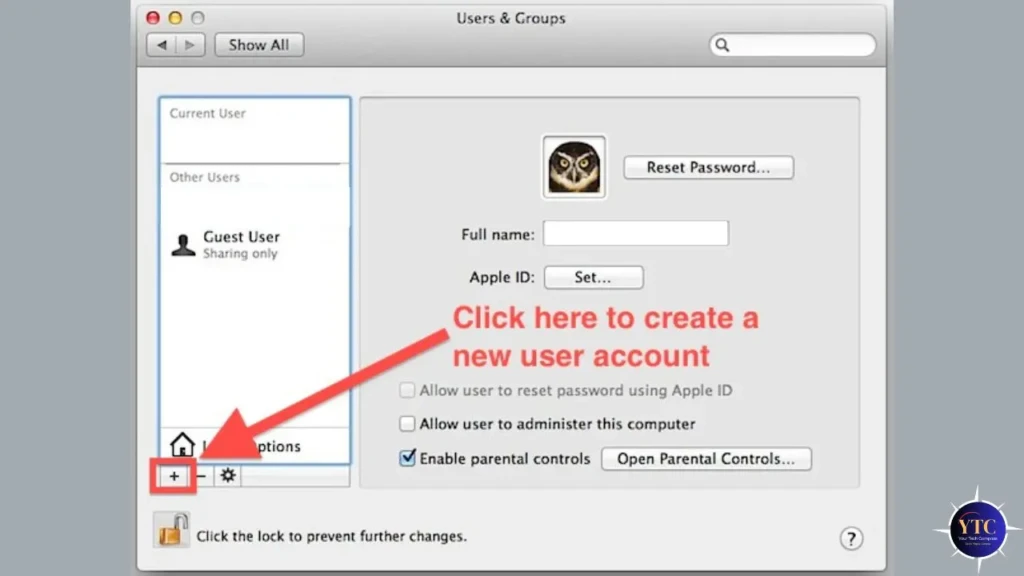
If your Mac crashes consistently on one specific user account but works fine on others, the problem is with that account’s profile data rather than macOS itself. Creating a new user account lets you confirm this and gives you a clean account to work from.
Go to System Settings → Users & Groups and click the “+” button to create a new administrator account. Log in to the new account and use your Mac normally for a while; if it runs without crashing, your old account’s data is corrupted. You can then manually copy your important files (Documents, Desktop, Downloads) from the old account to the new one, and use the new account going forward.
Fix 10: Check Your Mac’s Storage
When your Mac’s storage is nearly full, macOS can’t create the temporary files it needs to run properly, which can cause freezes, slowdowns, and crashes. Apple recommends keeping at least 10–15% of your total storage free at all times for smooth operation.
To check your storage, go to Apple menu → System Settings → General → Storage. You’ll see a breakdown of what’s using your space.
If you’re running low on space, delete old downloads, empty the Trash, offload large files to iCloud or an external drive, and remove apps you no longer use. After freeing up space, restart your Mac and test stability.
Fix 11: Check Your Mac’s Memory (RAM)
If your Mac crashes under heavy workloads, like when you have many apps open simultaneously or run demanding tasks, you may be running out of RAM. macOS handles this by using your storage as virtual memory, but when both RAM and storage are stretched, crashes follow.
To check your RAM usage, open Activity Monitor (search for it with Spotlight) and click the Memory tab. Look at the “Memory Pressure” graph at the bottom. If it’s consistently red or orange, your Mac is under significant memory pressure.
If you have an older Intel Mac, adding more RAM is a cost-effective upgrade. However, if you have an Apple Silicon Mac, RAM is fixed and cannot be upgraded, so the solution is to close unused apps and browser tabs to free up memory.
Fix 12: Reinstall macOS (Last Resort)
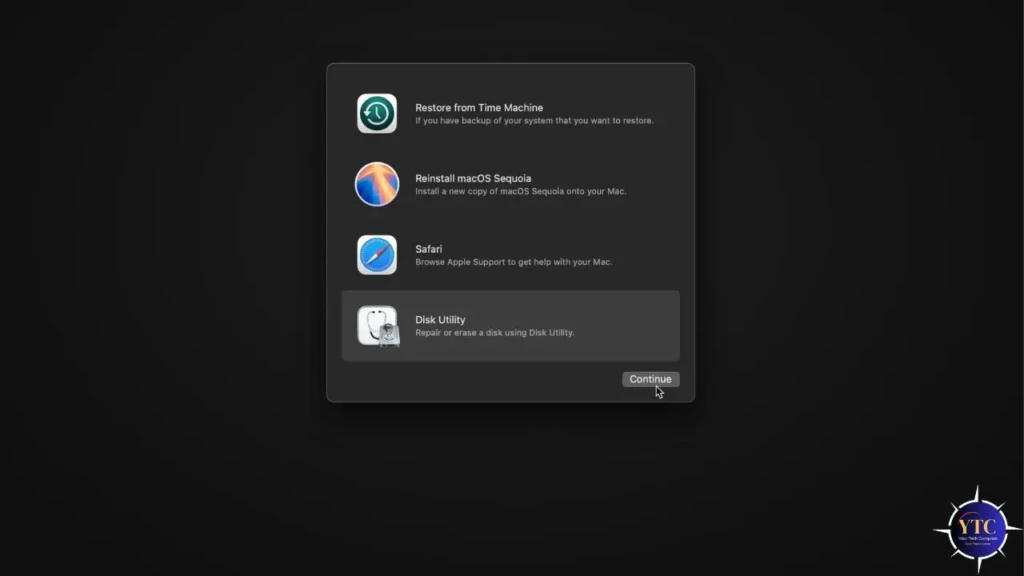
If none of the previous fixes have resolved the crashing, reinstalling macOS replaces all system files with a fresh copy without erasing your personal data. This is the most thorough software fix available short of a complete factory reset.
Before reinstalling, back up your Mac using Time Machine or by copying important files to an external drive or iCloud. To reinstall, restart your Mac and hold the Power button until startup options appear, then select Options → Continue → Reinstall macOS and follow the prompts. After reinstalling, your apps and files will remain; only the system files are replaced.
Specific Fix: Mac Crashes When Switching Users
If your Mac crashes specifically when switching between user accounts, here are targeted fixes for that exact problem, in addition to the general fixes above.
- Use Lock Screen Instead of Fast User Switching: Instead of using the fast user switching menu, go to Apple menu → Lock Screen, then select a different user from the login screen. This method closes your active session cleanly, rather than keeping multiple sessions running simultaneously, which is what triggers the crash for many users.
- Disable Fast User Switching Entirely: Go to System Settings → Lock Screen and toggle off “Show fast user switching menu.” Then switch users by logging out completely each time. It’s slightly less convenient but eliminates the multi-session conflict that causes the crash.
- Check for a macOS Sequoia Update: Apple has released several point updates to macOS Sequoia (15.1, 15.2, etc.) that specifically addressed stability bugs related to user switching. Go to System Settings → General → Software Update and make sure you’re on the latest available version of Sequoia.
How to Prevent Your Mac From Crashing in the Future
Keeping your Mac stable in the long term doesn’t require much, just a few consistent habits.
Always keep macOS and your apps up to date. Apple patches stability bugs regularly, and staying current is the single most effective way to prevent crashes. Restart your Mac at least once a week, rather than just closing the lid; this clears accumulated memory and stops background processes from building up over time.
Keep your storage at least 15% free at all times, and clear your login items periodically to make sure no unnecessary apps are running in the background. If you use your Mac for heavy tasks like video editing or running multiple virtual machines, consider closing unused apps and browser tabs proactively rather than waiting for performance to degrade.
FAQs
Random crashes with no obvious trigger are usually caused by corrupted system files, RAM issues, or overheating. Start with Fix 8 (Disk Utility First Aid) and Fix 11 (check RAM in Activity Monitor). If the crashes persist after all software fixes, your Mac may need a hardware diagnostic at an Apple Store.
No. Reinstalling macOS replaces system files only and leaves your personal files, apps, and settings intact. However, always back up before reinstalling, just in case something unexpected happens during the process.
This is a known issue with macOS Sequoia’s Fast User Switching feature. The most effective fixes are updating to the latest Sequoia version, disabling Fast User Switching in System Settings, and using the Lock Screen method to switch accounts instead.
If your Mac crashes consistently under heavy load, shows visual artifacts on screen, makes unusual sounds, or fails to resolve after all software fixes, the issue may be hardware-related. Run Apple Diagnostics by restarting your Mac and holding the D key; it will test your hardware and report any failures.
A force restart (holding the Power button until the Mac shuts off) should be a last resort when your Mac is completely unresponsive. It’s not ideal, unsaved work will be lost, but it won’t damage your Mac or files. Once you’re back up, run Disk Utility’s First Aid to check for any file system errors caused by the abrupt shutdown.
Final Thoughts

I know how frustrating it can be when your Mac crashes mid-task, especially when switching between users. But with the right approach, the fix is usually straightforward.
Start with the basics, including updating, entering Safe Mode, and removing login items. Then, proceed to creating a new user or resetting NVRAM if necessary. Only reinstall macOS as a last resort. In my experience, these steps cover nearly every cause of this issue. Once your Mac runs smoothly again, you’ll appreciate just how seamless Sequoia can be when everything is working right.
At YourTechCompass, every guide is written to give you accurate, practical information; no sponsored fluff, no vague advice. Explore more and find the answers you’re actually looking for.