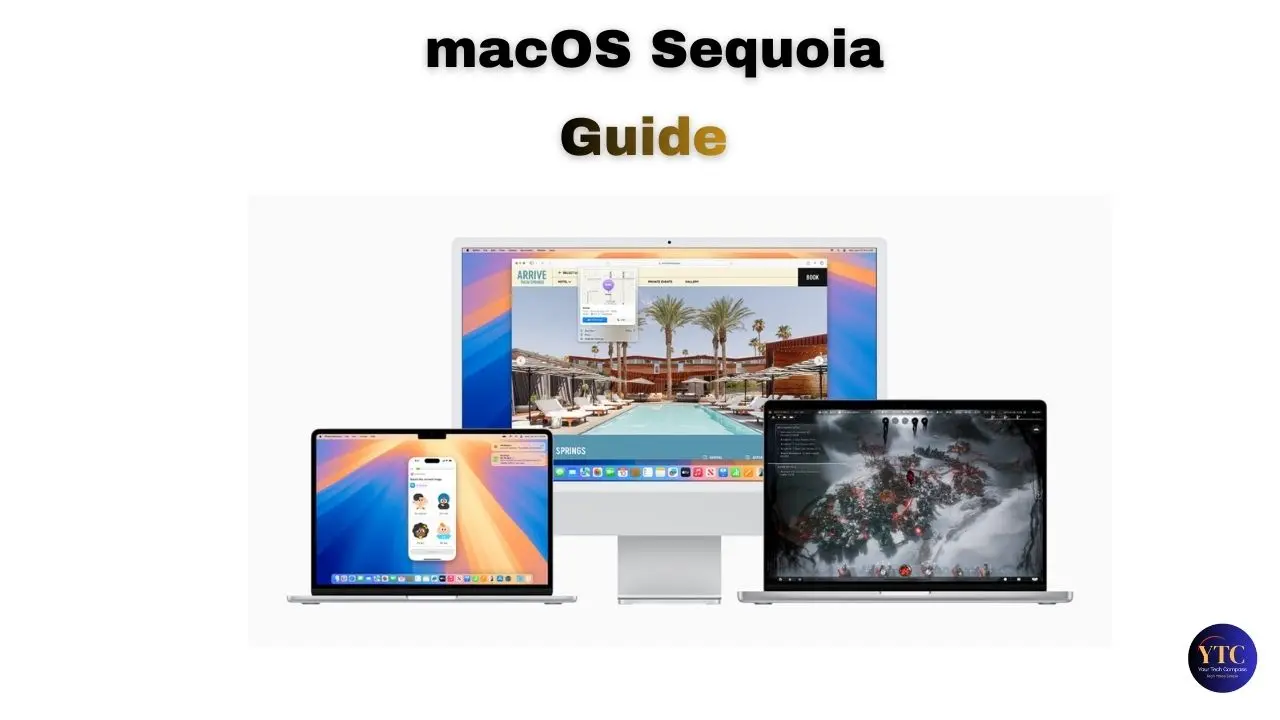
macOS Sequoia (version 15) is Apple’s most feature-packed macOS release in years, centered on iPhone Mirroring, native window tiling, a standalone Passwords app, and Apple Intelligence. Released on September 16, 2024, it marks Apple’s continued push to blur the line between iPhone and Mac, while also delivering the first on-device AI system in macOS history. If you own an Apple Silicon Mac, Sequoia is the update that best justifies the hardware investment of any previous release.
That said, Sequoia isn’t a flawless launch. The initial 15.0 release shipped with significant VPN and firewall compatibility issues affecting security tools from CrowdStrike, SentinelOne, ExpressVPN, NordVPN, and others, which were mostly resolved in 15.0.1 and 15.1. This guide covers every major feature, compatible hardware, honest upgrade advice, and known issues, so you can decide whether to update now, wait, or hold off entirely.
What Is macOS Sequoia?
macOS Sequoia is the 21st major release of Apple’s desktop operating system, succeeding macOS Sonoma (macOS 14). Named after Sequoia National Park in California’s Sierra Nevada, continuing Apple’s tradition of naming macOS after California landmarks, it was announced at WWDC on June 10, 2024, and released to the public on September 16, 2024. It has since been succeeded by macOS Tahoe, released in September 2025.
Sequoia’s central theme is device convergence and AI integration. iPhone Mirroring, the headlining feature, makes your iPhone accessible as a window on your Mac desktop. Apple Intelligence, the on-device AI system, began rolling out with macOS 15.1 in October 2024. Together, these two additions represent the most significant expansion of capability in macOS since the launch of Apple Silicon.
For historical context on how far the platform has come, our macOS Ventura guide shows how much has changed in just a few generations.
macOS Sequoia: System Requirements and Compatible Macs
macOS Sequoia supports every Mac that ran macOS Sonoma except the 2018 and 2019 MacBook Air models with Intel Amber Lake chips, the first time a Mac with a T2 security chip was dropped from macOS support.
Mac Model | macOS Sequoia Support | Apple Intelligence |
MacBook Air (M1 and later) | ✅ Yes | ✅ Yes |
MacBook Air (2020 Intel) | ✅ Yes | ❌ No |
MacBook Air (2018–2019 Intel) | ❌ Not supported | ❌ No |
MacBook Pro (2018 and later) | ✅ Yes | M1+ only |
Mac mini (2018 and later) | ✅ Yes | M1+ only |
Mac Studio (all models) | ✅ Yes | ✅ Yes |
Mac Pro (2019 and later) | ✅ Yes | M2 Ultra only |
iMac (2019 and later) | ✅ Yes | M1+ only |
iMac Pro (2017) | ✅ Yes | ❌ No |
To check compatibility on your Mac: go to the Apple menu → About This Mac and compare your model year against the list above. Apple Intelligence requires an M1 chip or later; Intel Macs running Sequoia receive all other features but are excluded from AI functionality entirely. If your Mac isn’t on the list, it won’t run Sequoia. Your options are to continue on Sonoma (which Apple still patches) or upgrade your hardware.
What’s New in macOS Sequoia: Key Features
iPhone Mirroring
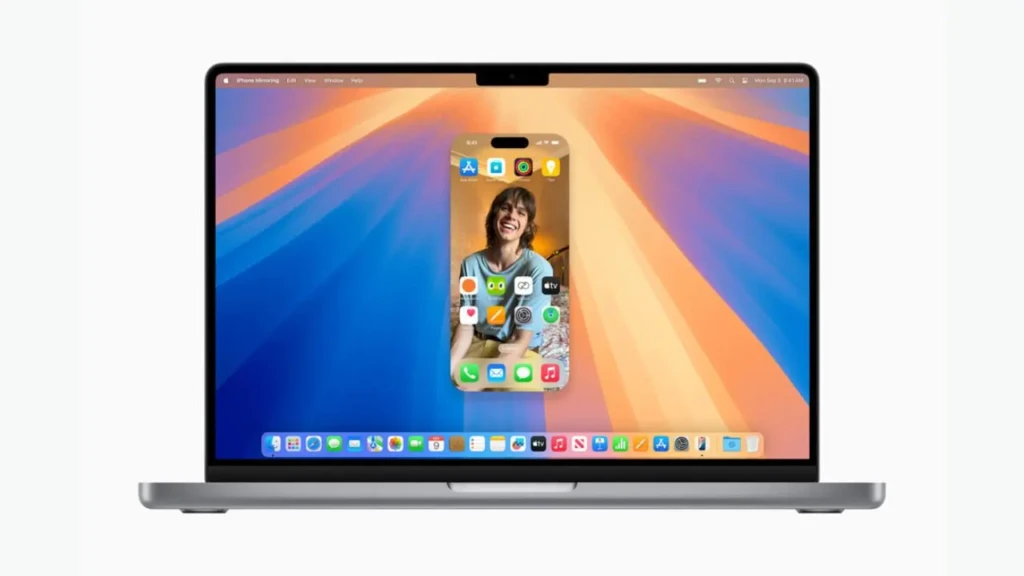
iPhone Mirroring is the single most impactful addition in Sequoia. It lets you access and control your iPhone directly from your Mac; your iPhone’s home screen, apps, and notifications appear as a resizable window on the desktop. You interact with it using your Mac’s keyboard, trackpad, or mouse, including full support for trackpad gestures. Your iPhone stays locked, and its screen remains off the entire time, so no one nearby can see what you’re doing on it.
This works wirelessly over Wi-Fi (with both devices signed in to the same Apple ID) and via a USB cable for a more stable connection. Drag-and-drop between iPhone and Mac arrived with macOS 15.1. One important caveat: iPhone Mirroring is not available in the European Union due to compliance with the Digital Markets Act, and it requires your iPhone to be running iOS 18.
Window Tiling
Sequoia finally brings native window snapping to macOS, a feature Windows users have had since Windows 7. Drag a window to any screen edge, and macOS automatically suggests a tile position, showing a shaded preview before you release.
You can also hold down the Option key while clicking the green traffic-light button to access tiling options. Keyboard shortcuts for arranging windows are available system-wide, and tiles adjust automatically when you add or remove windows from a tiled layout.
Apple Intelligence
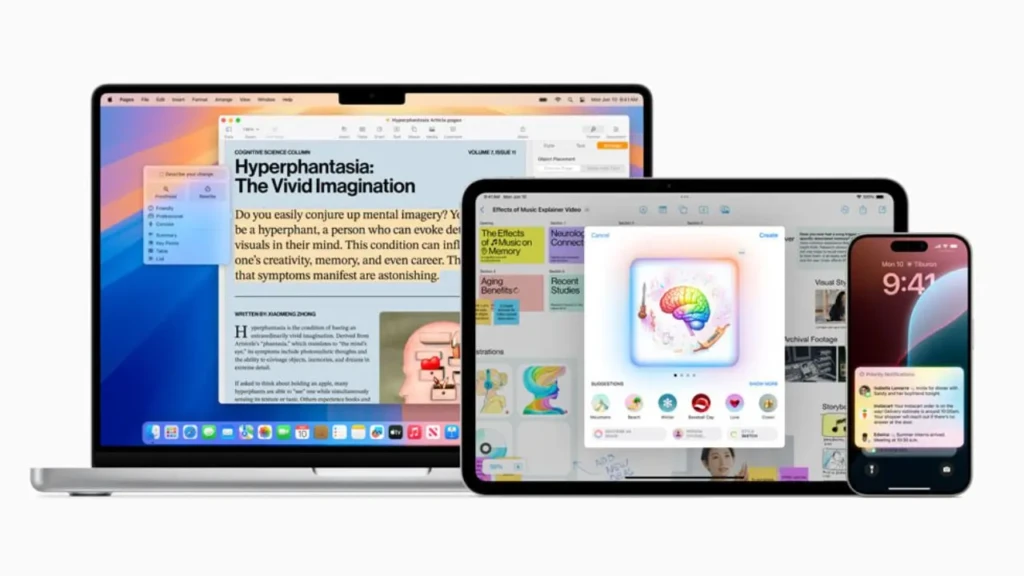
Apple Intelligence is Apple’s on-device AI system that requires an M1 Mac or later. It rolled out in stages; macOS 15.1 (October 2024) delivered Writing Tools, notification summaries, Smart Reply in Mail, and Clean Up in Photos. macOS 15.2 (December 2024) added Image Playground, Genmoji, and ChatGPT integration with Siri.
Writing Tools are available anywhere you type across the system; they can proofread, rewrite in different tones (friendly, professional, concise), summarize, or convert text to bullet lists and tables. Smart Reply in Mail generates contextual reply options based on the email you’re responding to. Siri now has screen awareness; it understands what’s on your display and can take action based on it, as well as deeper personal context from your contacts, calendar, and messages.
All processing happens on-device by default. More complex requests route through Apple’s Private Cloud Compute, its privacy-isolated cloud servers, where data is neither stored nor made accessible to Apple or third parties.
Passwords App
The standalone Passwords app replaces the buried iCloud Keychain settings that previously required navigating to System Settings. It gives you a dedicated app for managing passwords, passkeys, Wi-Fi credentials, and verification codes, with breach alerts that notify you if any saved credentials appear in known data leaks. It syncs across all your Apple devices and works with Windows via iCloud for Windows.
Safari Updates
Safari in Sequoia adds three useful features.
- Highlights uses machine learning to detect addresses, phone numbers, article summaries, and business information on webpages and surfaces them with one tap; no more hunting for a restaurant’s phone number buried in a page.
- Reader mode now includes an AI-generated summary and a table of contents.
- Distraction Control lets you permanently hide specific page elements, ads, banners, and overlays that you find intrusive.
Gaming Mode
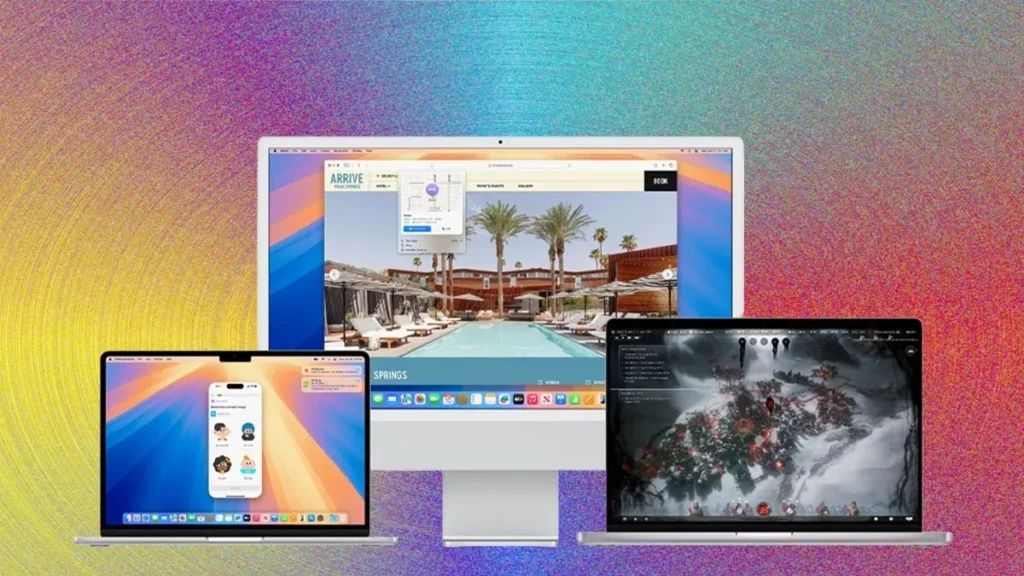
Gaming Mode is a system-level performance optimization that dedicates maximum CPU and GPU resources to your active game while reducing the priority of background tasks. For AirPods Pro 2 users specifically, it delivers the lowest Bluetooth audio latency Apple has achieved, making wireless audio during gameplay meaningfully more responsive. Game developers also benefit from improved tools for porting Windows games to Mac via Apple’s Game Porting Toolkit 2.
Video Conferencing Upgrades
Sequoia adds a Presenter Overlay for screen sharing, so you appear as a floating overlay on your shared screen rather than being cut to a small corner box, which is significantly better for presentations. Background replacement now works across FaceTime and third-party apps like Zoom. A camera preview appears in the menu bar before you join a call, so you can check your appearance and set your background before anyone sees you.
Notes and Productivity Updates
Notes gets collapsible sections (fold long notes into headers), inline math solving (type a calculation and Notes solves it automatically), audio transcription and summarization via Apple Intelligence, and Smart Script, which smooths handwritten text on iPad while maintaining your handwriting style. These aren’t headline features, but for daily Notes users, they represent a meaningful quality-of-life improvement.
Maps Updates
Apple Maps in Sequoia adds topographic maps with detailed elevation data, custom route creation for hiking and cycling, and downloadable offline maps so navigation works without a cellular or Wi-Fi connection. The offline maps feature specifically addresses one of the most persistent gaps between Apple Maps and Google Maps.
Apple Intelligence: A Closer Look
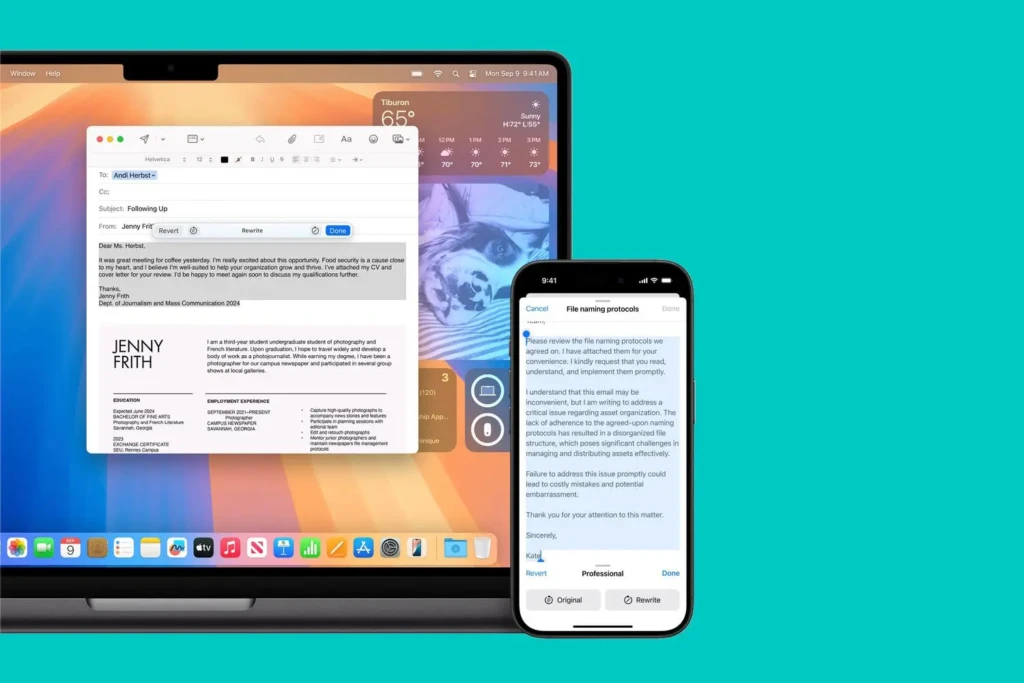
Apple Intelligence is the most significant long-term addition in Sequoia, but it’s important to understand what it actually delivers today versus what’s still rolling out. At launch with 15.1, the most useful features are Writing Tools (available system-wide in any text field), notification summaries (which condense notification stacks into a single line), and Smart Reply in Mail. Image Playground and Genmoji arrived with 15.2. The full ChatGPT integration, allowing Siri to hand off complex requests to OpenAI’s model, is also live in 15.2, with an explicit confirmation prompt before any data is sent to OpenAI.
Apple Intelligence is not available in the EU at launch due to regulatory requirements, and it’s not available on Intel Macs regardless of the macOS version. On M1 Macs, all currently released Apple Intelligence features work. On M2- and M3-based Macs, additional capabilities, including expanded image generation models, are unlocked by more powerful Neural Engines.
The honest assessment: Apple Intelligence’s current feature set is genuinely useful for everyday writing and email tasks, but it isn’t the transformative experience Apple’s marketing implies. Writing Tools are practical and well-integrated. In addition, notification summaries occasionally misrepresent the message’s intent (a known issue that Apple acknowledged).
The more ambitious AI features, contextual Siri actions, and deeper personal context are still rolling out and are not fully realized in any current release.
macOS Sequoia vs macOS Sonoma
Feature | macOS Sequoia (15 | macOS Sonoma (14) |
iPhone Mirroring | ✅ Yes | ❌ No |
Native Window Tiling | ✅ Yes | ❌ No |
Apple Intelligence | ✅ Yes (M1+, via 15.1) | ❌ No |
Standalone Passwords App | ✅ Yes | ❌ No |
Safari Highlights | ✅ Yes | ❌ No |
Gaming Mode | ✅ Enhanced | ✅ Basic |
Presenter Overlay | ✅ Yes | ❌ No |
Notes Math Solving | ✅ Yes | ❌ No |
Offline Maps | ✅ Yes | ❌ No |
2018–2019 Intel MacBook Air | ❌ Dropped | ✅ Supported |
Minimum Mac | iMac 2019 / MacBook Pro 2018 | iMac 2019 / MacBook Pro 2018 |
If you’re running Sonoma on an Intel Mac and don’t use iPhone Mirroring or need Apple Intelligence, the case for upgrading is weaker; you gain window tiling, the Passwords app, and Safari improvements, but the flagship features won’t apply to your hardware. If you’re on M1 or later, Sequoia is a clear upgrade.
How to Download and Install macOS Sequoia
Before you start: Back up your Mac using Time Machine or a third-party tool like Carbon Copy Cloner. Connect to power and ensure you have at least 20GB of free storage. If you use a VPN or third-party security software, update it to the latest version before installing.
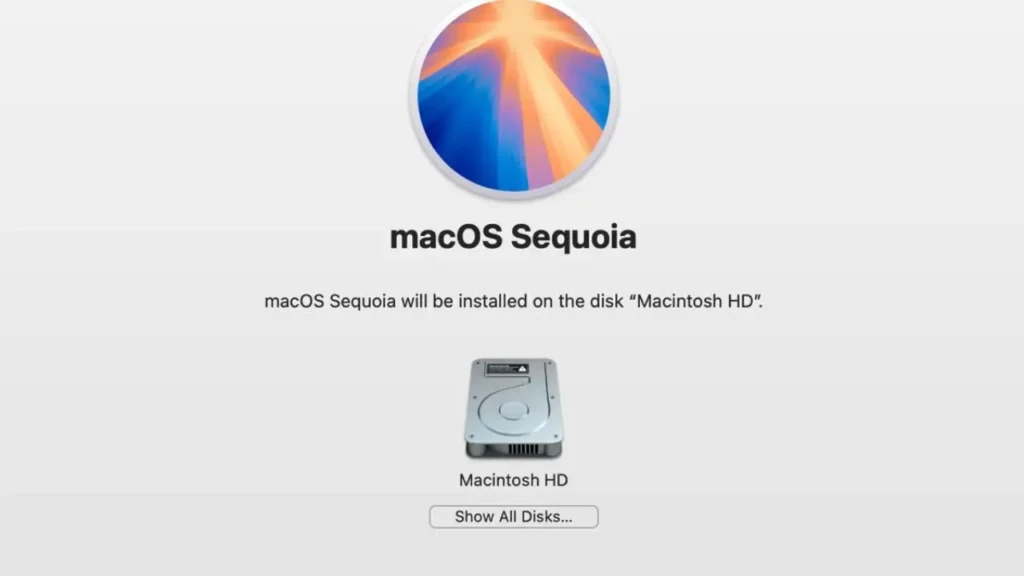
To install:
- Go to Apple menu → System Settings → General → Software Update.
- Select macOS Sequoia and click Update Now.
- Enter your administrator password if prompted.
- Your Mac will download, then restart and install. Expect 30 to 60 minutes, depending on your connection speed and Mac model.
- After installation, verify that your critical apps and security software still function correctly.
If the update doesn’t appear, your Mac may not be compatible, or the update may not have reached your region yet. You can also download the installer directly from the Mac App Store.
If the installation fails or your Mac becomes unresponsive, boot into macOS Recovery (hold Command+R at startup) to reinstall macOS or restore from your Time Machine backup. For a full walkthrough of resetting or reinstalling macOS, our macOS Monterey guide covers the recovery process in detail and applies to recent macOS versions.
Should You Upgrade to macOS Sequoia?
Upgrade Now If: You own an M1 Mac or later and want Apple Intelligence, iPhone Mirroring, and Gaming Mode. These features require Sequoia and are not available on Sonoma. Running 15.1 or later (not 15.0) is strongly advisable before upgrading to avoid the networking issues in the initial release.
Wait If: You’re on a critical production system with enterprise security software, or you depend on a VPN service that hasn’t confirmed full Sequoia compatibility. Wait for your security vendor to explicitly confirm macOS 15 support before updating to 15.1 or later, rather than 15.0, to largely mitigate this risk.
Skip If: You’re running an Intel Mac where Apple Intelligence won’t work, and iPhone Mirroring isn’t useful to your workflow. Sonoma continues to receive security patches, and you can stay on it comfortably until Apple ends support. You can always upgrade to macOS Tahoe when you’re ready to move forward.
macOS Sequoia Known Issues and Bugs
VPN and Security Software (15.0, largely resolved in 15.1)
The most significant launch issue. macOS Sequoia 15.0 changed how the built-in Application Firewall handles network filter settings, breaking VPN services and security tools from NordVPN, ExpressVPN, CrowdStrike, SentinelOne, and others.
The Fix: Update to macOS 15.0.1 or 15.1, and update your VPN and security apps to the latest versions. CrowdStrike even advised customers not to upgrade until their software was confirmed compatible, a serious enterprise-level disruption.
Third-Party Browser Issues (15.0)
Chrome, Firefox, and Chromium-based browsers experienced page loading failures and stalled downloads when the macOS firewall was enabled. The root cause was Sequoia’s firewall blocking incoming connections for apps not explicitly allowed, including DNS responses for those apps.
The Fix: Update to 15.0.1 and add third-party browsers to the firewall’s allowed list in System Settings → Network → Firewall.
Bluetooth Connectivity
Some users on Mac mini (2018) and older models reported that Bluetooth peripherals failed to reconnect after sleep. The fix is to toggle Bluetooth off and on, or remove and re-pair the device. Apple addressed some Bluetooth instability in 15.1.
Notification Summaries Inaccuracies
Apple acknowledged that its AI-generated notification summaries can misrepresent message content, including at least one widely reported case in which a news summary incorrectly reported a public figure’s death. Apple added a disclaimer to summaries in 15.2 and continues to refine the feature. If you find summaries unreliable, you can disable them on a per-app basis in System Settings → Notifications.
iPhone Mirroring Not Available in the EU
Not a bug, but worth flagging: iPhone Mirroring is disabled entirely in EU countries at launch, with no confirmed timeline for availability.
FAQs
Yes. macOS Sequoia is a free update for all compatible Macs via System Settings → Software Update.
Any Mac with an M1 chip or later. Intel Macs can run Sequoia, but do not support Apple Intelligence features.
Yes, but it requires booting into macOS Recovery, erasing your drive, and reinstalling Sonoma from a bootable installer or via Internet Recovery. You cannot downgrade without erasing unless you have a Time Machine backup taken before the upgrade.
iPhone Mirroring requires an iPhone running iOS 18 or later. Both your iPhone and your Mac must be signed in with the same Apple ID. It does not work in the European Union.
Yes. Versions 15.1 and later are stable for the vast majority of users. Avoid upgrading directly to 15.0 if it’s somehow still available. If you use enterprise security software or a VPN, confirm compatibility with your provider before upgrading.
Gaming Mode is a system-level feature that automatically activates when you play a game, prioritizing CPU and GPU resources for the active game while reducing access for background tasks. It also delivers the lowest Bluetooth audio latency Apple has achieved for AirPods Pro 2 users during gameplay.
Conclusion
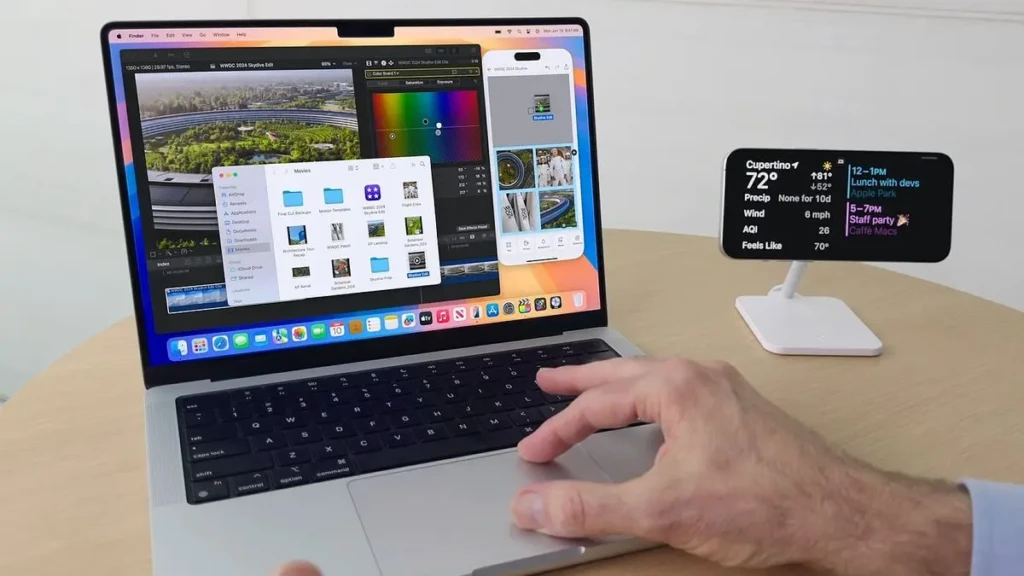
macOS Sequoia is a genuinely significant update, not an incremental one. iPhone Mirroring alone changes how you move between devices daily; native window tiling fixes a long-standing macOS gap; and Apple Intelligence (on M1 Macs and later) introduces a new category of on-device AI capabilities that will expand with every point release. For Apple Silicon Mac users, it’s the most compelling reason to upgrade since Big Sur introduced support for Apple Silicon.
The caveat is the launch quality: the 15.0 networking issues were serious and disproportionately affected enterprise users and VPN-dependent workflows. If you’re on 15.1 or later, those issues are largely behind you. Update to Sequoia if you’re on an M1 or later Mac. Just make sure your security software is updated first, and run on 15.1 or higher rather than the original release.
At YourTechCompass, every guide is written to give you accurate, practical information; no sponsored fluff, no vague advice. Explore more and find the answers you’re actually looking for.