If you have been hearing a lot about macOS Ventura and wondering whether it is worth upgrading your Mac, you have come to exactly the right place. macOS Ventura, officially version 13 of Apple’s desktop operating system, is one of the most productivity-focused updates Apple has released in years. From a completely redesigned way to manage your windows with Stage Manager, to the ability to use your iPhone as a professional-grade webcam with Continuity Camera, to sweeping improvements in Mail, Messages, and Spotlight Search, Ventura brings a genuinely meaningful set of changes that can transform how you use your Mac every single day. And the best part? It is a completely free update for all compatible Mac users.
Throughout this guide, I’ll walk you through everything you need to know about macOS Ventura, from what it is and what is new, to which Mac models can run it, how to install it, how it performs, what problems you might encounter, and ultimately whether upgrading is the right call for you right now. Whether you are a longtime Mac user or someone who just got their first MacBook, this article will provide a clear, complete, and honest overview.
What Is macOS Ventura?
macOS Ventura is the nineteenth major release of macOS, Apple’s operating system for Mac computers. It was announced at Apple’s Worldwide Developers Conference (WWDC) in June 2022 and officially launched on October 24, 2022.
This macOS is named after the coastal city of Ventura, California, in keeping with Apple’s tradition of naming macOS releases after California locations. In addition, its default wallpaper and graphics are inspired by the California poppy.
As the direct successor to macOS Monterey, Ventura was built around one central theme: helping Mac users stay focused and get more done. While Monterey introduced a range of connectivity features, Ventura doubled down on productivity and workflow improvements, overhauling several key built-in apps and introducing new tools that further bridge the gap between your Mac and your other Apple devices.
macOS Ventura runs on both Apple Silicon Macs (M1, M2, and later) and a wide range of supported Intel-based Macs from 2017 onwards. Importantly, it is a free upgrade available directly through the Mac App Store, making it accessible to all eligible users at no additional cost.
Key Features of macOS Ventura
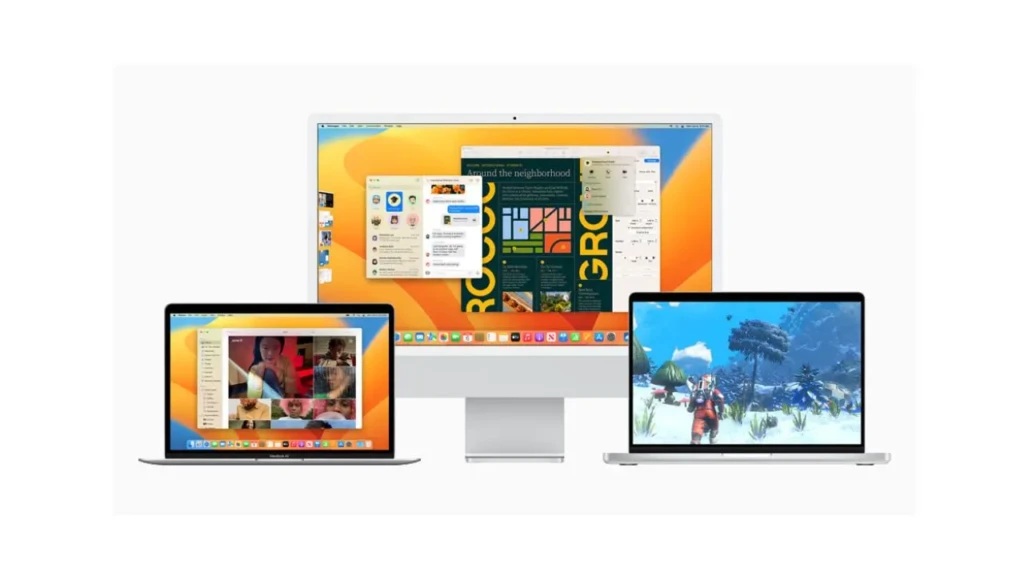
Now, let us get into the exciting part. macOS Ventura is packed with genuinely useful features for everyday life. Below is a quick-reference table summarizing the major features and the groups that benefit most, followed by a detailed breakdown of each feature.
Feature | What It Does | Who Benefits Most |
Stage Manager | Organizes open apps/windows off to the side so one app stays front and center | Multitaskers, writers, and project managers |
Continuity Camera | Use your iPhone as a high-quality webcam for your Mac (wirelessly) | Remote workers, video callers, content creators |
Mail Overhaul | Undo Send, Schedule Send, smarter search, and follow-up reminders | Professionals and heavy email users |
Passkeys | Replaces passwords with biometric sign-ins via Touch ID or Face ID | Everyone (improves security for all users) |
Spotlight Search | Remote workers, video callers, and content creators | Power users and researchers |
Messages Updates | Edit/unsend iMessages, mark as unread, recover deleted messages | All iMessage users |
Safari Shared Tabs | Share and browse Tab Groups with friends, family, or colleagues live | Students, teams, and families |
System Settings | System Preferences redesigned to mirror iPhone’s familiar Settings app | New Mac users and iPhone switchers |
Freeform App | A collaborative infinite canvas for brainstorming, notes, and sketches | Students, creative teams, and educators |
iCloud Photo Library | Separate shared photo library for family and friends | Families and collaborative shooters |
Rapid Security Response | Delivers critical security patches between full OS updates | All Mac users — automatic protection |
Stage Manager: A Smarter Way to Multitask
If you have ever found yourself buried under a dozen open windows with no idea where anything is, Stage Manager was designed specifically for you. It’s a brand-new window management system that places your currently active app front and center on your desktop, while neatly organizing all your other open apps as small thumbnails along the left side of the screen. You can click any of them to instantly bring that app to the front without losing your place in your current work.
What makes Stage Manager particularly powerful is its ability to group apps. You can, for instance, group your browser, notes app, and email client into a single Stage, and then switch between that group and a separate creative workspace with a single click. It also integrates fully with Mission Control and Spaces, giving you even more flexibility.
You can activate it quickly from the Control Center in your menu bar. It is worth noting that Stage Manager works best on Apple Silicon Macs due to their superior performance, but Intel Mac users will find it useful as well.
Continuity Camera: Your iPhone as a Pro Webcam
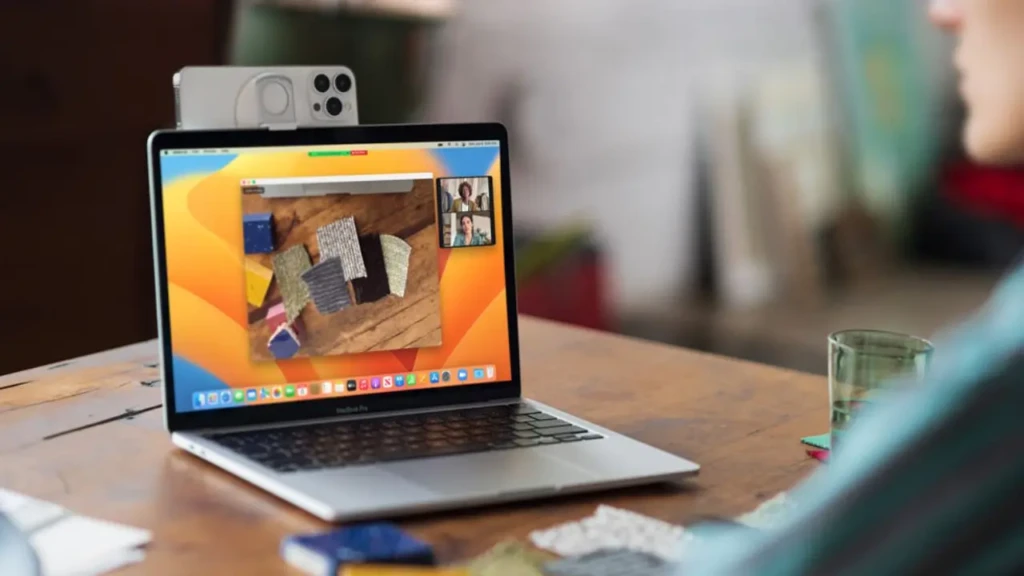
Let us be honest, the built-in cameras on most MacBooks and iMacs have always been a weak point. Continuity Camera in macOS Ventura changes that entirely. This feature lets you use your iPhone as a high-quality wireless webcam for your Mac, which is automatically detected and connected the moment your iPhone is nearby. No cables, no complicated setup, your Mac simply recognizes your iPhone and offers it as a camera option.
When using Continuity Camera, you also gain access to a suite of intelligent camera features powered by your iPhone’s hardware. Center Stage keeps you centered in the frame even as you move around. Portrait mode blurs the background for a clean, professional look. Studio Light (available on iPhone 12 or later) uses the iPhone flash to illuminate your face for better lighting.
Desk View creates a two-shot that shows both your face and a top-down view of your desk simultaneously, making it extremely useful for product demos, teaching, or presentations. You will need an iPhone XR or later running iOS 16 to use Continuity Camera.
Mail App Overhaul
macOS Ventura brings some of the most significant updates to the Apple Mail app in years. The most immediately useful addition is Undo Send. After sending an email, you have up to 10 seconds to click the Undo Send option at the bottom of the sidebar to recall the message before it reaches the recipient. That little safety net alone is worth the upgrade for anyone who has ever sent an email to the wrong person.
Beyond that, Mail in Ventura also introduces Schedule Send, which lets you compose a message now and choose exactly when it gets delivered. There are also automatic follow-up reminders that gently nudge you when a message you’ve sent hasn’t received a reply. The search function received a complete overhaul as well; it now suggests results before you even finish typing, auto-corrects misspellings, and surfaces relevant emails, contacts, links, and documents far more accurately than before.
Passkeys: The Beginning of a Passwordless Future
One of the most forward-thinking additions in macOS Ventura is Passkeys, a new, fundamentally more secure replacement for traditional passwords. Instead of storing a password on a website’s server (which can be stolen in a data breach), Passkeys use public-key cryptography and store your sign-in credentials directly on your device.
You authenticate using Touch ID or Face ID, and the passkey syncs securely across all your Apple devices through iCloud Keychain. Passkeys cannot be phished, guessed, or leaked in a server breach, making them significantly safer than even a strong password.
Spotlight Search Gets Smarter
Spotlight, macOS’s system-wide search tool, received a substantial upgrade in Ventura. You can now use Spotlight to search for photos in your library by location, people, or objects, and even search by text found inside images using Live Text.
A new Quick Look feature lets you tap the spacebar to preview nearly any file type directly in the search results without opening an app. Spotlight can now also take actions, start a timer, create a document, or launch an app directly from the search bar, making it a truly powerful productivity command center.
Messages and Handoff in FaceTime
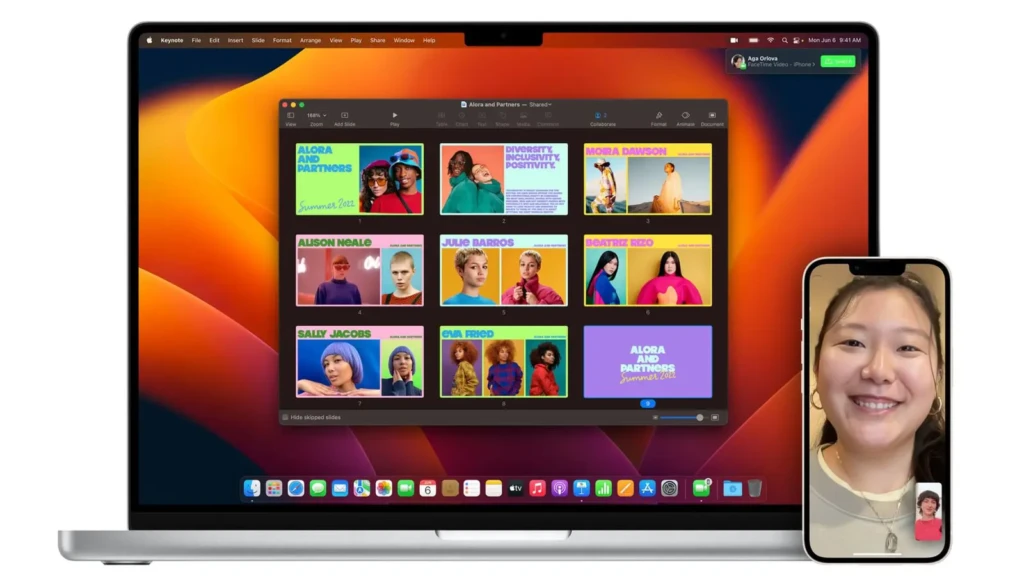
macOS Ventura finally lets you edit or unsend iMessages after sending them (up to 15 minutes for edits and 2 minutes to unsend). You can also mark messages as unread, recover accidentally deleted messages, and use SharePlay directly within the Messages app, not just FaceTime.
Meanwhile, Handoff in FaceTime lets you seamlessly transfer an active FaceTime call from your iPhone or iPad to your Mac with a single tap. If you are looking to get the most out of your Mac’s productivity potential, be sure to check out our curated list of the Best Productivity Apps for Mac to pair with these new native capabilities.
System Requirements and Compatible Devices
Before you click the upgrade button, ensure your Mac can run macOS Ventura. This is one of the most important steps you can take, and it takes less than two minutes to check. macOS Ventura officially supports Macs running both Apple Silicon (M1, M2, and later) and Intel processors, specifically Intel’s Skylake-based Xeon-W and 7th-generation Kaby Lake chips or newer.
Here is the full compatibility breakdown, along with the minimum model year for each Mac line. Review the table below and cross-reference it with your model.
Mac Model | Minimum Year Supported | Notes |
iMac | Late 2017 | 2015 & 2016 models dropped |
iMac Pro | 2017 | All models supported |
Mac Pro | Late 2019 | Older Mac Pros dropped |
Mac mini | Late 2018 | 2014 model dropped |
MacBook Air | Early 2018 | 2015–2017 models dropped |
MacBook Pro | Early 2017 | 2015–2016 models dropped |
MacBook (12-inch) | Early 2017 | 2015 & 2016 dropped |
All Apple Silicon Macs | M1 and later (from late 2020) | Fully supported with all features |
Minimum Hardware Requirements
Beyond just owning a compatible Mac model, your machine also needs to meet these minimum specifications to run macOS Ventura properly:
- RAM: Minimum 8GB (16GB or more is strongly recommended for Intel Macs)
- Storage: At least 25GB to 32GB of available free space for installation
- Processor: Apple Silicon (M1 or later) or Intel Skylake-based Xeon-W / 7th-gen Kaby Lake or newer
- Operating system: Must be running OS X El Capitan (10.11) or later to upgrade
What If Your Mac Is Not Supported?
If your Mac does not appear on the list of compatible models, it cannot be officially upgraded to macOS Ventura. This means you are limited to macOS Monterey or an earlier version, which Apple will continue to provide security updates for. The silver lining is that Monterey remains an excellent, fully capable operating system.
If you are thinking about buying a new Mac to take full advantage of Ventura and beyond, our MacBook Air M3 Review and Buying Guide is a fantastic place to start your research. Also, a small note: a handful of features in Ventura, such as Live Captions, Emoji Dictation, and Reference Mode with Sidecar, are exclusive to Apple Silicon Macs and will not work on Intel machines.
How to Download and Install macOS Ventura
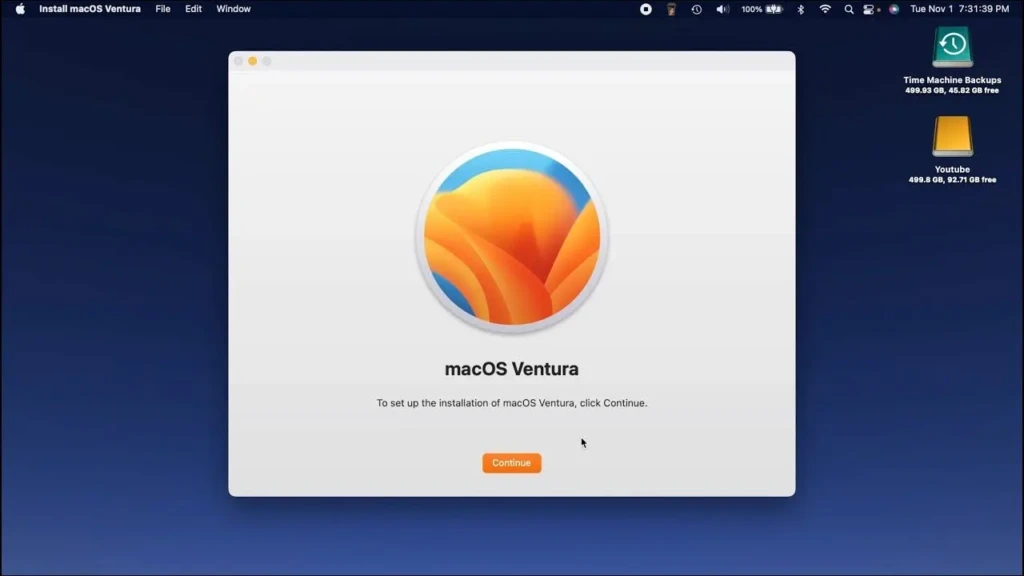
Good news: installing macOS Ventura is significantly more straightforward than most people expect. Apple has designed the update process to be as smooth and straightforward as possible, and as long as you prepare properly, you should not encounter any major issues. Here is exactly what you need to do, step by step.
Step 1: Back Up Your Mac First
Before you do absolutely anything else, back up your Mac. Use Time Machine with an external drive, or back up to iCloud. This is non-negotiable. Even if the update goes perfectly, having a backup ensures you can restore everything exactly as it was if anything goes wrong. Do not skip this step.
Step 2: Check Your Available Storage
Go to the Apple menu, click About This Mac, then click More Info and navigate to Storage. Make sure you have at least 25–32GB of free space available. If not, clear out any unused files or applications, or move content to an external drive, before proceeding.
Step 3: Charge or Plug In Your Mac
Make sure your Mac is plugged into power before starting the update. If you are on a MacBook, connect your charger. A major OS update should never be performed on battery power alone, as an unexpected shutdown mid-installation can cause serious issues.
Step 4: Open the App Store and Update
Open the App Store on your Mac, search for macOS Ventura, and click Get or Download. Alternatively, go to System Preferences (or System Settings if you are already on a recent OS) and click Software Update. macOS Ventura should appear there automatically if your Mac is eligible. Click Upgrade Now and follow the on-screen prompts.
The download is typically 12- 15 GB, so make sure you are on a reliable Wi-Fi connection. Once downloaded, your Mac will restart, and the installation will begin. The entire process usually takes 30–60 minutes, depending on your Mac and internet speed.
Step 5: Post-Installation Checklist
Once the installation is complete and your Mac reboots, take a few minutes to verify everything is working as expected. Verify that your critical apps are still open and functioning correctly, update any apps with pending updates in the App Store, and take a few minutes to explore the redesigned System Settings layout, which now looks and feels more like the iPhone Settings app.
macOS Ventura Performance: Is It Faster?
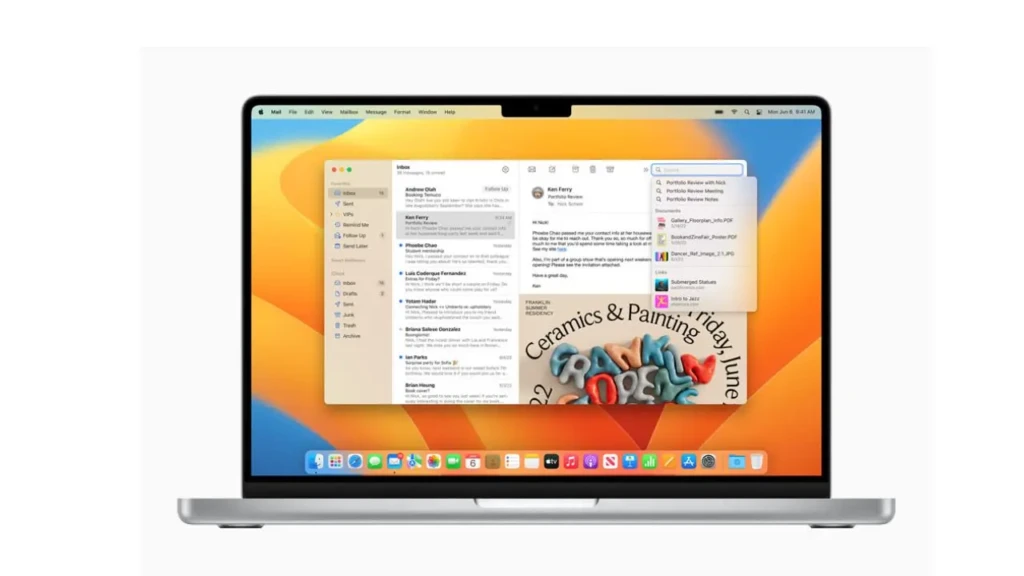
This is one of the most common questions people have before upgrading, and the honest answer is: it depends on which Mac you have. Let us break it down clearly.
Performance on Apple Silicon Macs
If you are running an Apple Silicon Mac (any M1 or M2 model), macOS Ventura runs fast and smoothly and is thoroughly optimized. Apple designed Ventura with Apple Silicon at its core, meaning every feature, from Stage Manager to Continuity Camera to the new Spotlight engine, runs with excellent efficiency. Battery life remains strong, app launch times are snappy, and the overall system feels responsive even under heavy multitasking.
The LTPO display technology on newer MacBooks pairs especially well with Ventura’s optimized rendering. If you own an M1- or M2-based Mac, upgrading to Ventura is a smooth and pleasant experience.
Performance on Intel Macs
The situation is more nuanced on Intel Macs. Most supported Intel-based machines from 2018 onward will run Ventura well, especially for everyday tasks such as browsing, email, documents, and video calls. However, a small number of users, particularly those on older supported Intel models with only 8GB of RAM, have reported that Ventura feels slightly heavier than Monterey.
If your Intel Mac is one of the earliest models that can officially run Ventura (such as a 2017 MacBook Pro or a late 2017 iMac), you may notice the system is working a bit harder, especially with Stage Manager enabled or when running several demanding apps simultaneously. In those cases, ensuring you have at least 16GB of RAM and a clean, decluttered system will make a meaningful difference.
Intel vs Apple Silicon: The Bigger Picture
It is also worth understanding that a handful of Ventura features are exclusive to Apple Silicon; Live Captions, Emoji Dictation, and Reference Mode with Sidecar are not available on Intel Macs. Additionally, some Intel-only apps on Apple Silicon Macs run through Rosetta 2, a dynamic translation layer that generally works well but does not fully unlock the M-chip’s performance potential. If this is a concern for your workflow, our guide on running Windows on a Mac also covers virtualization and compatibility considerations worth reviewing.
Common Issues and How to Fix Them
No major operating system update is completely free of hiccups, and macOS Ventura is no different. While the vast majority of users have no significant issues, a few common problems are worth noting, and most have straightforward fixes.
1. Slow Performance After Upgrading
If your Mac feels sluggish in the first day or two after upgrading, do not panic. This is completely normal. Spotlight needs time to re-index your entire drive after a major update, and various background processes run during the initial period to optimize the new system.
Give your Mac 24–48 hours, and performance will typically normalize on its own. If it does not, open Activity Monitor (search for it in Spotlight), go to the CPU tab, and look for any processes consuming abnormally high processing power. You can force-quit any non-essential background process from there.
2. Wi-Fi and Bluetooth Connectivity Problems
Some users have reported intermittent Wi-Fi drops or slower wireless performance after upgrading to Ventura. The quickest fix is to go to System Settings, select Wi-Fi, click Details next to your network, and try forgetting and reconnecting to it. For persistent Wi-Fi issues, you can try resetting your network settings or deleting the Wi-Fi preference files in Finder.
For Bluetooth issues, toggling Bluetooth off and back on in the Control Center usually resolves the problem.
3. App Compatibility Issues
Occasionally, a specific third-party app will not work correctly after a major macOS update. If you encounter this, the first step is always to check the App Store or the app developer’s website for an update that specifically addresses Ventura compatibility. Most major apps are updated very quickly after a new macOS release. If an update is not yet available, you can try deleting and reinstalling the app.
4. How to Roll Back to macOS Monterey
If, for any reason, you need to go back to macOS Monterey (for example, if a critical tool you depend on for work is not yet compatible with Ventura), you can downgrade. On an Apple Silicon Mac, shut down your computer, hold the power button until startup options appear, select Options, and reinstall Monterey.
On an Intel Mac, restart while holding Command + R to enter macOS Recovery, then reinstall from there. Make sure you have a Time Machine backup ready before attempting a downgrade, as the process involves erasing your drive.
5. Battery Drain Issues
If you notice your MacBook battery draining faster than usual after upgrading, start by opening System Settings and navigating to Battery. Check the Usage History to identify which apps are consuming the most energy.
Closing energy-hungry background apps, disabling any features you don’t actively use (such as Handoff or Background App Refresh), and giving Spotlight a day or two to complete its post-update indexing will typically resolve the issue. You can also check Apple’s official support page for additional troubleshooting steps.
Should You Upgrade to macOS Ventura?
By now, you have a clear picture of what macOS Ventura offers. So let us cut straight to the most practical question: should you upgrade? The table below summarizes it.
Upgrade to Ventura if you… | Hold off if you… |
Have a supported Mac from 2017 or later | Have an unsupported Mac (pre-2017) |
Want Stage Manager and better multitasking | Rely on older apps not yet updated for Ventura |
Use iPhone as a webcam (Continuity Camera) | Are on a critical work deadline |
Want smarter Mail, Messages, and Spotlight | Haven’t backed up your Mac yet |
Care about stronger security and Passkeys | Have a heavily customized workflow to verify first |
Are a casual to moderate daily Mac user | Use specialized audio/video tools needing compatibility checks |
As a general rule, if you have a compatible Mac from 2018 or later and use it daily for productivity, creativity, or communication, upgrading to macOS Ventura is worth it. The combination of Stage Manager, Continuity Camera, Mail improvements, Passkeys, and more intelligent Spotlight delivers a noticeably better daily experience. If you are on an older supported Intel Mac or you rely on specialized professional tools, take an extra day to verify app compatibility before upgrading.
Conclusion
macOS Ventura is a genuinely impressive update that focuses on what matters most, helping you stay focused, work smarter, and get more out of the hardware you already own. Whether it is the game-changing Stage Manager for window management, the surprising versatility of Continuity Camera, the long-overdue quality-of-life improvements to Mail and Messages, or the security-forward introduction of Passkeys, Ventura is packed with features that solve real everyday problems for real everyday Mac users. Since it is a free update, there is little reason to hold back if your Mac is compatible.
Ultimately, the right time to upgrade is when you are ready: you have backed up your Mac, verified app compatibility, and have a reliable connection and enough time for the installation to complete. If you want to explore how macOS has continued to evolve beyond Ventura, we highly recommend reading our comprehensive macOS Tahoe Features Guide and our in-depth MacBook Air M3 Review. No matter where you are in your Mac journey, macOS Ventura is a solid step forward, and your Mac will thank you for it.
At Your Tech Compass, we publish practical guides and honest tech reviews to help users make smarter decisions.