There are few things more disruptive than Safari crashing mid-task, right when you’re researching something important, filling out a form, or streaming a video. Suddenly, the browser closes, your tabs disappear, and you’re left staring at your desktop, wondering what just happened. The frustrating part is that Safari rarely gives you a clear explanation for why it crashed.
The good news is that Safari doesn’t crash randomly; there’s always a specific cause behind it, and in the vast majority of cases, you can fix it yourself in minutes. I’ll walk you through every fix in this guide, starting with the quickest and simplest solutions and working toward the more advanced ones, so you can get your browser stable again without wasting an afternoon trying random things.
Why Does Safari Keep Crashing on Mac?
Before trying random fixes, it helps to understand what actually causes Safari to crash. This is because the cause determines the fastest way to fix it.
The most common culprits are corrupted cache files that have built up over time, a misbehaving browser extension that conflicts with a recent macOS update, or an outdated version of Safari that contains bugs Apple has already patched. Beyond those, Safari can also crash because your Mac is running low on memory, with too many open tabs, background apps, or heavy web pages competing for RAM at the same time. Less commonly, the issue is a corrupted user profile, a problem with iCloud syncing Safari data, or a GPU rendering conflict that causes the browser to fail on graphics-heavy websites.
The fixes below address all of these causes in order of simplicity, starting at the top and working your way down.
How to Fix Your Safari
Fix 1: Force Quit and Relaunch Safari
Before anything else, force quit Safari completely rather than just closing the window. Sometimes Safari gets stuck in a broken state where simply clicking the red X doesn’t fully close all its background processes.
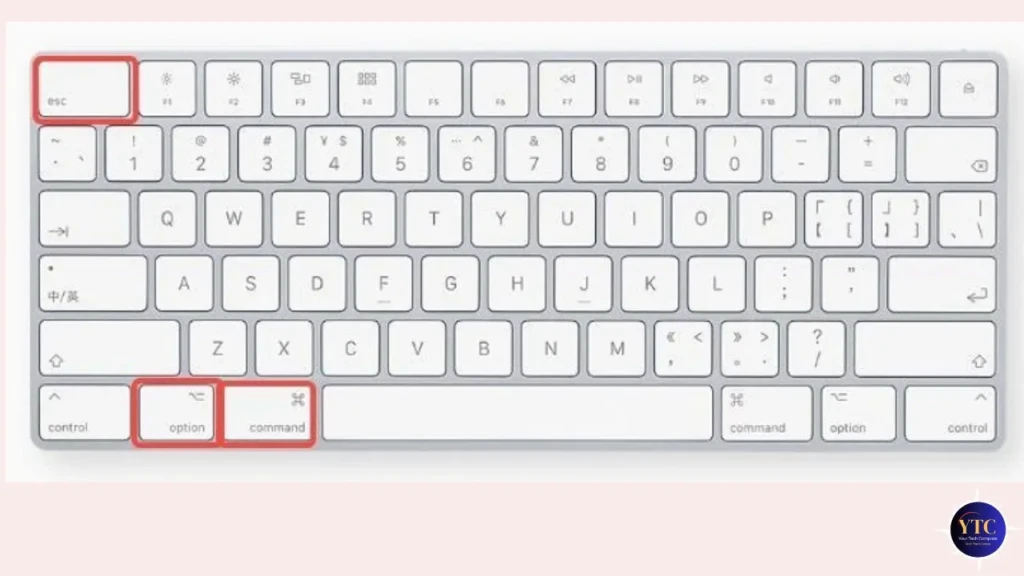
To force quit Safari, press Command + Option + Escape on your keyboard. A window will appear showing all open apps. Select Safari and click Force Quit. Wait about 10 seconds, then reopen Safari and test whether the crashing continues. This alone resolves many one-off crashes caused by temporary memory issues.
Fix 2: Update macOS and Safari
Outdated software is one of the most common causes of Safari crashes, particularly after a major macOS update, when the old version of Safari has compatibility bugs that Apple quickly patches. Staying current with updates is the single most effective preventive measure you can take.
To update macOS and Safari simultaneously, click the Apple menu → System Settings → General → Software Update. If an update is available, click Update Now and let your Mac restart. Safari updates are bundled with macOS updates, so keeping your system current automatically keeps Safari up to date as well. After updating, test whether the crashes have stopped before trying any other fixes.
Fix 3: Clear Safari’s Cache
Safari stores temporary files called cache to help websites load faster on repeat visits. Over time, however, these cached files can become corrupted, causing Safari to freeze, slow down, or crash, particularly on websites you visit frequently.
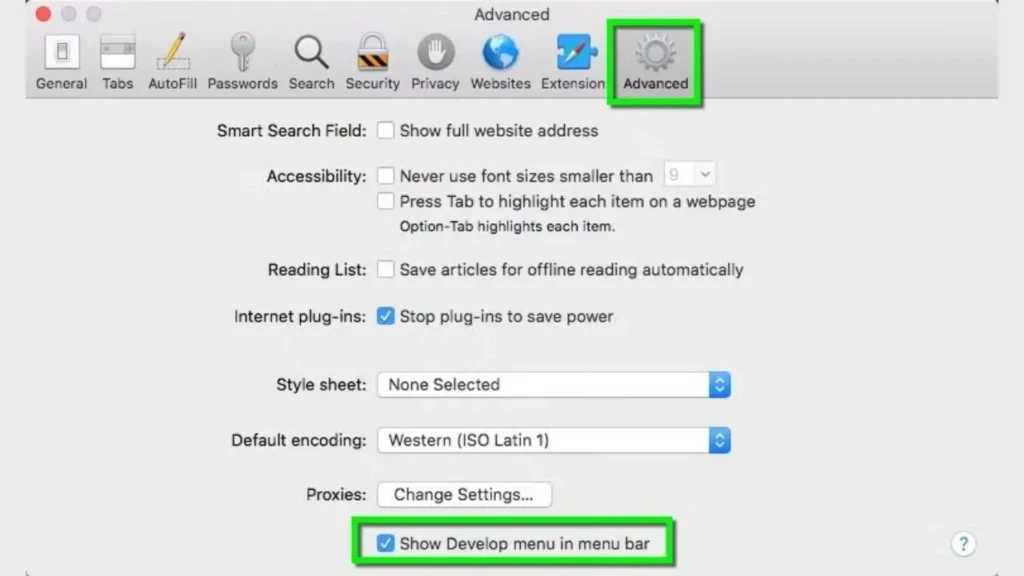
To clear Safari’s cache, first enable the Develop menu by going to Safari → Settings → Advanced, then check the box next to Show Develop menu in menu bar. Then click Develop in the menu bar and select Empty Caches. This clears all cached data without deleting your bookmarks, passwords, or browsing history. Restart Safari afterward and test whether the crashing has stopped. This fix resolves the problem surprisingly often.
Fix 4: Disable Safari Extensions
Browser extensions are one of the most frequent causes of Safari crashes, especially after a macOS update, when older extensions haven’t been updated to match the new system. Even a single outdated or poorly coded extension can cause Safari to crash repeatedly on specific websites or at random.
To test whether an extension is the culprit, go to Safari → Settings → Extensions and uncheck every extension to disable them all at once. Restart Safari and use it normally for a few minutes; if the crashing stops, an extension was the cause. To find the specific one, re-enable your extensions one at a time, testing Safari after each one, until the crashing returns. Once you’ve identified the problematic extension, leave it disabled, delete it, or check the developer’s website for an updated version.
Fix 5: Clear Safari’s History and Website Data
Sometimes, corrupted website data, such as stored cookies, login sessions, or cached scripts, causes Safari to crash consistently on specific websites. Clearing this data gives Safari a clean slate for every site you visit.
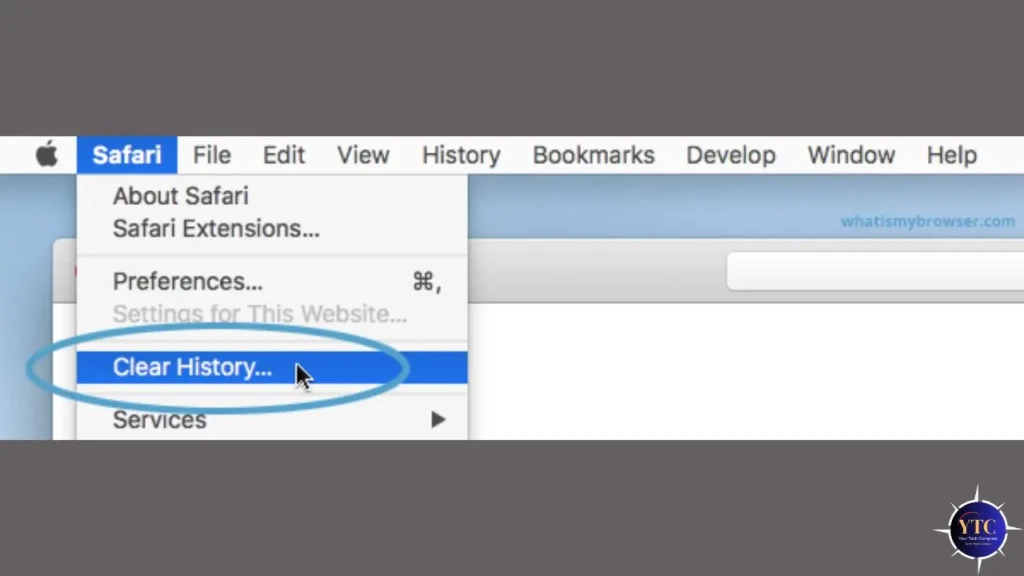
To clear history and website data, go to Safari → Clear History. In the dropdown menu, select All History and click Clear History. For a more thorough clean, go to Safari → Settings → Privacy and click Manage Website Data, then click Remove All. Be aware that this will log you out of websites and clear your saved preferences; you’ll need to log back in to your accounts afterward. That’s a minor inconvenience compared to a browser that keeps crashing.
Fix 6: Delete Safari Preferences Files
Safari stores its settings and preferences in specific files on your Mac. When these files become corrupted, which can happen after a failed update or a force quit, Safari behaves erratically and crashes. Deleting these files forces Safari to generate fresh, clean ones on its next launch.
To delete Safari’s preferences files, open Finder, click Go in the menu bar, and select Go to Folder. Type ~/Library/Preferences/ and press Enter. Look for files that start with com.apple.Safari; there may be several. Move them all to your Trash, then restart your Mac and relaunch Safari. Your browser will regenerate these files automatically, and your bookmarks and iCloud data will remain intact.
Fix 7: Free Up Memory and Close Background Apps
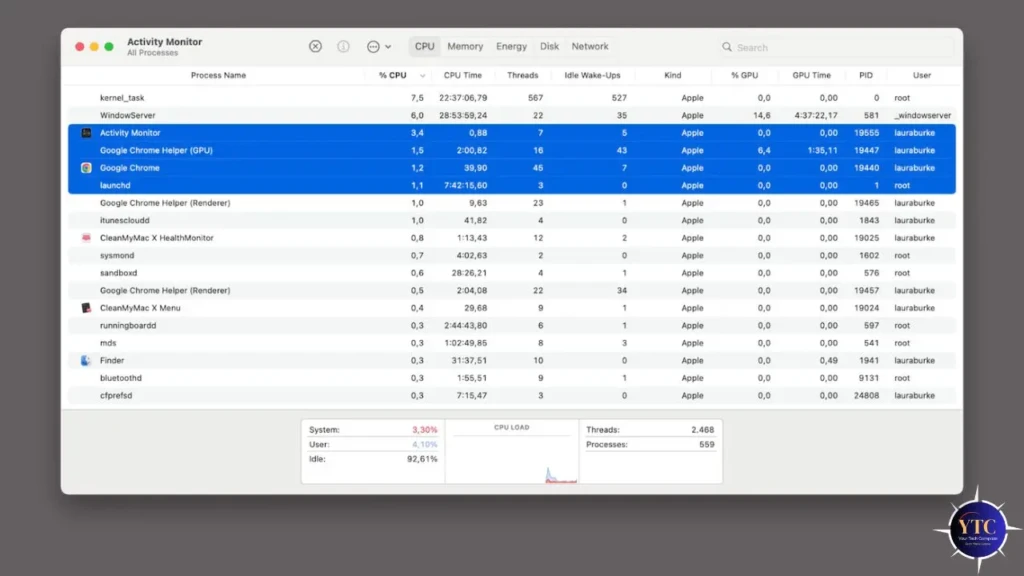
Safari is a memory-hungry browser, especially when many tabs are open. When your Mac’s RAM runs low, Safari can’t allocate the resources it needs to keep running and crashes. This is especially common on Macs with 8GB of RAM running multiple demanding applications at once.
To check your memory situation, open Activity Monitor by searching for it in Spotlight (Command + Space). Click the Memory tab and look at the Memory Pressure graph at the bottom; if it’s consistently orange or red, your Mac is under significant memory pressure. Close any apps you’re not actively using, reduce your number of open Safari tabs, and avoid running video editors, virtual machines, or other RAM-intensive apps simultaneously with Safari. As a general rule, aim to keep at least 1-2GB of RAM free for Safari to work comfortably.
Fix 8: Disable Hardware Acceleration
Safari uses your Mac’s GPU to handle graphics rendering, animations, and video playback, a feature called hardware acceleration. On most Macs, this works seamlessly, but on some systems, particularly after a macOS update, hardware acceleration can trigger GPU-related crashes on graphics-heavy websites.
To disable it, first enable the Develop menu as described in Fix 3. Then click Develop in the menu bar, hover over Experimental Features, and look for any GPU or hardware acceleration options; disable them. Restart Safari and test whether the crashing continues. You may notice slightly reduced visual smoothness, but the stability improvement is worth it if GPU rendering was the underlying cause.
Fix 9: Turn Off iCloud Safari Sync Temporarily
iCloud keeps your Safari bookmarks, tabs, history, and passwords synced across all your Apple devices. However, when the sync process encounters corrupted data or gets stuck in a loop, it can cause Safari to crash repeatedly, particularly on launch or when switching tabs.
To temporarily disable Safari iCloud sync, go to System Settings → Apple ID → iCloud and toggle off the switch next to Safari. Wait two to three minutes, then toggle it back on. This refreshes the sync connection and clears any stuck processes that were causing conflicts. If Safari was crashing specifically at launch or during iCloud sync, this fix usually resolves it immediately.
Fix 10: Create a New User Profile
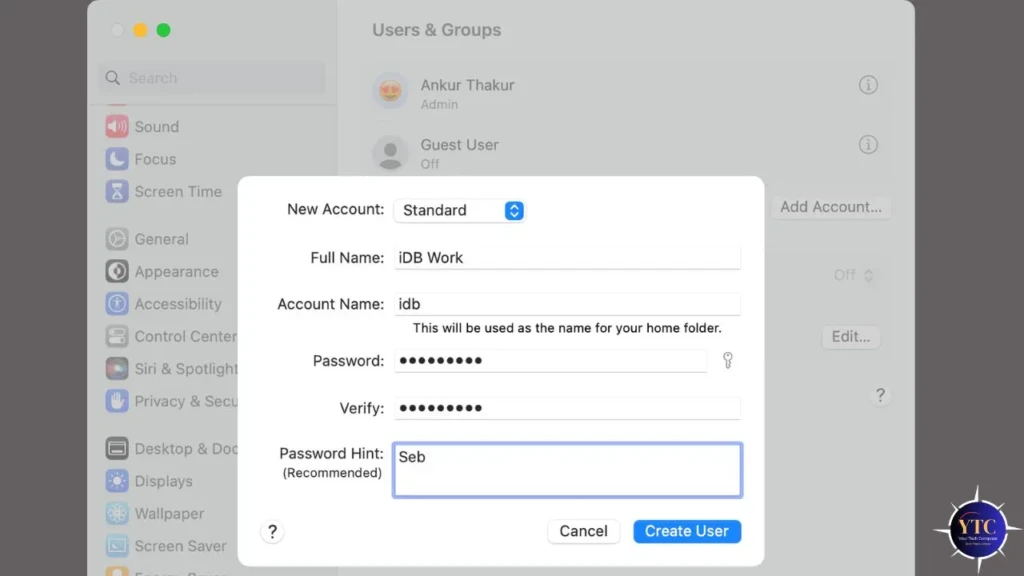
If Safari crashes consistently under your main account but the problem is isolated to your user profile, creating a new macOS user account helps confirm this and gives you a working environment to use while you sort out the issue.
Go to System Settings → Users & Groups and click the “+” button to create a new administrator account. Log in to the new account, open Safari, and use it as you normally would for a few minutes. If Safari runs without crashing in the new account, your original user profile contains corrupted data that’s causing the problem. You can then manually copy your important files to the new account and use it going forward, or work with Apple Support to repair the corrupted profile data.
Fix 11: Reset Safari Completely
If none of the previous fixes have worked, resetting Safari to its factory state removes all stored data, preferences, and configurations, giving you a completely fresh browser installation without affecting the rest of your Mac.
Before resetting, back up your bookmarks by going to File → Export Bookmarks and saving the file to a safe location. Then open Finder → Go → Go to Folder and delete the following folders by moving them to Trash:
- ~/Library/Safari/
- ~/Library/Caches/com.apple.Safari/
- ~/Library/WebKit/
Restart your Mac after deleting these folders. Safari will regenerate them automatically on launch, giving you a completely clean browser. Your iCloud-synced data, bookmarks, passwords, and history will restore automatically once you’re signed in.
Fix 12: Reinstall macOS (Last Resort)
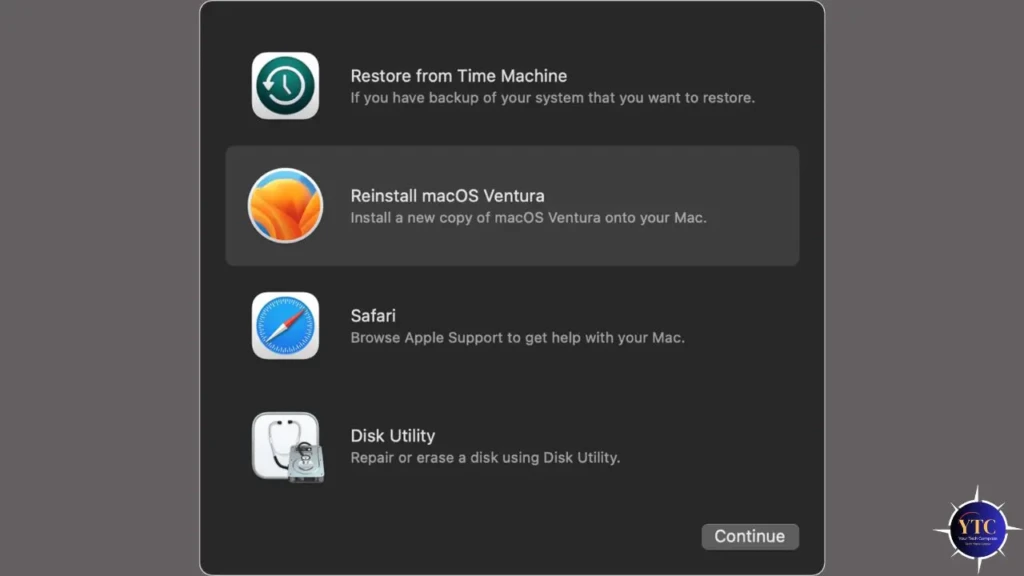
If Safari continues to crash after every fix above, the problem has likely moved beyond Safari itself and into a deeper macOS system file issue. In this case, reinstalling macOS is the most thorough solution; it replaces all system files, including Safari’s core components, without erasing your personal data.
Back up your Mac using Time Machine before proceeding. Then restart your Mac and hold the Power button until startup options appear. Select Options → Continue → Reinstall macOS and follow the on-screen prompts. The process takes 30-60 minutes and leaves your files, apps, and settings intact. For more details on this process, our guide on how to fix a Mac that keeps crashing covers the full reinstallation process step by step.
Quick Reference: Causes and Fixes at a Glance
Symptom | Most Likely Cause | Best Fix to Try First |
Safari Crashes on Launch | Corrupted preferences files | Fix 6 (Delete preferences files) |
Safari Crashes on Specific Websites | Corrupted cache or bad extension | Fix 3, then Fix 4 |
Safari Crashes After macOS Update | Outdated or incompatible extension | Fix 4 (Disable extensions) |
Safari Crashes Randomly | Low memory or RAM pressure | Fix 7 (Free up memory) |
Safari Crashes Only in Your Account | Corrupted user profile | Fix 10 (New user profile) |
Safari Crashes When Syncing | iCloud sync conflict | Fix 9 (Toggle iCloud sync) |
Safari Crashes on Video/Graphics Sites | GPU rendering issue | Fix 8 (Disable hardware acceleration) |
Nothing Works | Deep system file corruption | Fix 11 or Fix 12 |
How to Stop Safari From Crashing in the Future
Once Safari is stable again, a few simple habits will prevent the problem from returning.
Keep macOS updated consistently; Apple patches Safari bugs in nearly every system update, and staying current is the fastest way to avoid known crash triggers. Similarly, review your extensions every few months and remove any you no longer actively use. Every extension is a potential conflict point, and fewer extensions mean a more stable, faster browser.
Restart Safari fully at least once a day if you keep it open continuously; this clears accumulated memory and resets background processes before they cause problems. And whenever you notice Safari slowing down or acting strangely, clear the cache immediately using Fix 3 before the issue escalates into a crash. Catching small problems early prevents them from becoming big ones.
FAQs
This usually means the website is using a script, video player, or feature that conflicts with a Safari extension or triggers a GPU rendering issue. Try disabling your extensions (Fix 4) and clearing the cache (Fix 3) first. If the problem persists on that specific site, try disabling hardware acceleration (Fix 8).
No. Clearing your browsing history does not delete saved passwords. Your passwords are stored separately in iCloud Keychain and are not affected by clearing history or cache. However, clearing website data (Fix 5) will log you out of websites, requiring you to enter your password again the next time you visit.
macOS updates sometimes introduce compatibility issues with older Safari extensions or change how the browser handles GPU rendering. The most common fix is to update or disable your extensions (Fix 4) and check for a subsequent macOS point update that addresses the bug (Fix 2).
Yes, it’s completely safe. Safari regenerates these files automatically on its next launch with default settings. Your bookmarks and iCloud-synced data are stored separately and won’t be affected. You may need to adjust a few visual preferences after the reset, but no important data will be lost.
Switching browsers is always an option, but I’d recommend working through these fixes first. Safari is significantly more efficient on Mac hardware than Chrome or Firefox, and it integrates directly with Apple Keychain, iCloud, and other Apple services in ways other browsers can’t match. In most cases, one of the fixes above will resolve the crashes without requiring you to abandon Safari entirely.
Final Thoughts
Safari crashing on your Mac is genuinely frustrating, but it’s almost never a sign of a serious underlying problem. In the vast majority of cases, clearing the cache, disabling a problematic extension, or updating macOS is all it takes to get your browser back to the stable, fast experience it’s supposed to be. Work through these fixes in order, and you’ll find the solution long before you reach the more advanced steps.
If you’re dealing with broader Mac performance issues beyond just Safari, our guide on fixing a Mac that keeps crashing covers system-wide troubleshooting in the same step-by-step style. And for more beginner-friendly tech guides covering everything from app troubleshooting to getting more out of your Apple devices, browse our Tech Guides section.
For more tech guides and honest reviews, visit YourTechCompass.