Learning to build apps for Apple platforms can be thrilling, but it can also feel overwhelming when it’s time to choose the right tools. Among the available options, Xcode is the official development environment for creating apps for iPhone, iPad, Mac, Apple Watch, and Apple TV. Because it is the primary bridge between code and the App Store, a deep understanding of Xcode is essential for anyone serious about developing for the Apple platform.
In this article, the objective is simple: to give you a thorough, practical guide to using Xcode, from its core structure and capabilities to day-to-day workflows, debugging, testing, and deployment. Having explored Xcode across numerous real-world development scenarios, this guide breaks down complex concepts into actionable insights so that you can start building and shipping apps with confidence.
A note before we begin: every YTC score is earned, never negotiated. If you want to understand exactly how we evaluate apps & tools and how we handle affiliate relationships, our Review Methodology lays it all out.
What Is Xcode?
At its core, Xcode is Apple’s integrated development environment (IDE) for building software for all Apple platforms. It combines a code editor, visual design tools, debugging interfaces, and performance analysis into a single macOS-optimized application.
More specifically:
- It’s the official Apple toolchain for building apps targeting iOS, macOS, watchOS, and tvOS.
- It integrates directly with Apple’s Swift and Objective-C compilers.
- It serves as the only environment for submitting apps to the Apple App Store.
Because Xcode is developed and maintained by Apple, it always stays in sync with the latest platform capabilities, including updates to macOS features documented in this macOS Monterey features guide and to the new APIs introduced in macOS Tahoe.
What Can You Build With Xcode?
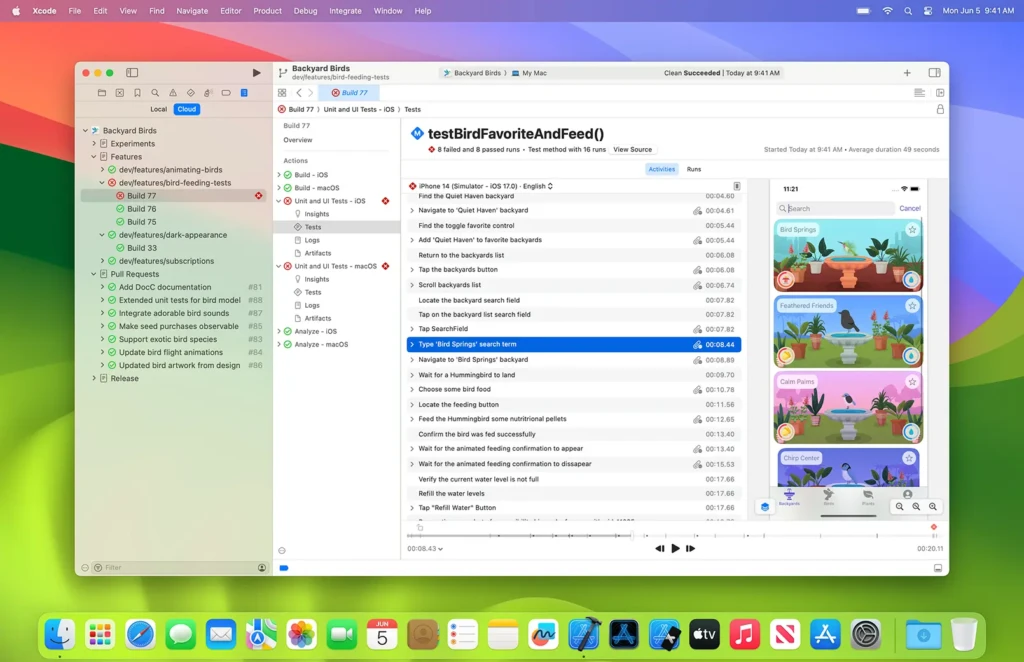
Xcode supports a wide range of Apple platform applications, including:
- iPhone and iPad Apps: Native mobile experiences tailored for touch interaction
- Mac Apps: Desktop applications leveraging robust system resources
- Apple Watch Apps: Lightweight, glanceable watch experiences
- Apple TV Apps: Living room apps using tvOS frameworks
- Cross-platform Projects: Shared logic with platform-specific UI
Furthermore, Xcode’s template system lets you jump-start projects with platform-specific settings. Whether you are building a mobile game or a productivity app, Xcode provides tailored scaffolding to help you get started quickly.
How Xcode Works (High-Level Overview)
At a high level, Xcode is structured around a few core concepts that every developer must understand:
Projects, Targets, and Schemes
- Projects: The highest-level container for your app’s source code
- Targets: Buildable outputs (for example, iOS app, widget extension, etc.)
- Schemes: Configurations for building, running, and testing your app
As soon as you open a workspace in Xcode, you’ll be manipulating these constructs whether you realize it or not. For example, when switching between running your app on a simulator versus a connected device, you are selecting different schemes.
Interface Builder vs SwiftUI
Xcode provides two fundamental ways to design UIs:
- Interface Builder: Visual design canvas for UIKit components
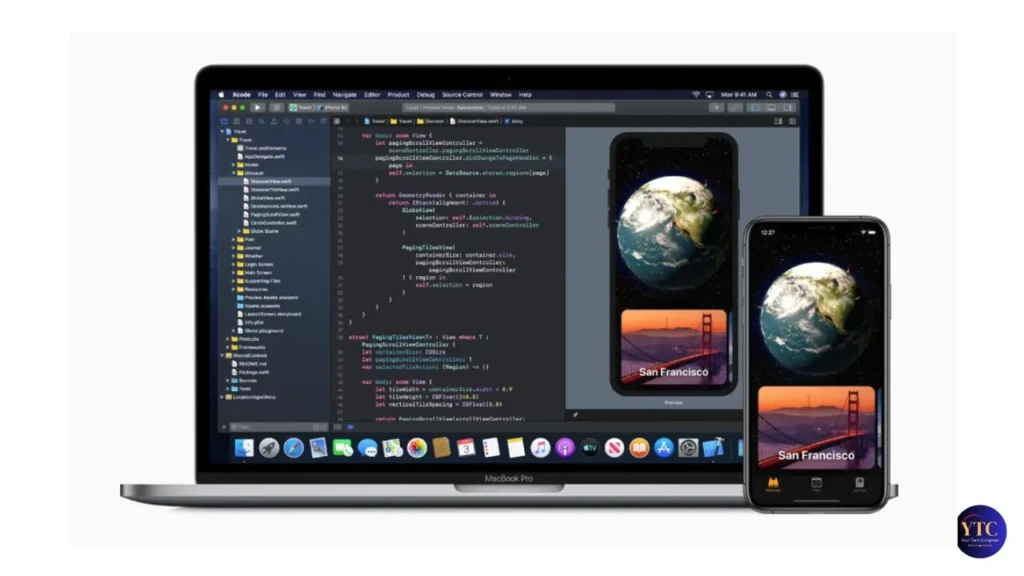
- SwiftUI Preview Canvas: A live, code-driven UI builder with real-time previews
Both workflows are integrated directly into Xcode, allowing developers to see visual feedback without leaving the editor.
Build and Run Process
When you click Run, Xcode compiles your source code, links dependencies, and deploys the app to the selected environment (simulator or device). Build logs and errors appear in the editor, helping you iterate quickly.
Xcode Key Features Explained

Code Editor and Syntax Highlighting
Xcode’s editor offers:
- Autocomplete and code suggestions
- Contextual documentation
- Error highlighting
These features accelerate development and reduce syntax errors early.
Interface Builder and SwiftUI Previews
The visual editor in Xcode supports drag-and-drop UI construction, while SwiftUI previews provide live updates as you edit your UI code. Together, they bridge the design and implementation phases.
Simulator and Device Testing
Xcode’s built-in simulator lets you test your app on multiple virtual devices, including different screen sizes and hardware configurations. Additionally, you can deploy directly to physical devices for real-world testing.
Debugging Tools and Console
Xcode’s debugger helps you inspect variables, set breakpoints, and trace execution flow. The console provides runtime logs that help diagnose issues.
Version Control Integration
Xcode integrates directly with Git, making version control seamless. You can inspect diffs, commit changes, and manage branches without leaving the IDE.
Xcode and Programming Languages
Xcode primarily supports two languages:
Swift
Created by Apple, Swift is the recommended language for modern app development. It offers:
- Safety features like type inference and optionals
- High performance
- Modern syntax and language design
Objective-C
An older language native to Apple platforms, Objective-C still powers many legacy codebases. Xcode supports both, but Swift is preferred for new projects.
Debugging and Testing in Xcode
Breakpoints and Debug Workflow
You can set breakpoints anywhere in your code to pause execution and inspect the state. This makes it easier to find logic errors.
Unit and UI Tests
Xcode supports:
- Unit tests for individual functions
- UI tests for automated interaction flows
This encourages testing practices that improve code reliability and app quality.
Performance and Memory Tools

Xcode includes Instruments, a suite of performance tools that help you:
- Track CPU usage
- Monitor memory allocations
- Identify performance bottlenecks
App Signing, Provisioning, and Deployment
Before an app reaches users, it must be signed and provisioned properly:
Apple Developer Account
To publish on the App Store, you need an Apple Developer account.
Certificates and Profiles
Xcode manages signing certificates and provisioning profiles, which ensure that only authorized builds run on devices or are accepted by the App Store.
Archiving and App Store Connect
Once ready, you archive your app in Xcode and upload it to App Store Connect, Apple’s platform for app distribution and analytics.
Xcode System Requirements and Compatibility
Xcode runs exclusively on macOS. Because it leverages system-level tools and compilers, it’s not available on Windows or Linux.
macOS Requirements
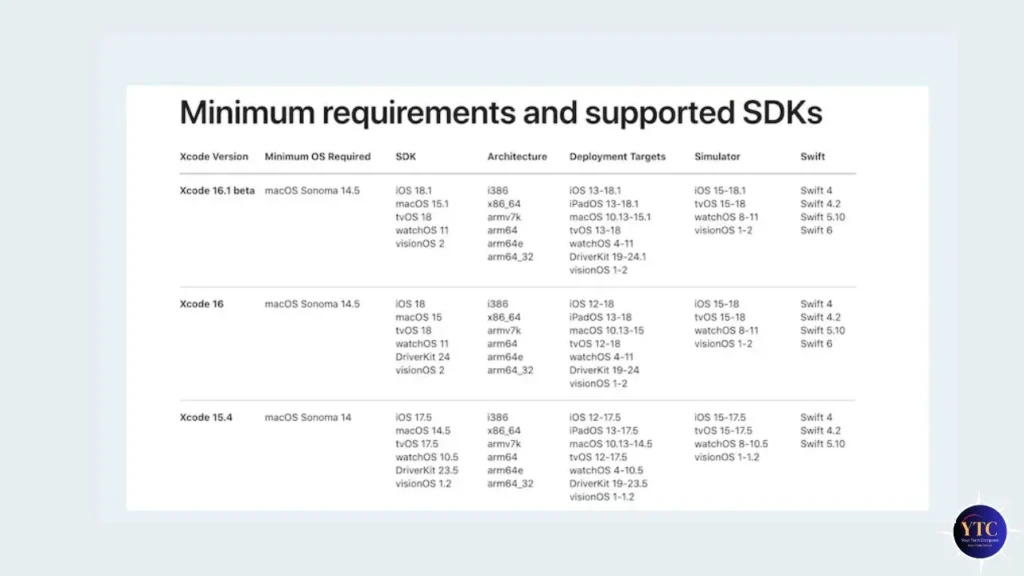
Newer versions of Xcode require newer macOS versions; for instance, the latest features often align with major updates, as documented in the macOS Tahoe features guide. Before installing, verify system compatibility and ensure sufficient storage.
Hardware Considerations
Developers benefit from more RAM and SSD storage, especially when working with large projects or multiple simulators.
Common Installation Issues
Large download size and occasional incompatibilities during updates are possible, so it’s recommended to maintain macOS updates aligned with Xcode releases.
Xcode Pros and Cons
The Pros
- Official Apple toolchain
- Deep platform integration
- Built-in testing and debugging
The Cons
- macOS-only
- Large installation size
- Steep learning curve
Xcode’s strengths lie in its integration with Apple platforms and comprehensive feature set, but its macOS exclusivity and size can be limiting for new developers.
Xcode vs Other Development Tools
Xcode vs Visual Studio Code
While Visual Studio Code excels as a lightweight editor, it lacks native Apple platform build and debug support without plugins.
Xcode vs Android Studio
Android Studio serves Android development with similar features, but Xcode is mandatory for Apple platforms.
When creating cross-platform apps, developers may use frameworks such as Flutter or React Native, but ultimately, Xcode is required for iOS/macOS builds.
Who Should Use Xcode?
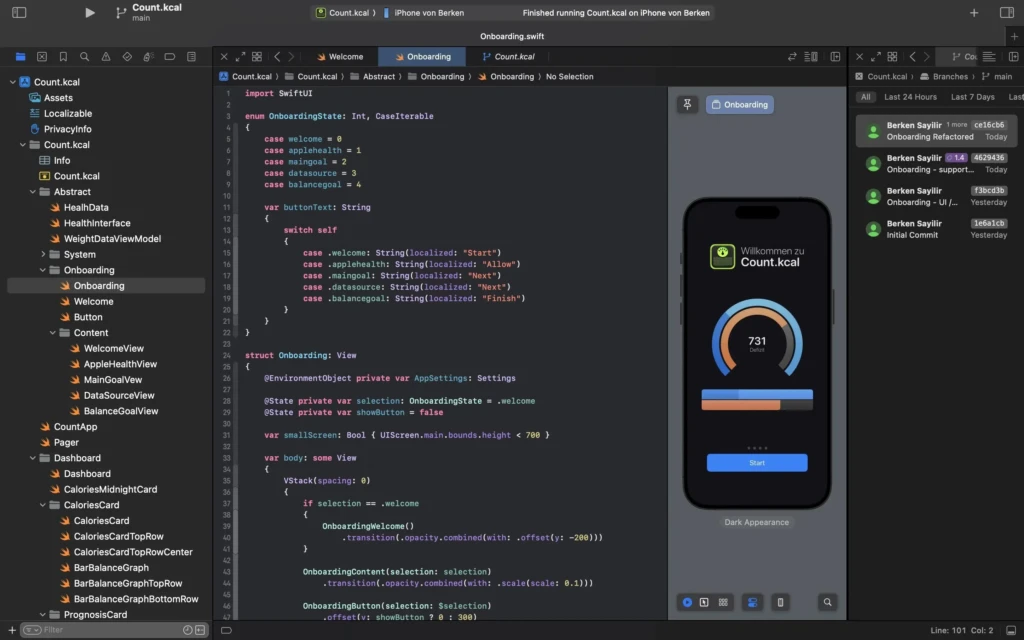
Xcode is essential for:
- Aspiring iOS developers
- Professional Apple platform developers
- Anyone submitting apps to the App Store
Alternatively, developers focusing only on web or cross-platform environments may choose lighter tools for initial development.
Common Xcode Mistakes to Avoid
- Misunderstanding targets and schemes
- Ignoring version control best practices
- Poor project file organization
- Failing to test across devices
Avoiding these helps maintain clean workflows and reduces debugging overhead.
FAQs About Xcode
Yes, Xcode is free to download from the Mac App Store.
Yes. Xcode is required to build and submit native iOS apps to the App Store.
No. Xcode is strictly for Apple platforms.
Swift is recommended for modern development, though Objective-C remains usable.
Final Verdict: Is Xcode Worth Using?
Xcode is indispensable if your goal is to build, test, and ship apps for Apple platforms. Because it is Apple’s official IDE, no alternative provides the same level of tooling, optimization, and deployment capability for iOS, macOS, watchOS, or tvOS.
However, be mindful of its limitations: Xcode runs only on macOS, has a steep learning curve for beginners, and can feel overwhelming at first. That said, investing time to master its features pays dividends in development speed, app quality, and confidence when releasing to users.
At Your Tech Compass, we publish practical guides and honest tech reviews to help users make smarter decisions.