When embarking on Android app development, the first question most beginners face isn’t what language to learn; it’s which tool to use. For anyone serious about building and shipping Android applications, Android Studio is the central hub for writing, testing, and deploying code. Because it’s the official integrated development environment (IDE) maintained by Google, understanding Android Studio isn’t optional; it’s foundational to building apps that perform well, scale, and reach users effectively.
This comprehensive guide demystifies Android Studio, step by step, and shows how it works in real-world developer workflows. By walking through its core components, debugging and testing features, project structure, and publishing process, you’ll have a clear mental model of how Android Studio fits into the app development lifecycle, from prototype to production.
A note before we begin: every YTC score is earned, never negotiated. If you want to understand exactly how we evaluate apps & tools and how we handle affiliate relationships, our Review Methodology lays it all out.
What Is Android Studio?
Android Studio is the official IDE for Android development, backed by Google. It is the recommended environment for designing, coding, debugging, and packaging Android applications. Unlike lightweight text editors, Android Studio provides a comprehensive set of tools, including intelligent code completion, layout editors, build automation, performance profiling, and device emulators.
At its heart, Android Studio is built on IntelliJ IDEA, a powerful Java-based IDE. This foundation gives Android developers both stability and extensibility, while Google adds specialized tools that understand Android’s build system, SDKs, and best practices. Choosing Android Studio early in your development journey ensures access to up-to-date features, official support, and seamless integration with the Android platform.
What Can You Build With Android Studio?

Android Studio empowers you to build a wide range of applications across the Android ecosystem:
- Smartphone and Tablet Apps: Whether you’re targeting budget devices or flagship phones, Android Studio’s tools help optimize layouts for screen size and density.
- Wear OS Apps: Create lightweight experiences for smartwatches that integrate with smartphones.
- Android TV Apps: Design living-room experiences that support remote-control interactions.
- Automotive and Embedded Apps: Build apps compatible with Android Automotive OS or other specialized Android builds.
Furthermore, Android Studio supports modular development, enabling multiple modules (e.g., app, features, libraries) within a single project (a pattern that scales well for larger teams).
How Android Studio Works (High-Level Overview)
Projects, Modules, and Build Variants
When you open Android Studio, you typically interact with a project, which may contain one or more modules, discrete units of organized code and resources. Common modules include:
- App Module: The main application
- Library Modules: Shared code or components
- Test Modules: Dedicated to UI or unit testing
Additionally, Android Studio uses build variants, which let you build different versions of your app (e.g., free vs. paid) from the same codebase by combining build types and product flavors.
Gradle Build System
Android Studio relies on Gradle as its build system. Gradle orchestrates compilation, resource processing, dependency management, and packaging. It allows developers to define build logic in a flexible DSL (Domain-Specific Language), which scales from small projects to complex enterprise builds.
IDE Layout and Key Panels
Android Studio features multiple key panels, including:
- Project Explorer: Shows your project structure
- Editor Window: Where code is written
- Tool Windows: Such as Logcat, Build, and Profiler
- Design and Preview Tools: For UI construction
This multi-pane layout supports a smooth workflow from code writing to visual design to debugging.
Android Studio Key Features Explained
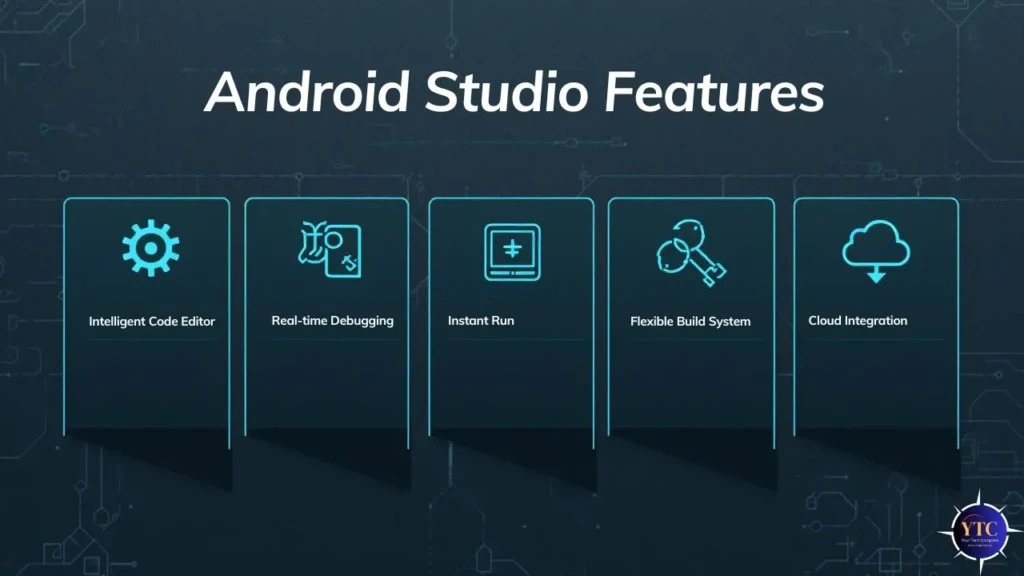
Below is a breakdown of the most impactful features developers use every day.
Code Editor and Intelligent Completion
Android Studio’s code editor supports:
- Code completion (suggests symbols)
- Real-time error checking
- Quick fixes
- Refactoring tools
These features accelerate development and reduce syntactic mistakes.
Layout Editor and Jetpack Compose Previews
Android Studio supports both:
- XML Layout Editor: Classic drag-and-drop UI builder
- Jetpack Compose Previews: Live, code-first UI rendering
This hybrid approach lets developers choose the workflow that best fits their style and project needs.
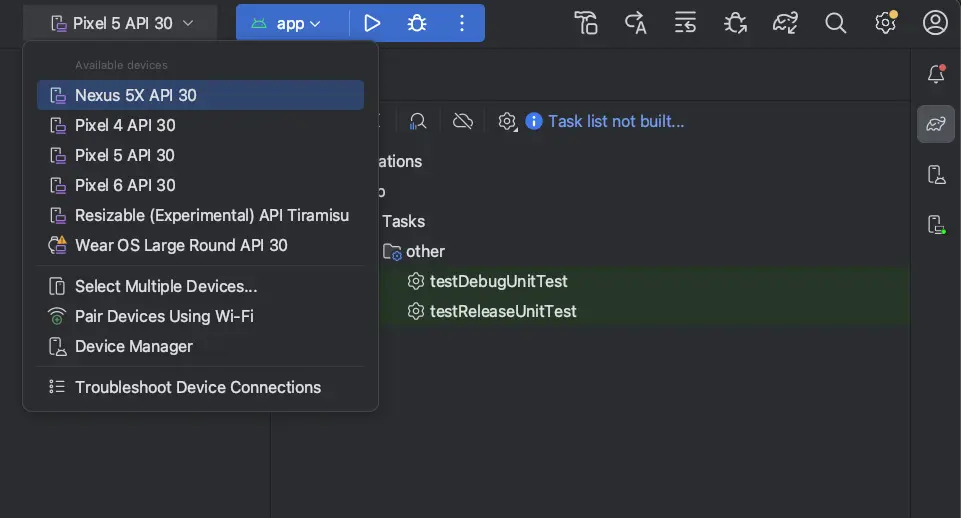
Android Emulator
The built-in Android Emulator simulates a wide range of devices and configurations, from phones to tablets to Android TV. It supports:
- Various CPU architectures
- Customizable device skins
- Network condition simulation
- Sensor input simulation
This broad device coverage lets you test without needing physical hardware for every possible configuration.
Debugger and Logcat
You can set breakpoints, inspect variables, and step through code using the built-in debugger. Meanwhile, Logcat streams runtime logs, which are invaluable for diagnosing crashes and unexpected behavior.
Version Control Integration
Android Studio integrates seamlessly with Git and other VCS tools. You can commit changes, resolve merge conflicts, and manage branches, all from within the IDE.
Android Studio and Programming Languages
Kotlin vs Java
Android Studio supports both Kotlin and Java, the two primary languages used in Android development.
- Kotlin is Google’s preferred language due to its modern syntax, null safety, and excellent interoperability with Java.
- Java remains relevant, especially in legacy codebases or environments where its ecosystem is entrenched.
For most new projects, Kotlin is recommended because it simplifies common coding patterns and reduces boilerplate.
Debugging, Testing, and Profiling in Android Studio
Breakpoints and Step-Through Debugging
You can suspend execution at designated points (breakpoints) to inspect program state. This capability is essential when diagnosing complex bugs or logic errors.
Unit and Instrumentation Tests
Android Studio enables:
- Unit Tests: Fast, isolated tests of single functions or classes
- Instrumentation Tests: UI interaction tests running on the emulator or device
Combined, these testing tiers help ensure reliability before users ever download your app.
Memory and Performance Profilers
Android Studio’s Profiler shows you real-time CPU, memory, and network usage. This lets you identify bottlenecks or memory leaks before deployment.
App Signing, Builds, and Play Store Deployment

Debug vs Release Builds
Android Studio differentiates between:
- Debug Builds: For testing and development
- Release Builds: Optimized and signed for distribution
Using release builds involves signing with a keystore, which uniquely identifies your app.
Signing and Keystores
A keystore contains cryptographic keys that prove app ownership. This process is required to publish on Google Play.
Publishing to Google Play
Once your app is built and signed:
- Export an APK or App Bundle
- Upload to Google Play Console
- Provide store listing information and assets
- Submit for review and distribution
This publishing flow is essential if you want users to discover your app through the Best Google Play Store Apps Guide on platforms like Google Play.
Android Studio System Requirements and Compatibility
Android Studio is cross-platform and runs on:
Platform | Supported? |
Windows | ✔️ |
macOS | ✔️ |
Linux | ✔️ |
Hardware Considerations
Android Studio can be resource-intensive. Optimal performance is achieved with:
- 8GB+ RAM
- SSD storage
- Multi-core CPU
Common Installation Issues
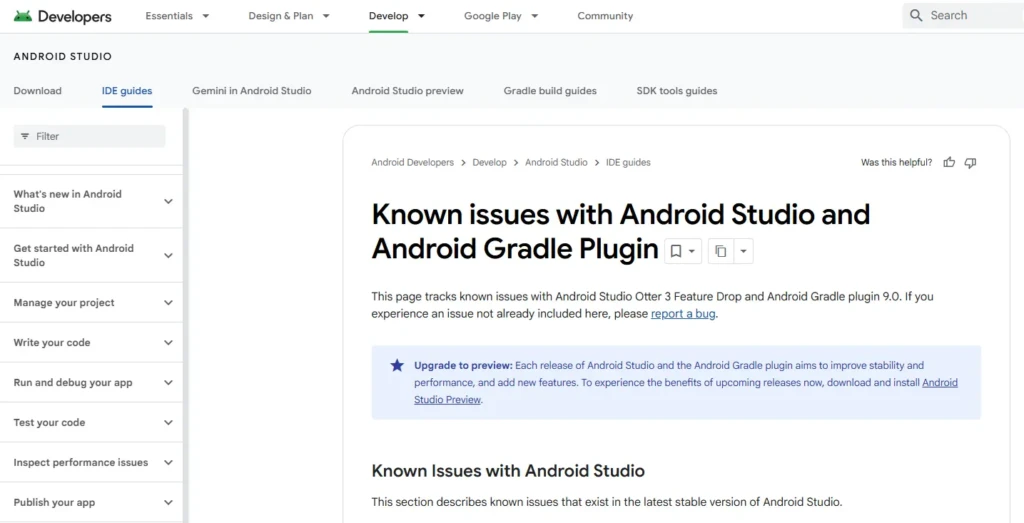
Developers sometimes face:
- SDK component download failures
- Emulator performance lags without virtualization support
- Path configuration errors
Most problems have documented solutions in the official Android Studio docs.
Android Studio Pros and Cons
Pros | Cons |
Official Android IDE | Can be heavy on resources |
Powerful debugging tools | Steep learning curve |
Comprehensive testing & profiling | Long initial setup |
Cross-platform support | Complex Gradle system |
Its strengths outweigh its drawbacks, especially for developers committed to the Android ecosystem.
Android Studio Comparison Table
This table compares Android Studio with alternatives developers might consider.
Feature | Android Studio | Visual Studio Code | IntelliJ IDEA |
Official Support | ✔️ | ❌ | ✔️ |
Emulator Integration | ✔️ | ✖️ (requires plugins) | ✔️ |
Built-in Debugging | ✔️ | Partial | ✔️ |
Testing Tools | ✔️ | Limited | ✔️ |
Build System (Gradle) | ✔️ | Requires setup | ✔️ |
Android Studio vs Other Development Tools
Android Studio vs Visual Studio Code
VS Code is a lightweight code editor that requires plugins to approximate Android Studio’s features, but it lacks integrated emulation and comprehensive build support.
Android Studio vs IntelliJ IDEA
IntelliJ IDEA, the foundation of Android Studio, offers similar features. However, Android Studio includes specialized Android SDK, profiling, and emulator support out of the box.
Who Should Use Android Studio?
Android Studio is best for:
- Beginners learning Android development
- Professional developers building production apps
- Teams working on modular or multi-flavored projects
It may be less suitable for:
- Simple cross-platform prototypes without deep platform needs
- Developers focusing solely on backend or non-Android work
Common Android Studio Mistakes to Avoid
- Treating Gradle builds as opaque (learn the system)
- Ignoring emulator configuration
- Skipping testing tiers
- Neglecting version control early
Avoiding these improves quality and reduces development headaches.
FAQs
Yes. Android Studio is the official and most complete environment for Android development.
Android Studio is available on Windows, macOS, and Linux.
Kotlin is recommended, but Java is still supported.
Yes, it includes an Android emulator for testing apps on a virtual device.
Final Verdict: Is Android Studio Worth Using?
Android Studio is the definitive IDE for Android development because it integrates build tools, debugging, testing, and deployment into a single environment. For developers serious about creating production-ready Android apps, its feature set and official backing make it an indispensable choice.
While it may require a learning investment and more system resources than lightweight editors, the payoff in productivity, tooling depth, and Android platform integration makes Android Studio the cornerstone of modern Android development. Whether you’re just starting or scaling up in a professional environment, mastering Android Studio will elevate the quality and reliability of your apps.