Most people have somewhere between 70 and 200 online accounts. Most people reuse the same three or four passwords across all of them. And according to a 2025 enterprise survey by 1Password itself, 91% of workers understand the risks of password reuse, yet 66% reuse passwords anyway. I understand the logic: remembering a unique, strong password for every account is genuinely impossible without help. The problem is that when you reuse passwords, a single breach at any one site puts every account sharing that password at immediate risk. That’s not a hypothetical threat. Verizon’s 2025 Data Breach Investigations Report found that compromised credentials were the leading initial access vector in 22% of all confirmed breaches, and 88% of web application attacks involved stolen credentials. The solution isn’t better memory. It’s a password manager, specifically, one you can actually trust with your most sensitive data.
That’s where 1Password comes in. Founded in 2006, trusted by over 150,000 businesses including IBM, Slack, Shopify, and GitLab, and carrying a zero data breach record across nearly two decades of operation, 1Password has consistently held the top position in the password manager category for people who take security seriously. This review gives you the complete picture of the security architecture, the features that genuinely set it apart, the honest pricing math after a notable March 2026 price increase, and a direct comparison with its closest competitors. By the end, you’ll know exactly whether 1Password is worth it for your specific situation.
A note before we begin: every YTC score is earned, never negotiated. If you want to understand exactly how we evaluate apps & tools and how we handle affiliate relationships, our Review Methodology lays it all out.
What Is 1Password?
1Password is a password management platform built by AgileBits, a company headquartered in Toronto, Canada. It was founded in 2006, and it’s been doing this longer than almost any competitor in the market.
That experience shows not just in feature depth but also in what hasn’t happened to 1Password in nearly two decades: not a single confirmed data breach. That track record is worth taking seriously, especially when you compare it to what happened to LastPass in 2022, when stolen vault data continued to enable cryptocurrency theft well into 2026.
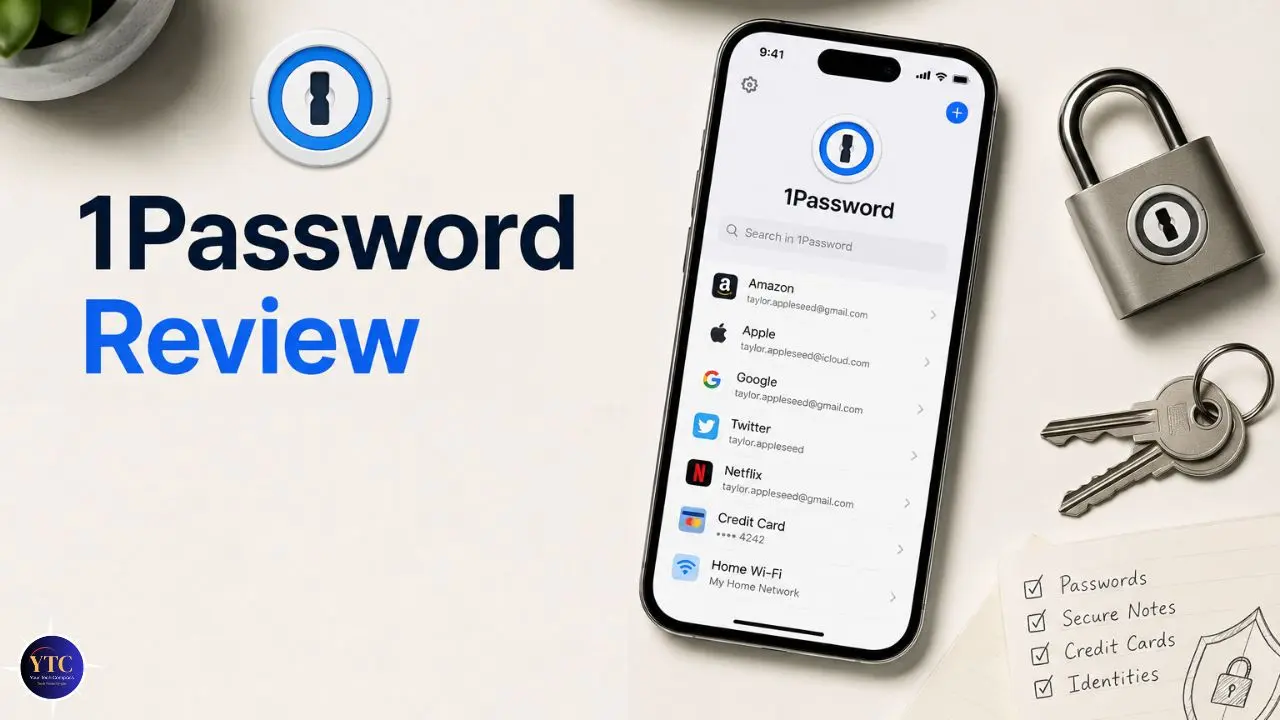
At its core, 1Password stores all your passwords, payment card numbers, secure notes, software licenses, and sensitive documents in an encrypted vault (a single secure location that syncs automatically across all your devices). You remember one strong Master Password.
1Password handles everything else. It’s available on Windows, macOS, Linux, iOS, Android, and Chrome OS, with browser extensions for Chrome, Safari, Firefox, Edge, and Brave. Beyond individuals, 1Password serves families, small businesses, and enterprises, with plan tiers that reflect distinct needs.
If you want a broader look at how password managers fit into a complete security picture, our cloud security tips guide is worth reading alongside this review.
How 1Password’s Security Actually Works

This is the section most reviewers rush through with a bullet list of encryption standards. I’m going to do the opposite, because if you’re going to trust a tool with every password you own, you deserve to understand exactly what’s protecting them.
AES-256 Encryption: The Foundation
Everything stored in your 1Password vault is encrypted using AES-256, the Advanced Encryption Standard with a 256-bit key. This is the same encryption standard used by banks, government agencies, and military organizations to protect classified information.
The number 256 refers to the key length. Therefore, the longer the key, the more computationally difficult it is to crack.
At 256 bits, even the most powerful computers in existence today would need longer than the current age of the universe to brute-force it. That’s not marketing language; that’s the mathematics of encryption. Your data is encrypted before it ever leaves your device, so even if someone intercepted your vault data in transit, they’d only get meaningless encrypted text without the keys to decrypt it.
The Secret Key: What Makes 1Password Architecturally Different
Here’s the feature that genuinely separates 1Password from every other mainstream password manager, and it’s worth understanding properly.
When you create a 1Password account, the app generates a unique 128-bit Secret Key on your device (a 34-character code created locally on your phone or computer). This Secret Key never gets sent to 1Password’s servers.
Not during setup, not during syncing, not ever. 1Password does not have a copy. Nobody does except you.
Your actual encryption key, the thing that locks and unlocks your vault, is derived from the combination of your Master Password and your Secret Key together. Both are required. That means even if someone somehow obtained your Master Password (through a phishing attack, a keylogger, or a data breach at 1Password), they still cannot access your vault.
They’d need your Secret Key too. And because that key was generated on your device and never transmitted anywhere, it can’t be stolen from a server. As one security analyst put it: even if 1Password’s entire server infrastructure were compromised tomorrow, your vault would remain mathematically unreadable.
This is why 1Password users were completely unaffected by the wave of credential theft that followed the 2022 LastPass breach. LastPass uses a single-layer approach; only the Master Password protects vaults. When those vaults were stolen, users with weak or reused master passwords became vulnerable. 1Password’s dual-key architecture makes that category of attack essentially impossible.
The Practical Implication
Keep your Emergency Kit safe. When you first create your account, 1Password generates a downloadable PDF Emergency Kit that contains your account details and Secret Key. Store this offline in a physically secure location, such as a safe, a locked drawer, or somewhere you control.
If you lose both your Master Password and your Secret Key, your data is unrecoverable. That’s the unavoidable trade-off of zero-knowledge architecture, and it’s the right trade-off to make.
Zero-Knowledge Architecture and SRP Authentication
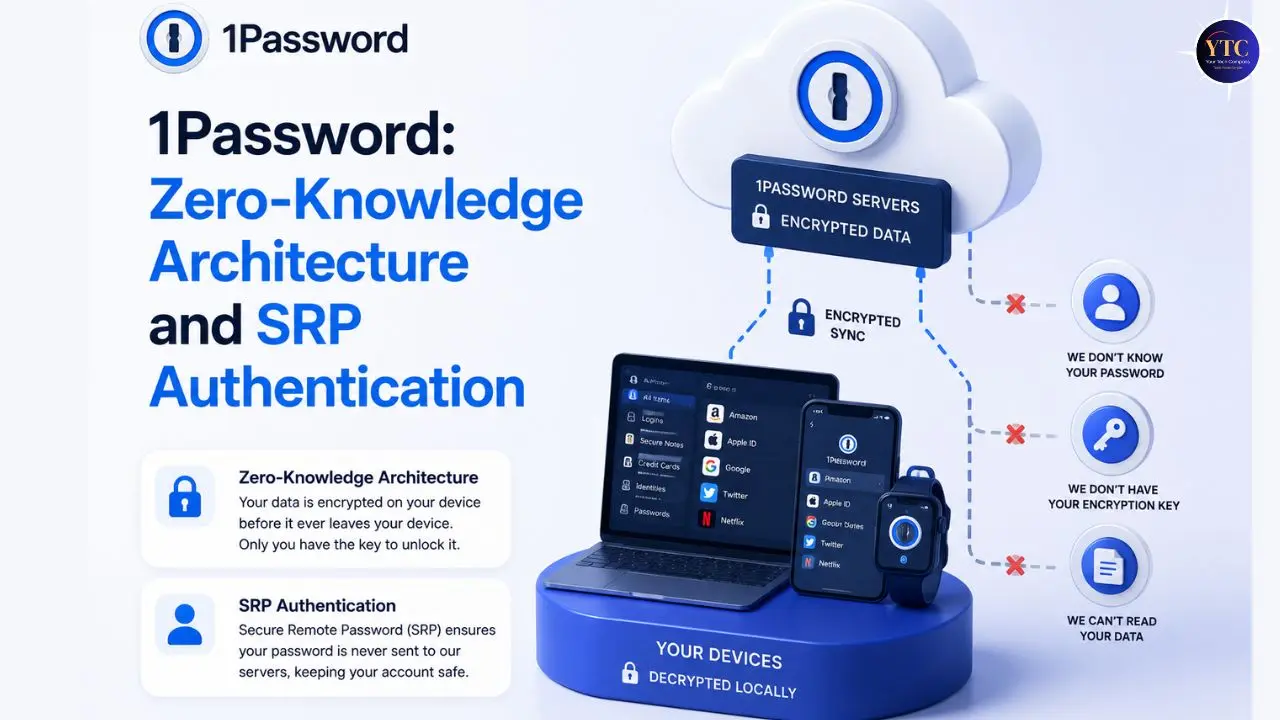
Zero-knowledge means exactly what it sounds like: 1Password has zero knowledge of your passwords. They literally cannot read your vault data, even if they wanted to. Your vault is decrypted on your device, not on their servers.
Furthermore, 1Password uses the Secure Remote Password (SRP) protocol to authenticate you, which means your credentials are never transmitted over the network during login. Authentication occurs through a mathematical proof that you know the password, without ever sending the password itself.
Consequently, even a court order demanding your 1Password data would yield no useful information. There is no readable data to hand over. This is a meaningful distinction from password managers that claim to be secure but store your decryption keys on their end.
PBKDF2: Protection Against Brute Force
In addition to AES-256 encryption, 1Password uses PBKDF2-HMAC-SHA256 for key derivation with 650,000 iterations. What that means in practice: even if an attacker obtained your encrypted vault, each attempt to guess your Master Password requires 650,000 computational steps. That slows down automated guessing attacks from billions of attempts per second to a rate that makes cracking a strong Master Password take longer than any realistic attacker would wait. Given the Secret Key requirement, brute-force attacks against 1Password vaults are not a practical threat.
Independent Audits and SOC 2 Certification
1Password is independently audited by third-party security firms, including Cure53, and those audit reports are published publicly on their website, a level of transparency that matters in this category. Additionally, 1Password is SOC 2 Type II certified, meaning an independent auditor has verified that its security controls, data handling processes, and operational practices meet strict industry standards for data confidentiality, integrity, and availability.
You can verify these claims directly at 1Password’s official security page.
1Password’s Key Features: What You Actually Get

Understanding the security architecture is step one. Understanding what you can actually do with 1Password is step two. Here’s every feature that matters, explained clearly.
Watchtower: Your Ongoing Security Health Monitor
Watchtower is 1Password’s built-in security intelligence dashboard, and it’s one of the most genuinely useful features in any password manager. Here’s what it actually does.
It continuously cross-references your saved credentials against breach databases, including the Have I Been Pwned dataset, which tracks billions of compromised passwords from known data breaches. The moment a site or service you have credentials for appears in a breach, Watchtower alerts you. You don’t have to go looking for this information. It comes to you.
Beyond breach monitoring, Watchtower actively flags weak passwords (too short, too simple, or using predictable patterns), reused passwords (the same password used across multiple accounts), and accounts where two-factor authentication is available but not enabled. It also highlights expired credit cards and credentials for sites known to have security vulnerabilities. Everything lives in one centralized dashboard, not scattered across separate reports.
For business plan subscribers, Watchtower provides team-level security health reports for administrators. An IT manager can see that a specific employee has 15 weak passwords or 3 credentials exposed in breaches without ever seeing the actual passwords. That allows targeted, privacy-respecting remediation rather than blanket policy enforcement.
Travel Mode: The Feature No Competitor Has Replicated
I want to spend some time on this feature because it’s genuinely unique and because most people who would benefit from it don’t know it exists.
Here’s the scenario it solves: you’re crossing an international border. Border control agents in some countries have the legal authority to request access to your devices and inspect your apps. For journalists, lawyers, executives, healthcare workers, and human rights workers, the data on those devices (including encrypted keys, confidential communications, and client credentials) can be extremely sensitive. Previously, there was no good solution to this problem. Now there is.
When you activate Travel Mode from your 1Password web dashboard, selected vaults are completely removed from all your devices. Not hidden. Not locked with a secondary password. Actually removed. There is no toggle, no indicator, no trace inside the app that those vaults ever existed. A forensic inspection of your device reveals nothing. Border agents who request to see your phone will find only the vaults you’ve marked as “Safe for Travel.” When you’ve safely reached your destination and deactivated Travel Mode, your vaults automatically restore the next time your device connects to the internet.
No other mainstream password manager (not LastPass, not Bitwarden, not Dashlane, not NordPass) has implemented a comparable feature with this level of completeness. For frequent international travelers and professionals handling sensitive data, this single feature alone can justify the 1Password subscription. As one security reviewer put it: Travel Mode is “a digital invisibility cloak for your most sensitive data.”
Passkeys: The Path to Passwordless
1Password has fully matured its FIDO2-compliant passkey support, and this is where the platform is genuinely ahead of the industry. Passkeys replace traditional passwords entirely for supported websites and services. Instead of a password, authentication uses a biometric scan (Face ID or fingerprint) or a device PIN (credentials cryptographically tied to your device and can’t be phished, leaked, or reused).
In 2026, 1Password also added Pasted Login Phishing Defense, a meaningful update that I think is underappreciated. When you manually paste credentials into a website, the browser extension checks whether the domain matches the one in your vault.
If the site is a known phishing lookalike or domain mismatch, you’ll get a prominent warning before submitting anything. This matters because phishing attacks increasingly replicate legitimate sites with near-perfect accuracy, and even careful users can be deceived by a well-crafted fake.
Secure Sharing
You can share individual passwords, secure notes, documents, or entire vaults with anyone, including people who don’t have a 1Password account. Sharing with non-members works via time-limited, encrypted links with expiration controls you set.
You control whether the link expires in 1 hour, 1 day, or 1 week, and you can revoke access at any time. Full share history logs let you see who accessed what and when. This makes 1Password genuinely useful in collaborative work environments where credentials need to be shared safely among team members.
Vault Organization and Document Storage
You can create unlimited private and shared vaults, organized however makes sense to you. Keep work credentials separate from personal ones. Create a family vault for shared subscriptions. Build a travel vault for your frequently used apps on the road.
Beyond passwords, each vault can store credit card details, bank account information, secure notes, software licenses, passport and ID information, medical records, and documents, with 1GB of encrypted document storage per user (5GB on Business plans). A 365-day item history in Individual plans lets you retrieve and restore items up to a year old, providing a genuine safety net for deleted entries.
Privacy Cards and Email Masking

Two features worth knowing about that most password manager reviews don’t cover adequately:
Privacy Cards
These generate virtual credit card numbers for online shopping. Instead of giving a merchant your real card number, you give them a virtual number tied to your account.
If that merchant gets breached or sells your data, your actual card is never exposed. You can close or freeze virtual cards at any time without affecting your real card.
Email Masking
When delivered through a partnership with Fastmail, email masking lets you create masked email addresses for account sign-ups. Your real email address is never shared with third parties, significantly reducing spam and preventing your email from appearing in third-party data breaches.
Autofill and Cross-Platform Sync
1Password’s browser extension handles autofill across Chrome, Safari, Firefox, Edge, and Brave. When you visit a site that has saved credentials, 1Password displays its icon in the login fields. Click it, and your credentials will fill in instantly. When multiple logins exist for the same site, you can choose which one to use from a quick dropdown.
Sync happens automatically across all your devices after you sign in once. You don’t manage syncing manually. Changes you make on your laptop appear on your phone immediately.
If you’re in an area without internet access, your locally stored encrypted vault remains accessible, and your passwords are available even when 1Password’s servers aren’t. One honest limitation worth flagging: Android autofill reliability is the most consistently reported frustration among 1Password users.
Some Android versions and certain apps produce inconsistent behavior. It works, but it’s not quite as seamless as the iOS experience.
1Password Pricing: The Complete Picture Including the 2026 Increase
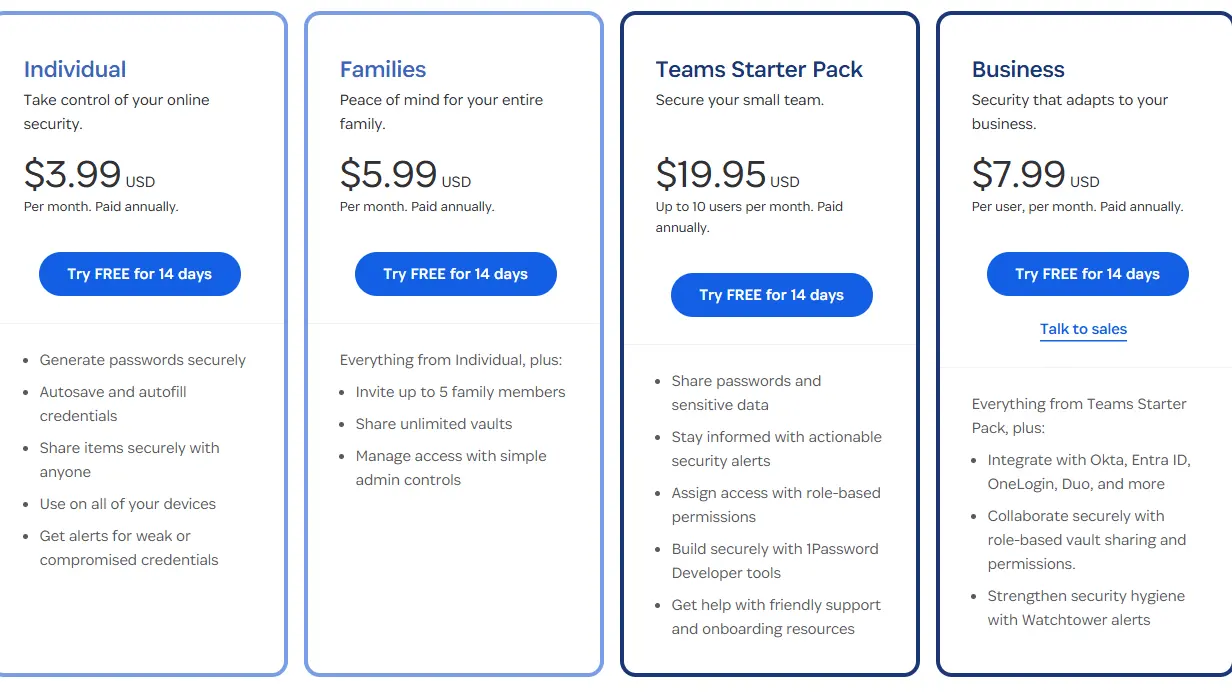
Before I give you the pricing table, you need to know something important: 1Password raised its prices in March 2026, the first price increase since approximately 2019, a span of roughly seven years. The Individual annual plan increased by 33%, from $35.88 to $47.88, and the Family’s annual plan increased by 20%, from $59.88 to $71.88. In addition, the community reaction was notable.
Bitwarden and Apple’s built-in Passwords app were the most cited alternatives in the aftermath. I’ll address the value question directly after the table.
💳 1Password Plans at a Glance
Plan | Monthly Cost (Annual) | Users Covered | Key Features | Verdict |
Free Trial | $0 | 1 | Full features for 14 days, no credit card required | 🔍 Test before you commit |
Individual | $3.99/month ($47.88/year) | 1 | Unlimited passwords, 1GB storage, Watchtower, Travel Mode, Passkeys | ✅ Solid for security-first solo users |
Families | $5.99/month ($71.88/year) | Up to 5 | Everything in Individual + shared vaults, family recovery | ✅ Best per-person value on this list |
Teams Starter | $19.95/month (flat) | Up to 10 | Shared vaults, admin controls, Watchtower, activity log | ✅ Simple flat-rate for small teams |
Business | $7.99/user/month | Unlimited | SSO, SCIM, custom groups, audit logs, + free Families for every seat | ✅ Best value at enterprise scale |
Enterprise | Custom pricing | Unlimited | Everything in Business + dedicated support, custom security policies, SCIM provisioning | ✅ For large orgs with compliance needs |
A few things worth understanding beyond the headline numbers:
The Business Plan’s Hidden Value
Every Business plan seat includes a free Families plan for the employee, valued at $71.88 annually. When you factor that in, the effective per-user cost for organizations drops meaningfully. IT administrators consistently cite this as the feature that makes the Business plan “worth every dollar” in G2 reviews.
The Teams Starter Plan Is a Flat-Rate Plan

At $19.95/month for up to 10 users, you’re paying approximately $2/user/month, significantly less than the Business plan’s per-seat price. The trade-off is that SSO/SCIM integration and advanced admin controls are not available at this tier. For very small teams that don’t need enterprise governance, it’s the right starting point.
No Free Tier, Period!
1Password does not offer a permanently free tier. All plans require a paid subscription after a 14-day free trial. This is a genuine limitation compared to Bitwarden, which offers unlimited password storage at no cost.
The 14-Day Trial Is Genuinely Risk-Free
No credit card required. You get full access to every feature in the plan you’re testing: Travel Mode, Watchtower, passkeys, secure sharing, and everything else. Two weeks is enough time to make an informed decision.
Is It Worth the Price After the Increase?
Honestly, it depends on what you need. If you’re a solo user who just needs basic password storage across devices and Travel Mode doesn’t matter to you, Bitwarden’s $10/year Premium plan is one-fifth the price and covers the essentials well.
And if you need Travel Mode, the most polished cross-platform experience available; the dual-key security architecture; or business governance features like SSO and SCIM, 1Password still earns its price tag. The architecture alone (the fact that even a successful server breach would leave your vault unreadable) is a meaningful distinction that no amount of Bitwarden’s excellent value can replicate.
1Password vs The Competition
Choosing a password manager is a long-term commitment; migrating vaults is a real source of friction, and vault lock-in is a genuine concern. So let’s be direct about how 1Password compares to its main competitors.
⚔️ 1Password vs Bitwarden vs LastPass vs Dashlane

Feature | 1Password | Bitwarden | LastPass | Dashlane |
Free Tier | ❌ No | ✅ Unlimited passwords free | ⚠️ Very limited | ⚠️ Limited |
Individual Price | $3.99/month (annual) | $1/month (Premium, annual) | $3/month (annual) | $4.99/month (annual) |
Data Breach History | ✅ Zero breaches since 2006 | ✅ Zero breaches | ❌ Multiple breaches (2022 catastrophic) | ❌ Breach in 2022 |
Dual-Key Encryption | ✅ Secret Key + Master Password | ❌ Master Password only | ❌ Master Password only | ❌ Master Password only |
Travel Mode | ✅ Full vault removal | ❌ No equivalent | ❌ No equivalent | ❌ No equivalent |
Passkey Support | ✅ Industry-leading FIDO2 | Partial | Partial | Partial |
Open Source | ❌ No | ✅ Yes | ❌ No | ❌ No |
Live Chat Support | ❌ Email only | ❌ Email only | ✅ Yes | ✅ Yes |
Business SSO/SCIM | ✅ Business plan | Enterprise only | ✅ Yes | ✅ Yes |
Offline Access | ✅ Local vault accessible | ✅ Yes | ✅ Yes | Limited |
Where 1Password Clearly Wins
The Secret Key architecture is genuinely unique. Travel Mode has no real equivalent anywhere. The passkey implementation is the most mature and comprehensive in the market.
The zero-breach record across nearly 20 years is a meaningful differentiator. And the cross-platform experience (desktop apps, mobile apps, and browser extensions) is the most polished among the options on this list.
Where 1Password Loses Ground
The lack of a free tier is a real limitation. Email-only support means you wait for responses rather than getting help in real time; competitors like LastPass and Dashlane offer live chat.
Android autofill reliability lags behind iOS. And the March 2026 price increase means Bitwarden now costs roughly one-fifth as much for premium features.
Who Should Pick Bitwarden?

If your budget is the primary constraint and you’re comfortable with a slightly less polished interface, Bitwarden is the honest recommendation. Its free tier is genuinely functional, with unlimited passwords, cross-device sync, and strong encryption.
The $10/year Premium tier adds Watchtower-equivalent breach monitoring, advanced 2FA, and encrypted file storage. Bitwarden is also open source, meaning its security code can be audited by anyone.
Why LastPass Should Be Avoided
The 2022 breach exposed encrypted user vaults, and by 2026, Russian cybercriminal groups are still successfully accessing cryptocurrency wallets using data traced to that breach. The fundamental architectural weakness (single-factor key derivation) means that users with weak master passwords remain permanently vulnerable. Even if LastPass improves security going forward, the 2022-2023 breaches are disqualifying for many users, and many have migrated to 1Password or Bitwarden.
For a full breakdown of how to build a layered security setup beyond just your passwords, our Microsoft Defender guide covers endpoint protection that works alongside a password manager. For a broader look at the Apps and Tools category, our Apps and Tools section covers everything from productivity software to essential security tools.
Who Should Use 1Password
1Password is the right choice if you are a:
- Frequent international traveler. Travel Mode is a genuinely irreplaceable feature, and no competitor has replicated it with equivalent depth.
- Security-conscious individual who wants the most rigorous encryption architecture available and values the peace of mind that comes with a dual-key system.
- A family of up to five that wants a clean, intuitive shared vault solution: the Family plan at $5.99/month works out to just over $1 per person per month.
- Small business or growing team that needs SSO integration, SCIM provisioning for automated onboarding/offboarding, activity logs, and compliance-grade access controls without building a custom security stack.
- Someone who has experienced the anxiety of a password manager breach and wants an architecture where even a successful server compromise leaves their vault unreadable.
Who Shouldn’t Use 1Password

1Password is not the right fit if you are a:
- Solo user who only needs basic password storage, and Travel Mode doesn’t apply to your situation. Bitwarden’s free tier or $10/year Premium plan is the honest recommendation for this use case.
- Someone who needs 24/7 live chat support; 1Password operates email support only, and response times, while generally reasonable, can’t match real-time chat.
- An Android-first user who frequently encounters autofill inconsistencies and prioritizes mobile experience above everything else; this is 1Password’s documented weak point.
- Person with a very tight budget for whom even $4/month represents a meaningful recurring expense.
Our Tech Guides section covers practical setup guides and comparison breakdowns for security tools across every category, so you can explore further before deciding.
FAQs
No. 1Password has never been breached. And even in the event of a data leak, your data would remain safe because passwords are end-to-end encrypted, and the encryption and decryption keys are not stored on 1Password’s servers. This zero-breach record over nearly 20 years of operation is a meaningful differentiator, particularly compared to LastPass, which suffered a catastrophic breach in 2022 that continues to harm affected users in 2026.
1Password cannot reset it for you; their zero-knowledge architecture means they genuinely have no access to it. Your Emergency Kit PDF, the document generated when you created your account, is your recovery option. It contains your Secret Key and account details. On Families, Teams, and Business plans, an administrator can help recover a locked-out account. This is exactly why storing your Emergency Kit offline in a physically secure location is not optional (it’s essential).
Yes. Your vault is stored locally and encrypted on every device where you’re signed in. If 1Password’s servers ever go down, your locally encrypted vault remains accessible on your devices at all times. Changes sync automatically once connectivity is restored, ideal for travel or unreliable connections.
Yes. You can share credentials (even with people who don’t have 1Password) via time-limited, encrypted links with expiration controls and full share history logs. You set the expiry window, you can revoke access at any time, and the recipient never needs to create an account.
Conclusion

1Password has earned its position at the top of the password manager category through something that can’t be faked or marketed into existence: nearly two decades without a confirmed data breach. The dual-key encryption architecture, which combines your Master Password with a locally generated Secret Key that never touches their servers, creates a security model that has held up as competitors have failed. Travel Mode remains the only feature of its kind in the market. And the March 2026 passkey updates, phishing defense improvements, and Watchtower enhancements show a platform that’s actively investing in where the security landscape is going, not resting on its history. For security-conscious individuals, families, and businesses, 1Password delivers a combination of depth and polish that no competitor currently matches.
That said, honesty matters: the 2026 price increase is real, the absence of a free tier is a genuine limitation, and Bitwarden is a legitimate, well-engineered alternative for users who don’t need Travel Mode or the Secret Key architecture. For budget-sensitive users, that’s the right recommendation. For everyone else (frequent travelers, families who want one clean solution, businesses that need governance controls they can actually use, and anyone who wants the most rigorous security architecture available in a consumer password manager), 1Password remains the clear benchmark against which everything else is measured.
Every security tool, app review, and honest tech comparison worth your time lives at YourTechCompass.com, where we give you the information you need to make smarter decisions about the technology protecting your digital life.