If you’ve ever looked at your iPhone and seen “SOS” or “SOS Only” in the status bar, maybe while travelling, roaming, or in a remote area, you may have wondered: “What does SOS mean on iPhone?” That little label can be alarming at first glance. However, it doesn’t always signal danger. Instead, it’s often telling you that your device has lost regular cellular connectivity and can only place emergency calls for now.
In this article, I’ll explain exactly what SOS means on iPhone, how the feature works (including emergency calls and satellite backup), and how you can safely use or troubleshoot it. I’ll also link to other useful iPhone‑how‑to guides on performance, resets, and overheating, so you have a full picture of your iPhone’s safety and maintenance tools at your disposal.
What SOS Means on iPhone
When your iPhone displays “SOS” or “SOS Only” in the status bar, it typically means your device isn’t connected to its usual cellular network. As a result, regular calls, texts, and data won’t work. Instead, the iPhone remains capable of making emergency calls.
In other words, SOS doesn’t mean your iPhone is broken. It simply indicates that only emergency‑service calls are available, which is useful if you’re in a dead zone or your carrier’s coverage is currently unavailable. For users with newer iPhones (model 14 or later), SOS may also indicate that premium emergency features, such as satellite‑based emergency reachability, are enabled.
How the iPhone SOS Feature Works
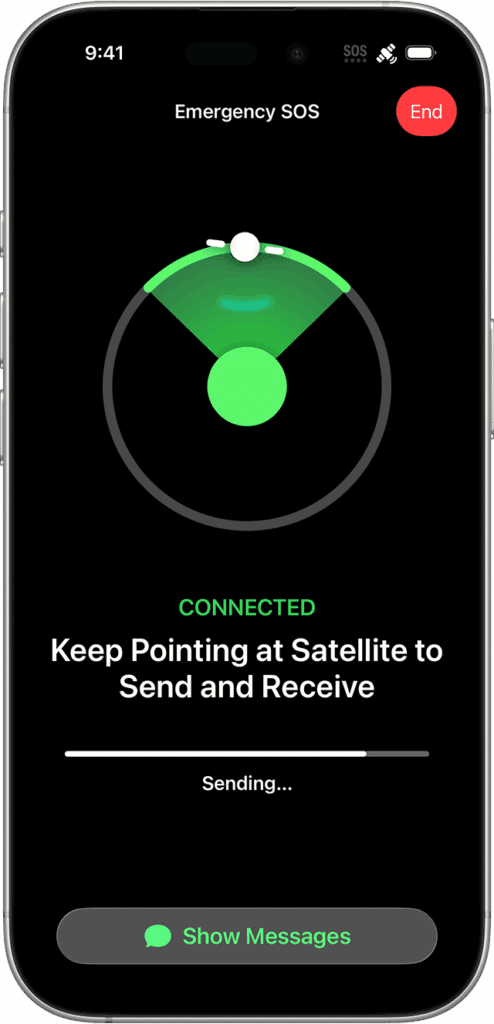
The SOS function on iPhone is actually two‑fold:
- Automatic Emergency Fallback: If your carrier signal fails, the iPhone switches to emergency‑call‑only mode (“SOS Only”). In this mode, it may attempt to connect to any available network or use satellite backup (on supported devices) for emergency services.
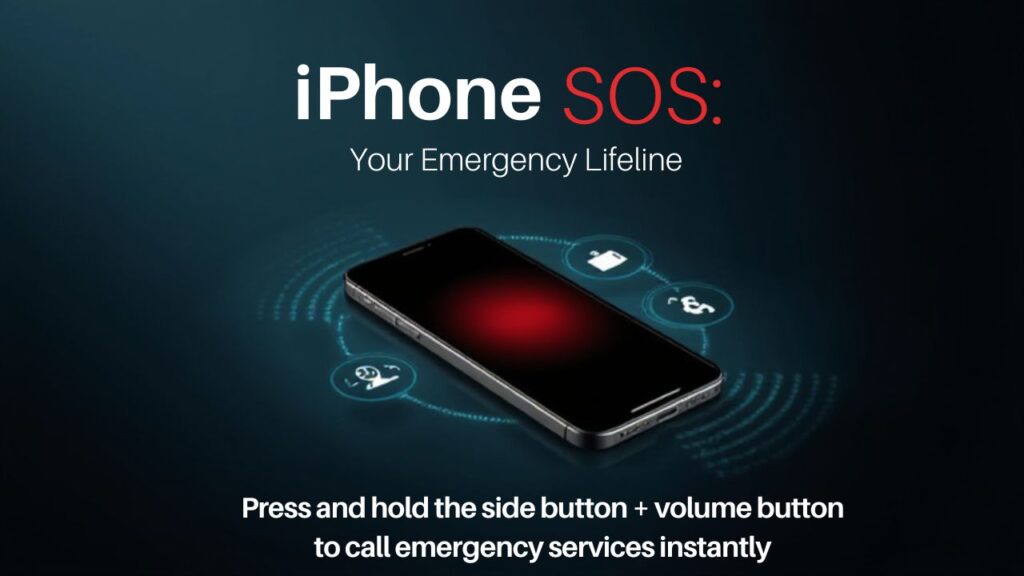
- Manual or Automatic Emergency SOS Trigger: You can actively trigger an emergency call via button combinations: for example, holding the side and volume buttons, or pressing the side button five times (depending on model and settings). That activates the “Emergency SOS” mode, which calls emergency services and, if configured, alerts your emergency contacts with your location.
On supported models (iPhone 14 and newer), the feature goes beyond cellular networks. It enables Emergency SOS via satellite when you are completely off‑grid (no cell signal, no Wi‑Fi). This ensures that you can still reach emergency services even in remote areas.
How to Use SOS on iPhone
Depending on what situation you’re dealing with, there are two common ways SOS appears on your iPhone. They are:
1. “SOS Only” Due to Network Issues
- No action needed; this just means your phone has lost regular service but can still attempt emergency calls.
- If coverage returns, the “SOS Only” indicator should disappear. To help, you might try toggling cellular data off and on. Also, try restarting the iPhone or moving to a location with better signal.
2. Manually Triggering Emergency SOS
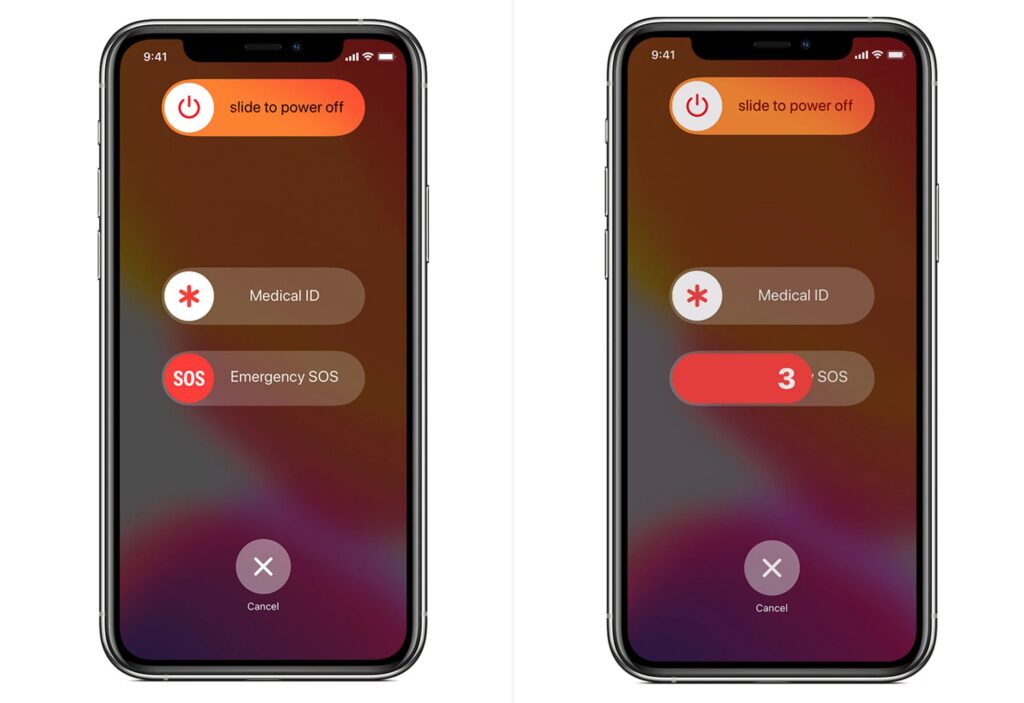
- On iPhone 8 or later: press and hold the side button and a volume button until the Emergency SOS slider appears; drag the slider to call emergency services. Alternatively, if you prefer, enable “Auto Call” so that holding those buttons triggers a call after a countdown.
- On older iPhone models (pre‑iPhone 8): pressing the side (or Sleep/Wake) button five times in quick succession brings up the Emergency SOS slider.
- Once the call ends, if you’ve configured emergency contacts (in the Health app → Medical ID), your iPhone will send them a message with your approximate location. If you move, it sends updates.
Tips for Using SOS Safely
Given how easy it can be to accidentally trigger Emergency SOS (particularly with “Auto Call” on), here are some practical safety tips:
- Consider disabling automatic triggers (Settings → Emergency SOS → disable “Call with Side Button” or “Call with 5 Presses”) if you rarely need them, to prevent false calls.
- Make sure you have correctly configured emergency contacts via the Health app; this ensures that when SOS is used, loved ones are notified with your location.
- If your iPhone shows “SOS Only” but you expect coverage, try toggling airplane mode on/off, restarting the phone, or manually selecting “Automatic” under network settings so the device reconnects properly.
Why Understanding SOS Matters (and How It Connects to iPhone Maintenance)
Knowing what “SOS” means on your iPhone can save you confusion and maybe a panic when you see it. Unlike regular problems like overheating, performance issues, or app crashes, SOS mode doesn’t necessarily indicate a malfunction. Instead, it signals a connectivity fallback or an emergency feature.
That said, it’s good practice to understand the full breadth of your iPhone’s tools, from optimizing performance (how to speed up iPhone performance) to doing a factory reset when needed (how to reset iPhone to factory) or troubleshooting overheating issues (iPhone overheating guide). Having this knowledge means you’re better prepared for both everyday maintenance and unexpected situations.
Conclusion
“SOS” on an iPhone doesn’t always mean an emergency. Often, it simply means that your device has lost its regular cellular connection, but can still make emergency calls if necessary. On newer iPhones, SOS also includes advanced features like satellite-based emergency backup and crash detection, offering extra safety when you’re off the grid.
Understanding what SOS means, how to turn it on (or off), and how to respond can help you avoid confusion and ensure you use your iPhone’s emergency features correctly. I’ve gone through this myself, and I encourage you to familiarize yourself with SOS settings and emergency contacts so you’re prepared when you might truly need them.
Related Questions (FAQs)
Most often, it’s due to a loss of carrier signal; the phone automatically shifts to emergency‑call‑only mode.
No. Only emergency numbers (like 911, 112, etc.) will work. Regular calls, texts, and data won’t work until service is restored.
If your local network allows emergency calls from your SIM (or if you’re using satellite on a supported iPhone), yes. But coverage and regional compatibility vary.
“SOS Only” status means network fallback; no action is needed. Manually triggering Emergency SOS actively calls emergency services (and optionally notifies contacts).