If you’re a student trying to keep up with lectures, assignments, deadlines, and group projects, the note-taking app you choose matters more than most people realize. The wrong app creates friction, notes get lost, syncing fails right before an exam, or the interface is so cluttered that you waste time navigating instead of studying. The right app quietly supports your entire academic workflow without getting in the way.
I’ve tested both Apple Notes and Google Keep extensively as study tools, and in this comparison, I’ll break down exactly how each one performs for students, covering organization, collaboration, offline access, device compatibility, and the features that actually make a difference when you’re trying to pass your classes.
Quick Overview
Before we get into detail, here’s the essential difference between these two apps in plain terms.
Apple Notes is a full-featured note-taking app built into every iPhone, iPad, and Mac. It’s designed for depth, rich formatting, folders, document scanning, drawing, and tight integration with the rest of your Apple devices.
Google Keep, on the other hand, is a lightweight, fast note-capture tool built by Google that works on every platform, Android, iPhone, iPad, Mac, Windows, and Chromebook, and connects seamlessly with Google Docs, Google Drive, and Google Calendar.
Both are completely free. The question isn’t which one is better in general; it’s which one fits how you actually study.
Which Devices Can You Use Each App On?

This is the first question to answer because if an app doesn’t work on your devices, nothing else matters.
Device | Apple Notes | Google Keep |
iPhone | ✅ | ✅ |
iPad | ✅ | ✅ |
Mac | ✅ | ✅ (browser only) |
Android Phone | ❌ | ✅ |
Windows PC | ✅ (iCloud.com only) | ✅ |
Chromebook | ❌ | ✅ |
Linux | ❌ | ✅ |
If you use only Apple devices, iPhone, iPad, and Mac, Apple Notes will feel completely seamless. Everything syncs instantly without any setup through iCloud, and the apps are native on every device.
If you switch between an iPhone and a Windows PC, a school Chromebook, or an Android phone, Google Keep is the far more practical choice. You can access it from any browser at keep.google.com, and it syncs instantly across all your devices through your Google account.
Design and Ease of Use
Apple Notes has a clean, structured interface that feels professional and calm. Your notes are organized in a list inside folders, and a full formatting toolbar lets you add headings, bullet points, tables, checklists, and more. It takes about 10 minutes to feel comfortable navigating it, and after that, it gets out of your way completely.
Google Keep looks and feels completely different; notes appear as colorful cards arranged in a grid, similar to physical sticky notes on a board. You can color-code each note, pin important ones to the top, and switch between grid and list view depending on your preference. There’s almost no learning curve; you can start capturing notes within seconds of opening the app for the first time.
For students who prefer a structured, document-like experience, Apple Notes wins on design. For students who think visually and want something that feels more like a creative, flexible workspace, Google Keep’s card layout is genuinely satisfying.
Note Organization: Folders, Tags, and Labels
Organization is where these two apps show the biggest difference in philosophy, and it directly affects how useful they are for managing multiple subjects simultaneously.
- Apple Notes organization: Apple Notes uses a folder-and-tag system. You can create a folder for each subject, Math, History, Biology, and store all related notes inside. Within those folders, you can use tags (by typing # followed by a keyword) to cross-reference notes across subjects. Smart Folders automatically collect all notes with a specific tag, so your tagged study notes appear together even if they’re stored in different subject folders. This layered system is genuinely powerful for students managing a heavy course load.
- Google Keep organization: Google Keep uses labels and color codes instead of folders. You assign a color to a note, blue for Math, green for Biology, and add labels like “Exam Prep” or “Assignment Due.” There’s no folder hierarchy, which keeps things simple but can get messy once you have more than 30-40 notes. The search function is excellent, though, and you can find any note quickly by searching for text, labels, or even words inside images.
If you’re a naturally organized person managing 5+ subjects, Apple Notes’ folder structure will serve you better in the long term. If you prefer simplicity and rely on search rather than folders, Google Keep’s flat label system is perfectly adequate.
Study-Specific Features Compared
This is where the comparison gets most relevant for students. Let me go through the features that actually matter for studying.
Feature | Apple Notes | Google Keep |
Checklists for To-Do Lists | ✅ Full-featured | ✅ Full-featured |
Handwriting with Apple Pencil | ✅ Excellent | ❌ Not supported |
Voice Notes / Audio Recording | ❌ Not built-in | ✅ Supported |
Document Scanning | ✅ Built-in camera scanner | ❌ Not available |
Drawing and Sketching | ✅ Full drawing canvas | ❌ Not available |
Image Text Recognition (OCR) | ✅ via Live Text | ✅ Built-in |
Reminders and Alerts | ✅ With the Reminders app | ✅ Built-in |
Tables | ✅ Built-in | ❌ Not available |
Rich Text Formatting | ✅ Full formatting | ❌ Very limited |
Link to Other Notes | ✅ Supported | ❌ Not supported |
- Apple Notes Wins for iPad Users Studying with an Apple Pencil: The drawing and handwriting experience is genuinely excellent. You can handwrite lecture notes, annotate diagrams, and sketch mathematical concepts directly on your iPad screen. Google Keep doesn’t support this at all.
- Apple Notes Wins for Scanning Documents: If your professor hands out physical worksheets or you need to digitize printed materials, Apple Notes lets you scan directly into a note using your camera. The scan is automatically cleaned up and saved as a PDF. Google Keep has no equivalent feature.
- Google Keep Wins for Voice Notes: If you want to record a quick voice memo between classes or capture a thought without typing, Google Keep’s voice note feature transcribes your speech automatically. Apple Notes has no built-in audio recording; you’d need to use the separate Voice Memos app and attach it manually.
- Google Keep Wins for Reminders: You can set time-based or location-based reminders directly inside Google Keep without leaving the app. Apple Notes requires you to switch to the Reminders app to create linked reminders, which adds unnecessary steps.
Collaboration for Group Projects

Group projects are a reality of student life, and how well your note-taking app handles collaboration can make or break a shared assignment.
Apple Notes collaboration lets you share any note or folder with another person via iCloud. They can view or edit in real time, and changes sync across all participants. The experience is similar to Google Docs, smooth and reliable. The limitation is that everyone in the group needs an Apple ID, which excludes any classmate who uses an Android phone or a Windows PC exclusively.
Google Keep collaboration works through Google accounts, which virtually every student already has through their school or personal Gmail. You share a note, and all collaborators can edit simultaneously with live syncing. Because Google accounts are universal and free, there are no platform restrictions; your group can include iPhone users, Android users, and Windows users all working in the same note simultaneously.
For group collaboration, Google Keep wins clearly, not because the feature itself is better, but because it works across every device your classmates might be using. Apple Notes collaboration is excellent, but only if your entire group is in the Apple ecosystem.
Offline Access: Studying Without Wi-Fi
Libraries, lecture halls, and commutes don’t always have reliable Wi-Fi, and your notes need to be available regardless.
Apple Notes stores your notes locally on your device and syncs to iCloud when you’re connected. This means every note you’ve ever created is available offline, automatically, without any setup. You can read, write, and edit notes with zero internet connection, and everything syncs the moment you reconnect.
Google Keep also works offline, but with an important caveat: notes are cached on your device after you’ve opened them, and brand-new notes created offline sync automatically when you reconnect. In practice, Google Keep’s offline experience is very reliable for most students. The only time you’d notice a difference is if you try to access a note on a new device without an internet connection before it’s been cached.
Both apps handle offline use well enough for students’ needs. Apple Notes has a slight edge because its offline functionality requires zero configuration and works completely transparently.
Integration With Other Apps You Already Use
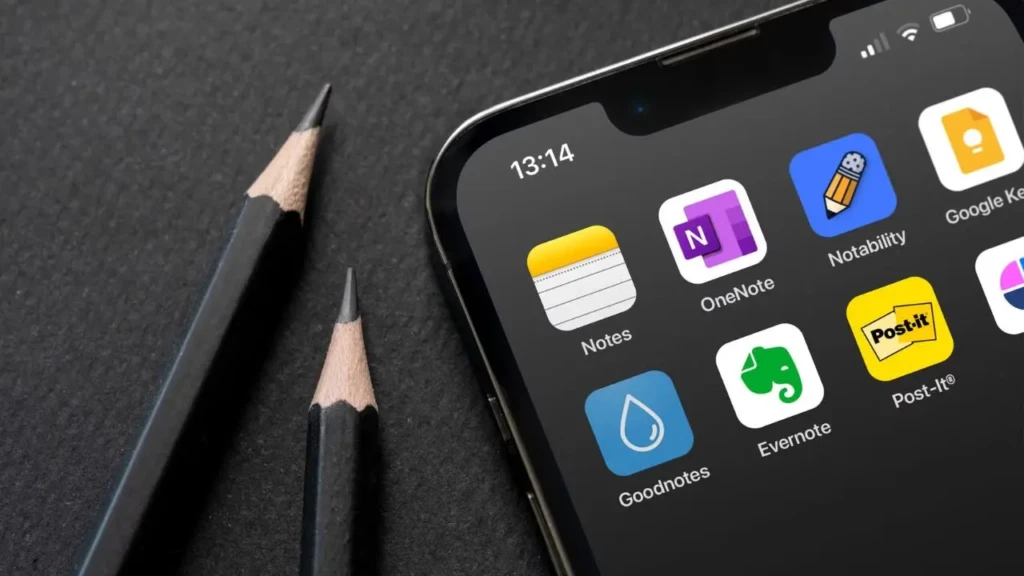
The apps that surround your note-taking tool matter almost as much as the tool itself.
Apple Notes integrates with:
- Safari: Highlight text on any webpage and save it directly to a note.
- Mail: Share email content into Notes with one tap.
- Reminders: Link notes to tasks and due dates.
- Files app: Attach documents, PDFs, and files directly into notes.
- Shortcuts: Automate note creation with custom workflows.
Google Keep integrates with:
- Google Docs: Open Keep in the sidebar while writing a document, then drag notes directly into your text.
- Google Calendar: See Keep reminders alongside your calendar events.
- Gmail: Save email content into Keep while reading your email.
- Google Drive: Access Keep notes alongside your Drive files.
- Google Classroom: If your school uses Google Workspace for Education, Keep connects directly to your coursework.
If your school uses Google Workspace for Education, which many schools and universities do, Google Keep’s integration with Google Classroom, Google Docs, and Google Drive makes it an extraordinarily practical study tool. Everything lives in one ecosystem that your school already supports.
If you’re a Mac and iPhone user doing independent study, Apple Notes’ Safari and Mail integration is genuinely useful for research and saving web references.
Storage and Backup
Running out of storage or losing notes before an important exam is a nightmare scenario, and both apps handle this differently.
Apple Notes stores your notes in iCloud, which gives you 5GB of free storage. Text notes are tiny, and 5GB will last years even with heavy use, but if you scan a lot of documents, attach photos, or create drawings, you’ll fill up faster. If you need more storage, Apple’s paid iCloud plans start at around $0.99/month for 50GB.
Google Keep stores your notes in your Google account, which comes with 15GB of free storage shared across Gmail, Drive, and Photos. Text notes in Google Keep count against this 15GB, but they’re so small that you’d need tens of thousands of notes to make a dent in it. Like Apple, Google offers paid plans if you ever need more space.
Both offer reliable automatic backup; your notes are never stored only on your device. If you lose or break your phone, your notes survive intact in the cloud.
Privacy and Security

This is a factor students sometimes overlook, but worth knowing before you store sensitive study materials or personal information.
Apple is known for strong privacy practices. Notes synced through iCloud are encrypted in transit and at rest, and locked notes use end-to-end encryption that even Apple cannot access. Apple’s business model is built on selling hardware, not advertising, so your note content is not used to target ads.
Google’s business model is built on advertising, which means your Google Keep data, like all Google data, is processed to improve Google’s services and ad targeting. Google encrypts your data in transit and at rest, but it is not end-to-end encrypted, unlike Apple’s locked notes.
For the vast majority of student use cases, such as lecture notes, to-do lists, and assignment planning, this distinction doesn’t matter in practice. But if you’re storing sensitive personal information, Apple Notes’ stronger privacy posture is worth noting.
Apple Notes vs Google Keep: Full Comparison Table
Feature | Apple Notes | Google Keep |
Price | Free | Free |
Platform Availability | Apple devices + iCloud.com | All platforms |
Organization System | Folders + tags + Smart Folders | Labels + color codes |
Rich Text Formatting | ✅ Full | ❌ Very limited |
Apple Pencil / Handwriting | ✅ Excellent | ❌ None |
Document Scanning | ✅ Built-in | ❌ None |
Voice Notes | ❌ Not built-in | ✅ With transcription |
Drawing Canvas | ✅ Full | ❌ None |
Built-in Reminders | ❌ Requires Reminders app | ✅ Built-in |
Collaboration | ✅ Apple ID required | ✅ Works cross-platform |
Offline Access | ✅ Fully automatic | ✅ Reliable with caching |
Google Workspace Integration | ❌ | ✅ Excellent |
Privacy | Strong (E2E for locked notes) | Standard Google encryption |
Free Storage | 5GB iCloud | 15GB Google account |
Which App Should You Choose? (Verdict by Student Type)
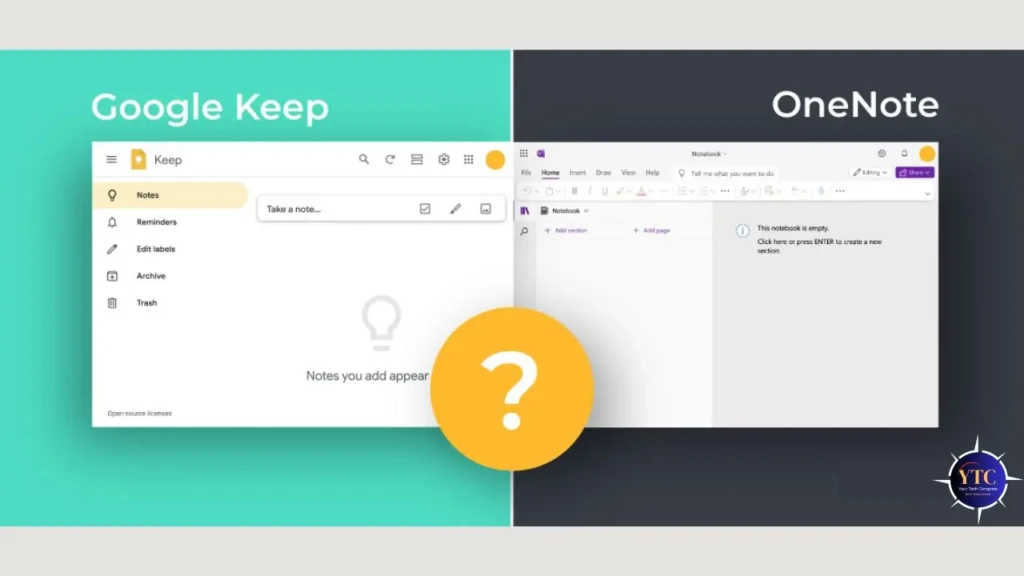
Here is my honest recommendation based on different student situations.
Choose Apple Notes if:
- You use an iPhone, iPad, and Mac exclusively.
- You take handwritten notes or annotate diagrams with an Apple Pencil.
- You need to scan physical documents and save them as digital files.
- You prefer a structured organization with folders and subfolders.
- Privacy and security are important to you.
Choose Google Keep if:
- You switch between devices, such as an Android phone, a Windows PC, a Chromebook, or any mix.
- Your school uses Google Workspace for Education (Google Classroom, Google Docs).
- You collaborate on group projects with classmates who use different devices.
- You want built-in reminders without switching to a separate app.
- You prefer a simple, visual card-based layout over a folder structure.
My Honest Take: For most students who are deep in the Apple ecosystem, Apple Notes is the better tool; it’s more powerful, more private, and more deeply integrated with the devices you’re already using. For students who share a Chromebook or Windows school computer, or whose group projects involve classmates on mixed devices, Google Keep wins on pure practicality. Therefore, if you’re an iPhone user who collaborates heavily with non-Apple users, consider using both Apple Notes for your personal study notes and Google Keep for shared group project notes.
FAQs
It depends on your devices. If you use an iPhone and an iPad, Apple Notes is significantly more powerful for studying; it supports handwriting, document scanning, rich formatting, and deep folder organization. If you use mixed devices or a school Chromebook, Google Keep is more practical.
No. Apple Notes is not available on Android. The closest you can get is accessing iCloud.com through an Android browser, but the experience is limited. If you use Android, Google Keep is the better choice.
Yes, Google Keep works offline for notes you’ve previously opened. New notes are created automatically when you reconnect. For fully automatic offline access to all notes on any device, Apple Notes has a slight advantage.
Google Keep is better for group collaboration because it works across every device: iPhone, Android, Windows, and Chromebook. Apple Notes collaboration requires everyone to have an Apple ID, which limits who can participate.
Yes, but not automatically. This is because there’s no built-in export tool that transfers Google Keep notes directly to Apple Notes. You would need to copy notes manually or use a third-party tool. It’s worth choosing carefully from the start to avoid this extra work later.
As of 2026, Google Keep is actively maintained and supported. Google has not announced any plans to discontinue it. However, if you’re worried about app longevity, Apple Notes is safer; it’s a core Apple product that has been continuously developed for over 15 years.
Final Thoughts
Both Apple Notes and Google Keep are genuinely good tools; they’re free, reliable, and capable of handling everything a student needs for daily note-taking. The decision comes down to which ecosystem you live in and how you prefer to organize your thinking.
If you’re already using Apple Notes and want to get the absolute most out of it, check out our complete guide on how to use Apple Notes. It covers hidden features most students never discover, including Smart Folders, document scanning, and Quick Note. And if you’re exploring other apps to support your study workflow, browse our Apps & Tools section for honest, beginner-friendly comparisons of the best productivity tools available.
Found this helpful? Browse more in-depth tech guides, honest reviews, and step-by-step tutorials at YourTechCompass; your go-to resource for making smarter tech decisions.