Many Mac users encounter software that is available only for Windows or that performs better on the Microsoft platform. Whether the need arises for a specific business application, a productivity suite, legacy software, or gaming titles, understanding how to run Windows for Mac systems effectively is often a practical necessity. While Apple’s macOS has matured into a robust and capable operating system, especially for everyday work and creative tasks, and supports the latest hardware innovations, such as the features discussed in the macOS Tahoe features guide, certain workflows still benefit from or require native Windows support.
This article explains the available methods for running Windows on a Mac, the technical differences among them, and the practical trade-offs users should consider before choosing a solution. Beyond simply describing tools and techniques, this guide aims to help you decide which option best fits your hardware, software, and usage patterns. By the end, you’ll have a clear, experience-based perspective on how to bring Windows to your Mac environment, and I’ll share practical considerations drawn from real use cases.
What “Windows for Mac” Actually Means
When people search for Windows for Mac, they typically intend to run Microsoft Windows on Apple hardware. However, the phrase can encompass several technical approaches:
- Native installation (dual-boot), where your Mac runs Windows directly on its hardware.
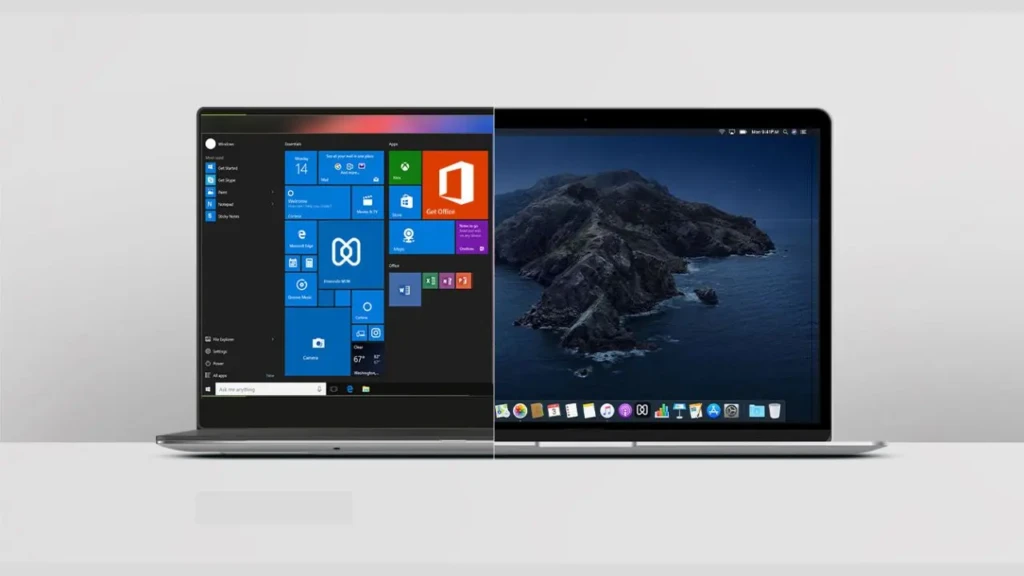
- Virtualization, where Windows runs inside macOS as a guest system.
- Emulation, where software simulates the hardware environment Windows expects.
Understanding these distinctions helps clarify what “Windows for Mac” means in practical terms. Native installations offer full hardware performance but require partitioning the system. Virtual machines (VMs) offer convenience and flexibility at the cost of some performance overhead. Emulation may broaden compatibility but often sacrifices speed and integration.
Methods to Run Windows on a Mac
There are three main methods you can use to run Windows on a Mac. Each has advantages and limitations related to performance, compatibility, ease of setup, and the degree of Windows integration with the hardware.
Boot Camp (Intel Macs Only)
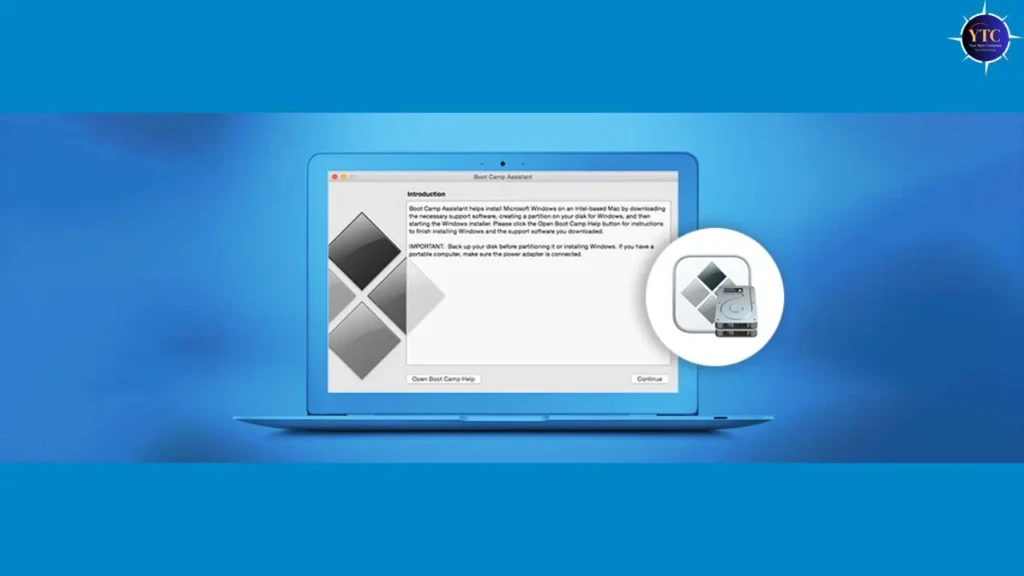
Boot Camp is Apple’s native dual-boot solution for Intel-based Macs. It allows you to partition your internal drive and install Windows alongside macOS. At startup, you can choose which operating system to boot into. Because Windows runs directly on the hardware, performance is comparable to that of a dedicated PC, with full access to the CPU, GPU, and peripherals.
Pros
- Full native performance without virtualization overhead.
- Widest compatibility with Windows applications and games.
- Runs directly on Apple hardware, so most drivers are supported.
Cons
- Only available on Intel-based Macs; Apple silicon Macs (with M-series chips) do not support Boot Camp.
- Requires rebooting when switching between macOS and Windows.
- Partitioning your drive requires careful planning and backups.
This method remains relevant for users with older Intel Macs who need maximum performance, especially for gaming or resource-intensive Windows applications.
Virtualization Software for Windows on Mac
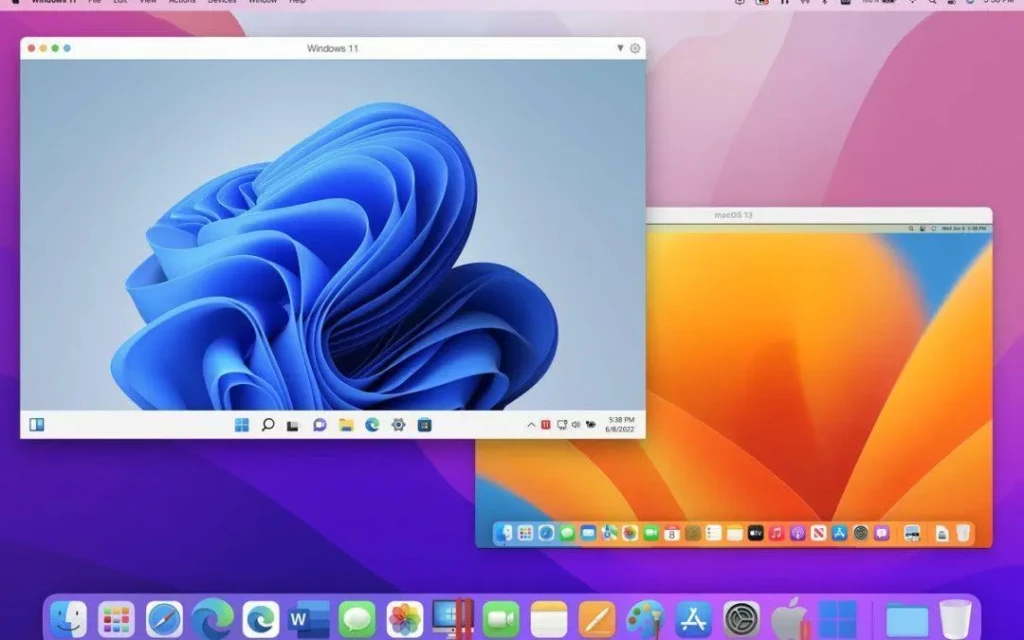
Virtualization lets you run Windows inside macOS without rebooting. It creates a virtual hardware environment that runs Windows, sharing physical resources with macOS.
Popular virtualization tools include:
- Parallels Desktop: Known for tight macOS integration and ease of use.
- VMware Fusion: A long-standing virtualization platform with broad compatibility.
- VirtualBox: A free, open-source option with basic virtualization features.
How Virtualization Works
Virtual machines abstract the underlying hardware, so Windows runs in a software-defined environment. This approach enables you to run macOS and Windows apps side by side, copy and paste between systems, and share folders without rebooting.
Pros
- Seamless switching between macOS and Windows.
- Integration features like shared clipboard and folder sharing.
- Useful for productivity workflows or light gaming.
Cons
- Performance overhead compared with native installation, especially for graphics-intensive workloads.
- Requires sufficient RAM and CPU resources to run both OSes simultaneously.
- Emulated drivers can limit performance for demanding tasks.
Windows for Mac on Apple Silicon (M-Series Macs)
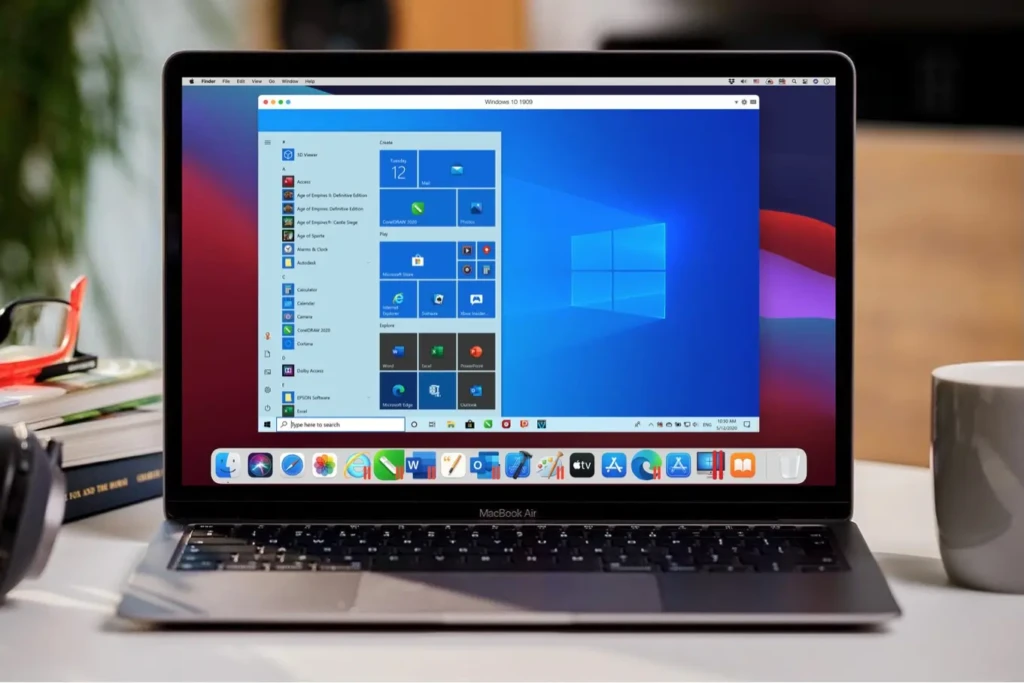
With the transition to Apple silicon (M-series chips), running Windows on newer Macs changed significantly. Apple Silicon Macs do not support Boot Camp and rely on virtualization solutions that run the ARM version of Windows.
ARM-based Windows
On Apple silicon, Windows needs to run an ARM-based version designed for ARM CPUs. While this version of Windows supports many modern applications, compatibility with traditional x86 software depends on Windows ARM’s built-in emulation. Some applications run well, while others may underperform or be incompatible.
Virtualization Tools for Apple Silicon
Current virtualization solutions for Apple silicon that support Windows ARM include:
- Parallels Desktop
- UTM (open-source solution)
Although it’s technically feasible, performance and compatibility vary based on software design, and certain graphics-intensive applications may not work as expected.
Best Ways to Run Windows on Mac (Quick Comparison)
Here is a comparison of the most common methods:
Method | Performance | Ease of Setup | Best Use Case | macOS Integration |
Excellent | Moderate | Gaming, heavy Windows workloads | None (dual boot) | |
Good | Easy | Productivity & app testing | High | |
Good | Moderate | Enterprise use | Moderate | |
Fair | Moderate | Casual use/experimentation | Basic | |
Variable | Moderate | Light to moderate Windows workloads | Moderate |
This table highlights how different approaches trade off performance, convenience, and compatibility.
Performance Considerations
Running Windows on a Mac introduces performance trade-offs based on the approach:
- Native dual-boot (Boot Camp) delivers the best performance because Windows controls hardware natively.
- Virtualization shares system resources between macOS and Windows, reducing peak performance potential.
- ARM-based virtualization on Apple silicon may yield excellent power efficiency but variable application compatibility due to emulation layers.
Consider how you plan to use Windows: productivity software and light applications generally perform well in virtual machines, whereas demanding apps such as 3D modeling or gaming benefit from native performance.
Windows Licensing and Cost Considerations
Regardless of how you install Windows, you generally need a valid license. Microsoft offers various licensing models, including retail and volume licensing. OEM copies of Windows may be cheaper but are typically tied to specific hardware.
- Retail Windows License: Transferable and generally recommended for long-term use.
- OEM Windows License: Lower cost but non-transferable.
- Windows ARM Licensing: Specific Windows ARM versions may have unique licensing requirements.
Always ensure that your installation complies with Microsoft’s licensing terms to avoid activation issues and legal complications.
Common Problems and Limitations
Even with the right setup, certain challenges can arise:
- Driver Support: Some hardware features on Macs may not have Windows drivers or rely on community drivers.
- Graphics Performance: Virtual machines often suffer reduced graphics performance compared with native installations.
- Updates: Windows updates in a virtual machine may require careful management to avoid performance regressions.
- Application Compatibility: Some older or poorly optimized applications may not run as expected, especially under ARM Windows.
Understanding these limitations can help set realistic expectations and guide your choice of method.
Who Should Use Windows on Mac
Different user groups benefit from different methods:
- Developers and testers who need to validate software across platforms.
- Business users who rely on Windows-only enterprise tools.
- Gamers on Intel Macs who want native performance.
- Students or casual users who need occasional Windows access with minimal hardware requirements.
Conversely, users who rely exclusively on native macOS applications or who prefer Apple’s ecosystem without compromise may find alternatives that eliminate the need for Windows entirely.
Conclusion
Running Windows for Mac is a practical solution when you need access to software that is otherwise unavailable on macOS. Each method, whether Boot Camp, virtualization with Parallels or VMware, or ARM-based virtualization on Apple silicon, has distinct advantages and limitations related to performance, compatibility, and setup complexity. By understanding your use case and evaluating these trade-offs, you can make an informed decision that aligns with your productivity needs and hardware capabilities.
Moreover, bringing Windows into your Mac workflow intersects with broader topics such as reinstalling macOS when things go wrong, optimizing your software setup with productivity tools, or bundling apps efficiently, much like the strategies covered in the How to Reinstall macOS guide, the Best Productivity Apps for Mac article, and the Mac App Bundle Black Friday coverage. Given these factors and practical considerations, I see running Windows on a Mac as an adaptable solution that enhances flexibility rather than replacing macOS entirely, and I encourage a thoughtful choice based on your individual requirements.
FAQs About Windows for Mac
Yes, when installed via Boot Camp on Intel Macs, Windows runs natively and can perform comparably to a dedicated PC.
With proper licensing and security updates, Windows on a Mac is as safe as on any other hardware platform.
Yes, tools like Wine or CrossOver can run some Windows apps without a full installation, but compatibility varies.
Apple officially supported Boot Camp for Intel Macs, but does not provide native Windows support on Apple silicon. Virtualization is the primary alternative.
At Your Tech Compass, we publish detailed tech guides, reviews, and comparisons to help users choose the right devices and tools.