
If you use a Mac for work, study, or creative projects, you’ve probably noticed something: the right apps can dramatically improve how quickly and comfortably you get things done. macOS already offers a clean and intuitive interface. Still, its real power shines when you pair it with tools that streamline your daily workflow, organize your digital life, and automate routine tasks.
That’s precisely why productivity apps are so valuable. They help you stay focused, reduce friction, and give you quicker access to the things you use most. Below, you’ll find a carefully curated list of the best productivity apps for Mac today. Let’s begin with one of the most versatile organization apps available.
A note before we begin: every YTC score is earned, never negotiated. If you want to understand exactly how we evaluate apps & tools and how we handle affiliate relationships, our Review Methodology lays it all out.
Unclutter: A Three-in-One Workspace Organizer That Lives at the Top of Your Screen
Key Features
- Platform: macOS 11.0 (Big Sur) and later
- Pricing: $19.99 one-time purchase from the Mac App Store or unclutterapp.com
- Also available as part of: Mac App Bundle, a collection of premium Mac apps at a significant discount
- Storage permissions: Required for file drawer access
Offline: Yes (fully local, no cloud dependency)
Why It Stands Out
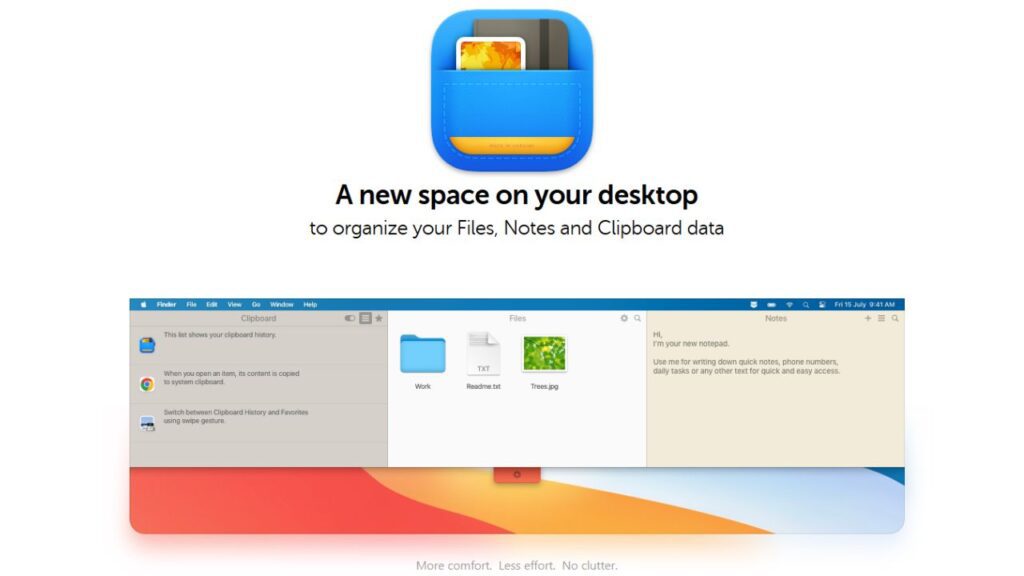
- The clipboard history manager is searchable. Find anything you’ve copied by typing a keyword, not scrolling through an endless list.
- The file drawer acts as a designated temporary space that keeps your desktop clean without requiring you to decide where things live permanently.
- The quick-note panel opens in under a second, faster than launching any dedicated notes app for a fleeting thought or phone number.
- The panel design blends visually with macOS; it doesn’t feel like a third-party addition.
Honest Limitations
- The file drawer is designed for temporary storage, not long-term organization. You’ll still need a proper file management system for anything you want to keep.
- No cross-device sync; clipboard history and notes are local to the Mac where Unclutter is installed.
- The $19.99 price is fair but not free. There are free clipboard managers (Flycut, Maccy) if budget is the only consideration, though they lack the integrated panel experience.
Best For
Any Mac user who wants a cleaner workflow without adding complexity, particularly writers, researchers, and anyone who works across multiple sources throughout the day and needs quick access to recently copied content and temporary files.
More Top Mac Productivity Apps to Boost Your Workflow
Now that we’ve highlighted Unclutter, let’s move into other high-impact tools that pair well with it. Together, these apps can reshape the way you manage your digital tasks, files, writing, time, and overall focus.
1. CleanShot X: The Ultimate Screenshot & Screen Recording Tool
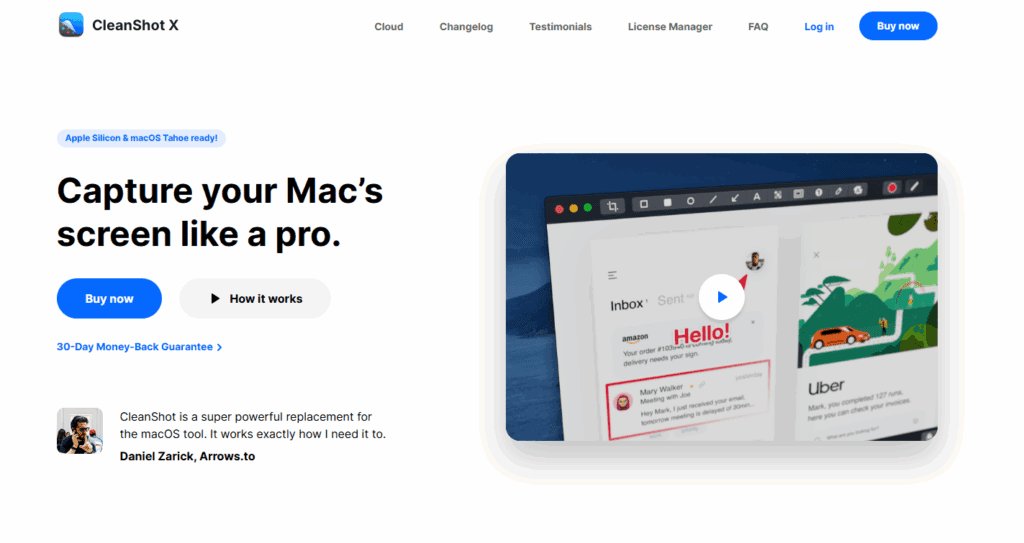
macOS’s built-in screenshot tool (Command + Shift + 3/4/5) covers the basics. CleanShot X covers everything else. It’s the screenshot app that actually matches how professionals use screenshots: annotation, scrolling capture, GIF creation, camera-based video recording with a camera overlay, and one-click cloud sharing, all built into a single cohesive tool.
I’ve used CleanShot X for documentation, product walkthroughs, and tutorial creation, and the workflow improvement over macOS defaults is significant. The annotation toolbar appears immediately after capture (arrows, text boxes, highlights, blur tools), which means you’re editing in the same step as capturing rather than opening a separate editor.
In addition, the scrolling capture feature handles long web pages or documents that don’t fit on a single screen. Background removal for icon screenshots produces publication-ready results in one step.
Key Specs
- Platform: macOS 10.15 (Catalina) and later; Apple Silicon native
- Pricing: $29 one-time license from cleanshot.com (includes CleanShot Cloud); $8/month subscription for cloud storage above the free tier
- Storage: CleanShot Cloud included (direct link sharing from the app)
- Offline: Core capture features work fully offline; cloud sharing requires a connection
Why It Stands Out
- Annotation tools are available immediately after each capture, with no workflow interruption.
- Scrolling capture handles multi-screen content that no native macOS tool can capture in a single shot.
- Screen recording with camera overlay (for tutorial and demo videos) is production-quality.
- GIF creation from any screen recording is useful for bug reports, feature demos, and documentation.
- Directly replaces macOS’s screenshot shortcut keys. You can assign CleanShot X to Command + Shift + 4 and never think about it.
Honest Limitations
- $29 is more expensive than the macOS native tool (free), but it’s worth it for regular content creators, less so for occasional screenshot takers.
- The CleanShot Cloud link-sharing feature requires an account; heavy users who exceed the free storage tier need a paid subscription.
- Screen recording features overlap with those of tools like Loom for teams that already use a collaboration video tool.
Best For
Content creators, product managers, developers writing documentation, support teams creating tutorials, and anyone who takes screenshots professionally and wants annotation built into the capture step, rather than requiring a separate editing tool.
2. Alfred: Faster Search, Automation & Workflows
Alfred has been the gold-standard Mac launcher since 2010, and it remains the best choice for power users who want deep workflow customization and strongly prefer a one-time purchase over an ongoing subscription. Alfred replaces Spotlight with something substantially faster and more powerful: app launching, file searching, web searches with custom engines, text expansion, clipboard history (with Powerpack), and automation workflows that connect apps, run scripts, and chain operations.
Key Specs
- Platform: macOS 12 (Monterey) and later
- Pricing: Free (basic search and app launch); Powerpack from $35 one-time (adds clipboard history, snippets, workflows, file navigation). See alfredapp.com for current pricing
- Alfred Powerpack: Single license or Mega Supporter license (includes all future major versions)
- Offline: Yes (fully local, no cloud dependency required)
Why It Stands Out
- The fastest Mac launcher by benchmarked response time, it consistently beats Spotlight and Raycast in head-to-head tests.
- A one-time Powerpack payment with no recurring fees is significantly more economical than $8/month subscriptions over multiple years of use.
- The workflow system supports AppleScript, Bash, Python, Ruby, and PHP, making it the most flexible scripting environment of any launcher.
- Custom web searches, file navigation, and hotkeys that Spotlight cannot replicate.
Honest Limitations
- Advanced features (clipboard history, snippets, workflows) require the paid Powerpack; the free version is more limited than Raycast’s free tier.
- No native AI features; requires connecting to external tools for AI capabilities that Raycast Pro includes natively.
- The interface is functional but less modern than Raycast’s clean design.
- Custom workflows have a learning curve that Raycast’s one-click extensions don’t require.
Best For
Mac power users who use launchers hundreds of times per day want the absolute fastest response time, prefer a one-time purchase over a subscription, and are inclined to build custom automation workflows in code.
3. Magnet: Simple Window Snapping & Layout Control
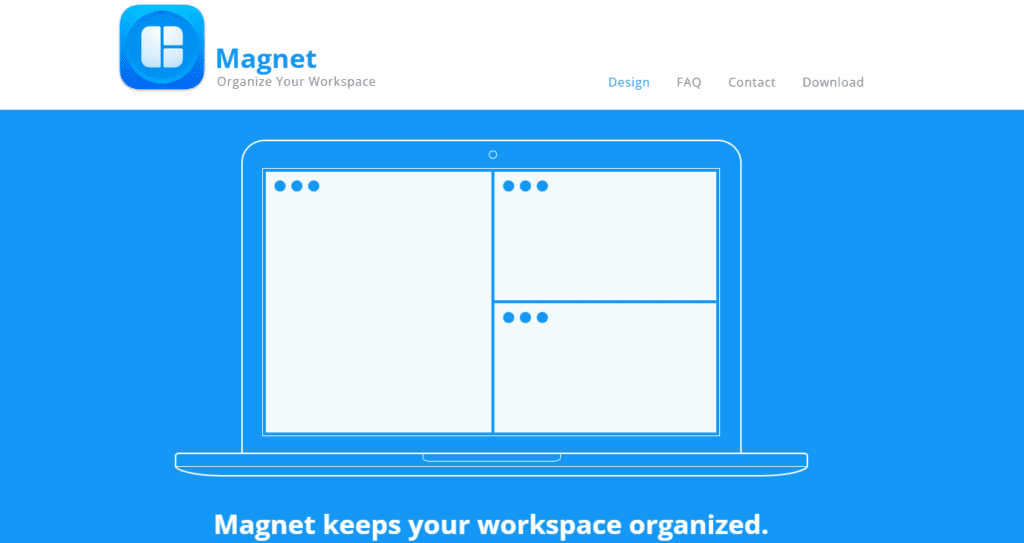
macOS has improved its window management with recent updates, but it still doesn’t snap windows to halves, thirds, quarters, and corners the way Windows has natively done for years. Magnet fixes this with keyboard shortcuts and drag-to-edge snapping, making multi-window workflows on a large monitor feel genuinely effortless.
The value of Magnet compounds is directly proportional to the monitor size. On a 13-inch MacBook screen, window snapping is a convenience. And on a 27-inch or 32-inch external display, it’s transformative.
The ability to instantly arrange a browser window, a terminal, and a design file side by side without any manual resizing makes focused multitasking meaningfully more productive. I use it constantly when working with reference material on one side and an active document on the other.
Key Specs
- Platform: macOS 11.0 (Big Sur) and later
- Pricing: $7.99 one-time from the Mac App Store (one of the most cost-effective tools on this list)
- Multi-monitor support: Yes (manages windows across multiple connected displays)
- Offline: Yes (fully local)
Why It Stands Out
- 45+ keyboard shortcut layouts covering halves, thirds, quarters, sixths, and specific screen zones.
- Drag-to-edge snapping works intuitively alongside keyboard shortcuts.
- Multi-monitor support moves windows between displays with a single shortcut.
- $7.99 one-time price is among the lowest on this list for the daily value it delivers.
Honest Limitations
- macOS Sequoia and macOS 26 have significantly improved native window tiling; some Magnet users find the native improvements sufficient and no longer need the app.
- No complex grid customization; tools like Moom or BetterSnapTool offer more granular layout control for users with specific custom arrangements.
- Minimal settings interface: it works, or it doesn’t, with little configuration in between.
Best For
Mac users with external monitors or anyone who regularly works with two or more windows simultaneously and finds macOS’s native window management too limited for comfortable multitasking.
4. Notion: All-in-One Workspace for Notes, Tasks & Documentation
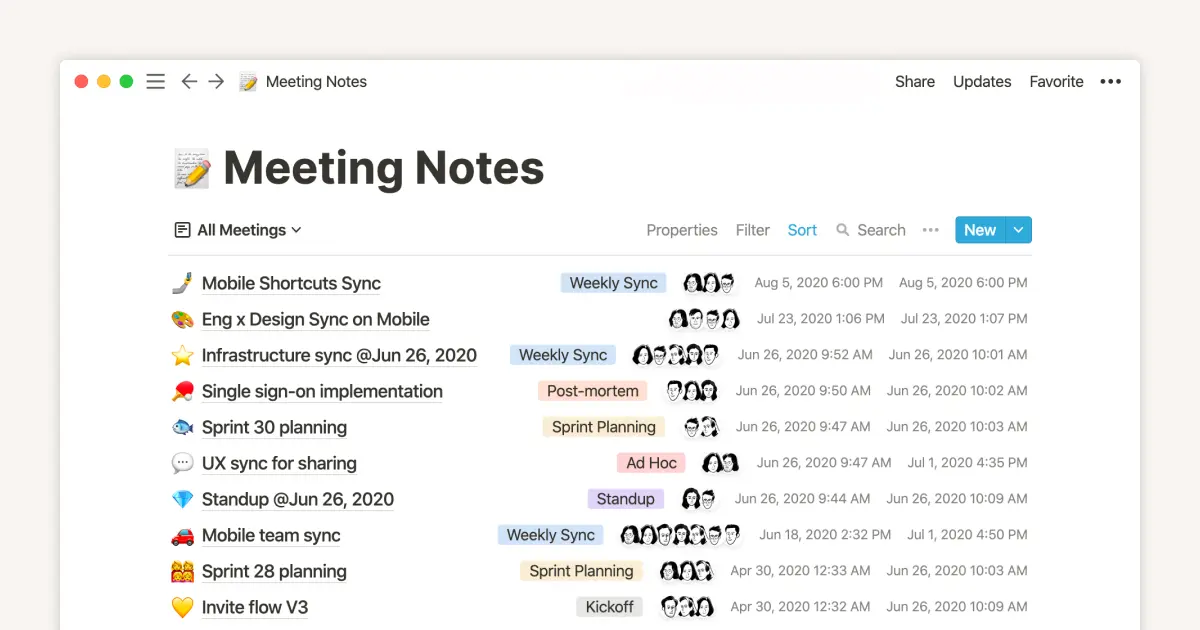
Notion has evolved from a notes app into the most flexible digital workspace available on Mac, handling documents, wikis, databases, project boards, and team knowledge bases in a single environment. The reason it stays on this list isn’t the breadth of features; it’s the quality of its execution for documentation-heavy workflows specifically.
For individual Mac users, Notion’s practical value lies in its role as a second brain: a place where project context, research notes, content calendars, and personal knowledge live within a system you can actually navigate. The block-based editor handles everything from simple bullet lists to complex linked databases without requiring you to learn different apps for different content types. Notion AI (available on the Business plan) searches your entire workspace to answer questions grounded in your own notes, which is genuinely useful when your workspace has grown large enough that you can’t remember where everything is.
Key Specs
- Platform: macOS 10.15 (Catalina) and later; iOS, Android, Windows, Web
- Pricing: Free (individual, unlimited pages); Plus from $10/user/month; Business from $20/user/month (annual billing); AI features require a Business plan
- Offline: Limited (recently added offline editing on mobile and desktop)
- Collaboration: Real-time, with comments, mentions, and permission controls
Why It Stands Out
- The block-based editor handles text, databases, code blocks, embeds, and linked pages within the same document without format conflicts.
- The free individual plan is genuinely functional for personal use with unlimited pages.
- Notion databases link across pages; a project database connects to a client database, which connects to a task list, all navigable from one workspace.
- Templates for editorial calendars, OKRs, CRMs, and habit trackers are available on day one.
Honest Limitations
- The setup investment is real. Notion’s flexibility means there’s no prescribed workflow, which creates decision fatigue before you’ve built a system.
- Full AI capabilities require the Business plan at $20/user/month; the Plus plan doesn’t include AI.
- Performance degrades on very large databases with thousands of entries.
- Offline editing has historically been unreliable, a known pain point that Notion has been progressively improving.
Best For
Individuals and teams with documentation-heavy workflows, such as writers, researchers, content creators, and product teams, who want one organized workspace for notes, projects, and knowledge rather than separate apps for each.
5. DaisyDisk: Visual Disk Management for a Cleaner System
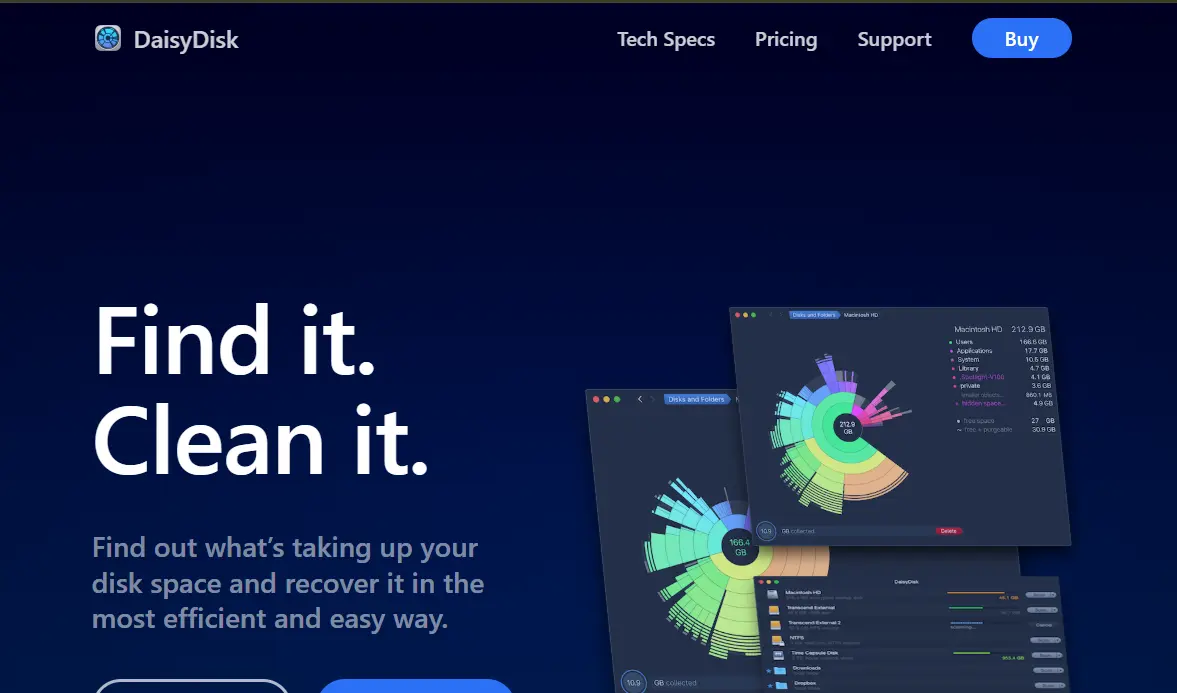
Most Mac users have experienced the moment when their storage is almost full, and they have no idea where it went. DaisyDisk solves this by scanning your entire disk and displaying the results as an interactive sunburst chart; each segment represents a folder, with its size proportional to the storage it consumes. You can drill into any segment, see exactly what’s inside, and drag unwanted files to a collection queue for deletion.
The visual approach to disk management works because it matches how humans understand size: seeing that your Movies folder takes up 40% of your disk as a large orange arc is more immediately actionable than reading “87GB” in a list. DaisyDisk’s scan speed is fast (a typical Mac drive scans in under 60 seconds), and the drag-to-delete workflow means cleanup happens inside the same tool rather than requiring you to open Finder.
Key Specs
- Platform: macOS 12 (Monterey) and later; Apple Silicon native
- Pricing: $9.99 one-time from the Mac App Store or daisydiskapp.com
- Admin access: Optional (enables scanning system files and other protected locations)
- Offline: Yes (fully local scan and cleanup)
Why It Stands OutA
- Sunburst visualization instantly reveals which folders are consuming a disproportionate amount of storage.
- Fast scan speed; full system scan in under 60 seconds on most Macs.
- The combined scan view shows internal and external drives in the same chart.
- The $9.99 one-time price makes it one of the best-value tools on this list.
Honest Limitations
- Not a replacement for a full Mac cleaner (like CleanMyMac), DaisyDisk visualizes and lets you delete files you identify, but it doesn’t automatically find duplicate files, old caches, or system junk.
- Admin password required to scan system-protected locations. This is correct behavior, but worth noting for users on managed corporate Macs with restricted admin access.
- The sunburst interface is intuitive for most users but has a small learning curve for understanding which segments to navigate.
Best For
Mac users who need to reclaim storage space and want to understand exactly what’s consuming it, particularly before upgrading to a new Mac, a major software update or when the “Your disk is almost full” warning appears.
6. Things 3: Beautiful, Minimal Task & Project Management
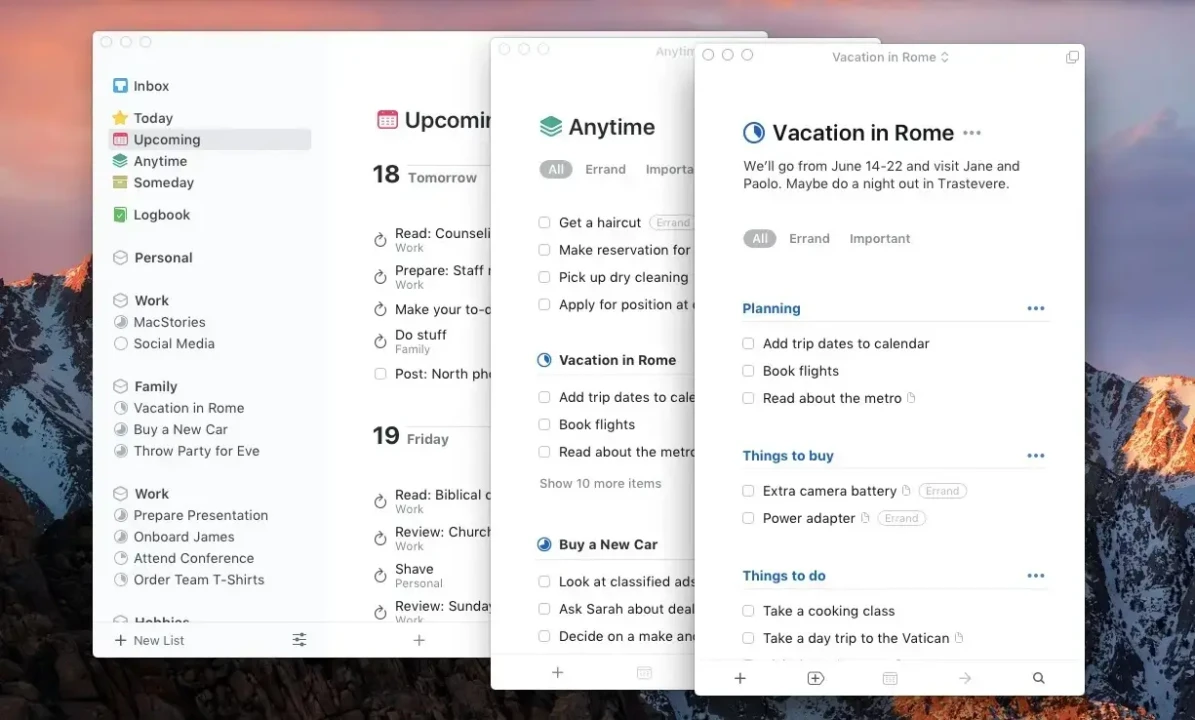
Things 3 by Cultured Code is the task manager that most Mac users with demanding workflows eventually settle on after trying alternatives. It costs $49.99 as a one-time Mac App Store purchase, no subscription, no ongoing fees, one of the cleanest interfaces in Mac software, and a system that provides just enough structure for your tasks without requiring you to build and maintain it.
The deeper reason Things 3 continues to earn recommendations is the quality of its native Mac design. It feels like it was built for macOS rather than ported from a web app.
Natural language date input (“this Friday” or “next month”), fluid drag-and-drop organization, a Today view that shows you what actually needs to happen today rather than everything in every project, and keyboard shortcuts that let you manage your entire task list without touching the mouse. Our Todoist vs Things 3 comparison covers the specific trade-offs between the two if you’re deciding.
Key Specs
- Platform: macOS 12 (Monterey) and later; iOS app sold separately ($9.99); iPad app sold separately ($19.99)
- Pricing: $49.99 one-time (Mac); $9.99 one-time (iPhone); $19.99 one-time (iPad); no subscription
- Sync: Free Things Cloud sync across all your Apple devices
- Offline: Yes (fully local with background sync)
Why It Stands Out
- One-time purchase with no subscription; pay once and own it permanently.
- Today’s view gives you a daily focused list rather than an overwhelming everything-at-once view.
- Natural language date input understands “Thursday”, “next week”, and “in 3 days.”
- Keyboard-first design for users who prefer not to touch the mouse during task entry.
- Native macOS design that respects system conventions; notifications, drag-and-drop, and keyboard shortcuts all work as expected.
Honest Limitations
- No collaboration features. Things 3 is a personal task manager, not a team project management tool. If you need to assign tasks to other people, use Asana or ClickUp instead.
- $49.99 is a significant one-time investment compared to free alternatives, though it’s paid upfront rather than Todoist’s $4/month ongoing subscription.
- No native calendar view (only list and project views), users who want to visualize tasks on a calendar need an integration.
- iPhone and iPad apps are separate purchases, which surprises some users expecting a universal app.
Best For
Individual Mac users, freelancers, knowledge workers, students, and creatives who want a beautiful, fast, personal task manager that respects their attention and doesn’t require them to build or maintain a complex system.
7. Spark Mail: Smart, Clean Email Management

Spark takes a different approach to email than Apple Mail: instead of presenting every message in the order it arrived, Spark automatically organizes your inbox, grouping newsletters, notifications, and personal emails separately so that messages requiring a response are always visible at the top. The Smart Inbox is the core feature, and it works well enough that switching back to Apple Mail after using Spark feels like returning to an unsorted filing cabinet.
The team collaboration features are another distinguishing factor for small teams: Spark lets multiple people discuss an email thread in a shared sidebar before sending a reply, eliminating the “I’ll forward this to you for context” email chain that clogs inboxes in team environments. Email scheduling, snoozing, sending reminders, and templates are all present and well implemented.
Key Specs
- Platform: macOS 12 and later; iOS, Android, Windows
- Pricing: Free (core features, unlimited accounts); Premium from $4.99/user/month (AI writing, team features, unlimited templates); Business from $6.99/user/month
- Email accounts: Supports Gmail, Outlook, Yahoo, iCloud, Exchange, and any IMAP/SMTP account
- Offline: Yes (reads cached email offline; sending requires a connection)
Why It Stands Out
- Smart Inbox automatically categorizes messages, separating personal emails from newsletters and notifications without any manual setup.
- Email scheduling lets you compose now and send later at an optimal time.
- Snooze removes emails from your inbox temporarily and returns them when you’re ready to act.
- Team collaboration on email threads reduces internal email forwarding chains.
- Excellent Quick Reply feature for responding without opening a full compose window.
Honest Limitations
- Spark has faced scrutiny over its privacy practices: it processes email on Readdle’s servers to enable Smart Inbox categorization and AI features, meaning your email content passes through a third-party server. Review Spark’s privacy policy before connecting sensitive work or financial email accounts.
- The best AI and collaboration features require a paid Premium subscription. The free tier is genuinely functional, but the features that differentiate Spark from Apple Mail are increasingly behind a paywall.
- Apple Mail integration with iCloud and Apple devices is tighter. Spark’s advantage is primarily for users managing multiple email accounts from different providers simultaneously.
Best For
Mac users managing multiple email accounts, small teams who need collaborative email discussion, and anyone whose inbox is dominated by newsletters and automated notifications that they want automatically organized rather than manually filtered.
8. Bartender: A Cleaner, More Organized Menu Bar
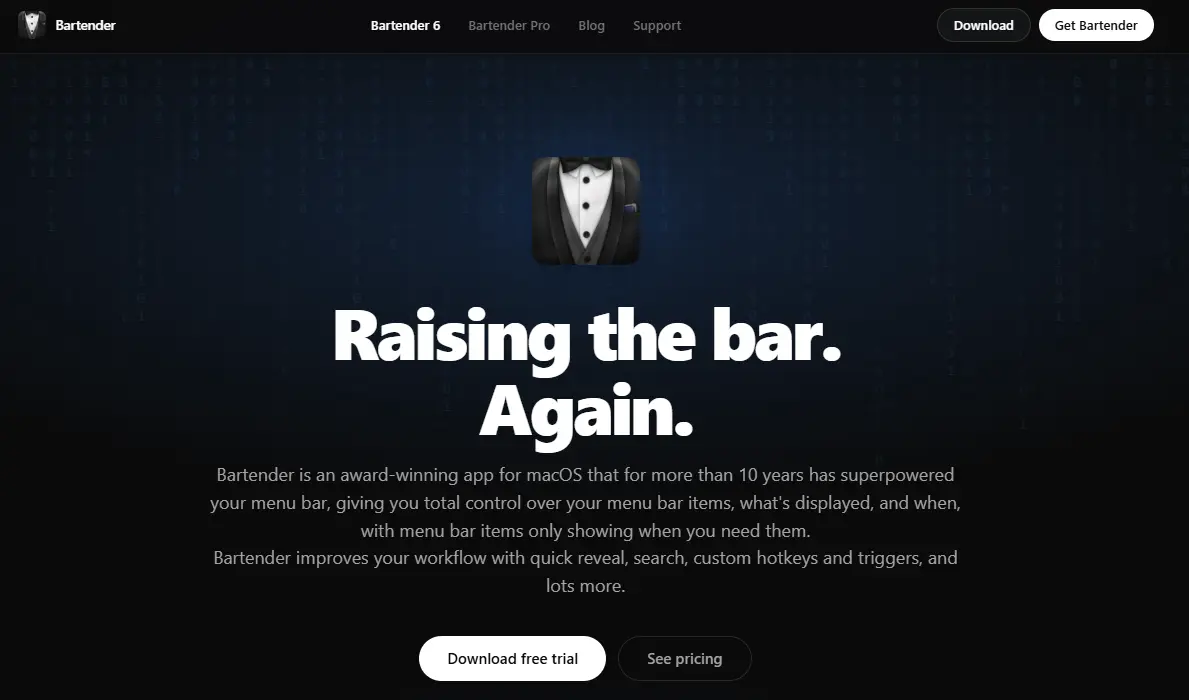
If your Mac’s menu bar has accumulated 15+ icons, from apps running in the background to menu bar utilities, cloud sync services, and status indicators, Bartender addresses this by hiding selected icons in a secondary menu bar that you can access with a single click. The result is a visually cleaner primary menu bar that shows only the indicators you actually use, with everything else just one click away.
Bartender’s practical value increases directly with the number of menu bar apps you use. For users with minimal menu bar presence, it’s optional. For users with a full row of icons competing for attention across a menu bar that also shares space with macOS system indicators, Bartender’s organization is genuinely focus-enhancing.
Key Specs
- Platform: macOS 13 (Ventura) and later
- Pricing: $16 one-time from macbartender.com; free 4-week trial available
- iCloud sync: Syncs Bartender settings across multiple Macs via iCloud
- Offline: Yes (fully local)
Why It Stands Out
- The trigger section shows specific menu bar items only when they change. A battery indicator appears only when the battery drops below 20%, for example, rather than sitting permanently in your menu bar.
- The search function finds any hidden menu bar item by name without revealing the full secondary bar.
- Custom spacing and sequencing for the items that do remain visible in the primary menu bar.
- iCloud sync keeps Bartender’s configuration consistent across multiple Macs.
Honest Limitations
- macOS Sonoma and later added limited native menu bar customization; some users find the native options sufficient for their needs without Bartender.
- The $16 price is modest but not free. Maccy and other focused utilities cover specific single-purpose needs at a lower cost.
- Occasional compatibility delays when a major macOS update ships. Bartender typically needs an update within a few weeks of each new macOS version.
Best For
Power Mac users who run multiple menu bar utilities simultaneously and find the resulting crowded menu bar visually distracting or practically difficult to use, particularly on MacBooks, where menu bar space is limited.
📊 Best Productivity Apps for Mac: Full Comparison

App | Category | Pricing | Free Option? | One-Time or Sub? | Best For | Verdict |
Workspace organizer | $19.99 | ❌ | ✅ One-time | Clipboard history + quick notes + file drawer | ✅ Essential daily tool | |
Screenshot + recording | $29 | ❌ | ✅ One-time | Professional screen capture and annotation | ✅ Best screenshot tool | |
Mac launcher | Free + $35 Powerpack | ✅ Basic | ✅ One-time | Power users who prefer a one-time purchase | ✅ Fastest launcher | |
Window management | $7.99 | ❌ | ✅ One-time | Multi-window workflows on large monitors | ✅ Best value tool | |
Notes + workspace | Free / $10+/month | ✅ | ⚠️ Subscription (paid tiers) | Documentation-heavy teams and individuals | ✅ Best all-in-one workspace | |
Disk management | $9.99 | ❌ | ✅ One-time | Storage cleanup and visualization | ✅ Best storage tool | |
Task management | $49.99 (Mac) | ❌ | ✅ One-time | Personal task management, no subscription | ✅ Best personal task manager | |
Email client | Free / $4.99+/month | ✅ | ⚠️ Subscription (premium) | Multi-account email, team collaboration | ✅ Best smart email client | |
Menu bar manager | $16 | ✅ 4-week trial | ✅ One-time | Users with crowded menu bars | ✅ Clean menu bar |
Why These Apps Work Well Together
What makes this collection effective is balance. Each app enhances a different part of your workflow:
- Unclutter organizes your workspace
- CleanShot X improves content creation.
- Alfred accelerates navigation.
- Magnet structures your screen.
- Notion centralizes your ideas.
- DaisyDisk keeps your system clean.
- Things 3 organizes your tasks.
- Spark streamlines emails.
- Bartender declutters your menu bar.
Together, they make macOS feel smoother, faster, and far more capable, especially if you spend hours on your Mac every day.
How to Build Your Stack: Which Apps to Start With
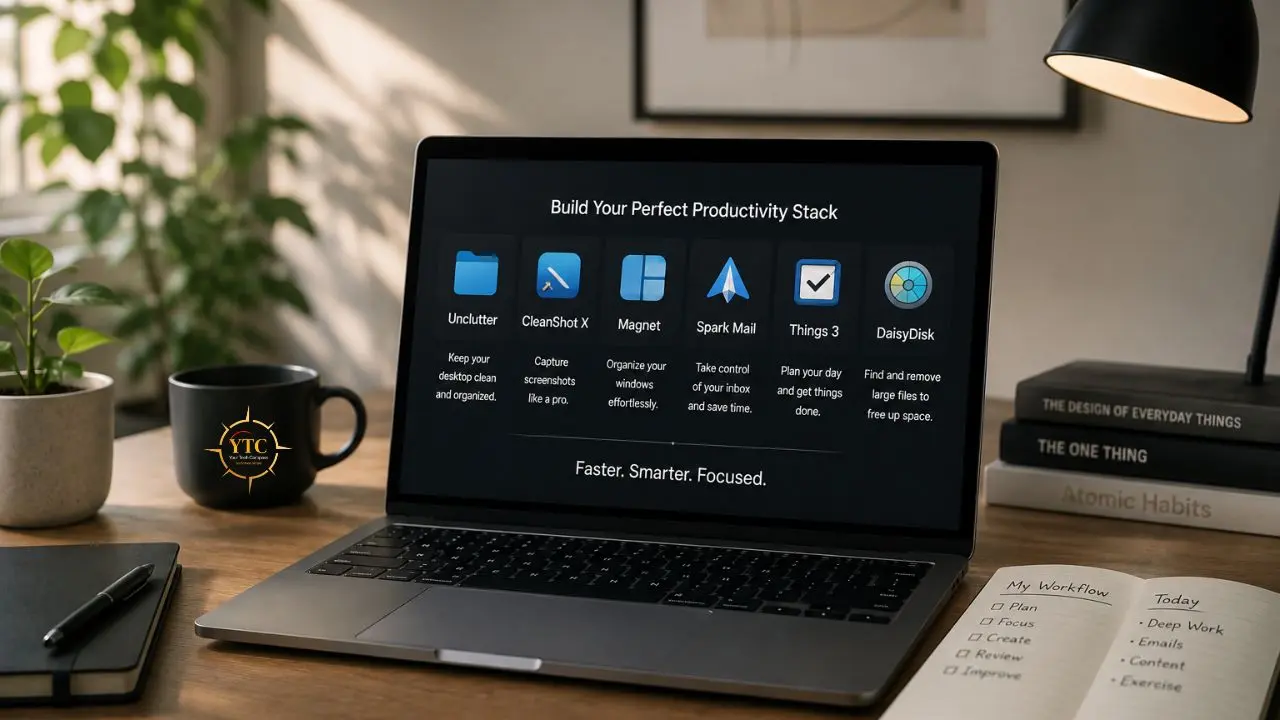
If you’re new to this list, don’t install all nine at once. Start with the apps that address your specific daily friction.
- If you copy and paste constantly, work across multiple sources, or have a cluttered desktop: Start with Unclutter. The immediate improvement to clipboard management and temporary file storage is noticeable within hours.
- If you create documentation, tutorials, or need professional screenshots: CleanShot X eliminates the manual step of opening an image editor to annotate captures.
- If you use a large external monitor or work with multiple windows simultaneously: Magnet is a $7.99 purchase that pays back its cost within days.
- If your inbox is unmanageable and you use multiple email accounts: Spark organizes incoming email without requiring you to build manual filters.
- If you need a personal task management system without a subscription: Things 3 is the one-time purchase that most Mac users with demanding workflows settle on after trying alternatives.
- If your Mac storage is running low: DaisyDisk shows you exactly where space is going in under 60 seconds.
For a broader view of productivity tools beyond the Mac, including cross-platform tools for remote workflows, our best productivity apps for remote workers guide and our best productivity apps that actually save time guide cover the full cross-platform productivity stack worth knowing about.
FAQs
It depends on the specific friction in your workflow. For most general Mac users, Unclutter addresses the most frequently experienced daily frustrations (lost clipboard items, temporary file management, quick notes) at a low one-time cost. For content creators, CleanShot X. For personal task management, Things 3. For knowledge management, Notion. There’s no single universal answer; the right tool is the one that removes the friction you specifically experience most.
macOS’s native tools cover the basics. These apps cover the things macOS doesn’t: annotated screenshots (CleanShot X), snapping windows to exact thirds (Magnet), clipboard history that goes back hours (Unclutter), and a task management system designed around personal productivity (Things 3). The cost of all nine apps on this list combined is less than two months of a professional software subscription, and most are one-time purchases.
Spark processes email on Readdle’s servers to power its Smart Inbox categorization and AI writing features, so your email content passes through third-party infrastructure. For personal and general business email, most users consider this an acceptable trade-off for the features gained. For emails containing highly sensitive, confidential, or regulated information (legal, medical, financial), review Spark’s full privacy policy before connecting those accounts. Apple Mail with iCloud provides tighter control over data for users with strict privacy requirements.
Final Thoughts

The best productivity setup for Mac isn’t about having the most tools; it’s about having the right ones that address the friction you actually experience in your daily workflow. Unclutter handles the clipboard, notes, and file organization layer that macOS doesn’t provide natively. CleanShot X handles professional screen capture without a separate editor. Magnet fixes window management in seconds. Things 3 provides a personal task system without a monthly subscription. Together, these apps don’t change how you work; they remove the small frictions that add up to hours lost over weeks and months.
Start with one or two tools that address your most frequent frustrations. Use them for a week before adding anything else. The best productivity app is the one you use consistently enough for the habit to form naturally, not the one with the longest feature list. All nine apps on this list have stood up to real daily use across real workflows, and that’s the standard that earns a recommendation here. If you love in-depth troubleshooting guides, you can check out articles such as How To Get Rid of Snapchat AI, How to Clear RAM on iPhone, How to Recover Deleted Photos on Android, and How to Protect Your Privacy Online.
Every app review, Mac guide, and honest tech recommendation worth bookmarking lives at YourTechCompass.com, where we review what actually works for how real people work every day.