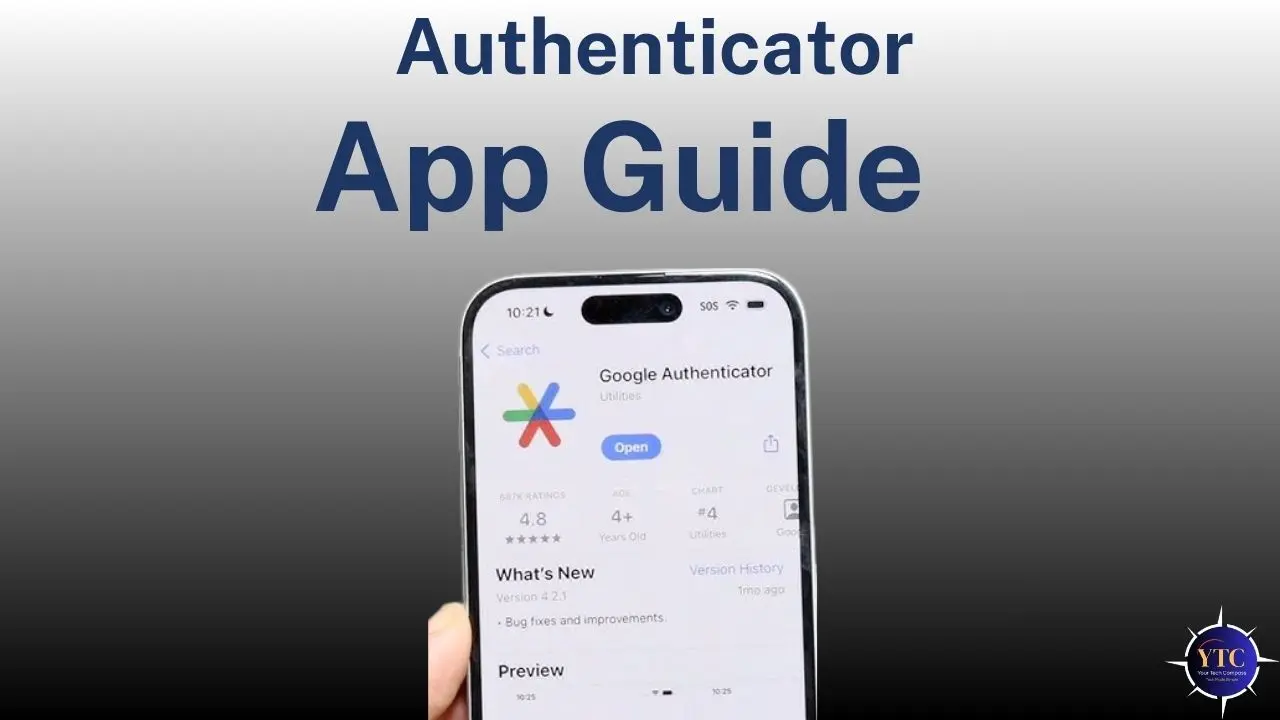
Two-factor authentication is no longer optional. As more of daily life moves online (email, banking, documents, and subscriptions), the risk tied to a single compromised password has become too high to ignore. The Google Authenticator app exists to reduce that risk by adding a second verification step that stays tied to your device rather than your phone number or inbox.
What matters, however, is not just what Google Authenticator does, but how it fits into real usage: how reliable it feels day-to-day, where it protects you well, and where its limitations can quietly become a problem. I’ve used Google Authenticator to secure everything from personal accounts to work tools, and the value lies in understanding its strengths and trade-offs before you rely on it as your primary security layer.
A note before we begin: every YTC score is earned, never negotiated. If you want to understand exactly how we evaluate apps & tools and how we handle affiliate relationships, our Review Methodology lays it all out.
What the Google Authenticator App Actually Does
In practice, the Google Authenticator app generates short-lived numeric codes that you enter after your password when signing in to supported services. These codes are generated locally on your device using the time-based one-time password (TOTP) standard, meaning they refresh automatically and cannot be reused.
Unlike SMS verification codes, which depend on your phone number and mobile network, authenticator codes work offline and are not vulnerable to SIM-swap attacks. That difference alone makes authenticator apps a more reliable baseline for account security. Google explains this model in its official account security documentation, which outlines why app-based 2FA is preferred over text messages for sensitive accounts.
Why Google Authenticator Became the Default Choice
Google Authenticator gained widespread adoption for one simple reason: it does one job and does it consistently. There is no account to create, no notifications to manage, and no dependency on connectivity. Once set up, the app simply produces codes whenever you need them.
That simplicity also aligns with how many people already use Google services. If your email, cloud files, or shared documents live within the Google ecosystem, especially in tools like Google Drive that centralize critical data, a straightforward second factor reduces the risk of total account compromise.
For readers who rely heavily on cloud storage, this 👉 Google Drive explainer provides useful context on why protecting the account itself matters more than protecting any single file.
Everyday Use: What Living With Google Authenticator Feels Like
In daily use, Google Authenticator fades into the background. You open it, glance at a code, and move on. There are no prompts, no push requests, and no decisions to make. That predictability is precisely why many people trust it.
However, that same minimalism means you’re responsible for managing everything around it, especially recovery. If you treat the app as “set it and forget it,” problems usually appear only when you change phones, travel, or lose a device.
How to Set Up 2FA with Google Authenticator
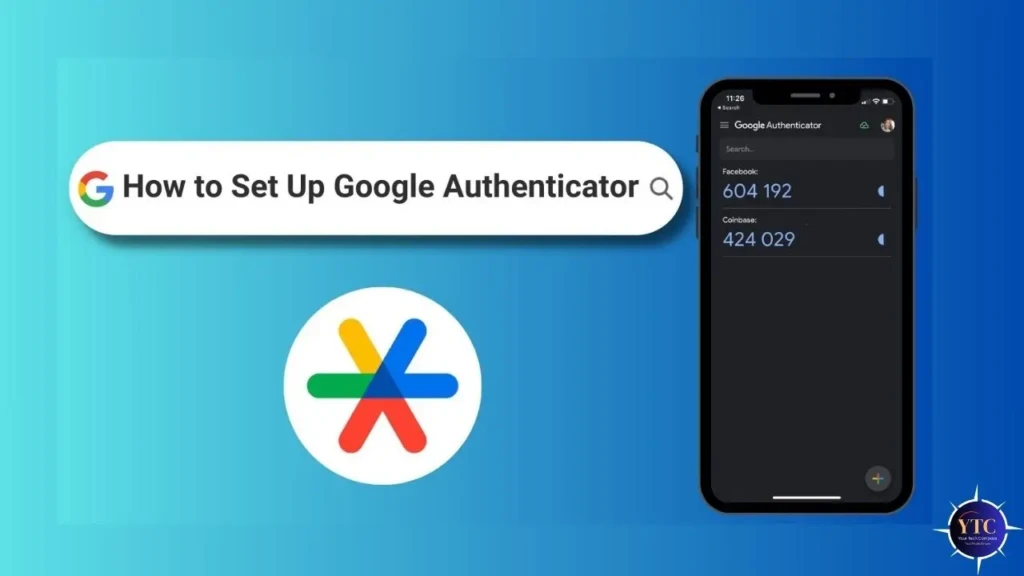
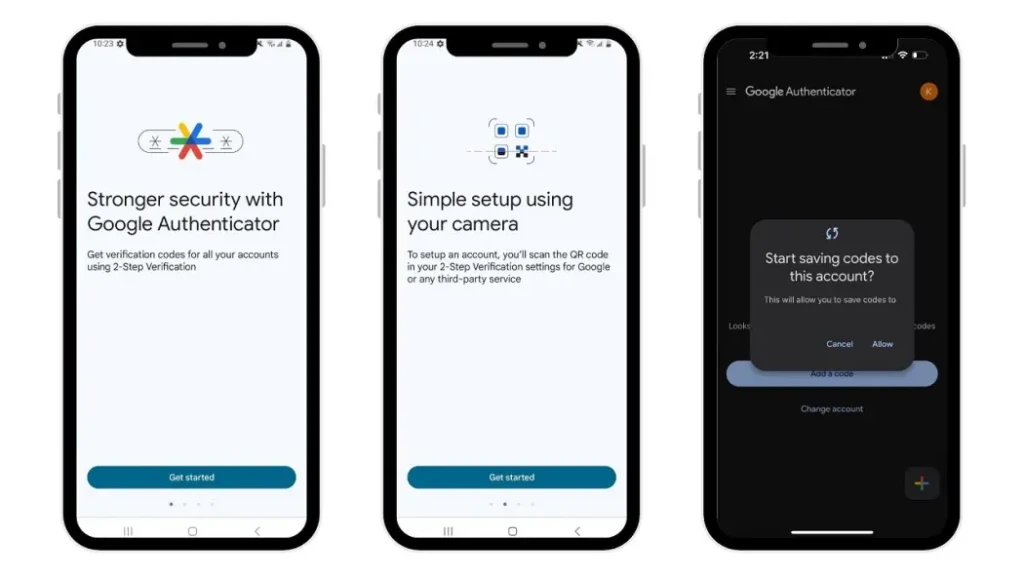
Setting up two-factor authentication (2FA) is a pragmatic step that serves as a centerpiece of your digital safety strategy. Once you have the app installed, linking your accounts is straightforward. I recommend starting with your primary Google Account to establish a secure foundation.
To begin, visit the security settings of the service you wish to protect and select the option for “Authenticator App.” You will typically be presented with a QR code. Open your Google Authenticator app, tap the “+” icon in the bottom right corner, and select “Scan a QR code.” After a quick scan, a new six-digit token will appear in your list. Much like testing aquarium water to ensure a healthy environment, entering this first code back into the website verifies that the connection is solid and your account is now shielded.
How to Enable Cloud Sync
One of the most important things you can do to prevent being locked out of your accounts is to enable Cloud Sync. In the past, losing your phone often meant a visual and auditory headache as you struggled to regain access to 2FA-protected sites. Now, you can securely back up your tokens to your Google Account so they are available whenever you sign in on a new device.
To enable this feature, simply tap your profile icon in the top-right corner of the app. If you aren’t already signed in, select your Google Account. Once connected, a small green cloud icon will appear, signifying that your codes are being synced and encrypted both at rest and in transit. I believe that this feature is a great addition for anyone who values a seamless transition between devices, ensuring that your “digital key ring” is always within reach when you need it.
Security Strengths That Actually Matter
Google Authenticator’s security advantages are practical rather than flashy:
- Codes are generated locally and expire quickly
- No phone number is involved, reducing exposure to carrier-level attacks
- The app works without internet access
- There is no central service issuing codes that could be breached
This model significantly lowers the attack surface compared to SMS or email verification. Security researchers consistently recommend app-based 2FA for this reason, particularly for accounts tied to payments, identity, or long-term data.
Limitations You Should Understand Before Relying on It
The biggest weakness of the Google Authenticator app is not security; it’s recovery.
If your phone is lost, damaged, or replaced without proper preparation, you may lose access to your codes. Google has introduced account-based syncing to reduce this risk, but that sync relies on your Google Account, which means a compromised Google Account could expose multiple layers of security at once.
This is where habits matter. Storing recovery codes safely, documenting which accounts use 2FA, and planning for device changes are essential. Many users manage these details with structured, secure notes rather than scattered screenshots or emails. If you already use Google Keep for sensitive reminders or checklists, this 👉 Google Keep guide shows how to fit it into a safer workflow.
Google Authenticator vs Other Authenticator Apps
To understand where Google Authenticator fits, it helps to compare it with common alternatives:
Feature | Google Authenticator | Microsoft Authenticator | Authy |
Cloud Backup | Yes (Google Account) | Yes (Microsoft Account) | Yes (Encrypted Password) |
Multi-Device Support | Yes | Yes | Yes |
App Lock | Biometric/PIN | Biometric/PIN | PIN/Biometric |
Primary Use Case | Individual Users | Enterprise/Office 365 | Multi-platform power users |
Push Approvals | No | Yes | Yes |
Setup Complexity | Very low | Medium | Medium |
Google Authenticator prioritizes simplicity and local control. Alternatives prioritize convenience and recovery. Neither approach is inherently better; it depends on how often you change devices and how much friction you’re willing to manage.
Who Is Google Authenticator Best For

The Google Authenticator app is a strong fit if you:
- Use one primary phone
- Prefer minimal apps with no background services
- Are comfortable managing recovery manually
- Want offline, no-frills security
For many people, especially those securing a small number of high-value accounts, that balance works well.
Who Should Consider an Alternative
You may want a different authenticator if you:
- Change phones often
- Use multiple devices daily
- Travel frequently and rely on fast recovery
- Want push approvals instead of manual codes
Travel and SIM changes are common failure points in authentication setups. Pairing your security tools with reliable connectivity, especially when moving between networks or countries, can reduce friction. If that’s a concern, our guide to choosing flexible Google Fi plans provides helpful context.
Best Practices That Prevent Lockouts
Regardless of which authenticator you use:
- Save recovery codes when offered
- Test account recovery before you need it
- Keep a simple list of which accounts use 2FA
- Avoid storing codes in photos or unsecured notes
The goal is not complexity; it’s resilience.
Choosing Authenticator Apps the Right Way
Selecting an authenticator is no different from choosing any security-critical app. You look at update history, developer reputation, and long-term reliability rather than flashy features. The same evaluation approach applies across the Play Store, and this 👉 guide on identifying high-quality Google Play Store apps explains how to assess apps beyond ratings alone.
FAQs
Yes. When used correctly, it adds a strong second layer of verification that is resistant to many common attack vectors, such as SMS hijacking.
No. The codes are generated locally, so you can authenticate even without an internet connection.
Yes. SMS codes can be intercepted via SIM swapping. Because Authenticator codes are generated on your device and never travel through the cellular network, they are significantly more secure.
If you didn’t enable cloud sync or save your “Secret Keys,” you will need to use the recovery codes provided by the specific website (e.g., Facebook or your bank) to regain access to your account.
Yes, the app is completely free to download and use on both Android and iOS devices. There are no subscription fees or hidden costs for generating security codes.
Absolutely. With the recent cloud synchronization features, you can sign in to your Google Account on multiple phones or tablets and have your 2FA codes available across all your devices at the same time.
If you have cloud sync enabled, you can simply reinstall the app and sign back in to restore your codes. If sync was off, you will need to use your emergency recovery codes to regain access to your accounts.
Final Thoughts
The Google Authenticator app remains a strong choice for securing everyday accounts with minimal overhead. Its straightforward approach, which generates reliable TOTP codes offline, keeps your digital logins protected without unnecessary features that can introduce risk or friction. At the same time, if easy recovery and multi-device flexibility matter to you, considering alternatives with encrypted backups may make daily life smoother.
Just as choosing the right apps for your productivity or device ecosystem (whether it’s refining what you use from the Play Store or pairing with tools like those in the guides for cloud storage and note-taking), authenticator apps benefit from a blend of intentional choice and practical habit.