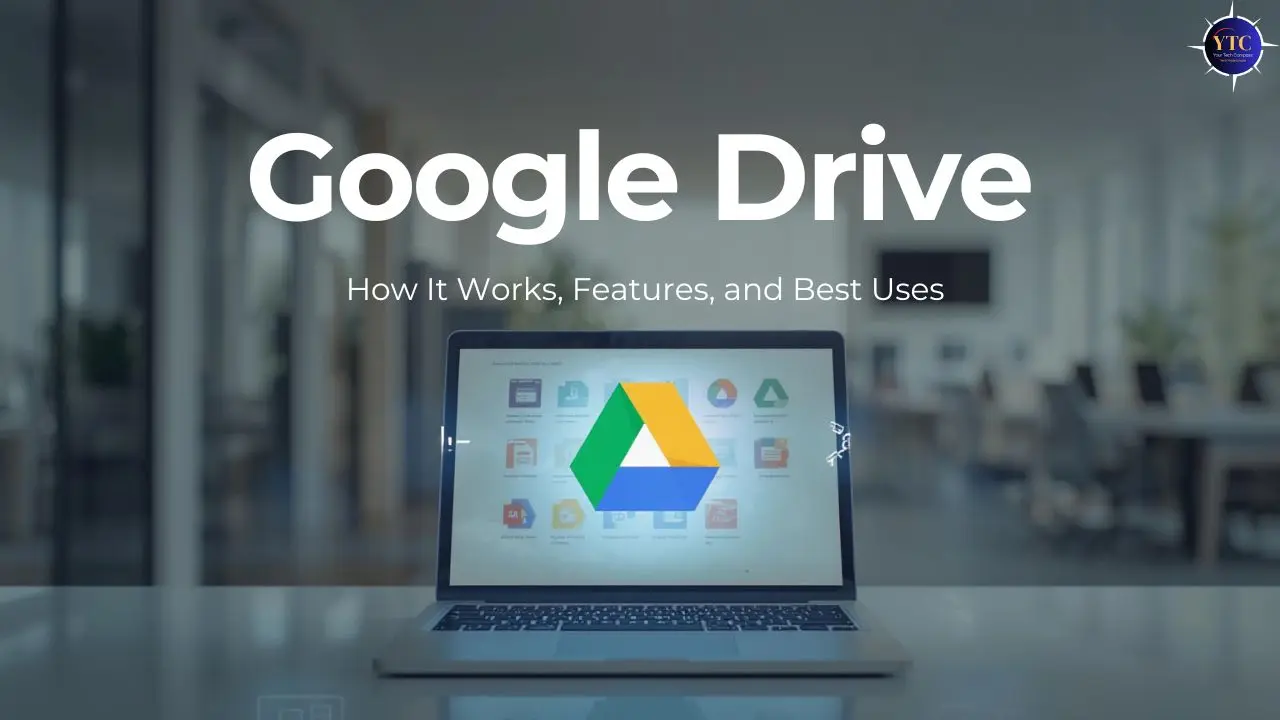
Cloud storage has become an essential part of how we work, communicate, and store memories. Google Drive stands out as one of the most widely used cloud platforms, thanks to its seamless integration with other Google services, generous free storage options, and powerful collaboration features. Whether you’re saving photos from your phone, sharing documents with colleagues, or backing up important files, Google Drive makes cloud storage accessible and intuitive for users of all experience levels.
In this article, we’ll break down how Google Drive works, what features make it valuable, and how to use it effectively, drawing parallels to other productivity tools you might already know, such as in-depth comparisons and other productivity insights on YourTechCompass that help you optimize your digital workflows. By the end, you’ll understand not just what Google Drive does, but how to make it work for you.
What Is Google Drive?
At its core, Google Drive is a cloud storage service that allows you to upload, store, sync, and share files online. Instead of saving files exclusively on your computer or phone, Drive stores your data in the cloud so that you can access it from multiple devices with an internet connection. Notably, Google Drive is integrated with other Google services, such as Gmail, Google Docs, Sheets, and Slides, making it a central hub for both personal and professional file management.
In contrast to traditional local storage, where a document lives only on your device, cloud storage ensures that your files are safely stored on Google’s servers and available wherever you sign in with your Google account. This flexibility is one of the key reasons millions of users rely on Drive for file access anytime, anywhere.
How Google Drive Works
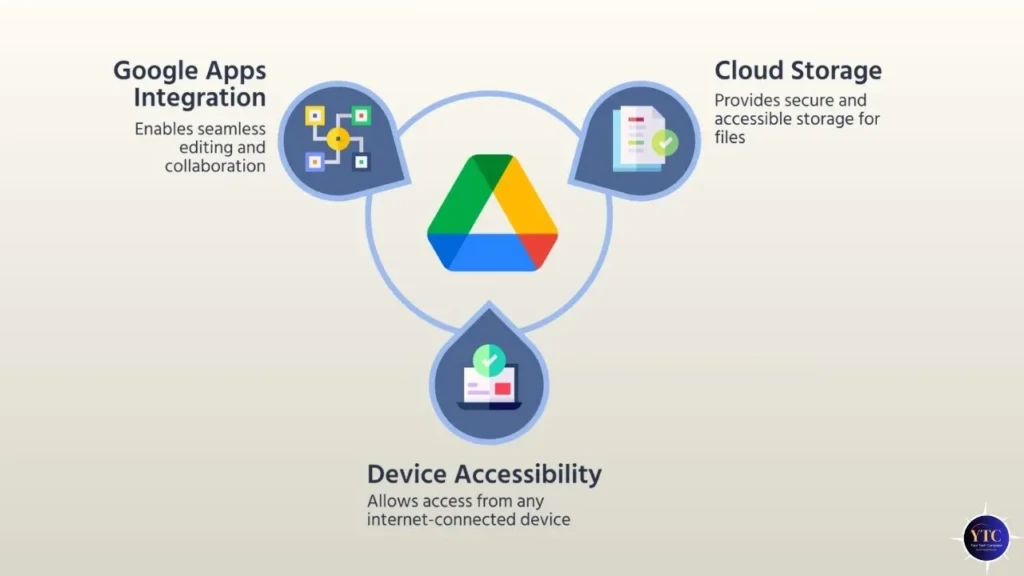
At a fundamental level, Google Drive operates on a few simple principles:
- Storage: Files you upload, whether photos, videos, documents, or presentations, are stored securely on Google’s cloud servers.
- Syncing: Whether you use the Drive app on mobile, the Drive for Desktop desktop app, or the web interface, files and changes sync across all connected devices.
- Access: You can access your files through the Drive website, mobile app, or a synchronized folder on your computer. Offline access is also possible if you choose to make files available offline.
This syncing mechanism means that if you edit a document on your phone, the change will be reflected on your laptop almost instantly when you’re connected to the internet. In contrast, traditional local file systems require manual transfers to sync between devices.
Key Google Drive Features
Google Drive offers a robust set of tools and capabilities beyond simple storage. These features help make it more than just a repository for files; they turn it into a powerful productivity platform.
File Storage and Organization
You can create folders, subfolders, and custom naming systems to keep your files organized and easy to locate. Tags and color-coding support further enhance organization for frequent Drive users.
File Sharing and Permissions
One of Drive’s strengths is how simple it makes sharing files. You can share links with others and manage their access (view, comment, edit). You can also set time-limited access or require users to sign in to access shared content.
Collaboration Tools
Drive integrates seamlessly with Google Docs, Sheets, and Slides, letting multiple people work on the same file in real time. This shared editing experience makes it ideal for teams and group work.
Search and File Recovery
Google Drive includes powerful search capabilities powered by Google’s own search algorithms. You can search by file name, content type, keywords, and even image text (OCR). Additionally, Drive’s version history allows you to revert to previous versions of a document if needed.
Integration With Google Workspace
If you use Gmail, Google Meet, Calendar, or Contacts, Drive ties directly into those services. For example, attachments from Gmail can be saved directly to Drive, and shared files can be opened within Workspace apps immediately.
Google Drive Storage Plans Explained
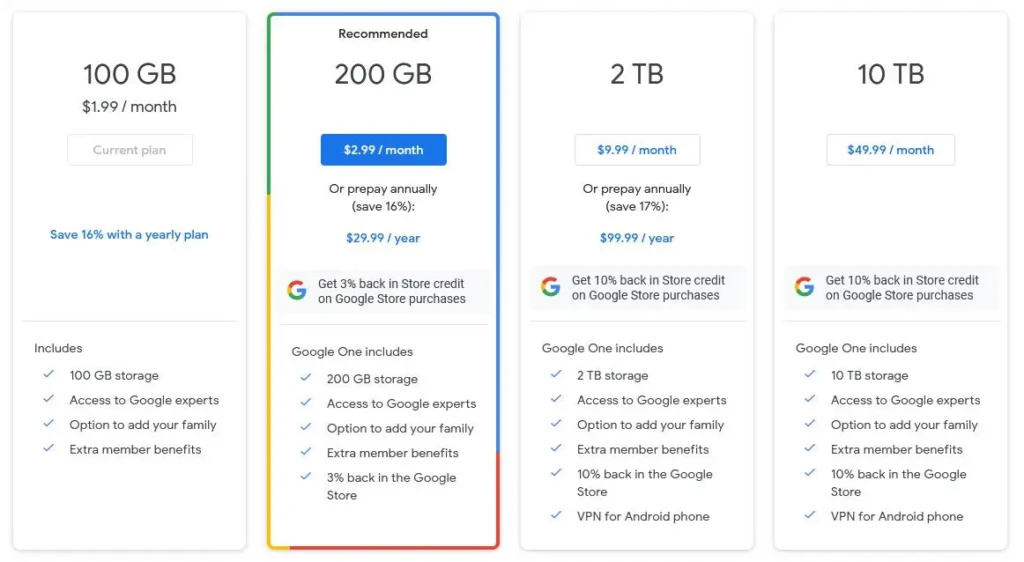
Google Drive offers a tiered storage model that starts with a generous free tier and expands into paid plans for heavier users:
- Free Tier: Every Google account includes free storage (typically 15 GB shared across Drive, Gmail, and Photos).
- Paid Plans: Google One upgrades offer expanded storage (with tiers such as 100 GB, 200 GB, and 2 TB, and, in some regions, even larger plans).
- Enterprise and Business Plans: For organizations, Google Workspace offers additional storage, administrative controls, and enhanced collaboration tools.
It’s important to note that your Drive storage is shared with Gmail and Google Photos, so if you send large attachments or store many photos, that space can fill quickly.
Google Drive for Personal Use
For everyday users, Google Drive is ideal for storing personal files such as photos, videos, PDFs, and documents. Many users set up automatic backups for their phones, ensuring that their precious images and videos are safely stored without manual uploads.
Drive is especially useful for sharing files with family and friends, whether it’s a vacation photo album or a budget spreadsheet. With various permission settings, you control whether someone can edit or only view your files.
Google Drive for Work and Productivity
In a work setting, Drive becomes a central hub for collaboration. Teams can share folders, co-edit documents, and leave comments that streamline project workflows. Furthermore, when paired with tools like Google Calendar and Gmail, Drive helps teams coordinate schedules and share key files in context.
This use case is similar to how task management tools, such as those compared in our Todoist vs Things 3 article, support productivity: Google Drive serves as the central repository for all project assets, while other tools manage workflows and reminders.
Google Drive on Mobile vs Desktop
Whether you’re on a smartphone or a laptop, Google Drive adapts to your workflow:
- Mobile App: The Drive app lets you access your files quickly, upload images and documents on the go, and scan documents using your phone’s camera.
- Desktop App (Drive for Desktop): This utility syncs folders on your computer with Drive, making cloud storage feel like part of your local file system.
- Web Interface: The browser experience remains the most comprehensive way to manage, search, and share files.
Each interface has strengths: the mobile app is convenient for quick access and capture, whereas the desktop app allows seamless integration with local folders.
Google Drive Security and Privacy
When using a cloud service, security and privacy naturally become concerns. Fortunately, Google Drive uses encryption both in transit and at rest, meaning your files are protected as they travel to and from servers and while stored. Additionally, Google’s advanced infrastructure includes monitoring for unusual activity and features such as two-factor authentication (2FA) to protect your account.
However, it’s still important to understand and manage your own sharing permissions to avoid unintended access. Periodically reviewing file permissions helps you ensure that only the right people can view or edit sensitive content.
Common Google Drive Mistakes to Avoid
Even seasoned users can fall into common pitfalls when using Drive. Here are a few mistakes and how to avoid them:
1. Poor Folder Organization
Cluttered folders make files hard to find. Instead, adopt a clear naming system and consistent folder hierarchy.
2. Overlooking File Permissions
Accidentally granting edit access can lead to unintentional changes. Always review sharing settings before sending links.
3. Ignoring Storage Limits
Since Drive storage is shared with Gmail and Photos, large attachments or backups can quickly eat into your quota. Consider upgrading your plan or regularly cleaning unnecessary files.
Google Drive vs Other Cloud Storage Services
Here’s how Google Drive compares with other popular cloud storage platforms:
Feature | Google Drive | Dropbox | OneDrive |
Free Storage | 15 GB | 2 GB | 5 GB |
Collaboration | Excellent (Docs/Sheets/Slides) | Good | Good (Office 365 integration) |
Platform Support | Web, Mobile, Desktop | Web, Mobile, Desktop | Web, Mobile, Desktop |
Best For | Google ecosystem users | Simple file sync | Microsoft ecosystem users |
Google Drive shines if you’re already embedded in Google’s ecosystem or need strong collaboration tools. Alternatives may be preferable if you rely heavily on Microsoft Office or require a robust, basic sync solution with minimal features.
Tips to Use Google Drive More Efficiently
To make the most of Google Drive:
- Use descriptive file names so searches work better.
- Add folders for projects or clients to compartmentalize work.
- Enable offline access to the files you need without an internet connection.
- Archive old files to reduce clutter and stay within storage limits.
These small habits can prevent common frustrations and improve workflow efficiency.
Final Thoughts
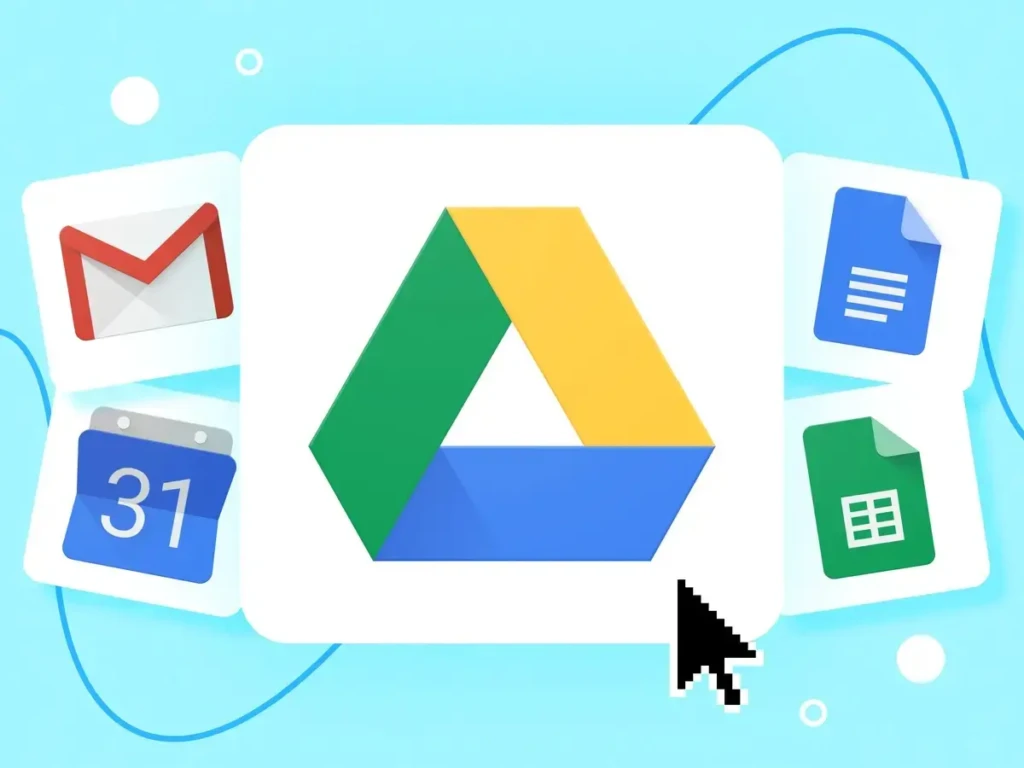
Google Drive isn’t just another cloud storage service; it’s a central hub for how we store, share, and collaborate on files in a world where remote work and digital workflows are increasingly common. Its deep integration with Google services, flexible sharing options, and powerful search capabilities make it a versatile tool for both personal and professional use.
Whether you’re organizing family photos, managing project files at work, or syncing documents between devices, understanding how Google Drive works can save time, reduce frustration, and help you stay organized without missing a beat. With a little planning and mindful use of its features, Google Drive can transform how you manage your digital life, and I hope this guide helps you get the most out of it.
FAQs
Yes. Google offers a free tier with 15 GB of storage shared across Drive, Gmail, and Photos.
Yes. Drive allows you to mark files for offline access on both mobile and desktop.
Google will prompt you to upgrade your plan or free up space by deleting large or unneeded files.
Google Drive uses encryption and offers security features like two-factor authentication, making it a secure service when used with good password practices.