I want to name the exact frustration this guide solves, because most people experience it long before they think to search for a fix. You open your phone looking for someone’s number, and it’s simply gone. Or worse, it’s there, but duplicated three times with slightly different spellings, because you imported it from a SIM card once, then your old phone backed it up to one account, and your new phone pulled in a separate copy from somewhere else entirely. This happens because contacts quietly accumulate across multiple disconnected places: a SIM card, a phone’s local storage, a Google account, an iCloud account, and sometimes an old Outlook account you forgot you ever signed in to, and none of those places automatically talk to each other.
The fix is genuinely simpler than the mess it creates, but it requires actually walking through the specific settings rather than just understanding the concept in the abstract. This guide gives you the exact steps, not just “enable sync,” but precisely which menu, which toggle, which screen, for syncing contacts on Android, on iPhone, between the two, and across phones, tablets, and computers simultaneously. I’ll also cover what to do about that SIM card sitting in your drawer with twenty contacts on it, how to clean up duplicates once everything’s connected, and the security habits worth building once your contacts live in one reliable place.
What Contact Syncing Actually Means
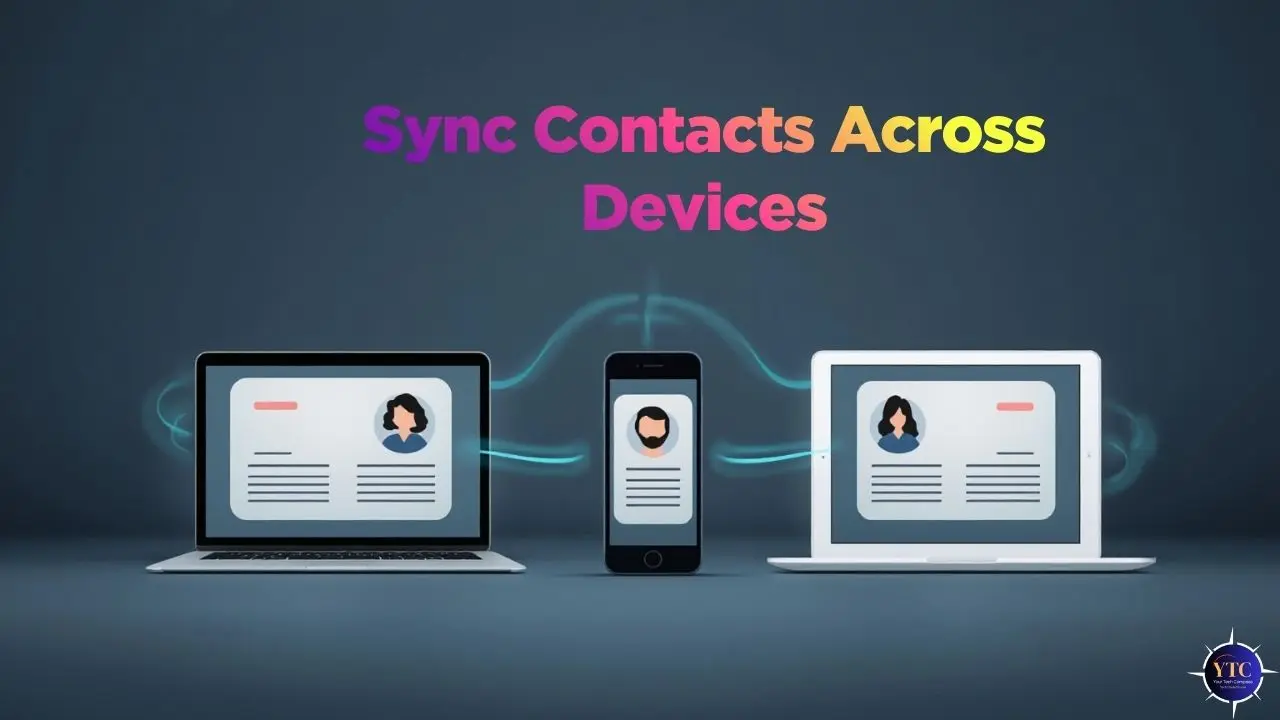
Contact syncing is the process of keeping a single master contact list in the cloud and letting every device you own automatically pull from it. When it’s set up correctly, adding or editing a contact on any one device, for instance, your phone, tablet, laptop, or even a web browser, updates that same contact everywhere else within moments.
The fragmentation problem starts when contacts are saved in multiple disconnected places without you realizing it. Some contacts might live directly on your phone’s internal storage. Others might be tied to a Google account.
A few more might be stored in an Apple ID, an Outlook account, or (still common in many markets) directly on a physical SIM card from years of phone upgrades. None of these locations automatically communicate with each other. The entire fix in this guide comes down to one principle: pick a single account as your master source, point every device to it, and stop manually moving contacts between locations.
How Contact Syncing Works Behind the Scenes
Every major platform (Android, iOS, Windows, and macOS) relies on cloud accounts as the connective layer between your devices. When syncing is enabled, your device uploads any contact changes to that cloud account, and the cloud account pushes those same changes down to every other device signed in with it.
This works on the same underlying logic as syncing files through a service like Google Drive. Your address book is simply treated as another category of data stored in the cloud rather than locally on a single device. If that comparison clicks for you, our detailed Google Drive guide walks through the same cloud-sync logic in more depth, applied to files rather than contacts.
Syncing Contacts on Android: Step by Step
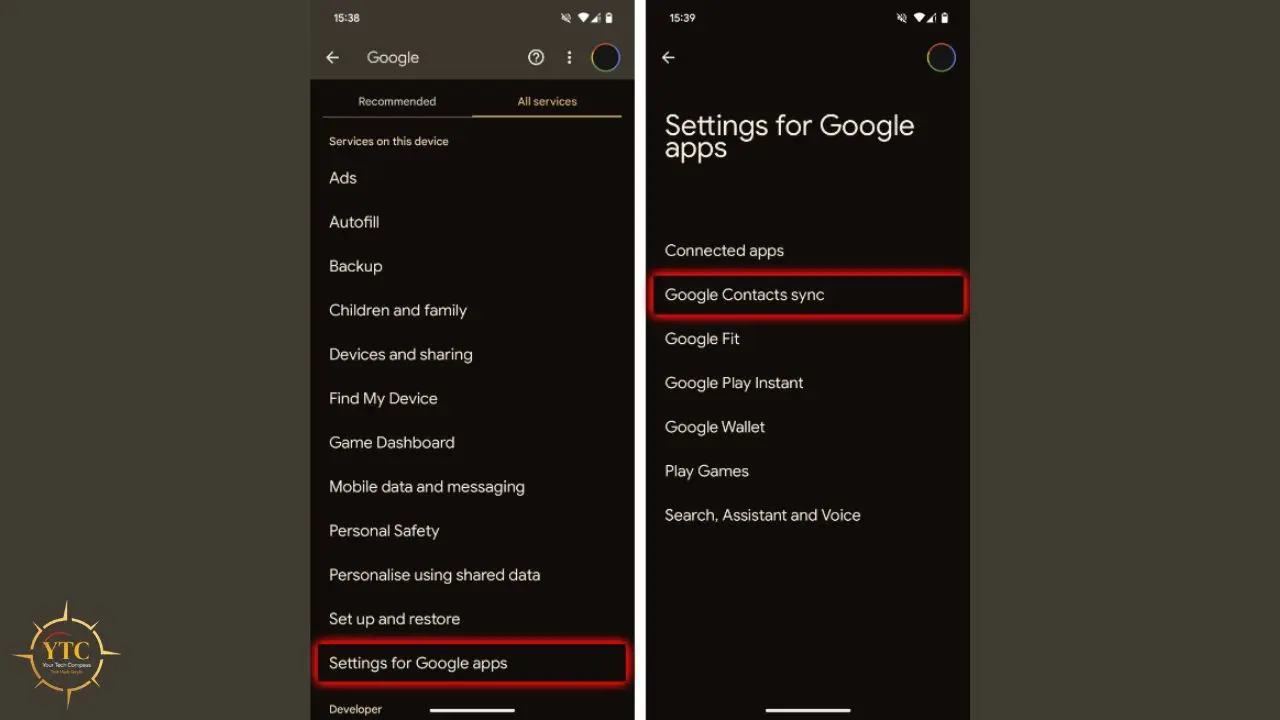
On Android, Google Contacts is the backbone of the entire system. Once contacts are saved to your Google account, rather than to your phone’s local storage, they automatically appear on any Android device or any other device signed in to that same account.
Step 1: Open Settings on your Android phone.
Step 2: Tap Google (on some phones, this may be labeled “Accounts” or “Users & Accounts” first, then your Google account).
Step 3: Tap Settings for Google Apps, then tap Google Contacts sync.
Step 4: Confirm the toggle is switched on.
Step 5: Go back to your phone’s main Contacts app settings and check where new contacts are saved by default. Look for an option labeled something like Default account for new contacts, and set it to your Google account rather than “Phone” or “Device.”
That last step is the one people most commonly miss. If new contacts are saved locally on your phone rather than to your Google account, they simply won’t sync, no matter how correctly the sync toggle is configured; the contact never reaches the cloud in the first place. Once both the sync toggle and the default save location point to Google, Android handles everything else automatically in the background.
This approach is particularly useful if you also use Google services on a computer, since you can view, search, and edit your entire contact list directly through contacts.google.com in any browser, no phone required.
Syncing Contacts on iPhone and Apple Devices: Step by Step
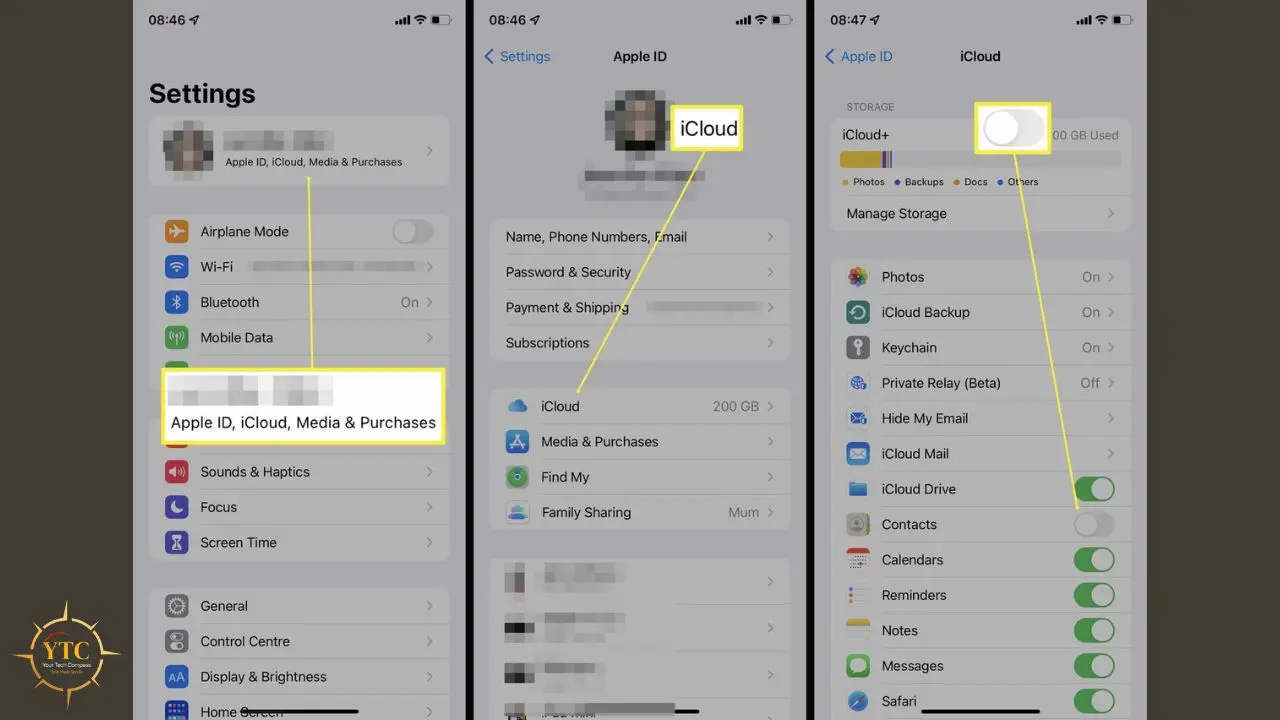
Apple uses iCloud the same way Google uses Google Contacts. Once iCloud Contacts is switched on, your iPhone, iPad, and Mac all automatically draw from and update the same shared contact list.
Step 1: Open Settings, then tap your name at the top of the screen.
Step 2: Tap iCloud.
Step 3: Scroll to find Contacts in the list of apps using iCloud, and make sure the toggle is switched on.
Step 4: If prompted to merge existing contacts on your device with iCloud, confirm. This brings any contacts currently saved locally on your phone into the synced iCloud account rather than leaving them stranded outside it.
Step 5: Repeat the same toggle check on every other Apple device. iPad and Mac both have their own equivalent iCloud → Contacts toggle in Settings or System Settings.
The most common issue here happens when iCloud Contacts is switched off, or when a contact is accidentally saved to a different account, Gmail or Outlook, for instance, that is also signed into the same iPhone, without the person realizing which account a new contact landed in. Once iCloud is enabled and set as the default for new contacts, syncing across all Apple devices becomes essentially invisible; you stop thinking about it entirely, which is exactly the goal.
Syncing Contacts Between Android and iPhone
This is the scenario that trips up most people, largely because it sounds like it requires special software. It doesn’t; it just requires picking the right bridge account, and Google is that bridge.
Step 1: On your iPhone, open Settings and tap Contacts.
Step 2: Tap Accounts.
Step 3: Tap Add Account, then select Google.
Step 4: Sign in with your Google account credentials.
Step 5: Once signed in, make sure the toggle next to Contacts is switched on for that account.
From this point forward, your iPhone will pull from and push to the same Google account your Android phone already uses by default. Both devices stay in sync continuously, with no manual exporting or importing required going forward. This is also the cleanest setup if you switch between Android and iPhone periodically, or if you simply use both platforms in different parts of your life; your contact list follows you regardless of which device you’re using.
A Note On the Reverse Direction
If you’re moving away from iPhone and want your existing iCloud contacts to populate a new Google account from scratch, the process above (adding Google as an account directly within iPhone’s Contacts settings and enabling sync) handles this automatically by pushing your existing iCloud-stored contacts into Google the first time you turn the sync toggle on, rather than requiring a separate export step.
What to Do With Contacts Stuck on a SIM Card
This is the gap most guides on this topic skip entirely, and it’s worth addressing directly because it’s genuinely common, especially if you’ve used multiple phones over the years or recently switched to a new device.
- On Android: Open your Contacts app, tap the menu (usually three dots or lines), and look for Import/Export or Manage Contacts. Select Import from SIM card, then choose your Google account as the destination rather than your phone’s local storage. This pulls all SIM-stored contacts into your synced cloud account in a single action.
- On iPhone: Open Settings → Contacts → Import SIM Contacts. iPhone will pull every contact from the physical SIM and add them directly to your default contacts account. That is why confirming your default account is set to iCloud or Google (per the sections above) before running this import matters, so the SIM contacts land in your synced account rather than sitting locally again.
Once you’ve imported SIM contacts into your synced account, the physical SIM card is no longer used for contact storage; everything lives in the cloud from then on.
Syncing Contacts Across Phones, Tablets, and Computers
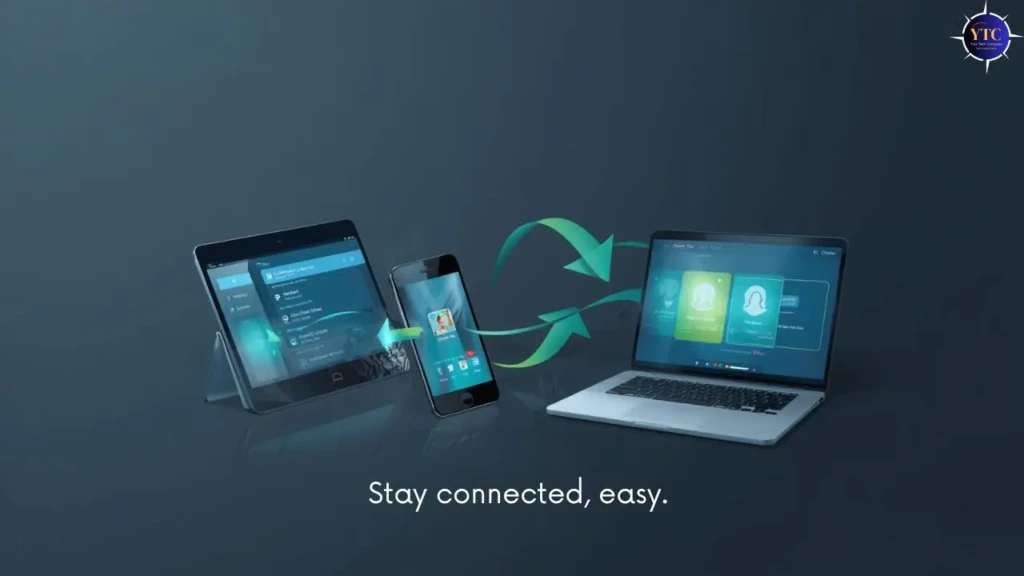
Once your contacts genuinely live in the cloud rather than on any single device, adding more devices to the sync becomes almost trivially easy. Phones, tablets, and computers simply mirror whatever’s already in your account, provided you sign in with that same account and confirm contact syncing is enabled on each new device.
On computers specifically, your synced contacts typically surface through three channels: the web interface directly (Google Contacts at contacts.google.com, or iCloud.com for Apple), any email and calendar apps linked to that same account, and the native Contacts application built into macOS or Windows once you’ve added the account there. At this stage, syncing genuinely becomes “set it and forget it,” which is exactly the experience this entire guide is built around achieving.
Choosing the Right Cloud Service for Contact Syncing
Service | Best For | Why It Works Well |
Google Contacts | Android, mixed Android/iPhone households | Best cross-platform support; works natively on both ecosystems |
iCloud Contacts | Apple-only setups | Deep, invisible system integration across iPhone, iPad, and Mac |
Outlook / Microsoft 365 | Work and enterprise environments | Strong pairing with corporate email and calendar systems |
If you regularly switch between devices or platforms, or live in a household with a mix of Android and iPhone users who share data, Google Contacts is the most flexible single choice available. If you’re fully committed to Apple’s ecosystem across every device you own, iCloud is the smoother, more seamless option specifically because it requires zero additional account setup beyond what your Apple ID already provides.
Common Contact Syncing Problems and Why They Actually Happen
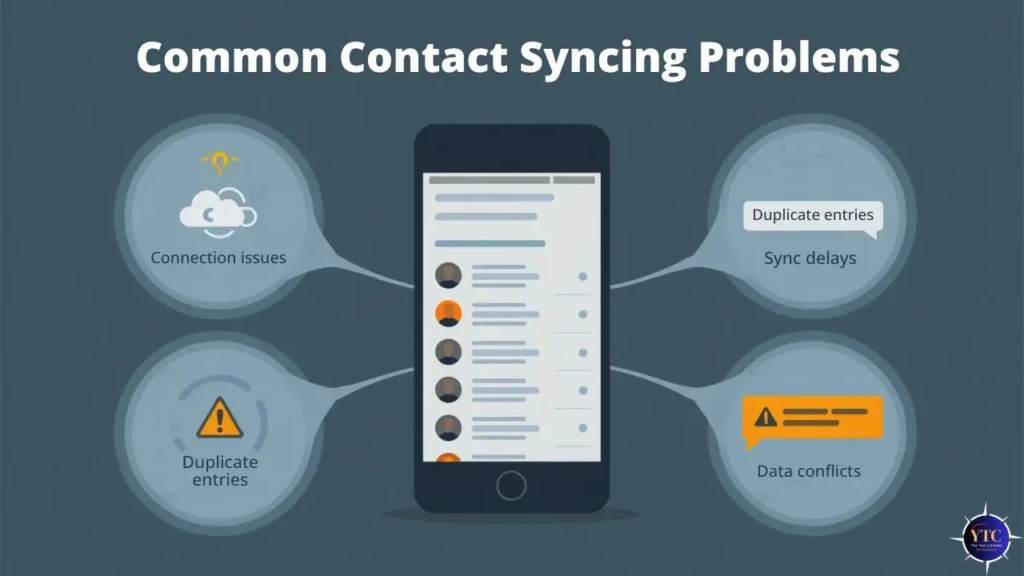
Most syncing issues fall into a small, predictable set of categories once you understand the underlying cause.
- Contacts don’t appear on a new device. This almost always traces back to contacts being saved locally on the original device rather than to the synced account; they were never uploaded to the cloud layer in the first place, so there’s nothing for the new device to pull down.
- Duplicate entries pile up. This typically happens when the same contacts are imported more than once from different sources, for instance, a SIM card import on top of an existing synced contact, or when signing into the same account on a new phone that still has its own local copy of overlapping contacts.
- Sync simply stops working. Usually traced to an account password change that the device hasn’t been re-authenticated with, or sync being silently disabled during a major OS update, without you noticing the toggle reset.
The fix for duplicates is that both Google Contacts and iOS now include built-in duplicate-merging tools, eliminating the need for manual cleanup. In Google Contacts on the web, look for the Merge & fix or Duplicates option in the left sidebar; it automatically detects likely duplicate entries and lets you merge them with one click each, or merge all detected duplicates at once. On iPhone, open the Contacts app, scroll to the bottom, and look for Link Duplicates or check under Settings → Contacts → Merge Duplicate Contacts, depending on your iOS version; both surface the same underlying detection and one-tap merge functionality.
The broader fix for syncing problems is almost always the same regardless of the specific symptom: confirm which single account is genuinely acting as your master list, clean it up once using the duplicate tools above, and let every other device sync cleanly from that point forward. Repeatedly re-importing contacts to “fix” a sync problem almost always makes duplication worse, not better.
Keeping Your Contacts Secure While Syncing
Contacts contain genuinely personal information, for instance, phone numbers, email addresses, sometimes physical addresses and birthdays, so the security of whichever account you’ve chosen as your master list deserves real attention, not just an afterthought.
The safest setup combines four things: one trusted cloud account rather than contacts scattered redundantly across several; a strong, unique password for that account rather than one reused elsewhere; two-factor authentication enabled on the account, which means that it will significantly reduce the risk of unauthorized access even if your password is ever compromised; and minimal third-party app access to your contacts. Periodically review which apps you’ve granted contact permissions to and revoke access for anything you no longer actively use.
If you’re ever planning a major change, for instance, switching from Android to iPhone, or moving to an entirely new Google or Apple account, exporting a backup contact file beforehand (a .vcf file, which both Google Contacts and iCloud.com can generate from their respective export menus) gives you genuine peace of mind during the transition. Think of it as the contact-list equivalent of a safety net you hope never to need but are glad to have in place.
How Synced Contacts Quietly Improve Everyday Productivity
Once contacts are reliably synced, the benefit extends well beyond simply being able to find a phone number on whichever device you happen to be holding. Messaging apps recognize and display the correct names instead of raw phone numbers.
Calendar invites automatically pull the right contact details for attendees. Task and collaboration tools feel more genuinely connected when they can correctly identify who you’re working with, a benefit that compounds nicely if you’re also using dedicated productivity apps, as covered in our Todoist vs Things 3 comparison, where having accurate contact data feeding into task assignments and shared projects removes one more point of daily friction.
It’s the kind of foundational setup that doesn’t announce itself when it’s working correctly. It simply makes the rest of your digital life feel calmer and more connected, without demanding any ongoing attention once it’s properly configured.
FAQs
Yes. Once sync is enabled on a device and the device has an active internet connection, new contacts and edits are uploaded and downloaded automatically, with no manual action required. You can also trigger a manual sync immediately by pulling down to refresh in the Contacts app or by using the account sync option in your device’s account settings if you don’t want to wait for the automatic background sync cycle.
No, the initial upload or download of any contact change requires connectivity, since the entire process depends on communicating with the cloud account, which acts as your master list. That said, once contacts have synced at least once, they remain fully accessible offline on your device for viewing and calling; it’s only new changes that require a connection to propagate.
Simply sign in to your existing cloud account (Google or iCloud) on the new device and enable Contacts sync as covered in this guide. Your full contact list populates on the new phone automatically within moments, with no manual transfer, export, or third-party app required, provided your contacts were already syncing properly on your previous device.
Yes. Outlook and Microsoft 365 both offer genuine contact syncing as well and are a strong fit, particularly for work and enterprise environments already built around Microsoft’s ecosystem. That said, cross-platform convenience between Android and iPhone specifically is strongest when using Google as your account, since both platforms support it natively without any third-party software, whereas Outlook sync between the two platforms tends to require more manual configuration.
Duplicates almost always result from the same contact being imported from more than one source, commonly a SIM card import landing on top of contacts that were already present in your synced account, or signing into the same cloud account on a new device that also retained its own local copy of overlapping contacts. Both Google Contacts and iOS include built-in duplicate-merging tools for this purpose. Look for “Merge & fix” in Google Contacts on the web, or “Link Duplicates” in the iPhone Contacts app, rather than manually identifying and deleting duplicates one by one.
Generally, yes, provided you follow basic account security practices, use a strong, unique password, and use two-factor authentication on whichever account you’ve chosen as your master list. The main practical risk isn’t the cloud sync technology itself, which is mature and well-secured on both Google’s and Apple’s infrastructure, but rather weak account security or granting unnecessary third-party apps ongoing access to your contact data without periodically reviewing those permissions.
Final Thoughts
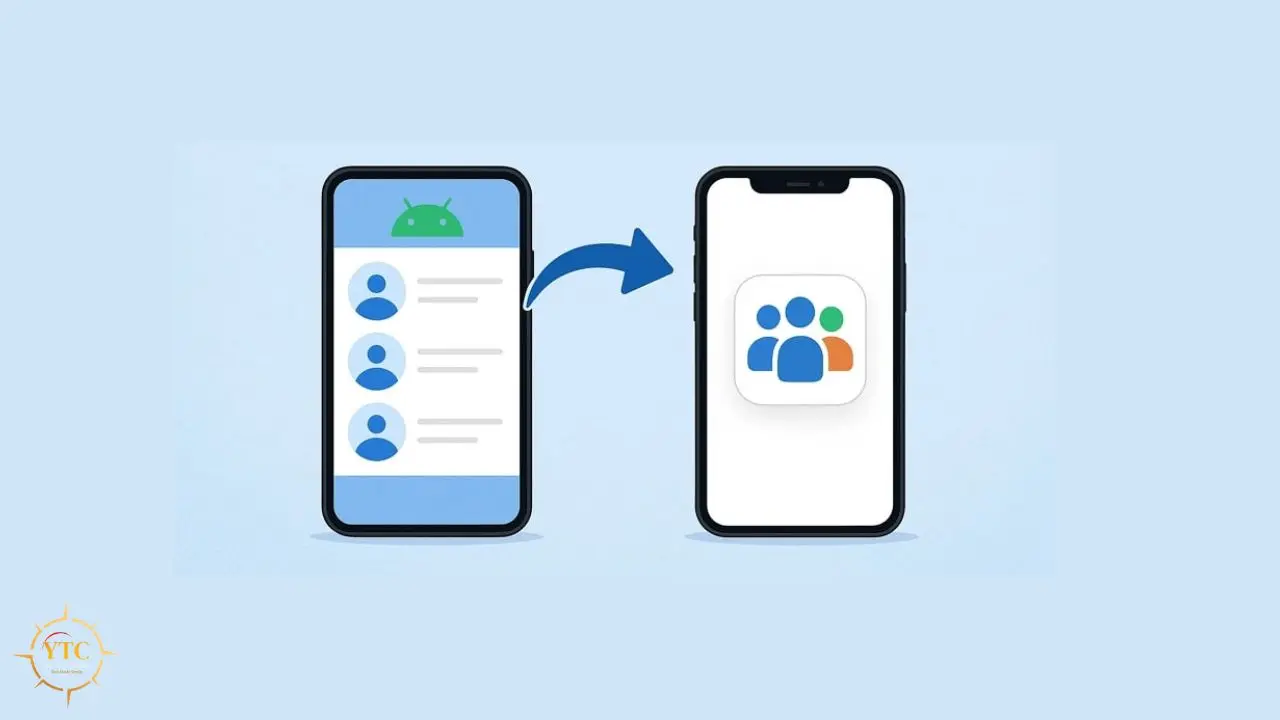
Syncing contacts across your devices isn’t a technical achievement to chase; it’s a single decision, made once, that quietly removes a recurring frustration from your daily life. When every contact lives in one cloud account, and every device you own is configured to point to that same account, the missing numbers, the duplicate entries, and the “wait, which phone is this person saved on?” moments simply stop happening. Updates happen invisibly in the background, exactly as this kind of infrastructure should.
If you take one thing from this guide, let it be this: pick a single account (Google if you move between Android and iPhone, iCloud if you’re fully inside Apple’s ecosystem) make it your default everywhere, import anything still stuck on a SIM card, run the duplicate-merge tool once to clean up the inevitable mess that’s accumulated, and then genuinely stop manually moving contacts between places. Once that foundation is properly in place, your devices finally start working together rather than independently, and that shift is one of the more underrated quality-of-life improvements in everyday tech.
There’s always more to learn about making the tech you already own work better for you, with less ongoing effort required. Visit YourTechCompass.com for more practical, detailed guides like this one.