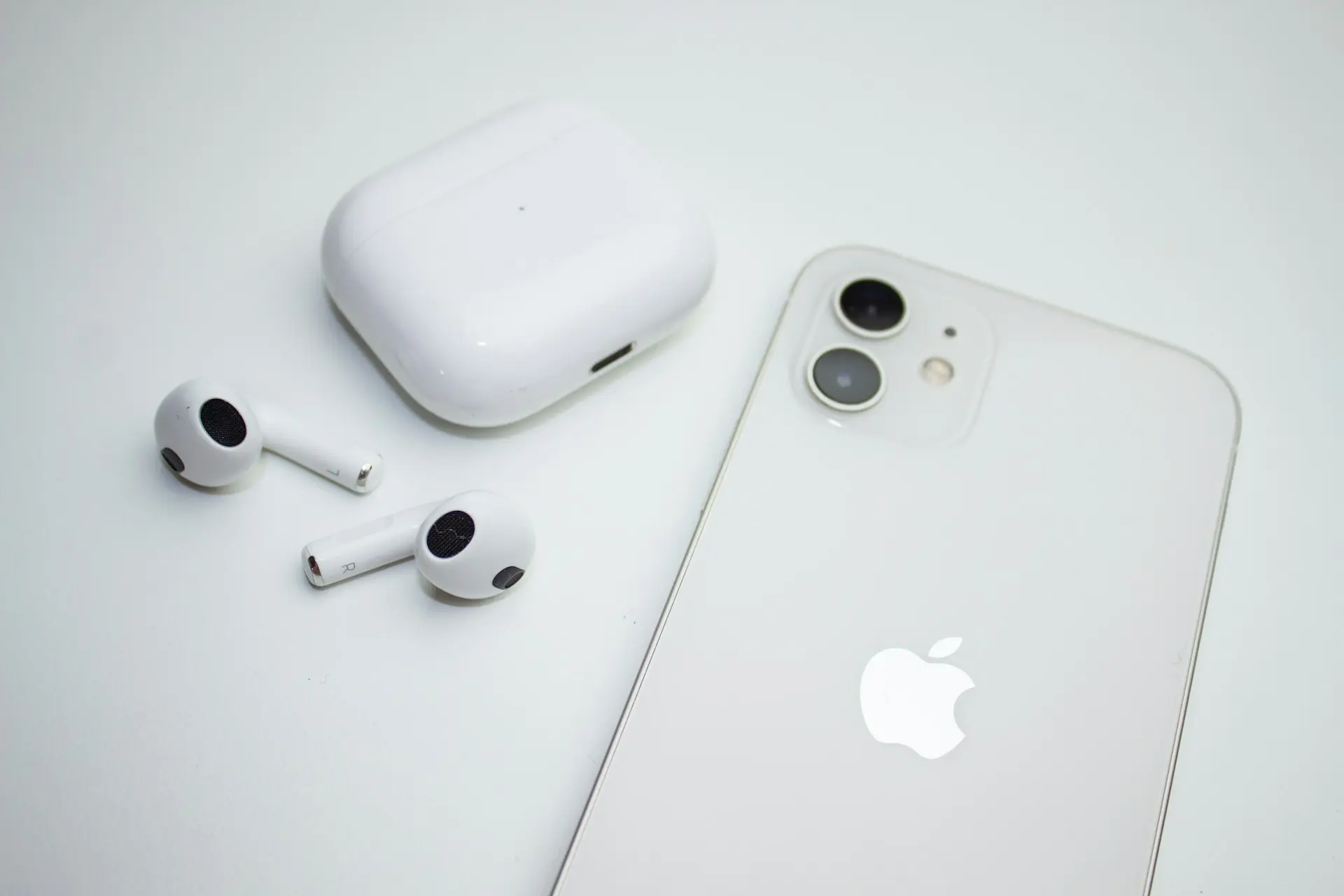
AirPods are designed to connect effortlessly to an iPhone. Still, if you’re new to Apple’s ecosystem or you’ve recently upgraded your device, it’s completely normal to have questions about pairing them correctly. Learning how to connect AirPods to iPhone can save you a lot of frustration and help you get the most out of features like Spatial Audio, seamless device switching, and hands-free Siri. And because every AirPods model behaves just a little differently, knowing the right steps can make the whole process much smoother.
In this guide, I’ll take you through exactly how to pair AirPods to an iPhone, how to switch between devices, and what to do if your AirPods won’t connect. I’ll break everything down simply so you can feel confident getting your AirPods up and running.
Check Compatibility Before Connecting
Before jumping into the pairing process, make sure your AirPods and iPhone are compatible. Most modern AirPods, AirPods (2nd generation and later), AirPods Pro (1st–3rd gen), and AirPods Max, work with any iPhone running iOS 15 or newer.
If your iPhone hasn’t been updated in a while, you may need to check your iOS version. Updating your iPhone can also help resolve pairing bugs or Bluetooth glitches.
Additionally, if your phone has been running slowly or behaving strangely, clearing unnecessary data before pairing might help. You can learn how in How to Clear Cookies on iPhone, a great way to freshen up device performance before connecting accessories.
How to Connect AirPods to iPhone (Standard Method)
Once you’re ready, connecting AirPods to an iPhone is usually quick and intuitive. Here’s how to pair AirPods for the first time:
For AirPods & AirPods Pro (All Generations)
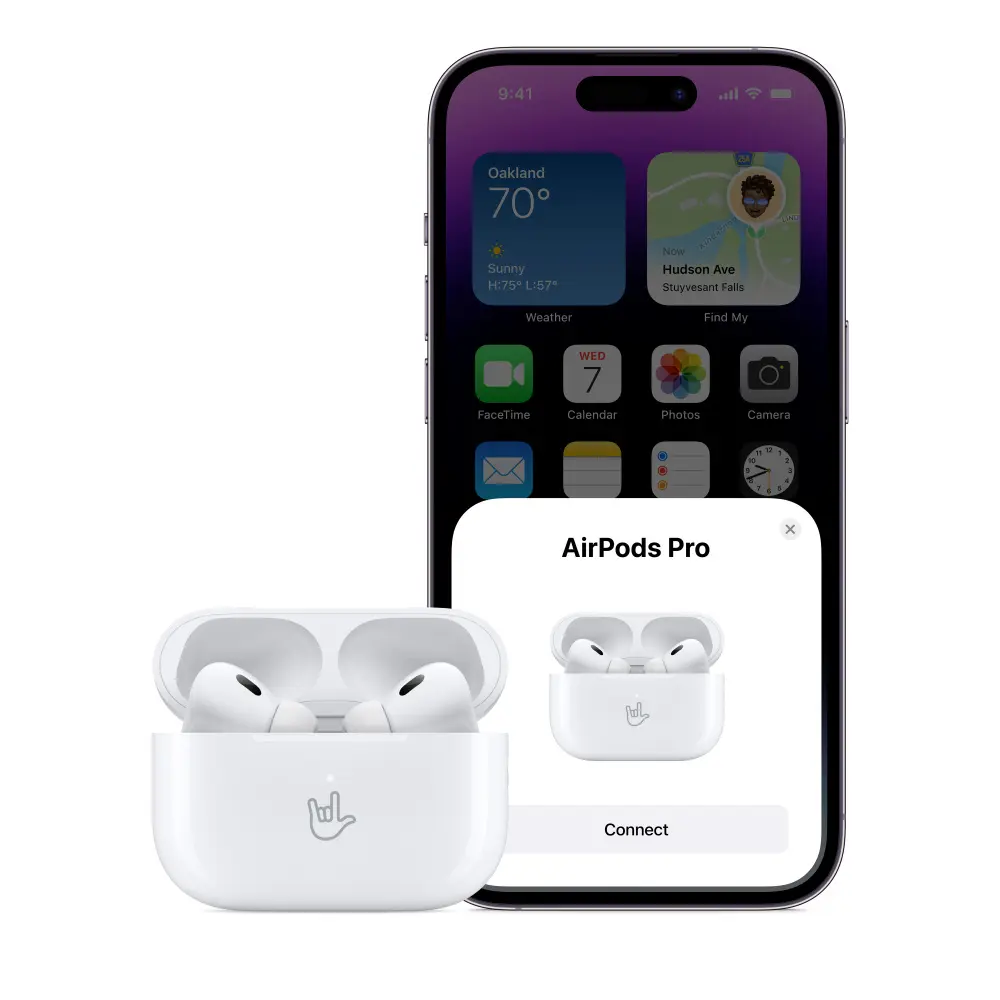
- Unlock your iPhone and go to the Home Screen.
- With your AirPods inside the case, open the lid.
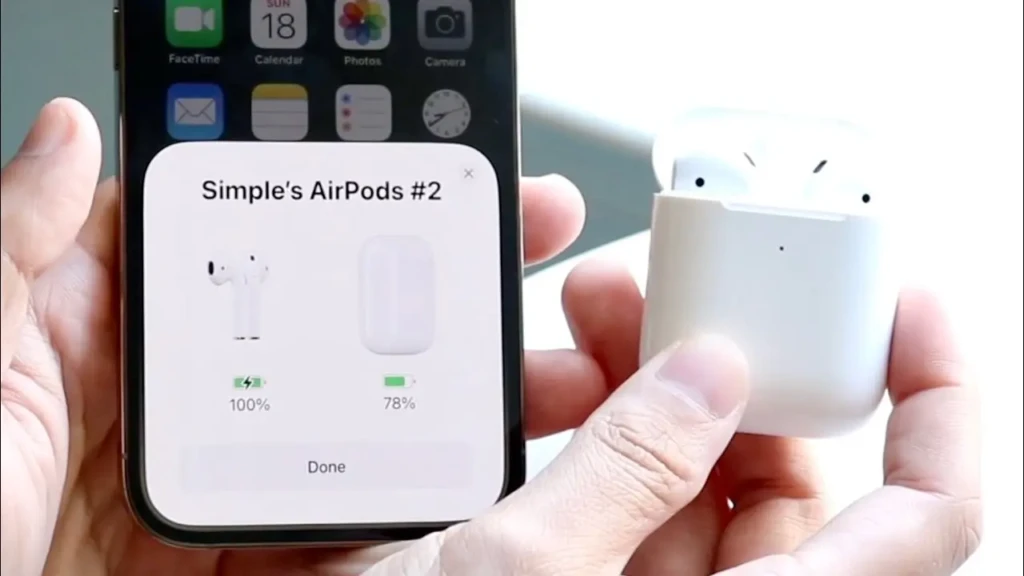
- A setup animation should appear automatically on your iPhone.
- Tap Connect.
- Follow any on-screen prompts (like enabling “Hey Siri” or Spatial Audio).
How It Works After the First Time
Once paired, your AirPods will connect automatically whenever you open the case near your iPhone. That’s part of the magic of the Apple ecosystem: quick, seamless pairing thanks to the H1 or H2 chips inside.
Connecting AirPods Max
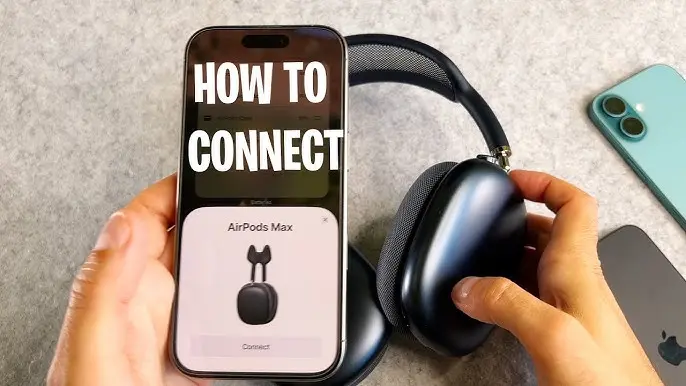
AirPods Max pair slightly differently:
- Press and hold the noise control button until the LED flashes white.
- A pairing window appears on your iPhone.
- Tap Connect and follow the rest of the setup steps.
How to Connect AirPods to iPhone If Already Connected to Another Device
Because AirPods are designed to automatically switch between Apple devices, they might sometimes cling to your iPad, MacBook, or Apple TV. Fortunately, switching them back to your iPhone is simple.
Method 1: Quick Switch from Control Center
- Swipe down from the top-right corner to open Control Center.
- Tap the Audio Card (top-right audio box).
- Choose your AirPods from the list.
Method 2: Turn Off Automatic Switching
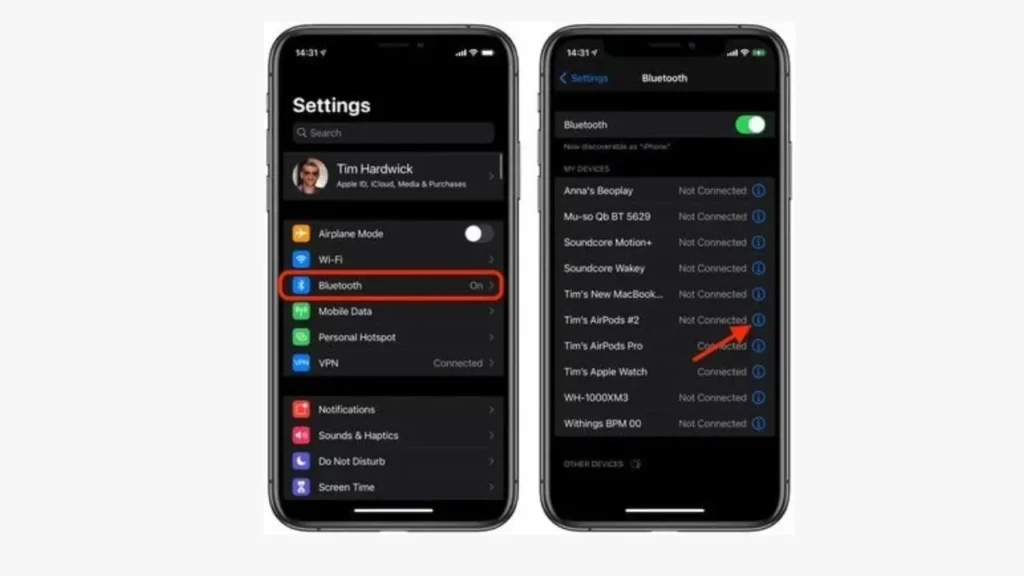
If your AirPods jump between devices more often than you’d like:
- Open Settings > Bluetooth.
- Tap the ⓘ next to your AirPods.
- Select Connect to This iPhone.
- Choose When Last Connected to This iPhone.
This prevents unexpected switching while still keeping the convenience of automatic pairing with your iPhone.
How to Connect AirPods Max to iPhone (Model-Specific Steps)
AirPods Max use on-ear controls rather than a case button, but the pairing process is still straightforward.
- Make sure Bluetooth is enabled on your iPhone.
- Hold the noise control button until the LED flashes white.
- Bring the AirPods Max close to your iPhone.
- Follow the pairing card that appears on the screen.
Because AirPods Max are often used for professional audio, gaming, or movies, this consistent pairing process ensures audio quality isn’t compromised.
Troubleshooting AirPods That Won’t Connect
If your AirPods don’t connect right away, don’t worry, Bluetooth can be a little moody. Here are the most common fixes:
1. Reset Your AirPods
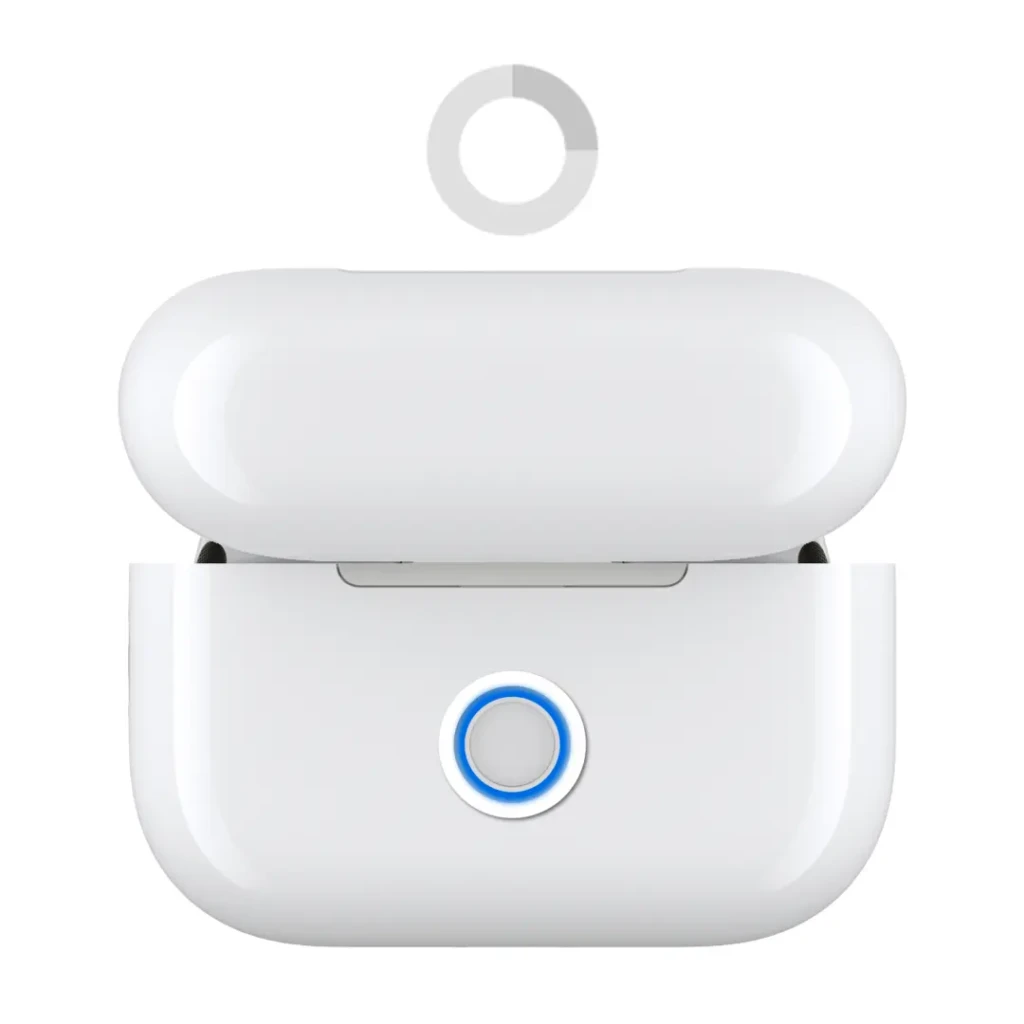
For AirPods and AirPods Pro:
- Put your AirPods in the case.
- Hold the back button for ~15 seconds until the LED flashes amber, then white.
For AirPods Max:
- Press and hold the noise control button + Digital Crown until the LED flashes amber/white.
2. Forget and Re-Pair the AirPods
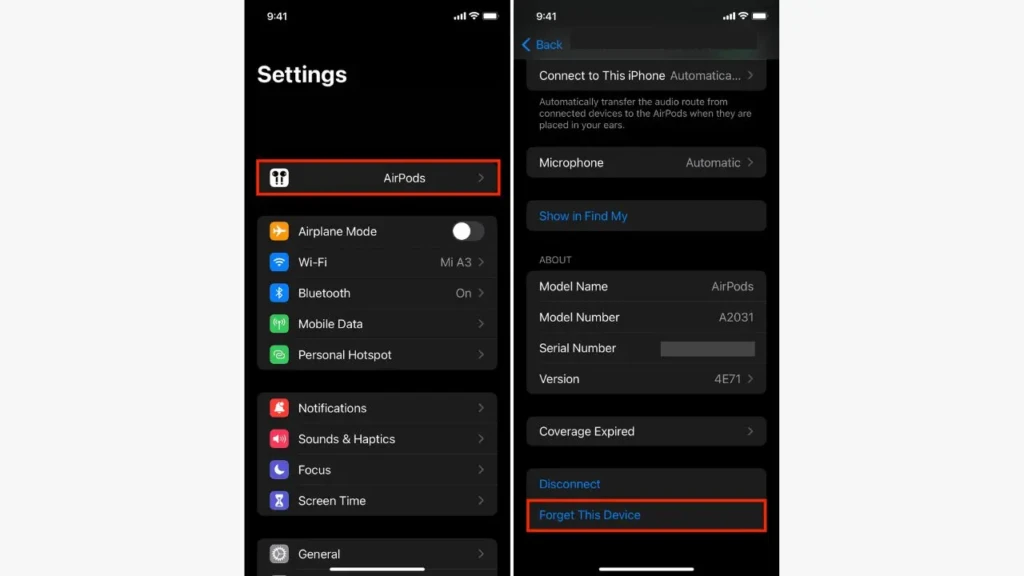
- Go to Settings > Bluetooth.
- Tap the ⓘ next to your AirPods.
- Choose Forget This Device.
Then try pairing again.
3. Restart Your iPhone
Sometimes the issue isn’t the AirPods at all; it’s iOS. A quick restart clears temporary glitches.
4. Check for Bluetooth Interference
Other wireless devices, crowded environments, or even outdated software can cause connection hiccups.
5. Update iOS
Outdated software can lead to compatibility problems.
And if you suspect your iPhone is slowing down or apps are refusing to appear, you may find these guides helpful:
Common Connection Issues Explained
Here are some common AirPods/iPhone issues, and why they happen:
Issue | Possible Reason | Solution |
AirPods keep disconnecting | Low battery, interference, weak Bluetooth | Recharge, reset, move away from interference |
Only one AirPod connects | Dirty charging contacts, low battery, pairing bug | Clean case, reset, reconnect |
Audio delay or stuttering | Too many background apps, low memory | Restart iPhone, clear memory |
No setup animation appears | iPhone is already linked to different iCloud devices | Forget the device & re-pair |
When in doubt, a quick restart of both devices often fixes things.
Tips for a Better AirPods + iPhone Experience
Once your AirPods are paired, you can enhance your experience with a few simple tips:
- Enable “Automatic Ear Detection” to save battery and improve audio switching.
- Turn on Spatial Audio for immersive sound when watching films or listening to supported music.
- Check AirPods battery levels in the Batteries widget.
- Keep firmware updated, as AirPods often receive quiet performance improvements.
For privacy lovers: clearing cookies on iPhone helps prevent tracking. See our guide on How to Clear Cookies on iPhone.
Conclusion
Connecting AirPods to your iPhone should feel effortless. With the steps above, you’ll always know exactly what to do, whether you’re pairing brand-new AirPods, switching devices, or fixing connection issues. Once you get the hang of it, your AirPods become an extension of your iPhone experience, making calls, listening to music, watching videos, and completing daily tasks feel smoother and more enjoyable.
I hope this guide helps you pair your AirPods with confidence and gives you a better, more seamless experience with your iPhone. I’m glad I could walk you through everything step by step.
FAQs
Yes. As long as the iPhone supports the required iOS version.
No. You need the case to pair, except for AirPods Max.
No. Resetting your AirPods removes pairing history, but won’t delete personal data.